Purpose
The purpose of this Quick Reference Guide (QRG) is to provide a step-by step explanation on how to process Local Education Agency (LEA) textbook orders at the Department of Public Instruction (DPI) in the North Carolina Financial System (NCFS).
Introduction and Overview
This QRG covers how to Process LEA textbook orders at DPI in NCFS. This QRG also covers how to create a Non-Catalog Requisition, review Non-Catalog Purchase Orders, process Purchase Order Receipts, create a Purchase Order Matched Invoice, process a Manual Accounts Receivable (AR) invoice, mark AR invoice paid, add AR customers, and Deposit Payment in Cash Management in NCFS.
Create a Non-Catalog Requisition
To create a Non-Catalog Requisition in NCFS, please follow these steps. There are 38 steps to complete this process.
Step 1. Log in to the NCFS portal with your credentials to access the system.
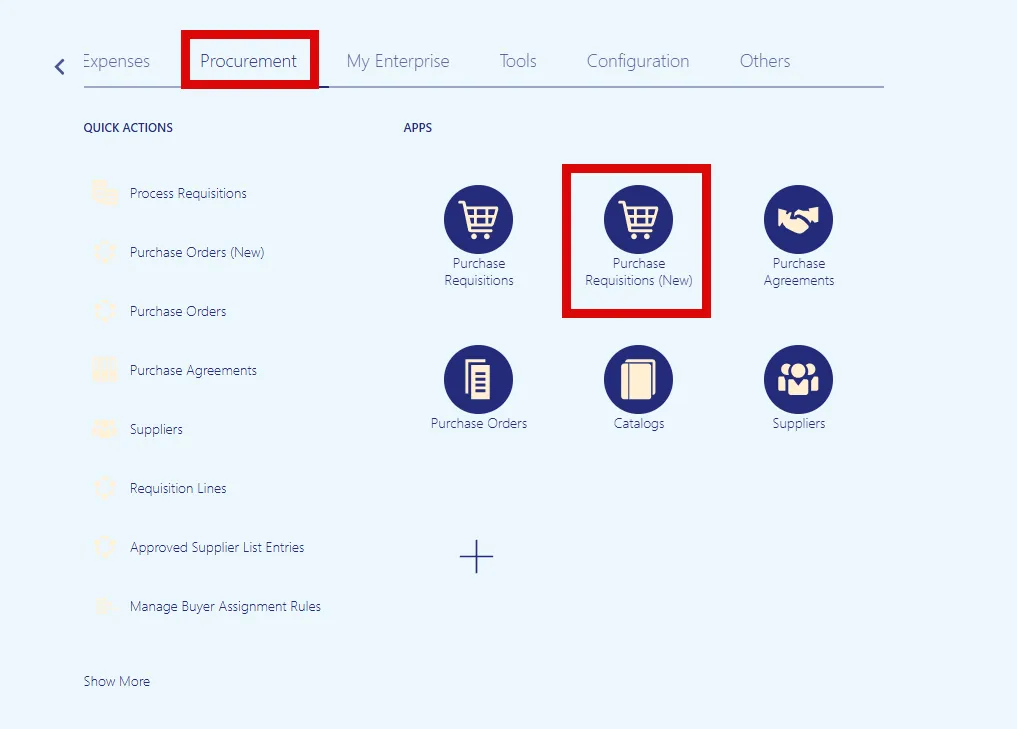
Step 2. On the Home page, select the Procurement tab. Select the Purchase Requisitions (New) app.
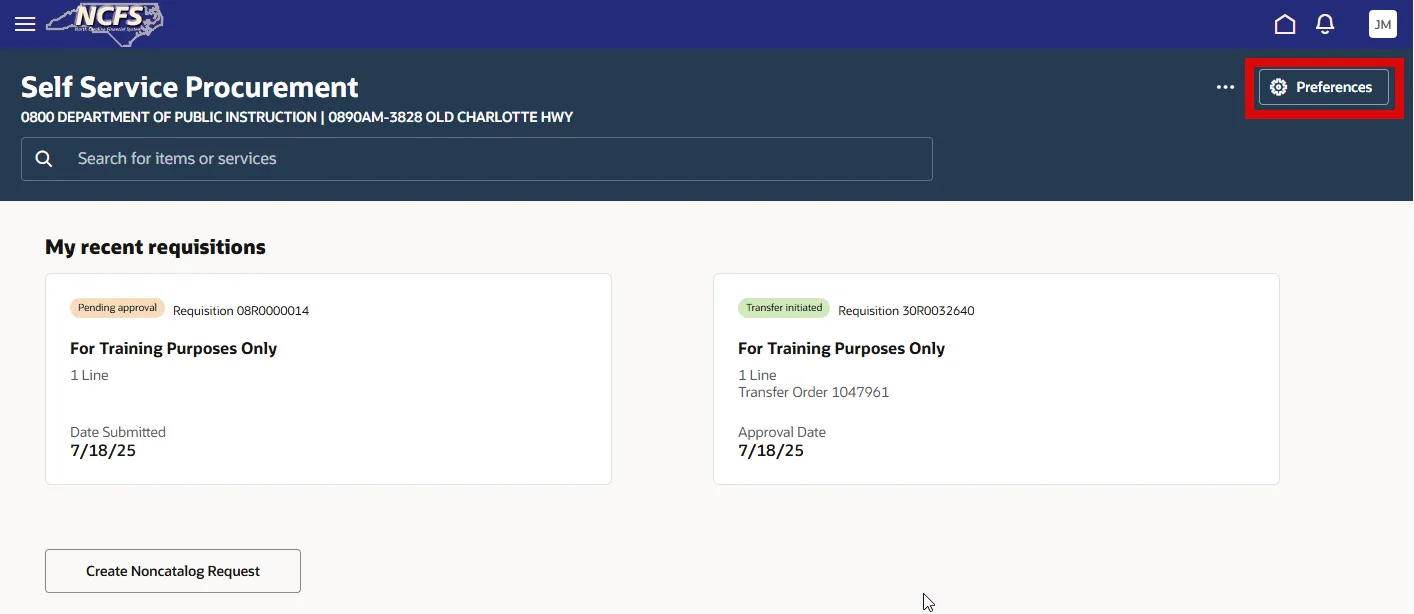
Step 3. Select the Preferences button in the top right corner.
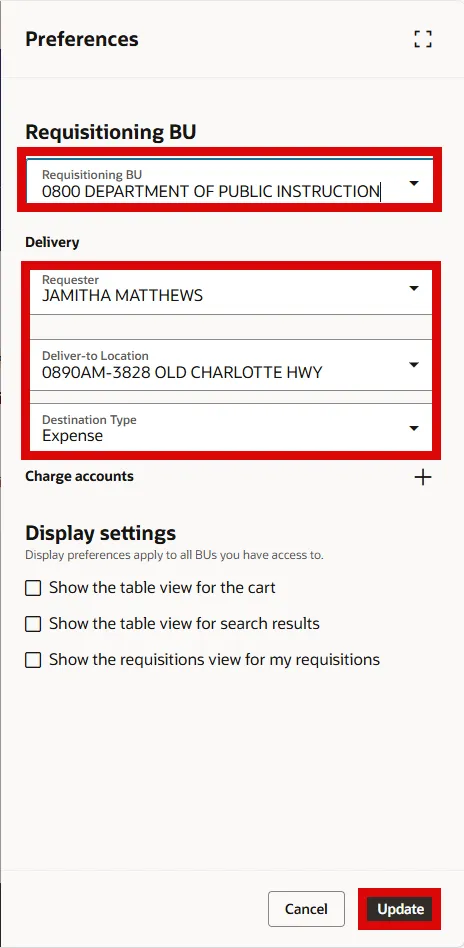
Step 4. On the Preferences page, enter the 0800 Department of Public Instruction in the Requisition BU field.
Step 5. In the Delivery section, select the appropriate Requestor, Deliver-to-Location, the Destination Type as Expense.
Step 6. Select the Update button.
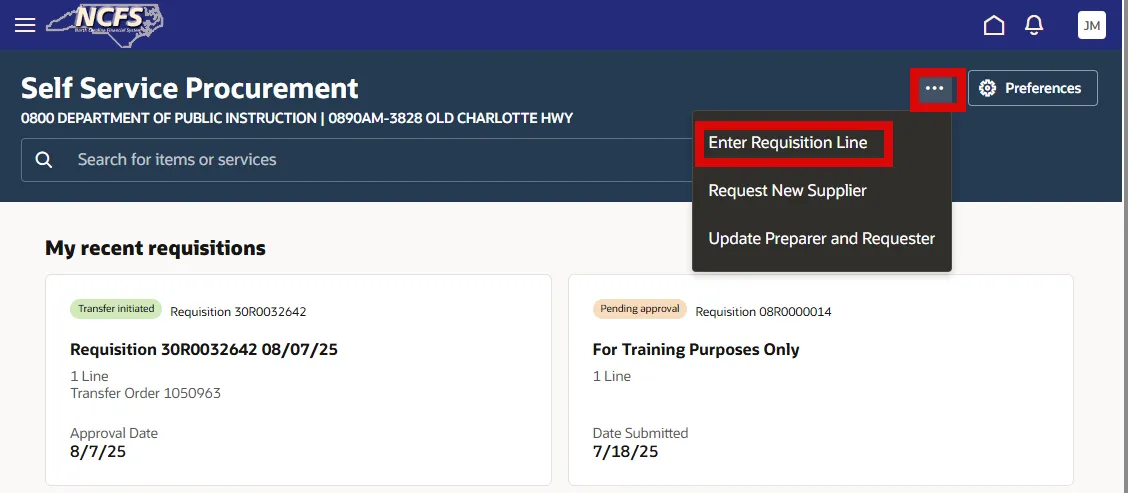
Step 7. Select More Actions (…) in the upper right corner and then select Enter Requisition Line.
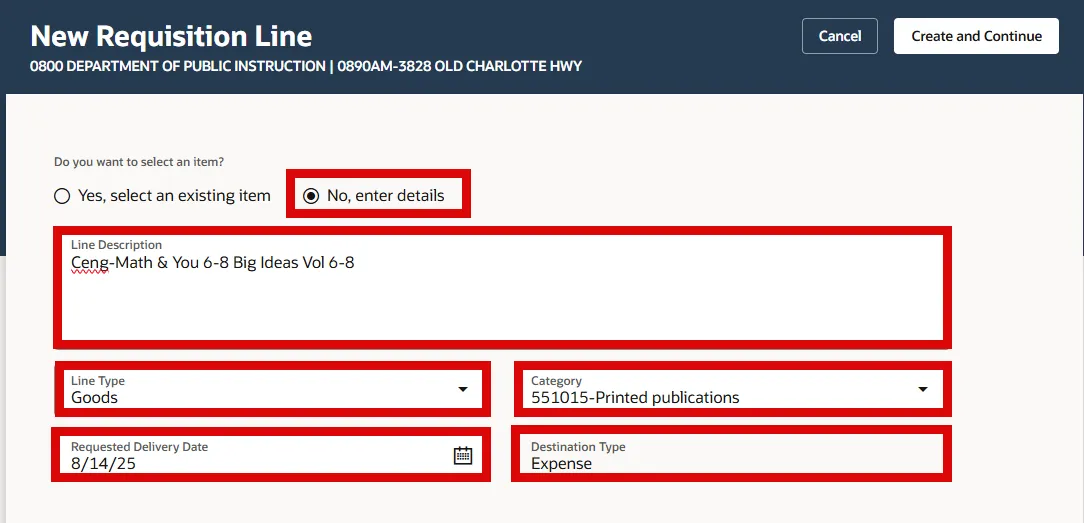
Step 8. On the New Requisition Line page, select No, enter details button.
Step 9. Enter the Line Description. The Line Type defaults to Goods. Enter 551015 Printed Publications in the Category field and enter the Requested Delivery Date. The Destination Type defaults to Expense.
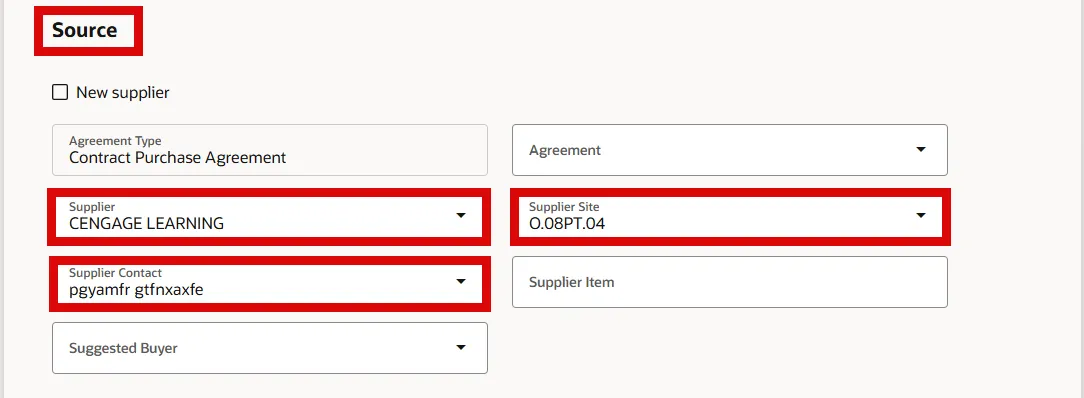
Step 10. In the Source section, enter/select Supplier and Supplier Site, Supplier Contact will default.
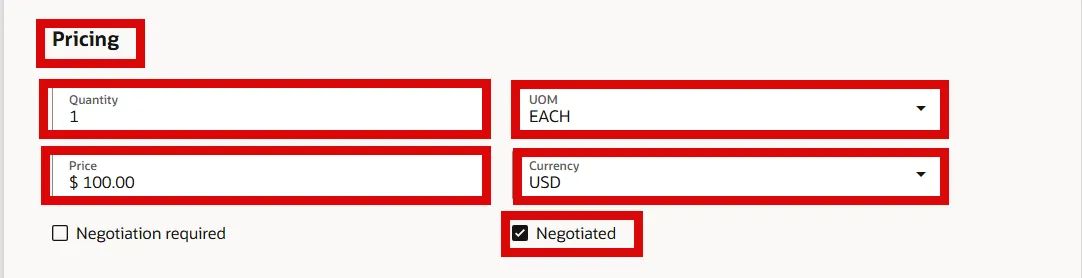
Step 11. In the Pricing section, enter Quantity in the Quantity field.
Step 12. Enter the Unit of Measure (UOM) in the UOM field.
Step 13. Enter item price in the Price field.
Step 14. Currency will default to USD.
Step 15. Check the Negotiated box. This box must be checked to auto approve the Purchase Order.
Step 16. Then select the Create and Continue button.
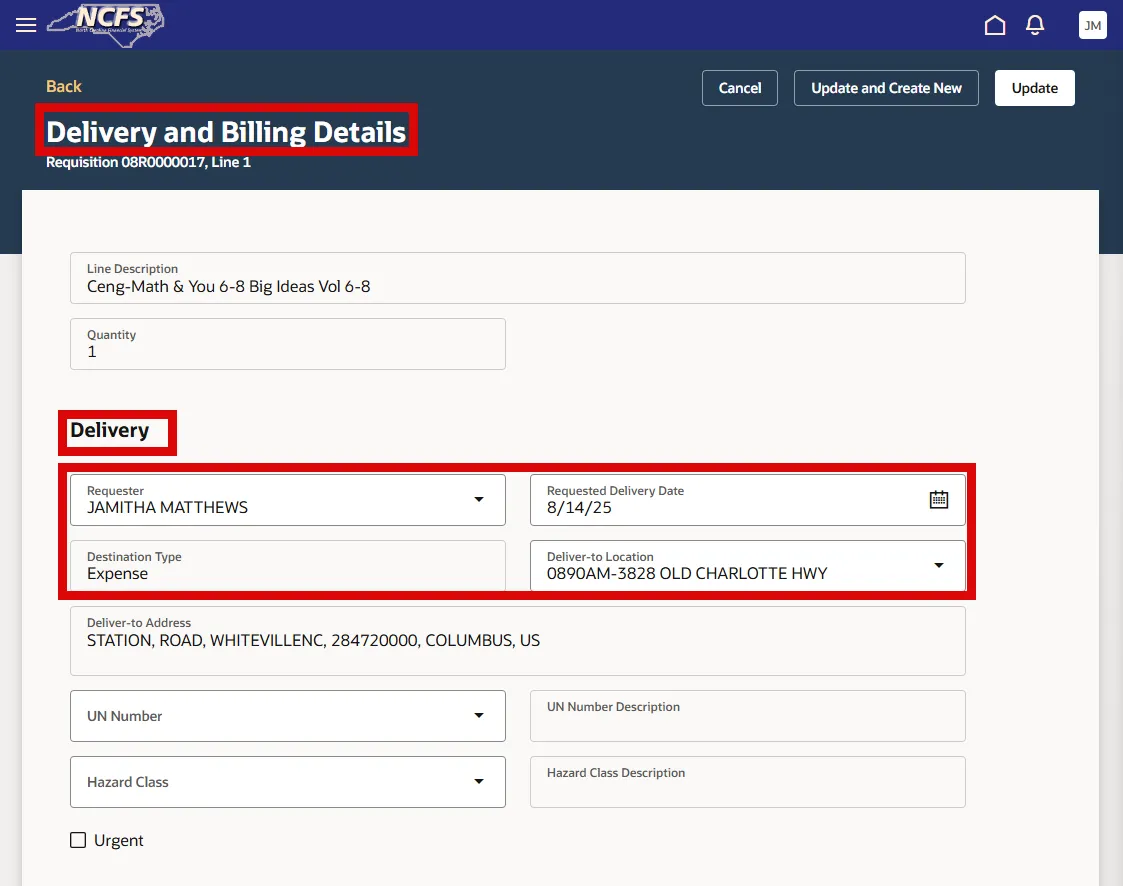
Step 17. On the Delivery and Billing Details page, review the Delivery information previously entered.
Step 18. In the Billing section, select the Actions for Test (…) and select the Edit option to enter the Charge Account.
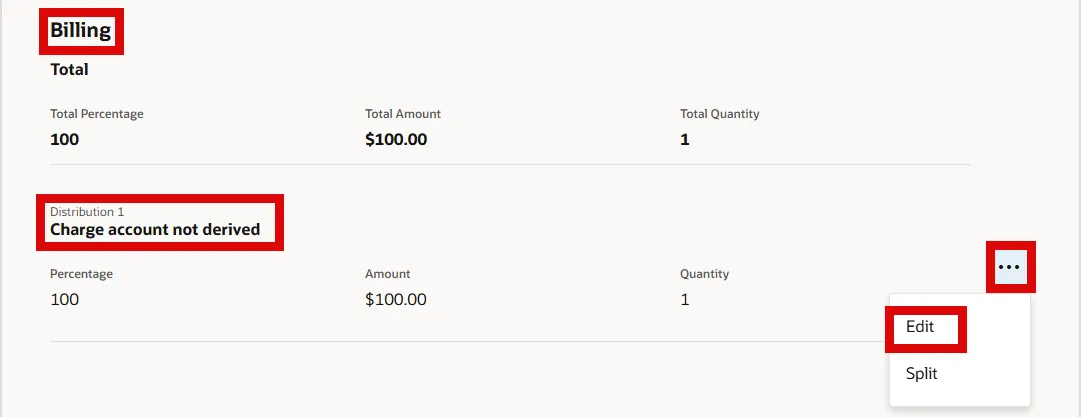
Step 19. In the Charge Account section, select the Box with arrow in the Charge To field.
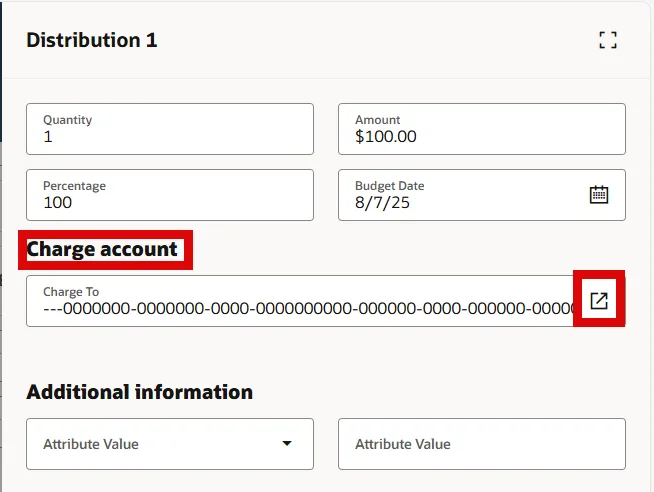
Step 20. Select the Agency, Budget Fund, Account, Agency Mgmt Unit, and Agency Program.
Step 21. Select the Accounting Segment and select the Apply button.
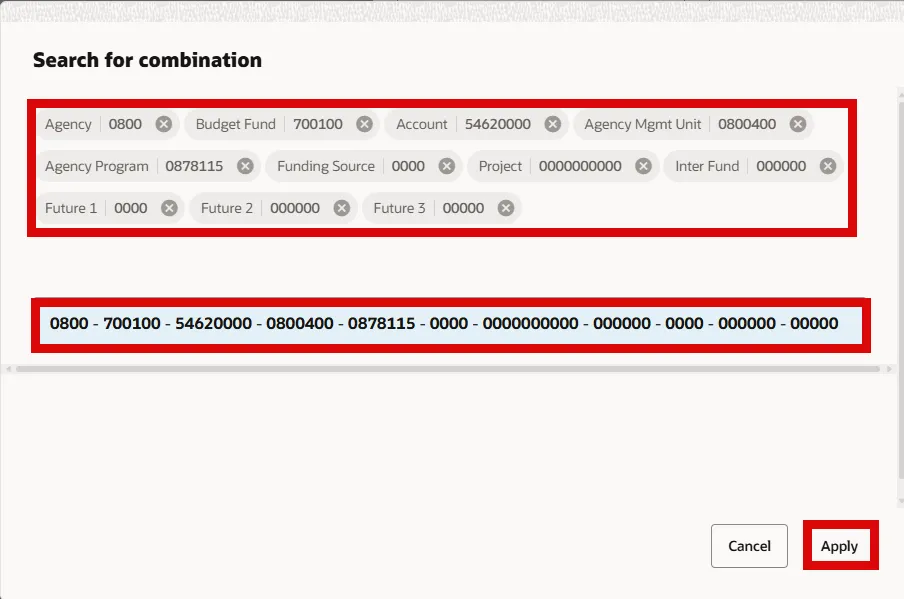
Step 22. Select the Update button to add the Charge account to the SSP Requisition order.

Step 23. The Accounting Distribution will now show under the Billing section, select the Update button to continue.
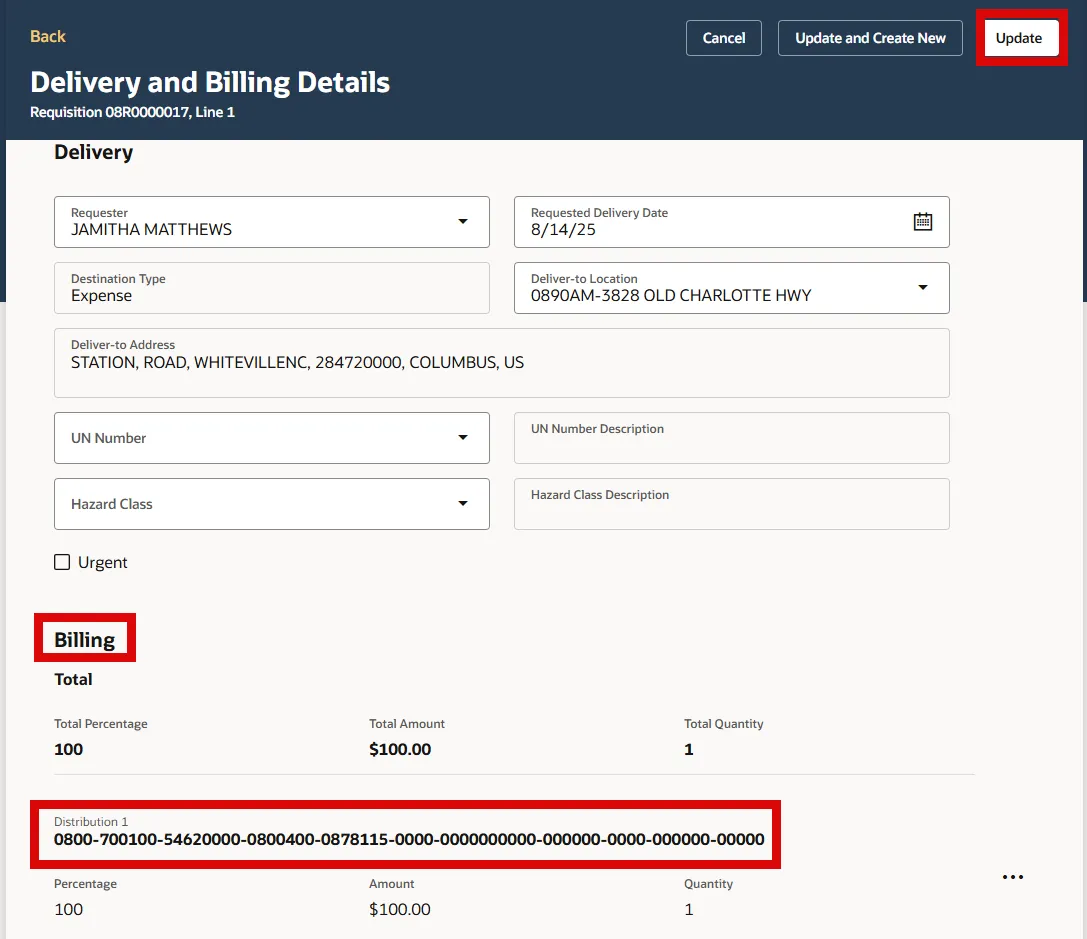
Step 24. In the Cart section, verify all Requisition Order details prior to submitting.
Step 25. You can edit the Line Item details by selecting the Pencil icon, edit the Delivery and Billing details by selecting the Box Truck icon, Duplicate the line details by selecting the Two Overlapping boxes icon, or delete the line by selecting the Trashcan icon.
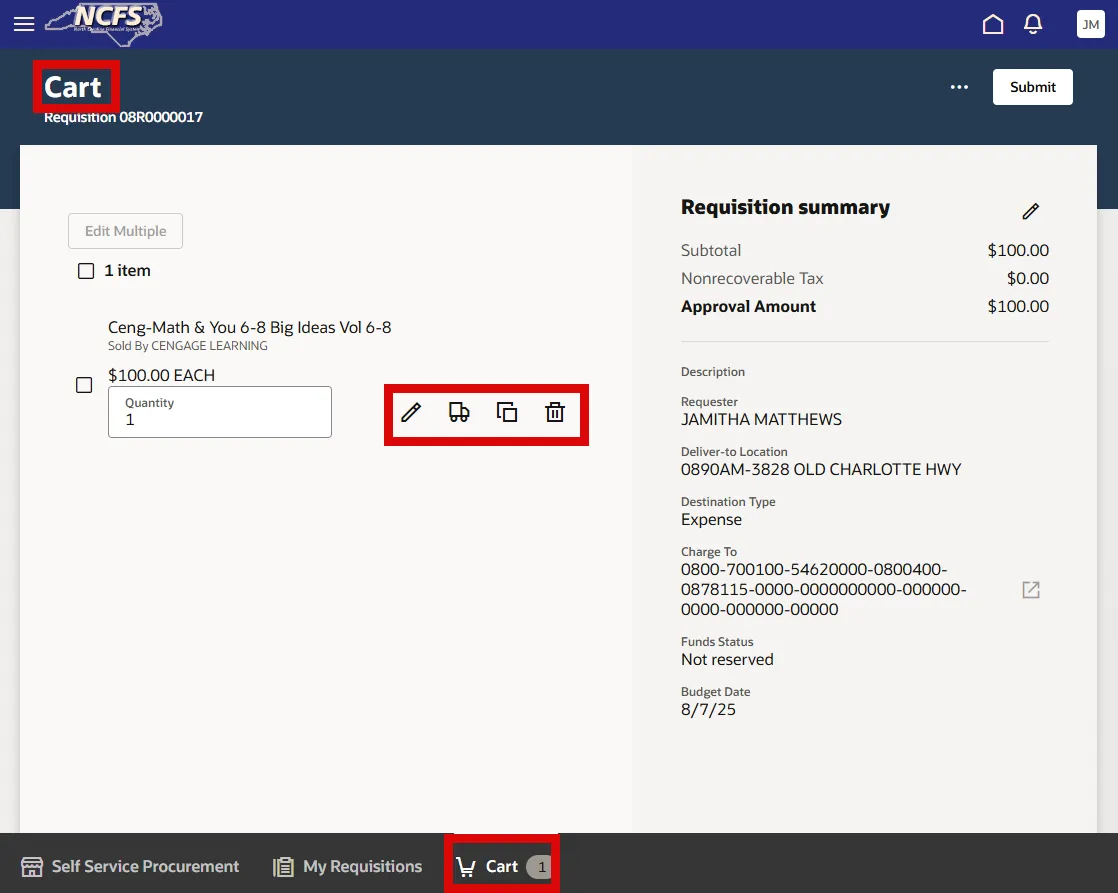
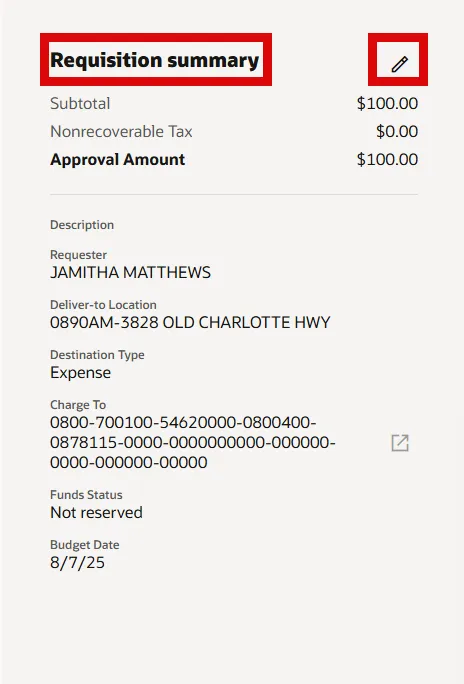
Step 26. Select the Pencil icon beside the Requisition Summary to enter a mandatory Description.
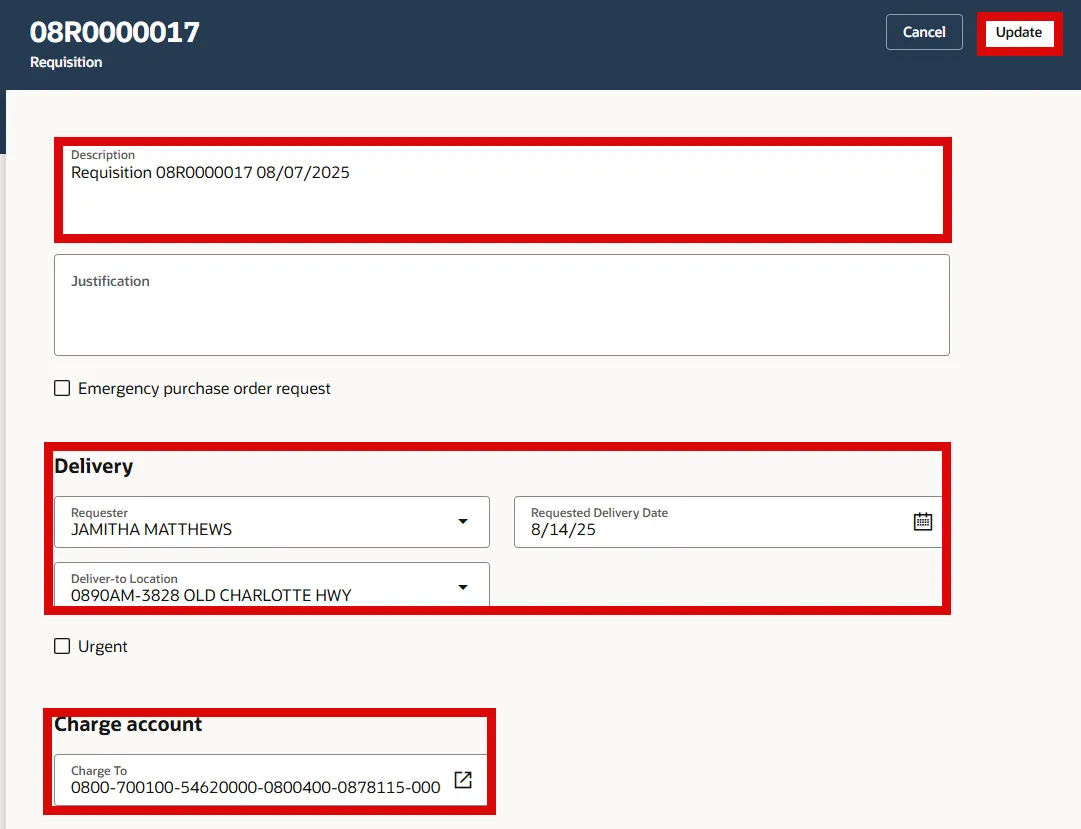
Step 27. In the Description field, enter information that will be useful in identifying this Requisition
i.e. Requisition 08RXXXXXXX XX/XX/XXXX.
Step 28. You can edit the Requestor, Requested Delivery Date, Deliver to Location, and Charge Account by selecting the Pencil icon next to the Requisition Summary.
Step 29. Then select the Update button to continue.
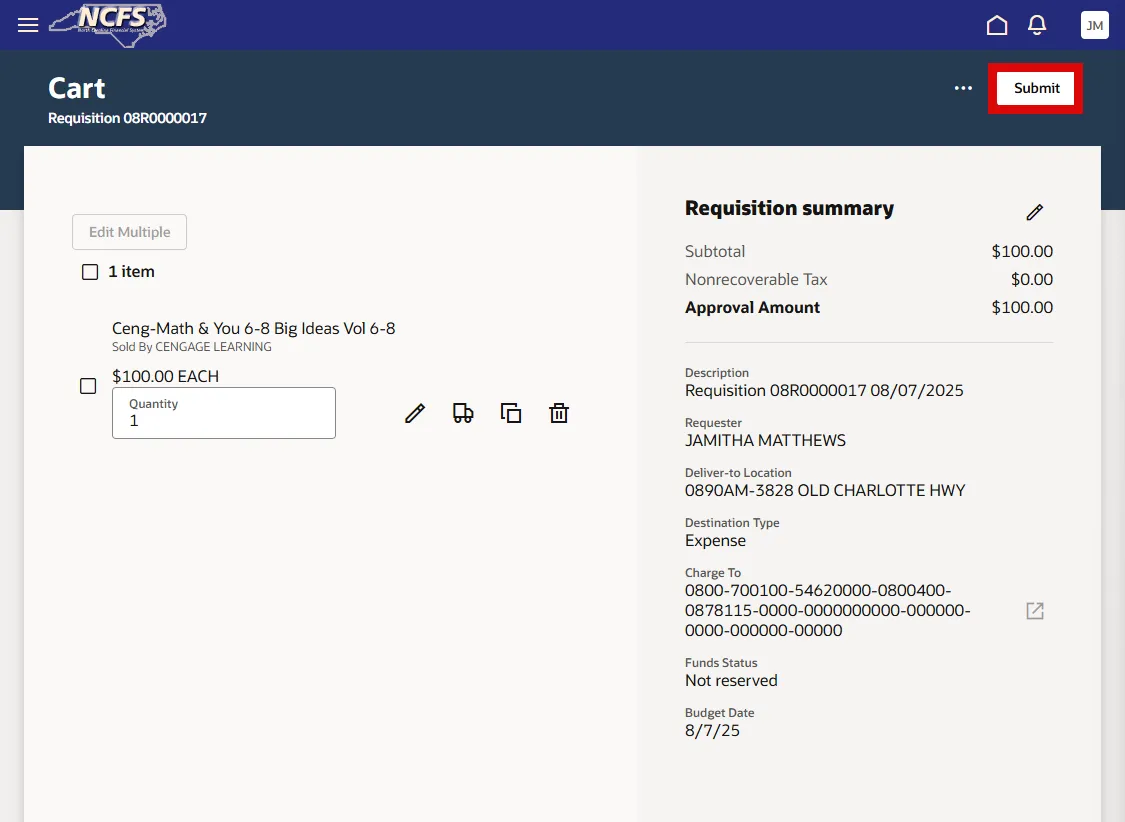
Step 30. Review the SSP Requisition Order details and then select the Submit button.
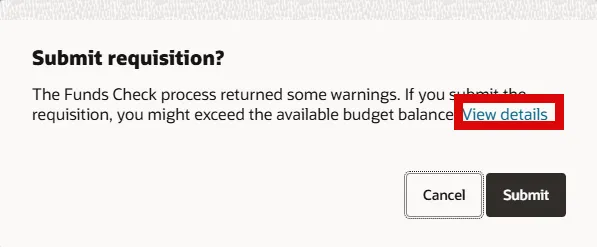
Step 31. A pop-up box will appear, if there are any Funds Check warnings.
Step 32. Select the View Details link to see any warning details.
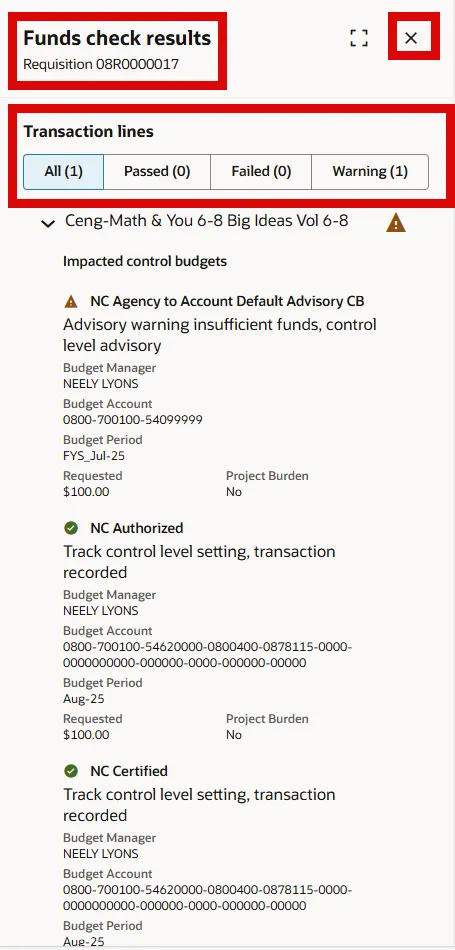
Step 33. Review the Transaction Line Status and discuss with DPI’s Budget Analyst. Select the X to exit.
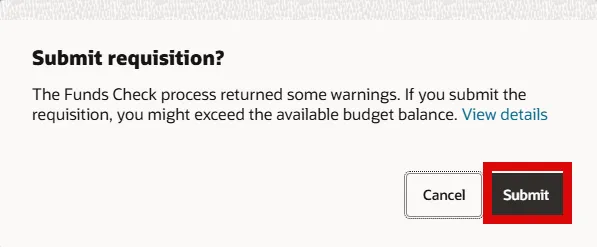
Step 34. The Warning window will reappear, select the Submit button.
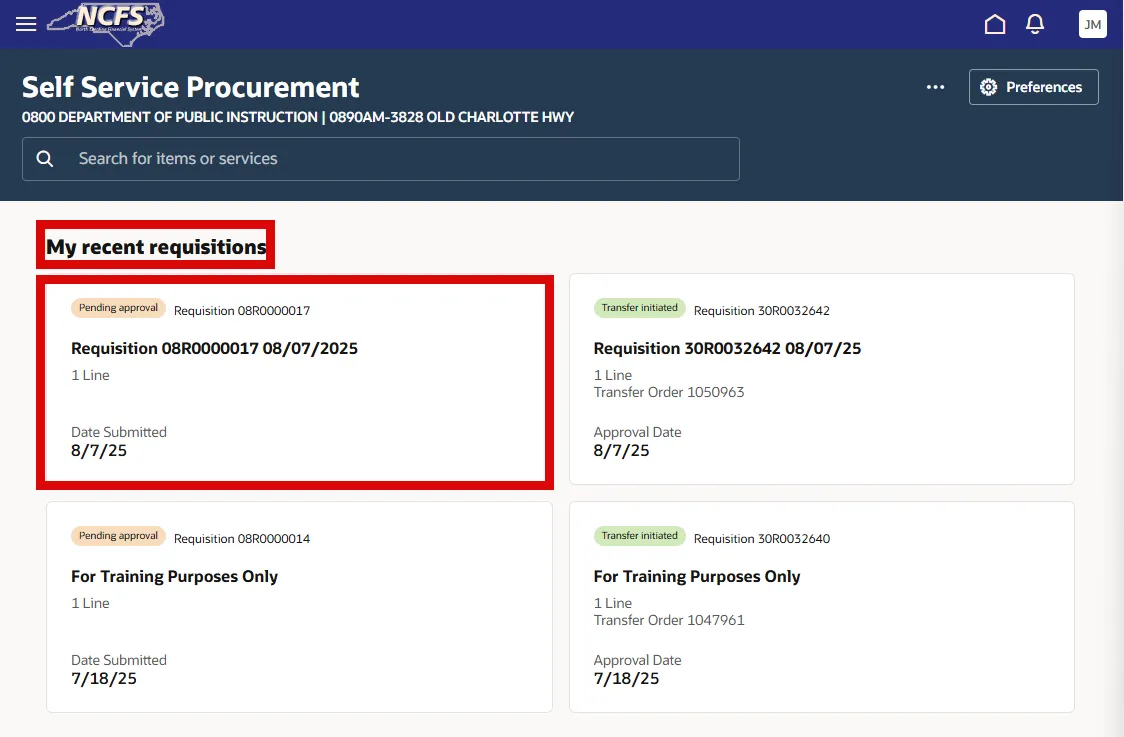
Step 35. Select the SSP Requisition Order tile from the My recent requisitions page.
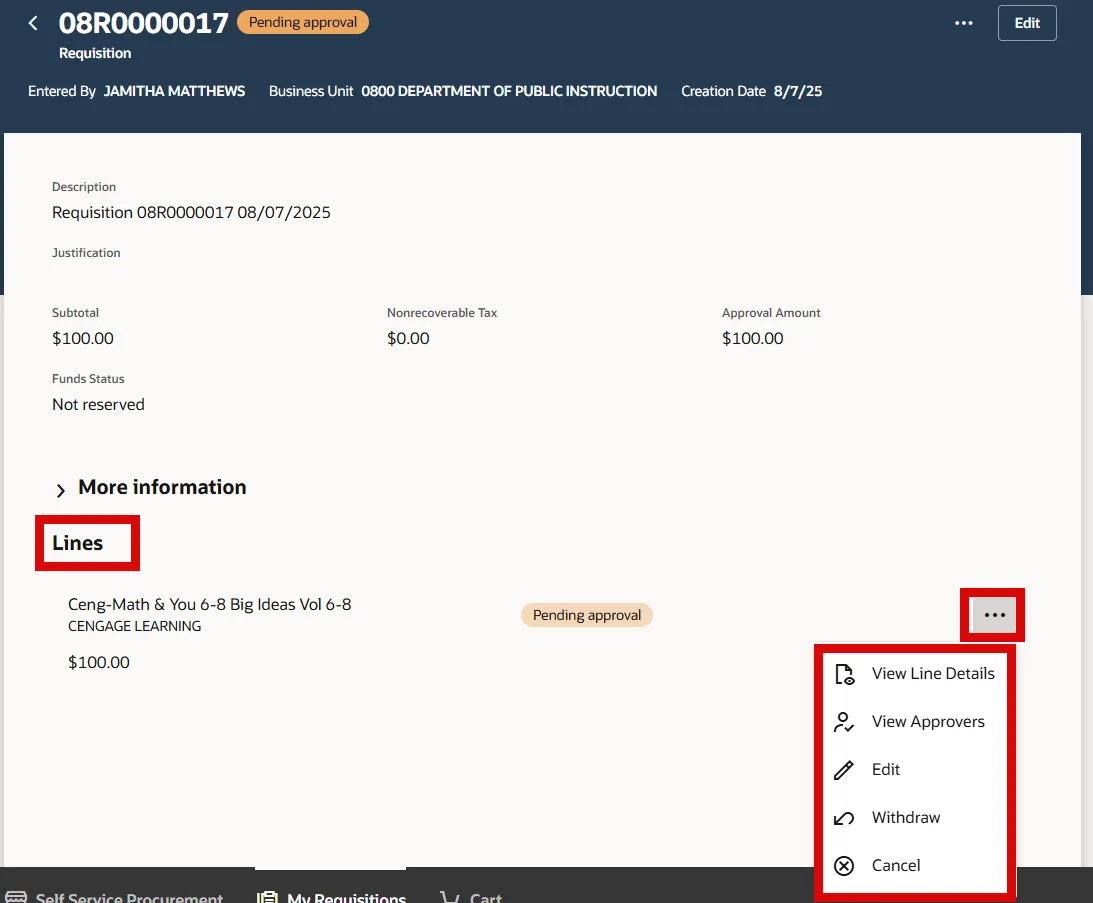
Step 36. Under the Lines section, select the Actions (…) to View Approvers.
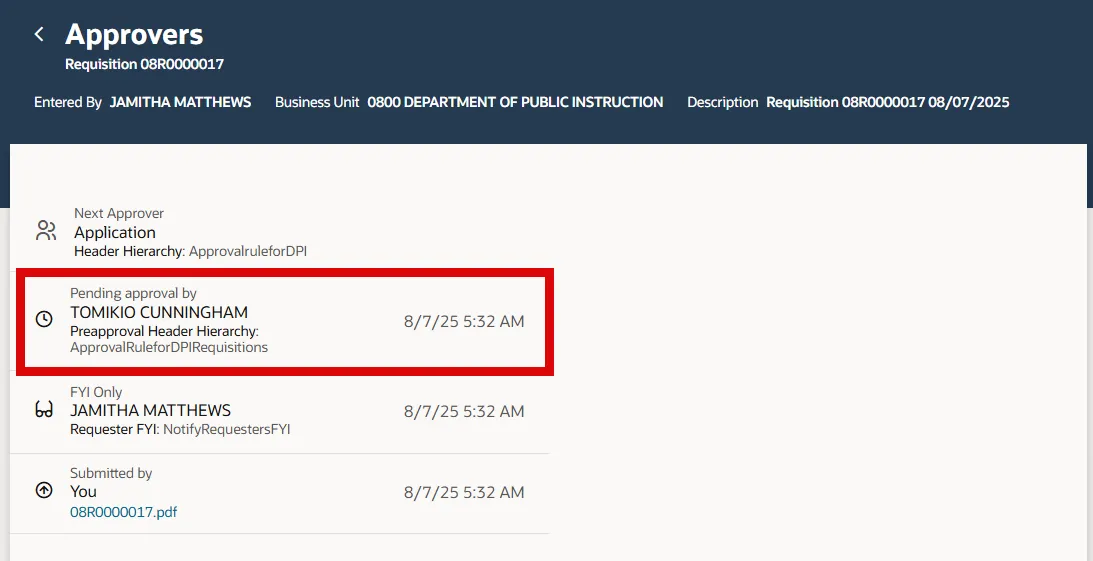
Step 37. Review the Pending approved by and communicate with this end user to have the SSP Requisition approved.
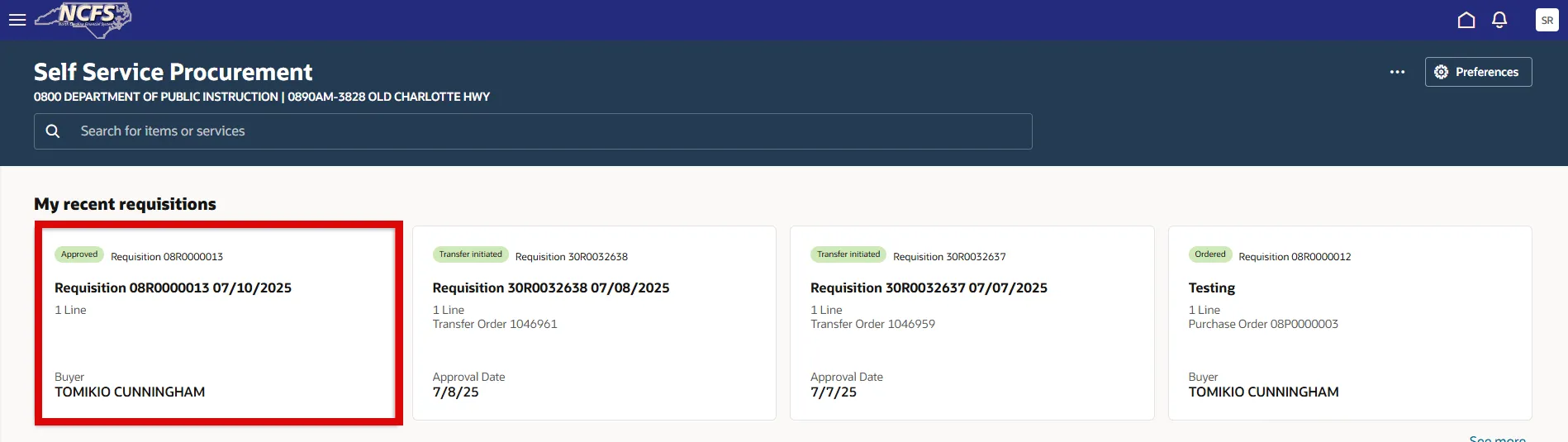
Step 38. Once approved, the SSP Requisition status will update to Approved.
Review Created Non-Catalog Purchase Order
Once the requisition is approved the purchase order will automatically be generated. Follow these steps below to review the purchase order in NCFS.
There are 5 steps to complete this process.
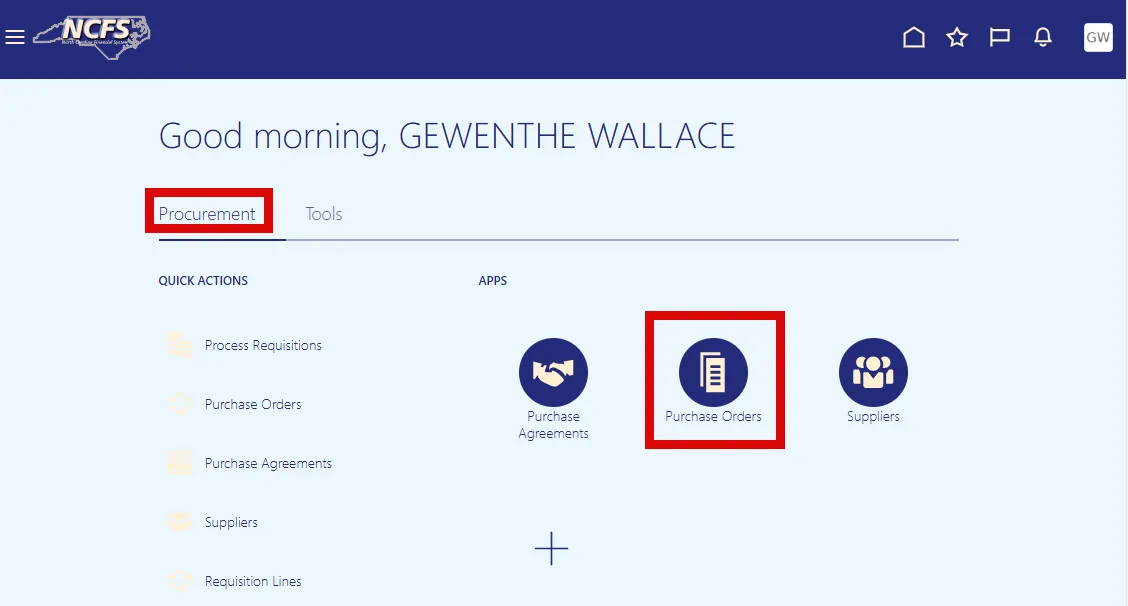
Step 1. Select the Procurement tab on the Home page.
Step 2. Select the Purchase Orders app.
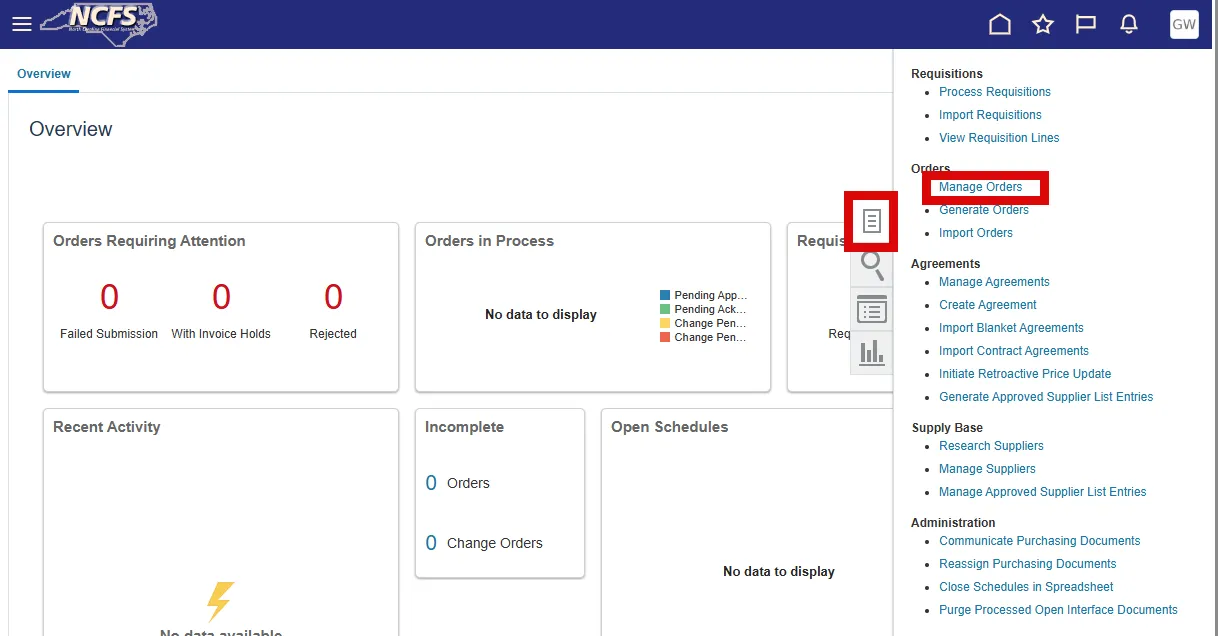
Step 3. Select the Tasks icon menu and select Manage Orders.
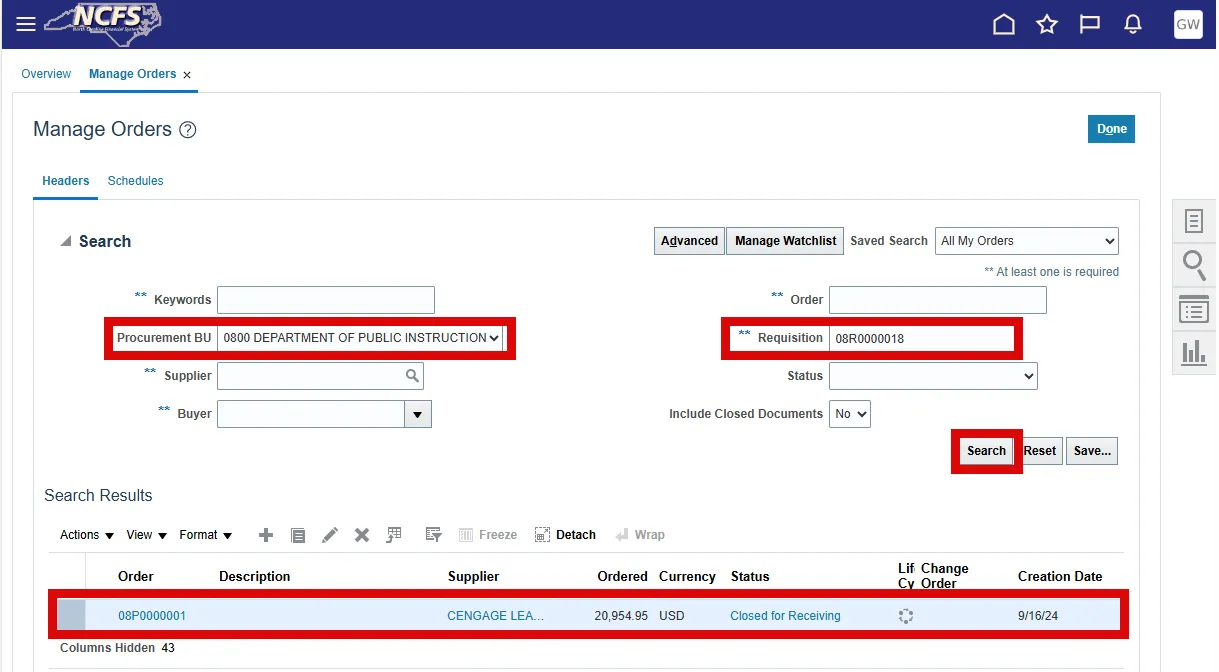
Step 4. The Procurement BU will default. Enter the Requisition number in the Requisition field. Select Search to pull up the Purchase Order created.
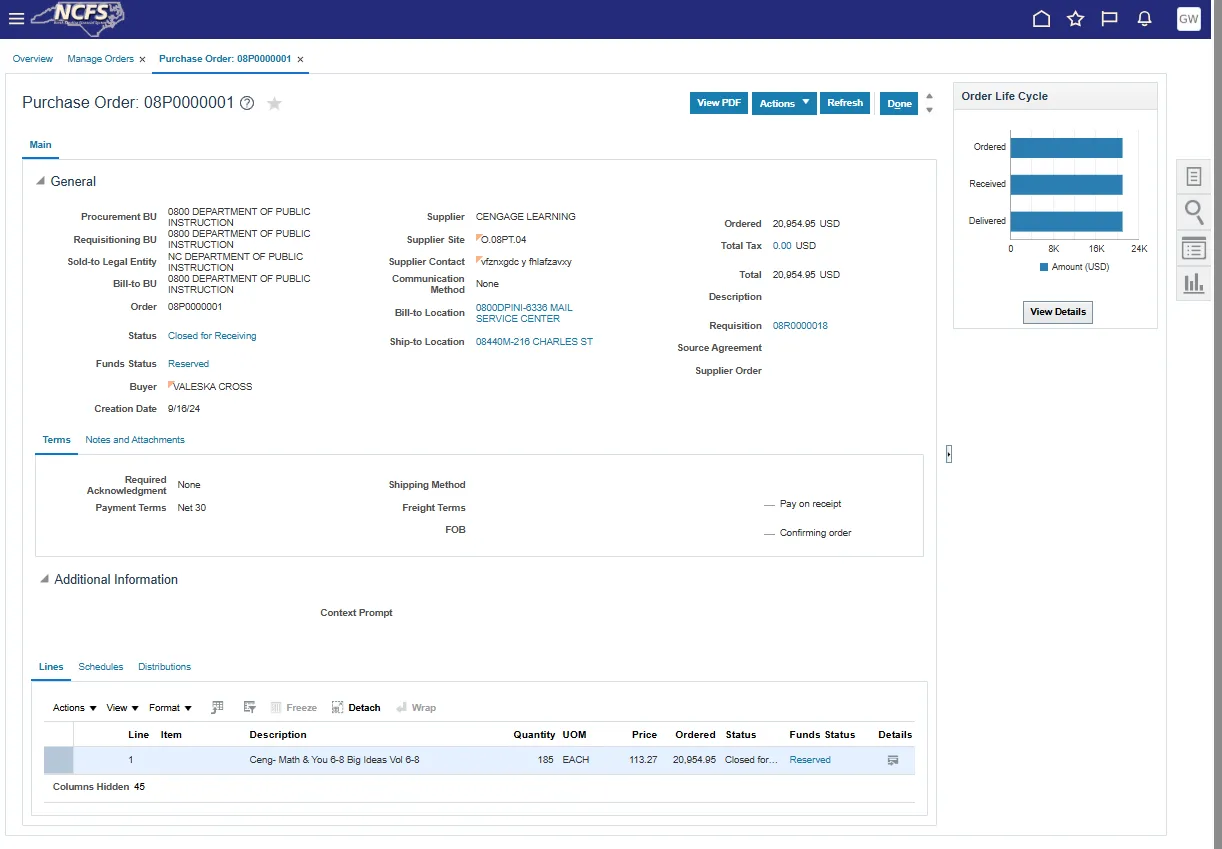
Step 5. Select the Purchase Order hyperlink to view the Purchase Order details.
Process Purchase Order Receipt
Once LEAs receive the textbook orders, DPI should be notified of the quantity and accuracy of the order received.
Follow these steps below to receive the order against the Purchase Order in NCFS. There are 17 steps to complete this process.
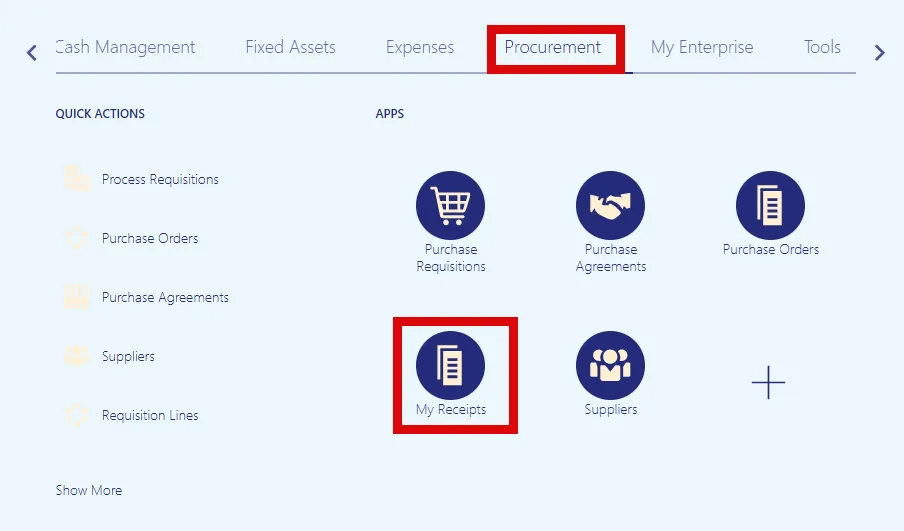
Step 1. Select the Procurement tab on the Home page.
Step 2. Select the My Receipts app.
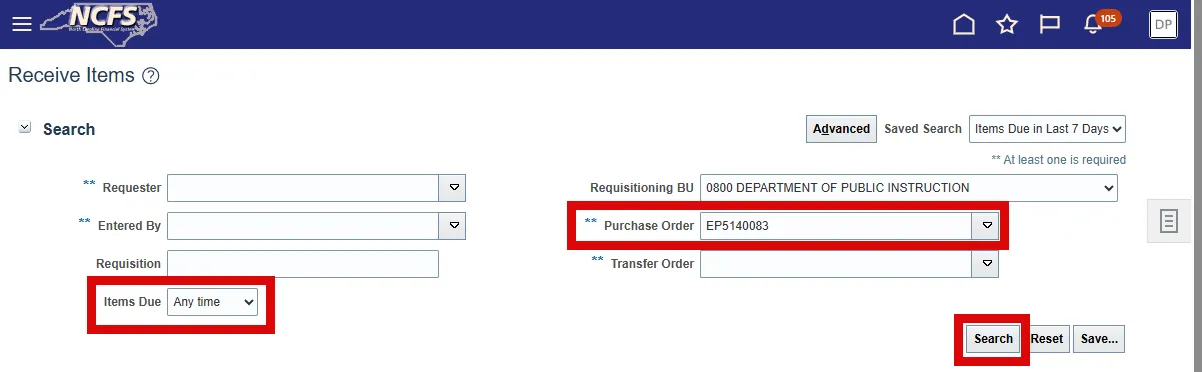
Step 3. On the Receive Items screen, enter the Purchase Order number.
Step 4. Select Any Time from the Items Due drop-down menu.
Step 5. Select the Search button.
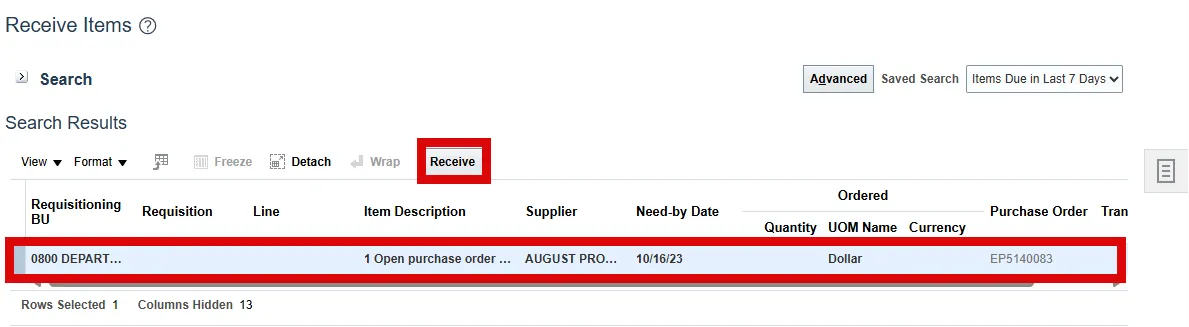
Step 6. Select the desired row.
Step 7. Select the Receive button.
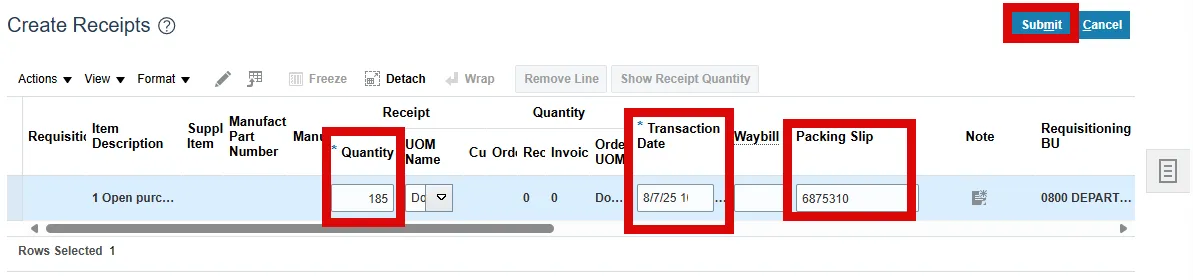
Step 8. On the Create Receipts screen, enter the Quantity Received by LEAs in the Quantity field.
Note: If the LEAs receive a partial order quantity, enter the partial quantity that was received.
Step 9. The Transaction Date will default to today’s date, enter the appropriate date received.
Step 10. Enter the Packing Slip number, if available in the Packing Slip field.
Step 11. Select the Submit button.
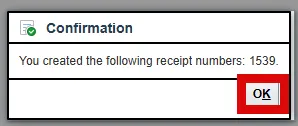
Step 12. A Confirmation window will appear with the Receipt Number.
Step 13. Select OK.
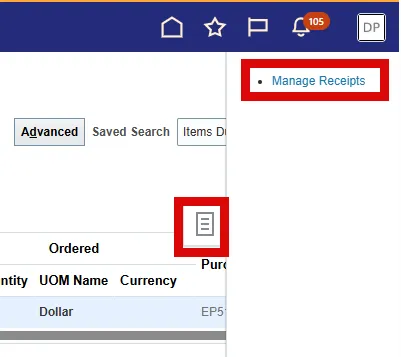
Step 14. Select the Tasks icon and select Manage Receipts to review the receipts processed.
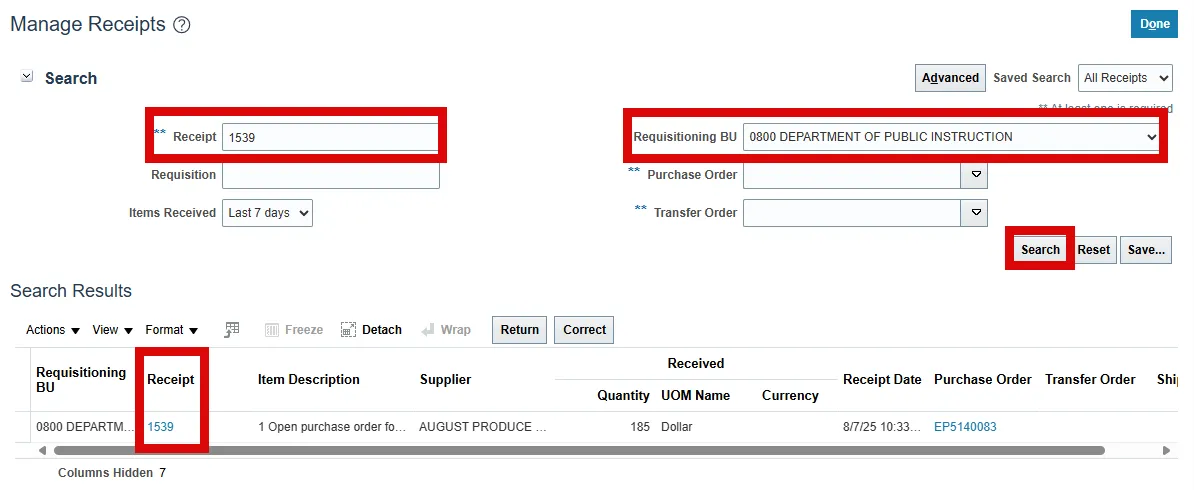
Step 15. On the Manage Receipts screen, enter the Receipt number in the Receipt field.
Step 16. Select the Requisitioning BU as 0800 DEPARTMENT OF PUBLIC INSTRUCTION.
Step 17. Select Search to review the receipt details.
Create a Purchase Order Matched Invoice
Once the textbook supplier sends the invoice to DPI, DPI Accounts Payable staff will Create a Purchase order matched invoice in Payables to pay the invoice against the purchase order. Please reference QRG: AP-30 Create PO Matched Invoice & Update Invoice Cost Distribution.
Process a Manual Accounts Receivable (AR) Invoice
DPI will create an AR invoice to the LEA for the invoice plus 1.75% fee amount and send to the LEA for payment. To Create and Manage Invoices in AR, please reference QRG: AR-06 Create and Manage Invoices.
Mark an AR Invoice Paid
Once payment is received by DPI from the LEA, DPI will mark the AR invoice paid. To mark an AR Invoice paid, please reference QRG: AR-11 Create and Manage Receipts.
Create New Customers in AR
Only needed if DPI adds a new LEA. To create a new customer(s) in AR, please reference QRG: AR-19 Process for Creating Customer.
Deposit Payment into Cash Management
Please refer to your agency’s procedures for processing receipt of a paper check from the LEAs. To enter a journal entry manually to record the deposit, please refer to QRG: CM-12 Entering a Journal Entry Manually.
Wrap-Up
Create a Non-Catalog Requisition, Review Non-Catalog Purchase Order, process Purchase Order Receipt, close a Non-Catalog Purchase Order, process a Manual Accounts Receivable (AR) invoice, mark AR invoice paid, Add AR customers, and Deposit Payment in Cash Management.
Additional Resources
- Web Based Training (WBT)
- Instructor Led Training (ILT)