Purpose
The purpose of this Business Process Procedure is to explain how to process a Reinstatement/Reemployment from Workers’ Comp in the Integrated HR-Payroll System.
Trigger
There is a need to process a Reinstatement/Reemployment from Workers’ Comp for one of the reasons listed in the Business Process Procedure Overview section.
Business Process Procedure Overview
For Reinstatement/Reemployment from WC LOA only.
- 12 - Return from Workers’ Comp w/Physician Restrictions that state a Modified Duty of 20-40 hrs - Employee has been released by the treating physician to return to a modified duty assignment with a work schedule of 20 or more hours a week. Employee has not reached maximum medical improvement (MMI).
- 13 - Return from Workers’ Comp with MMI Complete – Employee has reached maximum medical improvement (MMI) and has been released by the treating physician to return to permanent work in the same position or one of seniority, status, and payheld prior to WC leave.
- 22 - Return from Workers’ Comp with MMI Disability – Employee has reached maximum medical improvement (MMI) and has been released by the treating physician to return to work but has a disability which prohibits employment in the same capacity that existed prior to WC leave. Agency work placement has identified and placed employee in another position suitable for employee and agency.
- 23 - Rtn from Workers’ Comp w/Physician Restrictions that state a Modified Duty less than 20 hrs - Employee has been released by the treating physician to return to a modified duty assignment with a work schedule of less than 20 hours a week. Employee has not reached maximum medical improvement (MMI).
Note: Follow the steps below for the four reasons above. You will find additional instructions at the end of this document to assist in reviewing or adjusting other infotypes as needed.
Employees returning from WC Salary Continuation Pay must be brought back in the same capacity as they left. (EE Subgroup and Work Schedule Rule)
- If employee is returning part-time, use the following codes on timesheet.
- 9500 Time Worked
- 9685 Injury Leave
Note: You will not create an Appointment Change Action for employees returning from WC Salary Continuation Pay or WC Continuation Pay for Teachers Only.
Tips and Tricks
Prior to initiating any workflow, ensure the data being used is valid and appropriate. For example, if working with a Reinstatement/Reemployment action, ensure the individual is currently listed as out on LOA.
Note: This BPP starts with completing the Action. If you need assistance with creating the workflow, see Reinstatement/Reemployment Action from LOA Action.
PROCEDURE
Note: These instructions assume you have initiated the Leave of Absence Personnel Change Request (PCR) in workflow, and you have an approved PCR ready to be processed as a Leave of Absence in the system.
There are 24 steps to complete this process.
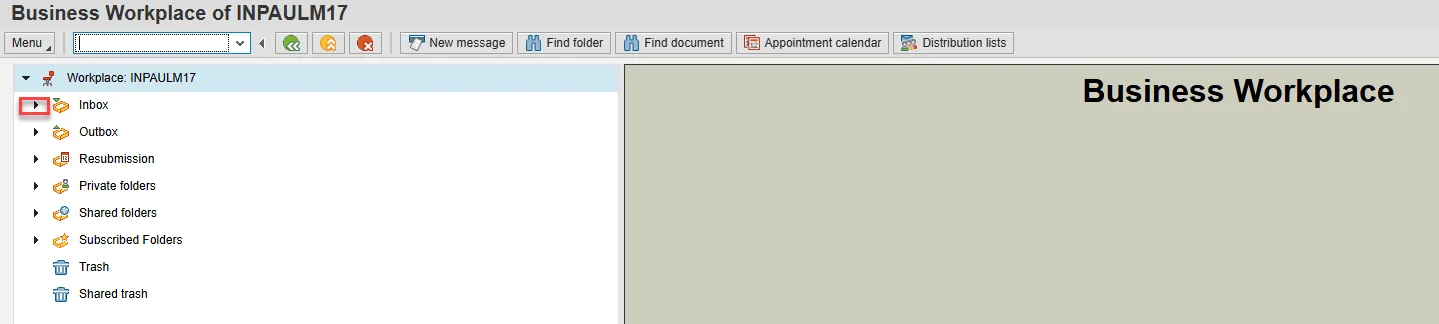
Step 1. Choose the SAP Business Workplace button from the SAP Easy Access page.

Step 2. Expand the Inbox using the expand node.
Note: Failure to complete this step could cause some functions to be unavailable on the secondary button ribbon in the subfolders.
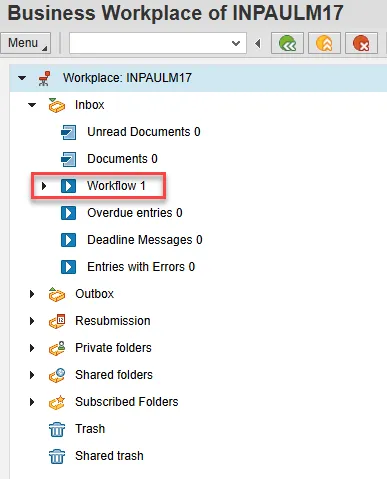
Step 3. Select the Workflow subfolder.
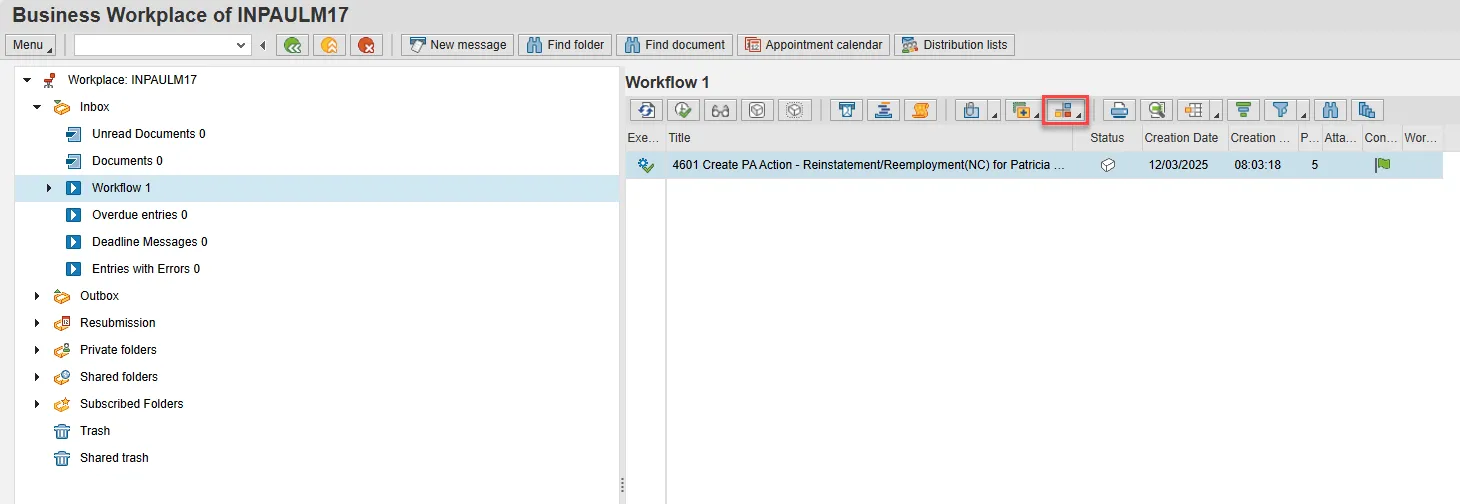
Step 4. You will see your highlighted, approved PCR. You can use the Environment button on the secondary button ribbon to retrieve a copy of the note. Access PER-57 Copying Notes from the PCR to Infotypes for steps on retrieving the note.
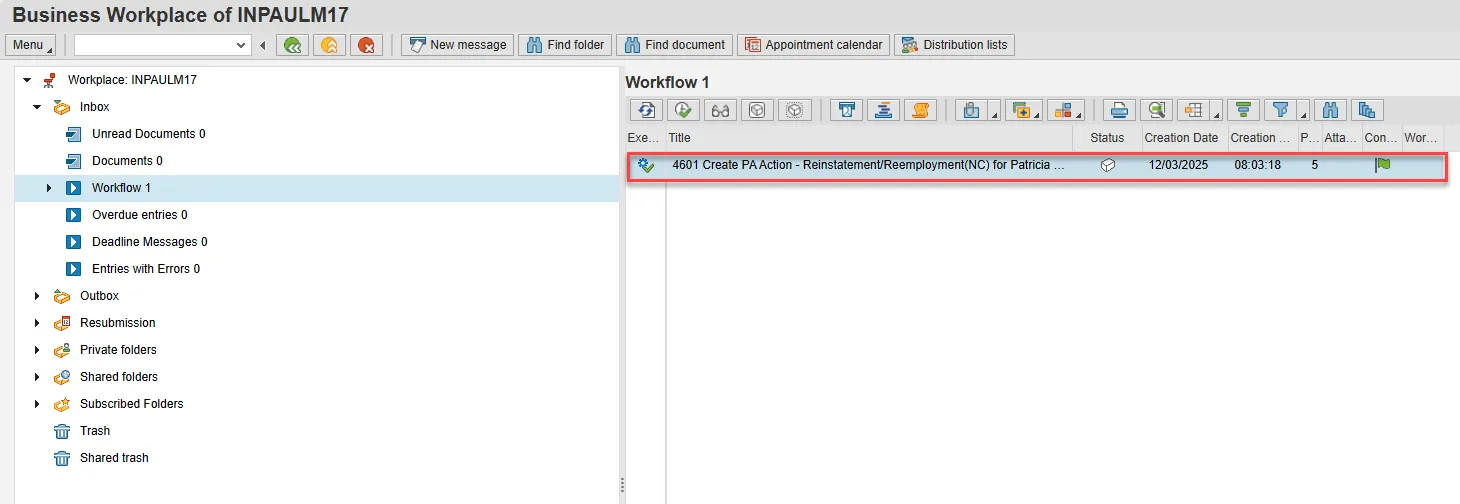
Step 5. Double click the PCR to begin the action.
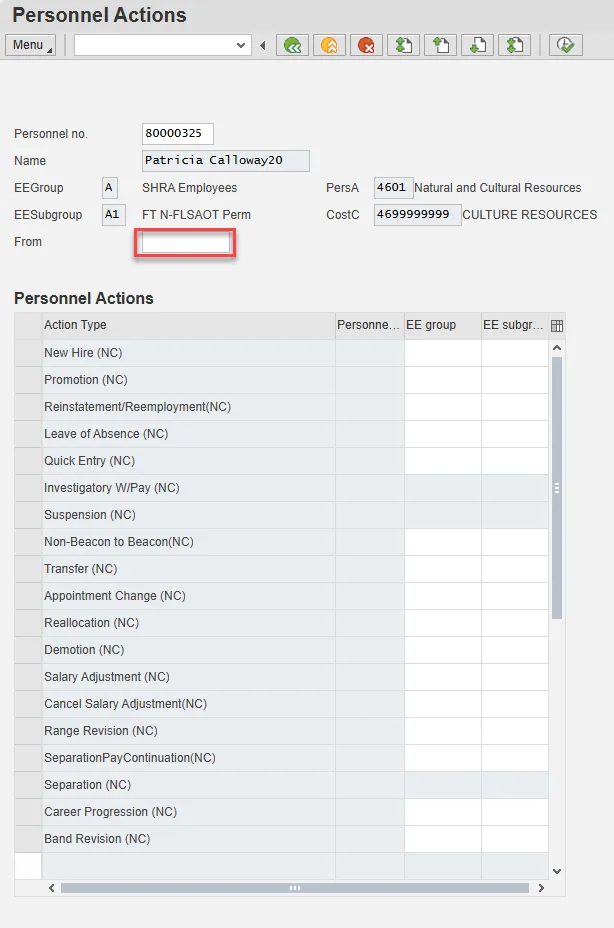
Step 6. On the Personnel Actions screen, enter the effective date in the From field.
Note: The effective date must match the date used to create the request.
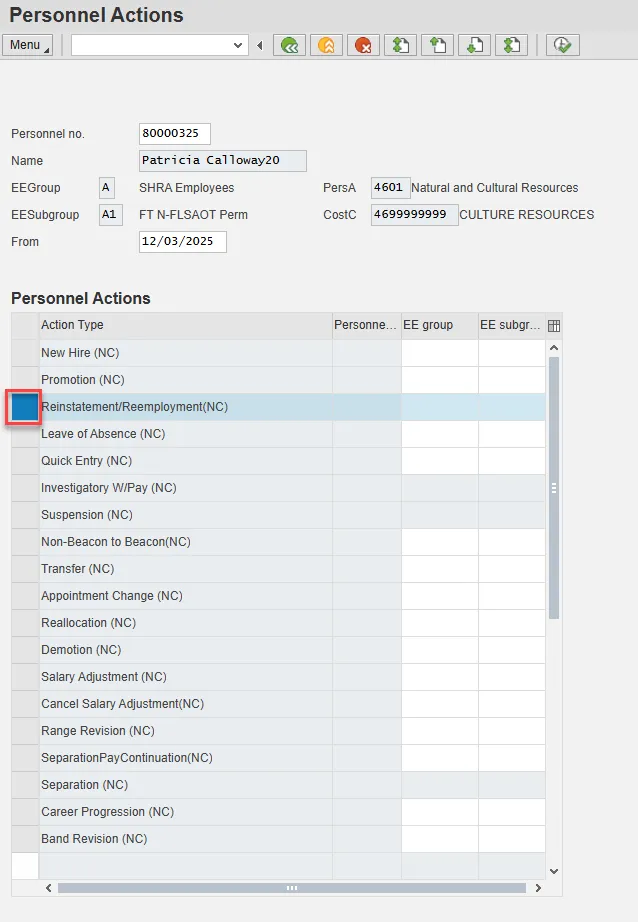
Step 7. Select the gray box to the left of Reinstatement/Reemployment(NC) to highlight that action.
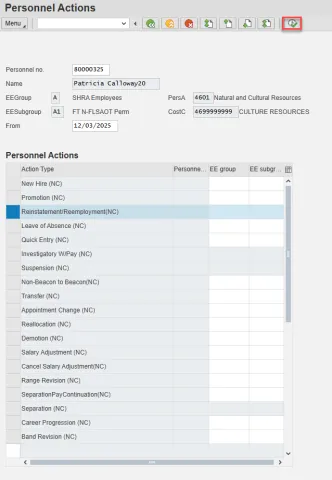
Step 8. Select Execute.
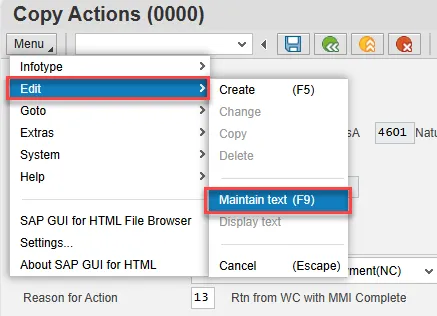
Step 9. On the Copy Actions (0000) screen, select the Menu button.
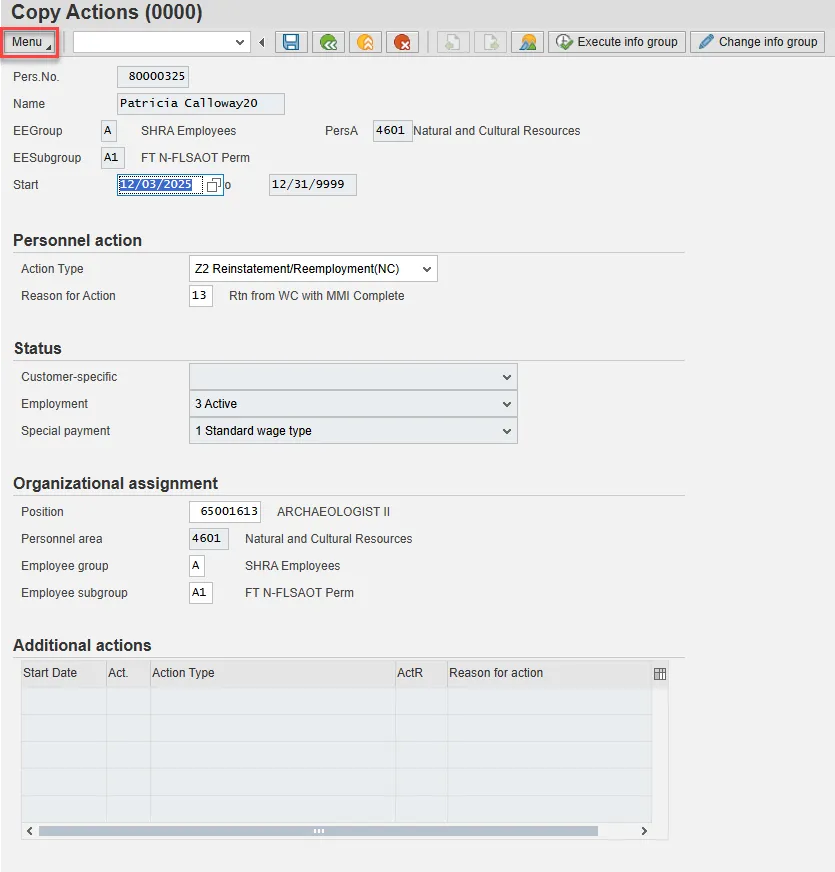
Step 10. Hover over Edit and choose Maintain text (F9) from the pop-out menu.
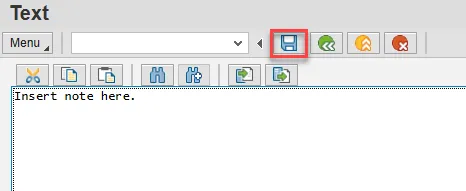
Step 11. On the Text screen, insert your note and choose Save.
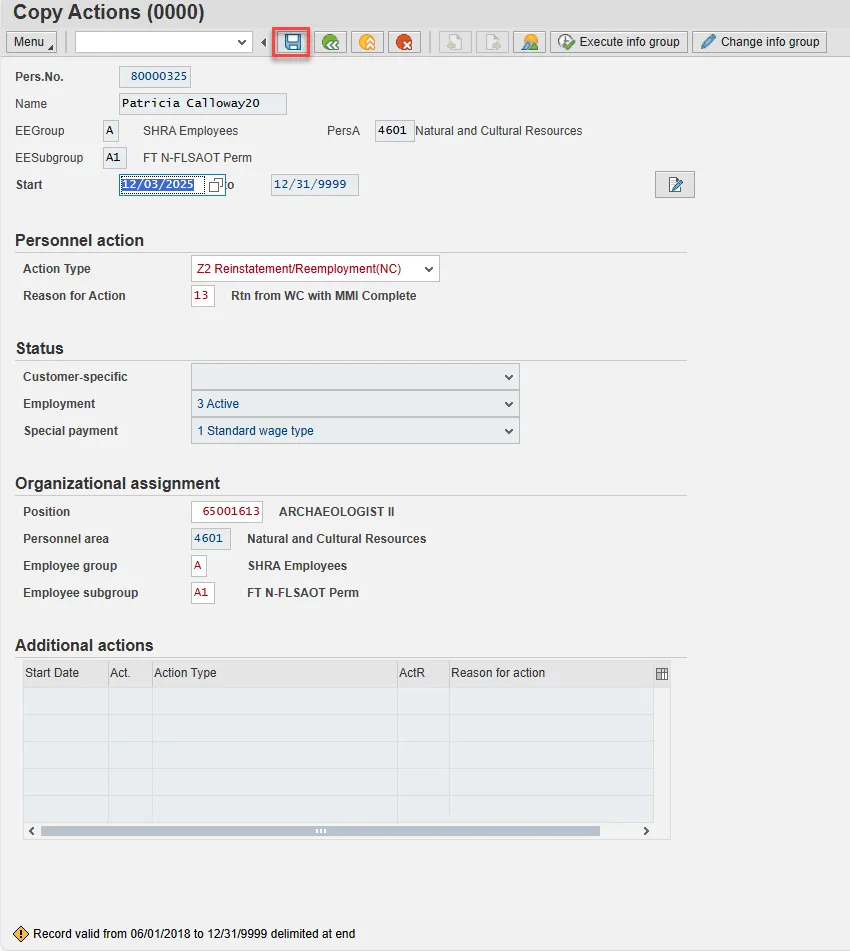
Step 12. Back on the Copy Actions (0000) screen, choose Enter on the keyboard.

Step 13. Some items may turn red and there may be a yellow warning message in the bottom left stating that a record will be delimited. This is expected behavior. Choose Save.
Step 14. Create Organizational Assignment (0001) will populate. There are no changes needed to this infotype. Select Enter on the keyboard.
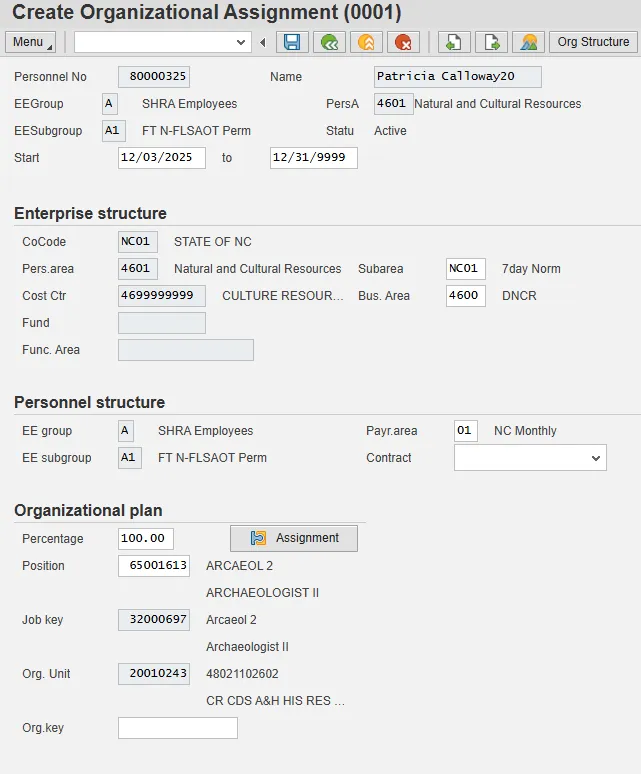
Step 15. Some items may turn red and there may be a yellow warning message in the bottom left stating that a record will be delimited. This is expected behavior. Choose Save.
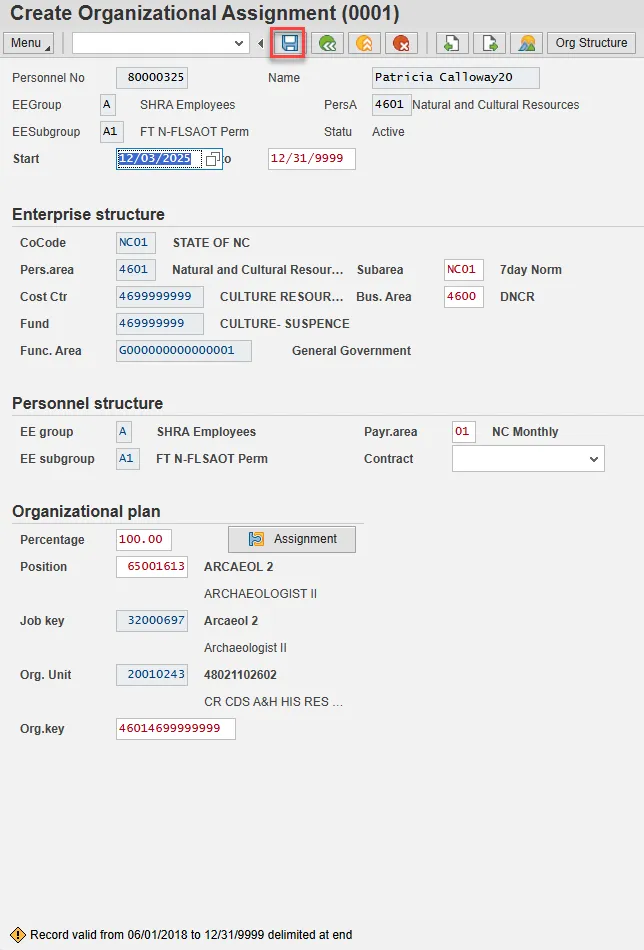
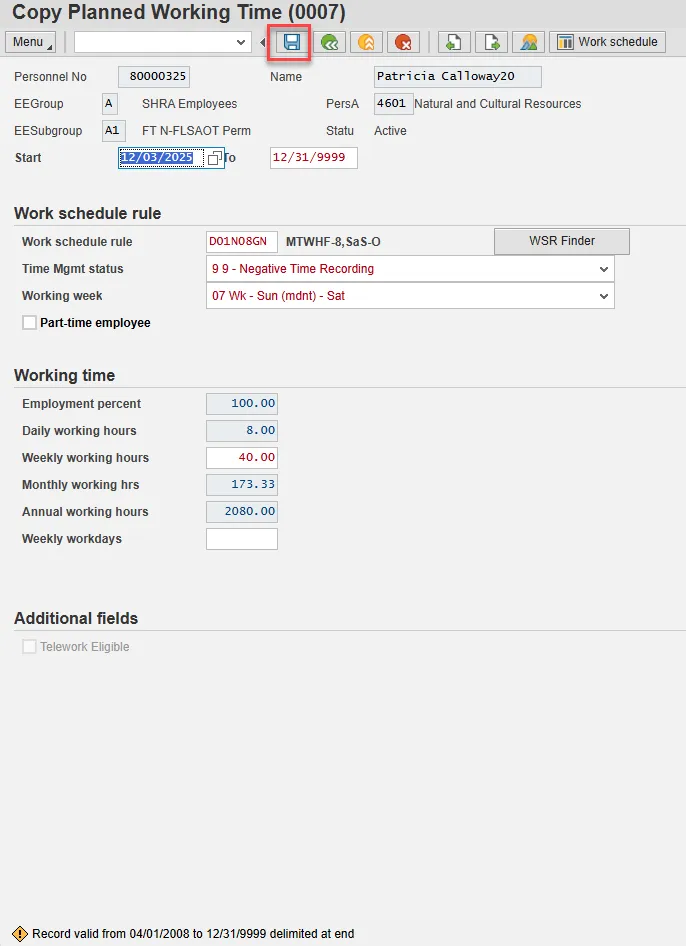
Step 16. When an employee is returning from a WC LOA, they should be reinstated in the same capacity as they left (same work schedule rule). If their working hours need to be changed (FT to PT), an Appointment change action will need to be entered with the same effective date. Subject employees must be positive time. Employment percent should always be 100.
Best Practice: Change the work schedule rule back to what it was before the employee went on LOA.
In this example, you would change the employee’s Time Mgmt status from Positive Time Recording to Negative Time Recording.

Step 17. Select Enter on the keyboard. Some items may turn red and there may be a yellow warning message in the bottom left stating that a record will be delimited. This is expected behavior. Choose Save.
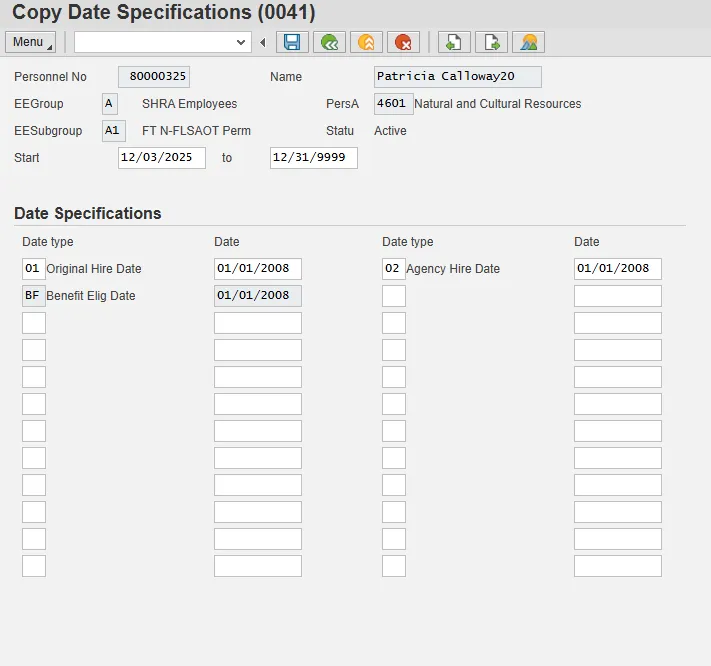
Step 18. There are no changes needed on Copy Date Specifications (0041). Choose Enter on the keyboard.
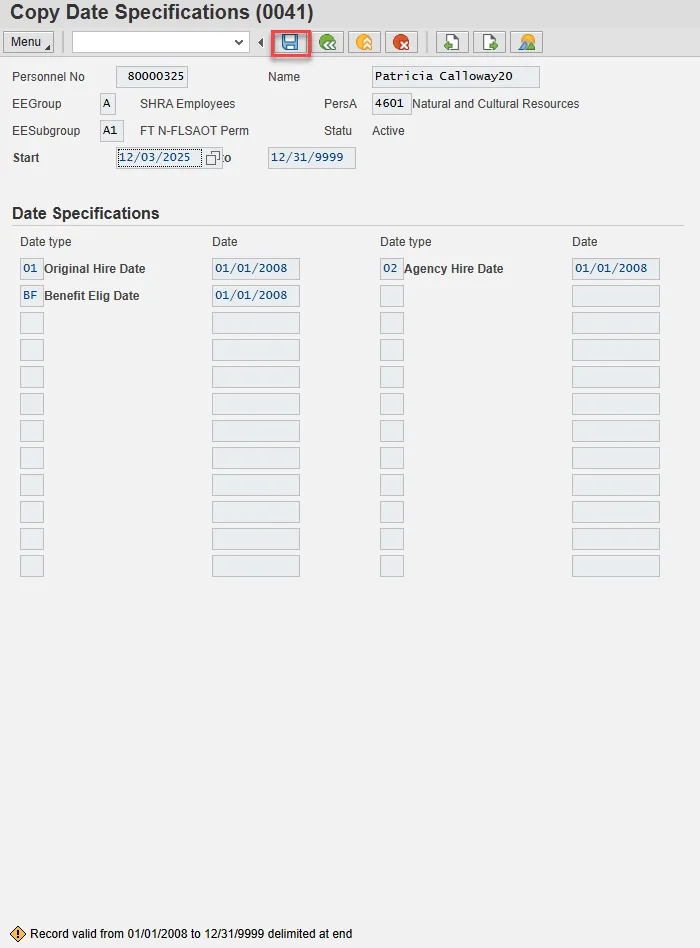
Step 19. The fields will be grayed out and there will be a yellow warning message in the lower left. This is expected behavior. Select Save.
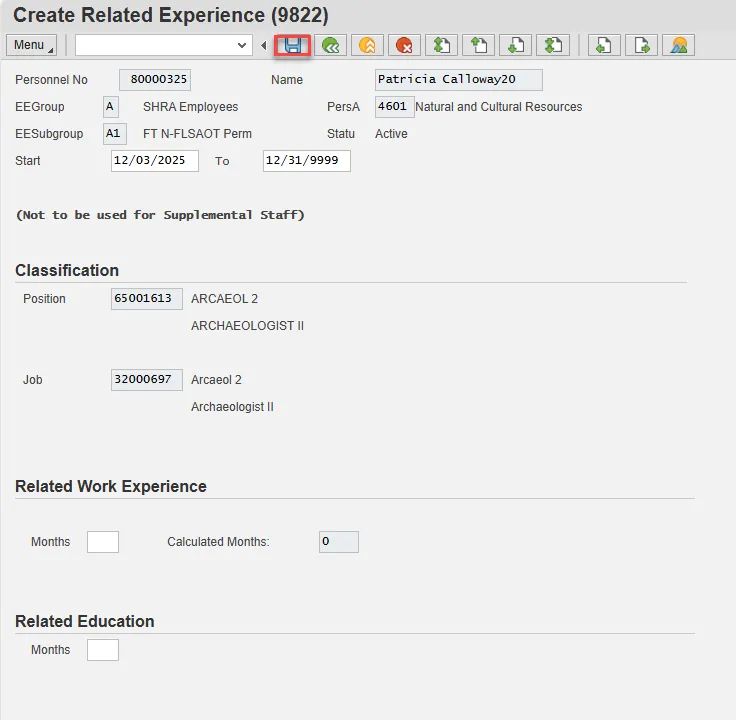
Step 20. There are no changes needed on Create Related Experience (9822). Choose Enter on the keyboard and select Save.
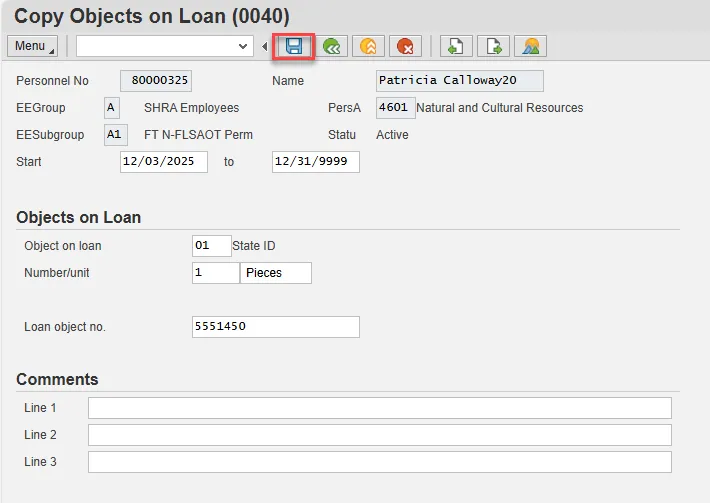
Step 21. Verify the objects on loan that have been issued to the individual. When the individual went on leave, the various objects on loan may or may not have been delimited. Here you will reassign or add new ones. Comments can be entered on lines 1, 2, and 3 if appropriate for your business policy.
Note: If the employee receives more than one item on loan, you will need to process a PA30 transaction in order to add the additional items to infotype 0040.
Choose Enter and Save. (Or choose Next Record if your agency does not use this infotype.)
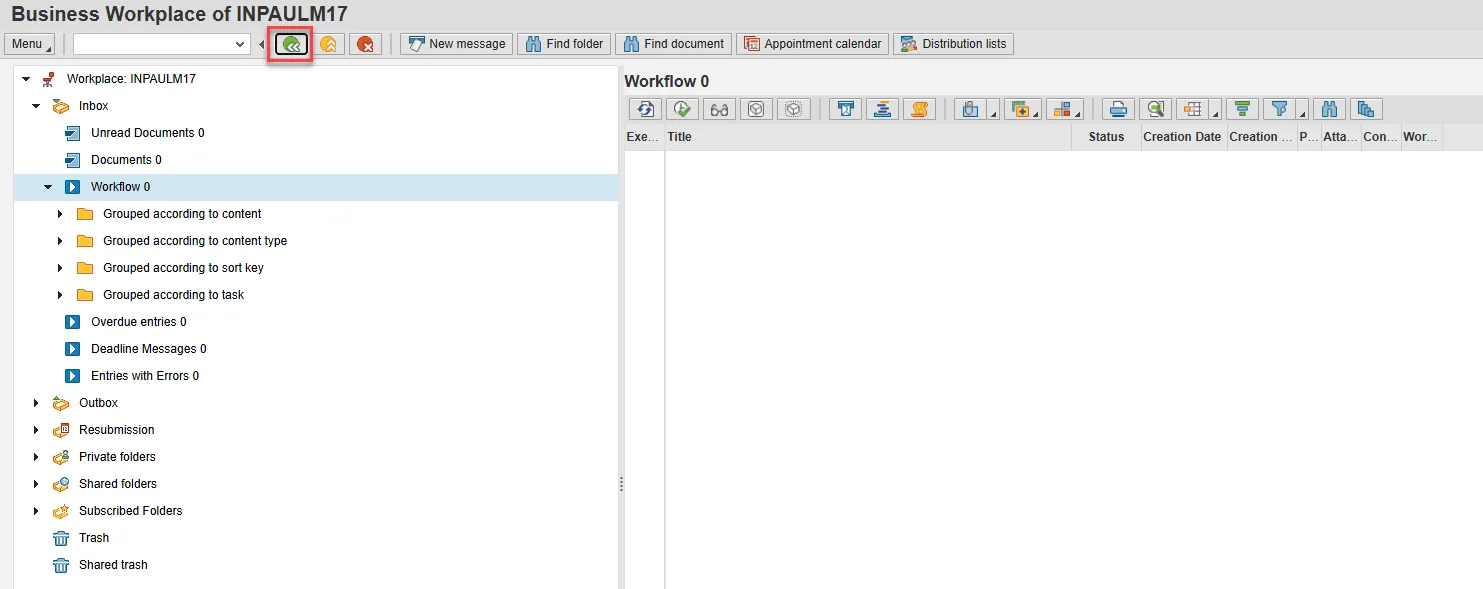
Step 22. Back at the Personnel Actions screen, select the Green Arrow Back button.

Step 23. On the pop-up, select Complete Work Item. (It has a green check beside it.)

Step 24. From the Business Workplace screen, select the Green Arrow Back button to return to the SAP Easy Access screen.
Note: The Reinstatement/Reemployment Action is complete, but we recommend reviewing via PA20 all infotypes that have been processed. Check the Leave balances to ensure that they are correct upon the Reinstatement/Reemployment Action.
Additional Processing Guidelines
Note: If less than 40 hours you must complete part 2.
12 - Return from Workers’ Comp w/Physician Restrictions that state a Modified Duty of 20-40 hrs - Employee has been released by the treating physician to return to a modified duty assignment with a work schedule of 20 or more hours a week. Employee has not reached maximum medical improvement (MMI).
- Part 1 - Z2 – Reinstatement/Employment Action
- IT0007 – Planned Working Time
- Work Schedule Rule
- Time Mgmt status
- Verify accuracy of leave accruals based on manual tracking spreadsheet.
- Notify Leave Administrator if adjustments are required.
- Verify Holidays
- Has a holiday been granted that may need to be removed?
- Does an upcoming holiday need to be granted?
- IT0007 – Planned Working Time
- Part 2 – Z9 – Appointment Change Action (create with same effective date)
- IT0000 – Actions
- Reason – Full Time to Part Time
- EE Subgroup change to part-time
- IT0001 – Organizational Assignment
- Percentage still remains 100%
- IT0007 – Planned Working Time
- Work Schedule Rule to part-time
- Time Mgmt status (subject employees must be positive time)
- Check Part-time employee box
- Employment percentage always 100% except for interfacing Agencies.
Note: Interface Agency should select interfacing WSR and enter the part-time weekly working hours.
- IT0008 – Basic Pay – – pro-rated to part-time rate – Annual Salary should be the amount you are ACTUALLY paying the employee. If 40 hours per week, employee was paid $80,000 and now employee is only working 20 hours per week, salary entered will be $40,000. You are paying 100% of $40,000. The part time approved work hours are paid out of the Integrated HR-Payroll System. The remaining workers’ comp absence hours are paid by the Workers’ Comp Third Party Provider or out of the Integrated HR-Payroll System from A/A 9685 for those employees still eligible for salary continuation.
- IT0041 – Date Specifications – copies previous record, follow Agency guidelines for updating Agency Hire Date
- Longevity – if employee is eligible, contact BEST Shared Services OPS Payroll to correct the employee’s longevity amount to be paid at the full time base pay.
- Aggregate Service – must be monitored by the Agency and a ticket submitted to BEST Shared Services if an accrual rate change occurs.
- Note: Upon the employee’s return to work at full capacity, the Agency would need to calculate and update the aggregate service, or submit a ticket to BEST.
- Leave Accruals – pro-rated to part-time rate. (See Leave section earlier in this BPP.)
- Note: Upon the employee’s return to work at full capacity or upon separation, the Agency will need to calculate and update the leave accrual balances or submit a ticket to BEST.
- Health Insurance Benefits – Agency will need to submit a ticket to BEST Shared Services to ensure the continuation of health insurance benefits as a full time employee.
- Upon the employee’s return to work at full capacity, the Agency will need to initiate an appointment change personnel action to change the employee back to full time status.
- IT0000 – Actions
13 - Return from Workers’ Comp with MMI Complete – Employee has reached maximum medical improvement (MMI) and has been released by the treating physician to return to permanent work in the same position or one of seniority, status, and pay held prior to WC leave.
- Z2 – Reinstatement/Employment Action
- IT0007 – Planned Working Time
- Work Schedule Rule
- Time Mgmt status
- Verify accuracy of leave accruals based on manual tracking spreadsheet.
- Notify Leave Administrator if adjustments are required.
- Verify Holidays
- Has a holiday been granted that may need to be removed?
- Does an upcoming holiday need to be granted?
- IT0007 – Planned Working Time
22 - Return from Workers’ Comp with MMI Disability – Employee has reached maximum medical improvement (MMI) and has been released by the treating physician to return to work, but has a disability which prohibits employment in the same capacity that existed prior to WC leave. Agency work placement has identified and placed employee in another position suitable for employee and agency.
- Z2 – Reinstatement/Employment Action
- IT0007 – Planned Working Time
- Work Schedule Rule
- Time Mgmt status
- Verify accuracy of leave accruals based on manual tracking spreadsheet.
- Notify Leave Administrator if adjustments are required.
- Verify Holidays
- Has a holiday been granted that may need to be removed?
- Does an upcoming holiday need to be granted?
- IT0007 – Planned Working Time
23 - Rtn from Workers’ Comp w/Physician Restrictions that state a Modified Duty less than 20 hrs - Employee has been released by the treating physician to return to a modified duty assignment with a work schedule of less than 20 hours a week. Employee has not reached maximum medical improvement (MMI).
- Part 1 - Z2 – Reinstatement/Employment Action
- IT0007 – Planned Working Time
- Work Schedule Rule
- Time Mgmt status
- Verify accuracy of leave accruals based on manual tracking spreadsheet.
- Notify Leave Administrator if are required.
- Verify Holidays
- Has a holiday been granted that may need to be removed?
- Does an upcoming holiday need to be granted?
- IT0007 – Planned Working Time
- Part 2 – Z9 – Appointment Change Action (create with same effective date)
- IT0000 – Actions
- Reason – Full Time to Part Time
- EE Subgroup change to part-time
- IT0001 – Organizational Assignment
- Percentage still remains 100%
- IT0007 – Planned Working Time
- Work Schedule Rule to part-time
- Time Mgmt status (subject employees must be positive time)
- Check Part-time employee box
- Employment percentage always 100% except for interfacing Agencies.
- Note: Interface Agency should select interfacing WSR and enter the part-time weekly working hours.
- IT0008 – Basic Pay – pro-rated to part-time rate – Annual Salary should be the amount you are ACTUALLY paying the employee. If a 40 hours per week, employee was paid $80,000 and now employee is only working 20 hours per week, salary entered will be $40,000. You are paying 100% of $40,000. The part time approved work hours are paid out of the Integrated HR-Payroll System. The remaining workers’ comp absence hours are paid by the Workers’ Comp Third Party Provider or out of Integrated HR-Payroll System from A/A 9685 for those employees still eligible for salary continuation.
- IT0041 – Date Specifications – copies previous record, follow Agency guidelines for updating Agency Hire Date
- Longevity – if employee is eligible, contact BEST Shared Services OPS Payroll to correct the employee’s longevity amount to be paid at the full time base pay.
- Aggregate Service – must be monitored by the Agency and a ticket submitted to BEST Shared Services if an accrual rate change occurs.
- Note: Upon the employee’s return to work at full capacity, the Agency would need to calculate and update the aggregate service, or submit a ticket to BEST.
- Leave Accruals – pro-rated to part-time rate. (See Leave section below.)
- Note: Upon the employee’s return to work at full capacity or upon separation, the Agency will need to calculate and update the leave accrual balances or submit a ticket to BEST.
- Health Insurance Benefits – Agency will need to submit a ticket to BEST Shared Services to ensure the continuation of health insurance benefits as a full time employee.
- Upon the employee’s return to work at full capacity, the Agency will need to initiate an appointment change personnel action to change the employee back to full time status.
- IT0000 – Actions
Leave (if returning part-time)
- Employee will continue to accrue pro-rated leave while receiving WC benefit.
- Employee is entitled to use only the leave they actually earn during the time they work.
- Agency will continue to manually maintain accruals until the employee has been released by the treating physician and returns to permanent status. This leave must be kept manually. The Integrated HR-Payroll System will not calculate this leave automatically while the employee is working a part-time schedule. See worksheet below:
- Example:
- Scenario – returning part-time from WC
- Earn pro-rated leave based on the number of hours worked
- 20 hours = 4 hrs of sick leave accrual = *4 hrs additional for WC
- 30 hours = 6 hrs of sick leave accrual = *2 hrs additional for WC
*The additional hours need to be maintained manually and cannot be used until the employee has been released by the treating physician and returns to permanent status.
- Earn pro-rated leave based on the number of hours worked
- Scenario – returning part-time from WC
Quota Corrections (2013)
A valid discrepancy has been found in an employee's quota based on manual spreadsheet maintained while employee was out. Upon management approval, the quota should be adjusted as necessary.
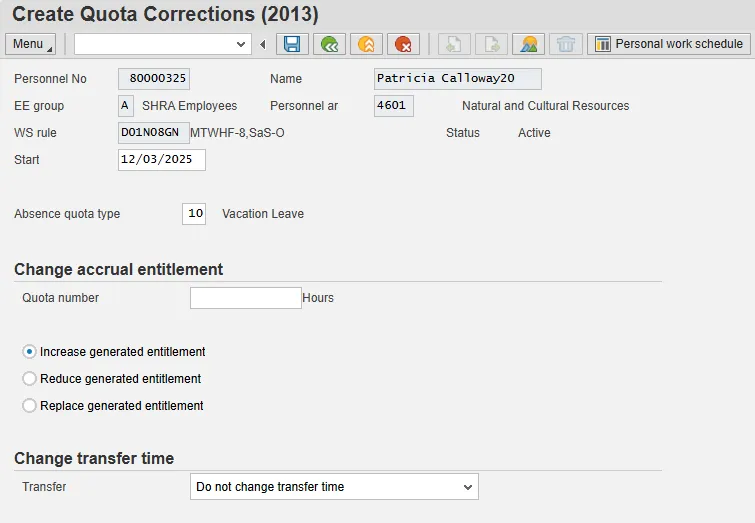
Only the From Date is used on IT2013 records. This value also can be entered once the infotype record screen is displayed.
Only one IT2013 record should be created for each subtype for the same From date. Multiple records can cause Time Evaluation to error out for the employee.
Enter the subtype corresponding to the quota for adjustment. Select the STy field matchcode to view a list of available quotas.
Transfer Field Options:
- Increase generated entitlement: Indicates that hours should be added to quota (default option).
- This option adds the hours specified to the employee's existing quota or creates the quota with the specified hours if the employee does not have a current balance for the selected quota.
- Decrease generated entitlement: Indicates that hours should be subtracted from quota.
- This option subtracts the hours specified from the employee’s existing quota.
- Replace generated entitlement: DO NOT SELECT THIS OPTION!
- DO NOT USE THIS OPTION!
- This option was intended to replace the employee's quota accrual generated in Time Evaluation on the From Date. The Integrated HR-Payroll System staff advise against trying to use this option.
The Quota Correction record will be processed during the nightly Time Evaluation process. The adjusted quota should then be reflected in the employee's quota balances the following day. To verify the adjustment processed correctly, access Quota Overview (transaction PT50) and view the employee's quota balances as detailed in PT50 transaction. For more detailed instructions for transaction PT50, refer to the BPP instructions: PT50 - Quota Overview.
Always add a comment to justify why you entered a change.