Purpose
The purpose of this Business Process Procedure is to explain how to process a Demotion Action in the Integrated HR-Payroll System.
Trigger
There is a need to process a Demotion for one of the reasons listed in the Business Process Procedure Overview section.
Business Process Procedure Overview
Demotion – a change in position and/or pay which results from inefficiency in performance or as a disciplinary action.
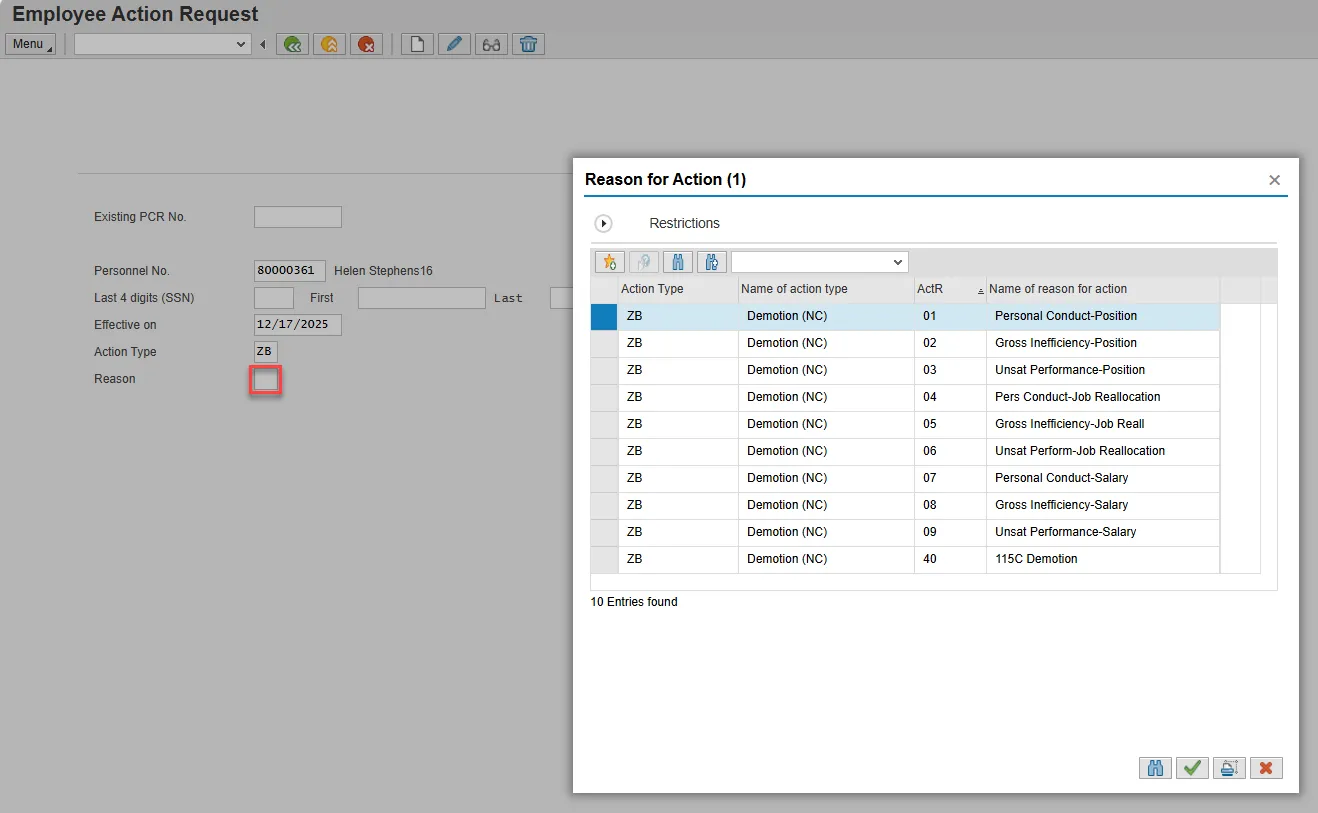
01 - Personal Conduct – Position - Disciplinary action resulting in employee assignment into a different position with a lower grade or lower journey market rate, or same banded class with a lower competency level.
02 - Gross Inefficiency – Position - Disciplinary action resulting in employee assignment into a different position with a lower grade or lower journey market rate, or same banded class with a lower competency level.
03 - Unsatisfactory Performance – Position - Disciplinary action resulting in employee assignment into a different position with a lower grade or lower journey market rate, or same banded class with a lower competency level.
04 - Personal Conduct – Job Reallocation - Disciplinary action resulting in employee’s classification changing to a graded or banded class with a lower grade or journey market rate. (Employee’s position may or may not be reallocated. If not, explain work-against in comments.)
05 - Gross Inefficiency – Job Reallocation - Disciplinary action resulting in employee’s classification changing to a graded or banded class with a lower grade or journey market rate. (Employee’s position may or may not be reallocated. If not, explain work-against in comments.)
06 - Unsatisfactory Performance – Job Reallocation - Disciplinary action resulting in employee’s classification changing to a graded or banded class with a lower grade or journey market rate. (Employee’s position may or may not be reallocated. If not, explain work-against in comments.)
07 - Personal Conduct – Salary - Disciplinary action resulting in salary reduction in same position.
08 - Gross Inefficiency – Salary - Disciplinary action resulting in salary reduction in same position.
09 - Unsatisfactory Performance – Salary - Disciplinary action resulting in salary reduction in same position.
40 - 115C Demotion - Disciplinary action resulting in a reduction in salary of a teacher or school administrator who was hired in a position subject to the G.S. 115C public education human resources system.
Note: Specific reason for the demotion as outlined in G.S. 115C-325(c)(1) must be placed in the comments section. Demotion does not include a suspension without pay, the elimination or reduction of a bonus payment or supplement, or a reduction in pay that results from elimination of a special duty.
PROCEDURE
There are 18 steps to complete this process.
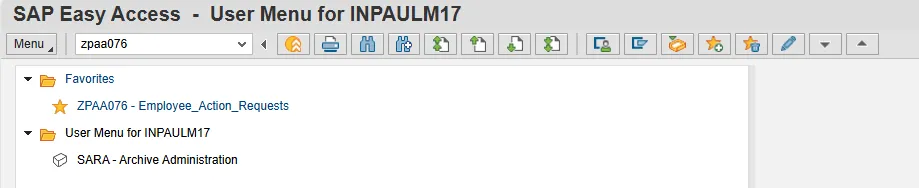
Step 1. From the SAP Easy Access page, select transaction code ZPAA076.
Step 2. On the Employee Action Request screen, update the Personnel No. field and select Enter on the keyboard.
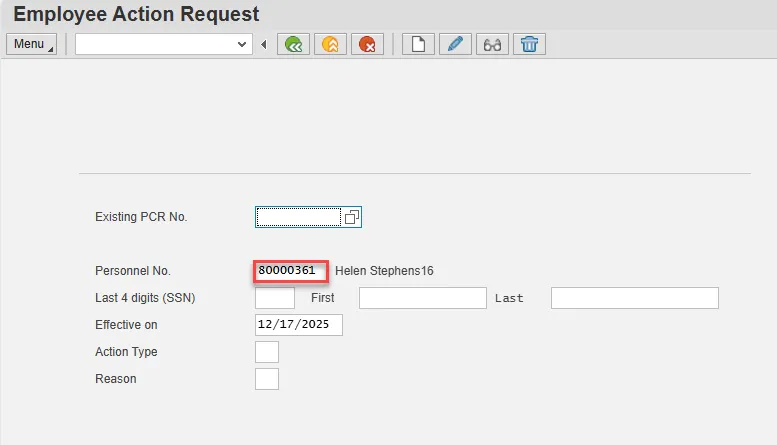
Step 3. Update the Effective on field with the correct effective date.

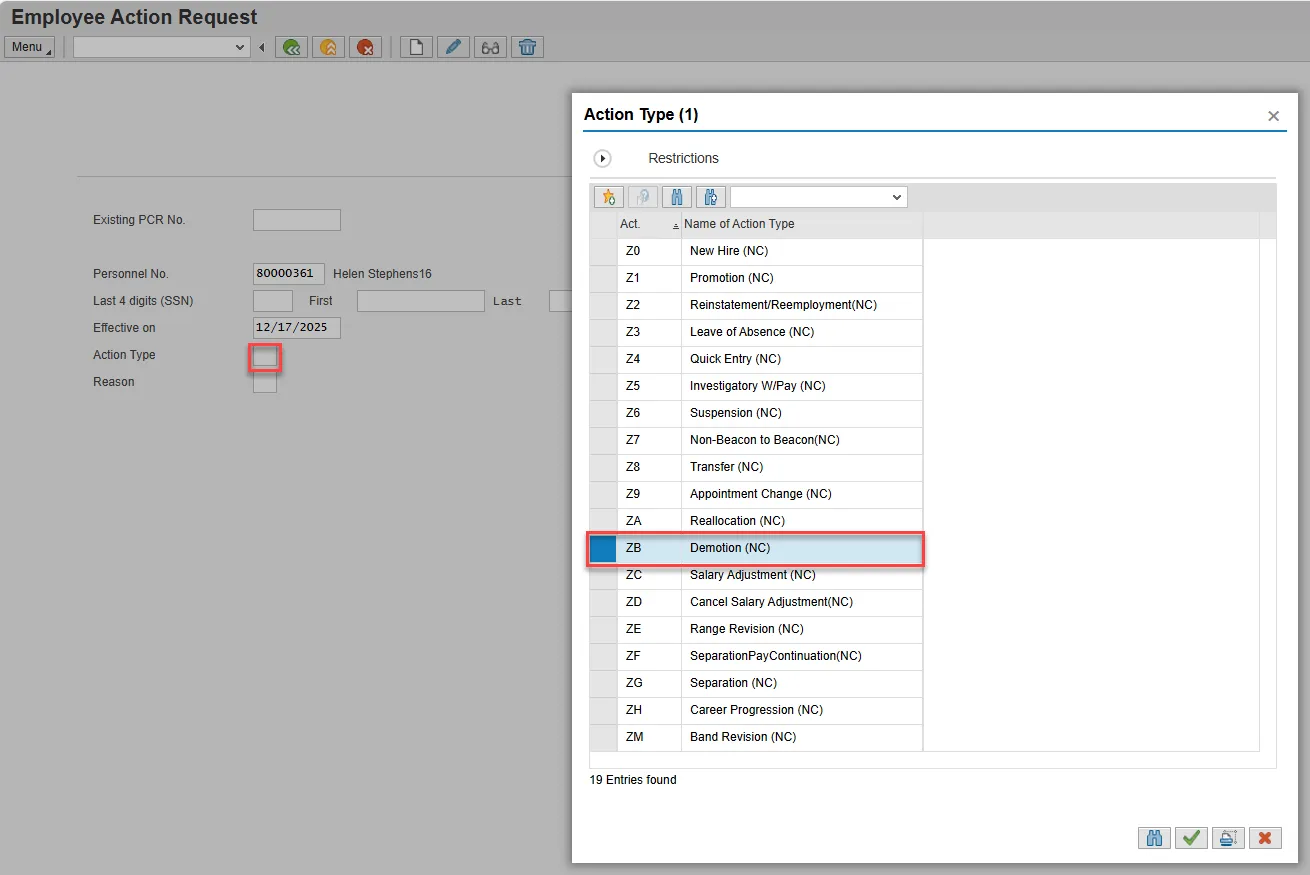
Step 4. Select the matchcode in the Action Type field and double click Demotion from the list.
Step 5. Select the matchcode in the Reason field and double click the appropriate reason for the Demotion action.
Step 6. Select Enter on the keyboard and choose the Create button.
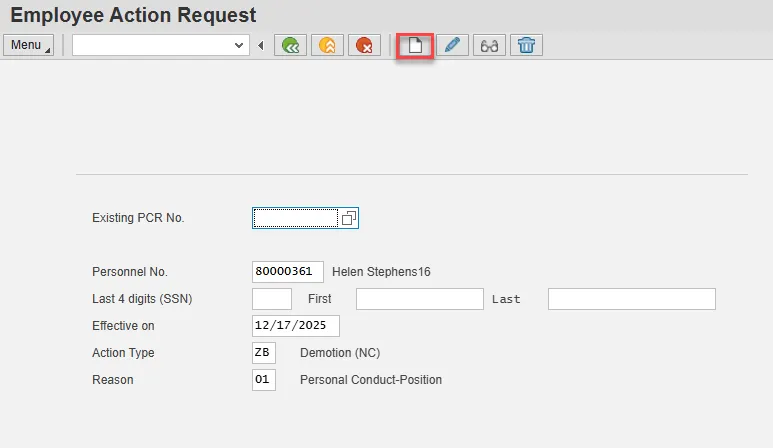
Step 7. OSC recommends entering the EE Position number in first, so the Personnel Area, Personnel Subarea, Employee Group, Employee Subgroup and Pay information pre-populate based on the position number entered. If you do not enter the position number first, the pre-population of data based on the position number may not work properly.
Complete the EE Position field and choose Enter on the keyboard.
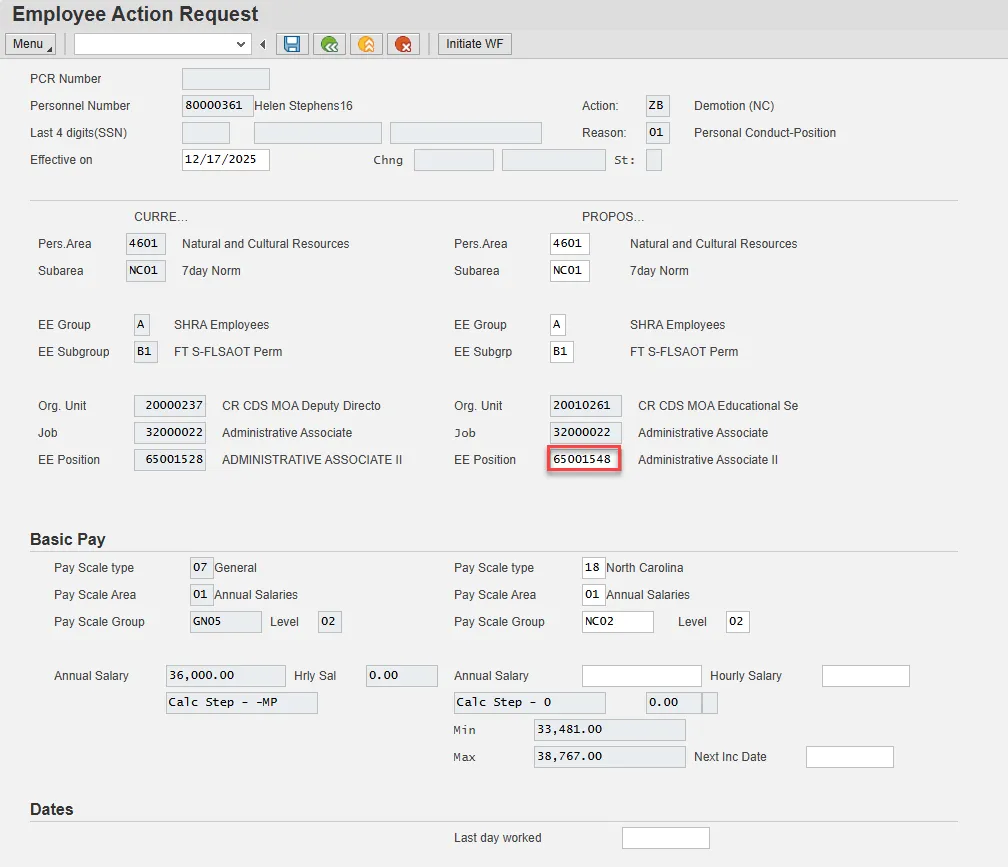
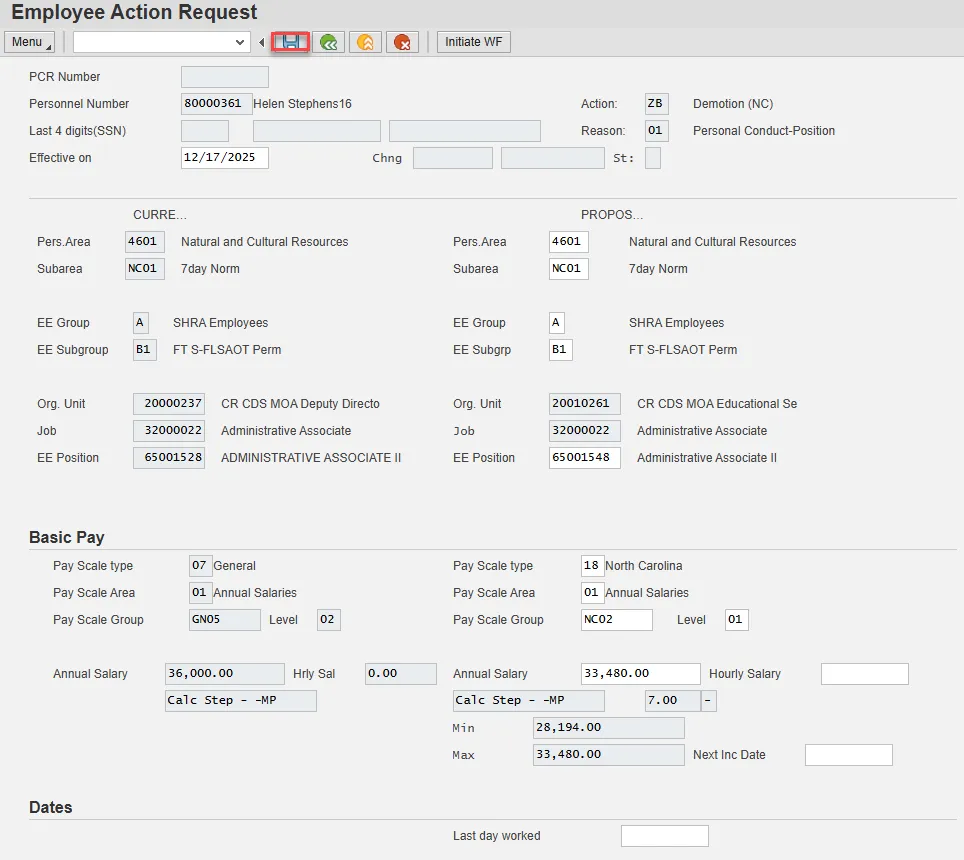
Step 8. Enter the salary information in the Annual Salary field.
Make sure the Level field represents the level associated with the range of the salary. Choose the matchcode to find the correct level.

Step 9. Choose Enter on the keyboard and Save.
Step 10. You can save this information as many times as you like. Each time you will receive a confirmation of the save. Choose the green check in the bottom right of the pop-up.
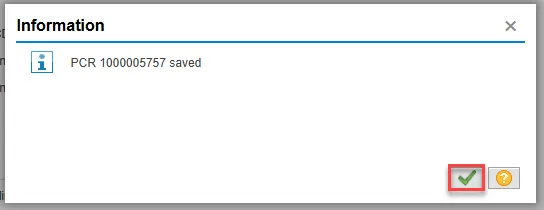
Note: You will not be able to create a note attachment until you have saved it at least once. If you have submitted the PCR to workflow already, you will not be able to change the details, nor save any new information, only display the existing details.
Step 11. Select the Services for Object button in the upper right corner.
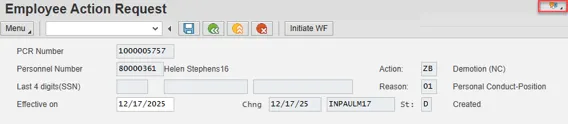
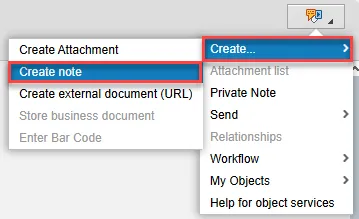
Step 12. Hover over Create and choose Create note from the drop-down menu.
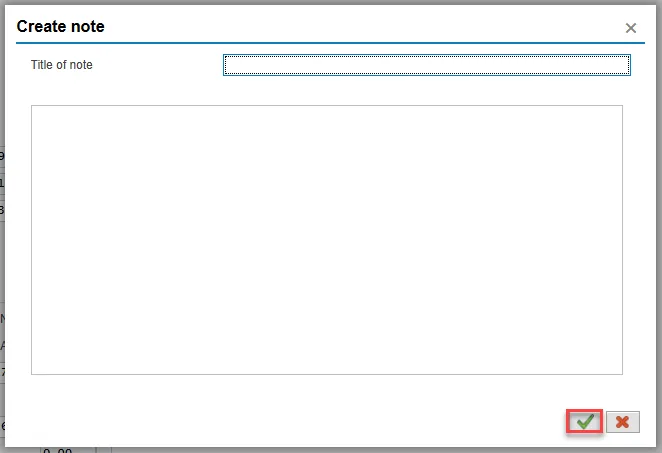
Step 13. Update the Title of note field and the body of the note.
The note is a required part of the request creation process. Notes entered during PA workflow must follow OSHR’s action notes template: PA Action Notes Template
Choose the green check button in bottom right of note pop-up.
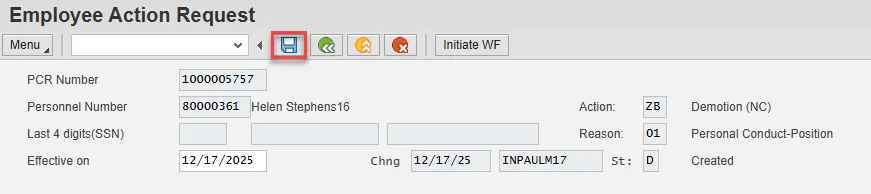
Step 14. Choose Save.
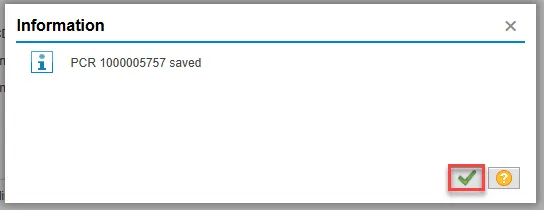
Step 15. Select the green check button in bottom right of Information pop-up.
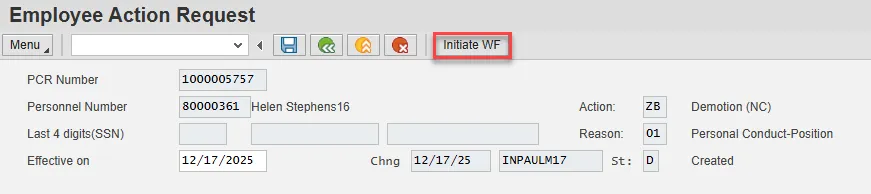
Step 16. Choose the Initiate WF button.
Select the Initiate Workflow button to send the Transfer Action through the approval process. No changes can be made after the PCR has been submitted for approval, unless the PCR is rejected at any stage and sent back to you (the initiator/requestor).
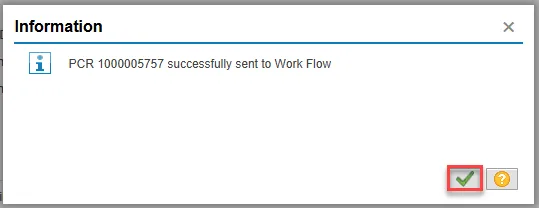
Step 17. Select the green check button in bottom right of the Information pop-up.
Step 18. Choose the green Back button.

After Workflow Approvals have been received, process with the Complete Demotion Action process.
INSTRUCTIONS FOR COMPLETING THE ACTION
There are 23 steps to complete this process.
Step 1. Choose the SAP Business Workplace button from the SAP Easy Access page.

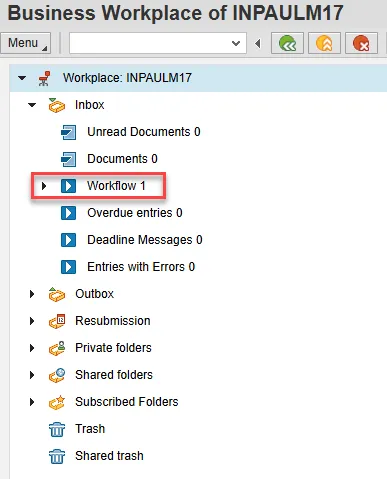
Step 2. Expand the Inbox using the expand node.
Note: Failure to complete this step could cause some functions to be unavailable on the secondary button ribbon in the subfolders.
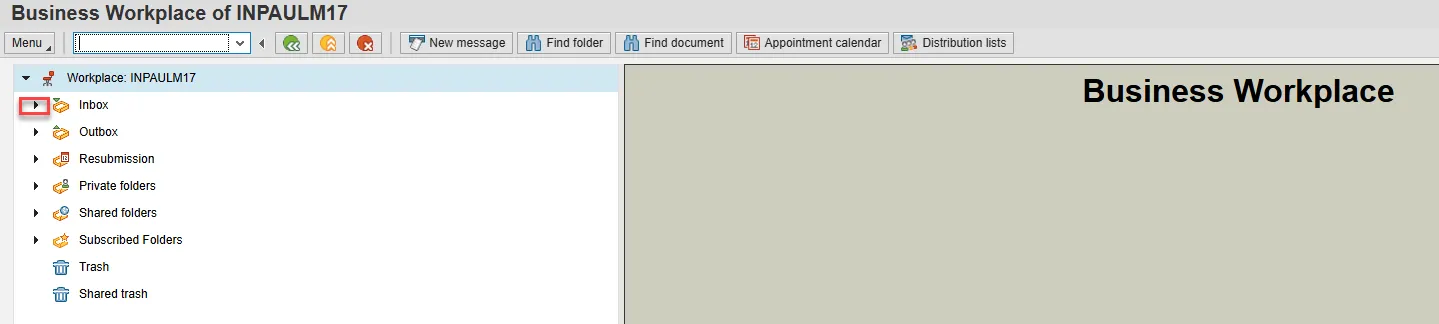
Step 3. Select the Workflow subfolder.
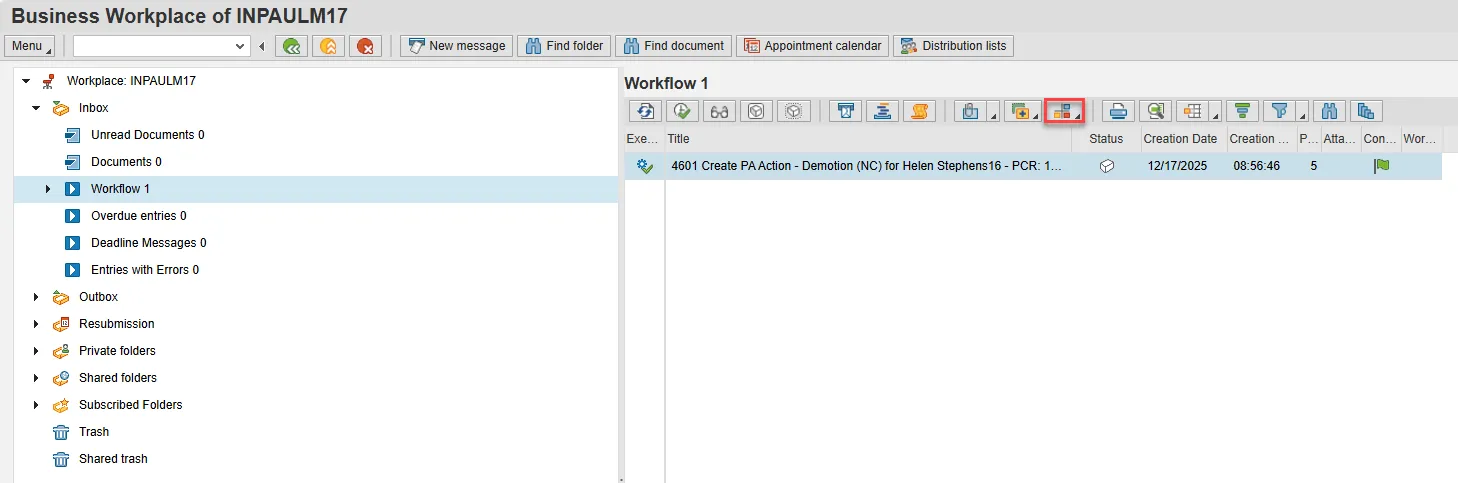
Step 4. Access the Environment button on the secondary button ribbon to retrieve a copy of the note. Access PER-57 Copying Notes from the PCR to Infotypes for steps on retrieving the note.
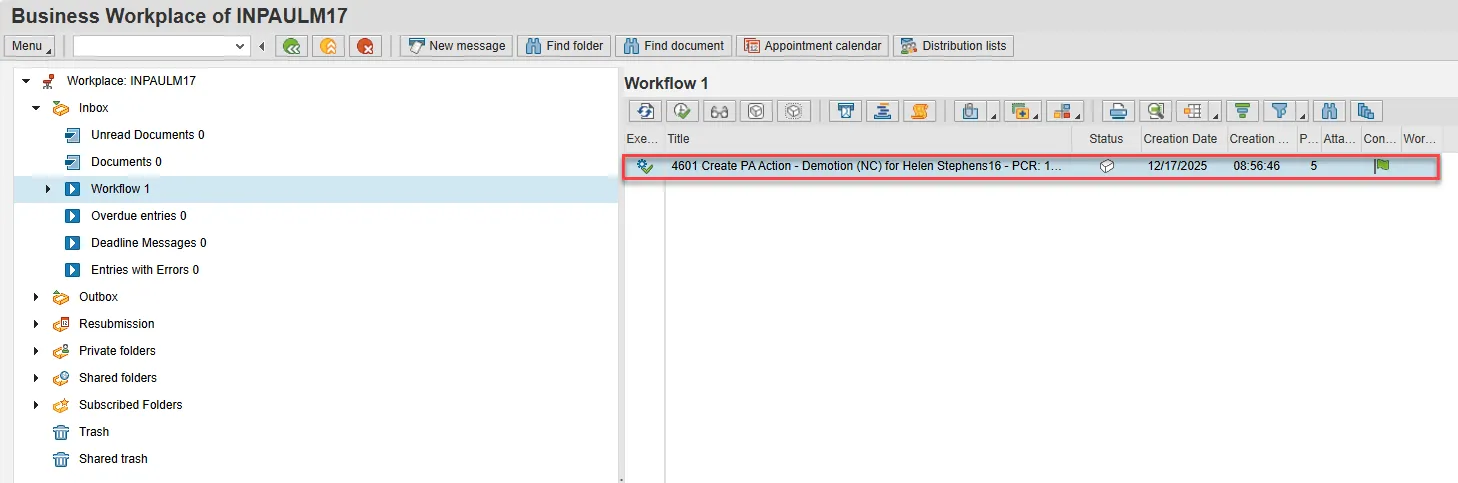
Step 5. Double click the PCR to begin the action.
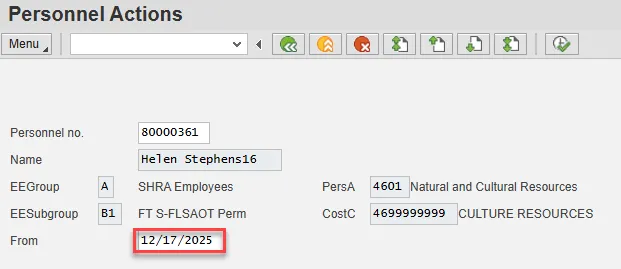
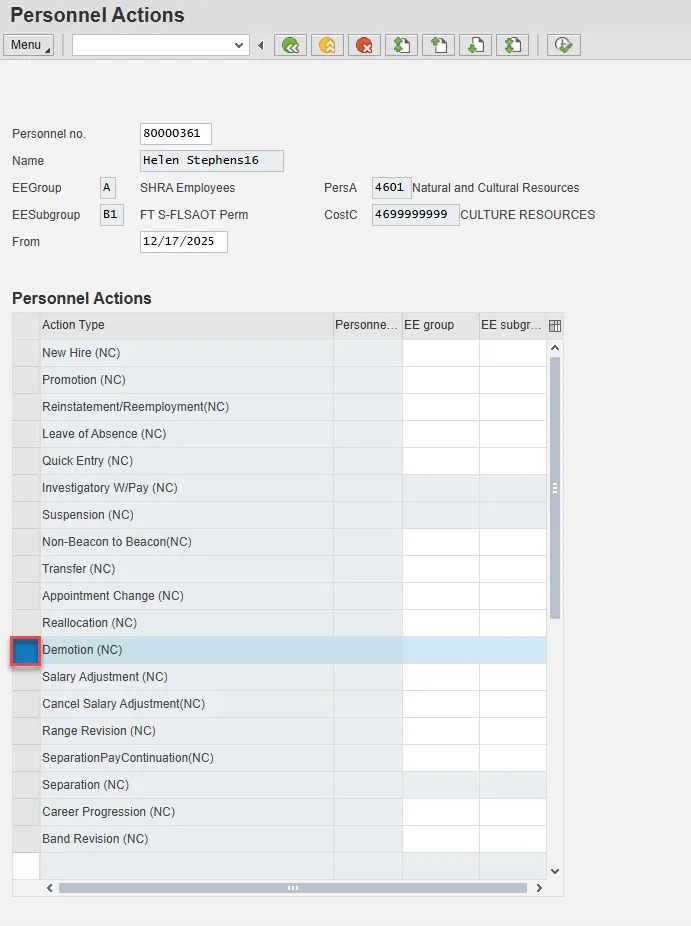
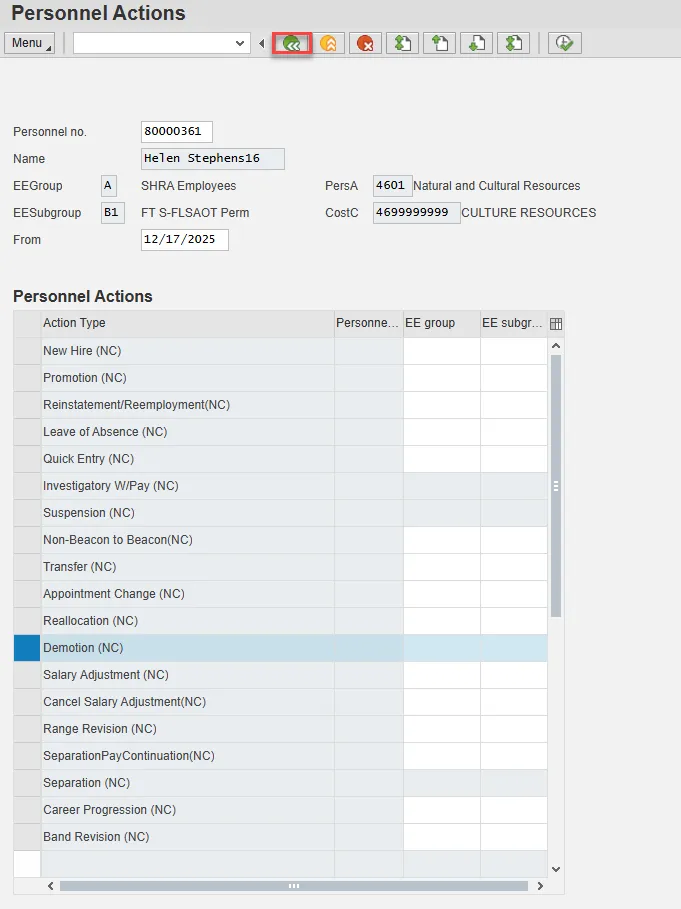
Step 6. On the Personnel Actions screen, enter the effective date in the From field. This must match the effective date used to create the request.
Step 7. Highlight Demotion by selecting the gray box at the beginning of the row.
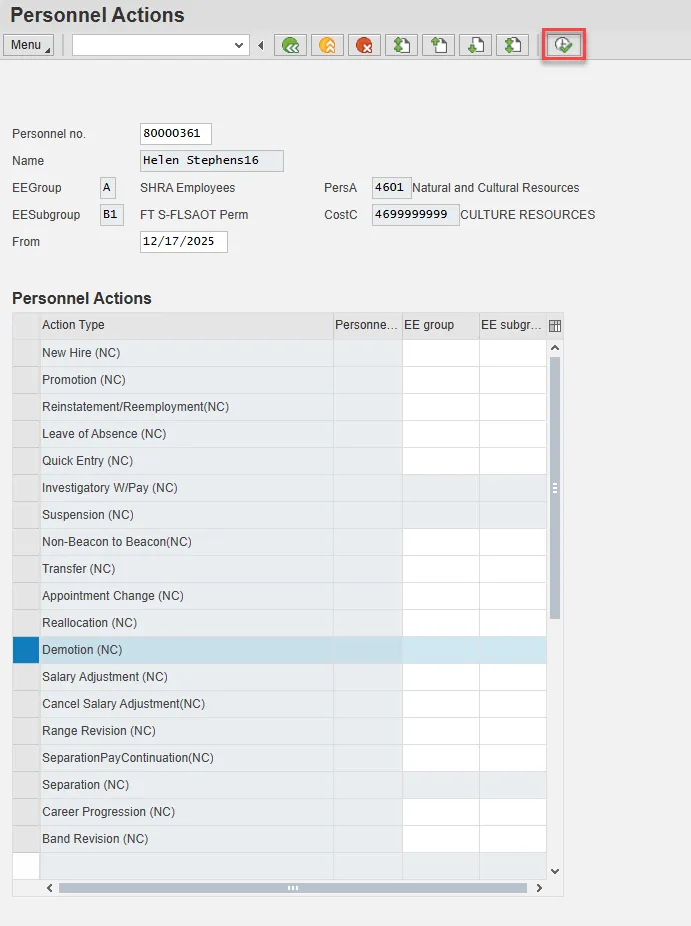
Step 8. Choose the Execute button.
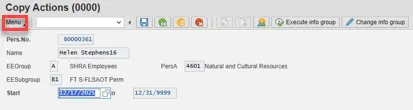
Step 9. On Copy Actions (0000), choose the Menu button.
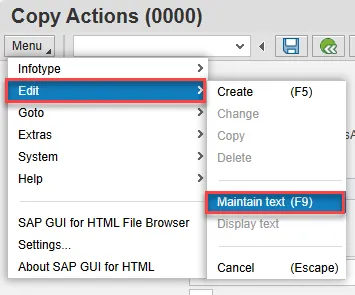
Step 10. Hover over Edit and choose Maintain text (F9) from the pop-out menu.
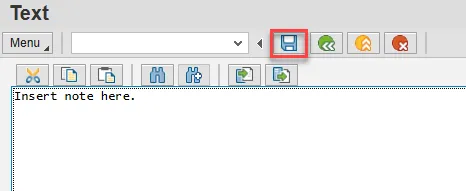
Step 11. On the Text screen, insert your note and choose Save.
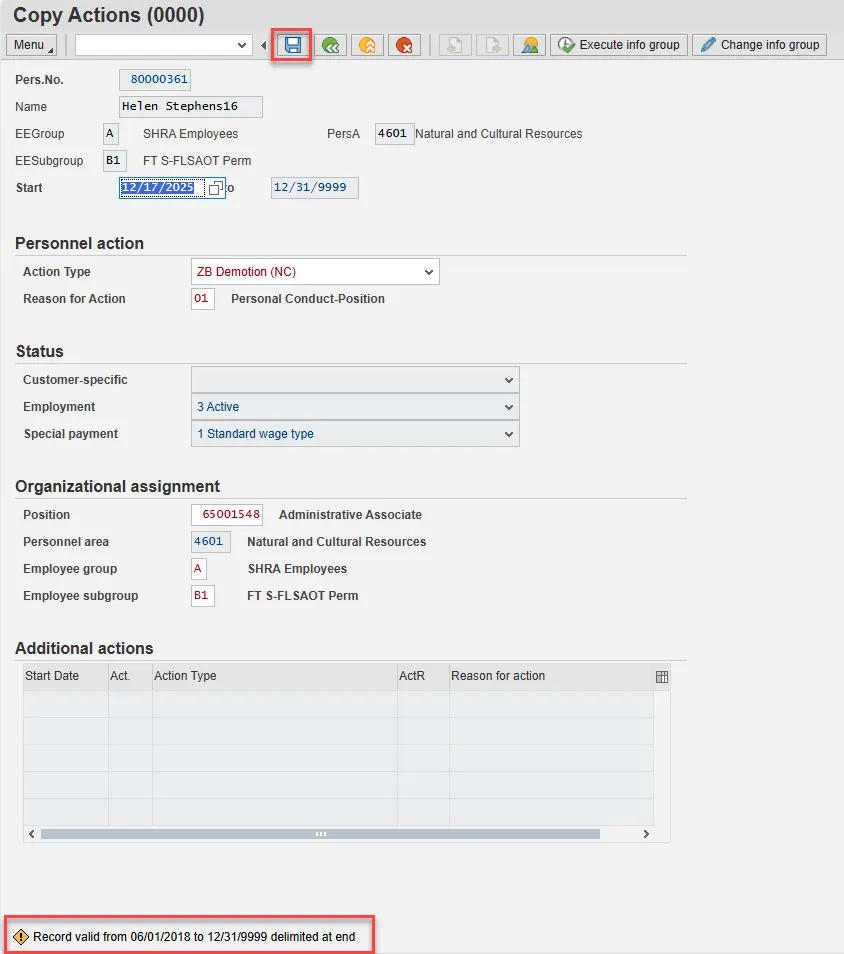
Step 12. Back on the Copy Actions (0000) screen, choose Enter on the keyboard.
Some items may turn red and there may be a yellow warning message in the bottom left stating that a record is being delimited. This is expected behavior. Choose Save.
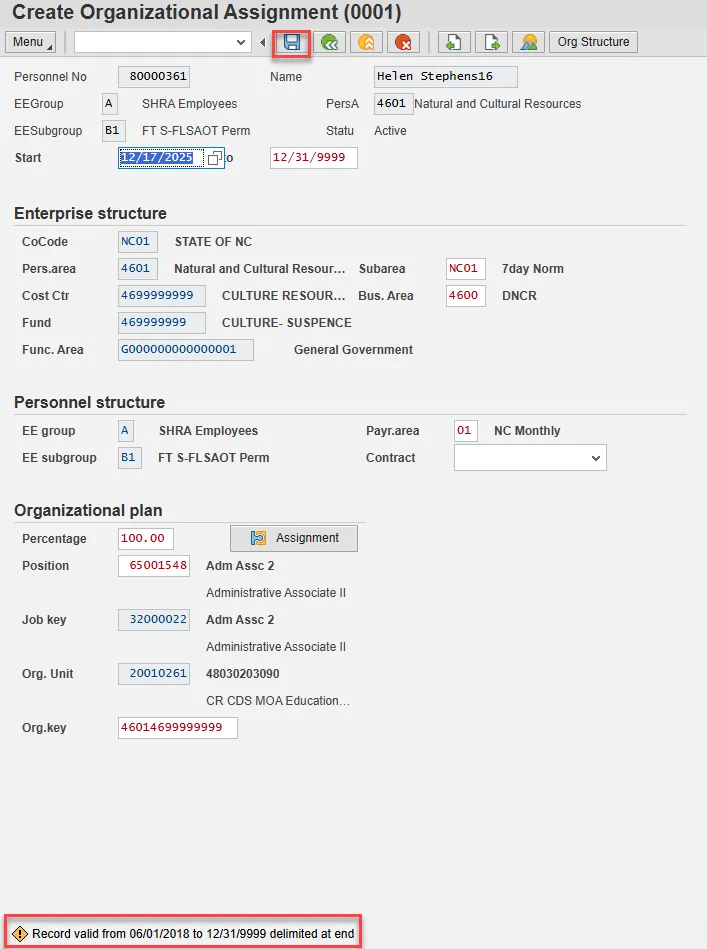
Step 13. On Create Organizational Assignment (0001), select Enter on the keyboard.
Some items may turn red and there may be a yellow warning message in the bottom left stating that a record is being delimited. This is expected behavior. Choose Save.
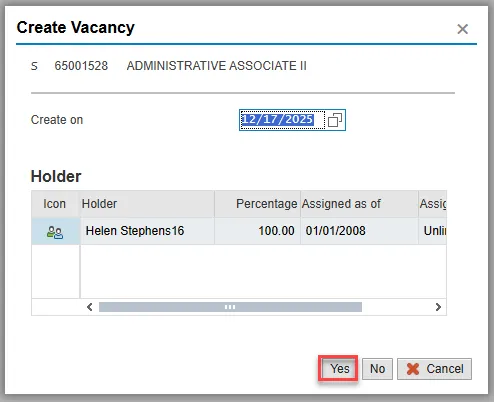
Step 14. On the Create Vacancy pop-up, choose Yes in bottom right.
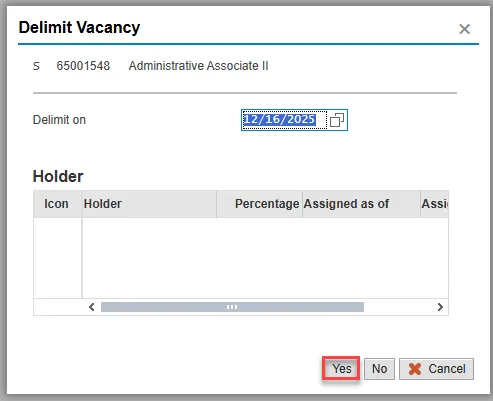
Step 15. On the Delimit Vacancy pop-up, choose Yes in bottom right.
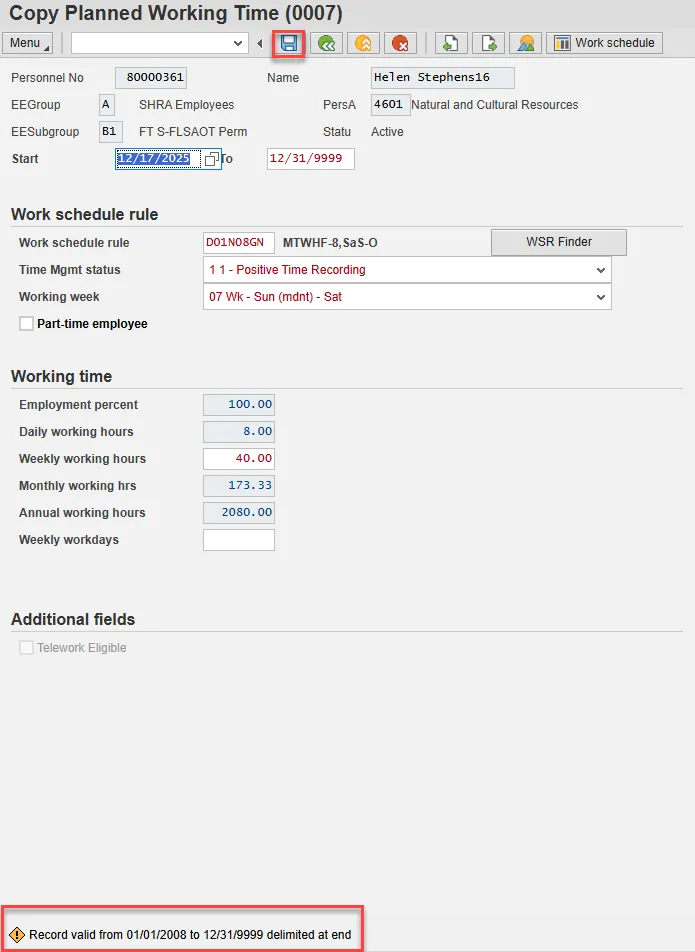
Step 16. On Copy Planned Working Time (0007), this information defaults from the position in which the employee was placed. You may need to update the Time Mgmt status and/or Working week fields.
Adjust their work schedule as appropriate and save the data.
The Work Schedule Rule and Time Mgmt status defaults from the employee's enterprise structure. It is critical that you review for correctness (including the working week) and change the work schedule as appropriate for the employee if it is different from the one that defaults.
If the individual is part-time, be sure to check the Part-time employee box.
The defaulted work schedule is based on information provided by the various agencies and the Integrated HR-Payroll System team members.
Once the necessary fields are updated (if needed), select Enter and Save.
Note: A yellow warning message may appear in the bottom left regarding delimiting a record.
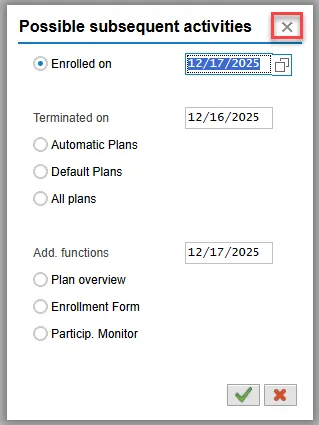
Step 17. Subsequent activities should be completed only if the employee is being Demoted to a position in a different retirement system than his or her current position (for example – going from TSERS to LEORS).
If you need to process changes to the benefits, click Continue. In this example we will not process changes to benefits and will choose the little “x” in upper right to close the pop-up.
Step 18. On Create Basic Pay (0008), select the matchcode in the Reason field and double-click Demotion from the list.
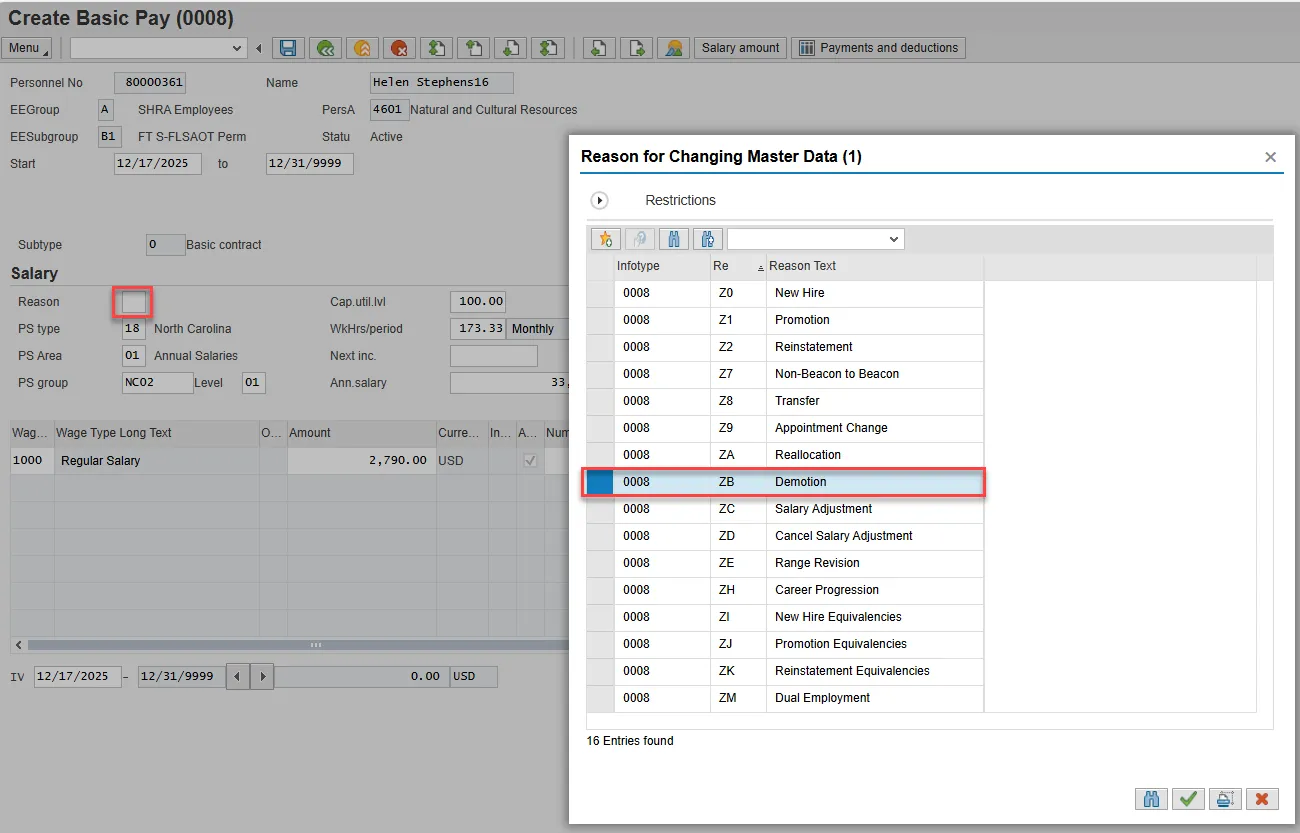
Step 19. Choose Enter on the keyboard.
A yellow warning message will appear in the lower left stating that you are delimiting a record.
Choose Save.
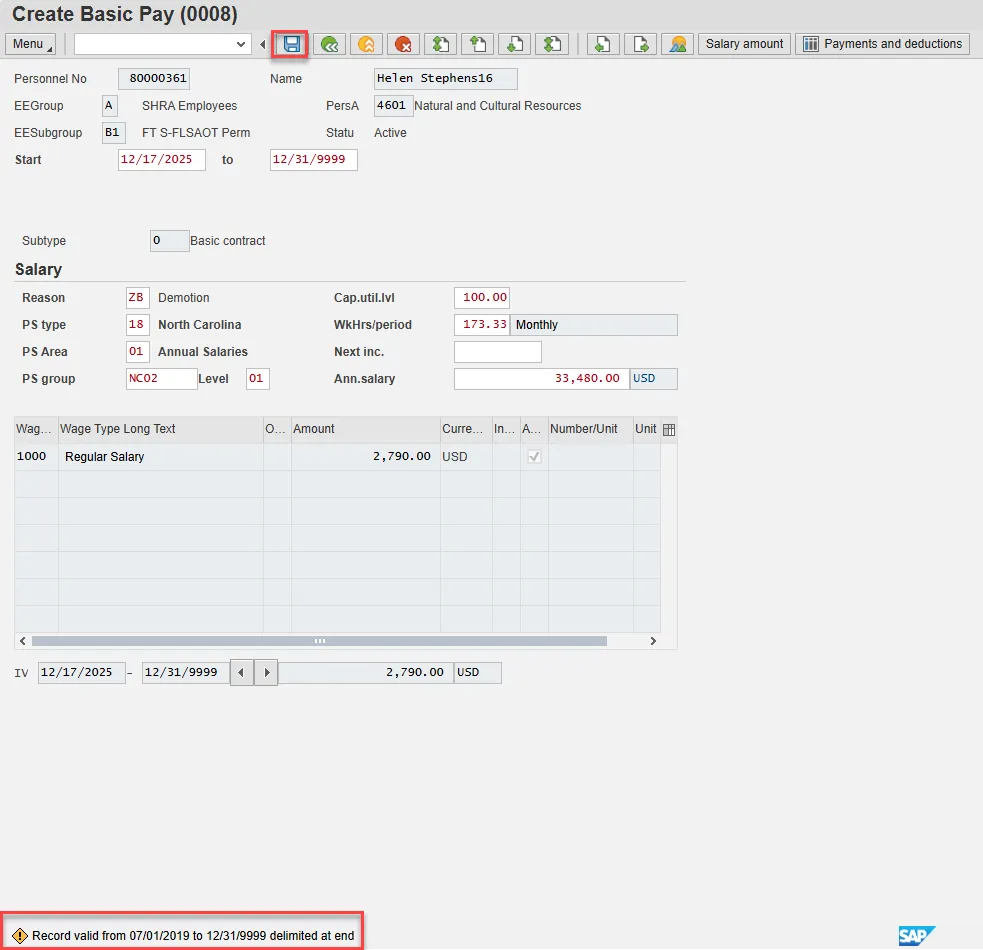
Step 20. On Copy Objects on Loan (0041), either enter items you loan the employee (then, Enter and Save) OR skip this infotype using the Next Record button if your agency does not use this infotype to keep a record of items loaned to employees.

Step 21. Back at the Personnel Actions screen, select the Green Arrow Back button.
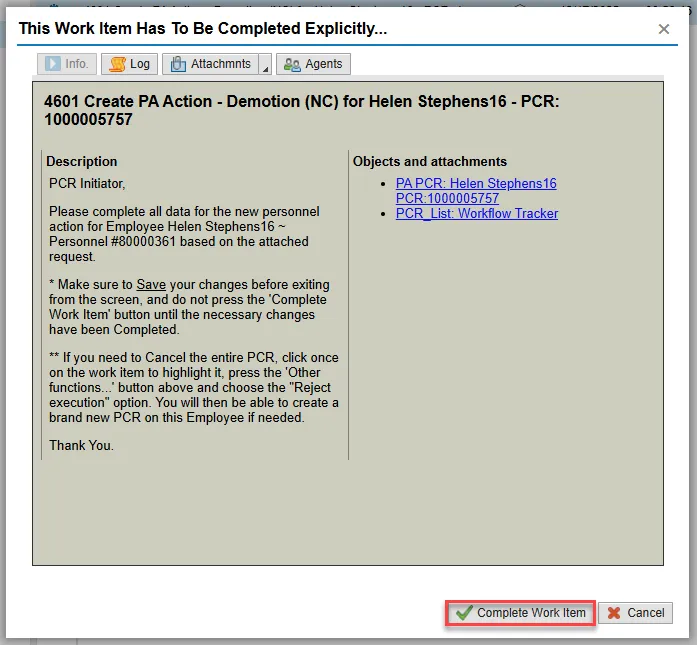
Step 22. On the pop-up, select Complete Work Item. (It has a green check beside it.)
Step 23. From the Business Workplace screen, select the Green Arrow Back button to return to the SAP Easy Access screen.
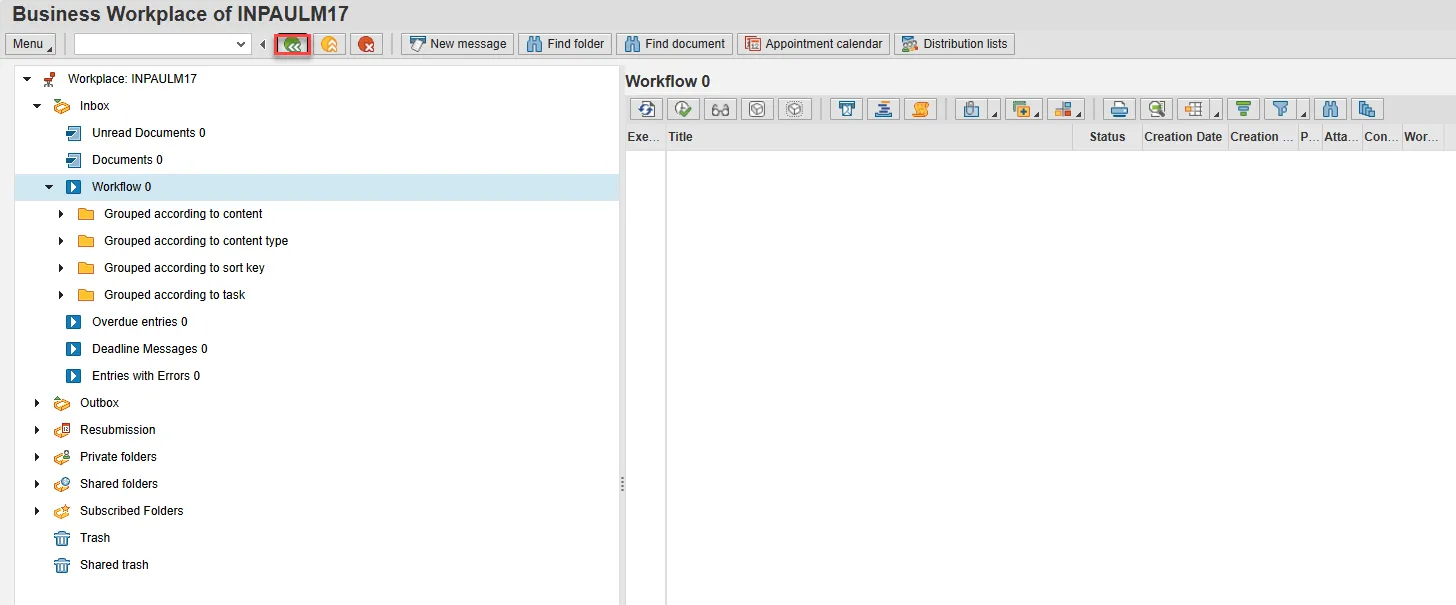
The Demotion Action is complete, but we recommend reviewing via PA20 all infotypes that have been processed.