Purpose
The purpose of this Business Process Procedure is to explain how to process Special Operation Pay in the Integrated HR-Payroll System. This document is intended to be used by DPS.
Trigger
There is a need to process Special Operation Project pay for an employee that recorded hours towards an SOP. The hours that they worked should be paid out immediately instead of going through the comp aging limit as regular overtime and gap hours compensation would.
Business Process Procedure Overview
Employee enters time into HR/PY system using AA code 9500 (time worked), using Charge Objects for hours related to Special Operations Project. The system will calculate OT and GAP hrs. automatically for the OT period. OT comp and GAP hrs. will be stored in the appropriate quota buckets with the aging expiration date according to the position setting.
The agency will use PT_Bal00 to determine if there are any OT/GAP hrs. earned for the OT period and CATS_DA to determine available hours recorded to the SOP Charge Object.
The agency then has the option of paying the SOP-related hours via IT0416 for OT/GAP hrs. Once IT0416 is created, it will automatically pass this information on to payroll.
Payroll will determine the OT Premium from IT0416 and capture this information for Box 12 on the W-2.
Tips and Tricks:
Ensure all timesheets have been entered, released and approved.
Procedure
Access PT_Bal00
There are 17 steps to complete this process.
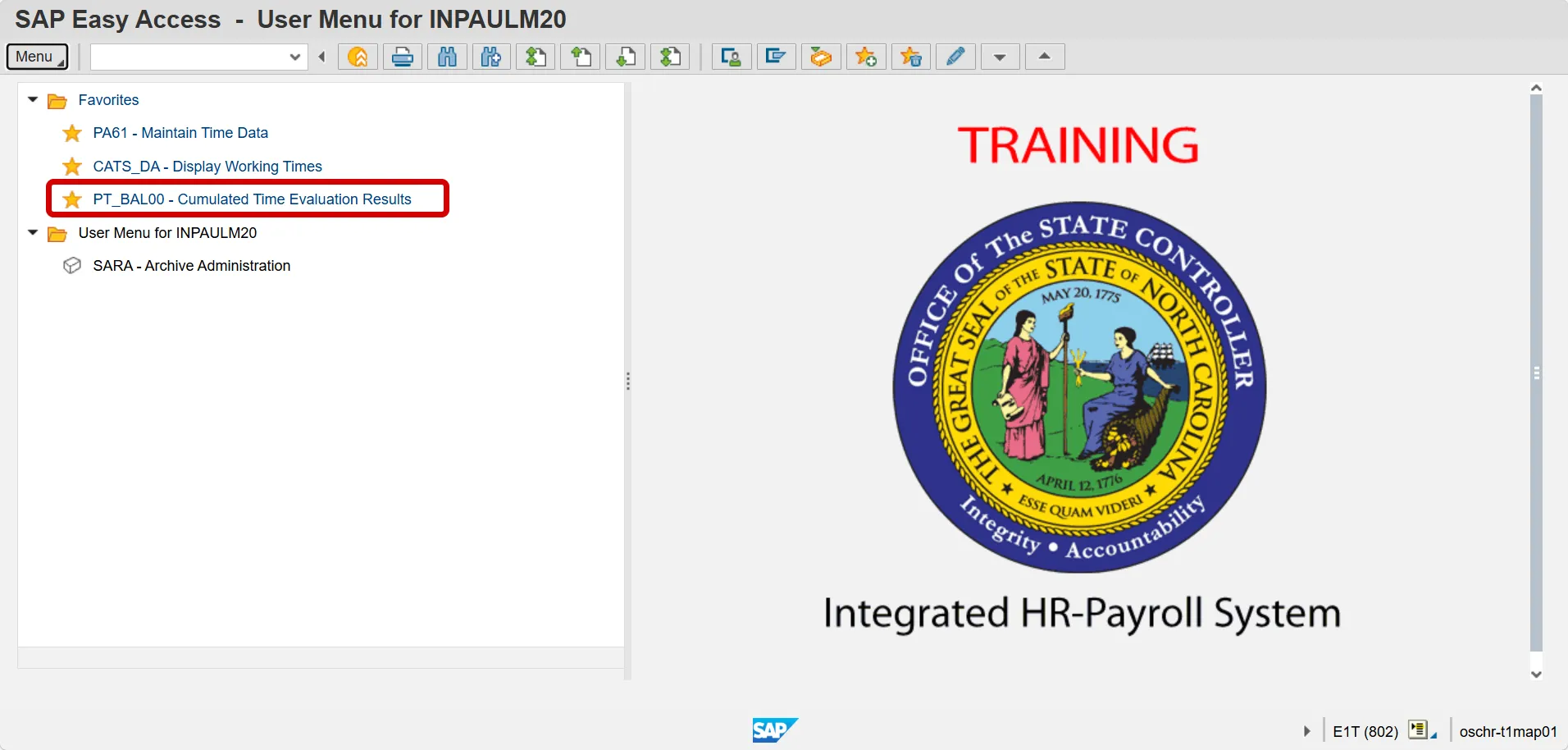
Step 1. From the SAP Easy Access screen, select transaction PT_Bal00 from the Favorites menu, or enter it into the command field.
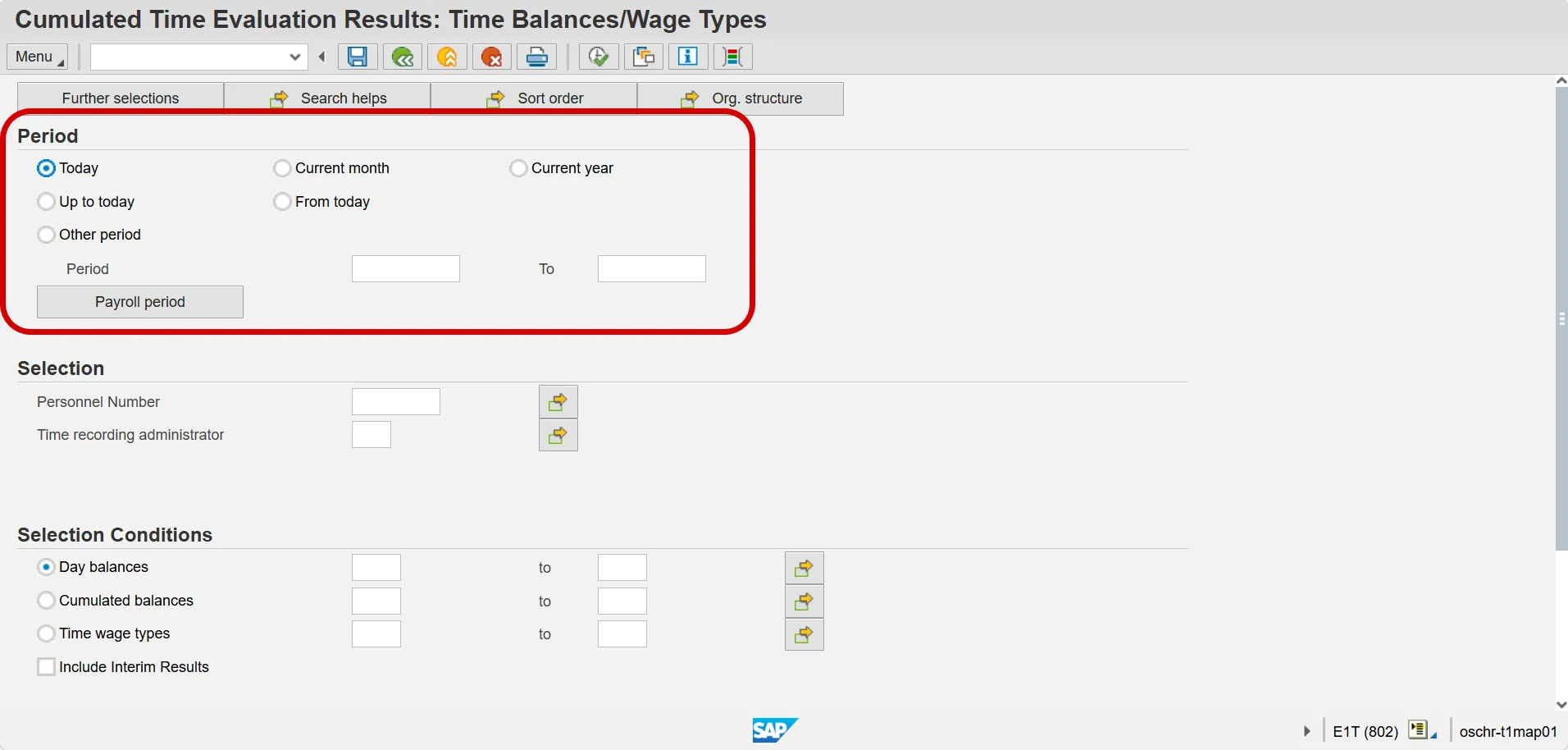
Step 2. Select the appropriate Period. The system will default to Today. This selection will display all Time Balance/Wage Types as of the current date.
Step 3. Enter the Personnel Number of the Employee. The multiple selection button can also be used to display results for multiple employees.
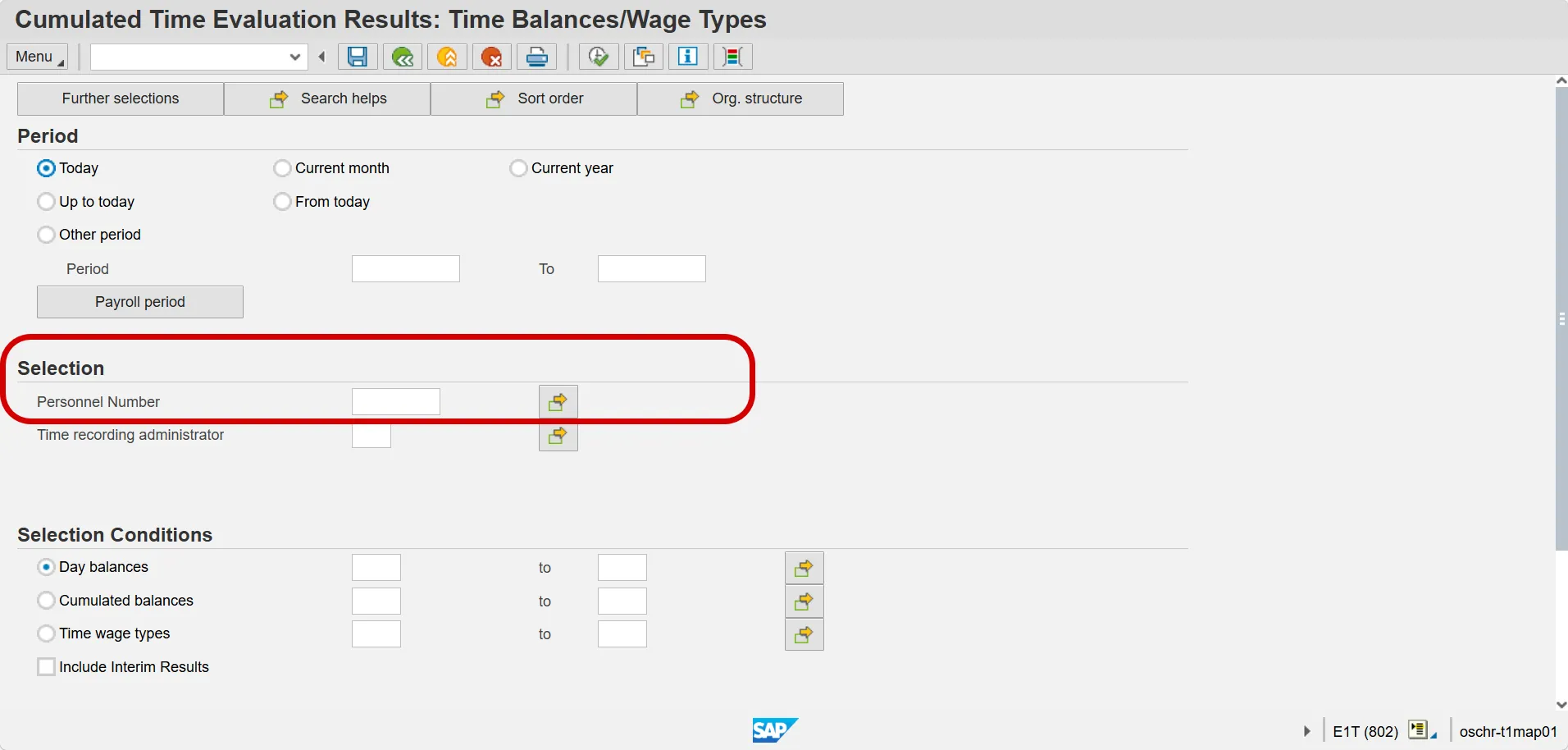
Also, the Org. Structure button can be used to locate and select an org unit in the organizational structure.
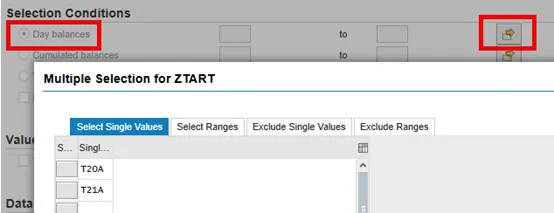
Step 4. Selection Conditions: Select the Day Balances Multiple Selection button and enter Time types T20A and T21A. This will show the accruals for OT and Gap hours only.
Step 5. Click Execute.
View results. Displayed results can also be exported.
Define sorting/subtotals:
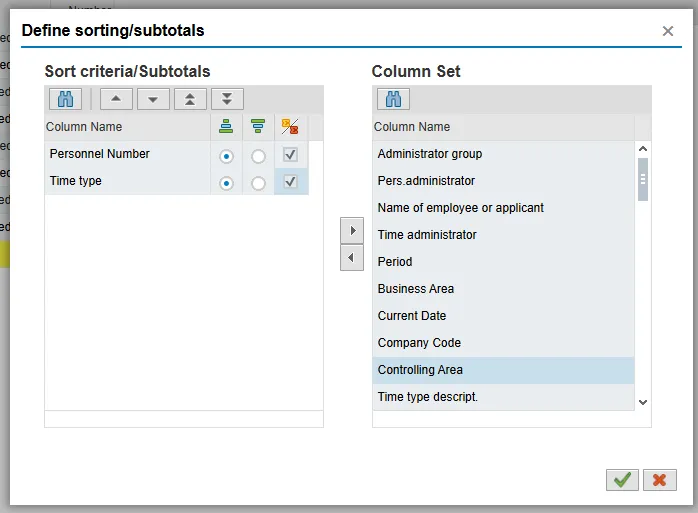
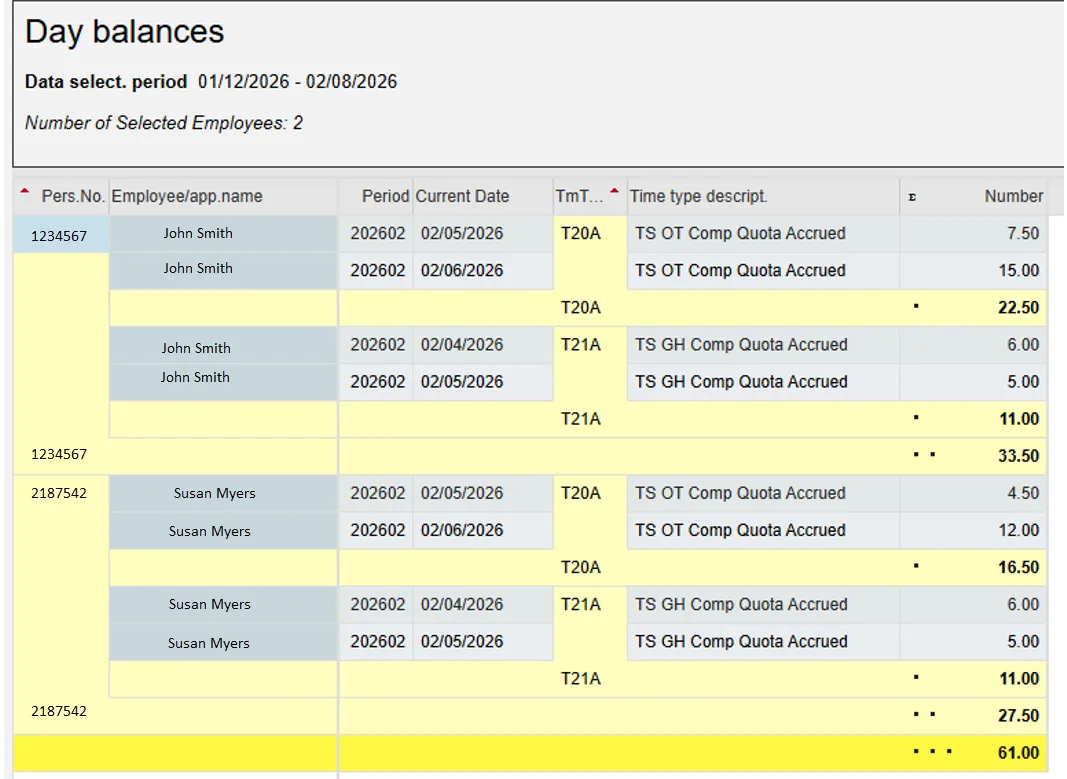
Note: You may find it helpful to create a variant for the PT_Bal00 report. For more information on creating variants, please refer to the Create Selection Variant Help Document. A variant can be created to only display Time type T20A and T21A. This will show the accruals for OT and Gap hours only.
Once employees with Gap Hours Compensation, or Overtime hour balances have been identified, proceed to next step.
Step 6. Click the Green Arrow back to return to the SAP Easy Access screen.
Access CATS_DA
Step 7. From the Favorites menu, or by typing in the Command field, select transaction code CATS_DA.
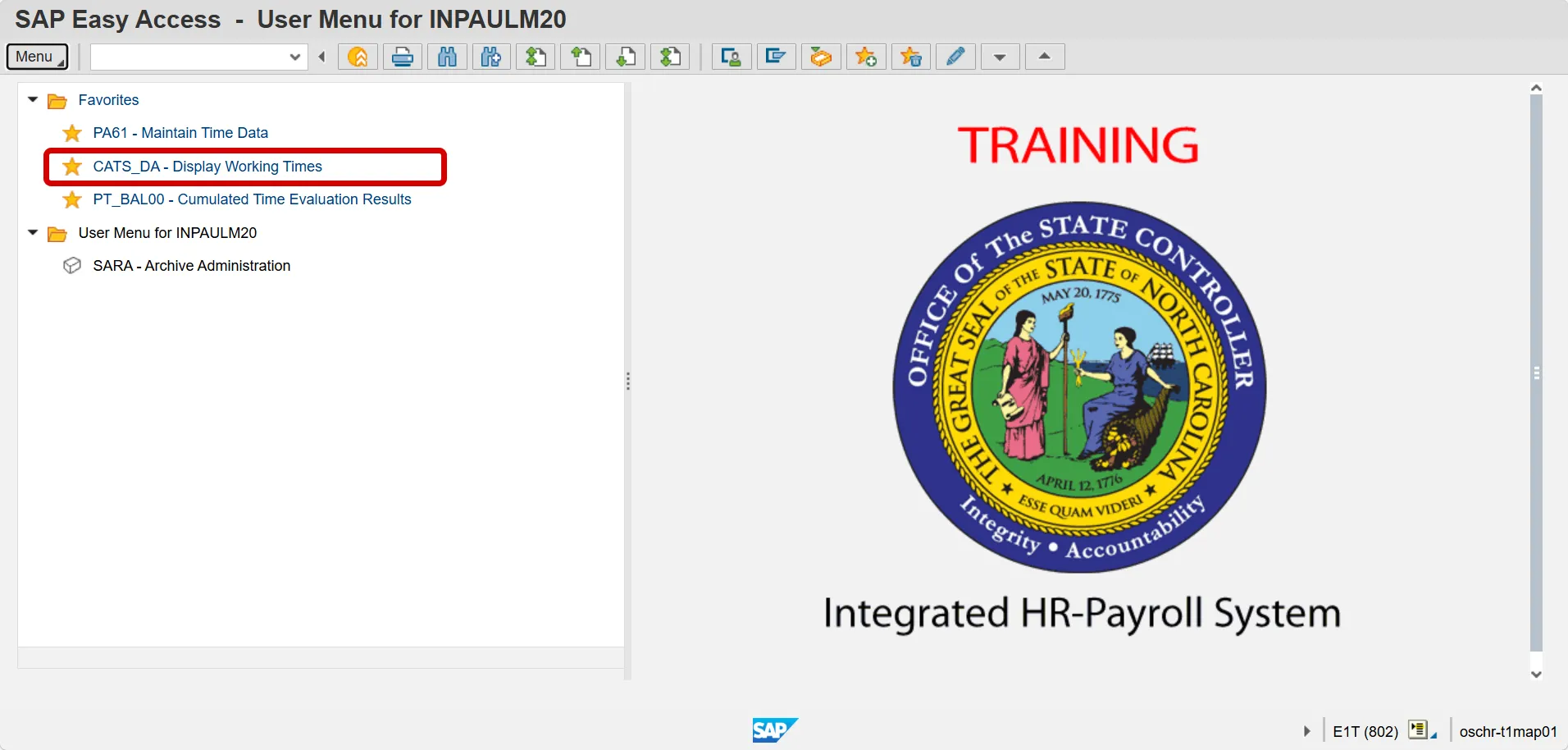
Step 8. Using the CATS_DA Display Working Time transaction, identify the hours recorded to the applicable SOP Charge Object.
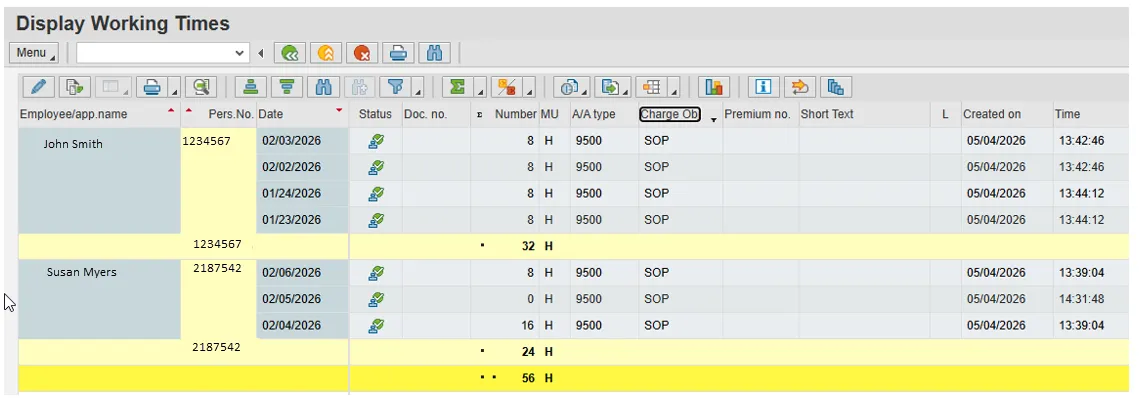
For more information on running the CATS_DA report, access the TM-64 CATS_DA Display Working Time BPP.
If it is determined that the Employee should be paid out for SOP-related hours, the following steps should be followed.
Access IT0416
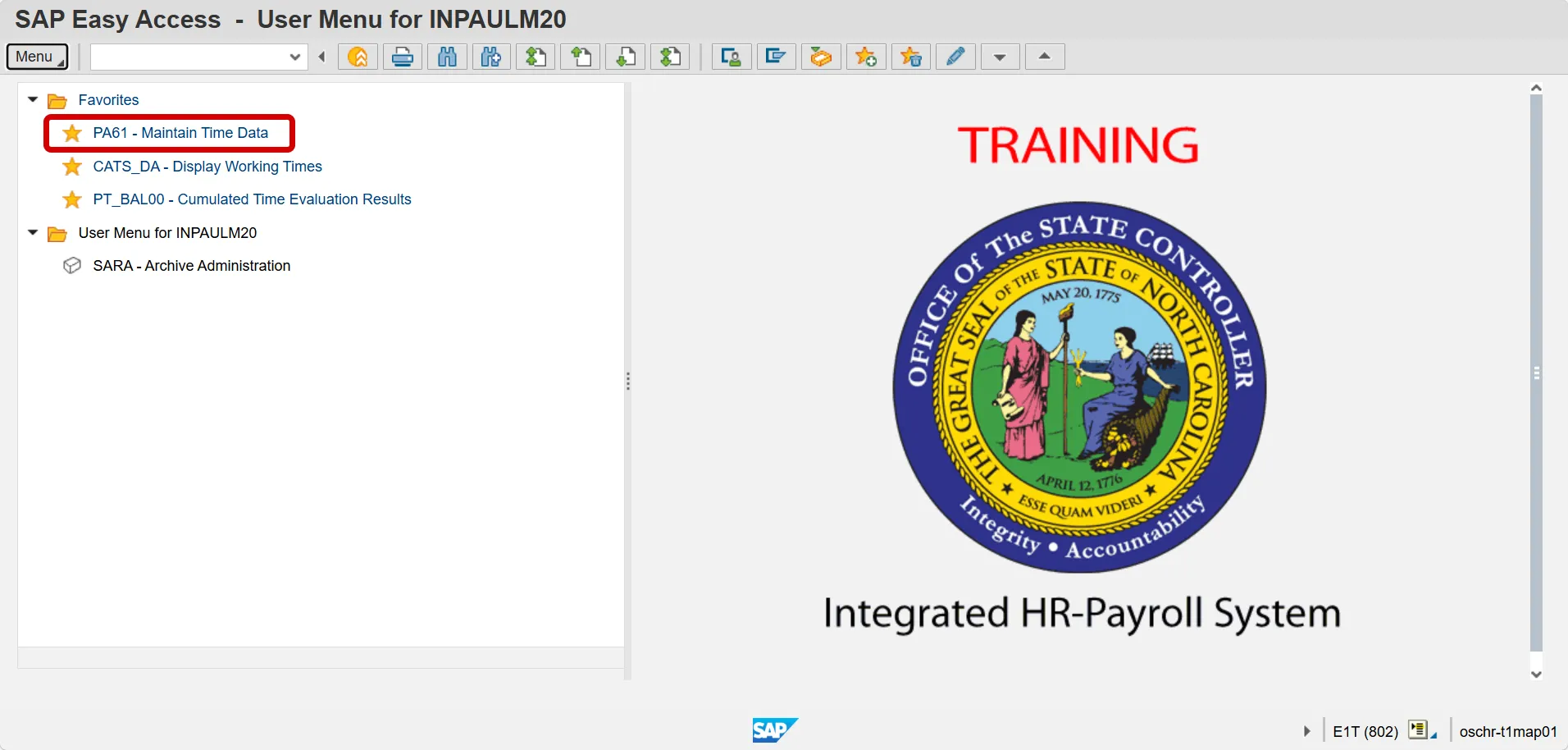
Step 9. From the SAP Easy Access screen, select transaction code PA61 Maintain Time Data.
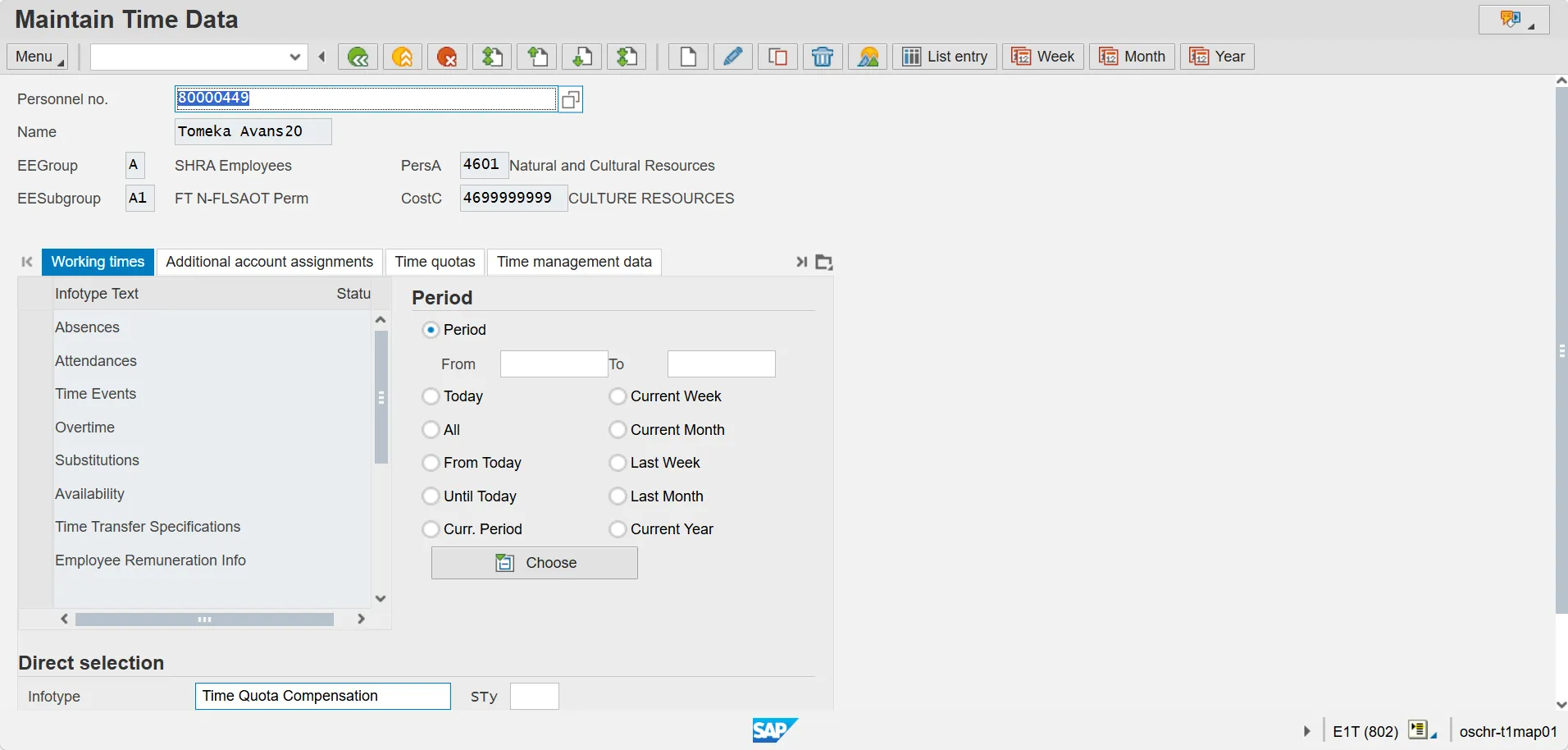
Step 10. Enter the Personnel Number of the employee and click Enter on the keyboard to display their information.
Step 11. In the direct selection field, type 0416, and click Enter on the keyboard.
Time Quota Compensation should appear in the Infotype field.
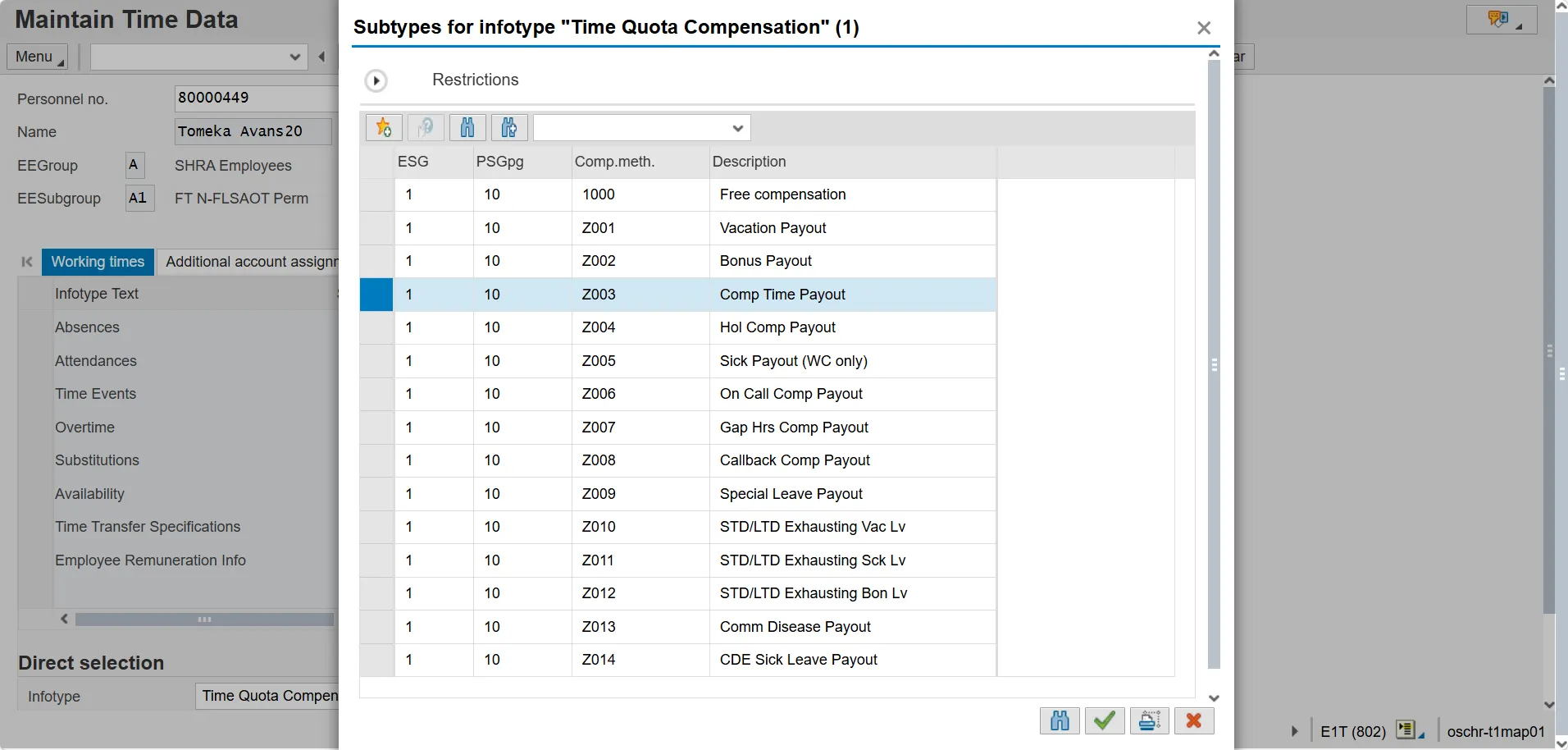
Step 12. In the subtype field, type the appropriate subtype number, or use the matchcode button to select subtype:
- Z003 Comp Time Payout
- Z007 Gap Hrs Comp Payout
Step 13. Click Create.
Step 14. In the No. to Compensate field, enter the number of hours that the employee should be paid out for.
The Absence Quotas table will display the total number of Gap Hours Comp and Overtime Comp. Be sure to use the information you gathered from PT_Bal00 and CATS_DA to determine the correct number to pay out for SOP tim[CM2.1][NB2.2]e, since some of these balances may not be related to SOP time.
Step 15. Add a note. Click Menu > Edit > Maintain text.
Step 16. Click Save, to save the note.
Step 17. Click Save to save the record.
Once IT416 is created, the system will pass this information on to payroll. Payroll will determine OT Premium from IT416 and capture this information for Box 12 on W-2 at the end of the year.
DPS will need to inform the NCFS team (via ticket) if cost allocation (automated movement of expenses to another account or cost distribution) is necessary for specific charge objects.