Purpose
The purpose of this job aid is to explain how to identify employees who have a negative time balance
Identifying Employees With Negative Balances
There are 6 steps to complete this process.
Step 1. Run PT_BAL00 (Time Administrators and Leave Administrators should be able to run this report).

Step 2. Click on the variants icon or click on the menu path: Goto > Variants > Get ….
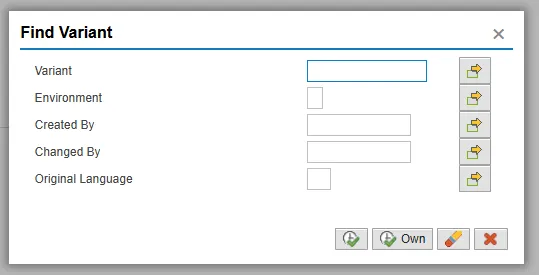
Step 3. Remove your personnel number from Created By field in the pop-up window and click on the Execute button.
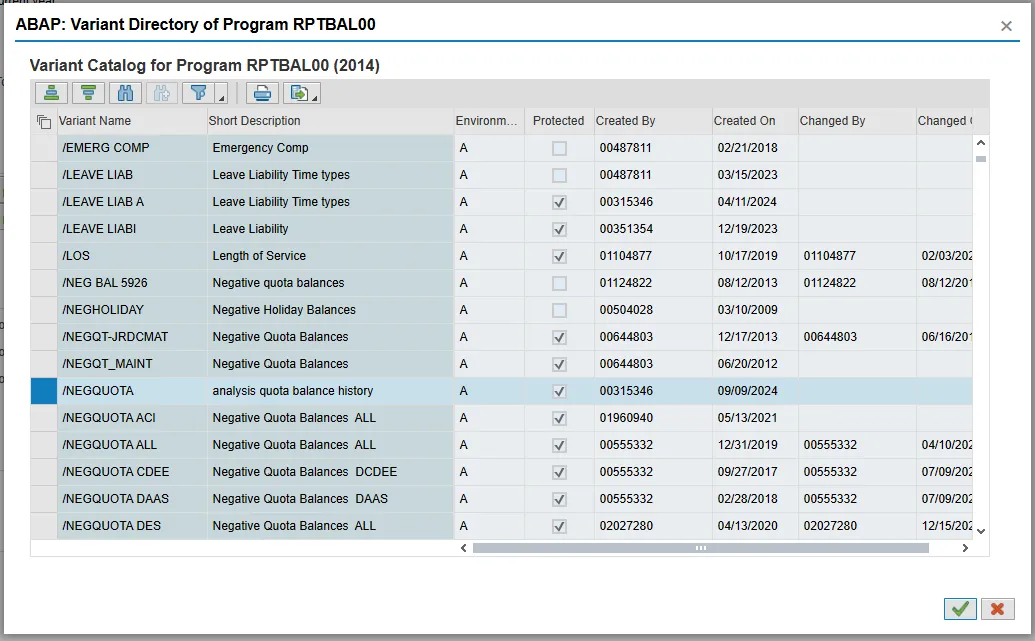
Step 4. Select variant /NEGQUOTA and click on the green check.
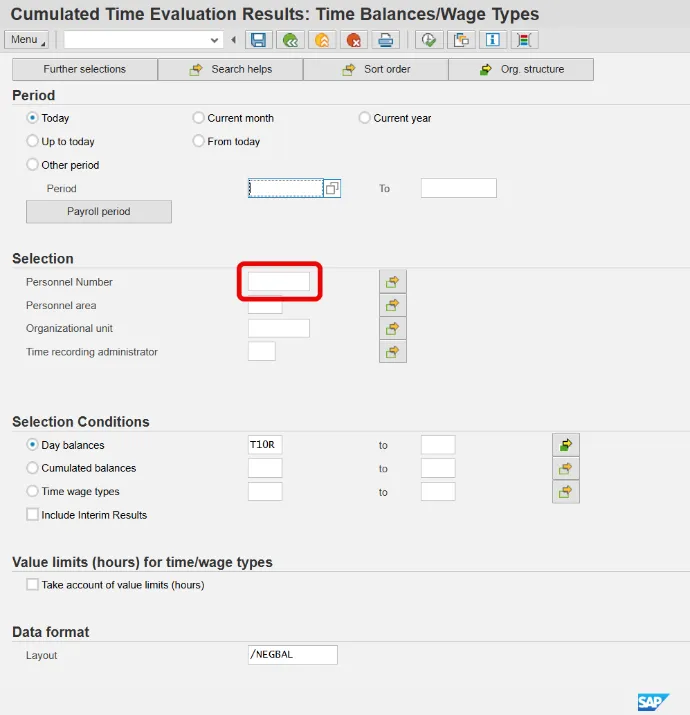
Step 5. Enter Personnel Number(s) or Personnel Area.
Also, the Org. Structure button can be used to locate and select an org unit in the organizational structure.
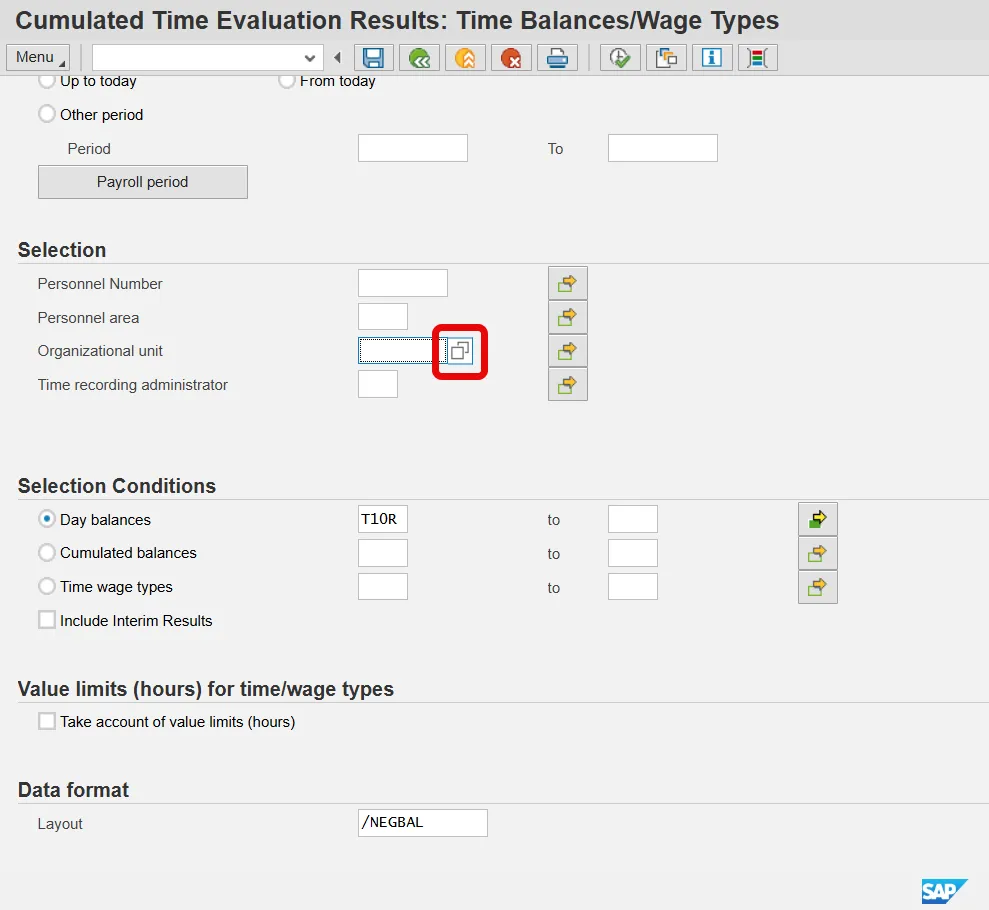

Expand the structure until you find the org unit needed. Click the checkbox beside that org unit.
Click on the green check to make the selection. The org units below the one checked will also be included in the results. The main selection screen will return.
Step 6. Click Execute.
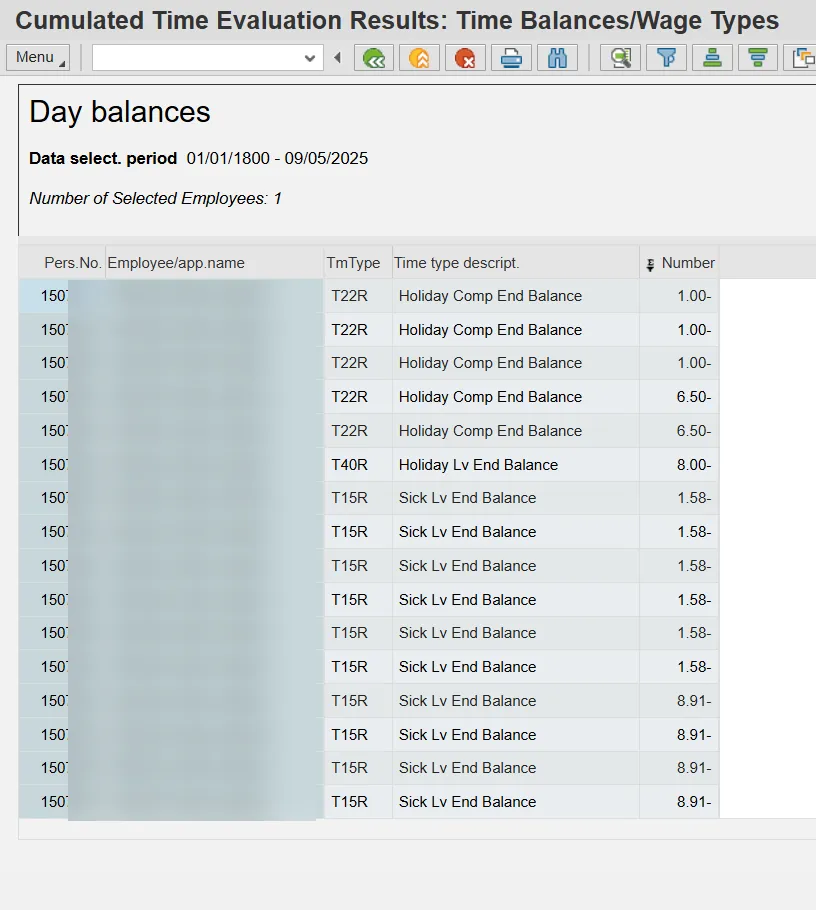
View results:
- Only quotas with negative balances are displayed.
- A filter is in place to hide other balances.
- This filter can be deleted to show all balances.
- Displayed results can be exported.
Once employees with negative balances have been identified, steps should be taken to address the situation. See the Addressing Negative Quota Balances Job Aid for more information.
Notes:
- This variant displays the “day balance” time types that hold quota balances. These come from Time Evaluation results, not from the Quota Overview.
- The “/NEGQUOTA” variant pulls values for “Today.” The “Period” selection can be changed to “Other” dates or a range of dates. The time types being pulled are created for each day there is a balance, so there may be multiple values listed if this report is run for a range of dates.
- Separated employees will show only balances through their last day as an active employee. There have been some issues with the time type values for some separated employees, so it is best to verify these by looking at the current balance in PT50 – Quota Overview.
- You can access the Timesheet Icons in SAP – CAT2 job aid.