Purpose
Payroll Reconciliation Report (PC00_M10_REC) is used to help balance yearend. These reports are run for all employee subgroups subject to FLSA overtime. See last page of this report for the list of employee subgroups subject to FLSA overtime.
Generate Reports
Variants are:
| ZPROD-YTD 1212 | YTD WT 1212 OT Premium |
| ZPROD-YTD 1300 | YTD WT 1300 Comp Time Payout |
| ZPROD-YTD 1327 | YTD WT 1327 Comp Leave |
| ZPROD-YTD 1343 | YTD WT 1343 Comp Leave |
| ZPROD-YTD 1348 | YTD WT 1348 Comp Time Payout |
There are 14 steps to complete this process.
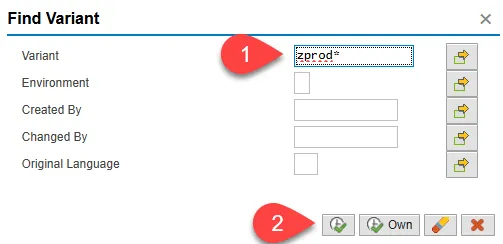
Step 1. To find the variants click the Variant icon. Enter zprod* in the Variant field and then select Execute.
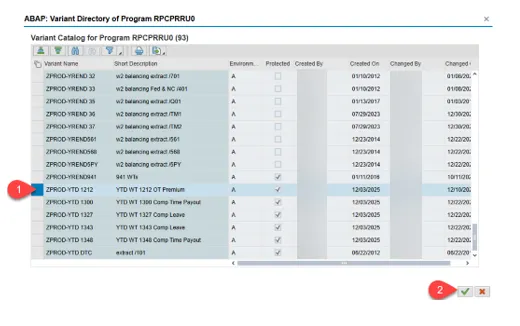
Step 2. Select the variant to run.
Step 3. The variant run dates must be changed to support the period in which you are running for.
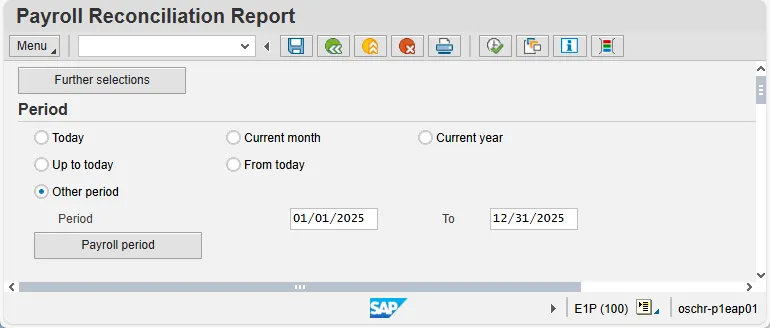
Note: Each report must be run to gather the data needed to get year-to-date eligible overtime premium amounts. Reports should be run in the background if running without personnel numbers or for a large dataset.
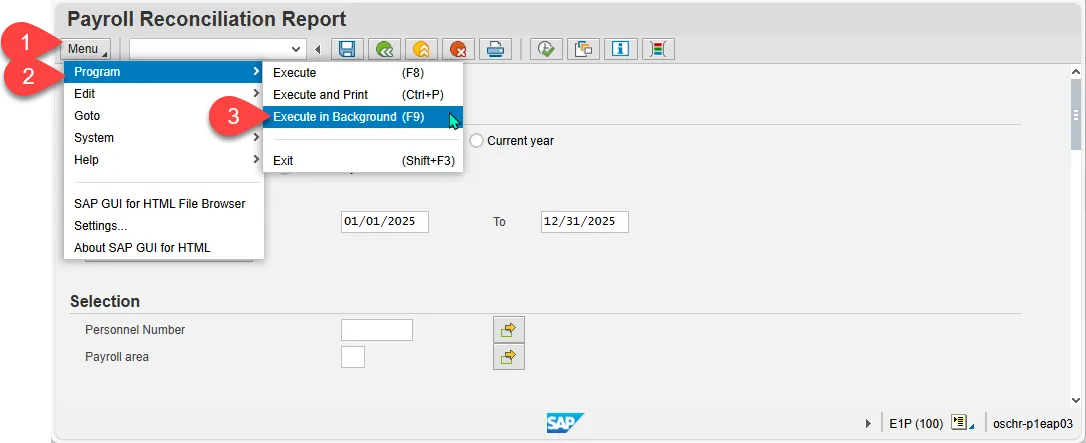
Step 4. To run in the background, select Menu->Program->Execute in Background.
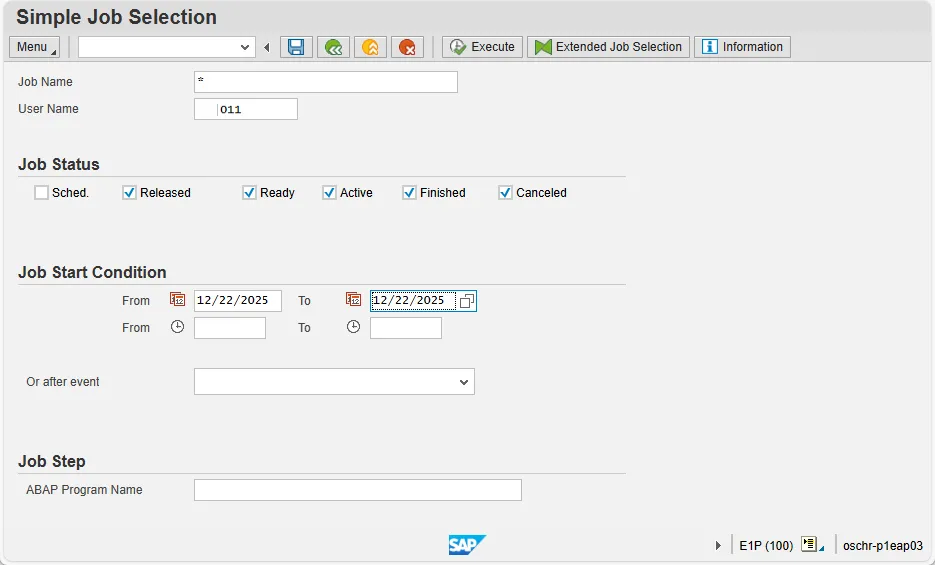
Step 5. Execute the Overview of Jobs (SM37) transaction to monitor and retrieve the reports.
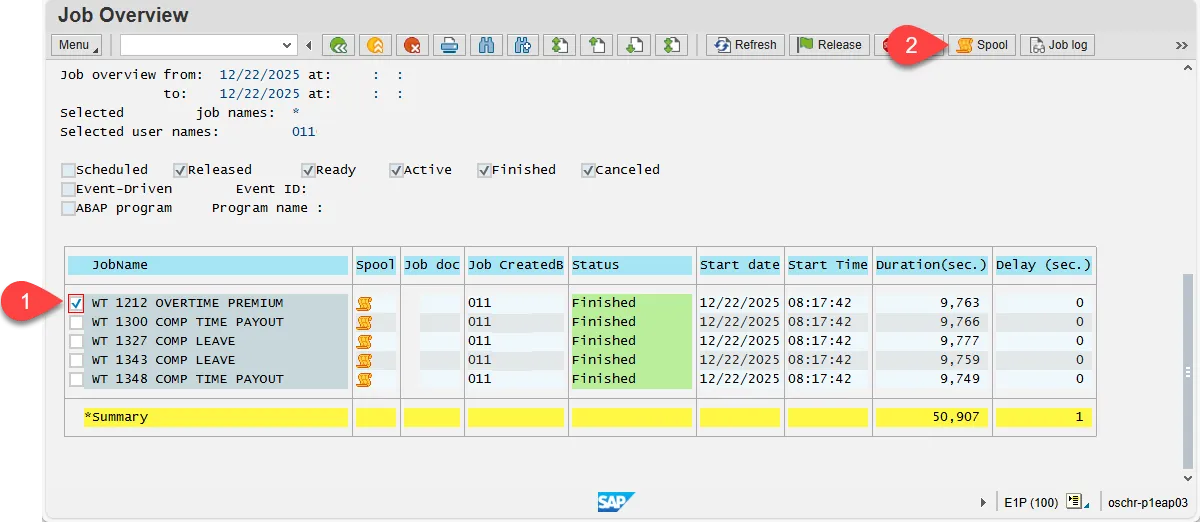
Step 6. Select the JobName, then select the Spool button to display the spool results.
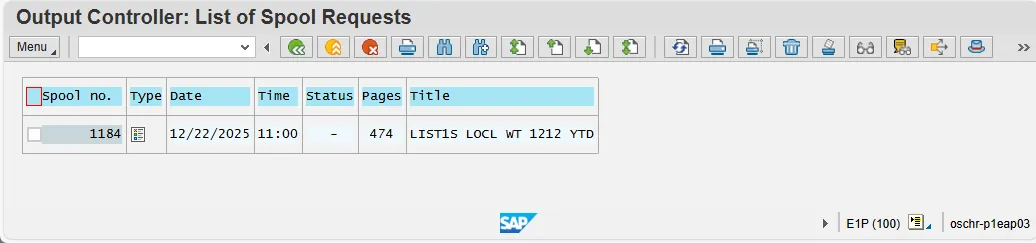
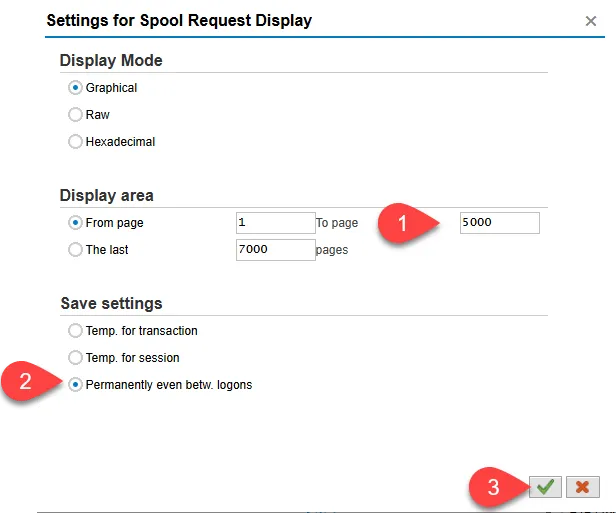
Step 7. Before opening the spool, make sure your settings will allow you to see the complete spool.
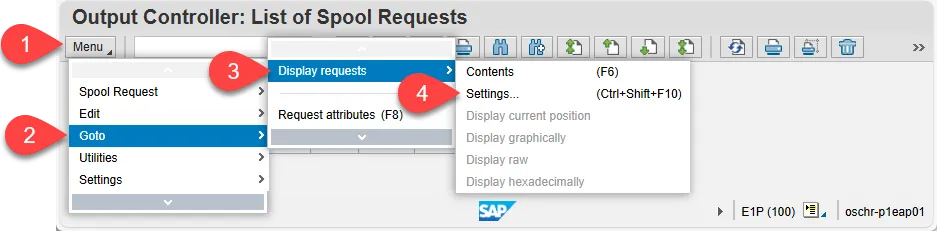
Step 8. Check your setting using Menu->Goto->Display requests->Settings.
Step 9. Make sure you show enough pages to see the complete report. You can change this setting to be permanent or temporary.
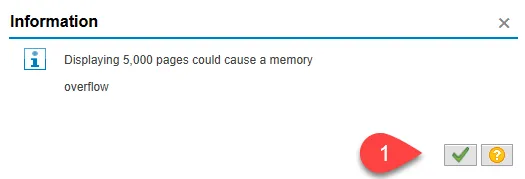
Step 10. Select the Green check mark through the information message.
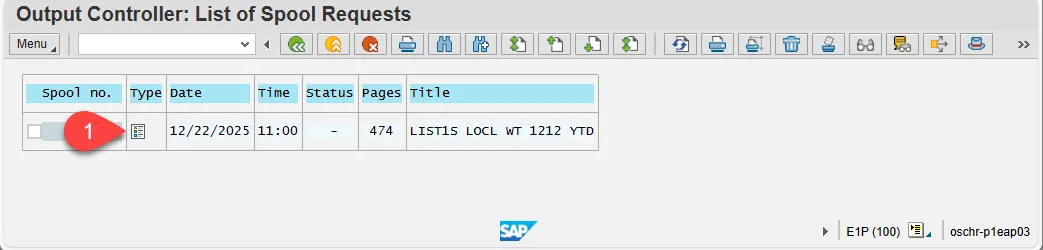
Step 11. To open the spool, select the Type button.
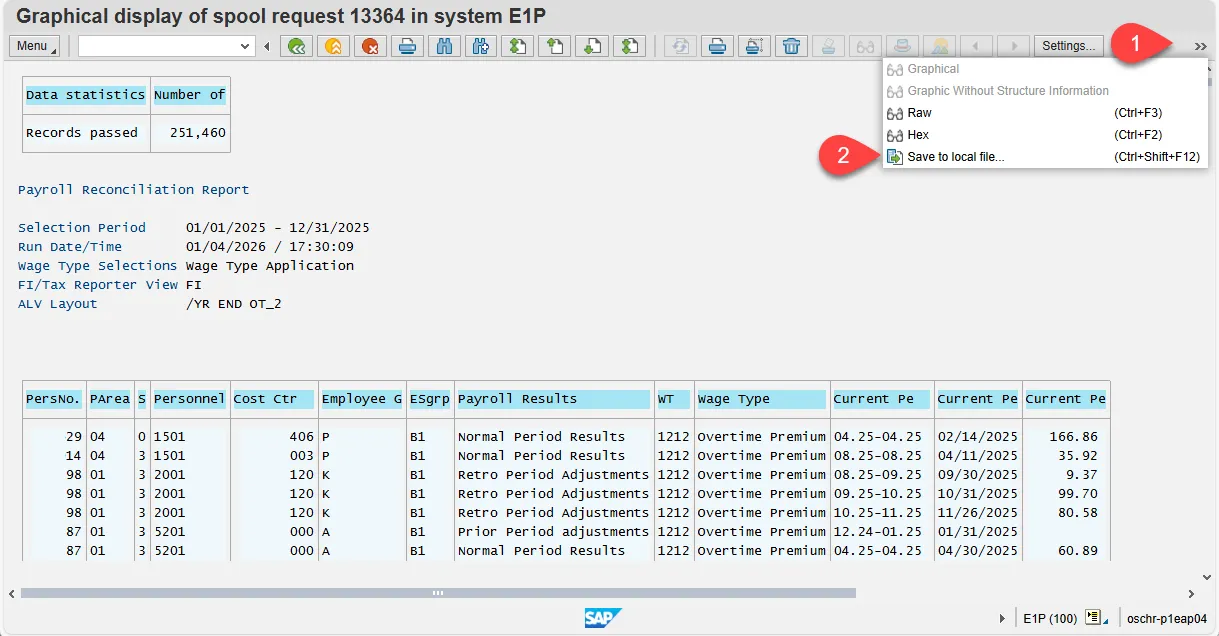
Step 12. To Copy the report to the clipboard, select the More button, and then select Save to local file….
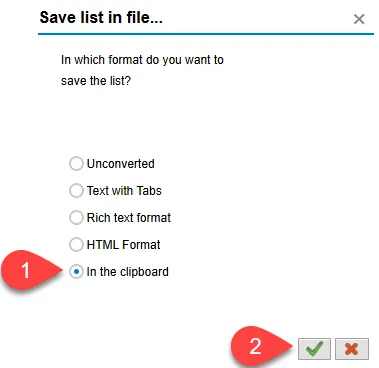
Step 13. Select the In the clipboard radio button, followed by the Green check mark.
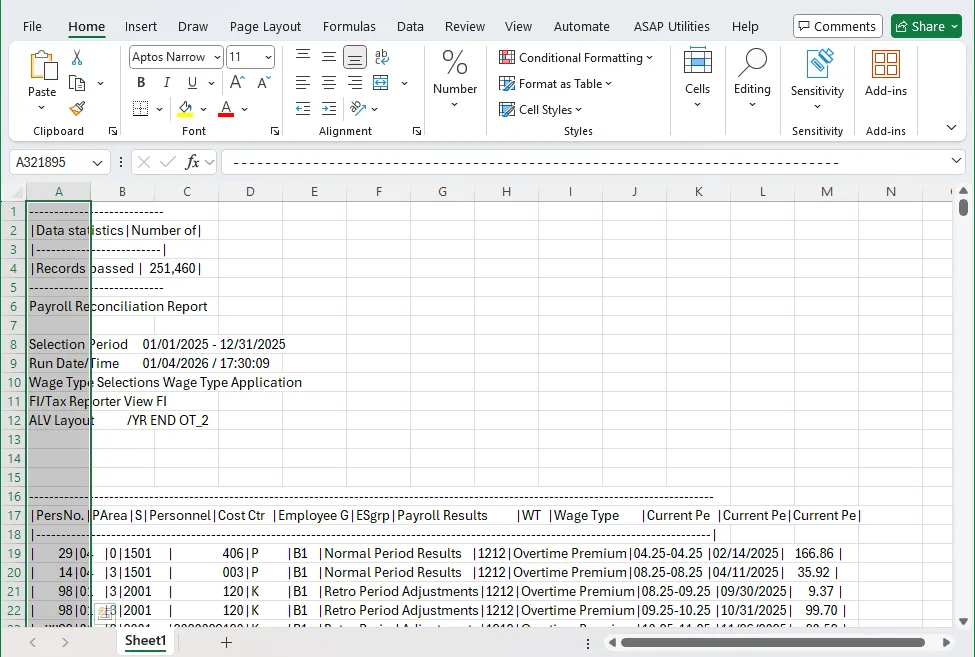
Step 14. Open an MS-Excel session. Paste the clipboard into the first column in MS-Excel.
Subject FLSA Employee Subgroups
| ESgrp | Name of EE subgroup |
|---|---|
| 0A | PT S-FLSAOT Perm MAG |
| 0C | PT S-FLSAOT TL MAG |
| 0E | PT S-FLSAOT Temp MAG |
| 72 | FT S-FLSAOT Perm MAG |
| 74 | FT S-FLSAOT TL MAG |
| 81 | FT S-FLSAOT Perm CR |
| 83 | FT S-FLSAOT TL CR |
| 85 | FT S-FLSAOT Temp CR |
| 8A | PT S-FLSAOT Perm CR |
| 8C | PT S-FLSAOT TL CR |
| 8E | PT S-FLSAOT Temp CR |
| B1 | FT S-FLSAOT Perm |
| B2 | FT S-FLSAOT Prob |
| B3 | FT S-FLSAOT TL |
| B4 | FT S-FLSAOT TL Prob |
| B5 | FT S-FLSAOT Temp |
| B6 | FT S-FLSAOT Student |
| B7 | FT S-FLSAOT Intermit |
| B8 | N/A FT S-FLSAOT Trne |
| B9 | N/A FT SFLSAOTFldTrn |
| BL | FT S-FLSAOT Perm |
| BP | FT S-FLSAOT Prob |
| C5 | FT S-FLSA Perm 12C |
| C6 | FT S-FLSA Prob 12C |
| C7 | FT S-FLSA TL 12C |
| C8 | FT S-FLSA TLProb 12C |
| D5 | FT S-FLSA Perm 11C |
| D6 | FT S-FLSA Prob 11C |
| D7 | FT S-FLSA TL 11C |
| D8 | FT S-FLSA TLProb 11C |
| F5 | PT S-FLSA Perm 11C |
| F6 | PT S-FLSA Prob 11C |
| F7 | PT S-FLSA TL 11C |
| F8 | PT S-FLSA TLProb 11C |
| G2 | Pick-up FireFighter |
| G8 | Temp FT S-FLSAOT |
| GB | Temp PT S-FLSAOT |
| GD | Temp Sol FT S-FLSAOT |
| GF | Temp Sol PT S-FLSAOT |
| H5 | FT S-FLSA Perm 10C |
| H6 | FT S-FLSA Prob 10C |
| H7 | FT S-FLSA TL 10C |
| H8 | FT S-FLSA TLProb 10C |
| I5 | PT S-FLSA Perm 10C |
| I6 | PT S-FLSA Prob 10C |
| I7 | PT S-FLSA TL 10C |
| I8 | PT S-FLSA TLProb 10C |
| P5 | FT S-FLSA Perm 115C |
| P6 | FT S-FLSA Prob 115C |
| P7 | FT S-FLSA TL 115C |
| P8 | FT S-FLSATLProb 115C |
| R5 | PT S-FLSA Perm 12C |
| R6 | PT S-FLSA Prob 12C |
| R7 | PT S-FLSA TL 12C |
| R8 | PT S-FLSA TLProb 12C |
| SM | FT S-FLSAOTPerm ACJP |
| SN | FT S-FLSAOT TL ACJP |
| SO | FT S-FLSAOTTemp ACJP |
| SP | PT S-FLSAOTPerm ACJP |
| SQ | PT S-FLSAOT TL ACJP |
| SR | PT S-FLSAOTTemp ACJP |
| V0 | FT S-FLSAOT Perm JBS |
| V3 | FT S-FLSAOT TL JBS |
| V5 | FT S-FLSAOT Temp JBS |
| V7 | FT S-FLSAOT Perm MC |
| VA | PT S-FLSAOT Perm JBS |
| VC | PT S-FLSAOT TL JBS |
| VE | PT S-FLSAOT Temp JBS |
| VX | PT S-FLSAOT Perm MC |
| X5 | PT S-FLSA Perm 115C |
| X6 | PT S-FLSA Prob 115C |
| X7 | PT S-FLSA TL 115C |
| X8 | PT S-FLSATLProb 115C |
| Y1 | PT S-FLSAOT Perm |
| Y2 | PT S-FLSAOT Prob |
| Y3 | PT S-FLSAOT TL |
| Y4 | PT S-FLSAOT TL Prob |
| Y5 | PT S-FLSAOT Temp |
| Y6 | PT S-FLSAOT Student |
| Y7 | PT S-FLSAOT Intermit |
| Y8 | N/A PT S-FLSAOT Trne |
| Y9 | N/A PT SFLSAOTFldTrn |