Purpose
The purpose of this Business Process Procedure is to explain how to process a Salary Adjustment in the Integrated HR-Payroll System.
Trigger
There is a need to process a Salary Adjustment for one of the reasons listed in the Business Process Procedure Overview section.
Business Process Procedure Overview
Salary Adjustment – an increase in an employee’s salary within the current position.
- 01 - Salary Adjustment - general increase in an EPA employee or temporary employee’s base salary, or a federal “prevailing wage” salary increase to an employee with a H1B Visa.
[NOTE: Use of this reason for any other reason than defined must have OSHR approval.] - 02 - Correct New Hire Salary - Decrease or increase in employee base salary to correct the new hire salary.
- 03 - Increase to Minimum - Increase to bring an employee’s salary to the minimum of the salary range.
- 07 - Acting Pay - temporary increase in employee base salary as a result of assuming the duties of a higher-level position that is vacant or while an employee is on an extended leave of absence. [NOTE: This action should be used to award acting pay in any of the SPA pay systems.]
- 08 - Retention Adjustment - increase in employee base salary due to receiving an outside offer and approval from State Human Resources Director.
Note: Agencies typically use the in-range adjustment retention reason if the employee meets the eligibility requirements and the percentage awarded falls within the in-range adjustment policy guidelines.
- 09 – Trainee/Associate Adjustment – increase in employee base salary based on Trainee/Associate Progression Guide.
- 10 - Lead Worker Adjustment – increase in employee base salary due to assuming lead worker responsibilities.
- 11 – EPA Supplemental Payment - Pay in addition to base pay.
- 12 - In-Range – Higher Level – increase in employee base salary due to documented changes has occurred in duties and responsibilities that are at a higher level but not substantial enough to justify reclassification to a higher salary grade or a salary range revision. [NOTE: This action should not be used for career-banded employees.]
- 13 - In-Range – Increase Variety - increase in employee base salary due to documented changes occurring in duties and responsibilities that are at the same level, but the changes have increased the variety and scope of duties and/or accountability of the employee. [NOTE: This action should not be used for career-banded employees.]
- 14 - In-Range – Equity – increase in employee base salary to establish equitable salary relationships among employees performing the same type and level of work. [NOTE: This action should not be used for career-banded employees.]
- 15 - In-Range – Retention – increase in employee base salary to avoid losing the employee due to an outside job offer. [NOTE: This action should not be used for career-banded employees.]
- 16 - In-Range – Turnover – increase in employee base salary to reduce turnover. [NOTE: This action should not be used for career-banded employees.]
- 17 - In-Range – Other Labor Market – increase in employee base salary due to documented labor market information. [NOTE: This action should not be used for career-banded employees.]
- 18 - Geographic Differential – increase in employee base salary based on Geographic Differential Guide. [NOTE: This action should not be used for career-banded employees.]
- 19 - Site Differential - used by Department of Public Safety – Adult Corrections Division only.
- 20 - CGRA – increase in employee base salary for Career Growth Recognition Award, approved by Legislation.
- 22 - Legislative Increase - increase in employee base salary for Cost-of-Living, approved by Legislation.
- 23 - Performance Increase – increase in employee base salary for performance.
- 24 - LEO Sworn – increase in employee base salary for obtaining Basic Law Enforcement Training (BLET) certification.
- 40 - Temp In-Range for Job Change - Increase in an SPA graded employee base salary resulting from the temporary assignment of additional job duties and responsibilities such as a special project or assignment. NOTE: Additional duties are not the result of “acting pay or acting promotion.” [NOTE: This action should not be used for career-banded employees.]
- 39 - Salary Adjustment Fund - A salary increase that is funded through special legislation and approved by the Office of State Budget and the Office of State Human Resources prior to the PCR being created.
- 50 - Auto Sal Adj – AOC Only - Salary adjustments authorized by NC General Statutes (7A-102 and 7A-171.1) for assistant clerks, deputy clerks, deputy clerks/bookkeepers and magistrates.
Note: If the Salary Adjustment action is for a limited time period, create an infotype 0019 Monitoring of Tasks record via transaction code PA30 to create a reminder to process the Cancel Salary Adjustment action at the end date of the time-limited increase.
Tips and Tricks
Prior to initiating any workflow, ensure the data being used is valid and appropriate.
Access Transaction
Via Menu Path: Your menu path may contain this custom transaction code depending on your security roles.
Via Transaction Code: ZPAA076; SBWP; PA40
Procedure
There are 42 steps to complete this process.
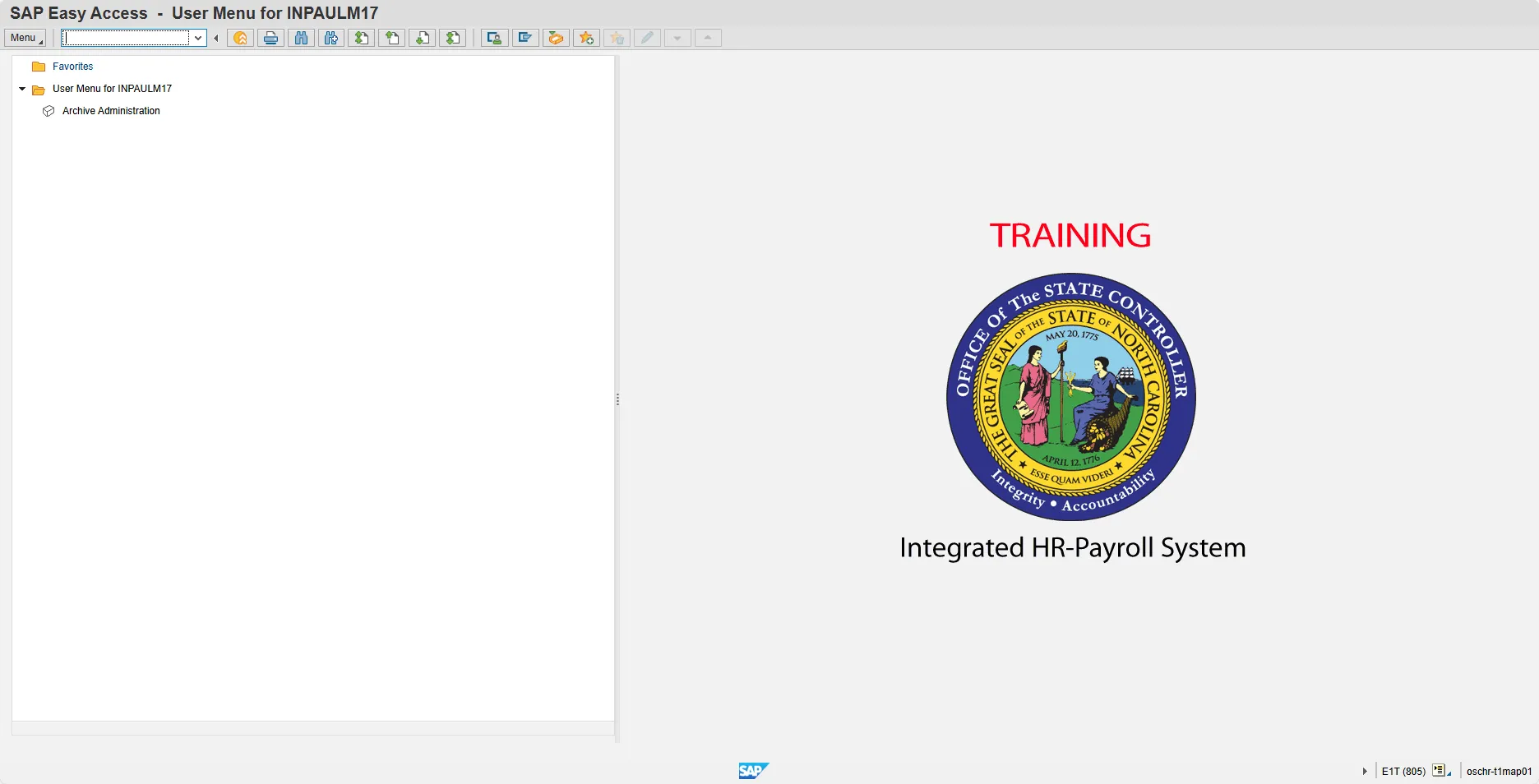
Step 1. Update the following field:
| Field Name | Description | Values |
|---|---|---|
| Command | White alphanumeric box in upper left corner used to input transaction codes |
Enter value in Command. Example: ZPAA076 |
Step 2. Click Enter.
Information
You may want to enter this transaction code in your Favorites folder.
- Choose Favorites > Insert Favorites.
- Type in ZPAA076.
- Click Enter.
To see the transaction code displayed in front of the link in your favorites:
- Choose Edit > Settings.
- Place a check next to Display Technical Name.
- Click Enter.
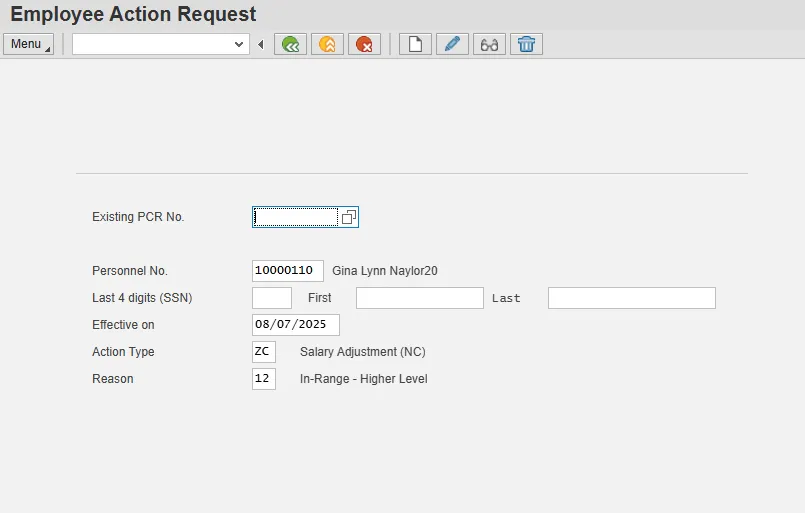
Step 3. Update the following fields:
| Field Name | Description | Values |
|---|---|---|
| Personnel No. | Unique employee identifier |
Enter value in Personnel No. Example: 10000110 |
| Effective on | The date on which the action will be effective. |
Enter value in Effective on. Example: 08/07/2025 |
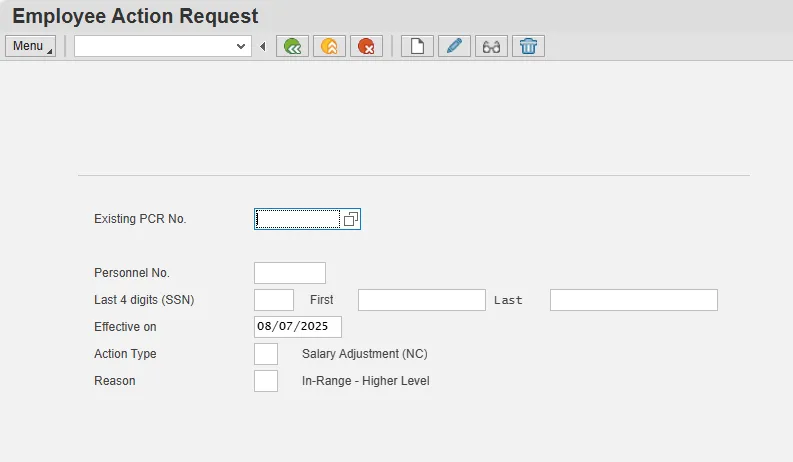
| Action Type | An action is a grouping of activities to perform a specific task. The action will prompt you for the Infotypes required to complete the task. |
Enter value in Action Type. Example: ZC |
| Reason | Reason for the action, such as In-Range – Higher Level |
Enter value in Reason. Example: 12 |
Step 4. Click Enter.
Enter the Personnel Number of the individual to receive the Salary Adjustment. Click Enter to retrieve the name of the individual and verify you have the correct Personnel Number.
Note: Enter the SSN and name for New Hires only.
If you need to look up the personnel number, click your cursor in the field and click on the matchcode search button to the right of the field for search options.
The system defaults the current date, but you can change the date to a day in the past or in the future.
There are several available Reasons from which to choose. For specific information on each reason, view the business process overview section at the beginning of these instructions.
Click Enter and verify the information is correct before proceeding.
Step 5. Click the Create (F5) button.
If the information is correct, click Create to begin the process.
Leave the Existing PCR No. field blank if you are creating a new PCR.
Several fields on this screen are mandatory. The system will not let you continue if you have not provided data for the mandatory fields. If you are unsure which fields are mandatory, click Enter, and the system will prompt you for information in the mandatory fields.
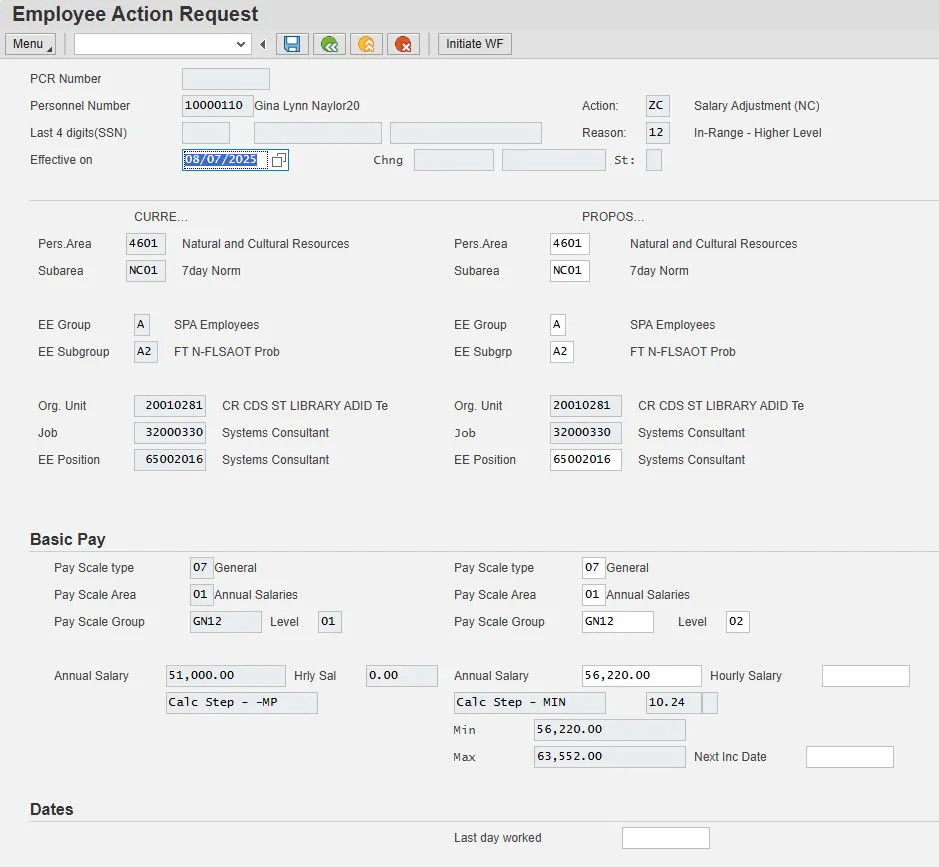
Step 6. Update the following field:
| Field Name | Description | Values |
|---|---|---|
| Annual Salary | Employee's annual basic pay |
Enter value in Annual Salary. Example: 56220 |
| Level | Salary level is based on annual salary range. Check the matchcode to choose the correct range. |
Enter value in Level. Example: 02 |
Step 7. Click Enter.
Enter the new annual salary or hourly rate. Click Enter to validate the data. If the employee is hourly, leave the annual salary field blank and only complete the hourly salary field.
Step 8. Click the Save (Ctrl+S) button.
Click Save to save the data and receive a PCR number. The PCR has not been submitted to workflow yet.
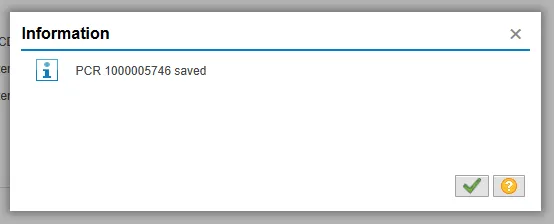
Step 9. Click the Continue (Enter) button.
You can save this information as many times as you like. Each time you will receive a confirmation of the save. You will not be able to create a note attachment until you have saved it at least once. If you have submitted the PCR to workflow already, you will not be able to change the details, nor save any new information, only display the existing details.
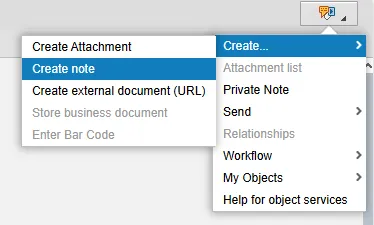
Step 10. Click the Services for Objects button in the upper right corner.
Step 11. Create... >> Create note.
You can enter any information that would be useful to the approvers downstream using the notes area or attachment area. If you just need to type some information in, or copy and paste from an email, create a note. If you want to add a document as an attachment, use the attachment area.
This note and attachment area gets attached to this specific PCR only. It will follow the PCR through the approval/rejection process and live with the PCR into the future. When the PCR has been approved and you are processing the Action (such as a New Hire action), you will need to recreate any notes or attachments if they need to be attached to the Action record as well.
Notes entered during PA Workflow must follow OSHR’s Action Notes Template: PA ACTION NOTES TEMPLATE.
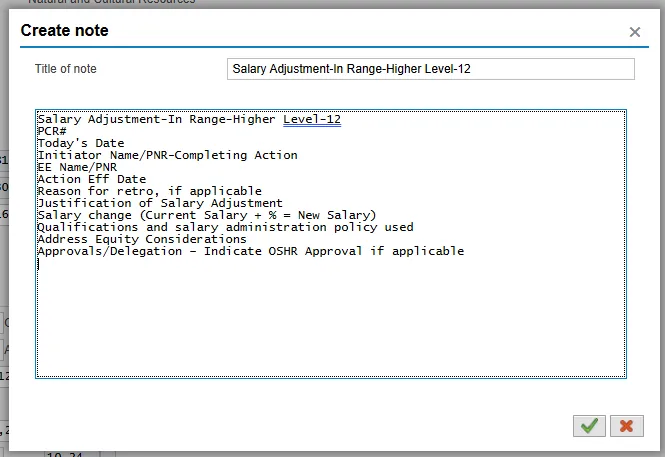
Step 12. Update the following fields:
| Field Name | Description | Values |
|---|---|---|
| Title of note | The short text to act as the title of the attachment |
Enter value in Title of note. Example: Salary Adjustment information |
| Long text | An open text field |
Enter value in Long text. Example: appropriate information |
Step 13. Click the Continue (Enter) button.
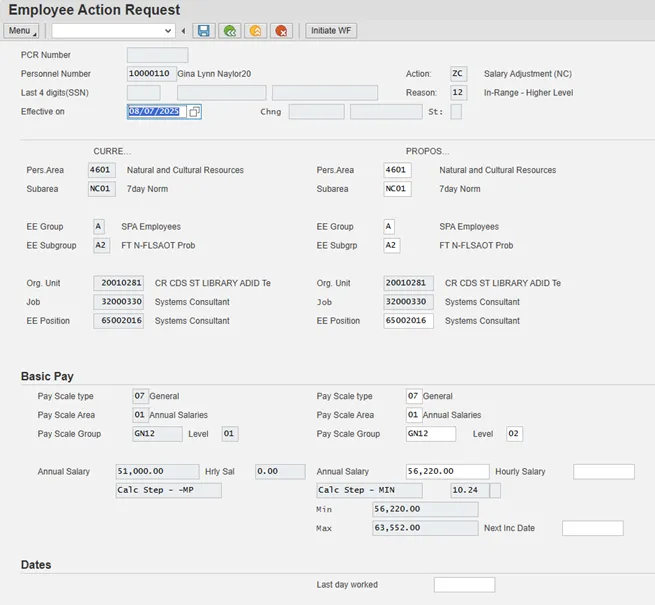
Step 14. Click Enter.
Step 15. Click the Save (Ctrl+S) button.
Step 16. Click the Initiate WF button.
Select the Initiate Workflow button to send the Salary Adjustment Action through the approval process. No changes can be made after the PCR has been submitted for approval, unless the PCR is rejected at any stage and sent back to you (the initiator/requestor).
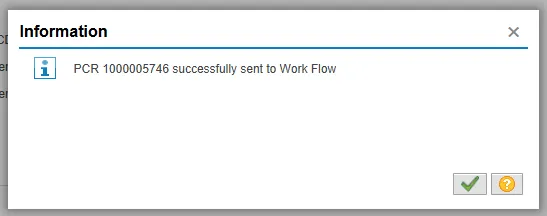
Step 17. Click the Continue (Enter) button.
Step 18. Click the Back (F3) button.
Step 19. The Initiate Salary Adjustment Action is complete.
After Workflow Approvals have been received, process with the Complete Salary Adjustment Action process.
Instructions for Completing the Action
Access Transaction
Via Menu Path: SAP menu ==> Office ==> SBWP – Workplace
Via Transaction Code: SBWP; PA40
Step 20. Click the SAP Business Workplace (Ctrl+F12) button.
These instructions assume you have initiated the Salary Adjustment Personnel Change Request (PCR) in workflow already, and you have an approved PCR ready to be processed as a Salary Adjustment in the system.

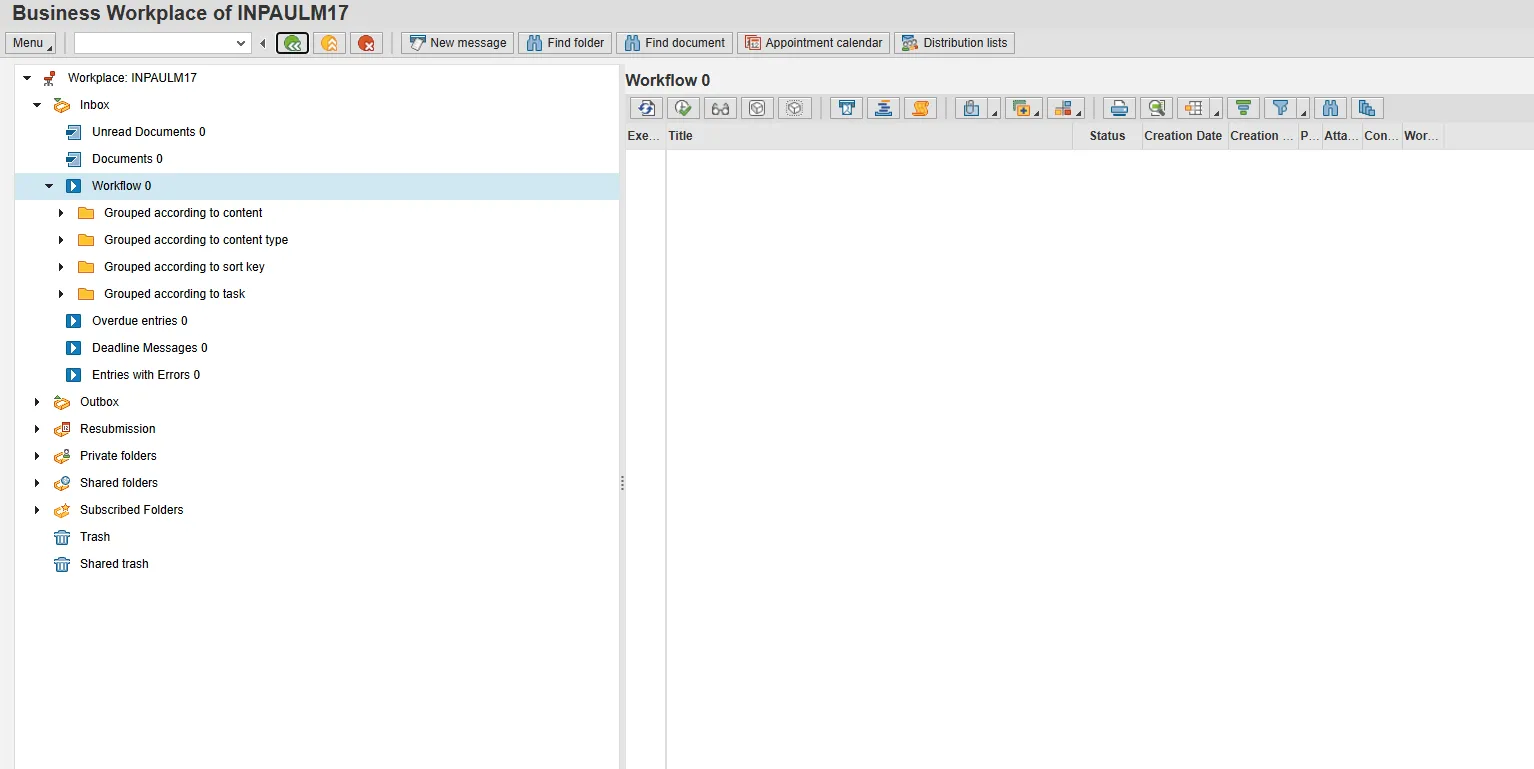
Step 21. Select Inbox >> Workflow.
Process using step 22 or step 23.
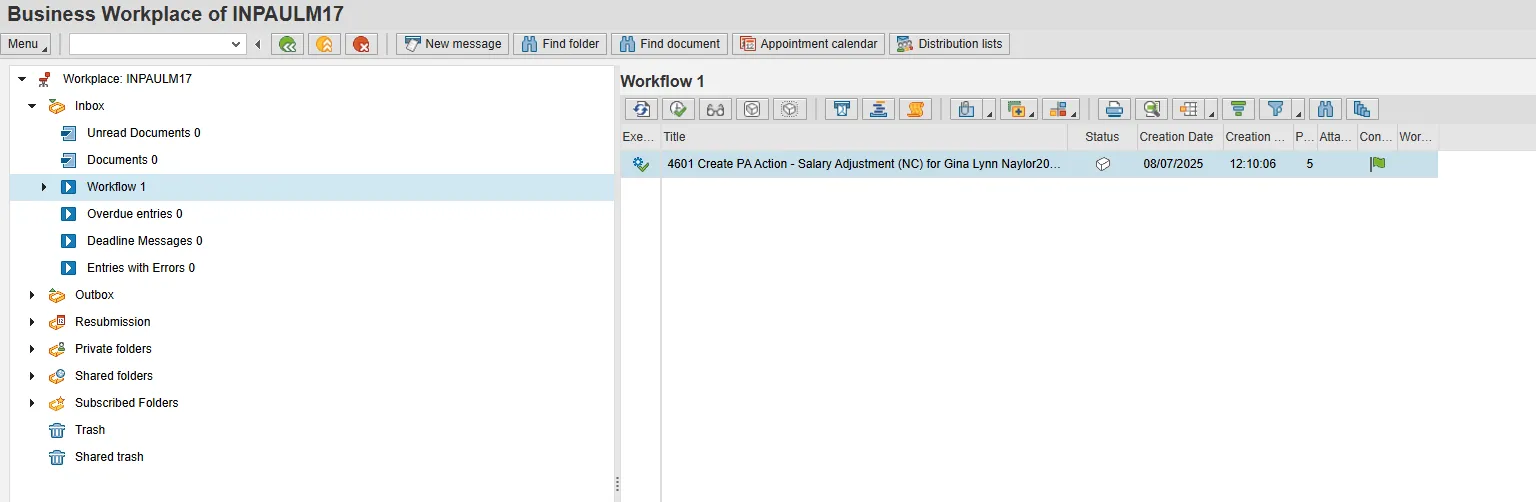
Step 22. Select the PCR row.
Step 23. Double-click on row.
Step 24. Click the Execute (F8) button.
A list of your approved (or rejected) PCRs are listed on the right side of the screen. Select the PCR to be processed and click Execute (or double-click the PCR). You can view the PCR details and/or Workflow Tracker details prior to executing the PCR if desired. Once executing the PCR, the Salary Adjustment action will be launched.
Step 25. Update the following field:
| Field Name | Description | Values |
|---|---|---|
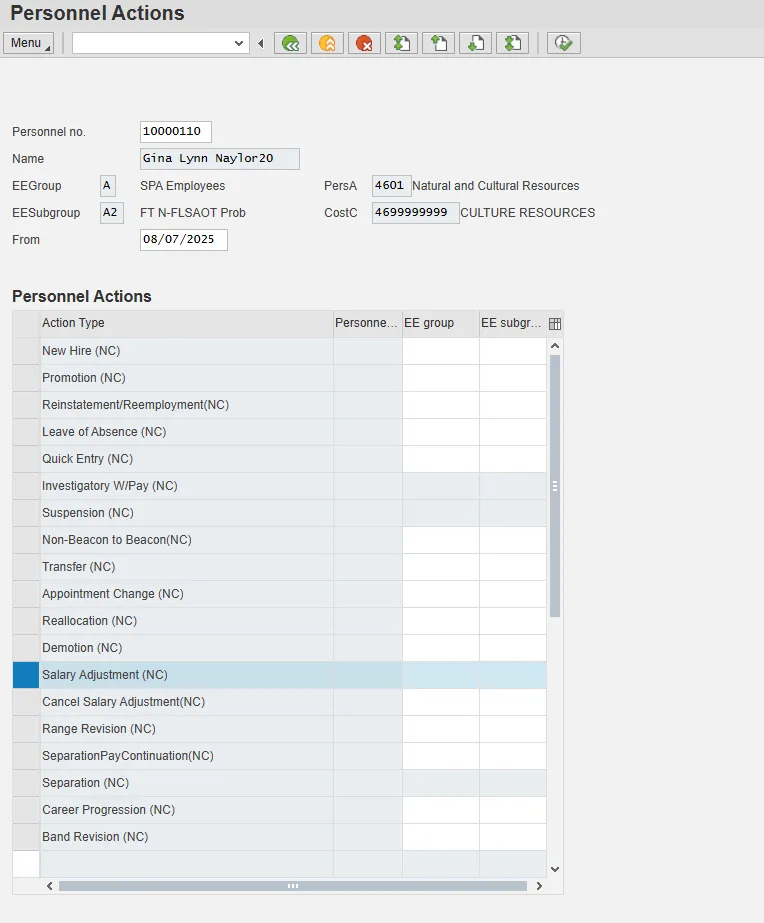
| From | Effective date of the personnel action |
Enter value in From. Example: 08/07/2025 |
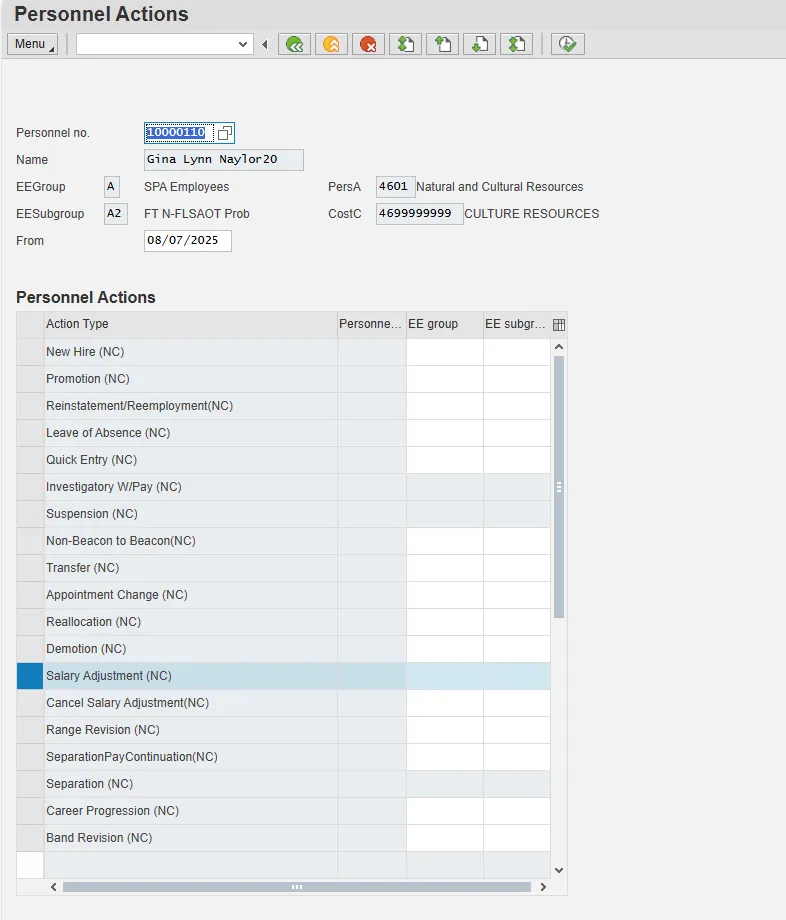
Step 26. Highlight Salary Adjustment (NC) action type.
Step 27. Click the Execute (F8) button.
The effective date is the date the Salary Adjustment will go into effect. This date must match the effective date on the PCR.
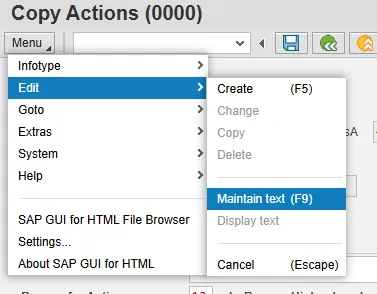
Step 28. Click Edit, >> Maintain text.
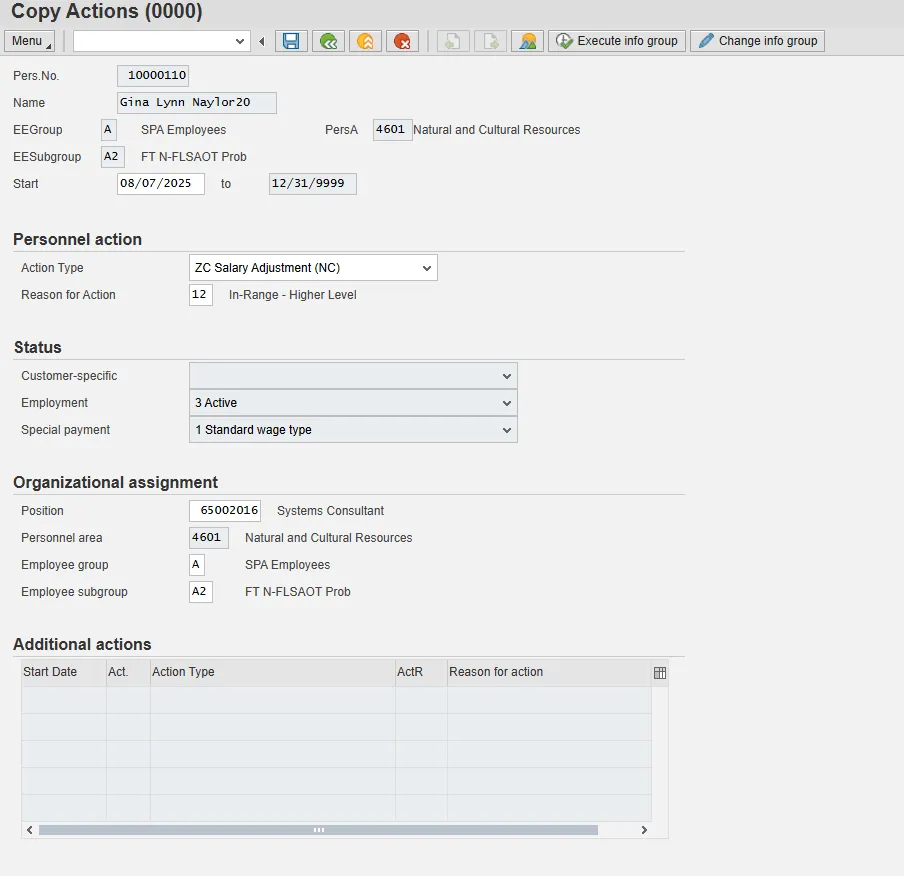
To add your comment based on agency or OSHR Policy/Guidelines. Remember you can cut and paste from the PCR.
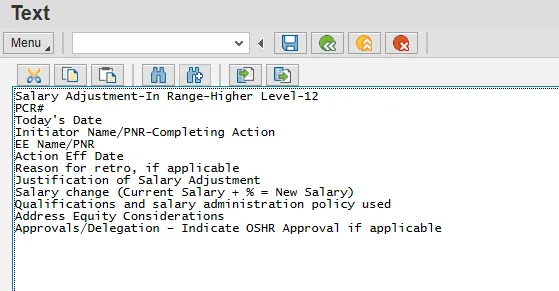
Step 29. Insert a copy of the note.
Step 30. Click Save.
You will return to the Copy Actions (0000) screen.
Step 31. Click Enter.

When the employee subgroup is different from the position employee subgroup, you will receive a warning message in the bottom left corner.
Step 32. Click Save.

The system will provide a yellow warning message informing you of the existing record will be delimited.
Notice at the top of this screen the title includes the word “Copy.” This action takes the original action and makes a copy of it, delimiting the previous record and saving the new record. The word “Create” in the title indicates that this infotype is being created on this person's record for the first time.
Step 33. Click Enter.
Step 34. Click the Save (Ctrl+S) button.
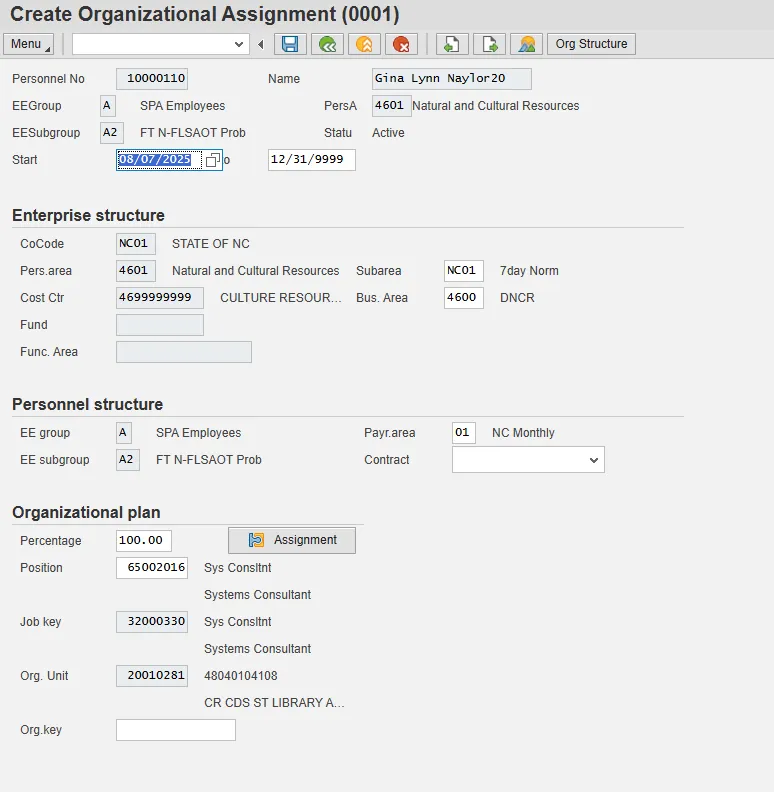
Step 35. Click the Enter button.
Enter the Contract if required. The Contract key identifies eligibility for Medicare, less than 5 yrs for STD, and the Rehire of Retiree statuses.
Critical! If the contract field is completed on the previous IT0001, it will copy to the new IT0001.
Step 36. Click the Save (Ctrl+S) button.
The system will display a yellow warning message informing you the existing record will be delimited. Click Save to move past this warning message.
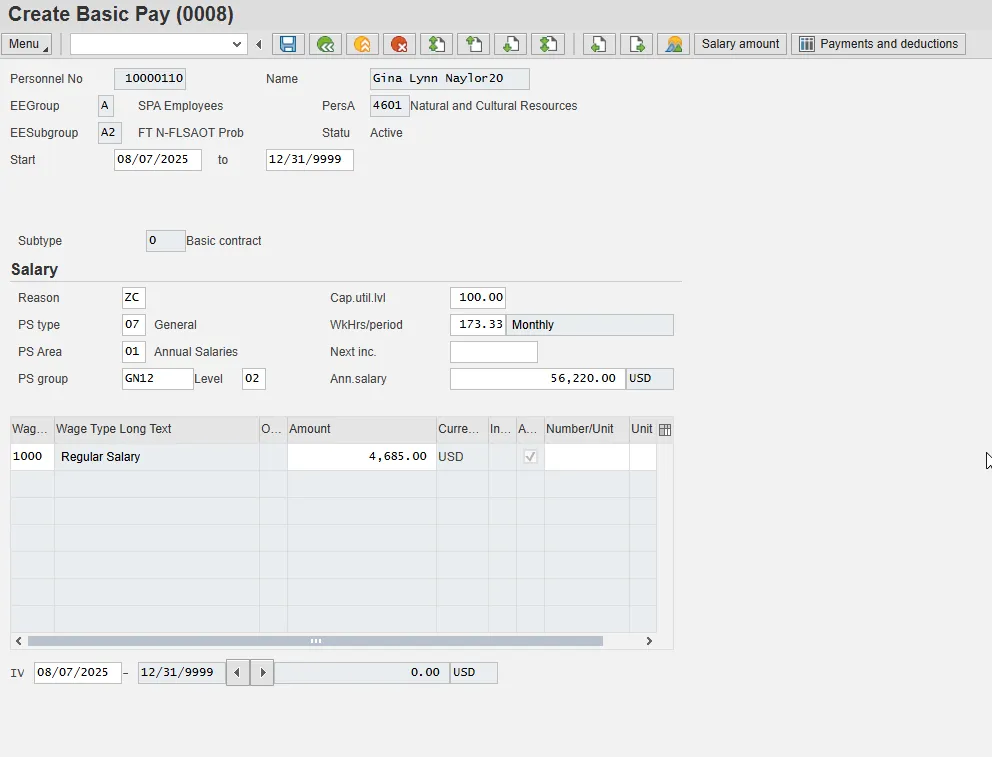
Step 37. Update the following field:
| Field Name | Description | Values |
|---|---|---|
| Reason | Reason for the action such as Salary Adjustment |
Enter value in Reason. Example: ZC |
Step 38. Click the Enter button.
The pay scale values (pay scale type, pay scale area, pay scale group and level) have been designed to default based on the rules assigned to the employee's position. If the pay scale values do not default, please contact BEST Shared Services or your BEST HR Specialist.
Enter the Reason Salary Adjustment (ZC), click Enter to validate the data. Notice the Annual Salary field has retrieved the amount submitted via workflow (or the hourly field is appropriated).
You will enter the hourly rate in the amount field manually; hit enter, and the annual salary calculates automatically. If the employee is hourly, leave the annual salary field blank and only complete the hourly salary field.
Step 39. Click the Save (Ctrl+S) button.
Step 40. Click the Back (F3) button.
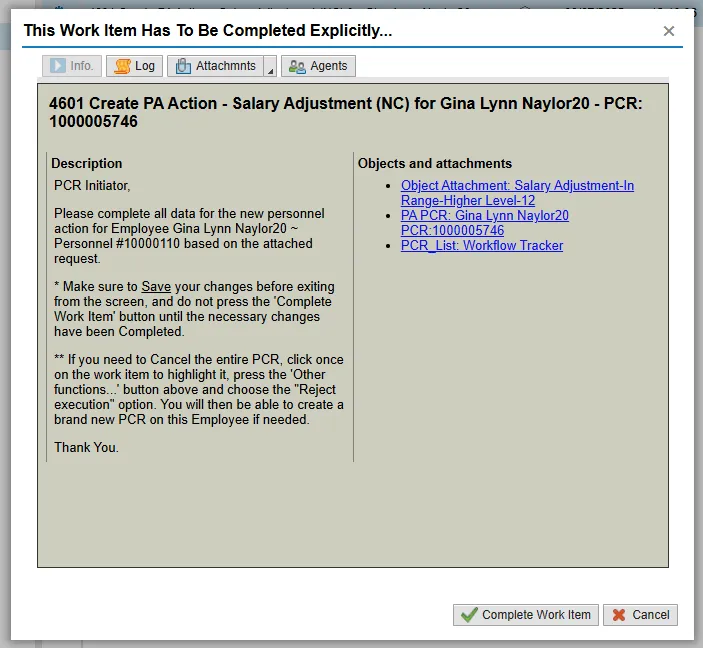
Step 41. Click the Complete Item button.
Only once all of the infotype screens within the action have been processed and the system has returned you to the main screen will this Complete button be visible. Now you can complete the PCR in workflow.
Step 42. Click the Back (F3) button.
You can remain in this SAP Business Workplace and process additional PCRs, or click Back to return to the main SAP screen.
The Salary Adjustment Action is complete, but we recommend reviewing via PA20 all infotypes that have been processed.