Purpose
The purpose of this Business Process Procedure is to explain how to process a Leave of Action for Workers’ Compensation in the Integrated HR-Payroll System.
Trigger
There is a need to process a Leave of Absence for one of the reasons listed in the Business Process Procedure Overview section.
Business Process Procedure Overview
Leave of Absence (Workers’ Comp) – used when an employee is out of work due to injury on the job.
Workers’ Compensation Reasons
13 - WC Leave of Absence w/supplement – employee is removed from work by the treating physician and has opted to exhaust available leave according to the OSHR WC Supplemental Leave Schedule. This is effective the 8th day of absence.
14 - WC Leave of Absence - employee is placed on Workers’ Compensation. (On the 8th day of Workers’ Compensation and employee is not using supplemental leave; they are placed on WC Leave of Absence.)
15 - WC Salary Continuation Pay – employee is listed in NCGS §143-166.13 is placed on Workers’ Compensation leave with Salary Continuation pay for up to two (2) years from date employee is unable to work either a partial or full day. Injury is result of or arises out of episode of violence, resistance, or due to other special hazards that occur while eligible person is performing official duties. Authorized treating physician has removed employee from work or injury related work restrictions cannot be accommodated by employer. TPA investigation/OSHR review/agency approval required. (See NCGS §143-166.14)
17 - WC Continuation Pay for Teachers Only – employee works in any educational institution supported by and under control of the State placed on Workers’ Compensation leave with Salary Continuation pay for up to one year from date employee is unable to work either a partial or full day. Injury is due to “episode of violence.” Authorized treating physician has removed employee from work or injury related work restrictions cannot be accommodated by employer. TPA investigation/agency approval required. (See NCGS §115C-338)
Workers’ Compensation Information
When the seven days of the waiting period are consecutive:
The day the injury occurred is not counted as part of the seven-day waiting period. You may or may not include the weekends (see Weekend section below).
When the seven days of the waiting period are not consecutive:
If an employee takes the seven-day waiting period on non-consecutive days, you can enter several LOA Actions but are not required to do so. The WC 7-day waiting period begins with the first day missed after the day of the accident (employees are paid in full the day of the accident regardless of what time they went out). The seven days can be consecutive or non-consecutive. When an employee is out on consecutive days for the seven-day waiting period, you count calendar days (which includes the weekends). The employee must be out the entire day (no partial). You would not count doctor’s appointments or treatments for the accident as absences because employees are paid as if they worked for reasonable time and travel to the doctor. The determining factor for counting days is lost wages.
When to include weekends in the seven-day waiting period
If the doctor’s Work Status note takes the employee out of work on Friday and indicates the employee can return to work on Monday, you count the weekend as part of the seven-day waiting period. However, if the employee gets hurt early in the week but is back at work on Friday, then out again on Monday, you do not count the weekend.
On the eighth day out of work:
If the employee is still out of work after the seven-day waiting period, create an LOA Action on the eighth day using the applicable WC reason.
Benefits (Employee is not using approved leave.)
Agency Specific Benefits
- Each agency is responsible for administering these plans according to their agency process.
NCFlex Plans
- Will terminate in the Integrated HR-Payroll System.
- Will end the last day of the month premiums were paid.
- Employees can continue these benefits plans while on LOA by paying the NCFlex vendors directly.
- Premiums will not be deducted from WC payments.
- Employees who do not continue these plans while on an LOA without Pay may have waiting periods and/or Evidence of Insurability (EOI) upon benefits reinstatement. See the NCFlex HBR Administrative Manual for further details.
State Health Plan
- Employer contribution will continue as long as the employee is on WC and has not been separated from employment.
- Employees placed on LOA WC who would like to continue their coverage for dependents and/or any employee only costs will be billed by iTEDIUM. Failure to make payments will result in termination of the State Health Plan coverage. Employees whose coverage is terminated will not be able to re-enroll until the next open enrollment.
- Premiums will not be deducted from WC payments. Employees exhausting Supplemental Leave while on Workers’ Compensation w/Supplement will be billed from iTEDIUM for the dependent and/or employee cost of coverage. Premiums for the State Health Plan will not be deducted from Workers Compensation Supplemental Pay.
LOA Checklist
- PA20 Display (Employee is active in the system.)\
- IT0000 - Actions
- View employee’s Action history to ensure correct action is being entered and former actions have been entered appropriately.
- Verify eligibility for requested leave
- CATS_DA – verify that time has been entered, released, and approved. Also, verify last day worked (9500 - Time Worked).
- PT50 to ensure that employee has enough leave, if requesting to exhaust supplemental leave.
- Communicate with the Benefits Representative.
- Benefits – setup procedures for payment continuation or termination of benefits.
- Time, Benefits, Payroll, State Service, and longevity are dependent on entries made for action, reason and infotypes.
- Agency decides if Time (agency wide) is entered by PA (HR Data Maintainer) on IT2001 or Time (Time Administrator) in CAT2.
- Employee should make no time entries while on LOA.
- Time Type 9500 (time worked) shouldn’t be used while employee is on LOA.
- The SAP Business Workplace is SAP’s inbox and can be accessed by clicking on the SAP Business Workplace button, or by entering transaction code SBWP in the Command Field.
- The SAP Business Workplace inbox is where all workflow documents will be initiated/requested and where all workflow documents will arrive for approvers to review and respond.
- In the SAP Business Workplace, workflow documents are SAP messages that are created and read similar to any outside emailing system (MS Outlook, etc.).
For more information on the SAP Business Workplace, including an overview of all Tree Functions (folders, organization of the workplace), see the Job Aid Business Workplace Overview Tree Functions.
Procedure
There are 17 steps to complete this process.
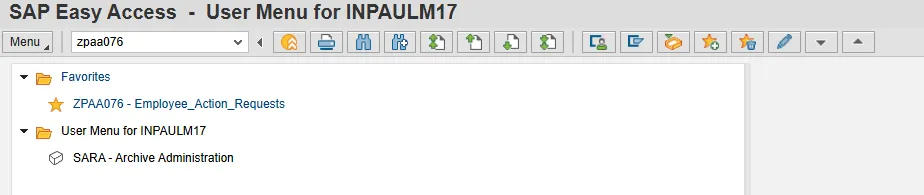
Step 1. From the SAP Easy Access page, select transaction code ZPAA076.
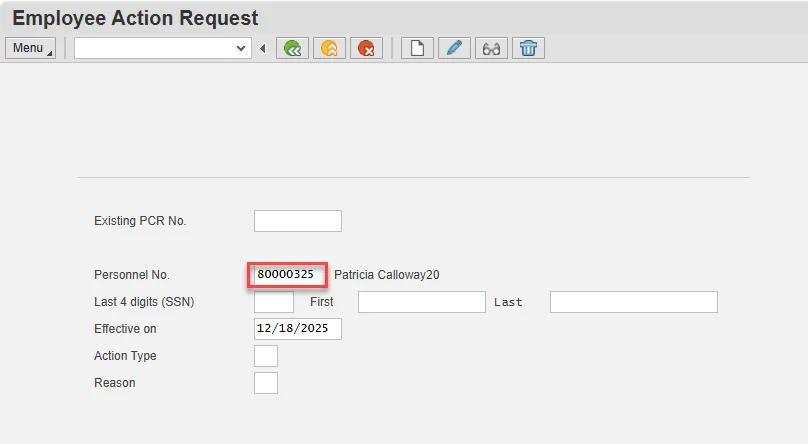
Step 2. On the Employee Action Request screen, complete the Personnel No. field and select Enter on the keyboard.
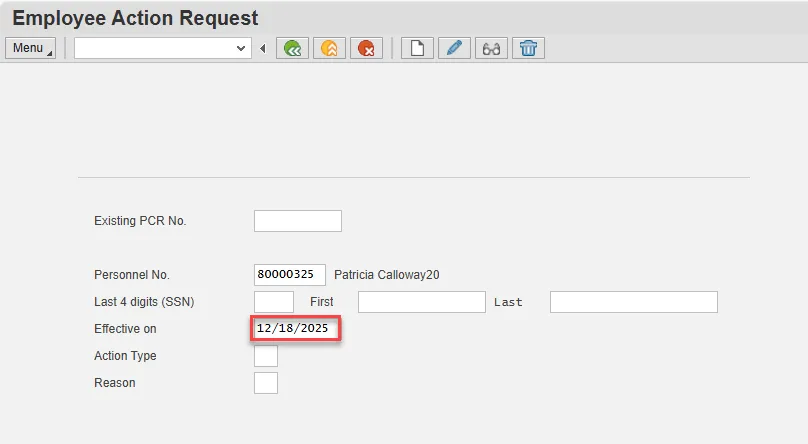
Step 3. In the Effective on field, input the correct effective date.
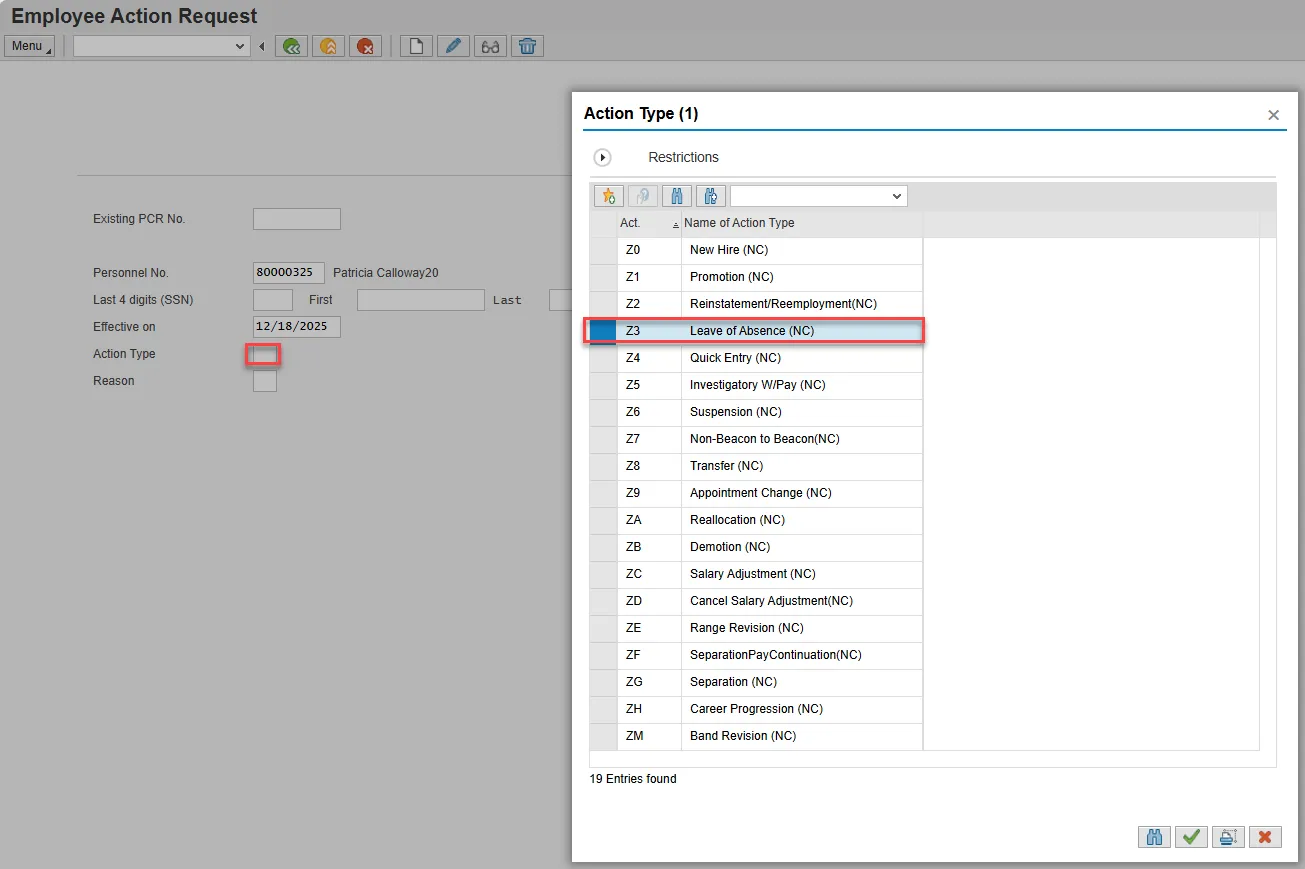
Step 4. Select the Action Type field and access the matchcode. Double click Leave of Absence from the list.
Step 5. Select the Reason field and access the matchcode. Double click the appropriate reason from the list.

Step 6. Choose Enter on the keyboard and select the Create button.

Step 7. Enter the salary information in the Annual Salary field.
Make sure the Level field represents the level associated with the range of the salary. Choose the matchcode to find the correct level.
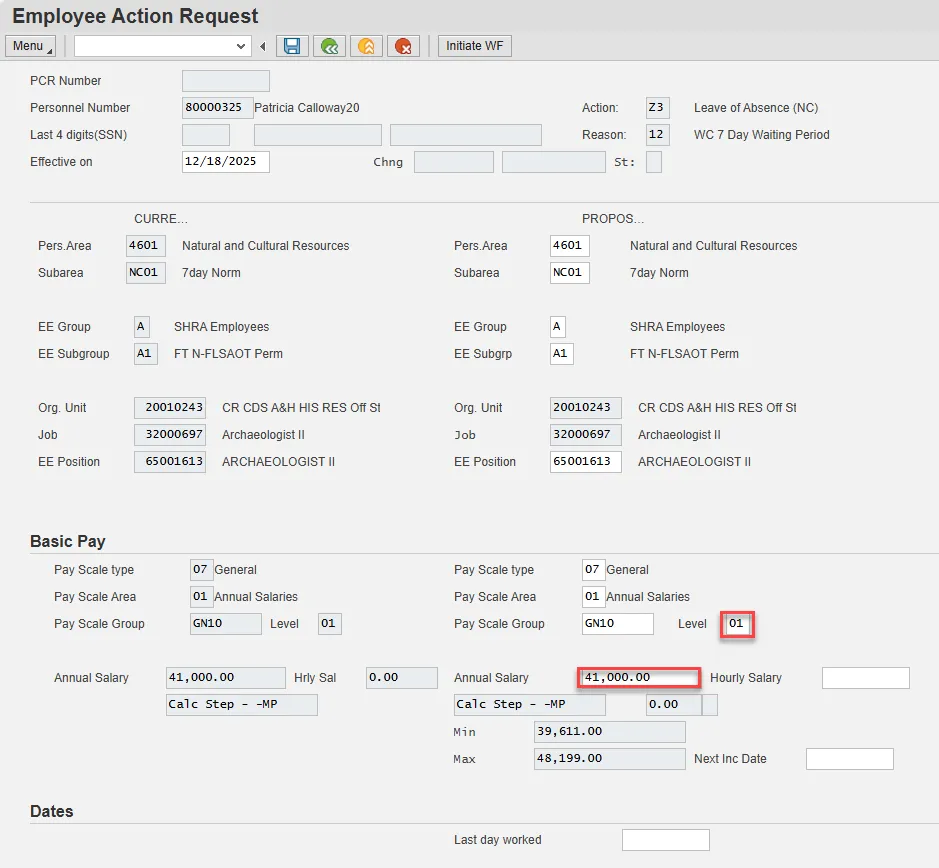
Step 8. Select Save.

Step 9. The action request will be assigned a PCR number. Choose the green check button from the pop-up.
Note: You can save this information as much as you like. Each time you will receive confirmation of the save. You will not be able to create a note attachment until you have saved it at least once. If you have submitted the PCR to workflow already, you will not be able to change the details, nor save any new information, only display the existing details.
Step 10. Select the Services for Object button in the upper right corner.

Step 11. Hover over Create and choose Create note from the drop-down menu.

Step 12. Update the Title of note field and the body of the note.
The note is a required part of the request creation process. Notes entered during PA workflow must follow OSHR’s action notes template: PA Action Notes Template
Choose the green check button in bottom right of note pop-up.

Step 13. Choose Save.
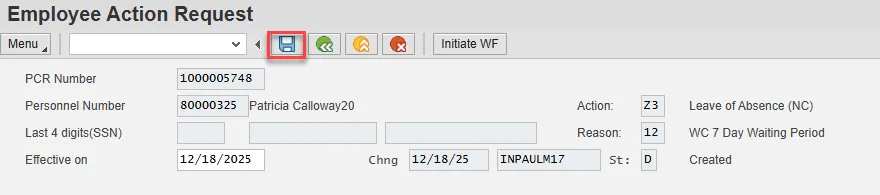
Step 14. Select the green check button in bottom right of Information pop-up.
Step 15. Choose the Initiate WF button.
Select the Initiate Workflow button to send the Reinstatement Action through the approval process. No changes can be made after the PCR has been submitted for approval, unless the PCR is rejected at any stage and sent back to you (the initiator/requestor).

Step 16. Select the green check button in bottom right of the Information pop-up.
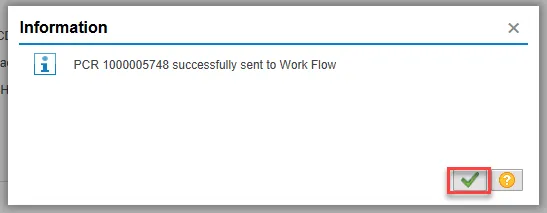
Step 17. Choose the green Back button.

The Initiate Leave of Absence request is complete.
After Workflow Approvals have been received, proceed with the Complete Leave of Absence Action process.
Instructions for Completing the Action
There are 22 steps to complete this process.
Step 1. Choose the SAP Business Workplace button from the SAP Easy Access page.

Step 2. Expand the Inbox using the expand node.
Note: Failure to complete this step could cause some functions to be unavailable on the secondary button ribbon in the subfolders.
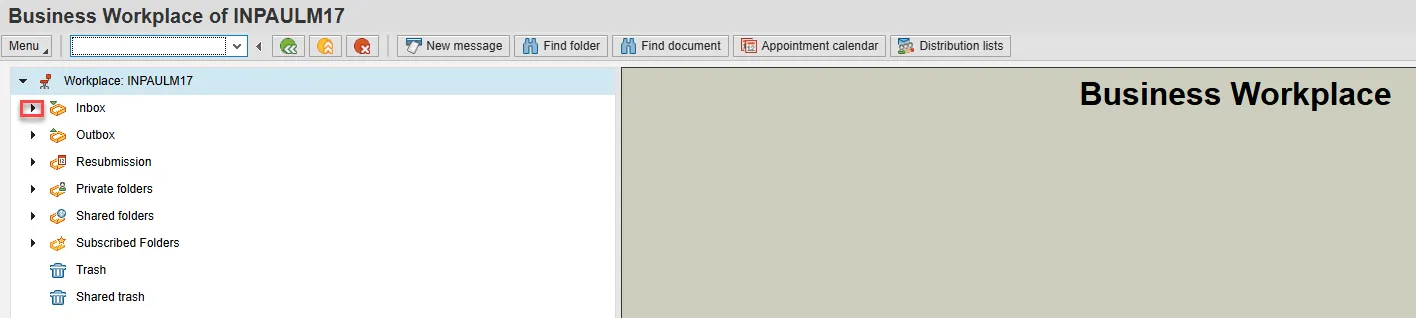
Step 3. Select the Workflow subfolder.

Step 4. Access the Environment button on the secondary button ribbon to retrieve a copy of the note. Access PER-57 Copying Notes from the PCR to Infotypes for steps on retrieving the note.

Step 5. Double click the PCR to begin the action.

Step 6. On the Personnel Actions screen, enter the effective date in the From field.
Note: The effective date must match the date used to create the request.

Step 7. Select the gray box to the left Leave of Absence to highlight that action.
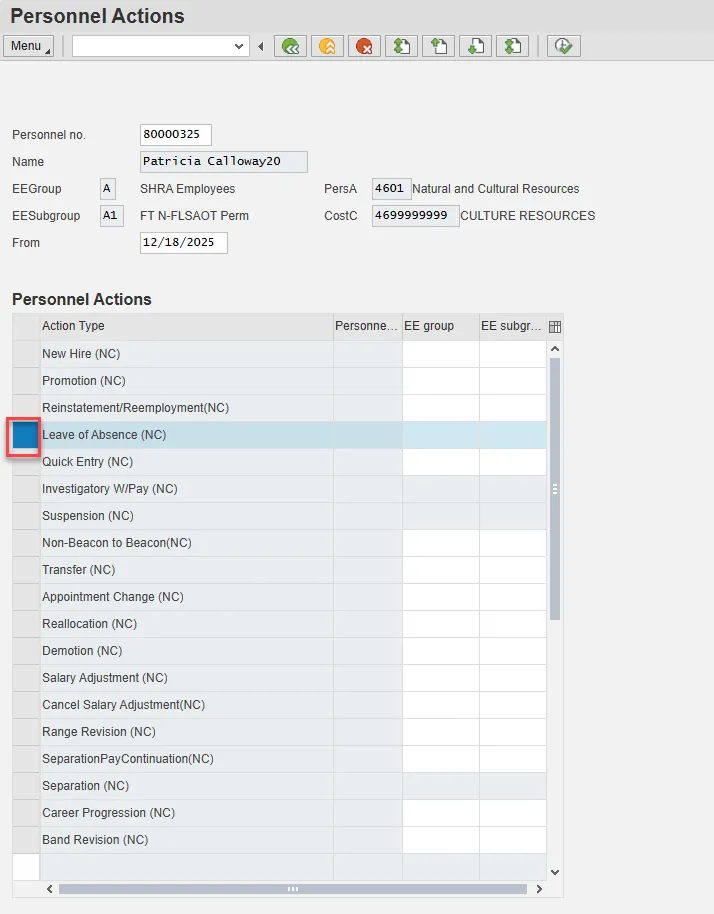
Step 8. Select Execute.

Step 9. On the Copy Actions (0000) screen, select the Menu button.

Step 10. Hover over Edit and choose Maintain text (F9) from the pop-out menu.

Step 11. On the Text screen, insert your note and choose Save.
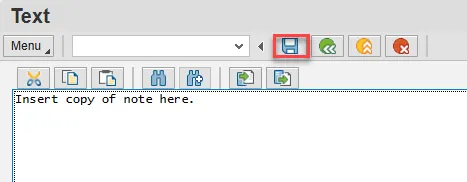
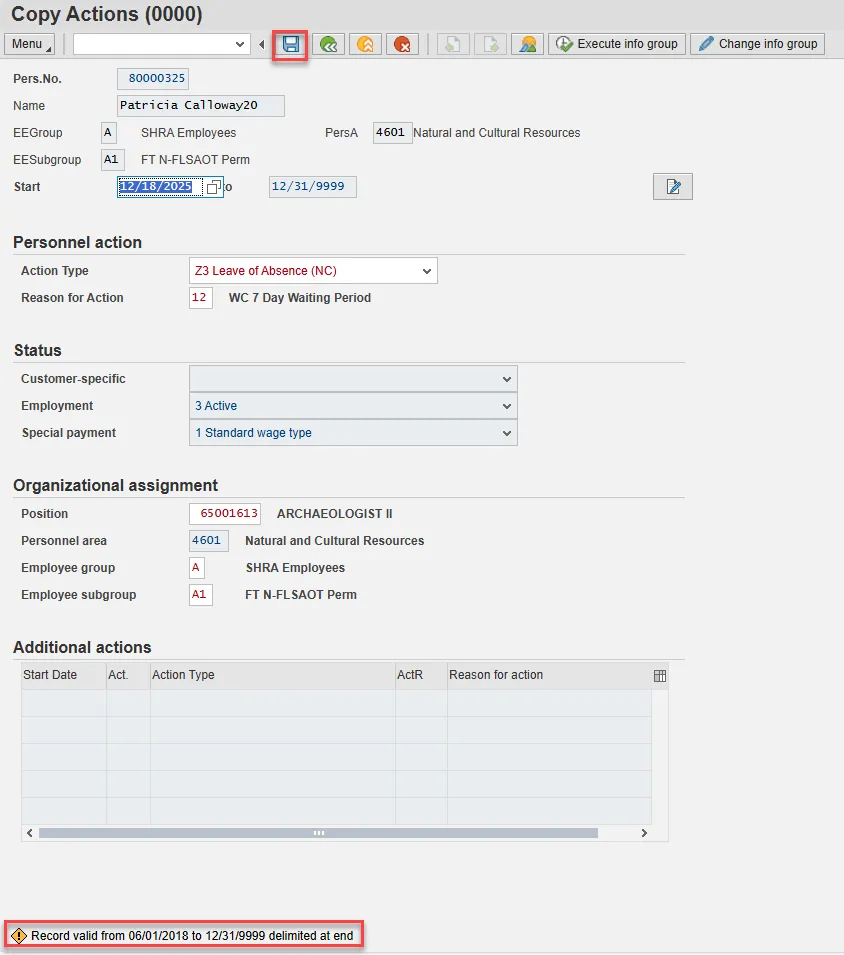
Step 12. Back on the Copy Actions (0000) screen, choose Enter on the keyboard.
Some items may turn red and there may be a yellow warning message in the bottom left stating that a record is being delimited. This is expected behavior. Choose Save.
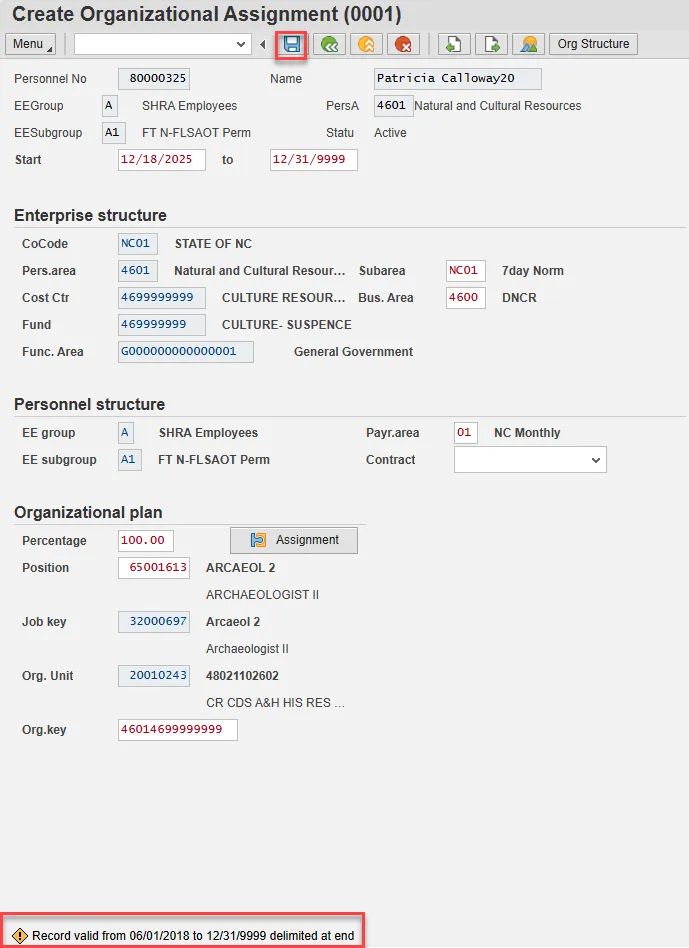
Step 13. On Create Organizational Assignment (0001), select Enter on the keyboard.
Some items may turn red and there may be a yellow warning message in the bottom left stating that a record is being delimited. This is expected behavior. Choose Save.
Step 14. Enter a reminder through the Monitoring of Tasks screen as appropriate.
Insert any notes or comments pertaining to the task. To view these task reminders, you can run the BOBJ Report – B0099 – Employee Deadline Dates. Managers can view for their employees via MSS.
BEST PRACTICE: Best Practice is to enter the date to remind the supervisor to review the appointment change (end of probation or other). If no data entry is required, move to the next infotype screen by clicking the Next Screen button.
Enter and Save.

Step 15. On the Delimit Objects on Loan (0040) screen, choose the gray box next to the item you wish to delimit. Select the Delimit button.

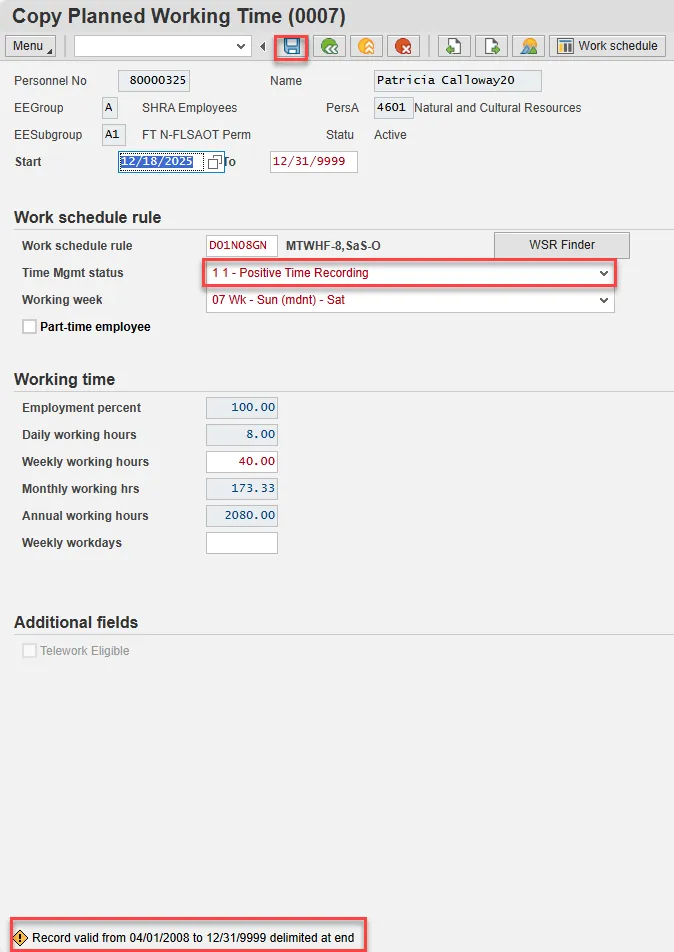
Step 16. On Copy Planned Working Time (0007), all full-time employees must be on a 5 -day, 8-hour per day work schedule (exception: DOT employees). The easiest way to accomplish this is to use D01N08GN. All employees, whether full-time or part-time, must be positive time recording.
For part-time employees, select an equivalent work schedule M-F. Example – PT EE 36 hrs equivalent schedule would be 5 x 7.2 = WSR DD9N1001
A 28-day employee will remain on the 28-day working week as long as they are exhausting leave. The working week should be changed to the normal agency specific working week on the 1st day they use LWOP. The work schedule rule is still changed to D01N08GN.
Enter and Save.
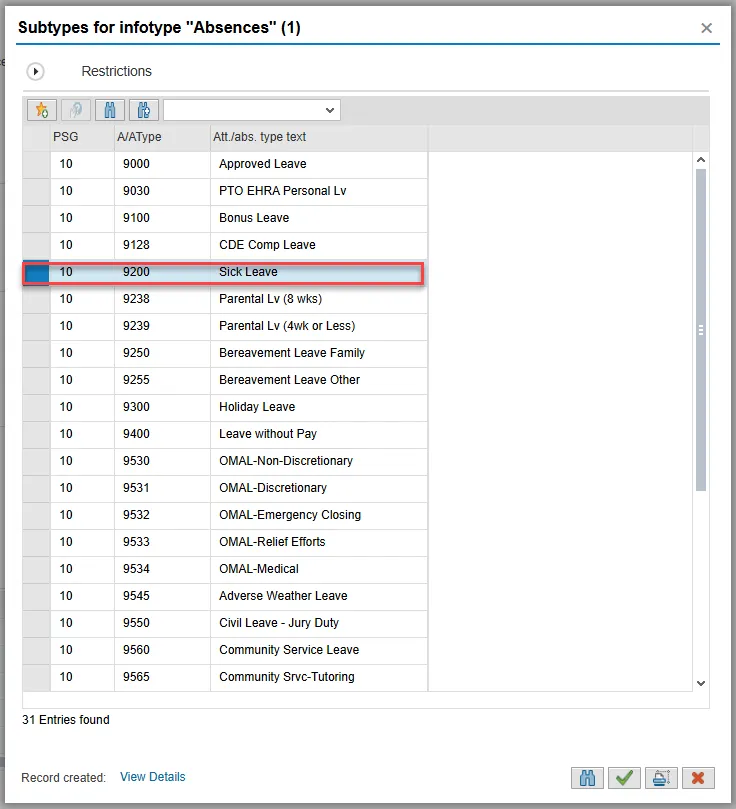
Step 17. On the Subtypes for infotypes “Absences” pop-up, choose Sick Leave.
Note: If your agency does not use (2001) to record absences, then close this pop-up.
Step 18. On Create Absences (2001), update the Start and to fields to represent the time covered using the chosen type of leave (sick). It is recommended that you maintain absences one week at a time.
Enter and Save.
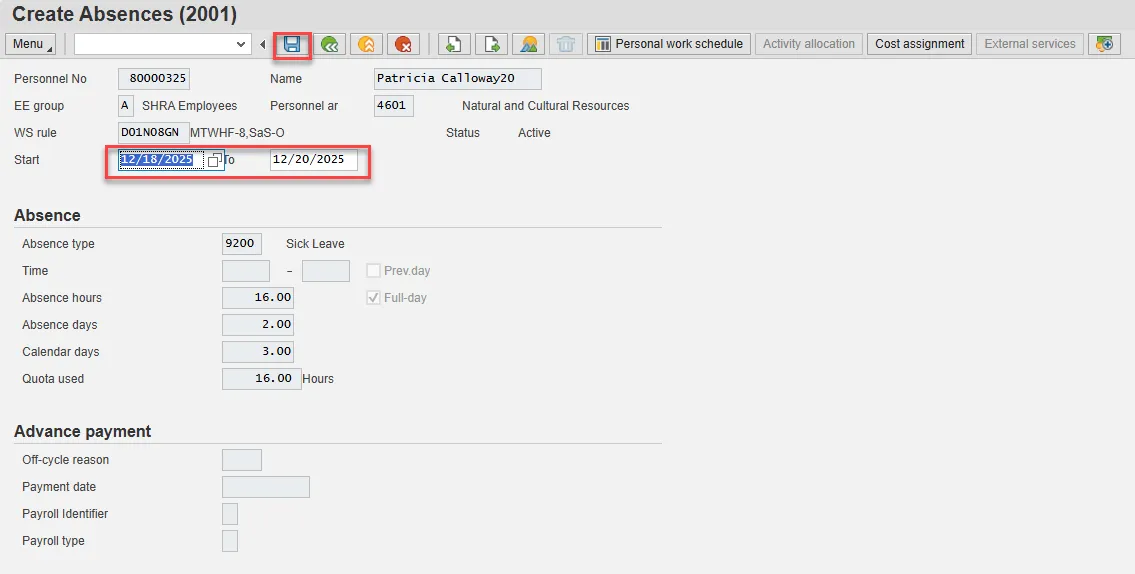
The Absences infotype only displays if you selected a leave type from the subtype for Absences pop-up.
The Absences infotype (2001) indicates the number of hours the employee wants to use for leave and deducts from the leave quotas as applicable. (See State policy regarding accrual and longevity exceptions for Workers’ Comp Leave.) Once you enter the date and hit enter, the system will calculate the number of absence hours and days automatically. These numbers default based on the work schedule rule on IT0007. The dates that are used on the infotype:
- The “start date” should pre-populate automatically based on the effective date of the LOA Action.
- Enter the “to date” to reflect the number of hours of leave the employee wants to exhaust. (Never enter 12/31/9999 as the “to date.”)
Using leave accrued while out on leave: If an employee wants to use the time that was accrued while he or she was out on paid leave, you will have to create a new IT2001 via PA30 in order to enter the new leave time.
Note: An agency can make an agency-wide (not individual user) decision that LOA leave can be entered either on a timesheet by the Time Administrator or by HR on IT2001. The agency must be consistent across all employees for the entire agency. Because the Integrated HR-Payroll System is integrated, if the hours are entered on the Absences infotype 2001, they are processed during the next time evaluation. Do not enter Time via CATs.
Best Business Practice: Create IT2001 to exhaust leave on a weekly basis rather than the entire LOA period.
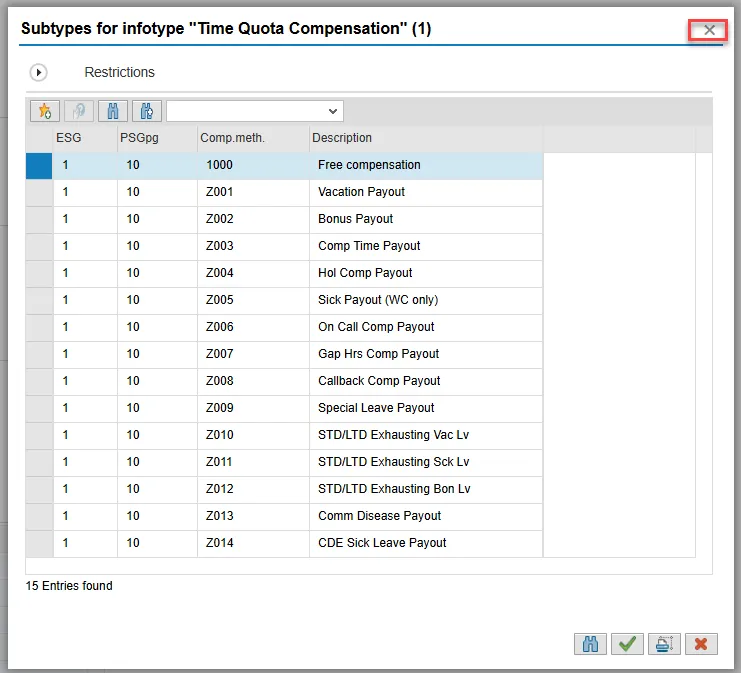
Step 19. On the Time Quota Compensation pop-up, select the X in the upper right to close it out. The employee is not eligible for payout of any type of leave.
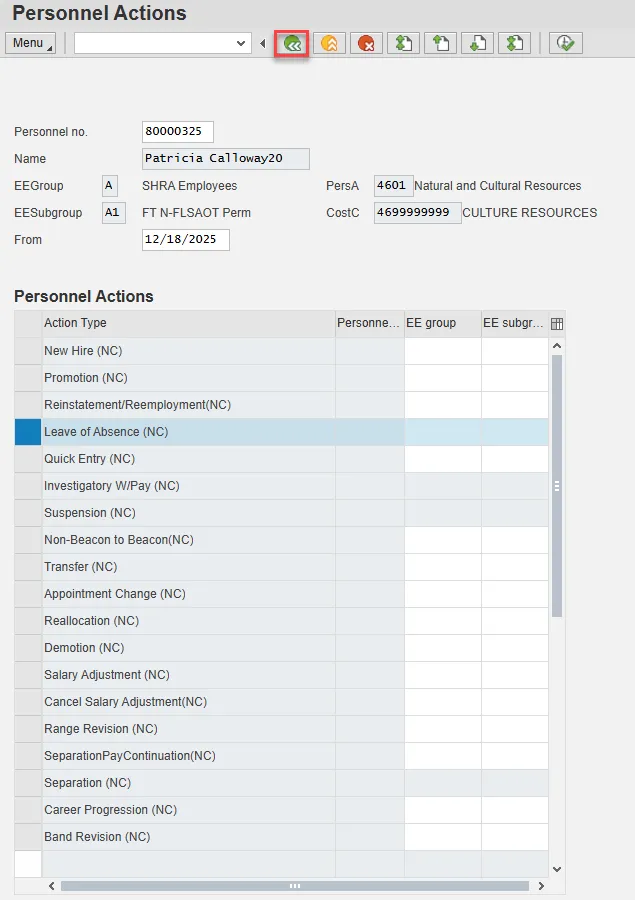
Step 20. Back at the Personnel Actions screen, select the Green Arrow Back button.
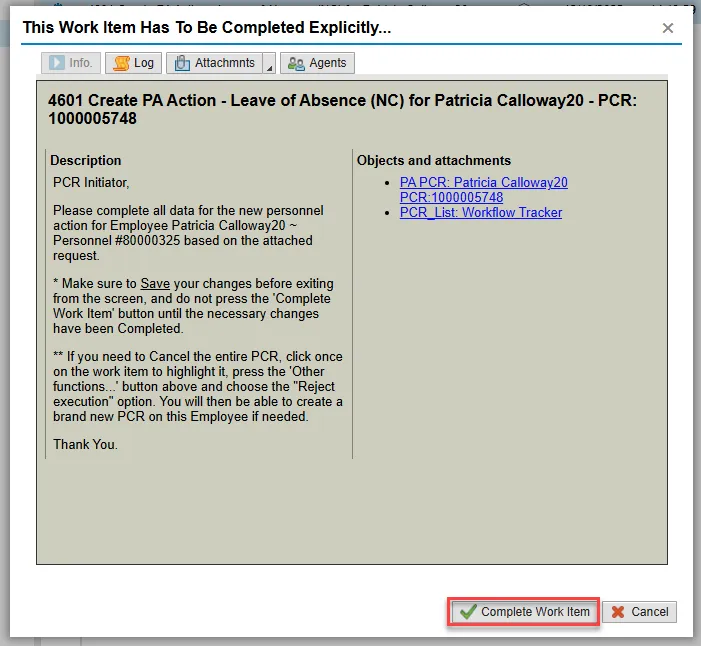
Step 21. On the pop-up, select Complete Work Item. (It has a green check beside it.)
Step 22. From the Business Workplace screen, select the Green Arrow Back button to return to the SAP Easy Access screen.
The Leave of Absence Action Workers’ Compensation is complete, but we recommend reviewing via PA20 all infotypes that have been processed.