Purpose
The purpose of this Business Process Procedure is to explain how to maintain HR master data to correct a mistake on an employee’s master record in the Integrated HR-Payroll System.
Trigger
Perform this procedure when you are told an error has been made or you realize you made a mistake on an employee's master record.
Business Process Procedure Overview
PA30 is a Maintain transaction type used to update employee Master Data.
Best Practice: Re-execute the action when a mistake is made.
These are the infotypes that can be displayed through this process:
- 0001 - Organizational Assignment\
- 0006 - Addresses - Permanent Residence subtype
- 0006 - Addresses - Emergency Contact subtype
- 0006 - Addresses - Mailing Address subtype
- 0007 - Planned Working Time
- 0009 - Bank Details
- 0019 - Monitoring of Tasks
- 0021 - Family Member/Dependents
- 0022 - Education
- 0040 - Objects on Loan
- 0041 - Date Specification
- 0048 - Alien Residence Status
- 0077 - Additional Personal Data
- 0094 - I-9 Residence Status
- 0105 - Communications - System User-name subtype
- 0105 - Communications - Email subtype only
- 0105 - Communications - Work Phone Number subtype
- 0128 - Notifications
- 0171 - General Benefits Information
- 0207 - Residence Tax Area
- 0208 - Work Tax Area
- 0209 - Unemployment State
- 0210 - Withholding Information W4/W5 US - Federal subtype
- 0210 - Withholding Information W4/W5 US - State subtype
- 0315 - Time Sheet Defaults
- 0378 - Adjustment Reasons
- 0416 - Time Quota Compensation
- 0795 - Certifications and Licenses
- 2001 - Absences
- 2003 - Substitutions
- 2006 - Absence Quotas - Vacation subtype
- 2006 - Absence Quotas - Sick subtype
- 2012 - Time Transfer Specifications
- 9877 - Voluntary Self-ID or Disability
Important: Copy or create to keep a history of the changes made. The change button is rarely used, more for initial spelling errors made when typing. Pay close attention to the dates.
Tips and Tricks
- If you do not know an employee's personnel number, search for the employee using the Last Name - First Name fields. For example:
- Last Name = Abberly, search technique options:
- Enter Abb* to view Last Names that "begin with" the characters preceding the asterisk.
- Enter *eel* to view Last Names that "include" the characters within the asterisks.
- Enter *ly to view Last Names that "end with" the characters following the asterisk.
- You can look up the personnel number by the employee's last and first name. If you do not know the right spelling of the name, you can work with asterisks to get possible entries displayed.
- First name - if needed, also search by First Name when many employees share the same Last Name.
Access Transaction
Via Menu Path: SAP menu >> Human Resources >> Personnel Management >> Administration >> HR Master Data >> PA30 – Maintain
Via Transaction Code: PA30
Procedure
There are 16 steps to complete this process.
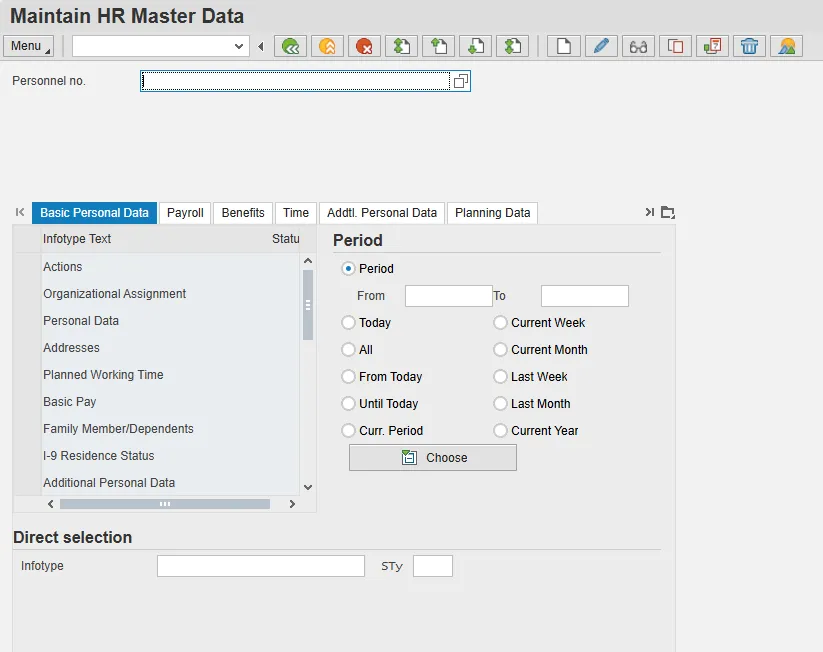
Step 1: Update the following fields:
| Field Name | Description | Values |
|---|---|---|
| Personnel no. | Unique employee identifier |
Enter value in Personnel no. Example: 80000030 |
Step 2: Click Enter.
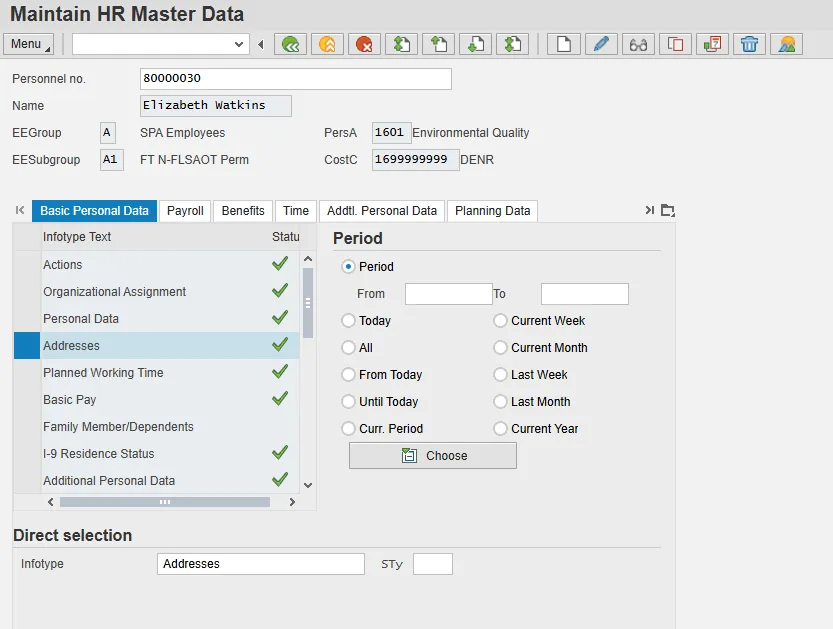
Step 3: Highlight the Addresses infotype or type 0006 in the Direct Selection field and press Enter.
Step 4: Click the Display (F7) button.
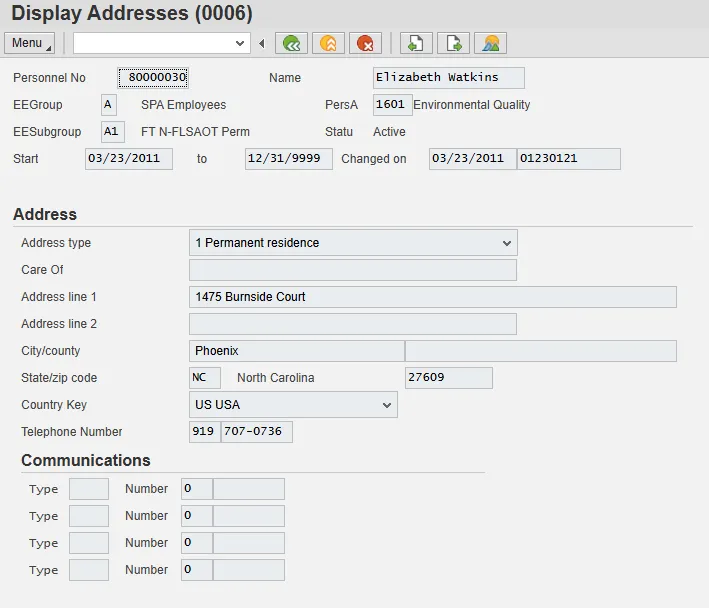
Step 5: Verify if the data has been updated.
Best Practice: Review data before correcting by choosing the infotype.
Step 6: Click the Back (F3) button to return to the Maintain HR Master Data screen.
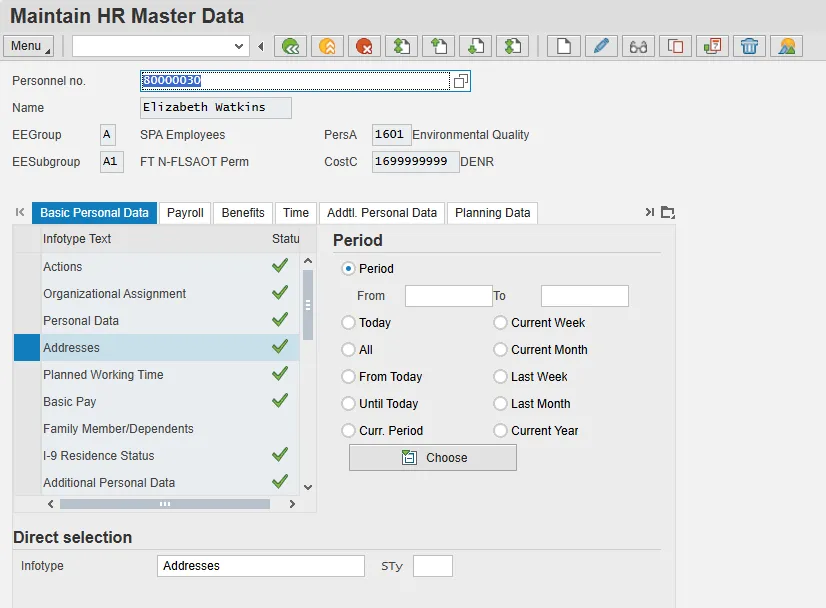
Step 7: Addresses should be highlighted and appear in the Direct selection field.
Step 8: Click the Copy (F7) button. The Subtypes for infotype “Addresses” box is displayed.
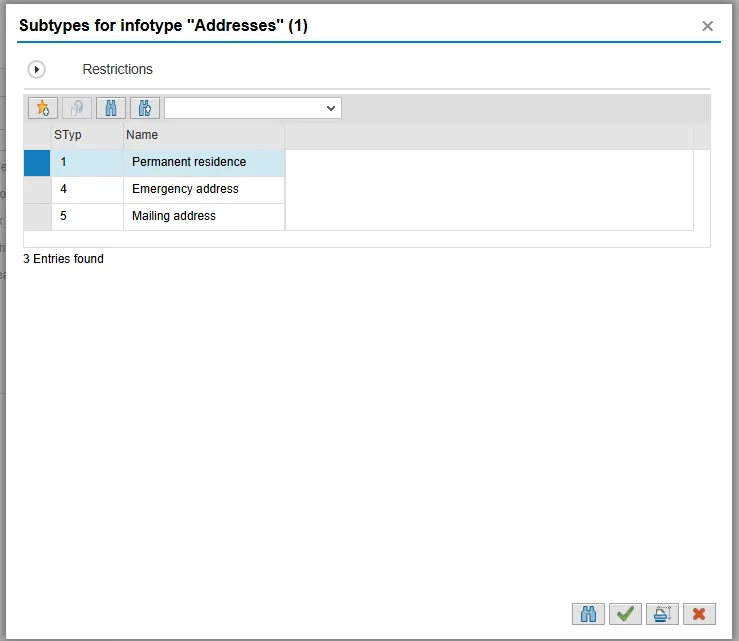
Step 9: Select the Permanent residence address subtype.
Step 10: Click the Copy (Enter) button.
Note: This type of window will display only when the Infotype to be changed has more than one sub-infotype, which requires a choice to be made.

Step 11: Update the following fields:
| Field Name | Description | Values |
|---|---|---|
| Start | Beginning date of the specified date range |
Enter value in Start. Example: 08/26/2025 |
| Address line 1 |
Enter value in Address line 1. Example: 1234 Big Rock Rd |
|
| City/County |
Enter value in City/county field. Example: Raleigh |
|
| State/zip code |
Enter value in State/zip code fields. Example: NC / 27604 |
|
| Telephone Number |
Enter value in Telephone Number field. Example: 919-555-1414 |
Note: There should always be an active Permanent address. You do not need to complete a Mailing address if it is the same as your Permanent address. If you do have both Permanent and mailing addresses, be sure to update both as needed.
Critical: Employee Address Lines 1 and 2 should only contain up to 30 characters in both ESS and the core systems. The fields will allow entry of more than 30 characters, but only 30 will print. This is also consistent with the Federal Post Office standards and will reduce the amount of mail being returned from the post office due to incorrect address.
Step 12: Click Enter.
An info message will display at the bottom of the screen indicating that the current record will be delimited when the new record is created (saved).
Step 13: Click the Enter to bypass the info/warning message.
An info message will display at the bottom of the screen reminding you to save the record.
Step 14: Click the Save (Ctrl+S) button.
Step 15: Click the Back (F3) button.
Step 16: The system task is complete.