Purpose
The purpose of this Business Process Procedure is to explain how to create and/or maintain reserve balances on Infotype 0052 – Wage Maintenance in the Integrated HR-Payroll System.
Trigger
There is a need to create and/or maintain reserve balances on Infotype 0052 -Wage Maintenance. This is used for Reallocation and Range Revision actions with balances.
Business Process Procedure Overview
If funds are not available at the time an employee is eligible for the reallocation or range revision, you would still initiate the Reallocation or Range Revision Action but would choose No Salary Adjustment as the reason. You must then execute PA30 Maintain Master Data, IT0052-Wage Maintenance subtype 0100 Range Revision or 200 Reallocation to reserve the balance (enter the amount of the revision, not the entire salary).
After funds become available, you would go create another Reallocation Range Revision Action and select the appropriate reason.
Access Transaction
Via Transaction Code: PA30
Instructions for Creating the Reserve on Wage Maintenance
There are 12 steps to complete this process.
Step 1: Enter PA30 in the Easy Access Command field.
Step 2: Click the Enter button.
Step 3: Enter employee personnel number.
Step 4: Click the Enter button to verify the data.
Step 5: In the Direct Selection Infotype field, select:
- Infotype 0052
- Subtype 0200
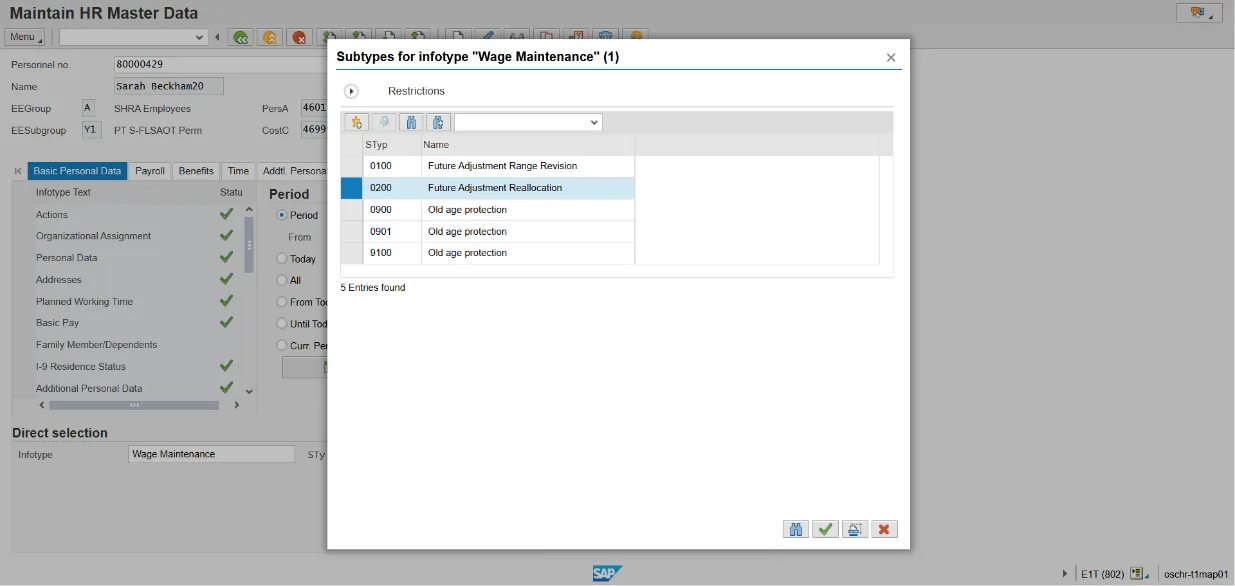
Step 6: Click the Create (F5) button.
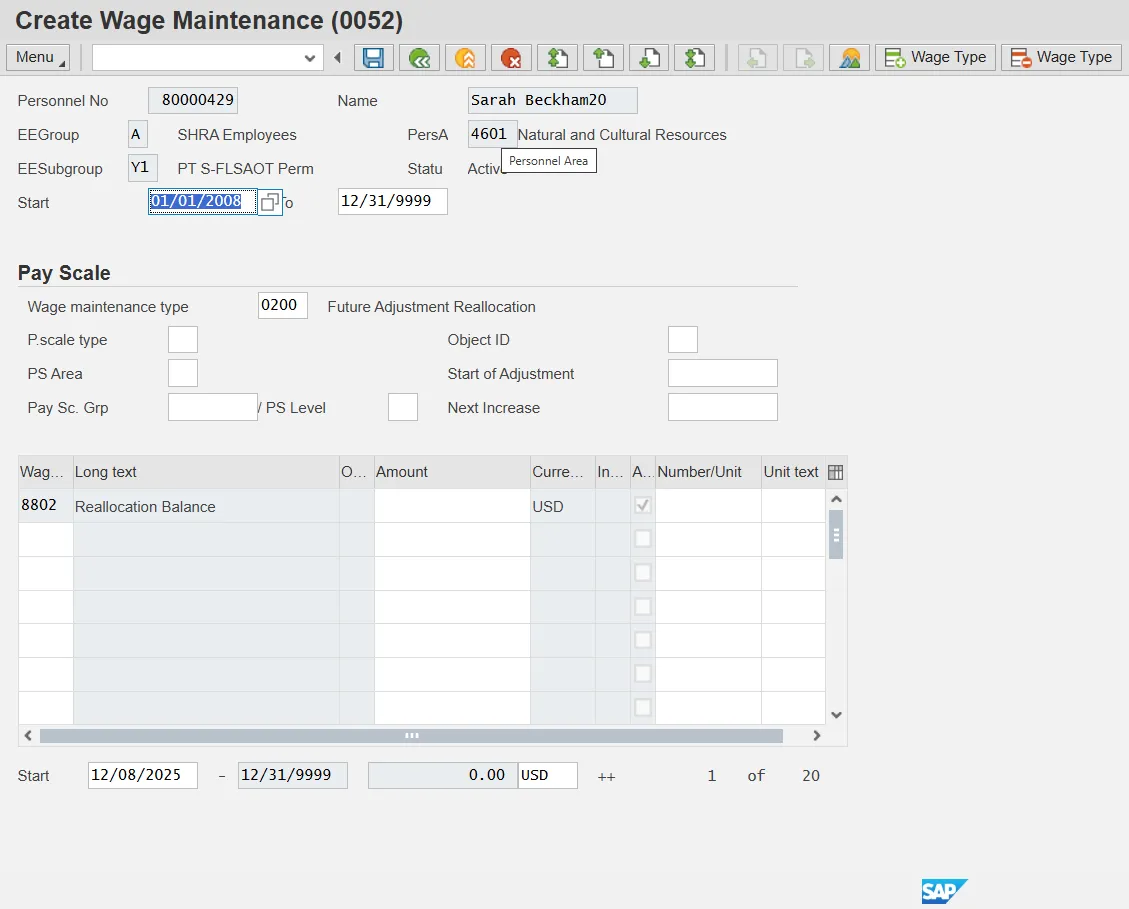
Step 7: Update the following fields:
- Start Date (Example: 12/8/25)
- Amount (Example: 1000.00)
Notice several fields are blank; these do not require data entry.
Step 8: Click the Enter button.
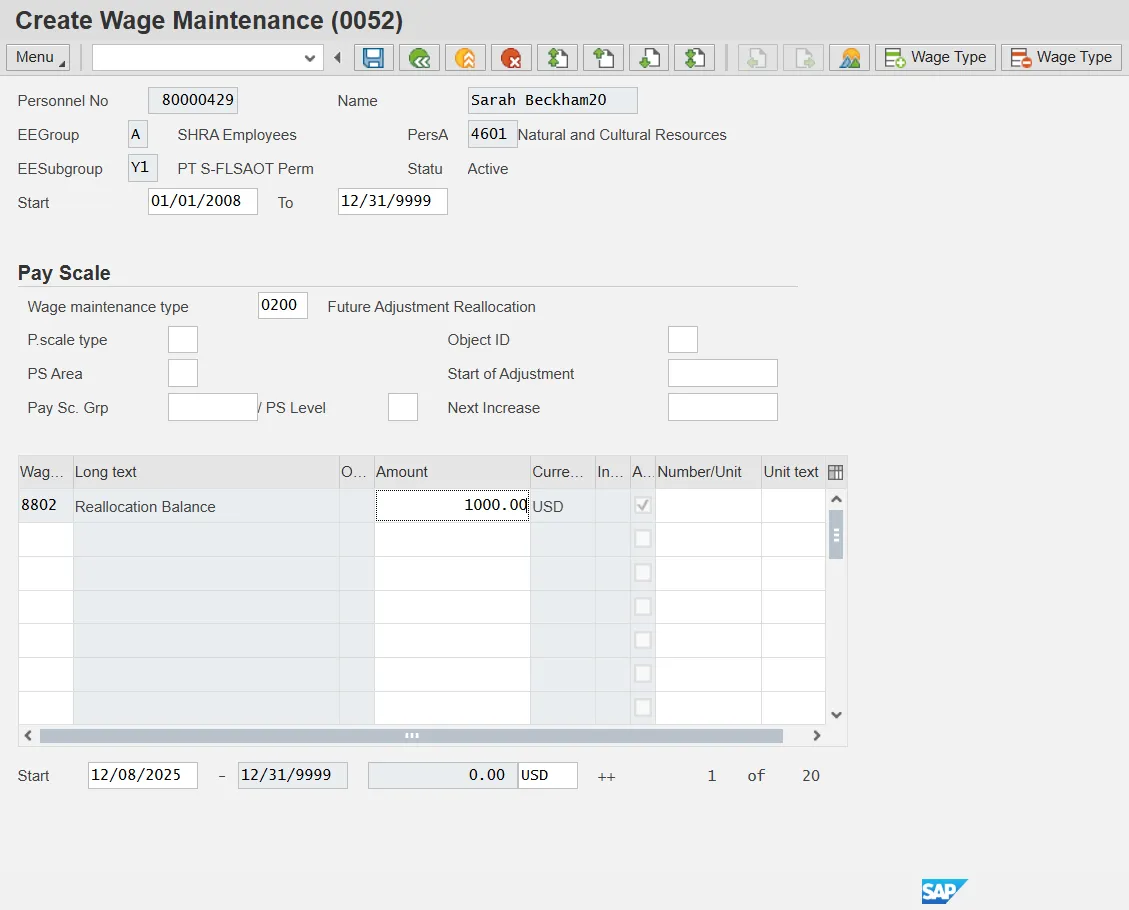
Step 9: Click Menu > Edit > Maintain text to create note.
Step 10: Click the Save (Ctrl+S) button to save note. Back on the Create Wage Maintenance infotype, you will see the Maintain Text button displayed on the screen.
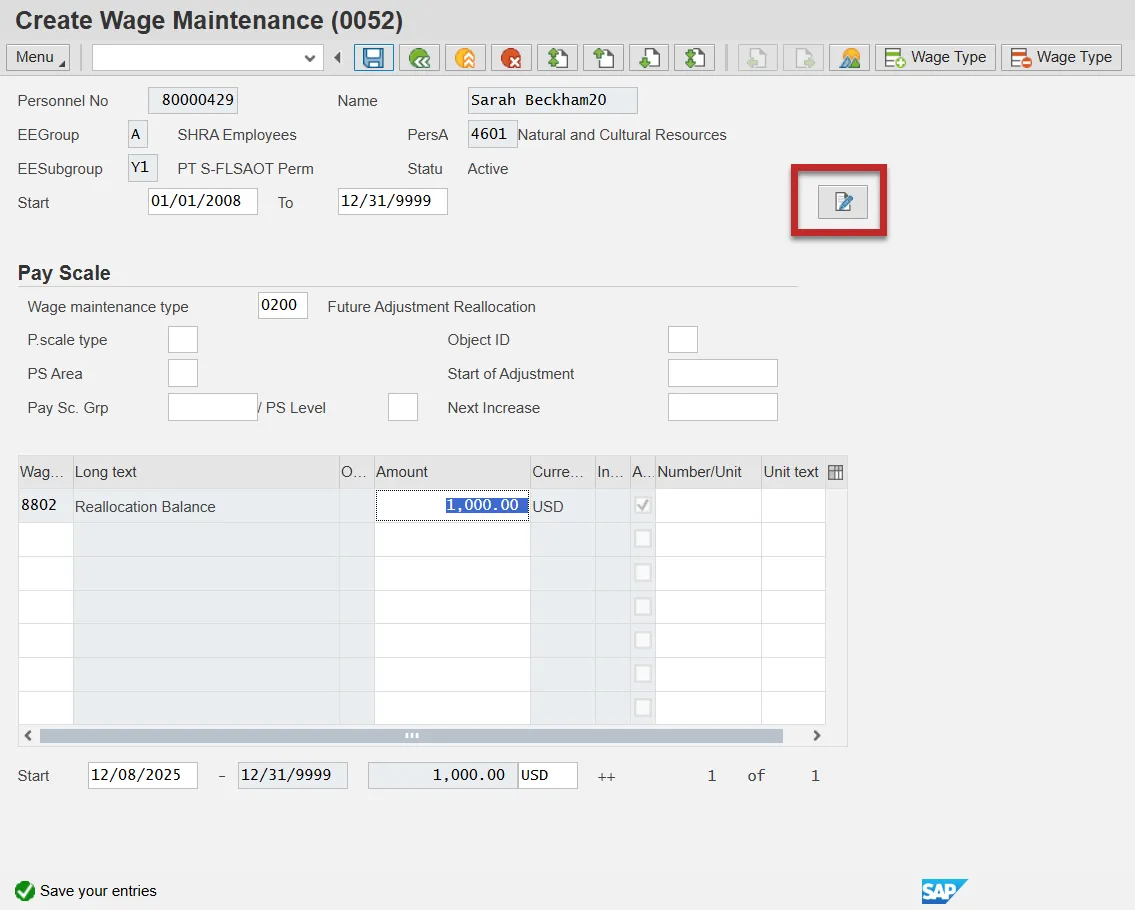
Step 11: Click the Save (Ctrl+S) at the Copy Wage Maintenance screen.
Step 12: Click the Back (F3) button.
Instructions for Delimiting the Reserve on Wage Maintenance
Because all of the reserved funds have been given to the employee, the reserve must be delimited. There are 16 steps to complete this process.
Step 1: Enter PA30 in the Easy Access Command field.
Step 2: Click the Enter button.
Step 3: Enter employee personnel number.
Step 4: Click the Enter button to verify.
Step 5: Update the following fields:
- Start Date (Example: 12/8/25)
- Amount (Example: 1000.00)
Step 6: Click the Delimit button.
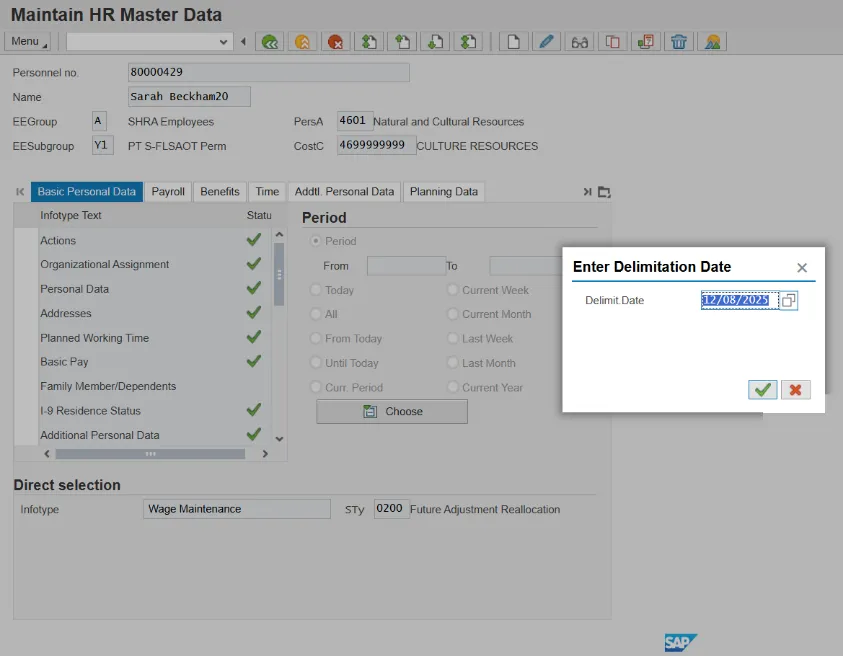
Step 7: On the Delimit pop-up window, enter the date (one day past when you gave the remainder of the money).
One day past is entered because the Integrated HR-Payroll System will use the day prior to delimit the infotype. If you want the infotype to show an end date the same as when you gave the remainder of the money, you have to enter the delimit date as one day past.
Note: If the Delimit pop-up window did not display, it is because you did not start from the Easy Access screen. In this case, you must enter the delimit date on the second delimit screen.
Step 8: Select line item and click the Delimit button again.
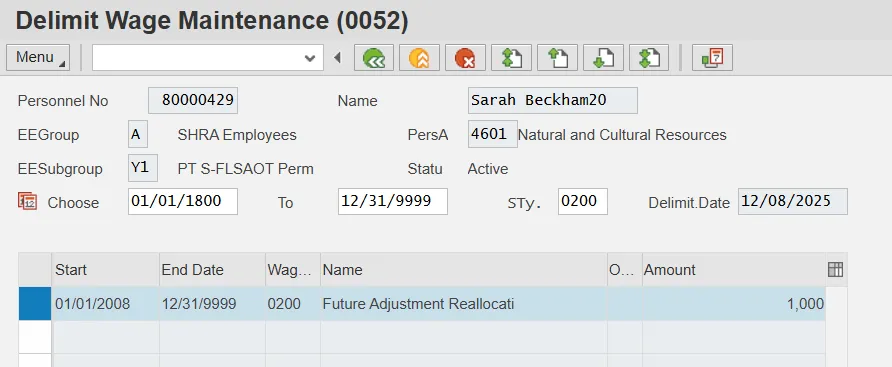
A pop-up message is displayed after delimiting confirming the record was delimited. To verify record(s) was/were delimited, click the All and the Overview button. The List Wage Maintenance screen displays.
Notice that the record(s) is/are delimited.
Step 9: While you are on the List Wage Maintenance screen, select the line item with the $1,000 delimited amount.
Step 10: Click the Copy button.
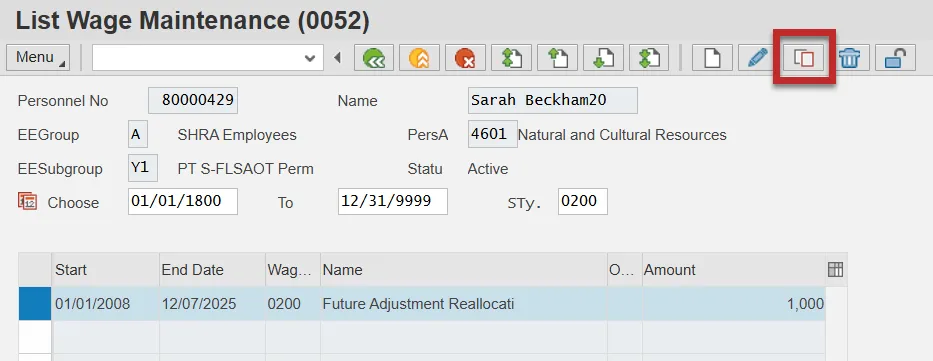
Step 11: Click Menu > Edit > Maintain Text and type an appropriate note to explain that all funds have been distributed or the amount left to grant if funds become available.
Step 12: Click Save to save the note.
Step 13: Click Save at the Copy Wage Maintenance screen. You will receive a warning message indicating that “This entry deletes a record.”
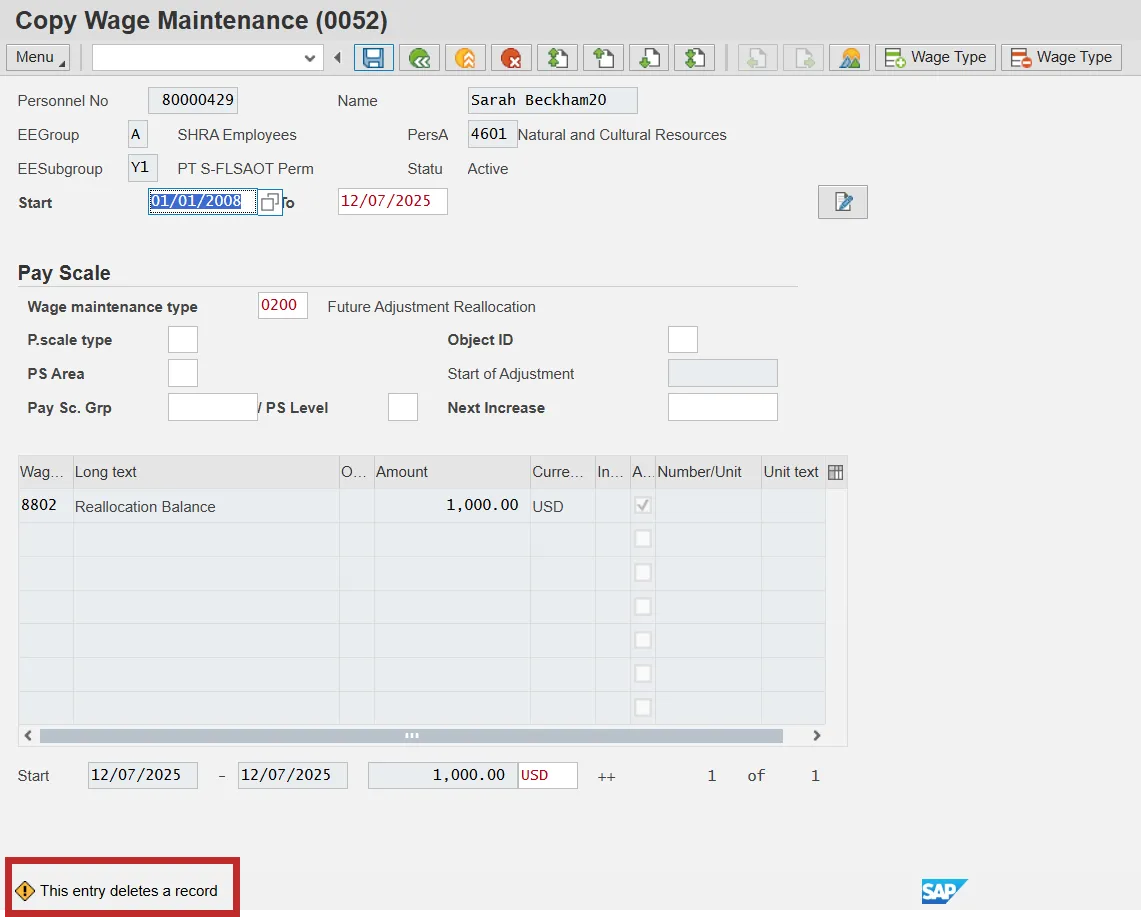
Step 14: Click Enter to bypass the warning that a record will be deleted.
Step 15: Click the Back (F3) button to return to the Maintain HR Master Data screen.
Step 16: Click the Back (F3) button.
The system task is complete.