Purpose
The purpose of this job aid is to demonstrate how to search for an employee using transaction code PA20.
Access Transaction
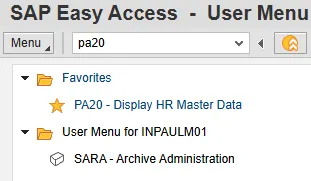
Via Transaction Code: PA20
- Access the PA20 transaction from your SAP Easy Access screen
Steps to Search by Personnel Number
There are 2 steps to complete this process.
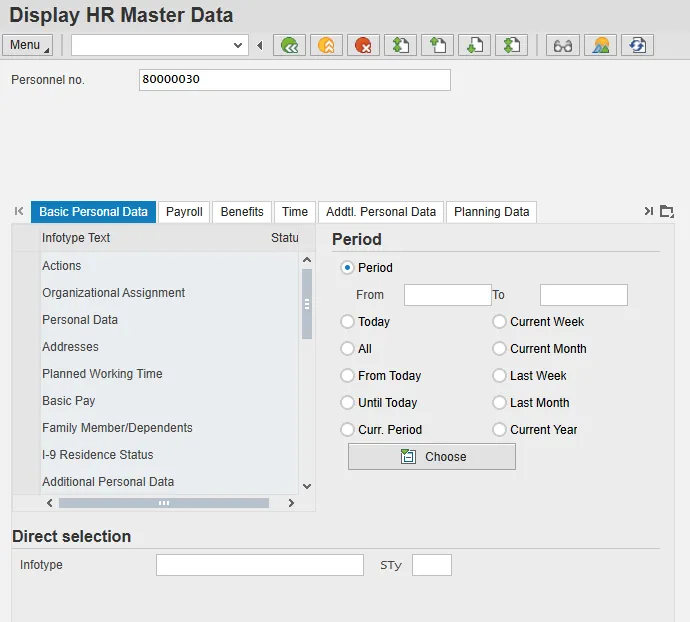
Step 1: Type the employee’s Personnel number in the Personnel no. field and click Enter.
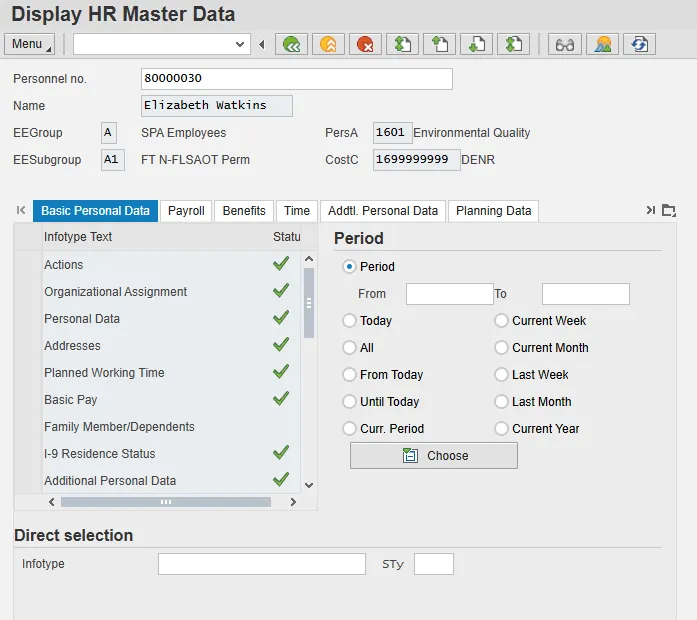
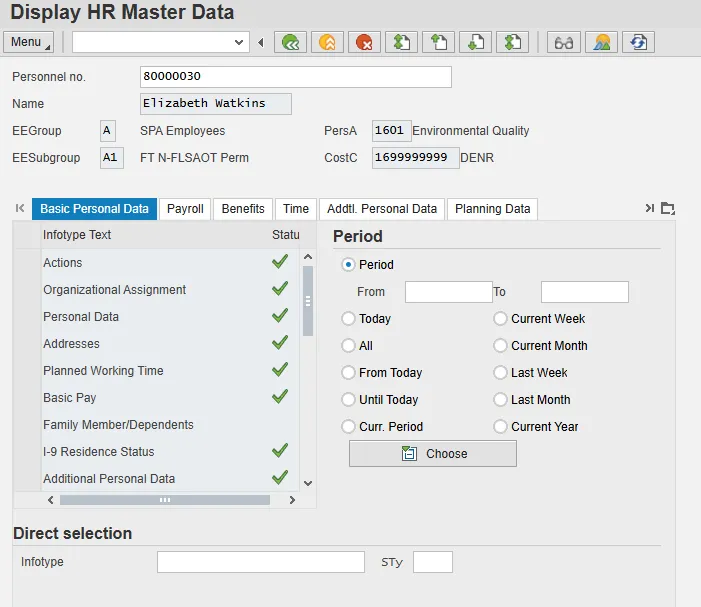
Step 2: Employee information will display if the personnel number is valid.
Steps to Search by Name
There are 5 steps to complete this process.
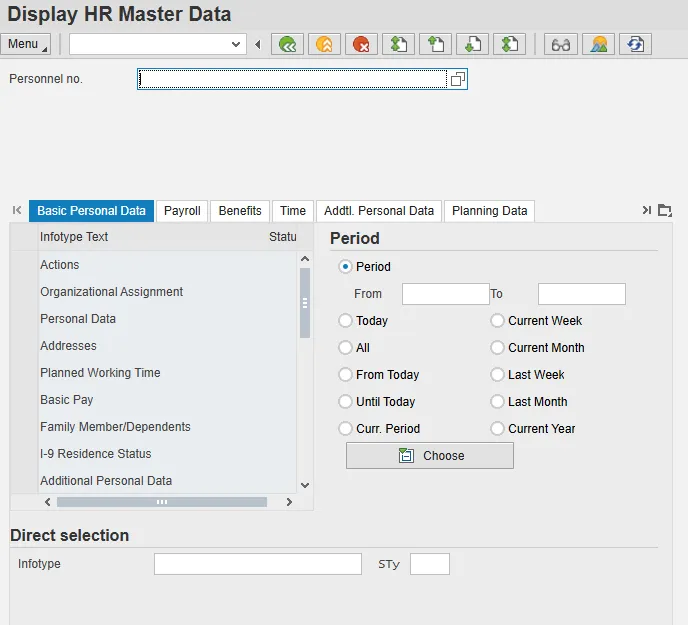
Step 1: Click the matchcode box to the right of the Personnel no. field.
Note: You may have to click in the Personnel no. field for it to appear.
Step 2: Search by Last name and/or First name.
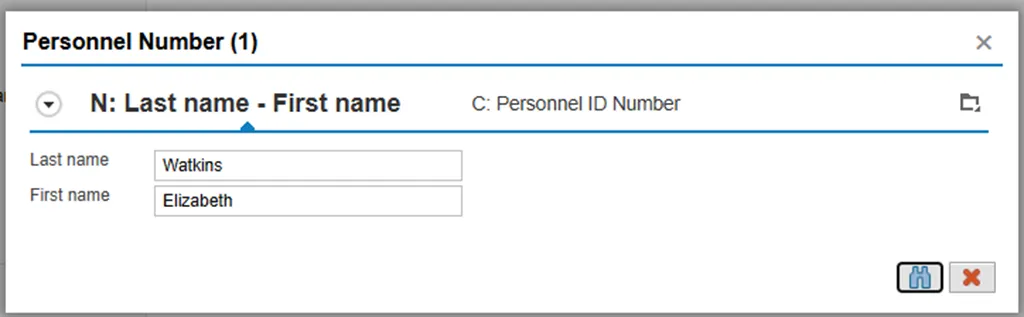
Step 3: Click the Find button. It looks like a pair of binoculars.
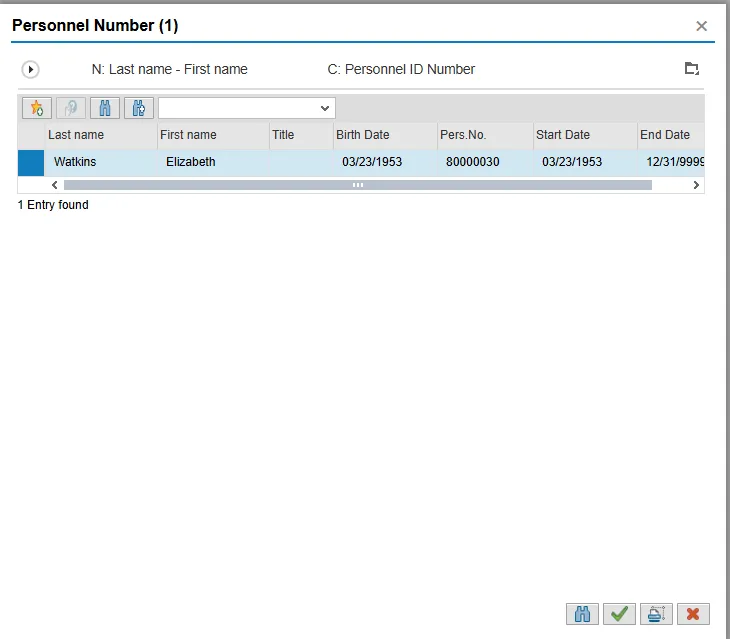
Step 4: Double-click the name of the employee you wish to display from the list.
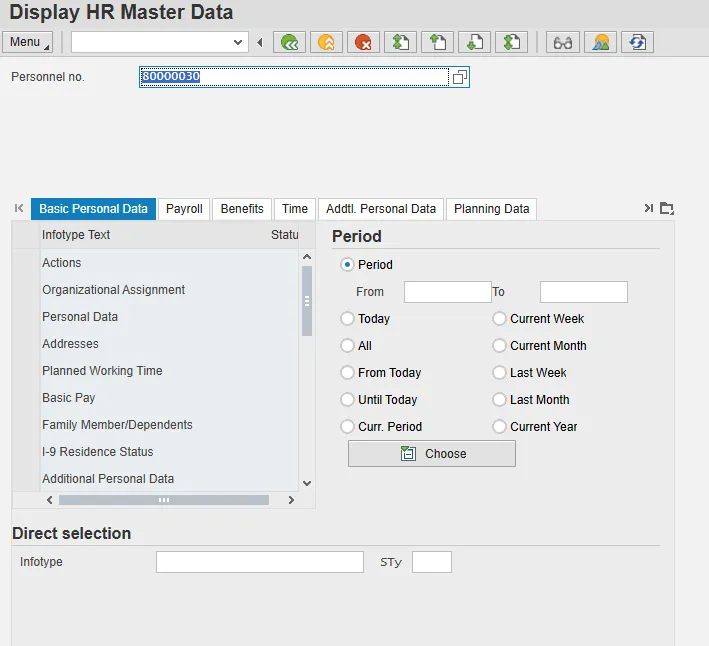
Step 5: You must click Enter to validate and fully display the chosen employee’s information.
Shortcuts That Can be Used When Searching for an Employee
By Name:
Use a shortcut (=n.xxxx - NO spaces.) in the Personnel No. field to search by name.
Examples:
Example 1: Type =n.watkins in the Personnel no. field and click Enter.

Example 2: Type =n.watkins.elizabeth in the Personnel no. field and click Enter.

Example 3: Type =n.watkins.e* in the Personnel no. field and click Enter.

By Social Security Number:
Use a shortcut (=c..#### - NO spaces.) in the Personnel No. field to search by SSN.
(Example: =c..123456789)
