Purpose
The purpose of this job aid is to demonstrate how to locate a PA PCR.
Examples
Below are examples.
Example 1 – Employee Action Request w/o PCR #
There are 4 steps to complete this process.

Step 1: Access transaction code ZPAA076 from the SAP East Access screen.
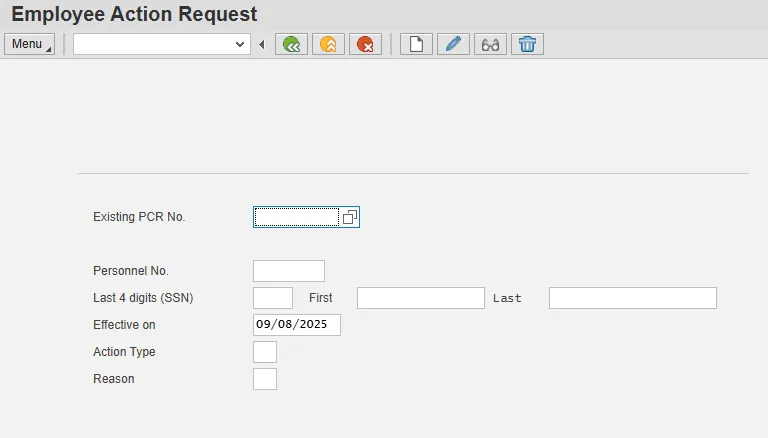
Step 2: Click on the matchcode box at the end of the Existing PCR No. field. You may need to click in the field for the box to appear. The information pulled is based on your security role.
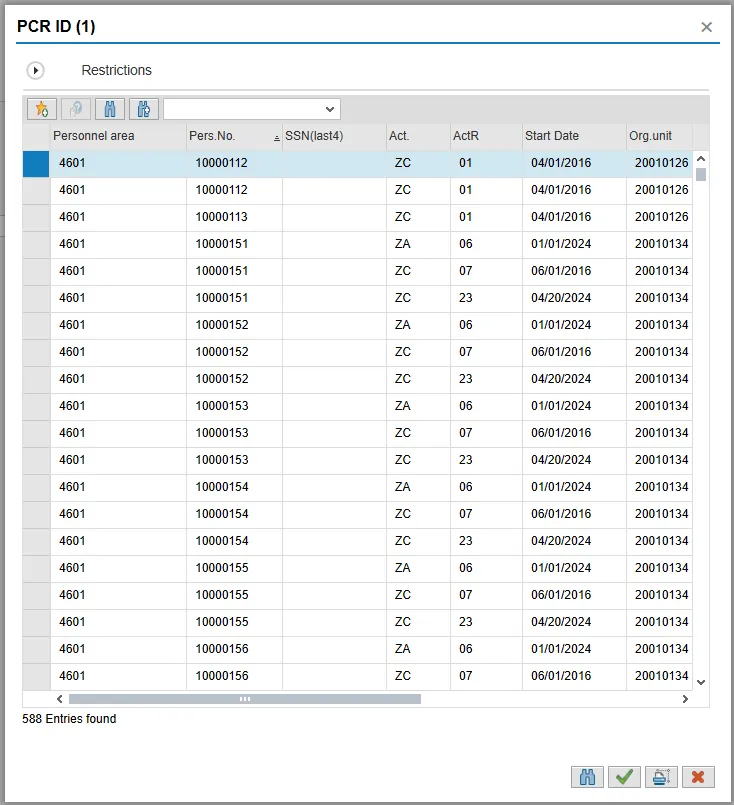
Step 3: Click on the expand node to the left of Restrictions in the pop-up. This will display selections to narrow the search.
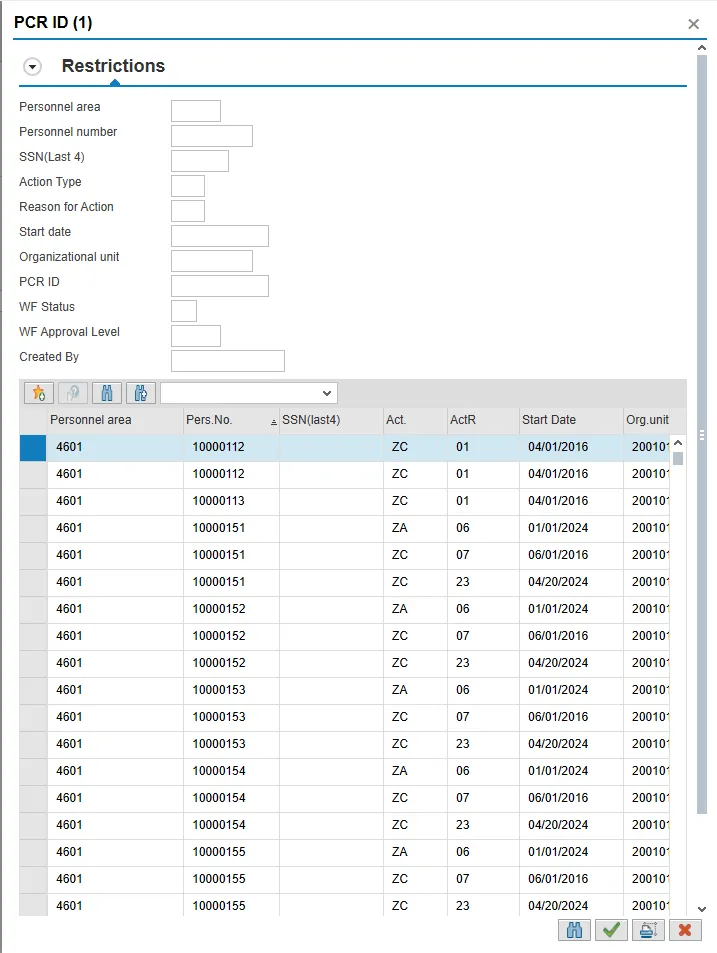
Step 4: Enter your selection criteria and click the little green check button.
Example 2 – Employee Action Request w/PCR #
There are 4 steps to complete this process.

Step 1: Access transaction code ZPAA076 from the SAP East Access screen.
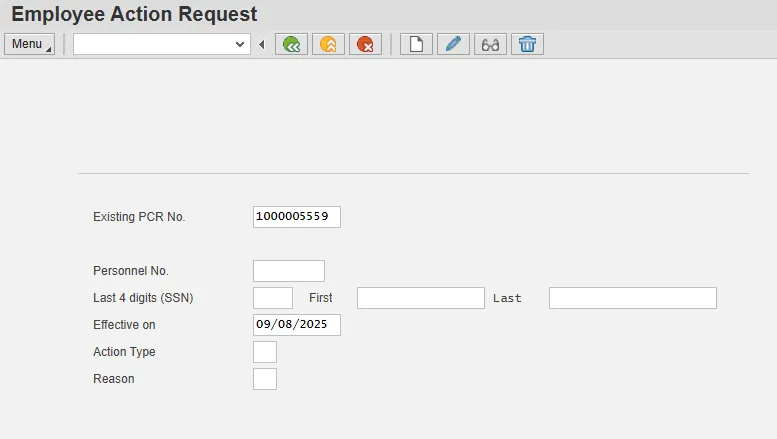
Step 2: Enter the PCR number and click Display.
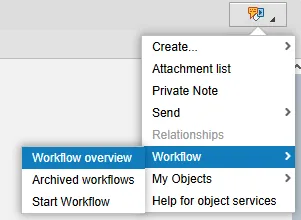
Step 3: Click on Services for Object > Workflow > Workflow Overview.
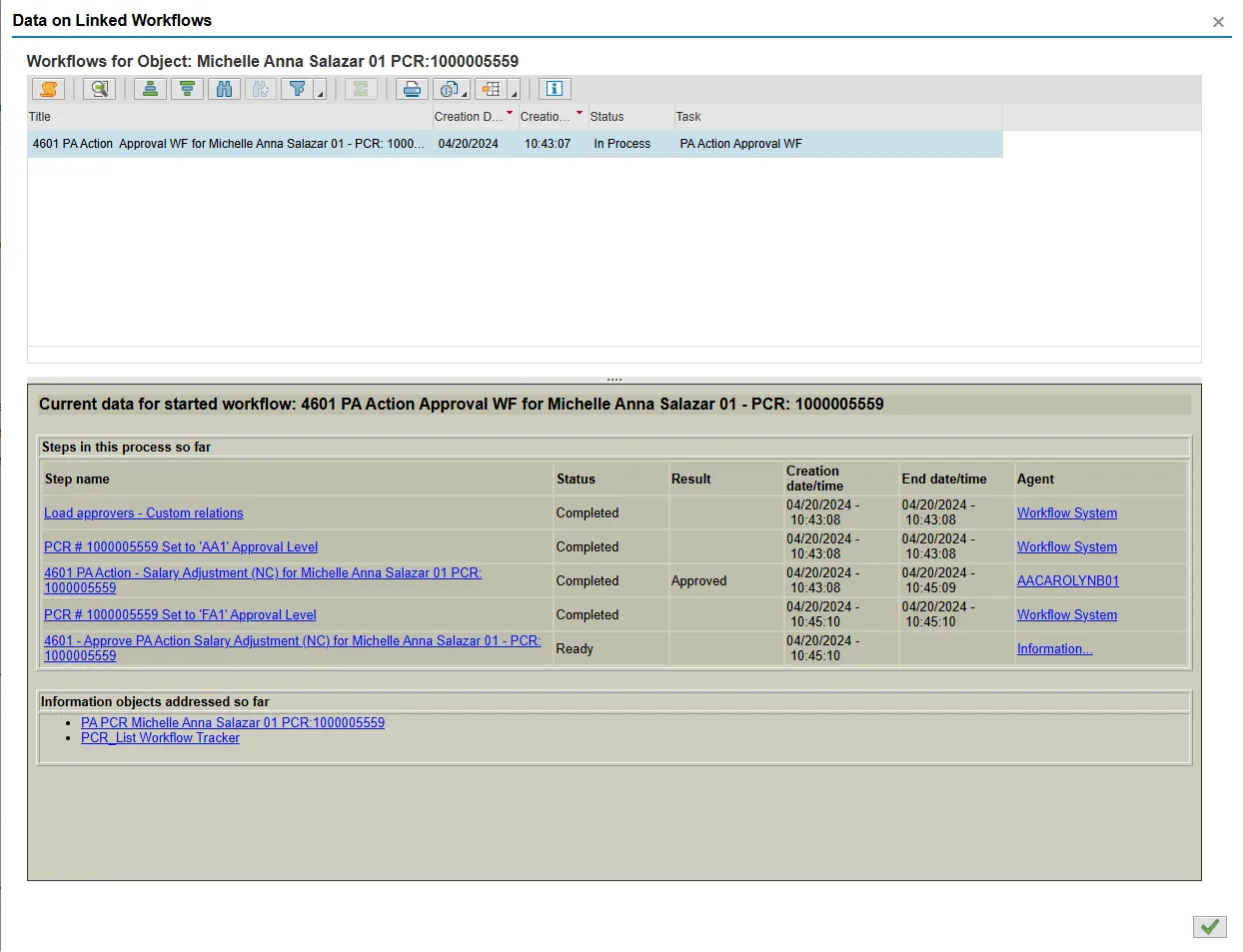
Step 4: Click on PCR_List Workflow Tracker.
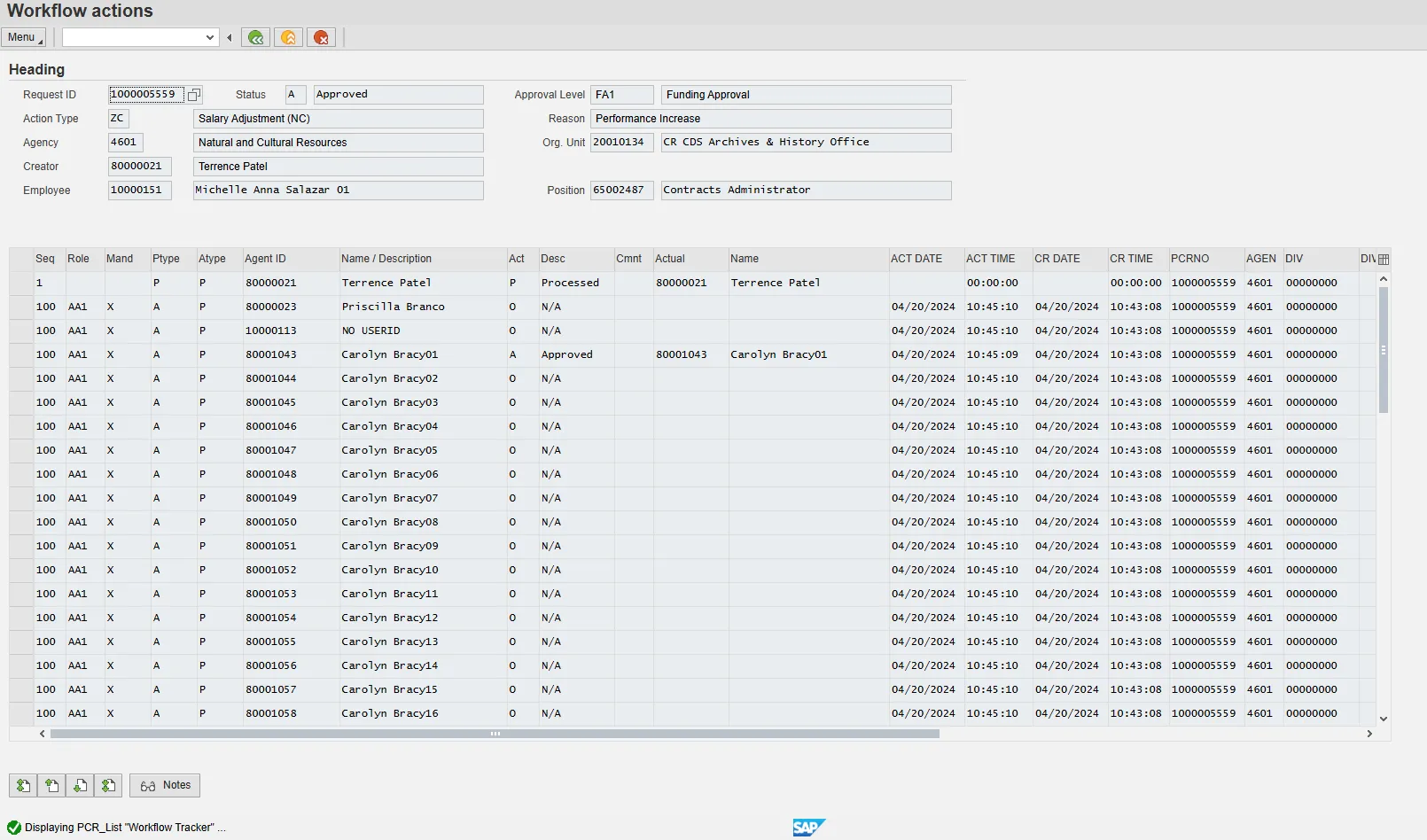
Example 3 – PA Workflow Report Current
ZPA0189 - PA Workflow Report Current
There are 2 steps to complete this process.

Step 1: Access ZPA0189 from the SAP Easy Access screen.
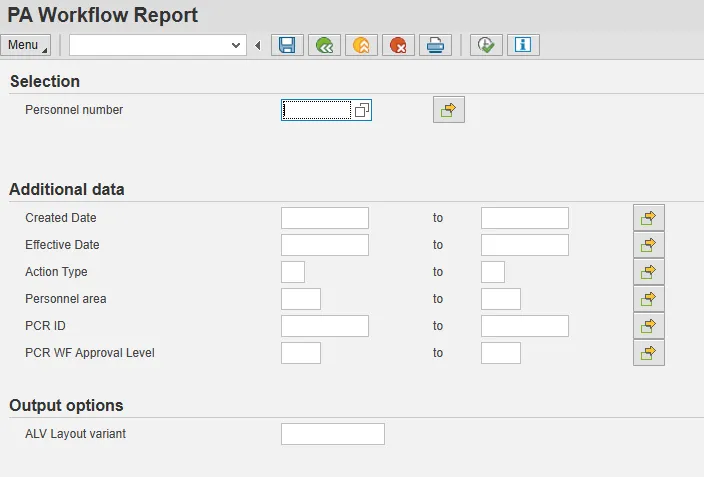
Step 2: If you know the employee’s eight-digit personnel number (this includes 0s) enter under selection. If you don’t know the employee’s personnel number, complete TWO fields in Additional data.
Example 4 – PA Workflow Process Monitoring
ZPAWFMON – PA Workflow Process Monitoring
There are 2 steps to complete this process.

Step 1: Access ZPA0189 from the SAP Easy Access screen.
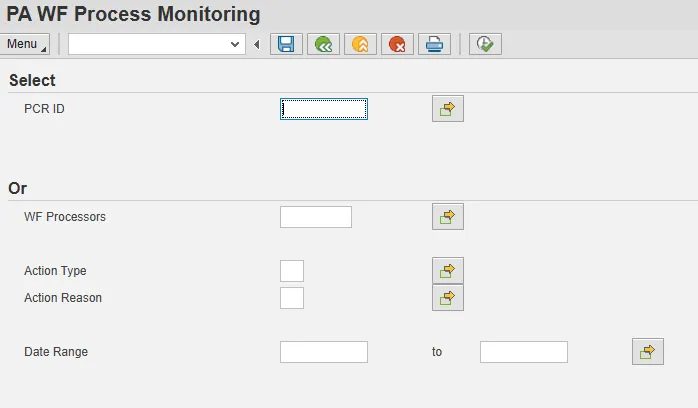
Step 2: Enter the PCR number OR enter the end user’s personnel number and a date range.