Purpose
The purpose of this job aid is to explain how to update the Education infotype (0022) to reflect that the education has been verified and is no longer in pending status.
As a reminder, when an employee is hired, information on the Education infotype (0022) is entered to indicate that the education information is in pending status. The graphic below illustrates how infotype 0022 appears when the data is entered during the new hire process. The dates in the Start and to fields and the Institute/location field were entered based on the employee’s records. The Certificate field indicates that the verification of the information (a bachelor’s degree in this example) is pending.
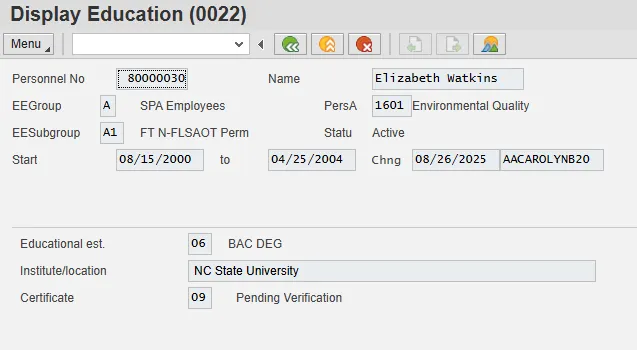
After receiving verification from the school, change the date fields and the Verified field as outlined in the steps below. There are 11 steps to complete this process.
Step 1: Double-click PA 30 - Maintain HR Master Data from your Favorites folder or type PA30 in the Command field. The Maintain HR Master Data screen displays.
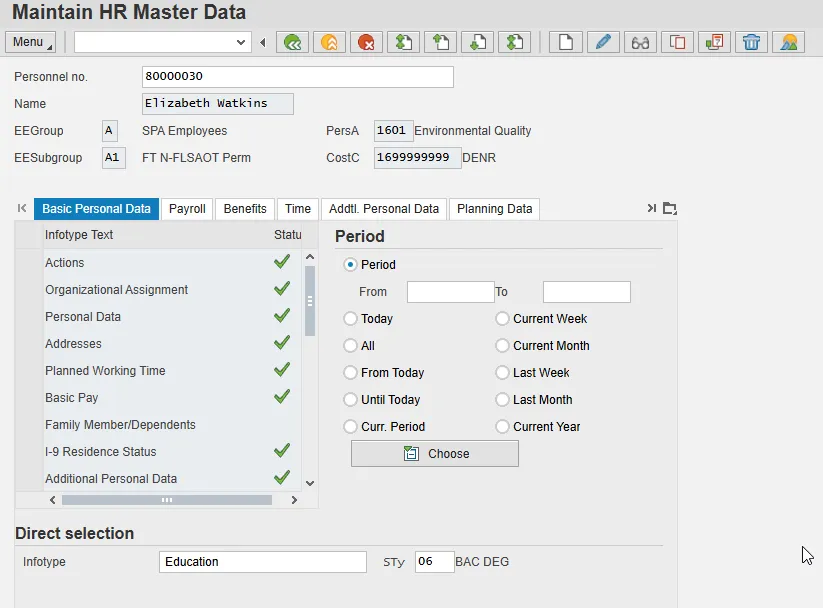
Step 2: Enter the personnel number or use the matchcode in the Personnel no. field to search for the employee's number.
Step 3: In the Infotype field (the white space at the bottom of the screen), enter 0022 (Education).
Step 4: Enter the subtype in the Sty field or use the matchcode to select the appropriate verified education from the drop-down menu. In the illustration above, subtype 06 (Bac Deg) was selected.
Step 5: Click the Enter. The numerical codes are changed to the appropriate wording for the selections you have entered.
Step 6: Select the Copy button. The Copy Education screen displays.
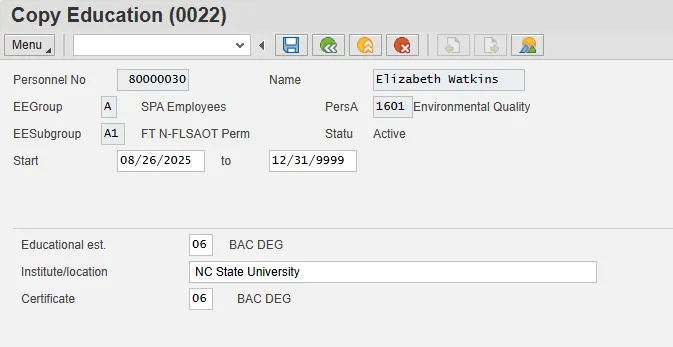
Observe that the screen shows the data that was entered when the employee was hired.
Step 7: In the Start date field, change the date to reflect the date you received the verification.
Step 8: In the to date field change the date to 12/31/9999.
Step 9: Change the Certificate field to the appropriate education. Enter the code or use the matchcode to select from the drop-down menu.
Step 10: Click the Enter key to validate the information.
Step 11: Click the Save (Ctrl+S) button.
Note: The graphic above shows a completed Education infotype for a verified bachelor’s degree at NC State University.
Process Note: Remember to delimit the IT0019-Monitoring of Tasks reminder for education verification.