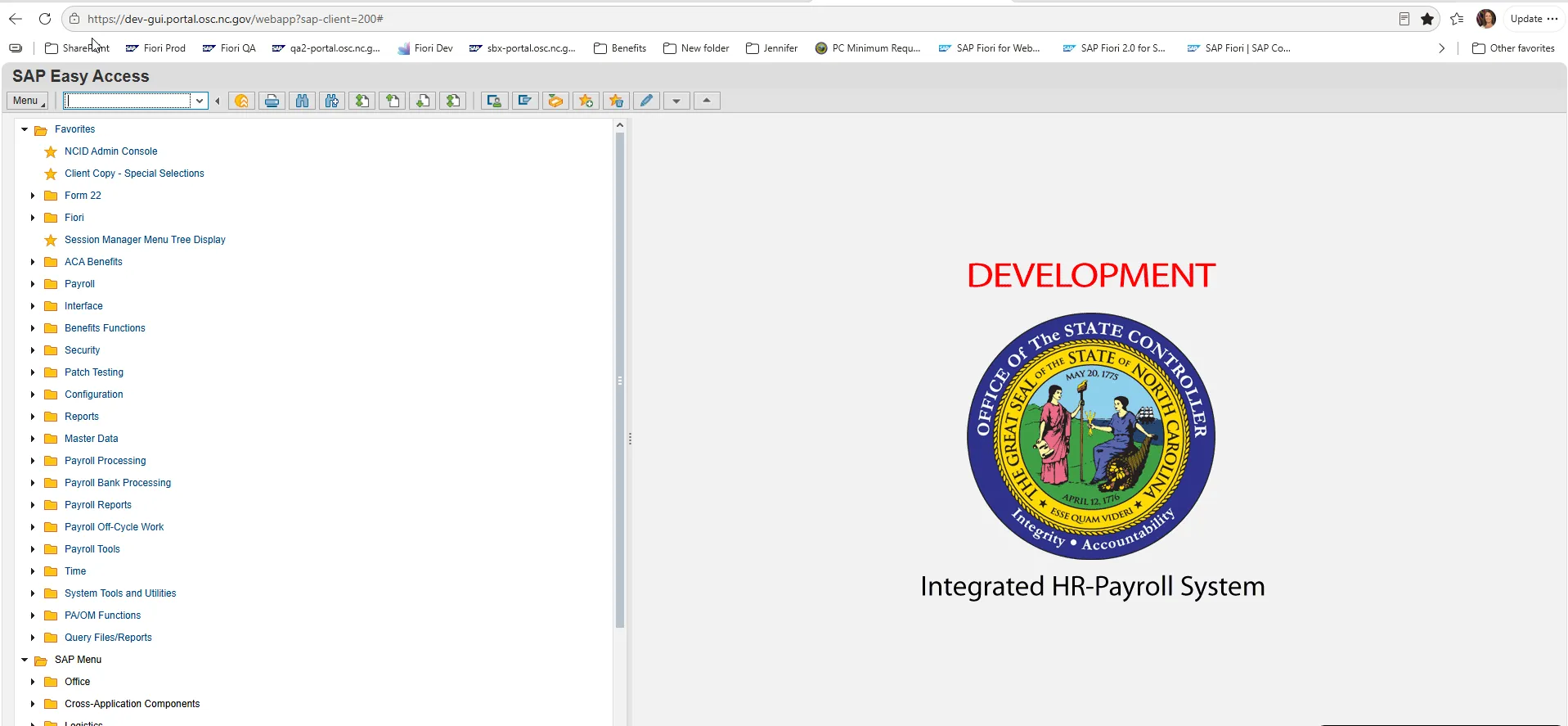
WebGUI session timeouts are part of the enhanced security controls designed to protect North Carolina’s data while using WebGUI. Here is the way the system timeouts work:
After 30 Minutes of Inactivity
After 30 minutes of inactivity, the idle Session Timeout box will appear. Users will see an option to continue the session (green check) or close the session (red X).
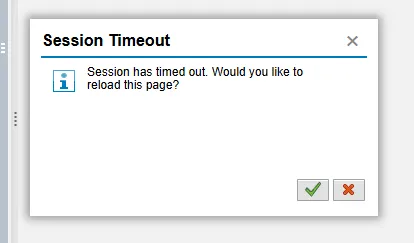
If the user selects the Green Check when it generates, or any time within a 3.33-minute grace period after it generates:
- The session will refresh, and an additional 30 minutes of idle time will be allowed before the next timeout cycle begins.
- The user can continue working as normal.
If the user selects the Red X at the time the Session Timeout box appears,
- The SAP WebGUI sessions will terminate.
- The user should close the Edge or Chrome browser
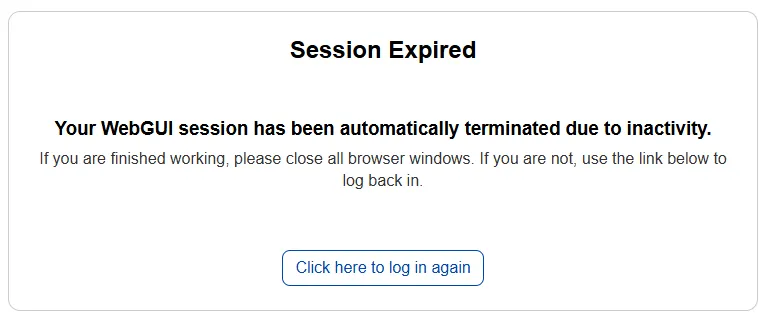
If no action is taken within 33.33 minutes of the idle timeout period, and the Session Has Expired, WebGUI now displays a Session Expired page with the following message:
Session Expired
Your WebGUI session has been automatically terminated due to inactivity.
If you are finished working, please close all browser windows. If you are not, use the link below to log back in.
The user can select Click here to log in again to return to the Integrated HR-Payroll System sign-in page. After signing in and completing the required authentication, the user can return to SAP WebGUI and establish a new session.
Selecting the Green Check After the Session Has Expired
If the user selects the green checkmark during the allowed grace period, the session refreshes and the user can continue working.
If the session has already expired when the user selects the green checkmark:
- The expired WebGUI session cannot be continued.
- The user is directed to the new Session Expired page.
The user can select Click here to log in again.
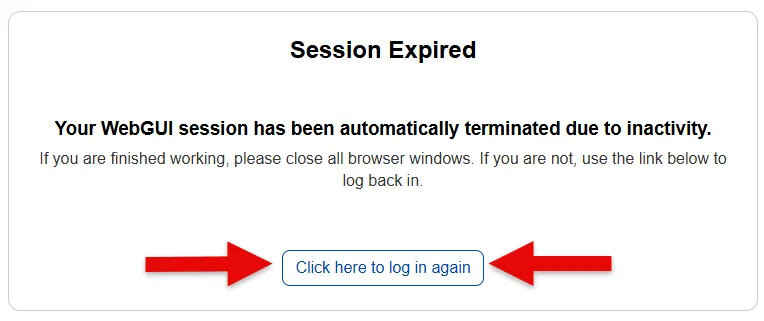
The Integrated HR-Payroll System sign-in page is displayed.
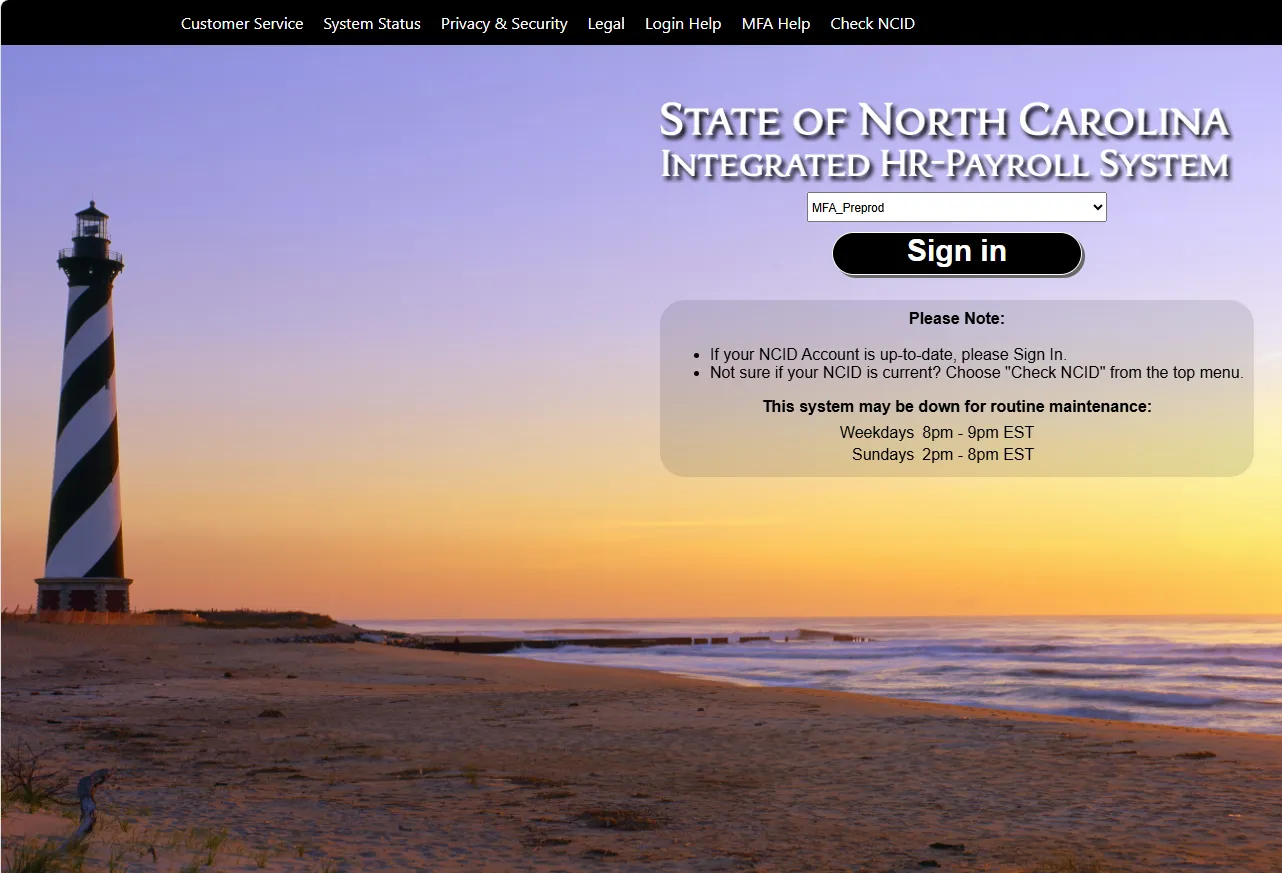
After signing in, the user can access SAP WebGUI and begin a new session.
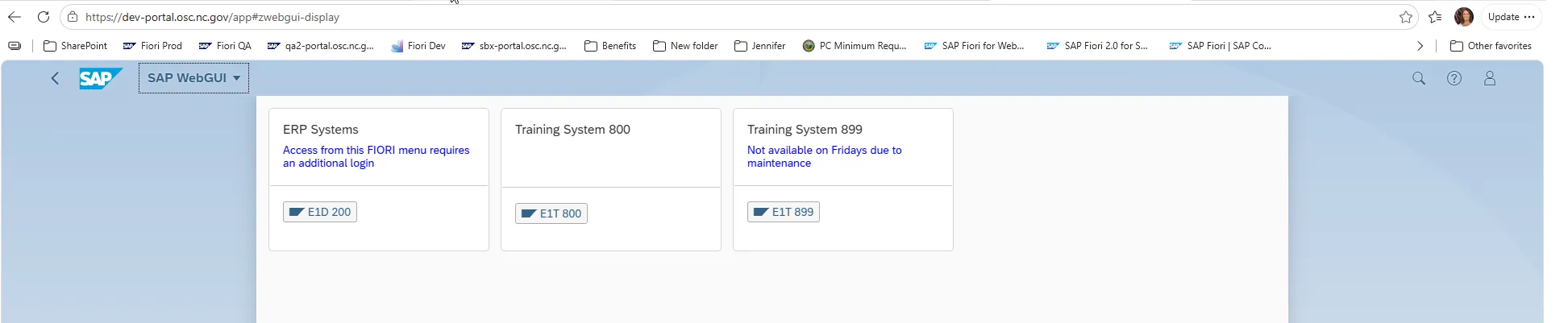
Active WebGUI Session