1. Open and Approve Requests Individually
PCR workflow items must be opened and approved one at a time. Mass approval is not available in workflow.
2. Ellipsis (…) in Fields
If you see … inside a field, it means the text is longer than the visible space in the box.
Tip: Adjust browser zoom or expand the window to view more text. Users cannot see the entire PCR number or field description.
Possible Causes:
- Browser zoom
- Screen resolution
- WebGUI rendering differences
Adjust Browser Zoom: If text or PCR numbers appear truncated, try setting the browser zoom to 90–100%.
Expand Fields When Possible: Fields showing … contain additional text that may not fully display within the box..
3. PCR Numbers or Field Text May Appear Cut Off
Some fields may not display the full text in WebGUI.
Tips:
- Reducing browser zoom to 90–100%
- Expanding the browser window
Contact Browser rendering settings – Agency Desktop Support
4. Attachments May Not Always Appear
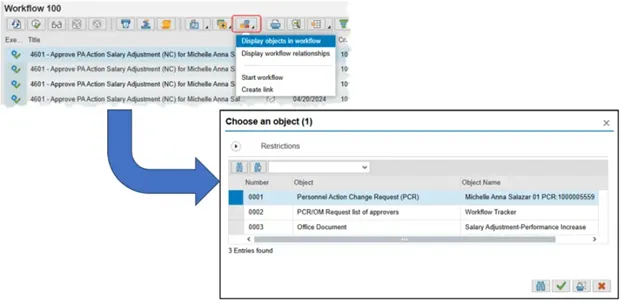
In some workflow items, the Objects and Attachments section may not display at the bottom of the screen.
Tip: If attachments are expected but not visible, refresh the workflow item or verify the PCR was submitted with attachments.
5. Opening Attachments Before the PCR
In some cases, users may need to open the attachment first before opening the PCR action.
6. Workflow Path Visibility
Unlike SAP GUI, SAP WebGUI may not show the full workflow path or next approver directly within the approval screen.
7. Finding Workflow Items
Workflow approvals typically appear in the user’s workflow inbox when a PCR is routed for approval.
8. Icons vs Transactions
Some users may notice workflow icons are missing.
Tip: Workflow inbox icon (but can get to it via the T-code). In the upper-left corner, go to Extras > Settings and you get the below options; they'll need to un-check this option to have the WF inbox icon display.
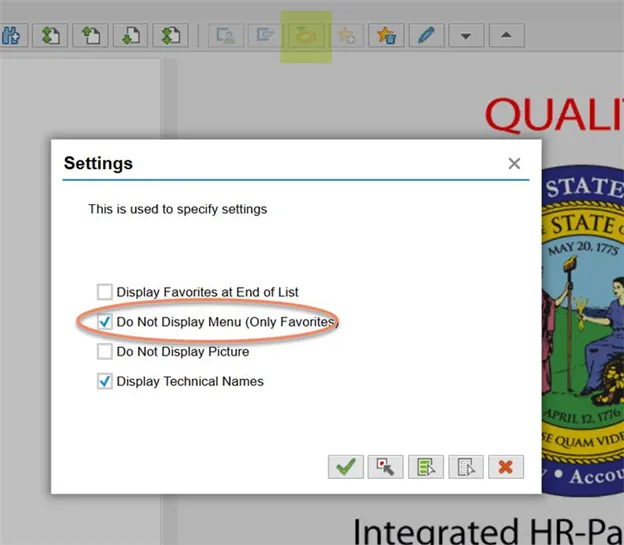
Users may need to access workflow via transaction navigation instead of icons.
9. Session Timeout Behavior
If the system is idle for too long, the session will time out for security purposes.
Users may be redirected to the Microsoft account sign-in screen before returning to SAP.
10. Refresh Workflow When Items Don’t Appear
If an expected PCR approval is not visible:
Tips:
- Refreshing the workflow inbox
- Logging out and back in
Missing “Objects and Attachments” Section
Question: A user does not see the “Objects and Attachments” list at the bottom of the workflow item.
Normally users can:
- Open the attachment
- Then open the PCR
In this case, the attachment list is not visible.
In SAP Web GUI, these sections are no longer visible in the inbox.
Instead, use the Environment button → Display Objects in Workflow.
A pop-up will give you links to the WF Tracker, WF Header, and any attachments.
Open the WF Tracker to check the current workflow status.