Purpose
The purpose of this Business Process Procedure is to explain how to change the position county in the Integrated HR-Payroll System.
Trigger
There is a need to change the Position County for a position.
Business Process Procedure Overview
This transaction allows you to change the county on a position. Often funding changes when the county is changed. The position number does not change.
Access Transaction
Via Menu Path: None
Via Transaction Code: ZOMA069
Tips and Tricks
See the OM Tips and Tricks Job Aid for a full listing of Best Practices and Tips & Tricks. The job aid is located on the Training HELP website.
- Copy is to be used most of the time. This will delimit the existing record and create a new record with the start date given. Copying keeps a history of the old record.
- Change is to be used only if you make a spelling or other simple error and want to change the record. There is no history tracked on what the record used to be if you use the change functionality.
Procedure
There are 17 steps to complete this process.
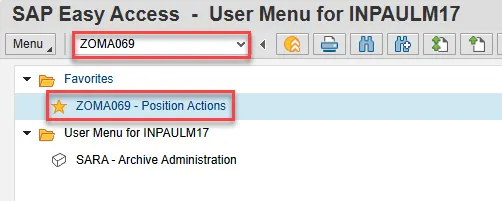
Step 1. Type ZOMA069 in the command field (1). Hit enter on your keyboard (2). Also, you can double click it from your favorites folder if you’ve previously saved it there (3).
Step 2. Use action code 122 to complete a county change action. It may be typed directly into the Action field or you can use the Matchcode button to select it from a list of all available actions.
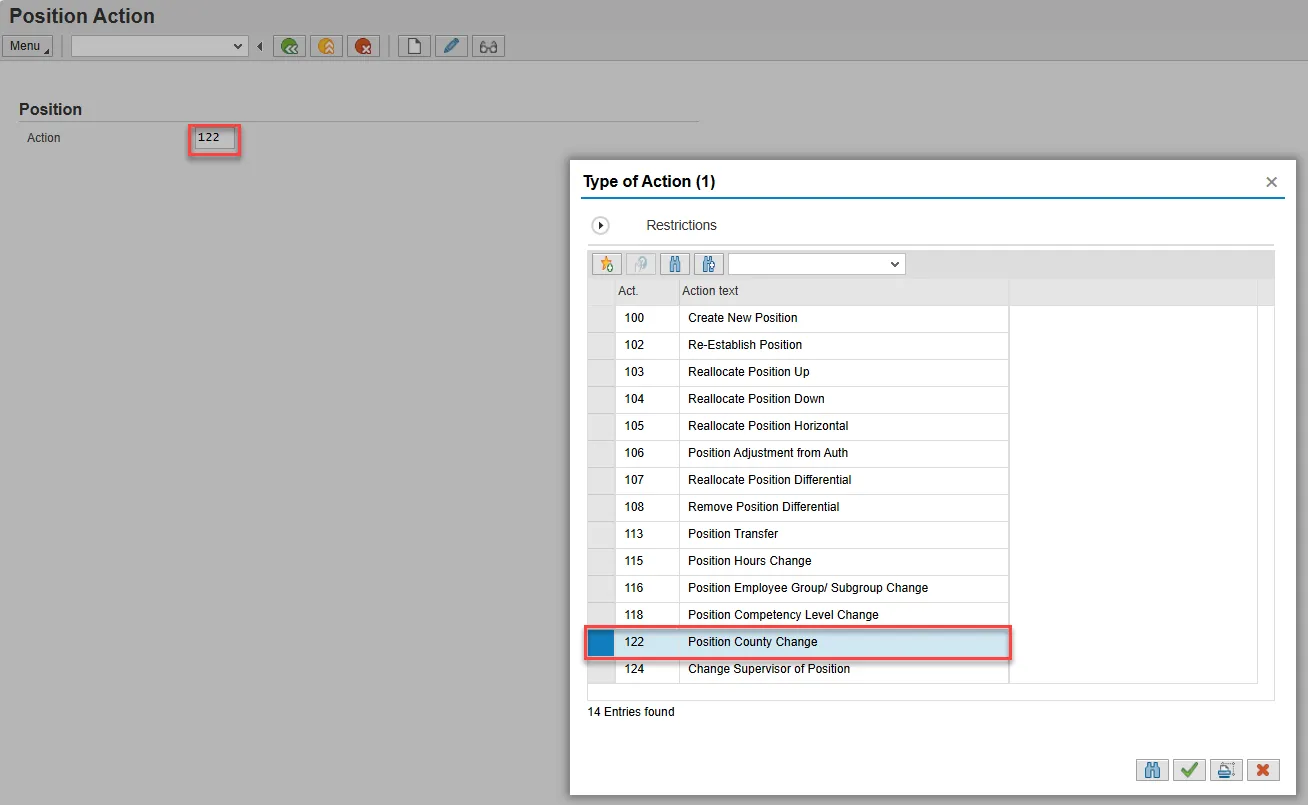
Step 3. Click Enter. You will be able to verify that you’ve chosen the correct action, and two new editable fields will be available.
Step 4. Input the position number needing the county change. This document will use 60083256 from the OSC training environment. Next, input the effective date of the new county assignment.
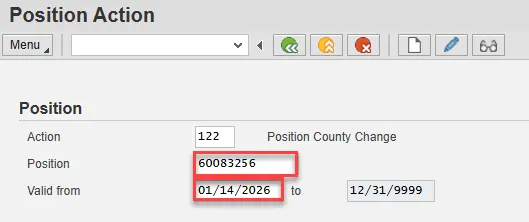
Step 5. Click Enter and verify the position displayed is the one you need to change.
Alert! Be vigilant on this step. Once you complete the next step, the Action type and Valid from date are locked in. They can only be changed by starting over.
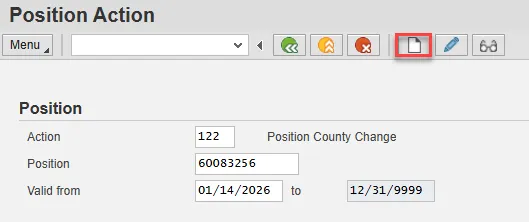
Step 6. Click the Create button.
Step 7. In the New Value column, enter the new County Code. You may type the code directly or click in the field and then the Matchcode button.
Note: The data used in this example is provided for sample purposes only. The data will change depending on the Agency and specific position being changed.
If the affected position has a Holder, it will be displayed in the Position Header section, as will the name of their Supervisor if that is an occupied position. These fields can be used to verify that the correct position number has been selected.
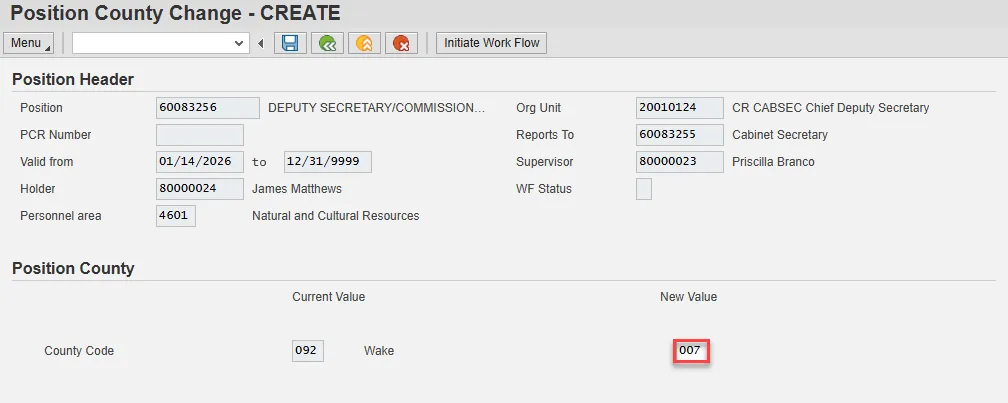
Step 8. Click Enter. Verify that the correct county code has been chosen.

Step 9. Click the Save button.
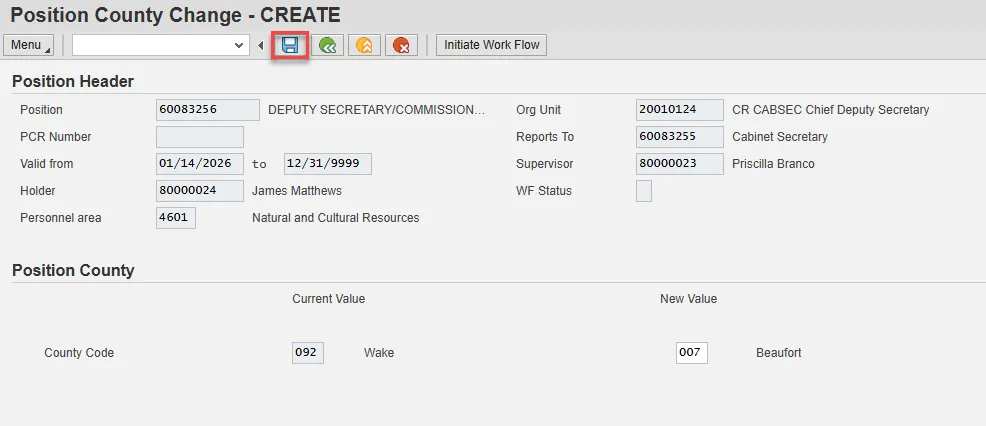
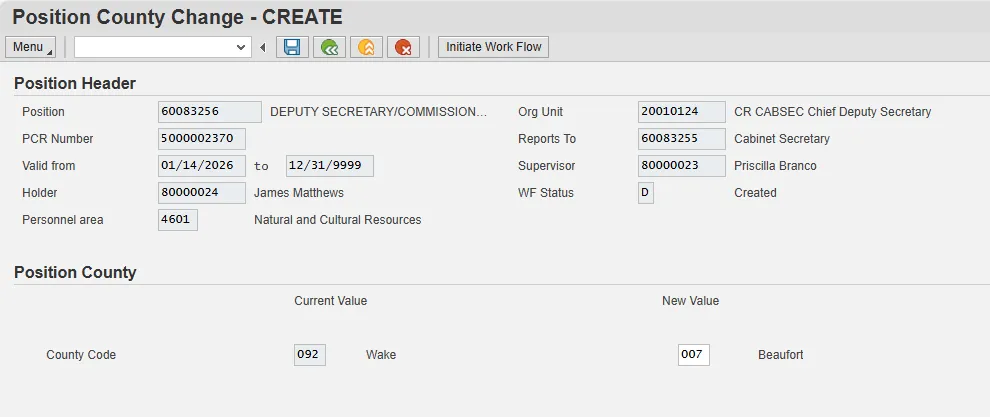
Step 10. Record the pertinent data in your OM Transaction log. OSC Training recommends recording the PCR Number, Position, Valid From date, Action Type, and date of initiation at a minimum. This data can be used to track your request through the Workflow process.
A sample transaction log is on the last page of the OM210 student guide which may be found on the OSC Training System Courses web page.
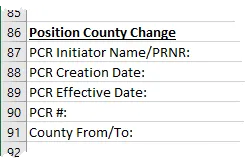
Step 11. Add a note. This is a required step and is not optional. Access the OM Action Notes Template help doc to utilize the template for a Position County Change action. Copy this template into your clipboard. (Highlight the needed cells then press Ctrl-C or Right click and choose Copy).
Step 12. Return to your SAP window and click the right side of the Services for Object button to access the dropdown menu. Hover over Create and then click on Create Note.
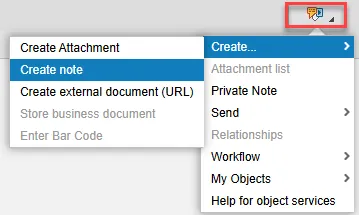
Step 13. Give your note a title and then click into the bottom area of the pop-up screen. Paste the template (Ctrl-V or Right click and choose Insert) and then complete the required data.
Step 14. Click the green check button to save your note. You will receive a message that your note was successfully created.
Step 15. Click the Initiate Work Flow button.
Note: Clicking the Initiate Workflow button will lock in your data and no changes can be made unless the PCR is rejected and sent back to you. Prior to clicking this button, you can make changes to your proposed data by using the Change button within the ZOMA069 transaction.
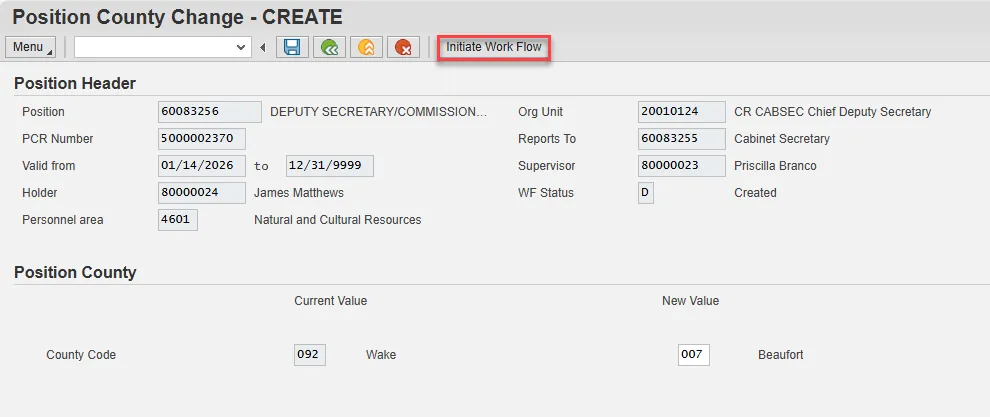
Step 16. You will receive a message that your Workflow has been submitted.
Step 17. You can use the PCR number and position ID to track your request through the Workflow process. The OM Workflow Report help document demonstrates how to do so.
The system task is complete.