Purpose
The purpose of this job aid is to explain how to use transaction Z_OrgPath to show logically grouped organizational units.
There are five OM Objects that create a new Organizational Path while leaving your agency’s Organizational Structure intact. These OM objects logically group organization units into the following categories:
- Agency (7A)
- Division (7D)
- Section with Branches (7L)
- Section without Branches (7S)
- Branch (7B)
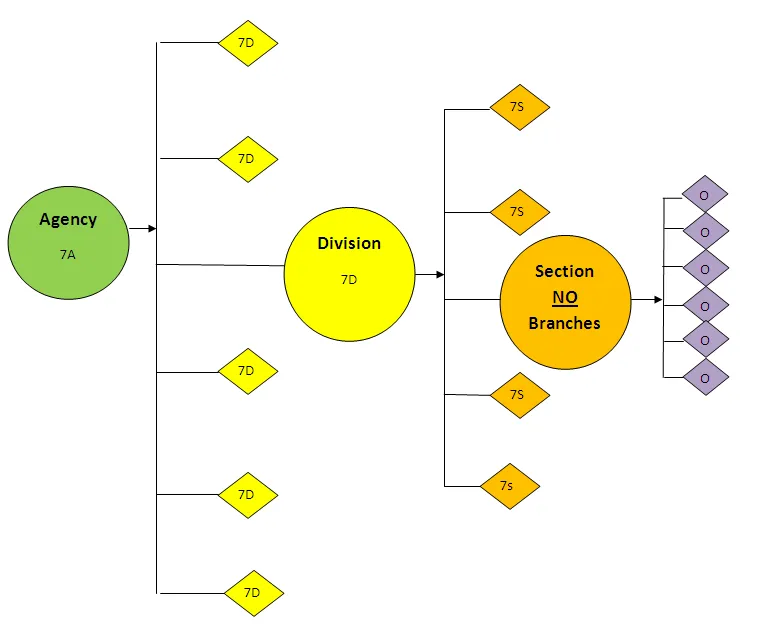
Structure without Branches
This type of structure is used primarily by smaller agencies or agencies with a less complex Org Structure.
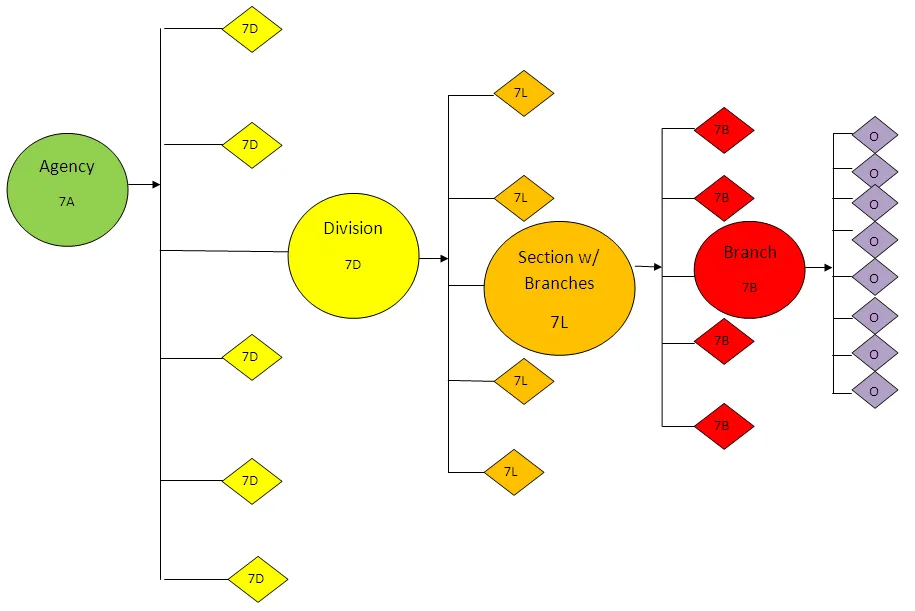
Structure with Branches
This type of structure is used primarily by larger agencies or agencies with a more complex Org Structure. However, any agency requiring a more detailed breakdown can use this object.
Process
There are 3 steps to complete this process.
Step 1. Type z_orgpath in the Command field and press Enter.

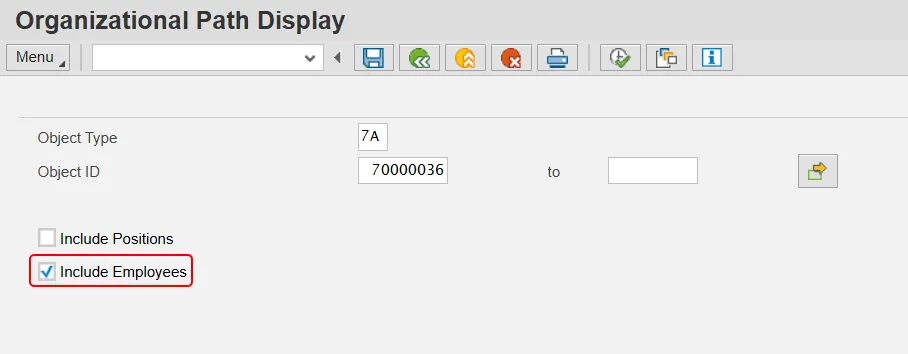
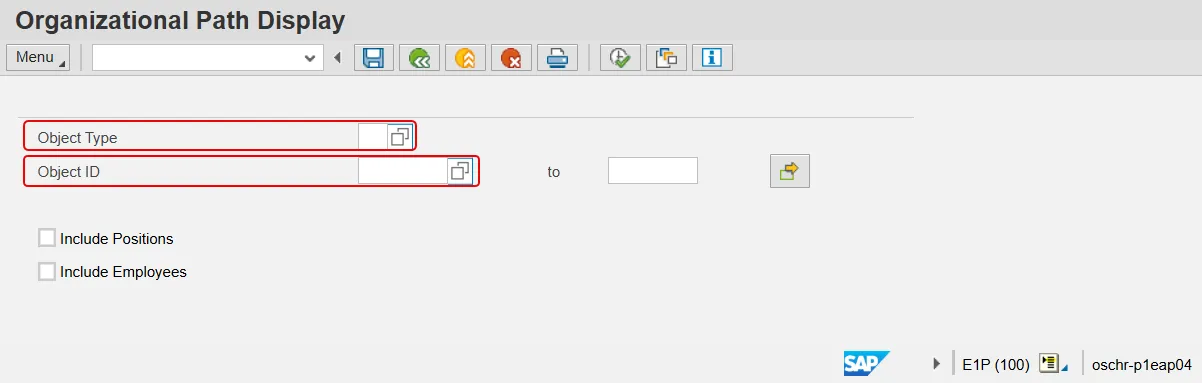
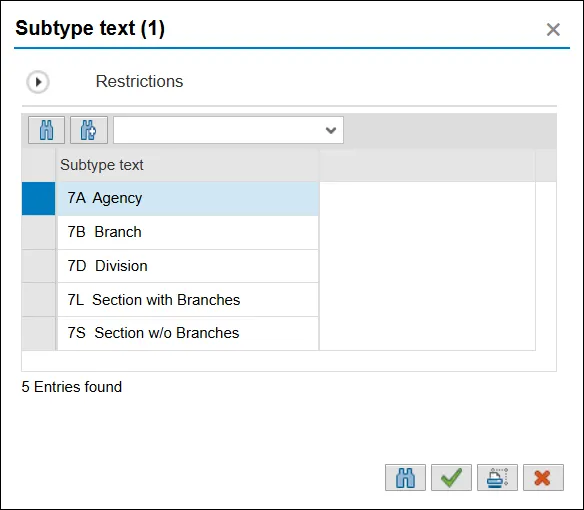
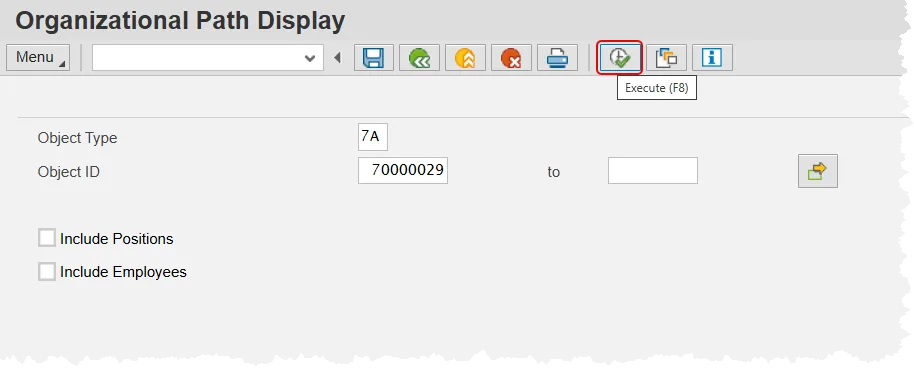
Step 2. Add data to the Object Type and Object ID fields. If unsure of the type or ID, use the matchcode to view a list from which to select.
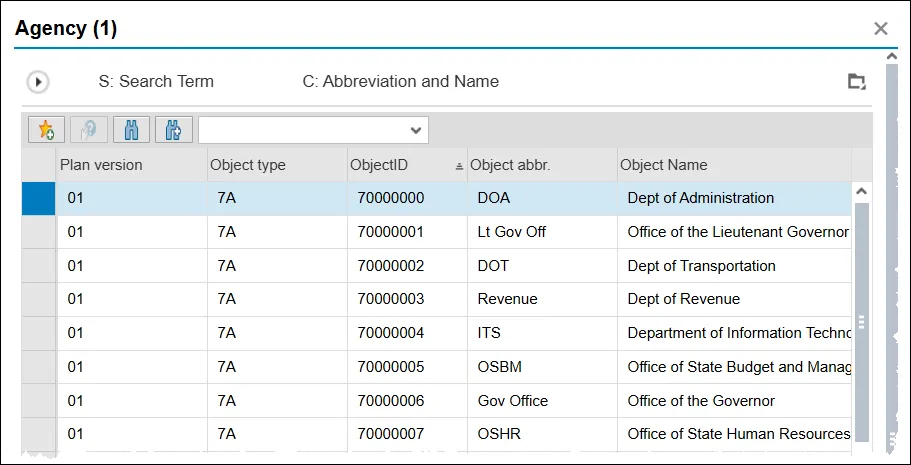
Note: The Object ID match code pop-up results are filtered by the value that is input into the Object Type field.
Object Type match code pop-up:
Object ID Match code pop-up:
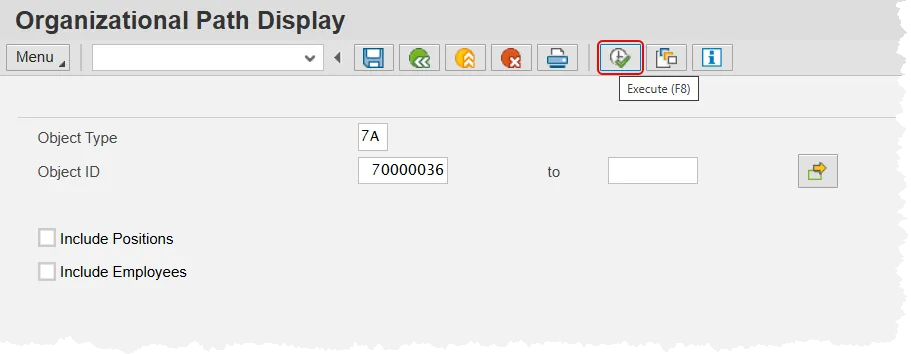
Step 3. Click the Execute button.
This selection will start the display at the selected Object Type level and display all subordinate objects as well as the Organizational Units that belong to them.
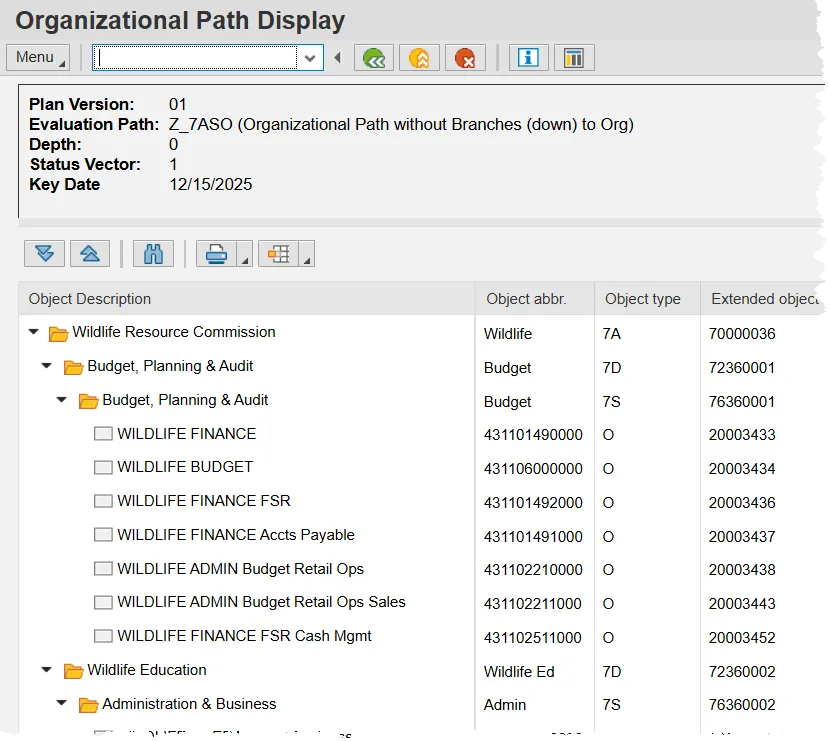
This display is an Agency using Sections (no Branches).
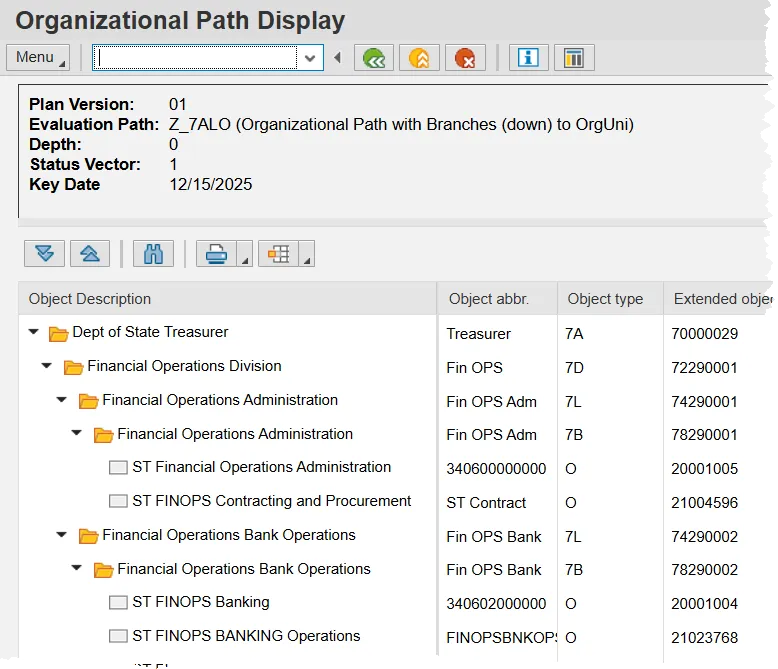
This display is an Agency using Sections WITH Branches.
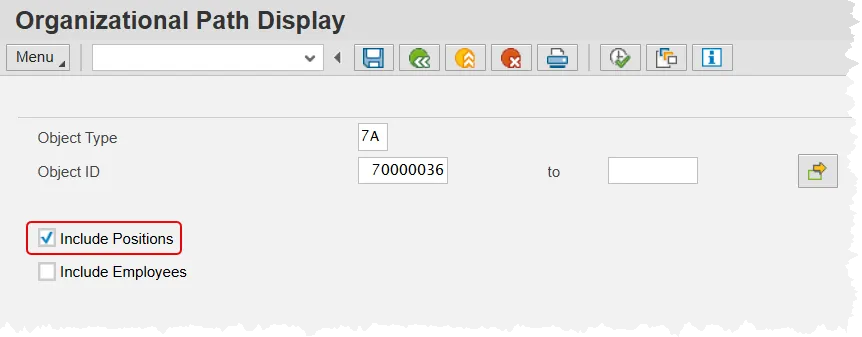
To include the Positions belonging to the Org Units in the results, check the Include Positions box.
Results with Positions included
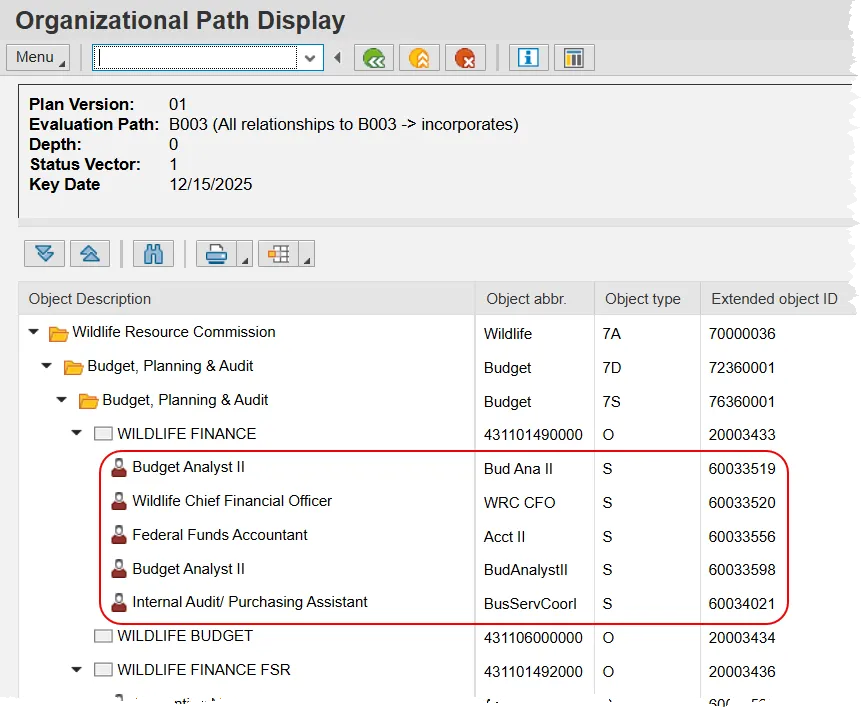
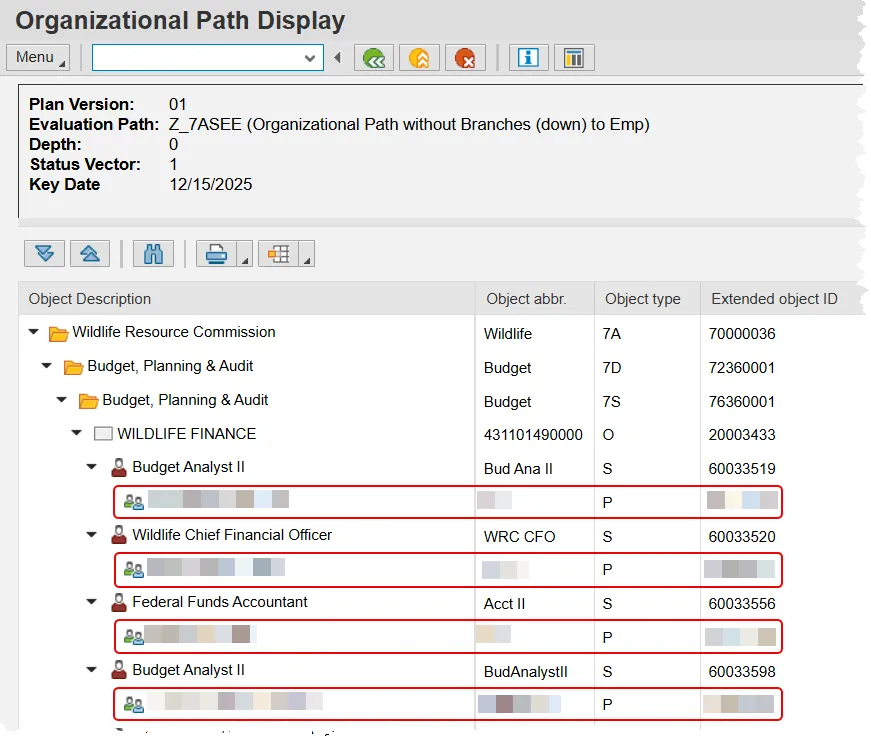
To include the Employees within the Positions, check the Include Employee box. Checking this box will also return position data, even if that box is not checked.
Results with Employees included