Purpose
The purpose of this Business Process Procedure is to demonstrate how to use transaction ZFIR018 in the Integrated HR-Payroll System.
Trigger
As part of the validation process for posting payroll, the agency should run ZFIR018.
Business Process Procedure Overview
The summary version of ZFIR018 can be used to verify total dollar amount on the report with the (North Carolina Financial System) NCFS amount. The detail version of this report can be used to see the detail account, wage types, and cost distribution for each employee. ZFIR018 should be run after payroll post to General Ledger.
Variants have been set up to use when running the report. These variants are in the format of:

This includes the payroll runs for CMCS posting date of March 30, 2021.

This includes all payroll runs for month of March, 2021. Medical is excluded.

This includes the medical expenditures for the March payroll which post on April 5, 2021. The output file that is created can be modified.
The following BPP will show how to make changes. It is also possible to save the file as a spreadsheet.
Access Transaction
Via Transaction Code: ZFIR018
Procedure
There are 10 steps to complete this process.
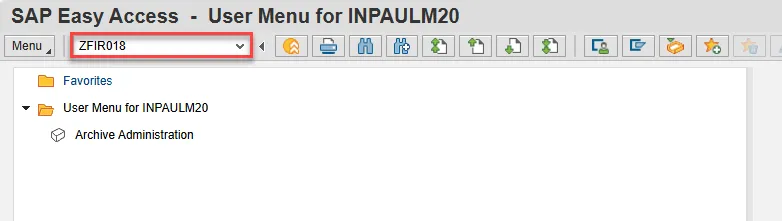
Step 1. Enter ZFIR018 in the command field and choose the Enter key.
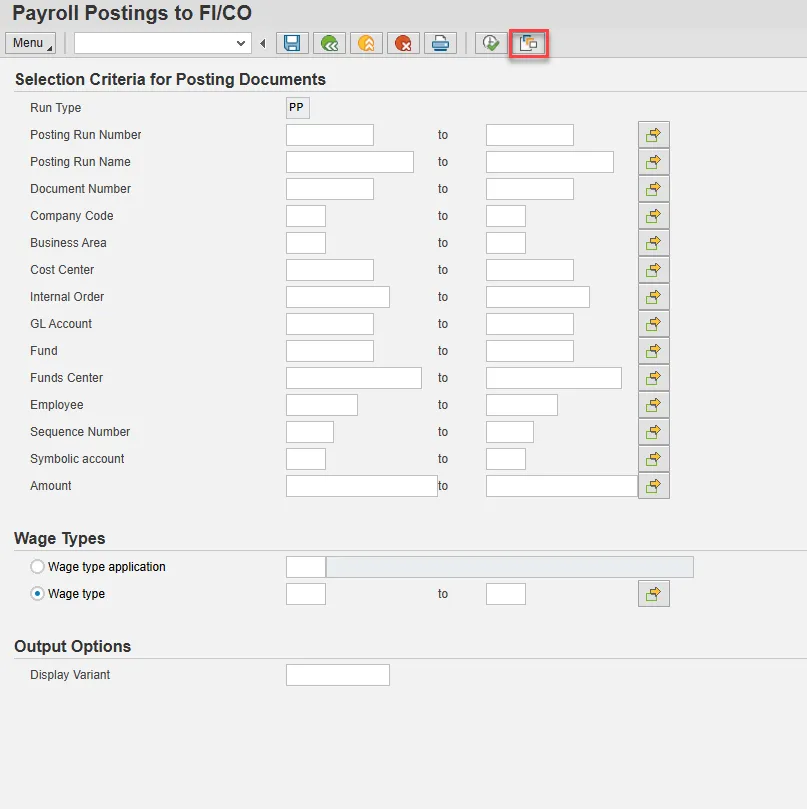
Step 2. Click the Get Variant button.
Step 3. In the Variant Catalog pop-up, select the variant to match the date you want to verify by single clicking it.
Note: The format is /YearMonthDay. You can use the Find button to search for specific results.
The monthly variants do not include medical expenses because they post in the next month. There are special variants created for the medical run:

This includes all payroll runs for month of March, 2021. Medical is excluded.

This includes the medical expenditures for the March payroll which post on April 5, 2021.

Step 4. Complete the Business Area field to identify the Agency for which balance sheets and income statements are prepared.
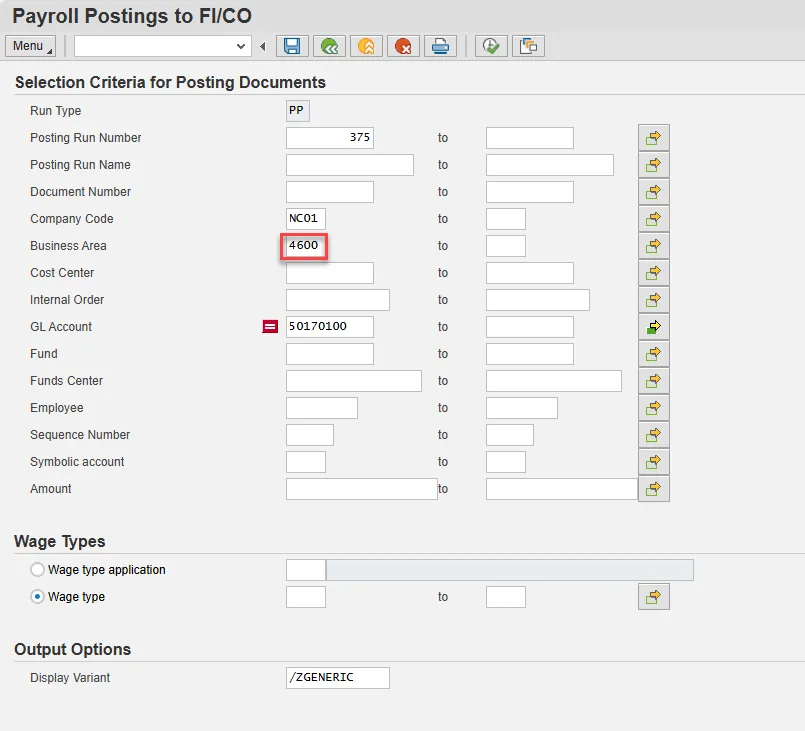
Step 5. Click on the Multiple Selections button for the GL Account field.
Step 6. Click the Exclude Single Values tab on the pop-up:
Note: These values will not be displayed in this run of the report. If any changes are entered, click the copy button once complete. Otherwise, click the Cancel button to close the window.
Step 7. Complete the Fund field. Budget funds are program numbers mandated by the Office of State Budget and Management.
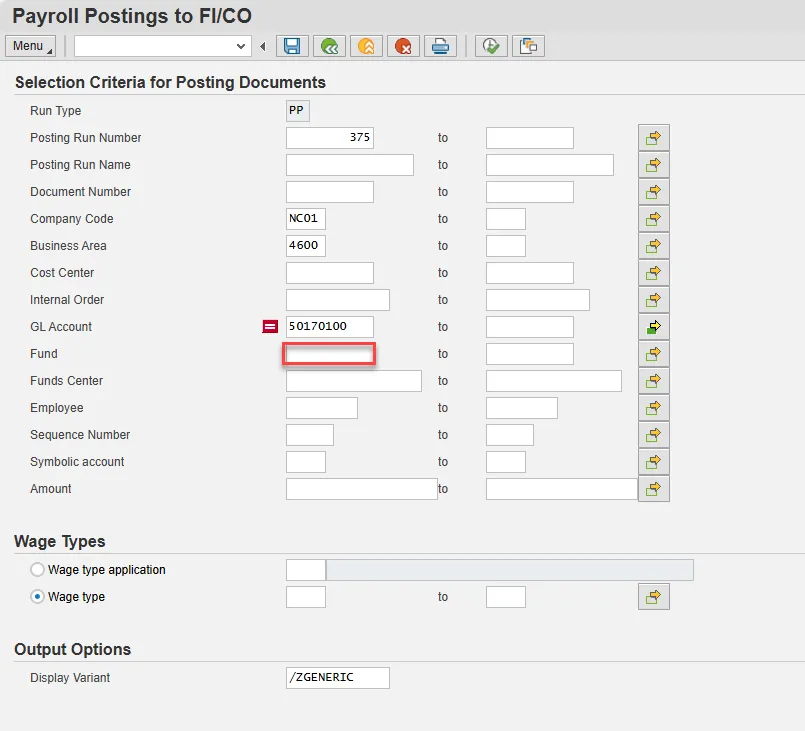
Note: Enter your agency identifier followed by an asterisk (*). This is a wildcard search, and all of your agency funds will be selected. Also, this will eliminate the liability accounts in the report which are not passed to NCAS.
Step 8. Optional: Click the matchcode button next to the Display Variant field in the Output Options section.
Note: /ZGENERIC is the normal layout used when the variants are created. You can create your own layout or use another from the list in the pop-up window that appears after clicking the matchcode button:
Step 9. Click the Execute button.

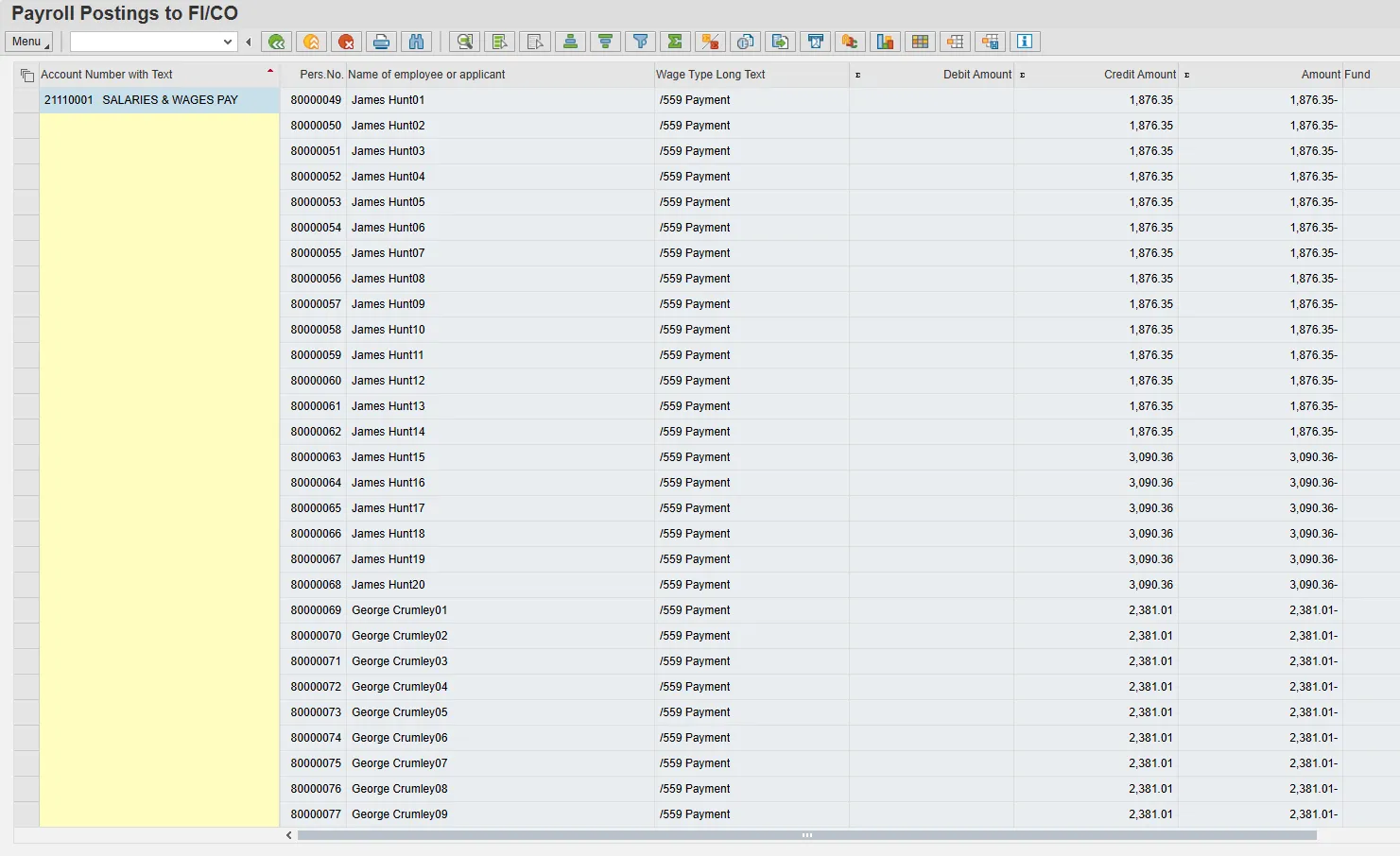
Step 10. Review the results of the ZFIR018 report. The system task is complete.
Additional Information
Your ZFIR018 report results can be reorganized, filtered, and exported. Following are some examples of such.
A. Reorganizing results
Most reports in the Integrated HR-Payroll system can be reorganized with the layout buttons.
- Change Layout
- Select Layout
- Save Layout
Additional information regarding this functionality can be found in the GN-01 How to Manage SAP Report Layouts help document.
B. Filtering results (example 1)
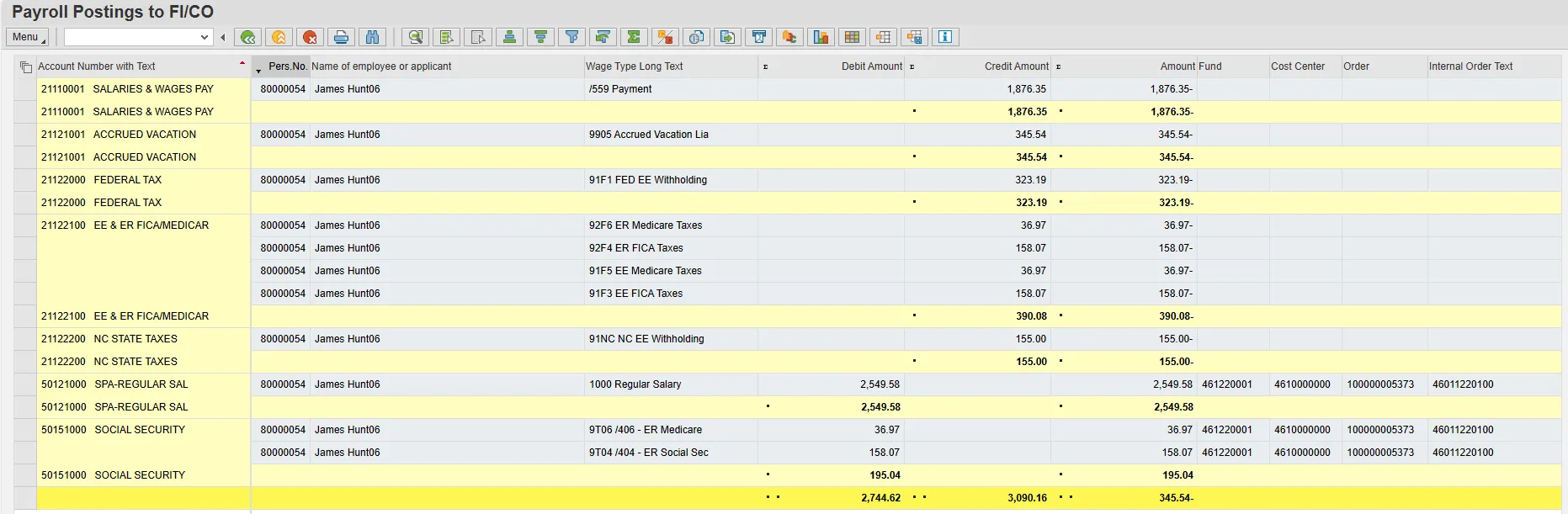
Scenario: You need to look for all of the data related to a specific employee.
- Click on the Pers.No. column.
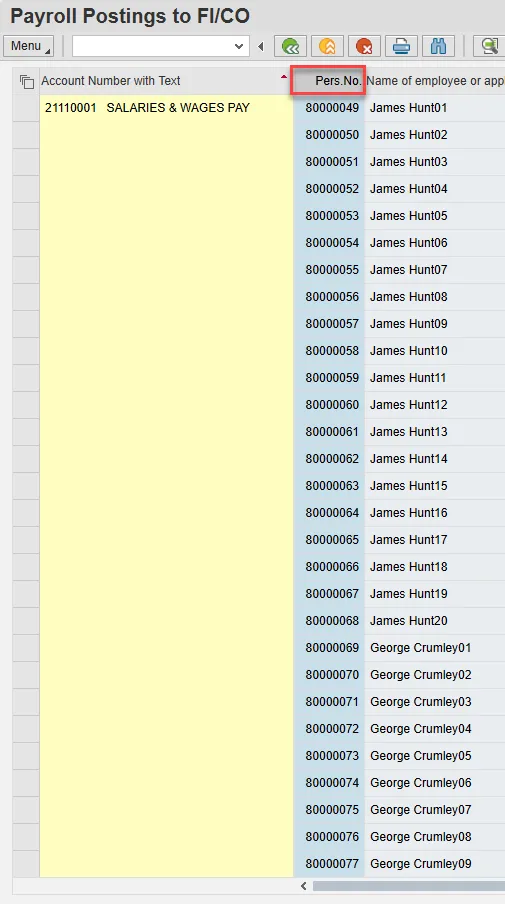
- Click the Set Filter button.

- Enter the personnel number of the employee whom you are researching and choose the green check button.

Notes: The option to filter by employee also exists on the main ZFIR018 report, but often you will want to use this method to isolate information for researching an issue.
To remove this filter, you can click the Delete Filter button.
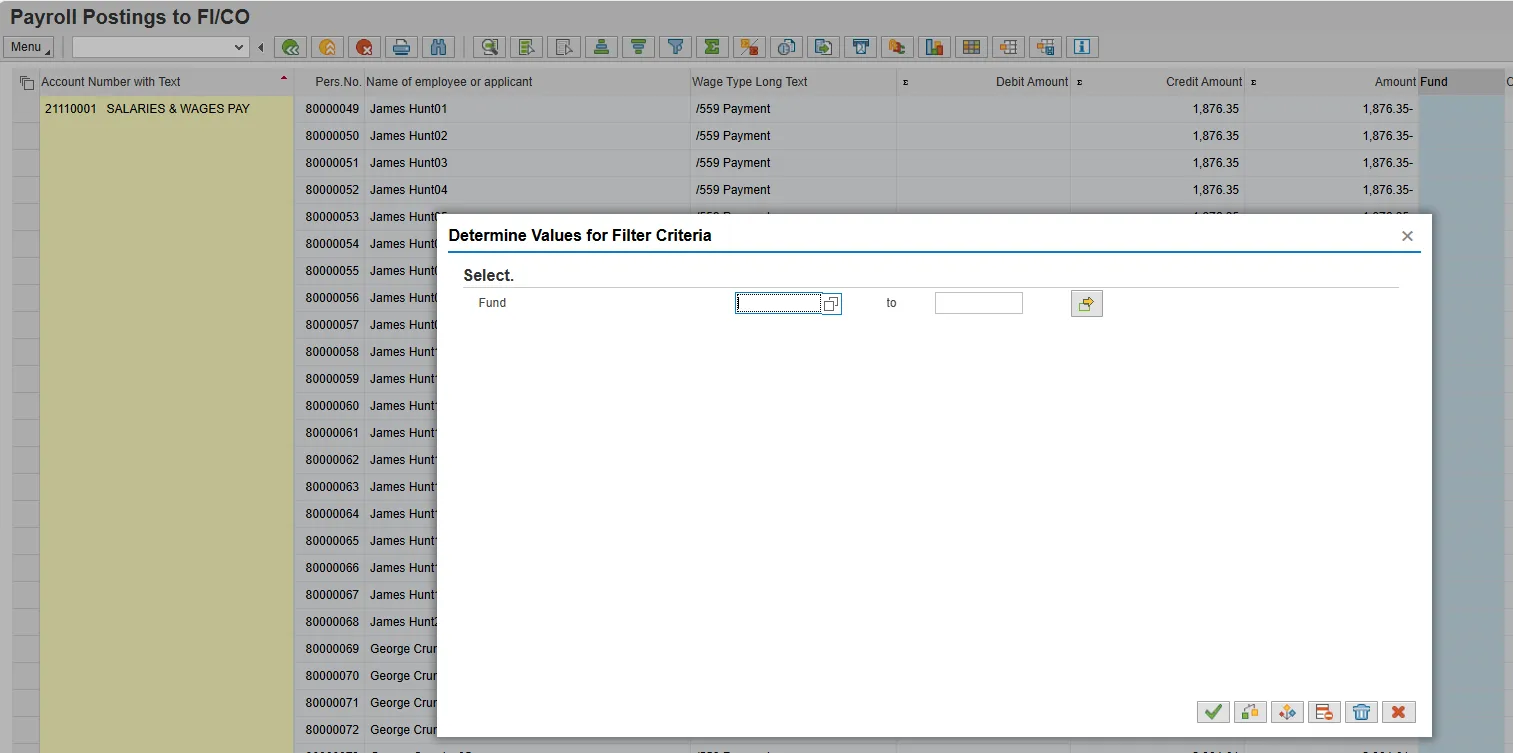
C. Filtering results (example 2)
Scenario: You need to identify employees that do not have cost distribution set up correctly on the position or IT0027
- Select the Fund column and filter by the Fund value.