Purpose
The purpose of this Quick Reference Guide (QRG) is to provide a step-by-step explanation of how to format columns on an OTBI report in the North Carolina Financial System (NCFS).
Introduction and Overview
This QRG covers the process of formatting columns on an OTBI report – including renaming columns and formatting data.
Process
To Format Columns, please follow the steps below. There are 10 steps to complete this process.
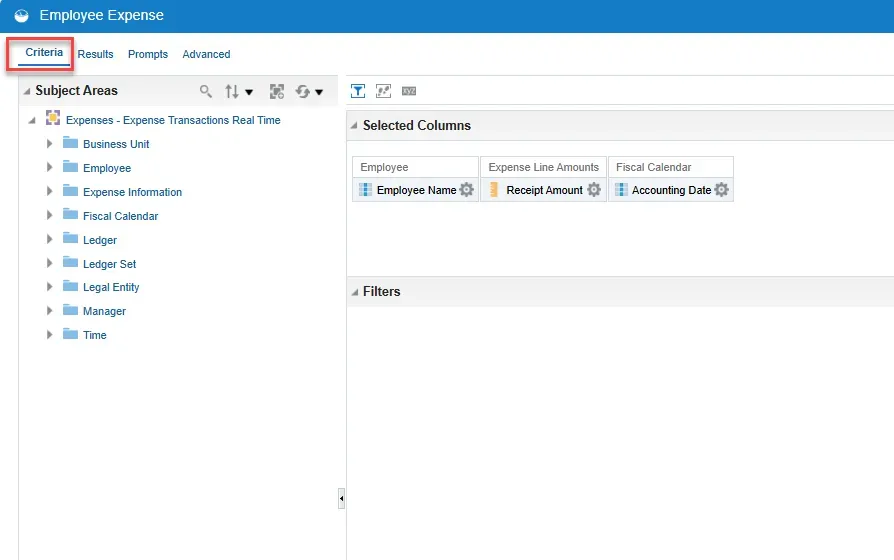
Step 1. Navigate to the Criteria tab of the OTBI report you wish to work with.
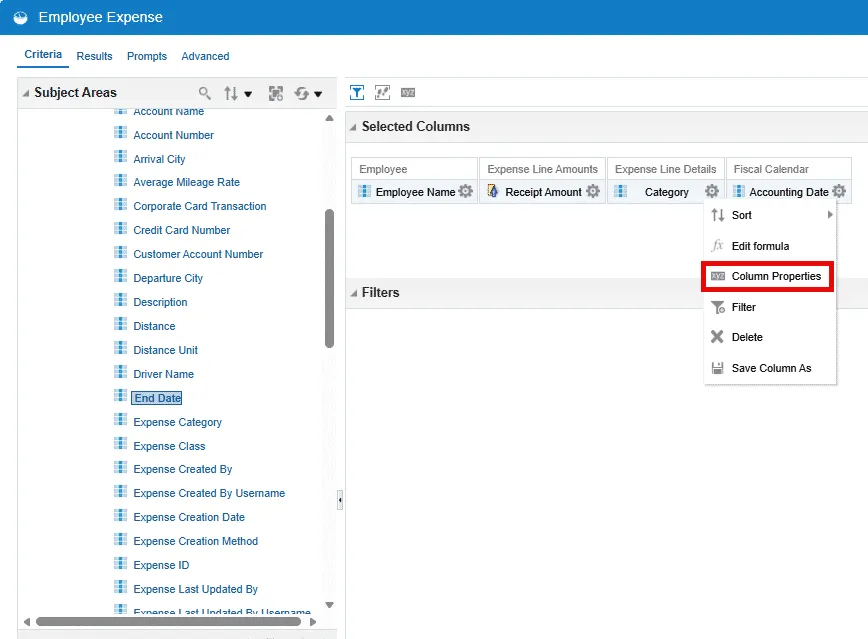
Step 2. Select the gear icon in a chosen column and choose Column Properties from the drop-down menu.
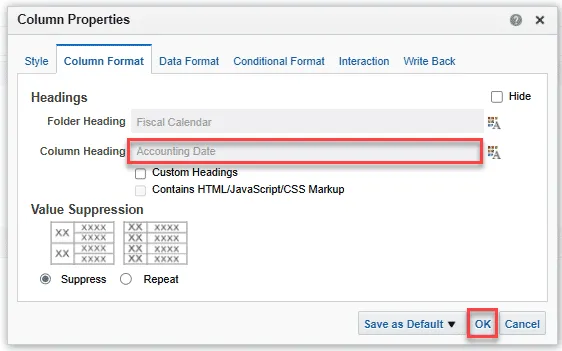
Step 3. On the Column Format tab choose the Custom Headings box to edit the column name.
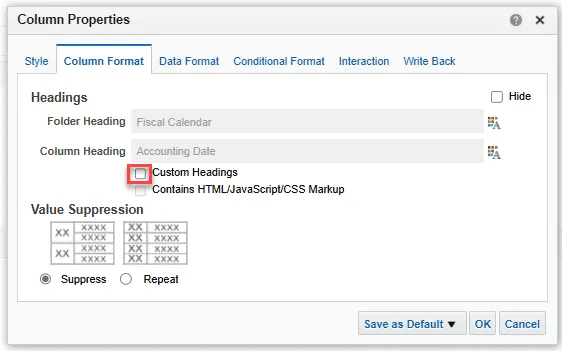
Step 4. Add the new column name to the Column Heading field and choose the OK button.
Note: You can also save this new column name as Default.
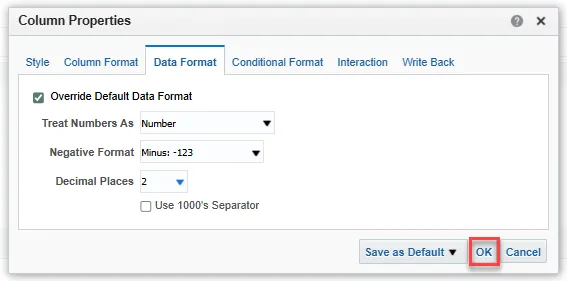
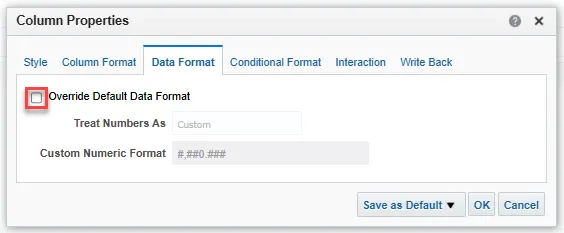
Step 5. On the Data Format tab choose the Override Default Data Format checkbox to change the format of the data in a chosen column.
Note: The options on this tab depend on the column chosen.
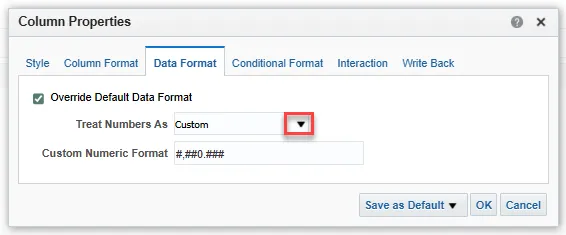
Step 6. In this example, the number of decimals shown in a monetary amount will be adjusted. Access the drop-down menu in the Treat Numbers As field.
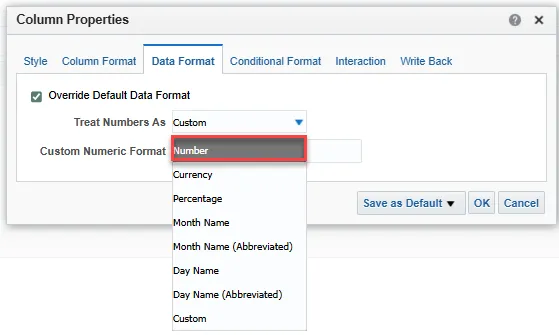
Step 7. Choose Number from the drop-down menu.
Step 8. Choose the drop-down menu in the Decimal Places field.
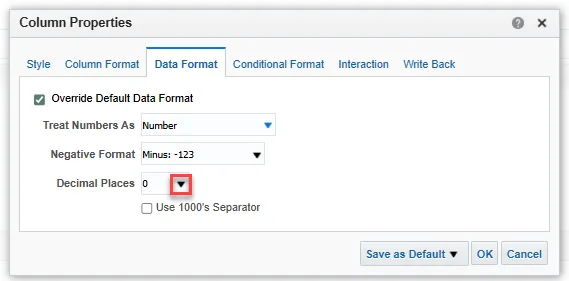
Step 9. For this example, choose 2 from the drop-down menu.
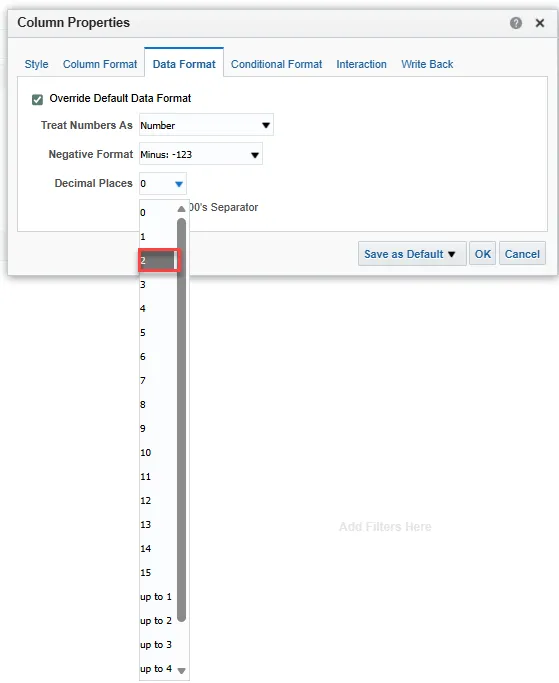
Step 10. Choose OK.
Note: This format change can be saved as a default setting.