Purpose
The purpose of this Quick Reference Guide (QRG) is to provide a step-by-step explanation of how to build an OTBI report from a shell in the North Carolina Financial System (NCFS).
Introduction and Overview
This QRG covers the process of building an OTBI report from a shell which gives users the flexibility to customize the reporting process.
Process
To Build an OTBI Report from a Shell, please follow the steps below. There are 8 steps to complete this process.
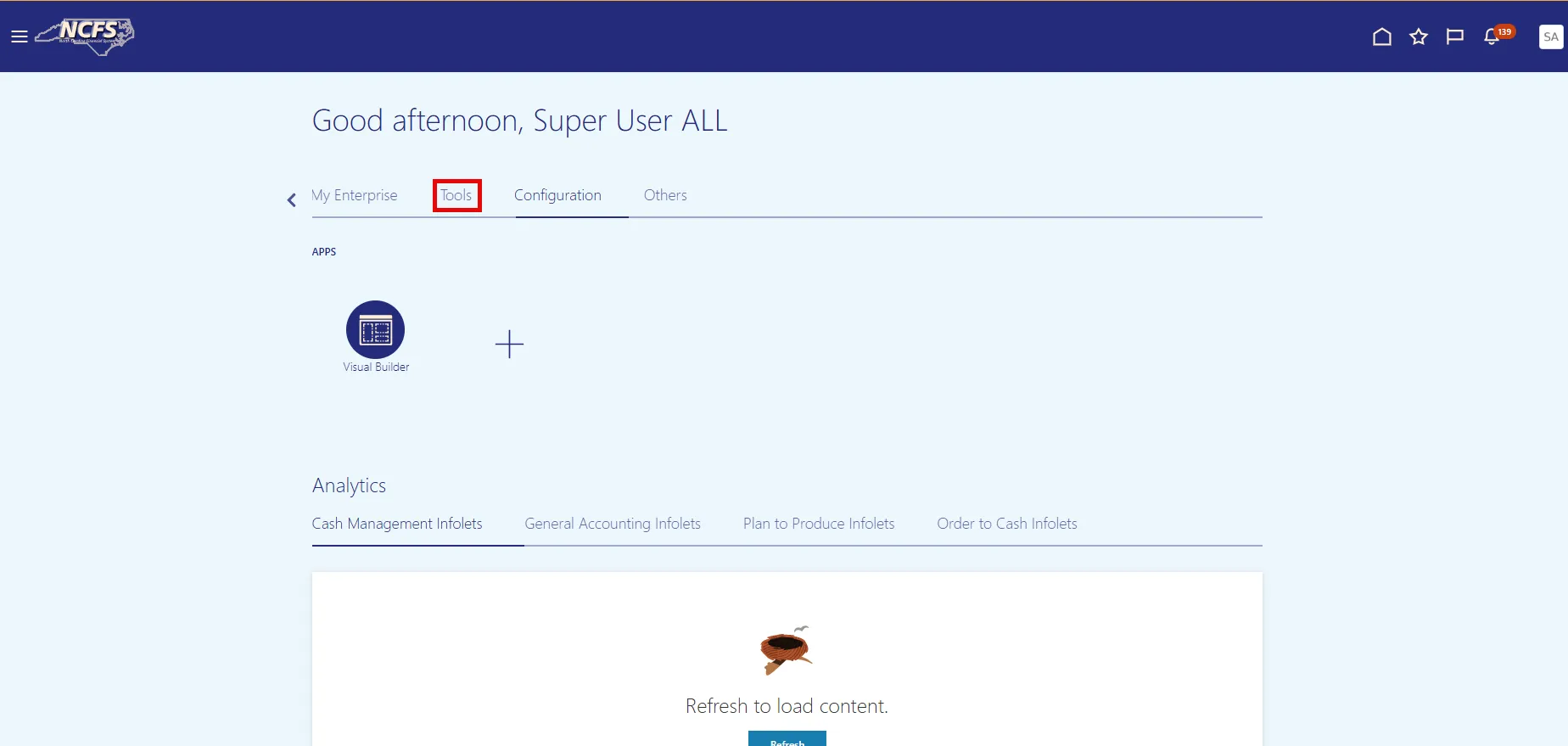
Step 1. On the NCFS home page, choose the Tools tab.
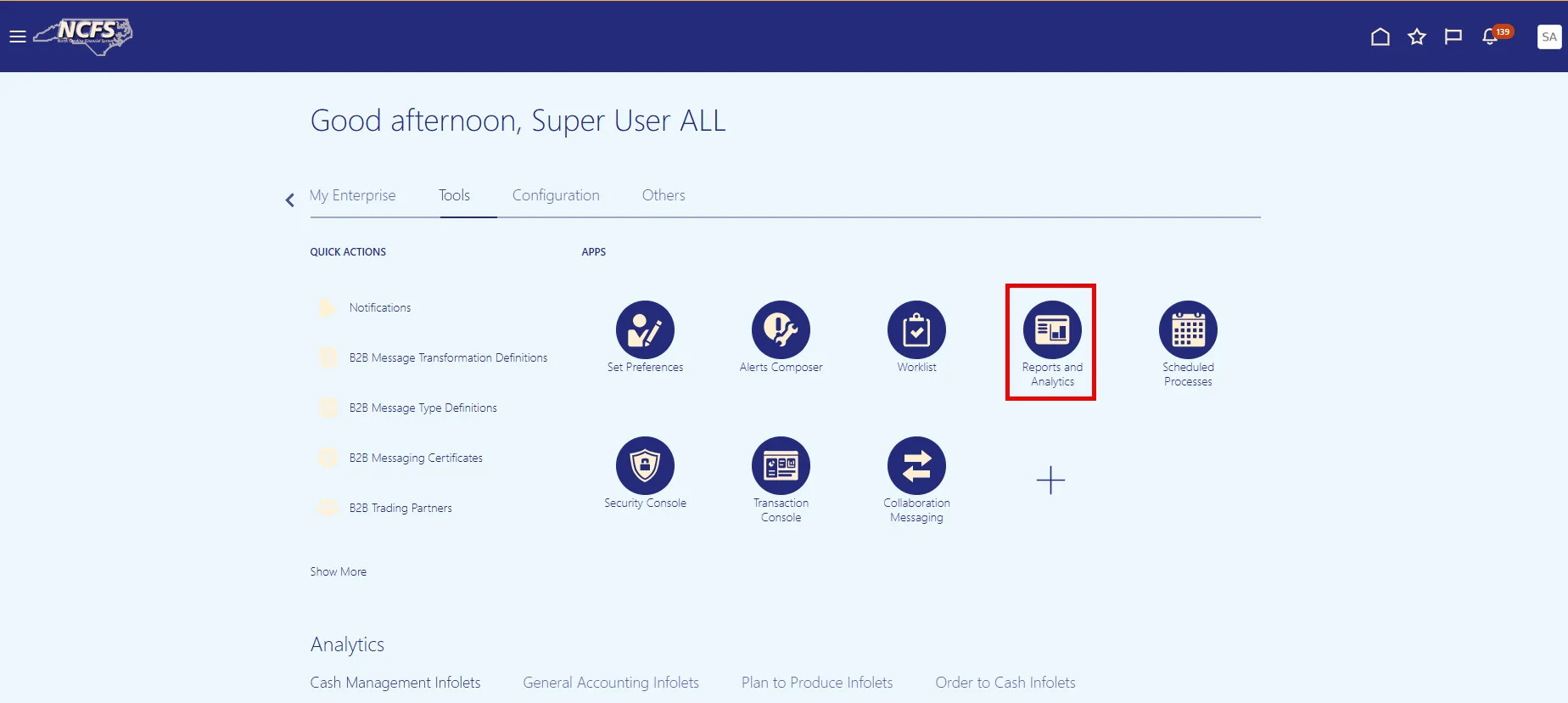
Step 2. Choose the Reports and Analytics app.
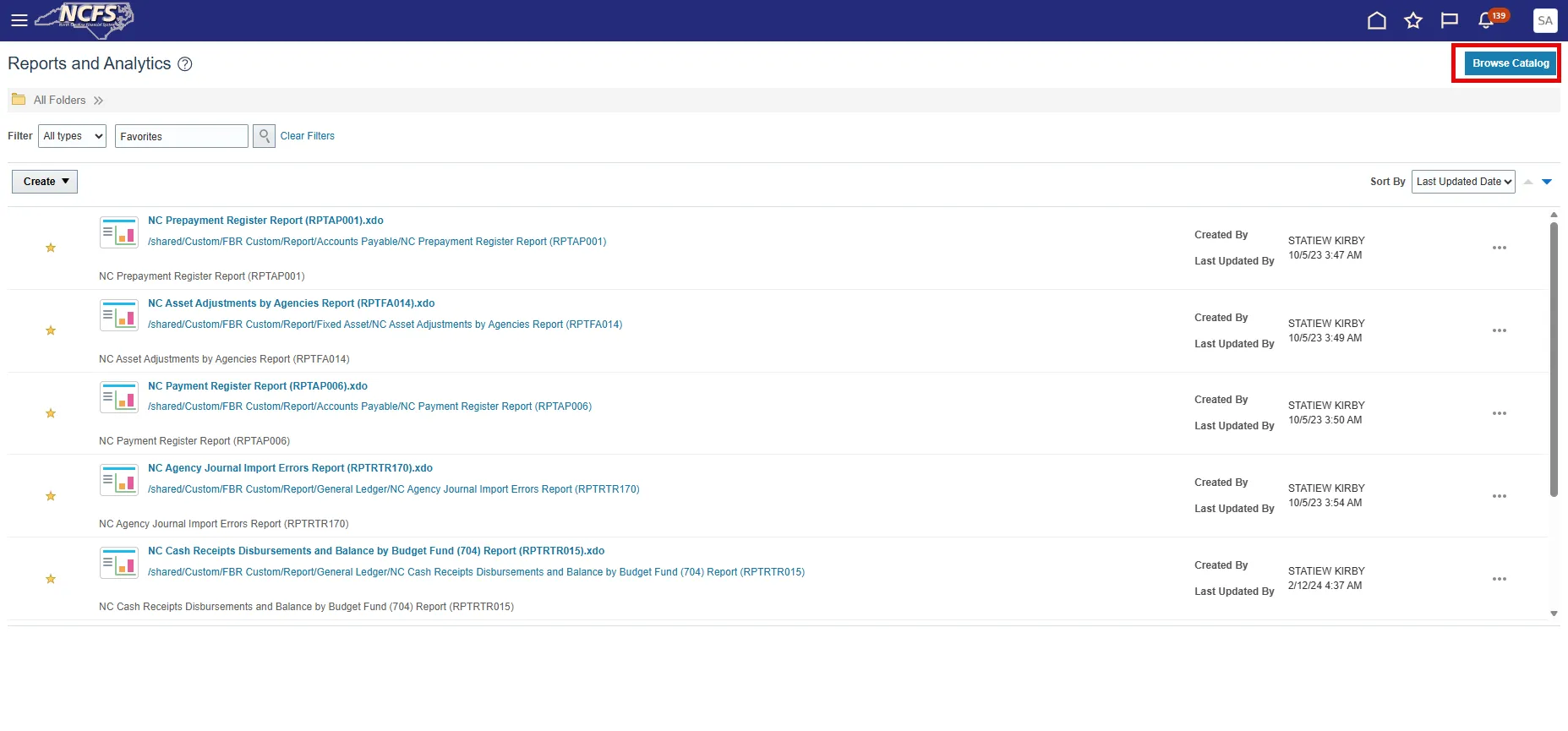
Step 3. On the Reports and Analytics screen, choose the Browse Catalog button.
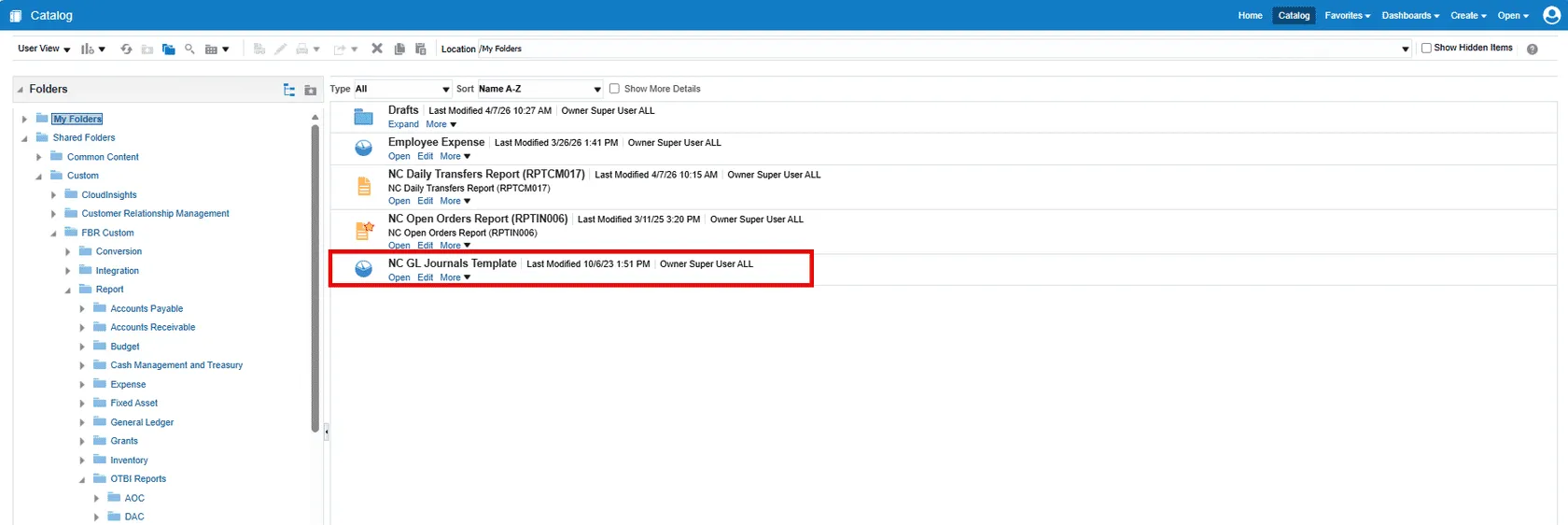
Step 4. On the Catalog page, navigate to the OTBI Shells folder or to your agency’s folder nested under Shared Folders.
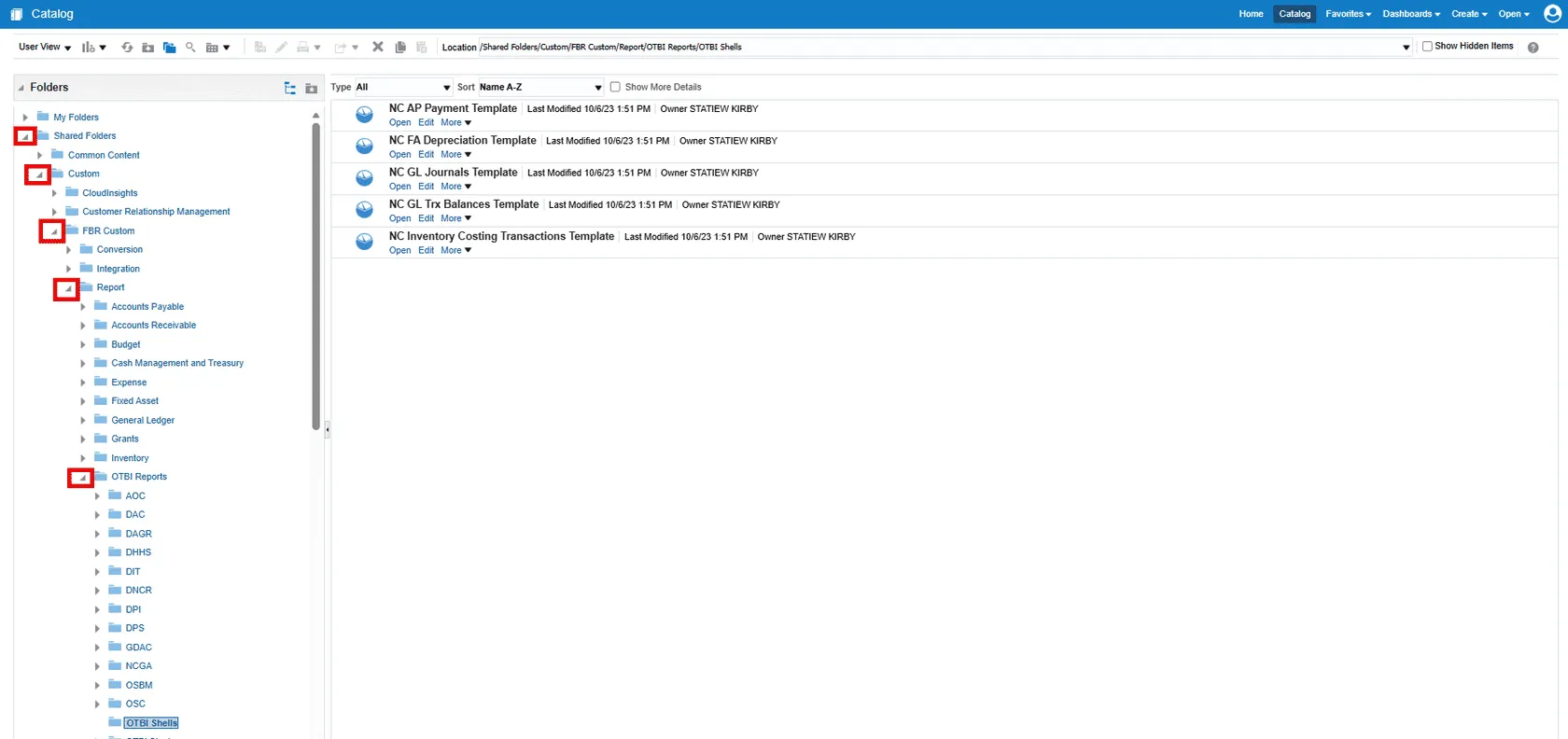
Note: You will only see the OTBI Shells folder and your agency's folder under OTBI Reports.
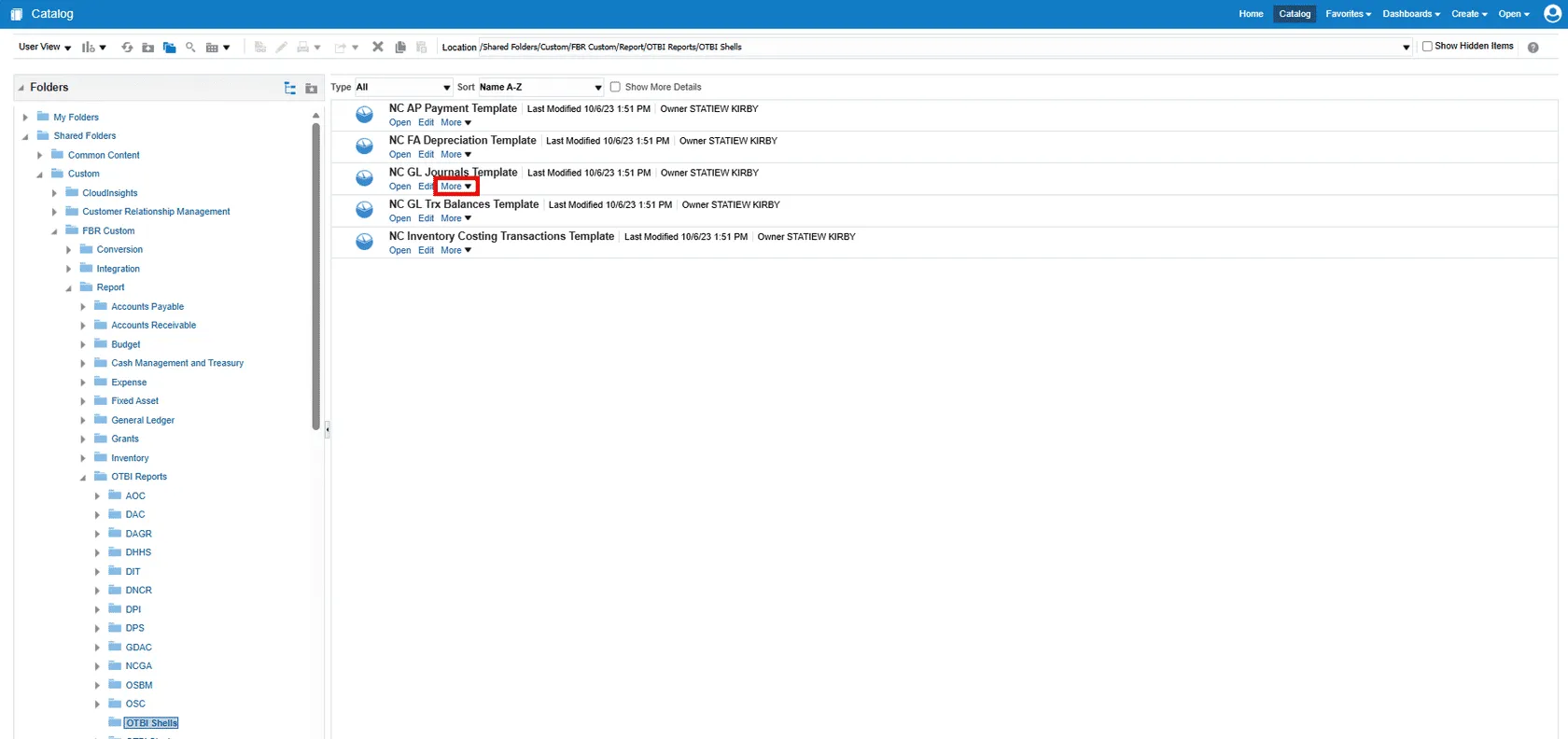
Step 5. Choose More under the analysis template you want to copy.
Remember: It is imperative to copy a shell instead of opening it and generating a report.
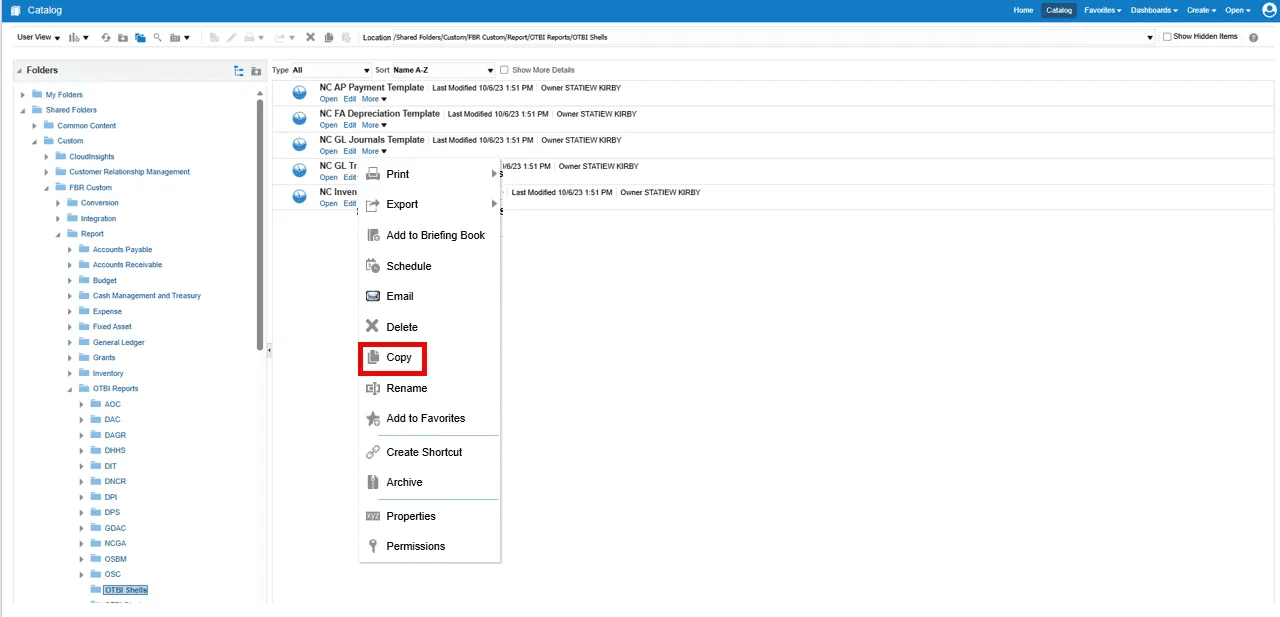
Step 6. Choose Copy from the dropdown menu to copy the analysis.
Step 7. Select My Folders and choose the Paste button to add the copied analysis to your folder.
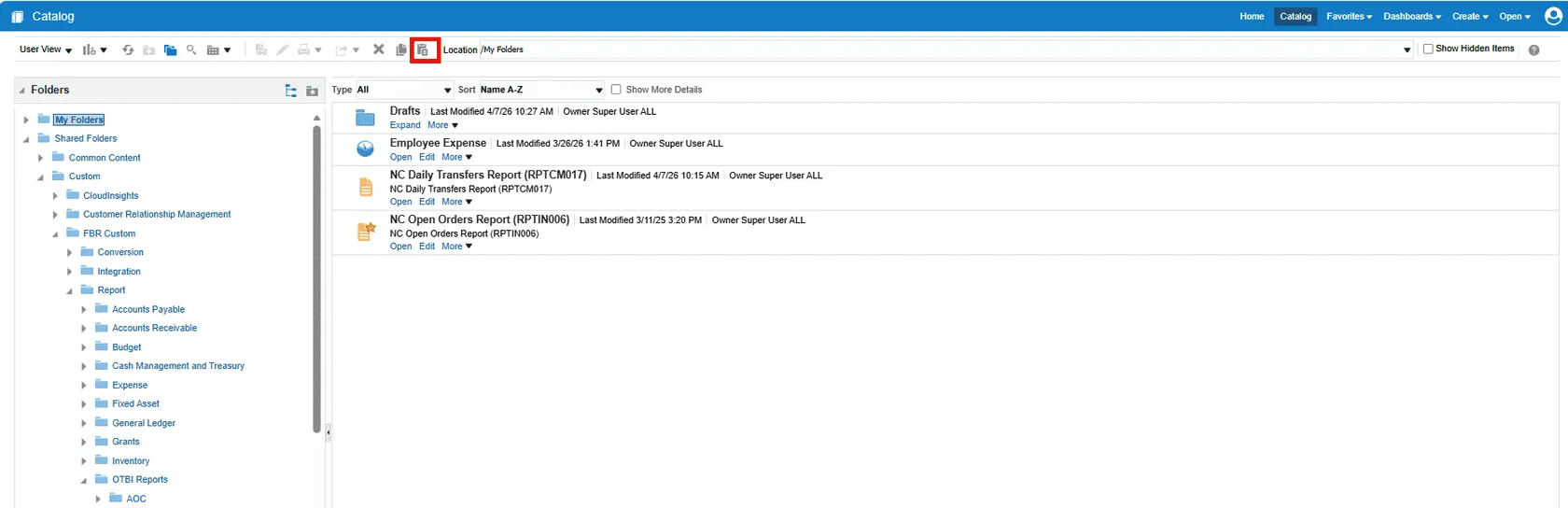
Step 8. The copied shell will appear among your saved reports and can be used to generate a report.