Purpose
The purpose of this Quick Reference Guide (QRG) is to provide a step-by-step guide of how to process repair orders in the North Carolina Financial System (NCFS).
Introduction and Overview
This QRG covers the process for processing repair orders in NCFS.
Process Repair Orders
A repair order is created when a customer requires fixing or refurbishing of an item. Repair orders can be created in two ways:
• Referenced Repair Order: Initiate a repair directly from an existing shipped order. Select the relevant line(s) and use the return option. Specify the quantity, return type as “Repair and Ship”, and (optionally) a reason. The system references the original order and updates the order type accordingly. Item prices on the repair item line need to be adjusted manually to $0.00.
• Unreferenced Repair Order: If no original order is available, create a new repair order by entering customer details and adding unreferenced return lines. Specify item, quantity, return type as “Repair and Ship”. Item prices on the Unreferenced Repair Order for the repair item line will be automatically adjusted to $0.00.
When processing a repair order, select the “Repair and Ship”. NCFS has one repair line type option:
- Repair and Ship: Repair items will be received for refurbishing and will be shipped back to the customer once completed
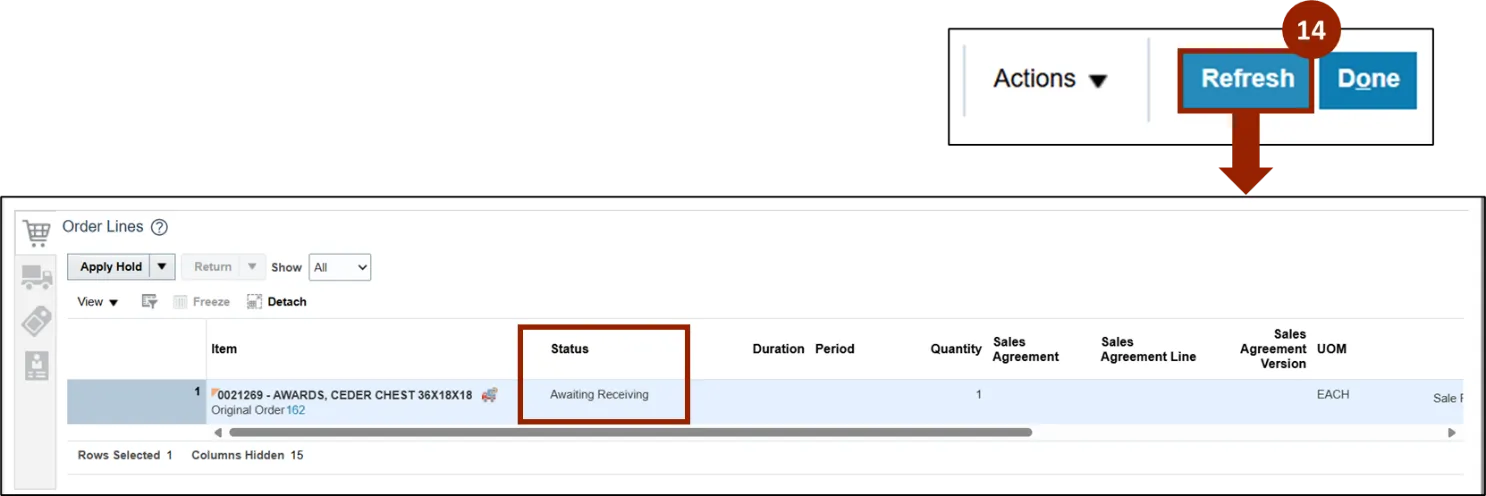
- Once submitted, Order Line status updates to “Awaiting Receiving”
Note: To bill the customer for repair work, add a separate line for the same item or service charge item with price adjustment.
References Repair Order
To process a referenced repair, follow these steps. There are 14 steps to complete this process.
Step 1. Within the Order Lines table, select the desired item to return.
Step 2. Click the Return button.
Note: If repairing all items within the order, the Return All option can be selected from the Return button drop-down list.

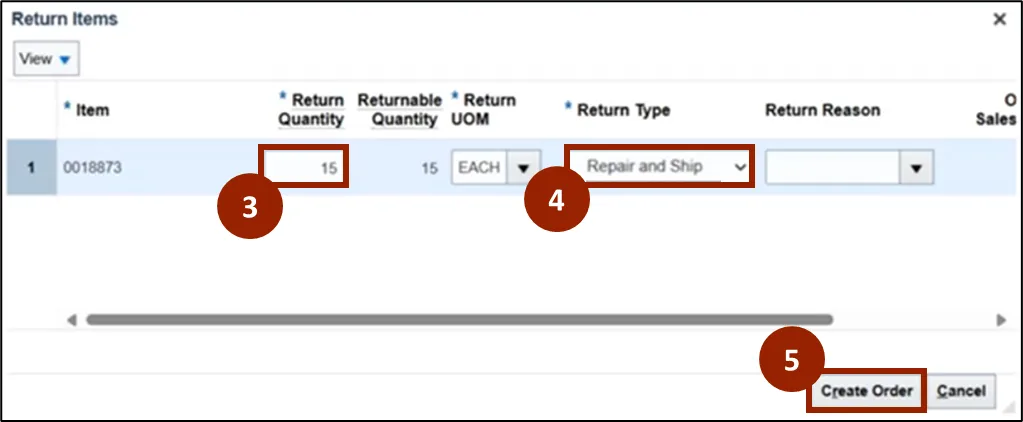
The Return Items pop-up window displays, all unlocked fields may be adjusted:
Step 3. In the Return Quantity field, enter the number of items the customer needs repaired.
Step 4. In the Return Type drop-down field, select Repair and Ship.
Note: The Repair and Ship option should only be selected when completing a repair order.
Step 5. Click the Create Order button.
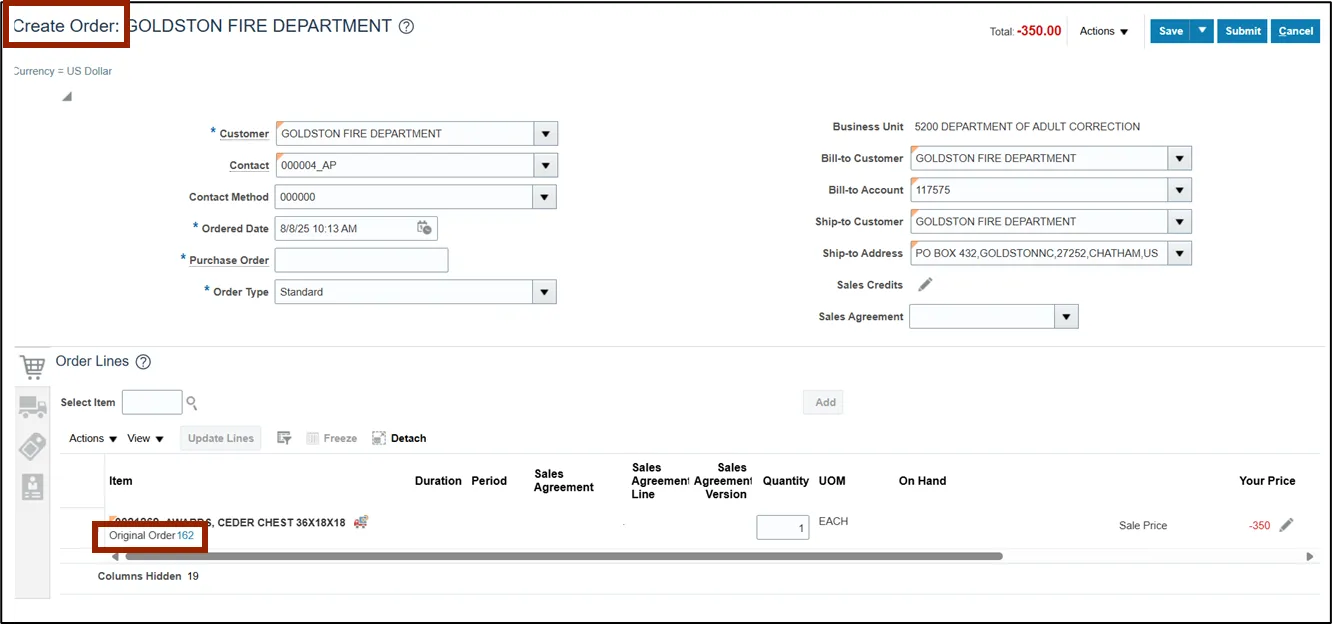
Note: The Order screen transitions to a Create Order screen and in the Order Lines section, each line item includes a link to the original order for easy reference.
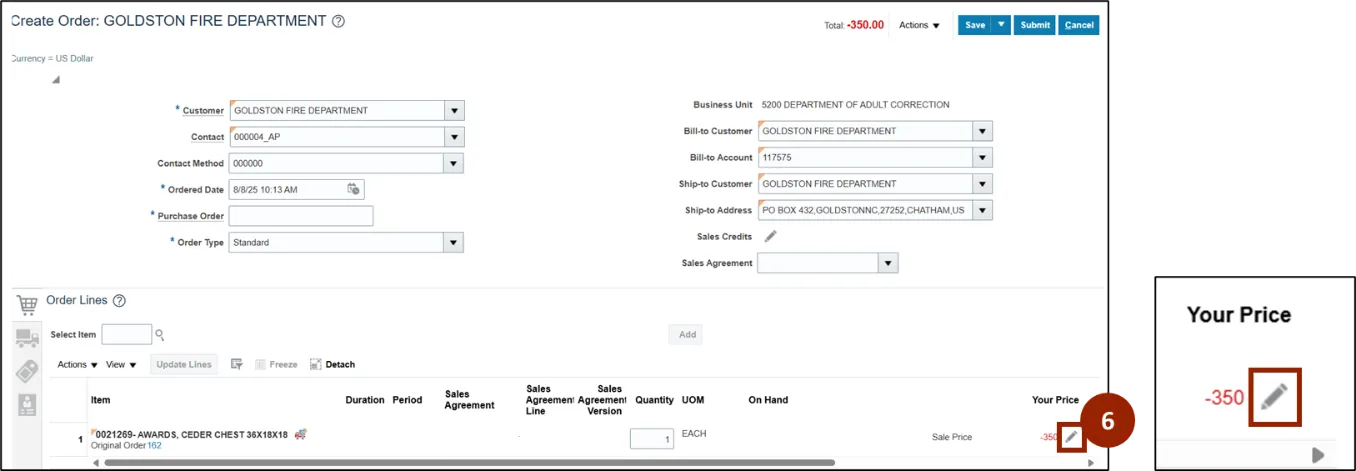
When processing a referenced repair order, item prices on the repair item line need to be adjusted manually to $0.00.
To adjust the item prices, follow these steps:
Step 6. Click the Pencil icon.
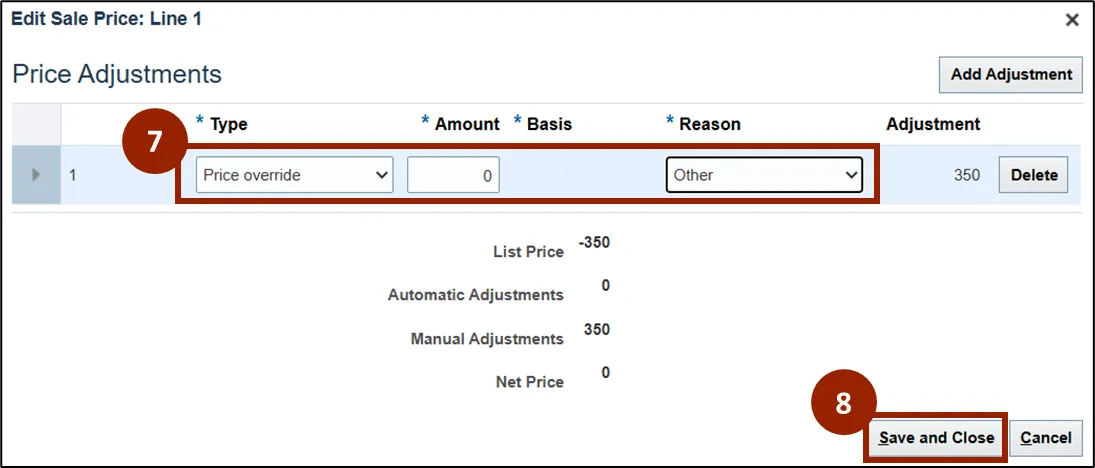
Step 7. In the Price Adjustments Line of the Edit Sale Price window, enter information related to the adjustment (e.g., Price override, 0, Other).
Note: Once these fields are populated the Adjustments table displays below the Price Adjustment line.
Step 8. Click the Save and Close button.
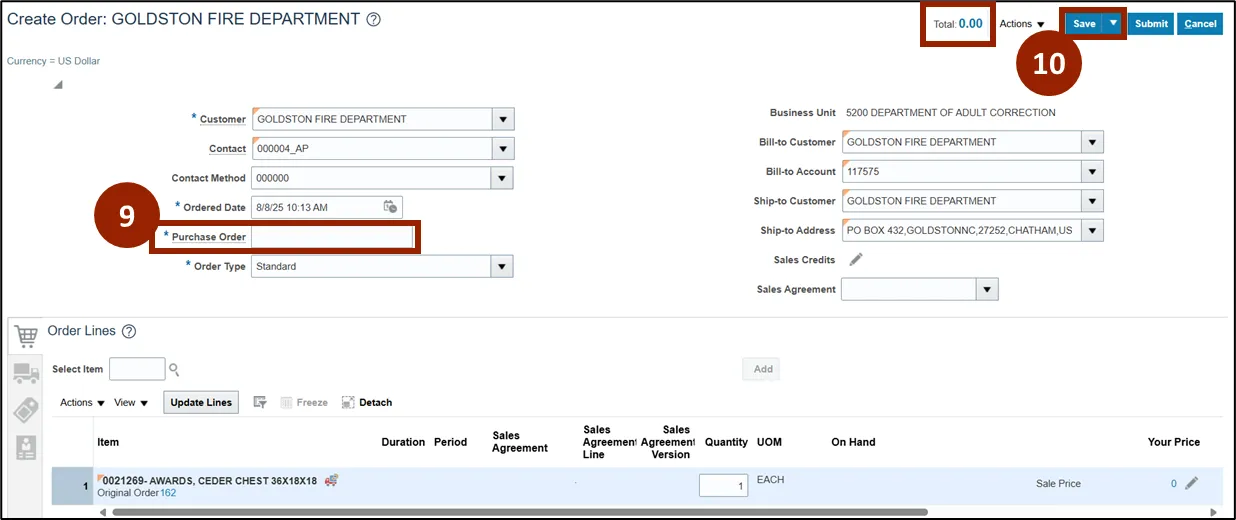
Note: Adjustments have been applied, and the price adjustment is reflected in the Total amount displayed at the top of the Create Order screen.
Step 9. In the Purchase Order field, enter a purchase order identifier.
Step 10. Click the Save button.
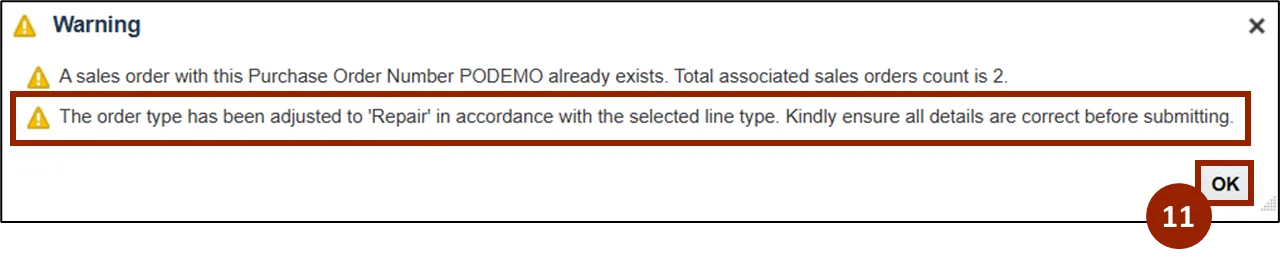
Note: A Warning pop-up window may appear with the message along with specific details related to the order selections. The notification states that the order type has been adjusted to ‘Repair’ and to ensure all details are correct before submitting.
Step 11. Click OK.
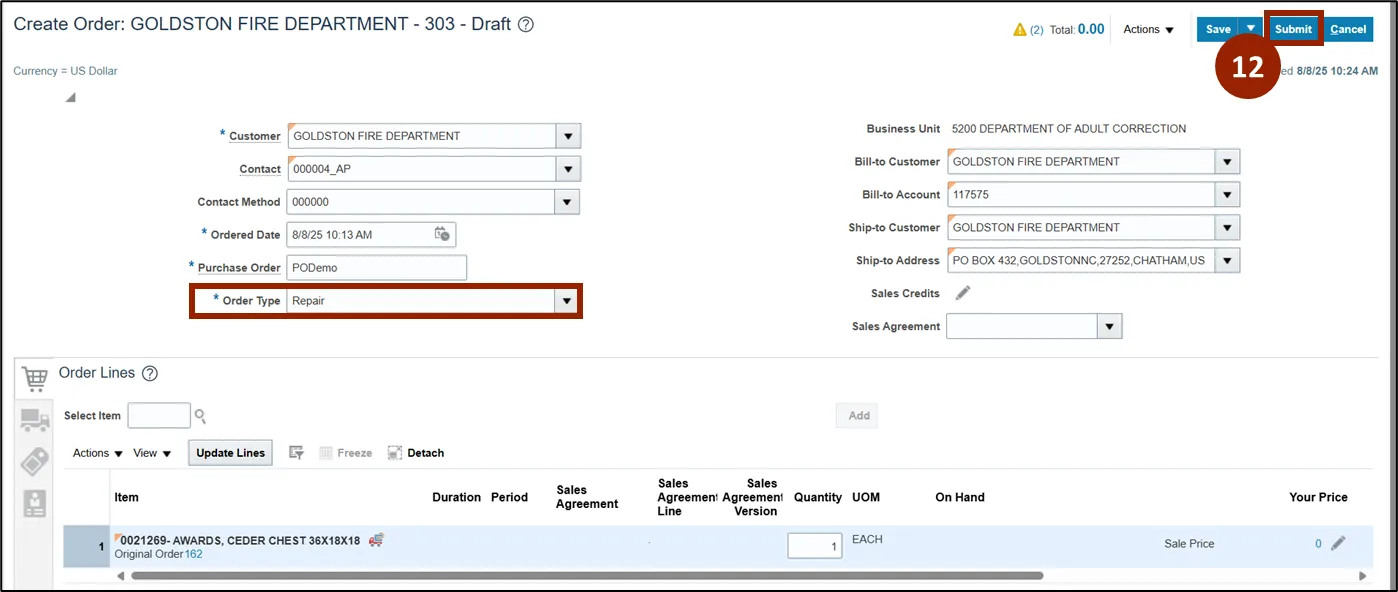
Note: NCFS automatically changes the Order Type field to the appropriate selection.
Step 12. Once all information has been verified, click Submit.
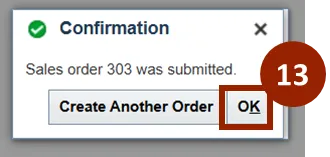
Step 13. On the Confirmation pop-up window, click OK.
Note: The Create Order screen transitions to an Order screen and a Truck icon displays, indicating that a return has been initiated and the status of the return is reflected in the Status column.
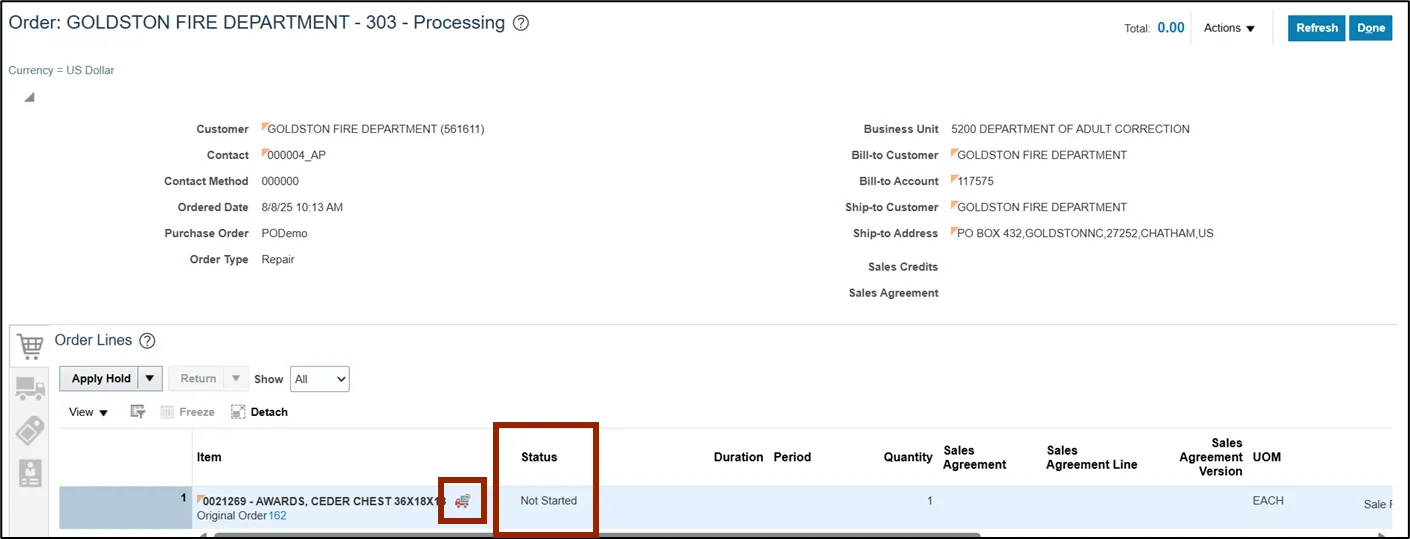
Step 14. Click the Refresh button to update the Order screen.
Unreferenced Repair Order
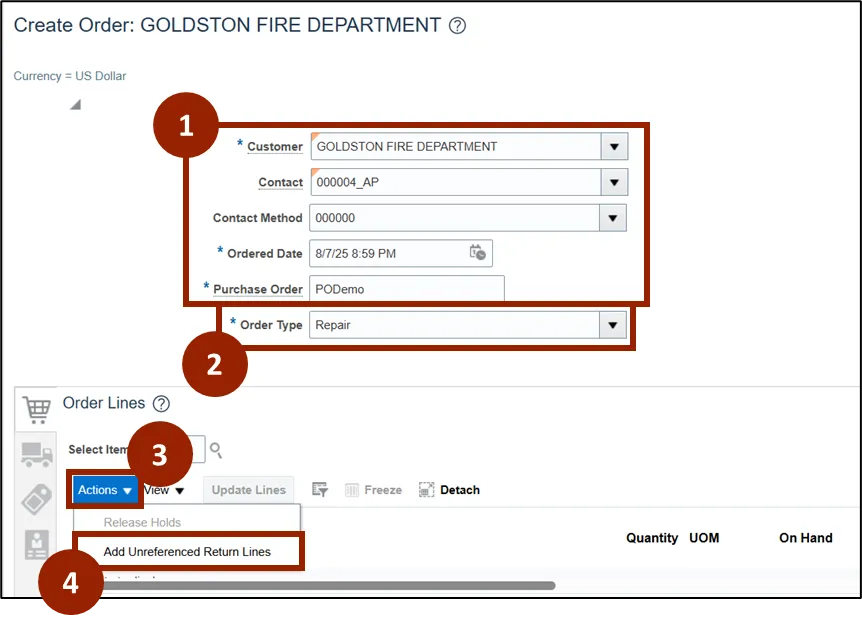
To create an unreferenced repair order, from the Create Order screen, follow these steps. There are 11 steps to complete this process.
Step 1. Enter the appropriate information into the Header Detail fields such as Customer and Purchase Order Number.
Step 2. In the Order Type field, select Repair.
Step 3. Click the Actions button.
Step 4. Select Add Unreferenced Return Lines.
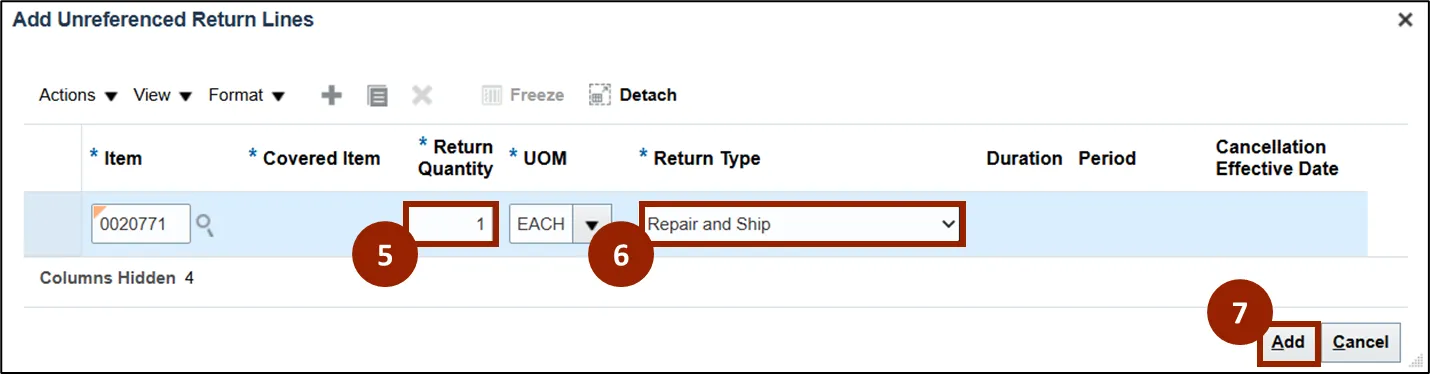
Step 5. In the Return Quantity field, enter the number of items the customer needs to return.
Step 6. In the Return Type drop-down field, select the Repair and Ship option.
Step 7. Click the Add button.
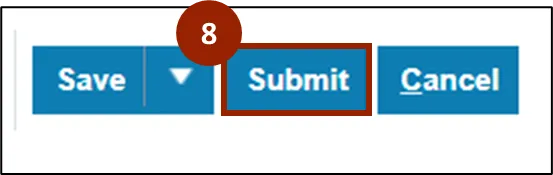
Step 8. Click the Submit button.
Step 9. In the Warning pop-up window, click OK.

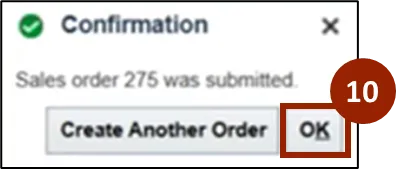
Step 10. On the Confirmation pop-up window, click OK.
Note: The Create Order screen transitions to an Order screen and a Truck icon displays, indicating that a return has been initiated with no reference to the original order. Item prices on the Unreferenced Repair Order for the repair item line are automatically adjusted to $0.00. To bill the customer for repair work, add a separate line manually of the same item or Service Charge item with price adjusted to reflect repair charge.

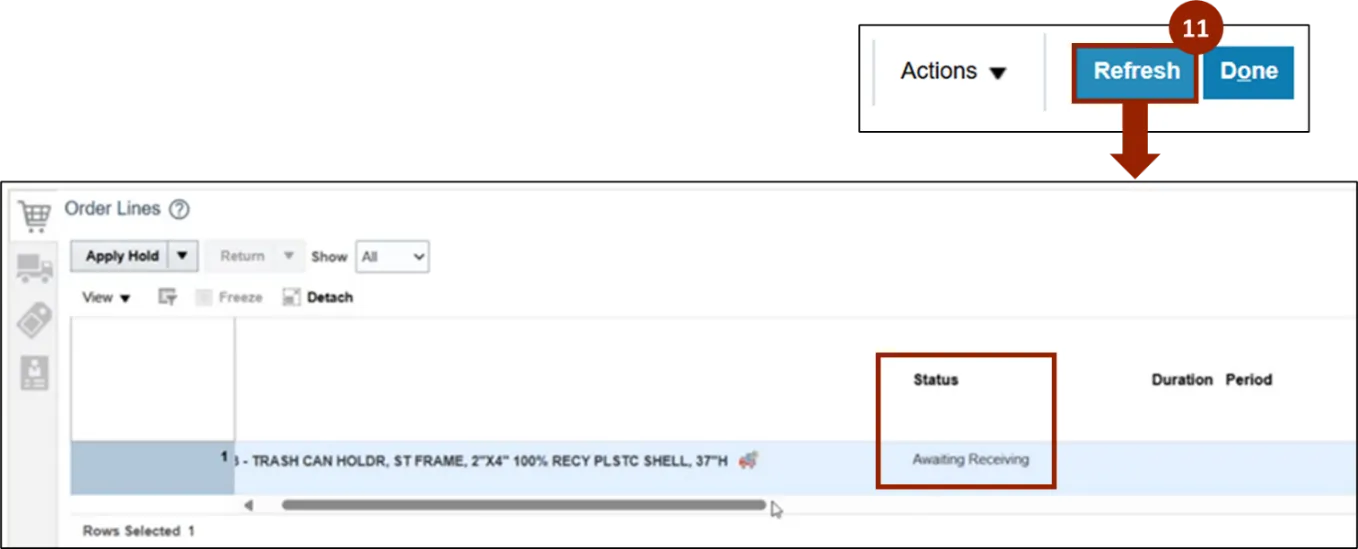
Step 11. Click the Refresh button to update the Order screen.
Wrap-Up
NCFS users can process repair orders by following the steps outlined above.
Additional Resources
- Instructor Led Training (ILT)