Purpose
The purpose of this Quick Reference Guide (QRG) is to provide a step-by-step guide of how to review and validate quotations in the North Carolina Financial System (NCFS).
Introduction and Overview
This QRG covers the process for reviewing and validating quotations in NCFS.
Review and Validate Quotations
There are 10 steps to complete this process.
Step 1. Click the Company Single Sign-On (SSO) button.
Step 2. Enter your @dac.nc.gov email address.
Step 3. Click Next, then enter password.
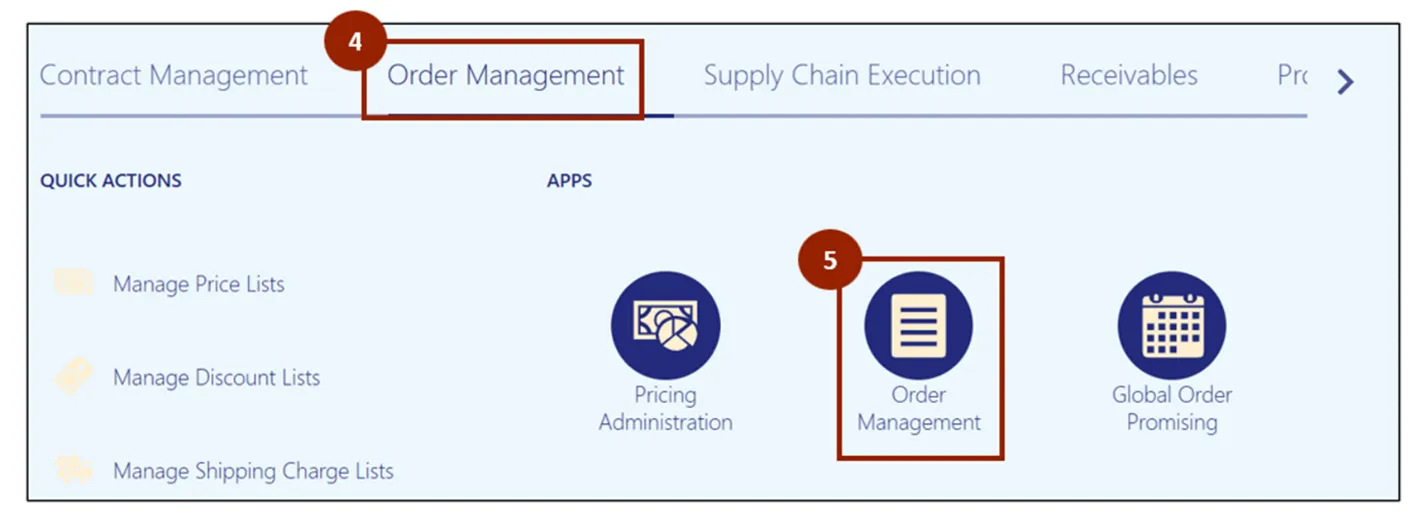
Step 4. On the Home page, select the Order Management tab.
Step 5. Click Order Management App.
Note: The Order Management Overview screen displays information visually, providing data for DAC. As orders are created and progress, the diagrams and values will populate on this screen. If it is a new instance, this screen displays with minimal information.
Step 6. Click the Create Order button.
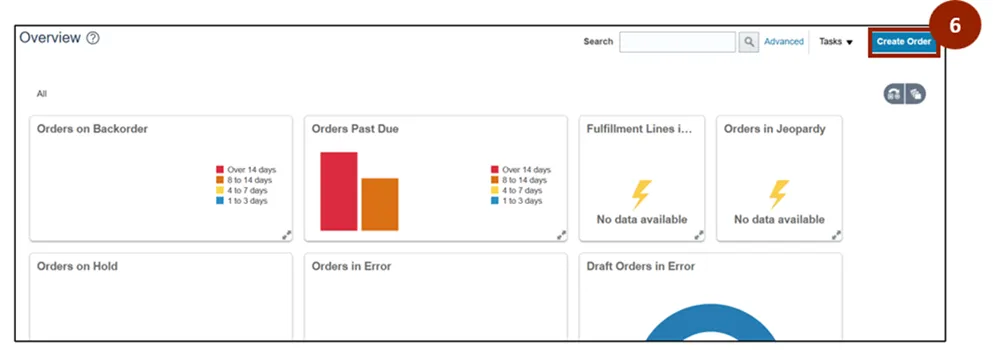
Note: To create a quotation, follow the steps outlined in the MFG-29 Entering Manual Orders QRG. Be sure to set the Order Type filed to Quotation. Once the quotation has been created, continue with the steps below to review and validate the quotation details.
Once you are on the Create Order screen, the process for creating a quotation follows the same consistent approach used for other order types. The screen layout, header fields, and tabs remain the same. The Primary distinction is in the Order Type field, which in this case is set to Quotation.
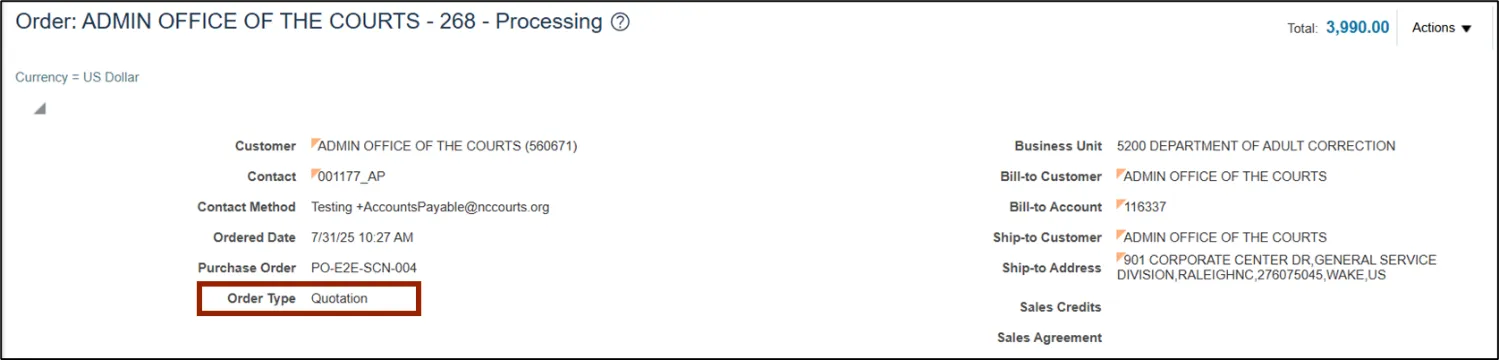
After submission, validate details from the Additional Information fields and the Order Lines tab attachments.
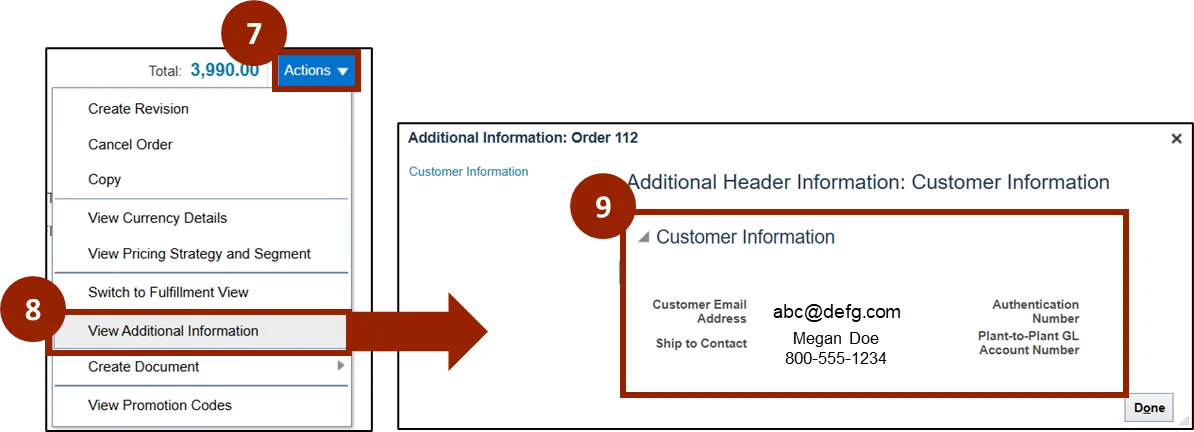
Step 7. From the Order screen, click the Actions drop-down.
Step 8. Select View Additional Information.
Step 9. Review the displayed information in the Additional Information fields.
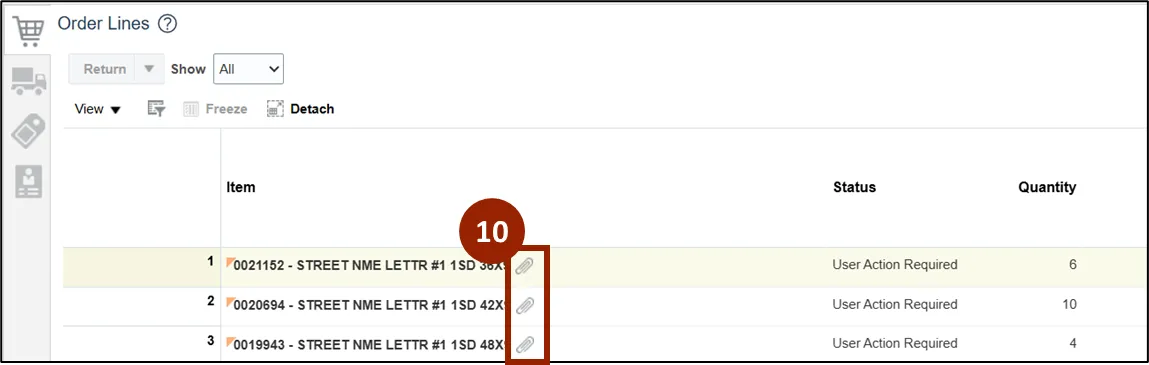
Step 10. Navigate to the Order Lines tab to validate attachments.
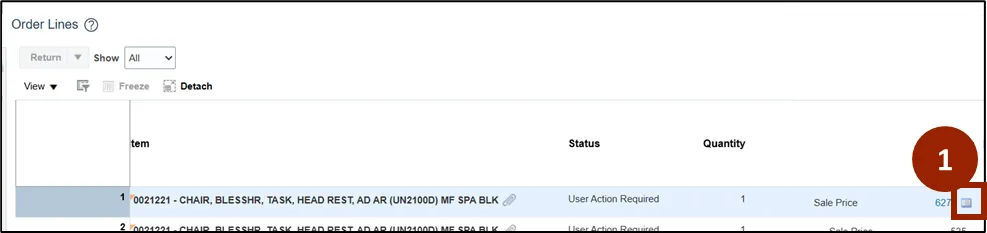
Price Adjustment: Your Price
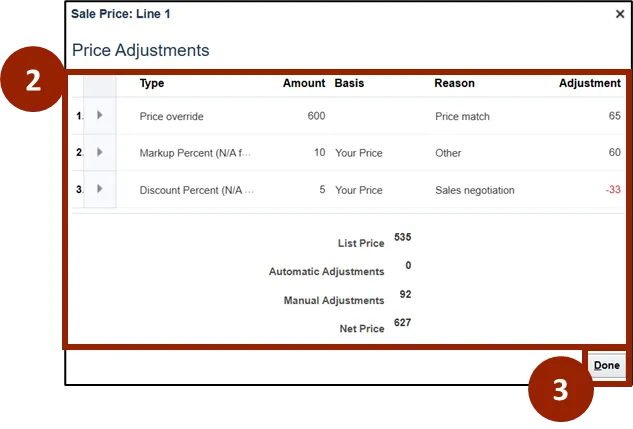
To validate the price adjustment of the order line using the Your Price column, follow these steps. There are 3 steps to complete this process.
Step 1. Click the Your Price icon.
Step 2. In the Sale Price window, verify the displayed information.
Step 3. Click Done.
Note: If the Your Price icon is not visible, no price adjustments have been done on the line.
Price Adjustment: Amount
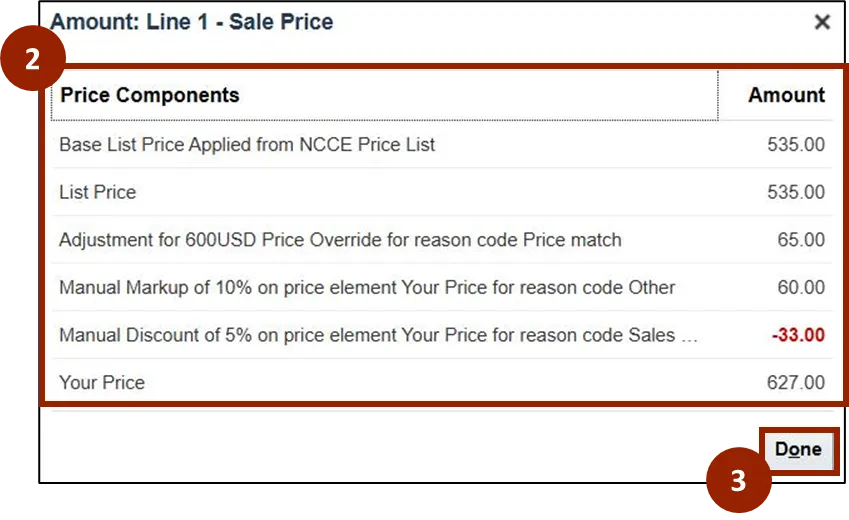
To validate the price adjustment of the Order Line using the Amount column, follow these steps. There are 3 steps to complete this process.
Step 1. Click the Amount column link.

Step 2. In the Amount window, verify the displayed information.
Step 3. Click Done.
Manually Release a Pause
When a quotation is created, the sales order line status is set to User Action Required. The quotation in NCFS remains open for 180 days will automatically close after 180 days. To manually close a quotation within 180 days a pause needs to be completed.
To manually release a pause, follow these steps. There are 8 steps to complete this process.
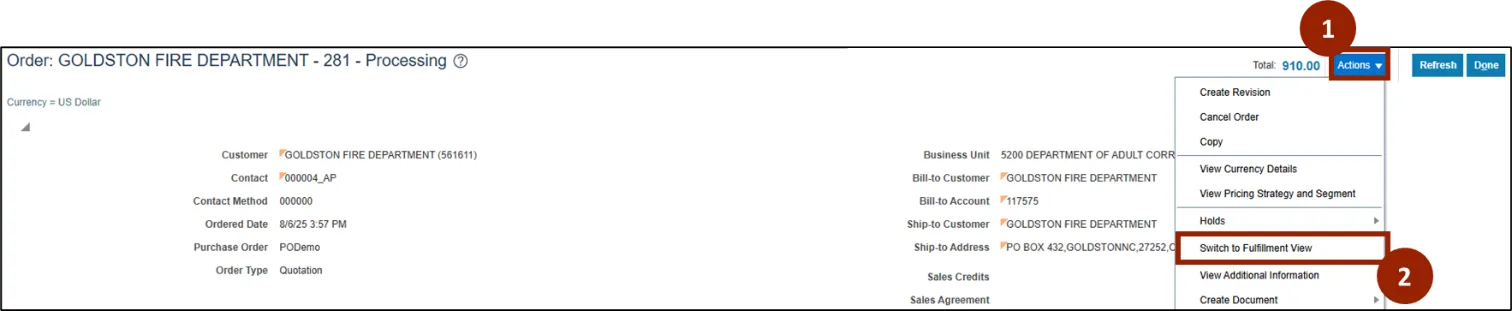
Step 1. Click the Actions drop-down.
Step 2. Click Switch to Fulfillment View.
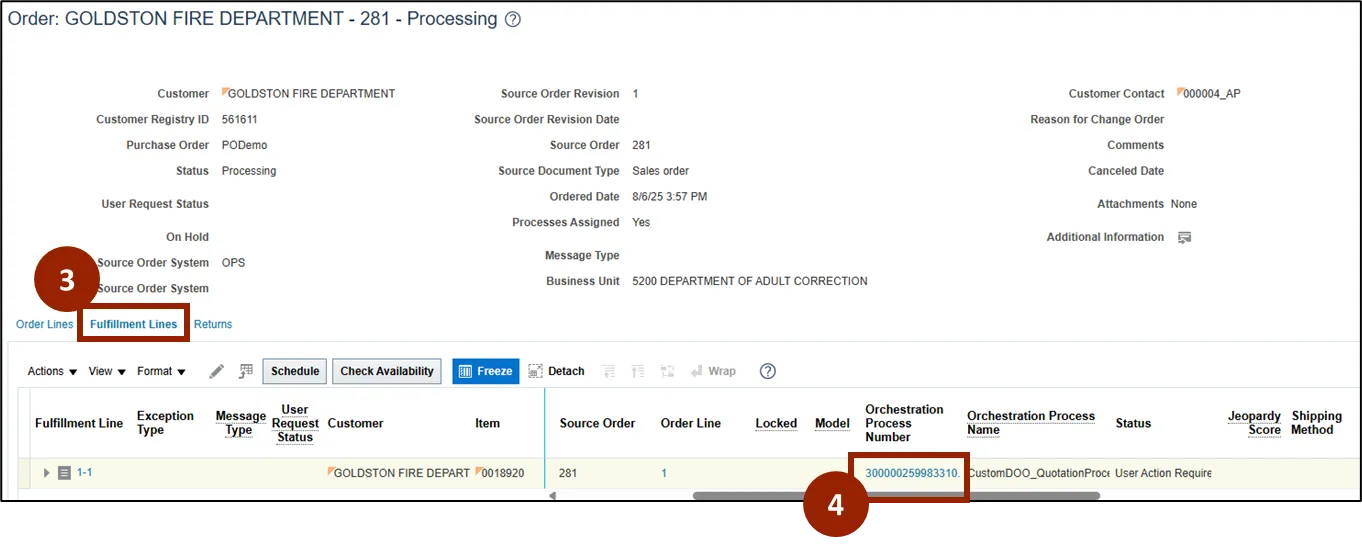
Step 3. Click the Fulfillment Lines tab.
Step 4. Click the Orchestration Process Number link for the desired order line to be released.
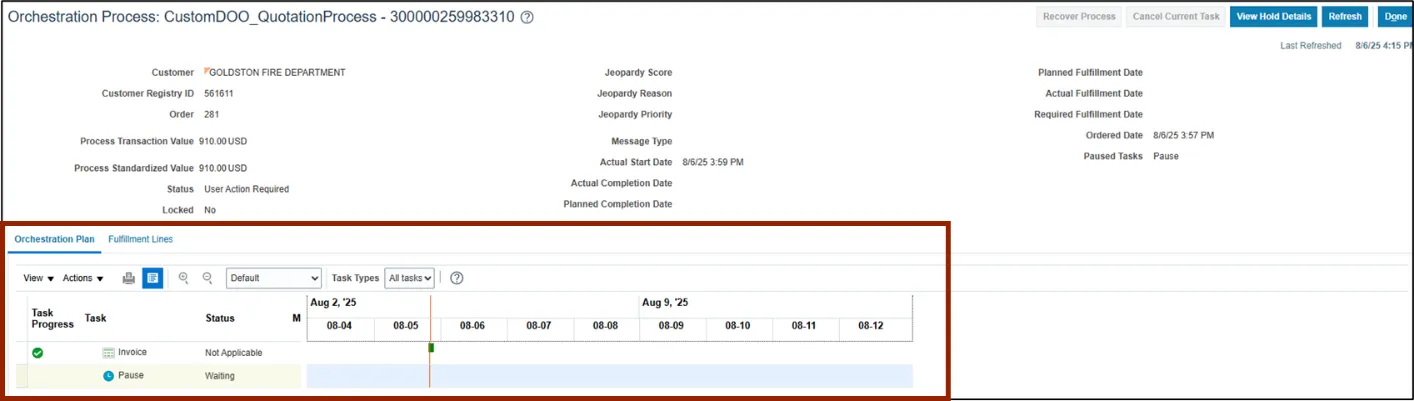
Note: A quotation order type will have two tasks under the Orchestration Plan tab.
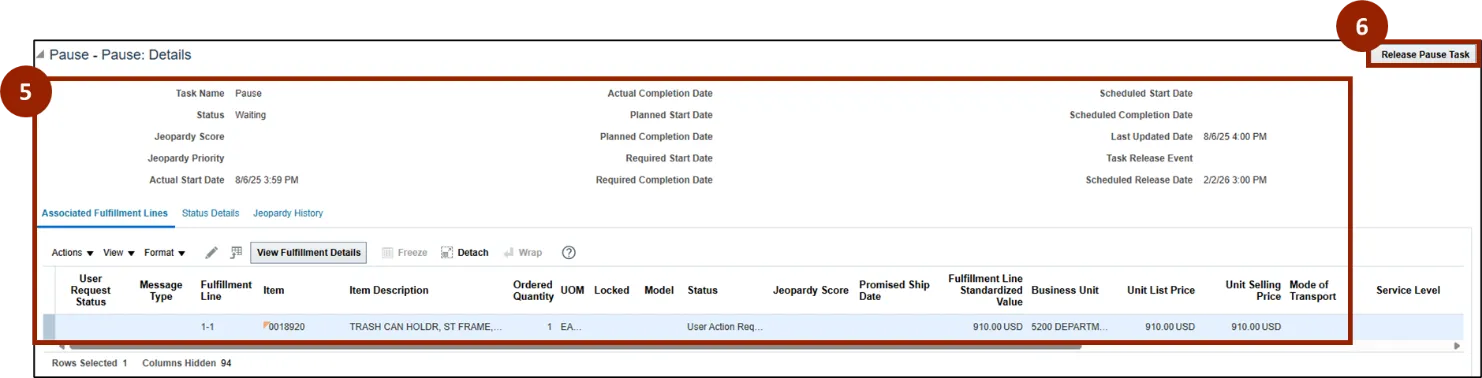
Step 5. Scroll down to the Pause – Pause: Details section to view additional details.
Step 6. Click the Release Pause Task button to release the pause.
Step 7. A Confirmation screen displays confirming that the request was submitted, click OK to close.
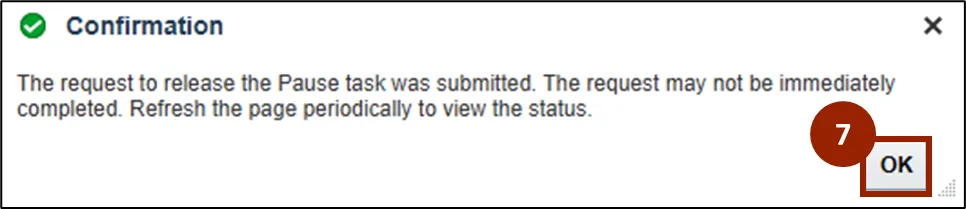
The Orchestration Plan tab’s Status column displays the status of the pause.
Step 8. Click the Refresh button to monitor the status of the pause.
Note: The system automatically releases the pause and closes the order after 180 days.
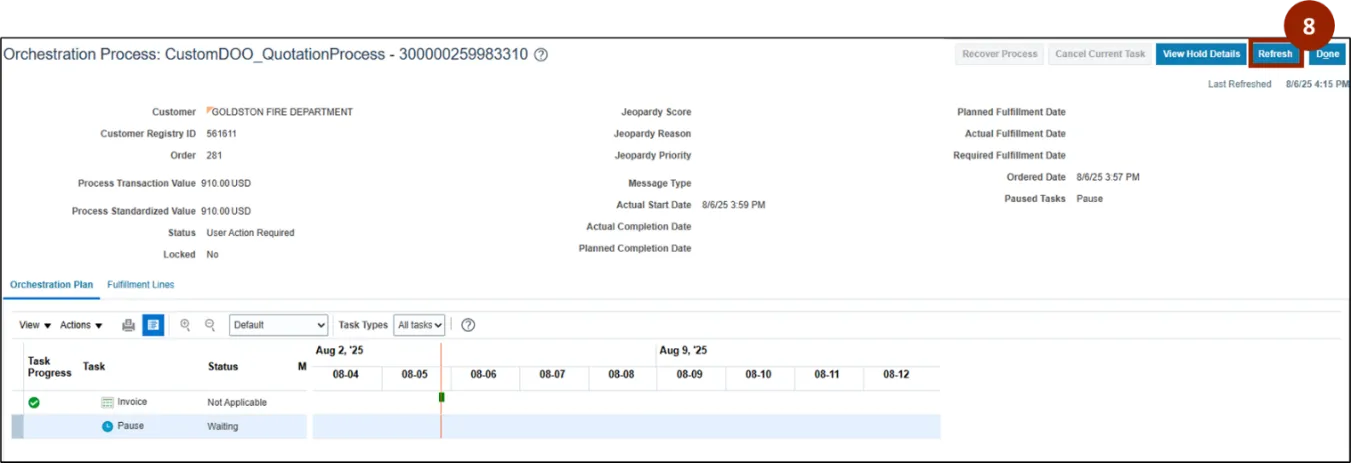
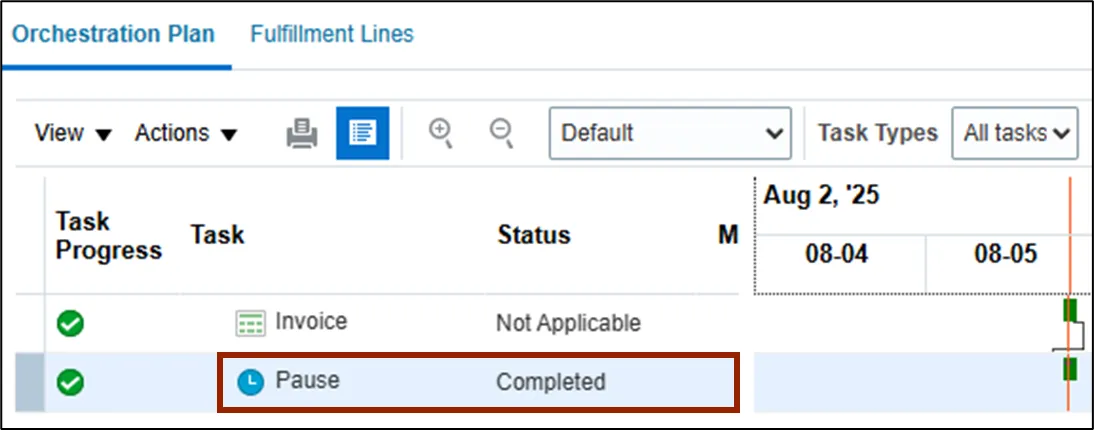
Note: Once the pause task has been completed, the Orchestration Plan tab’s Status column displays the status of the pause as Completed.
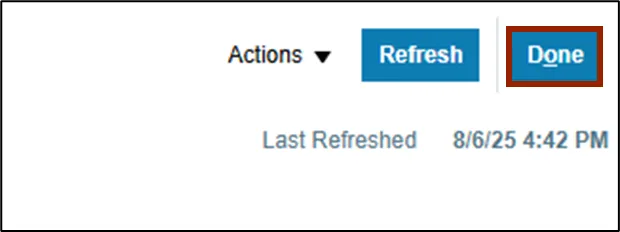
Note: Once complete, Click the Done button until you return to the Create Order screen.
Wrap-Up
NCFS users can review and validate quotations orders by following the steps outlined above.
Additional Resources
- Instructor Led Training (ILT)