Purpose
The purpose of this Quick Reference Guide (QRG) is to provide a step-by-step guide of how to Check Item On-Hand Availability and Supply Details in the North Carolina Financial System (NCFS).
Introduction and Overview
This QRG covers the process for checking item on-hand availability and reviewing supply details in NCFS.
Checking Item On-Hand Availability
There are 7 steps to complete this process.
Step 1. Click the Company Single Sign-On (SSO) button.
Step 2. Enter your @dac.nc.gov email address.
Step 3. Click Next, then enter password.
Step 4. On the Home page, select the Order Management tab.
Step 5. Click Order Management App.
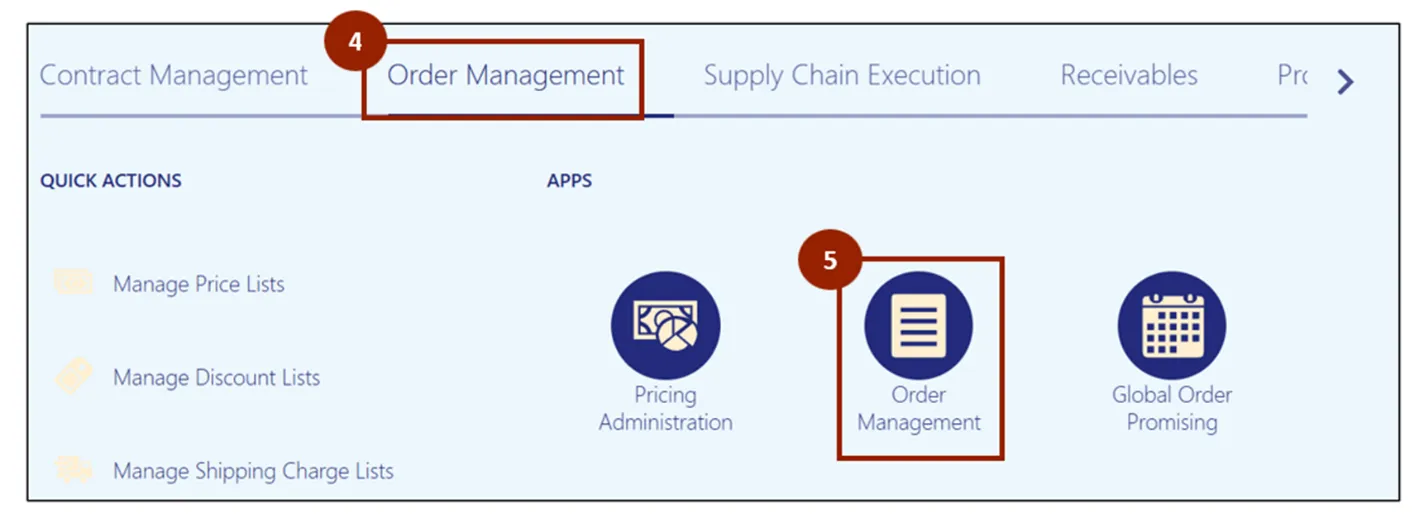
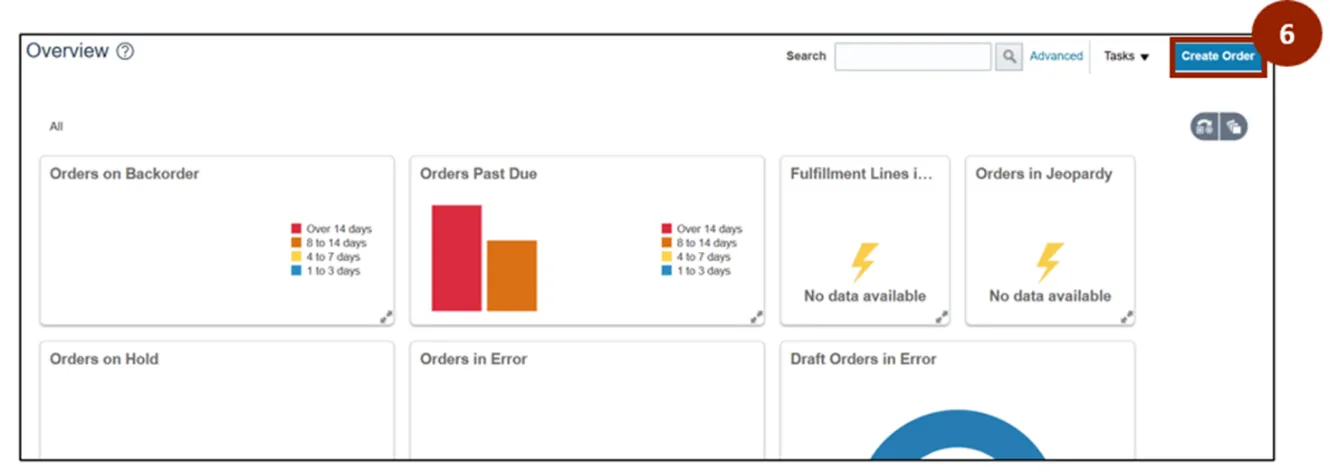
Note: The Order Management Overview screen displays information visually, providing data for DAC. As orders are created and progress, the diagrams and values will populate on this screen. If it is a new instance, this screen displays with minimal information.
Step 6. Click the Create Order button.
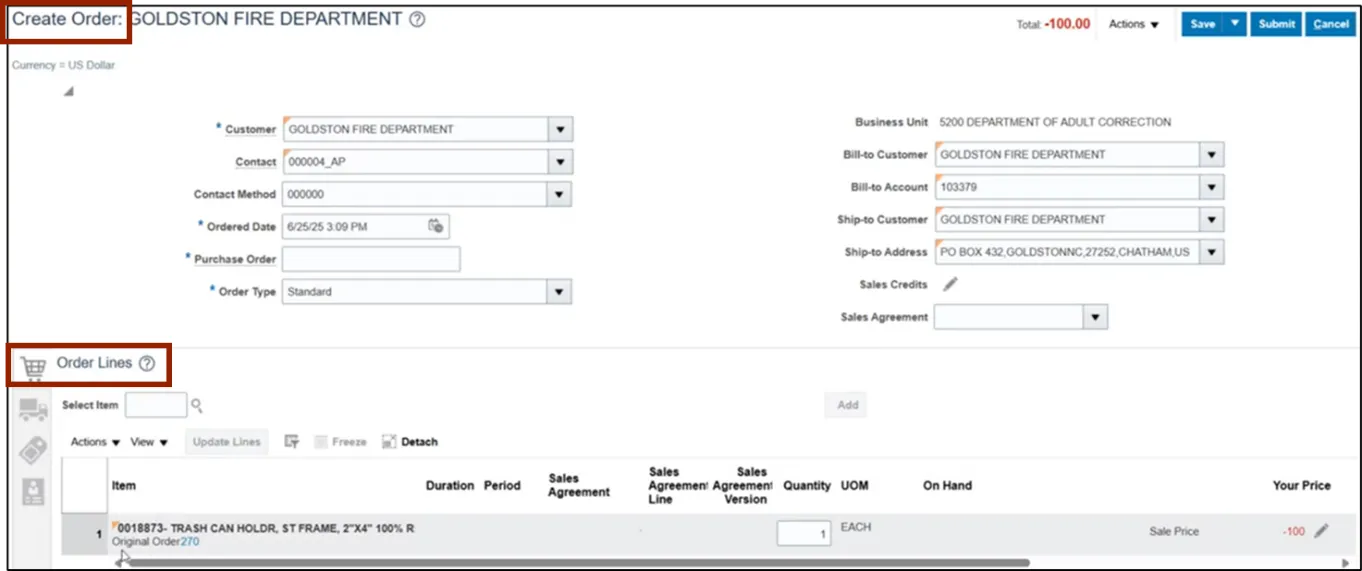
Step 7. In the Create Order screen, enter the required header information and navigate to the Order Lines section and add a new line item.
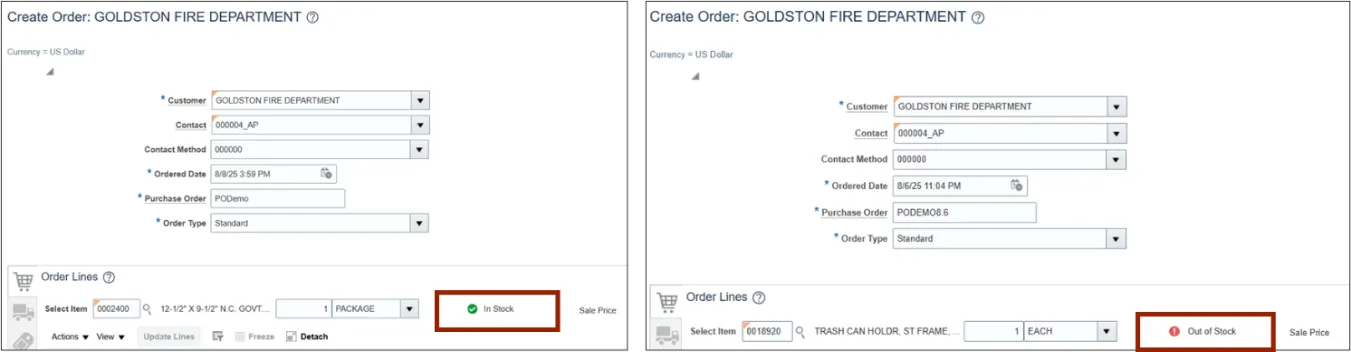
Note: Once the line is added, the system displays whether the item is in stock or out of stock. If the item is out of stock, it must be manufactured at the assigned plant. Once a line is added within the Order Lines, NCFS displays the on-hand availability of the item.
Checking Supply Details
There are 9 steps to complete this process.
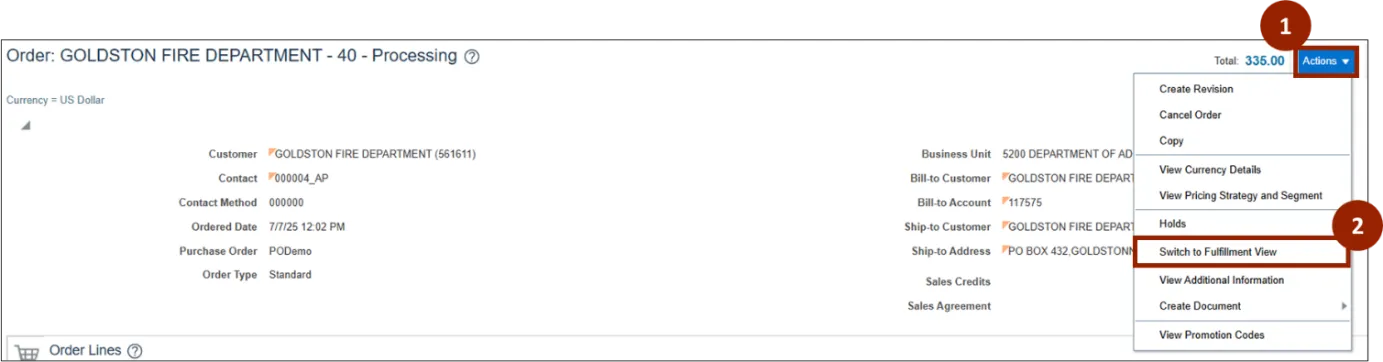
Step 1. From the Order screen, click the Actions drop-down.
Step 2. Click the Switch to Fulfillment View option.
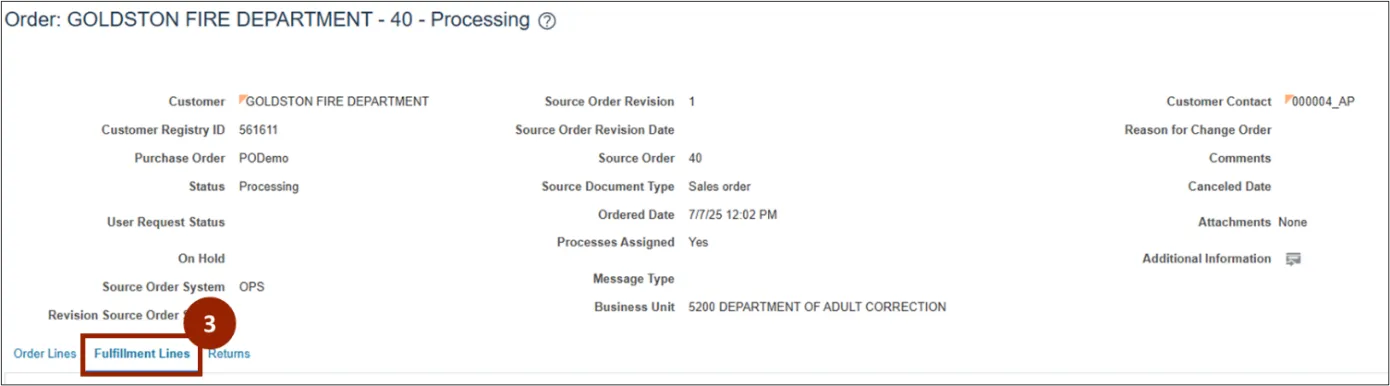
Step 3. Within the Fulfillment View, click the Fulfillment Lines tab.
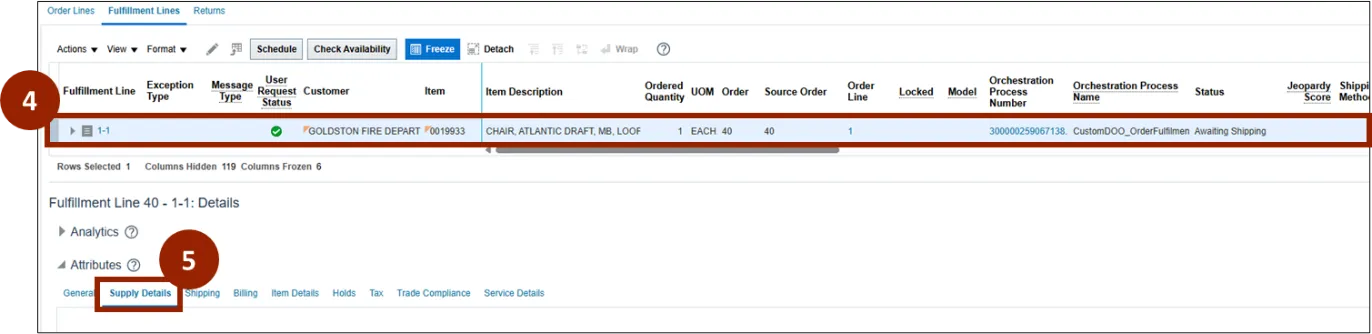
Step 4. Select the desired line item.
Step 5. In the Fulfillment Line: Details section, click the Supply Details tab.
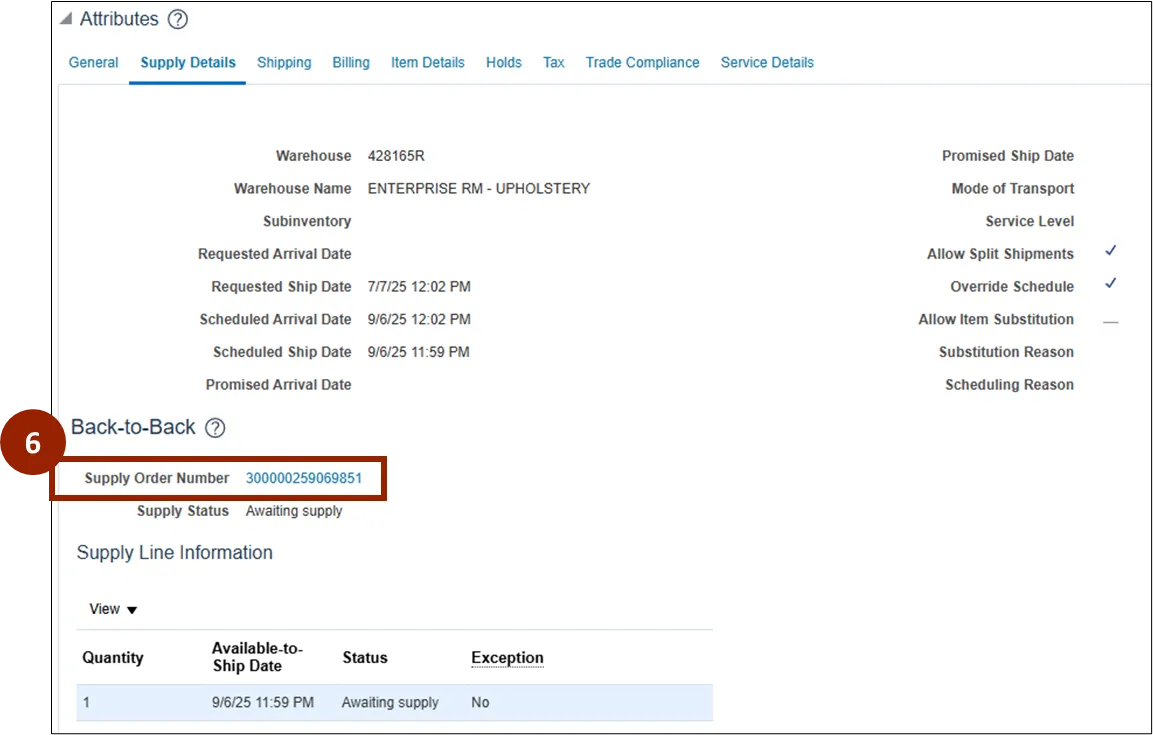
Step 6. In the Back-to-Back section, click the Supply Order Number link.
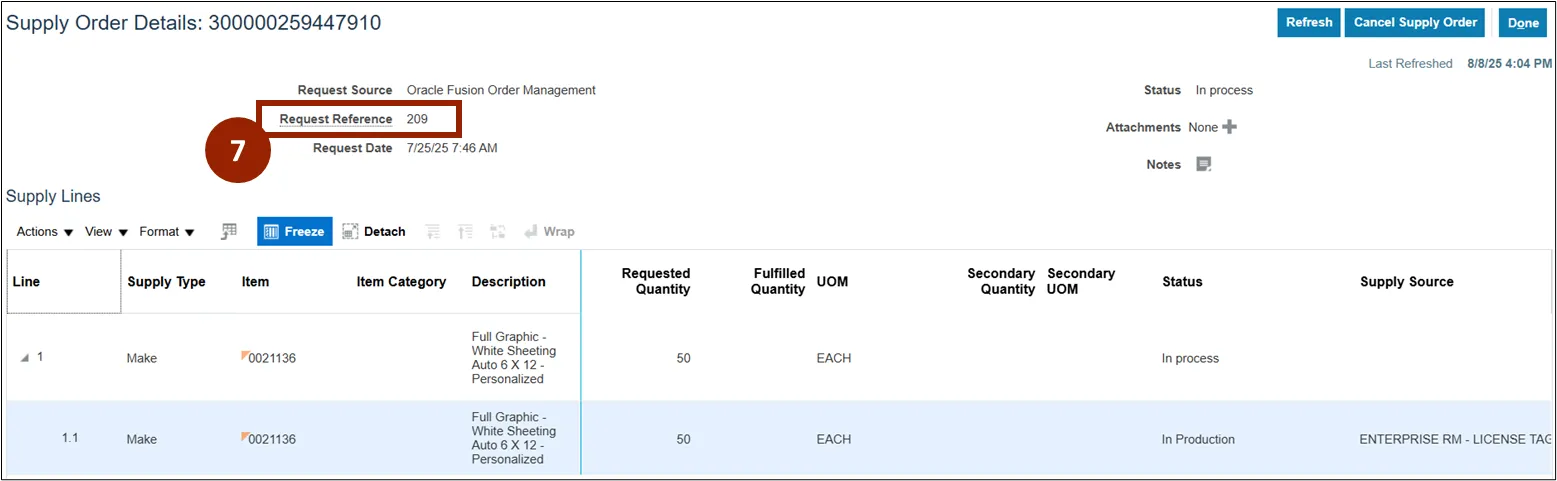
Note: The Supply Order Details screen opens for the selected Supply Order Number. Since the item was out of stock at order creation, it displays as a Make Supply Type tied to the highlighted sales order below.
Step 7. The Request Reference field displays the sales order, review this field (e.g., sales order 209).
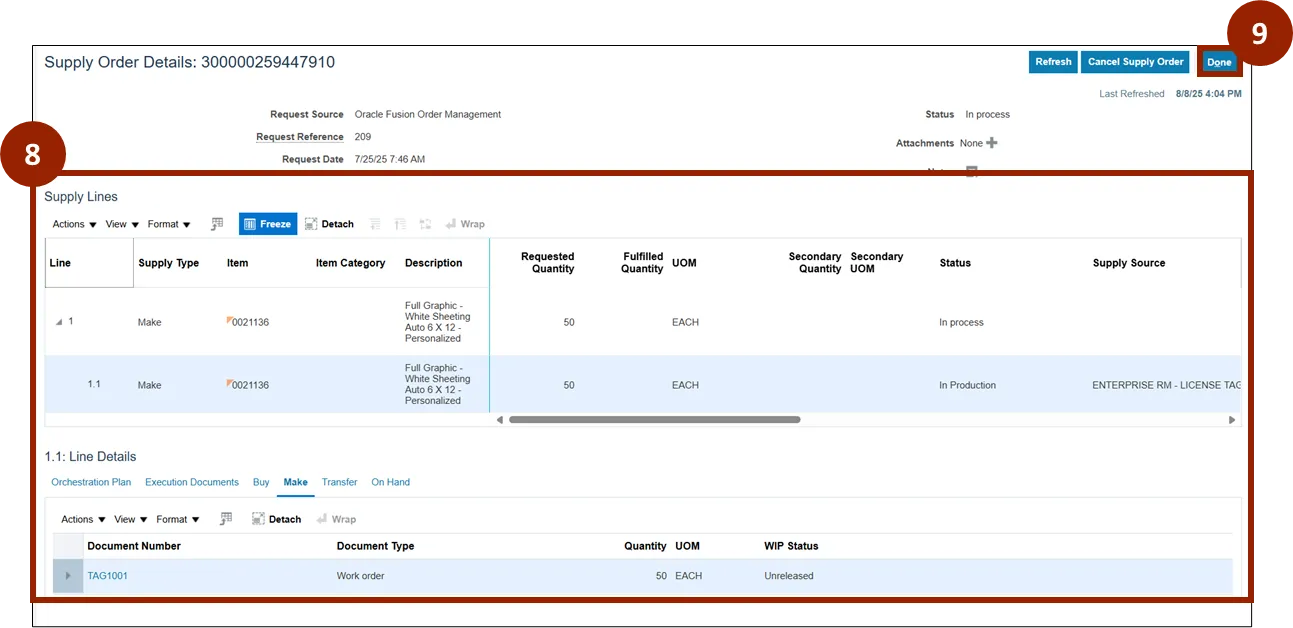
Step 8. In Supply Lines table and selected Line Details, review additional information.
Note: These details help validate whether the sales order can be fulfilled as planned and provide visibility into inventory and production status.
Step 9. Once complete, click Done.
Wrap-Up
NCFS users can Check Item On-Hand Availability and Supply Details by following the steps outlined above.
Additional Resources
- Instructor Led Training (ILT)