Purpose
The purpose of this Quick Reference Guide (QRG) is to provide a step-by-step guide of how to View On Hand Balances in the North Carolina Financial System (NCFS).
Introduction and Overview
This QRG covers the process of View On Hand Balances. This process provides information on how to use the Manage item Quantities screen to view inventory details and on hand balances and how to change the subinventory status affect ‘Available to Reserve’ and ‘Available to Transact’.
View On Hand Balances
There are 15 steps to complete this process.
Step 1. From the Home screen, select the Supply Execution tab.
Step 2. Click on Inventory Management.
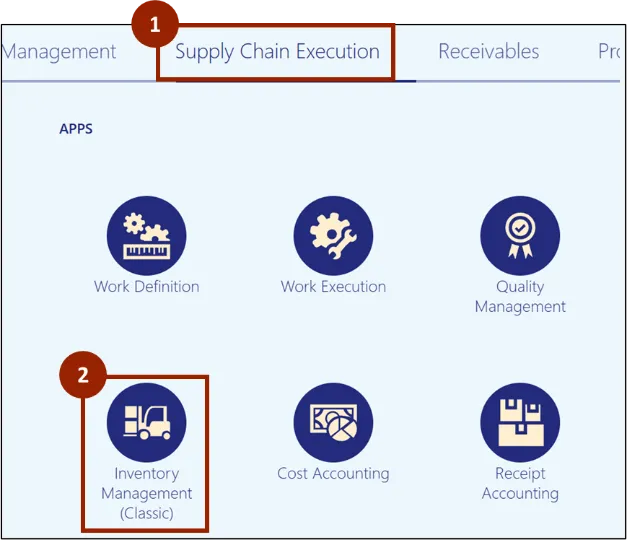
Step 3. On the Inventory Management page, click the Task icon.
Step 4. Under the Inventory header, click Manage Item Quantities.
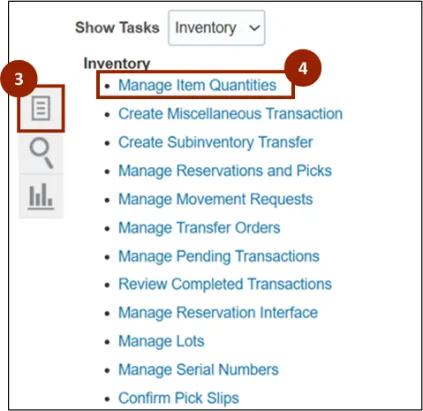
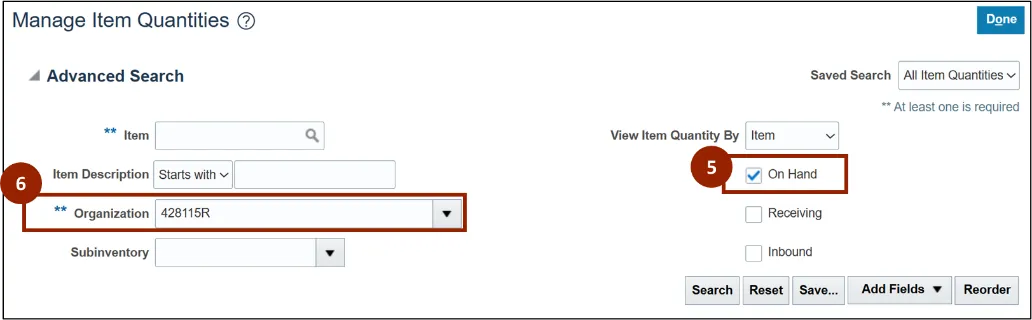
Step 5. Verify the On Hand checkbox is selected.
Step 6. In the Organization field, enter or select the desired organization (i.e., 428115R).
Note: If the Organization has been selected previously, this field automatically populates. Additionally, at least one of the fields marked with a double asterisk (**) must be completed before clicking the Search button.
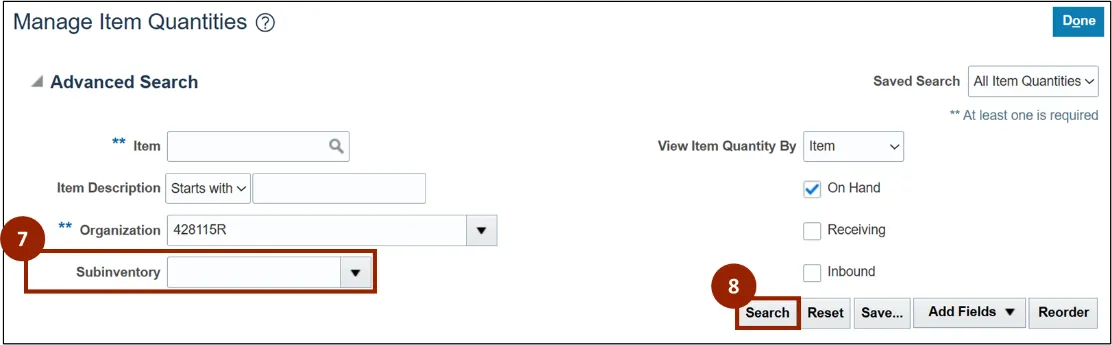
Step 7. (Optional) In the subinventory field, enter or select the desired subinventory to narrow the search results further (For example, if you would like to view only finished goods within the search results, select the FG428115R).
Step 8. Click the Search button.
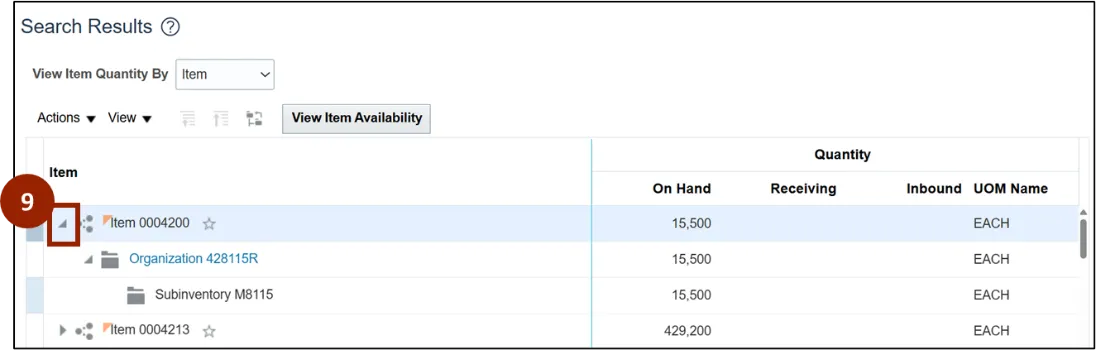
The Search Results table displays all item numbers in the Item column as well as their specific On Hand and UOM Name for each item. Currently for DAC, the Receiving and Inbound Quantity columns are not in use.
Step 9. To expand details on a particular item, click the arrow within the Item column to expand details.
Note: If the Organization folder link is selected, a pop-up window displays the full Organization Name.
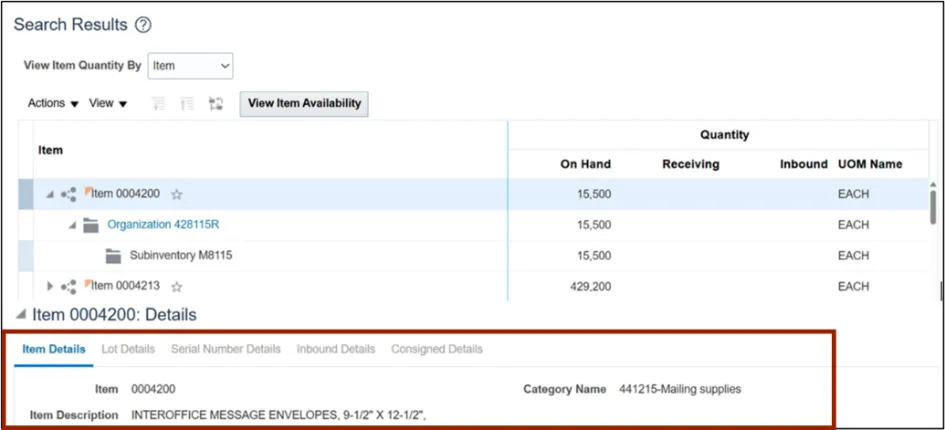
Once an item is selected within the Search Results table, additional details display within the Item #: Details section at the bottom of the screen.
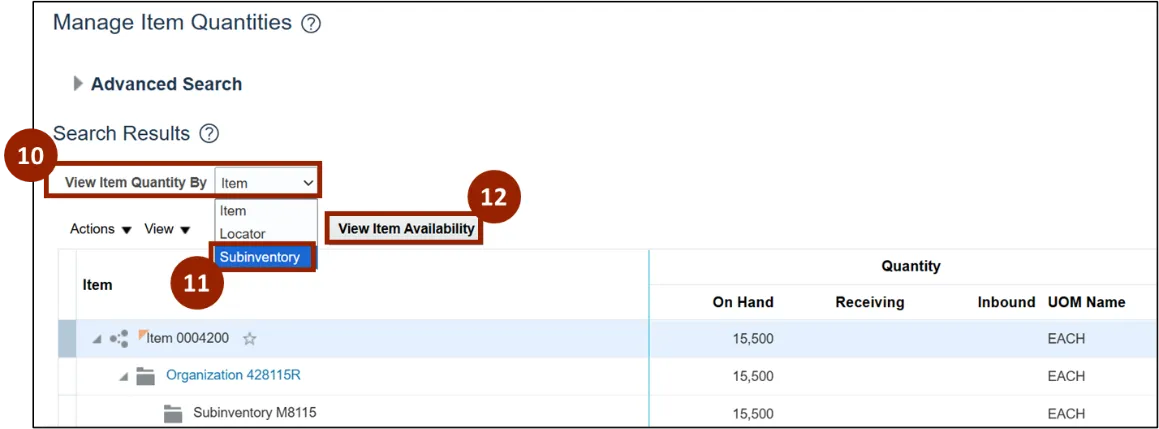
Step 10. To view item quantities displayed based on the Subinventory instead of Item display: Click the View Item Quantity By drop-down field.
Step 11. Select the desired option from the list (i.e., Subinventory).
Step 12. To open the Item Availability window, click the View Item Availability button.
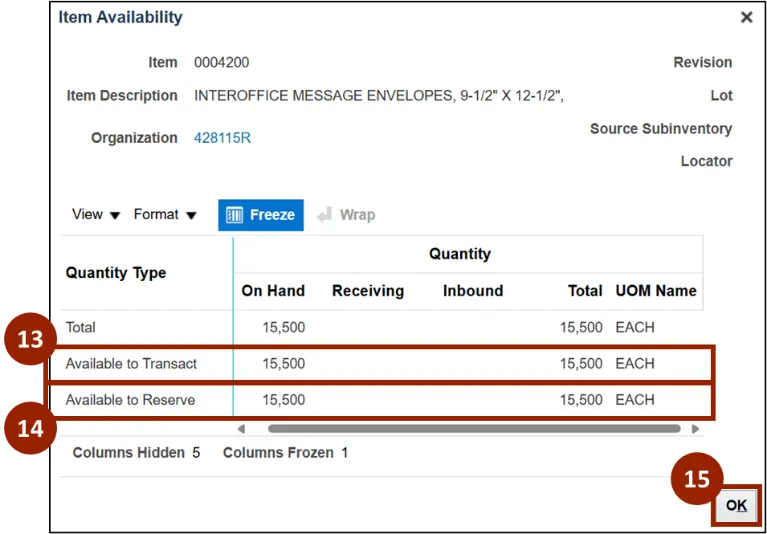
Step 13. Within the Quantity table, review the Available to Transact total .
Step 14. Review the Available to Reserve total.
Step 15. Once complete, click OK.
Note: The concept of the reservation is a relationship between a demand document and a supply document. Available to Reserve shows the quantity on hand minus the quantity already reserved for other orders. It is the quantity available for new orders.
Wrap-Up
NCFS users can reference the View On hand Balances using the steps above.
Additional Resources
- Virtual Instructor Led Training (vILT)