Purpose
The purpose of this Business Process Procedure is to explain how to process an action where a person is transferring from a non-Beacon agency to a Beacon agency.
Trigger
There is a need to process a Non-Beacon to Beacon action for one of the reasons listed in the Business Process Procedure Overview section.
Business Process Procedure Overview
Non-Beacon to Beacon – the employee currently is working for a Non-Beacon agency and is transferring without a break in service to a Beacon agency; or employee previously worked for a Non-Beacon agency and is returning after a break in service to a Beacon agency. (Example - NCSU to DOT)
Note: To verify if employee has a record in Beacon run BI Report BP002 Cross Agency Verification.
Reasons:
- 01 - Transfer Lateral - Movement without a break in service to a position assigned to a same salary grade or movement without a break in service between positions from one career-banded class to another with the same journey market rate or movement without a break in service to a position within the same banded class with the same competency level.
- 02 - Transfer Re-assignment - Movement without a break in service to a position assigned to a lower salary grade or movement without a break in service between positions from one career-banded class to another with a lower journey market rate or movement without a break in service to a position within the same banded class with a lower competency level.
- 03 - Transfer Promotion - Movement without a break in service to a position assigned to a higher salary grade or movement without a break in service between positions from one career-banded class to another with a higher journey market rate or movement without a break in service to a position within the same banded class with a higher competency level.
- 09 - Grade Band Transfer - Movement without a break in service between banded and graded classes
- 10 - Class/Pay Plan Change - Employee movement between two SPA positions assigned to different class/pay systems.
- Graded
- Career banded
- Pilot banded
- Skill Based Pay
- Flat rate
- 11 - EPA-SPA - Employee movement between an EPA position and a SPA position or vice versa
- 04 - Return to State within 12 months (same salary grade) – Graded employee returns to employment after a break in service of less than 12 months to the same salary grade. [NOTE: Not to be used for re-employment from or to Career Banded positions or other non-graded class/pay system.]
- 05 - Return to State within 12 months (higher salary grade) - Graded employee returns to employment after a break in service of less than 12 months to a higher salary grade. [NOTE: Not to be used for re-employment from or to Career Banded positions or other non-graded class/pay system]
- 06 - Return to State within 12 months (lower salary grade) - Graded employee returns to employment after a break in service of less than 12 months to a lower salary grade. [NOTE: Not to be used for re-employment from or to Career Banded positions or other non-graded class/pay system.]
- 07 - Return to State within five years – Graded employee returns to employment after a break in service of more than 12 months but not to exceed five years; or banded or other class/pay system employee returns to employment after a break in service within five years. [NOTE: Check reinstatement of sick leave if eligible.]
- 08 - Return to State after five years – Employee returns to employment after a break in service of more than five years. (NOTE: Sick leave shall not be reinstated.]
Notes:
- Break-in service is defined as a separation or non-pay status for more than 31 calendar days.
- Also use Non-Beacon to Beacon if a former employee left State employment before his or her agency implemented Beacon (the former employee has a record in PMIS, but does not have any record in Beacon SAP. (Do not use for County Public School System.)
- Make sure to obtain any active leave balances and/or prior State service on the employee. Verify the balances and the creditable service from the previous agency. If you have a dual role as both the HR Master Data Maintainer and the Leave Administrator, use PA30 to create infotype 2013 -Quota corrections for each transferring leave balance (this infotype is not presented during the Non-Beacon to Beacon Action) and IT0552 – Display Time Specification/Employment Period. If your role consists of being the HR Master Data Maintainer only, you must contact the Leave Administrator to ensure that the employee‘s leave balances are brought up to date.
- Important! If the employee received a pro-rated longevity you need to create an IT02012 / Z033 to document the pro-rated longevity already received so employee doesn't get a full payment when the year is complete. See Longevity Job Aid
- We strongly recommend that you do not execute the action until you have all of the necessary documentation to complete the action (i.e. social security number, permanent address, tax withholdings, etc.
Tips and Tricks
See the PA BPP Tips and Tricks Job Aid for a more complete listing of Best Practices and tips & tricks. The job aid is located on the Training Help website.
Prior to starting the Non-Beacon to Beacon process from within workflow, display the position to ensure it is still vacant. You can use transaction code PPOSE or PO13D to display the position.
We recommend that you enter the EE Position number first on the Employee Action Request screen and then click Enter to request validation by SAP and the pre-population of many of the fields. If other fields are entered prior to the position number, when the Integrated HR-Payroll System validates the position number, the fields may not populate properly.
Procedure
There are 20 steps to complete this process.
Step 1. From the SAP Easy Access page, select transaction code ZPAA076.

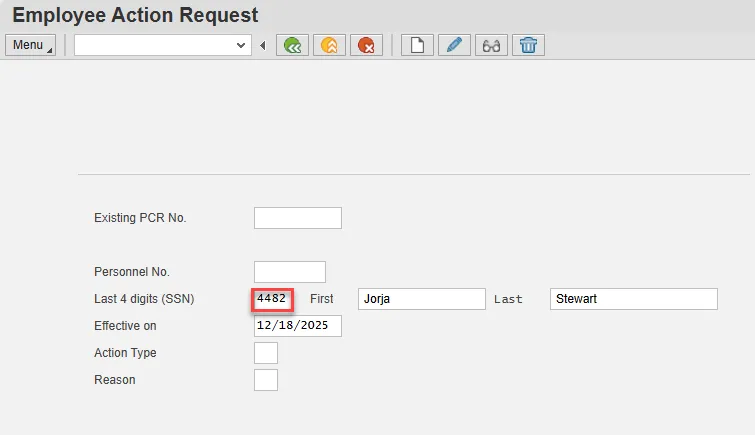
Step 2. On the Employee Action Request screen, complete the Last 4 digits (SSN) field. This is the last four digits of the employee’s social security number.
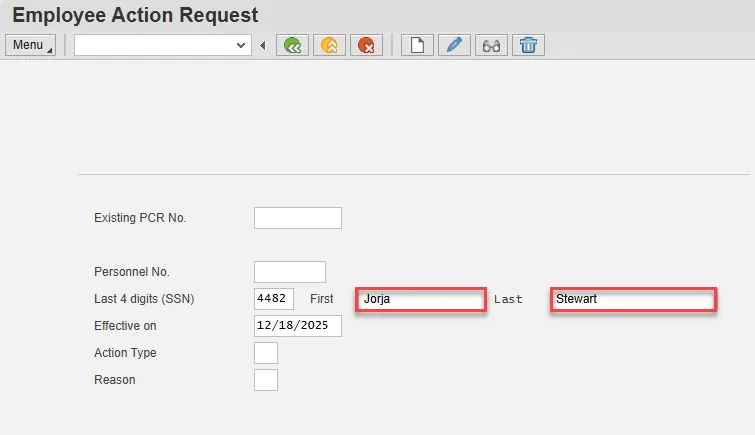
Step 3. Complete the First and Last fields.
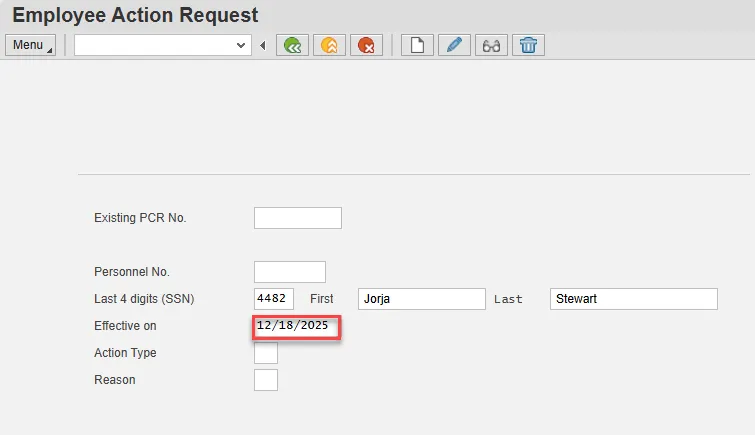
Step 4. Update the Effective on field with the effective date of the action.
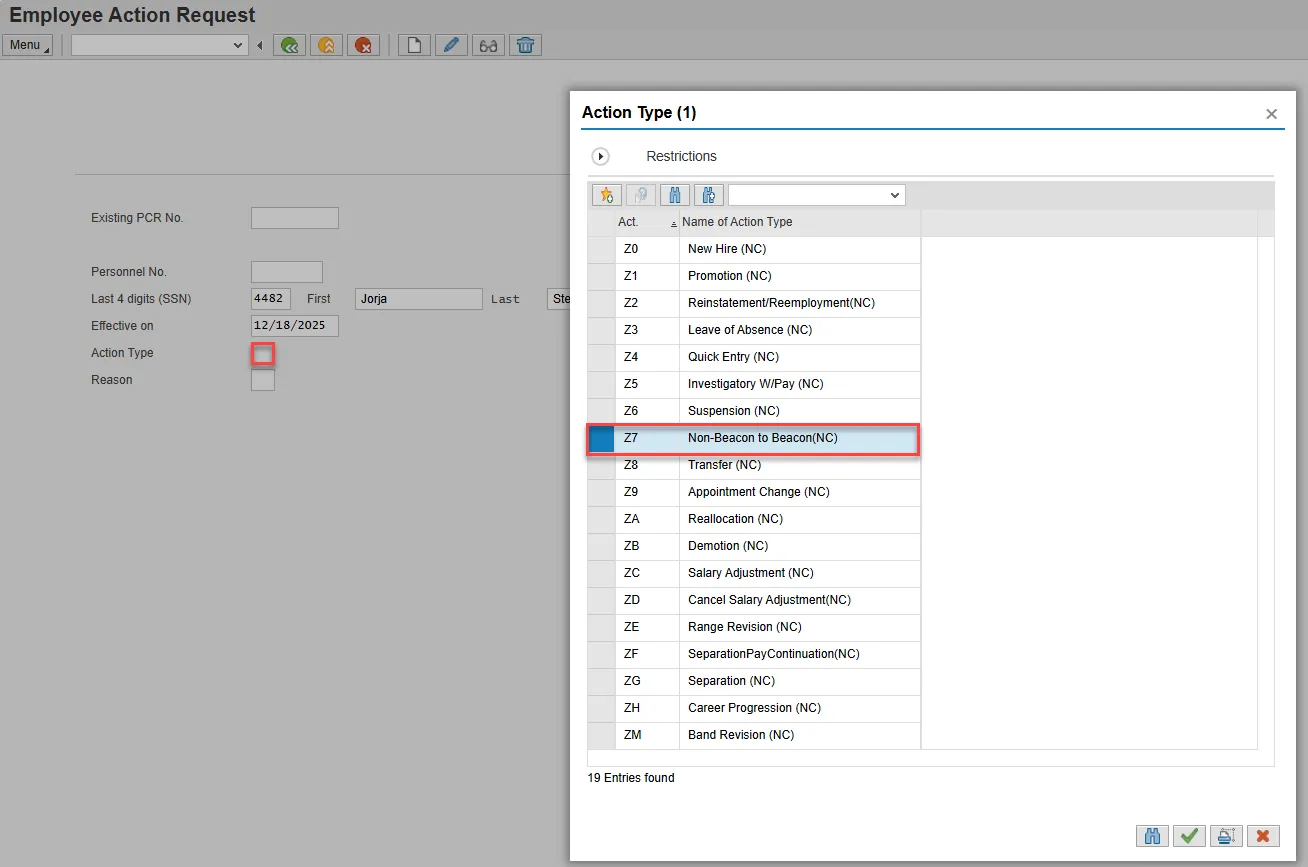
Step 5. Select the matchcode in the Action Type field and double click Non-Beacon to Beacon from the list.
Step 6. Select the matchcode in the Reason field and double click the appropriate reason for the action.
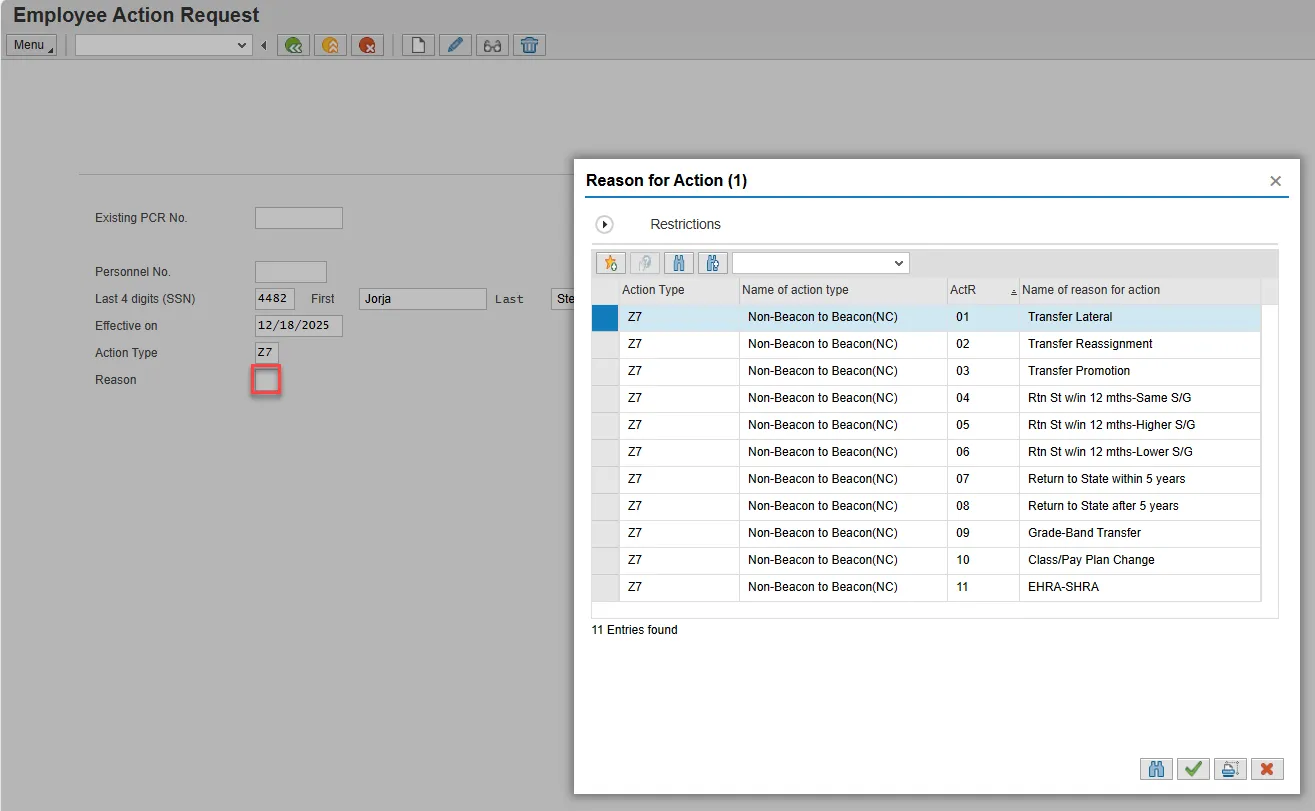
Note: Leave the Existing PCR No. field blank if you are creating a new PCR.
Step 7. Select Enter on the keyboard and choose the Create button.

Step 8. OSC recommends entering the EE Position number in first, so the Personnel Area, Personnel Subarea, Employee Group, Employee Subgroup and Pay information pre-populate based on the position number entered. If you do not enter the position number first, the pre-population of data based on the position number may not work properly.
Complete the EE Position field and choose Enter on the keyboard.
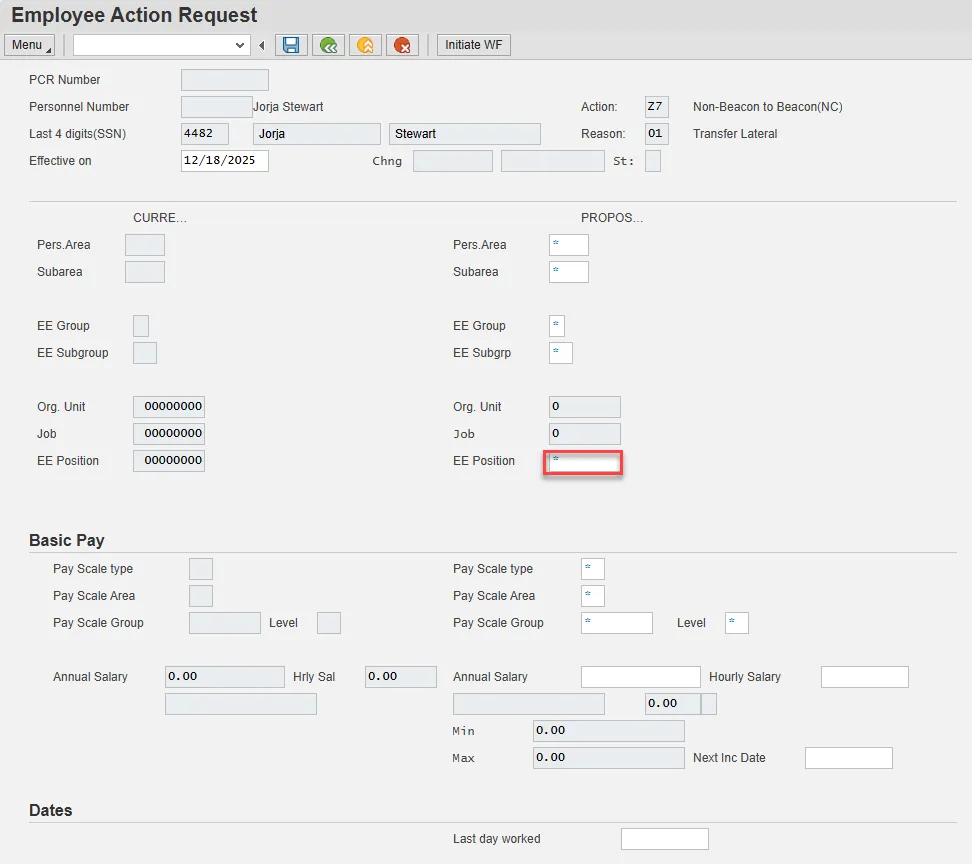
Step 9. Update the EE Subgrp field if needed and choose Enter on the keyboard.
A Non-Beacon to Beacon may be probationary, therefore, you would have to change the default Employee Subgroup on the PCR to reflect probationary. After the probationary period has ended, another Action (Appointment Change) will be used to change the Employee Subgroup to permanent). When the employee subgroup is different from the position employee subgroup the system will provide a warning message during the action.
Step 10. Enter the salary information in the Annual Salary field.
Make sure the Level field represents the level associated with the range of the salary. Choose the matchcode to find the correct level.

Note: Update the following field (only if hiring a Temporary employee):
- Pay Scale Area
- A pay scale area is a special area in which a collective agreement is valid.
- Hourly salary is used only for Temporary employees. You will need to change the Pay Scale Area to Hourly if using this field.
- Hourly Salary
- The hourly rate
Step 11. Choose Enter on the keyboard and Save.
Step 12. You can save this information as many times as you like. Each time you will receive a confirmation of the save. Choose the green check in the bottom right of the pop-up.
Note: You will not be able to create a note attachment until you have saved it at least once. If you have submitted the PCR to workflow already, you will not be able to change the details, nor save any new information, only display the existing details.
Step 13. Select the Services for Object button in the upper right corner.
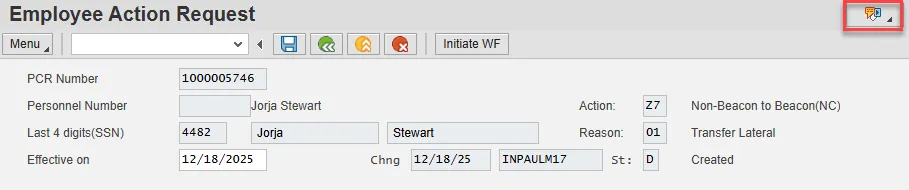
Step 14. Hover over Create and choose Create note from the drop-down menu.
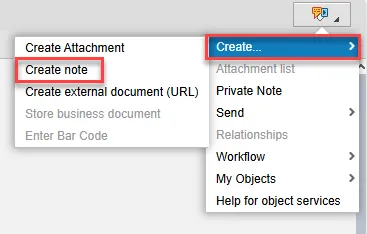
Step 15. Update the Title of note field and the body of the note.
The note is a required part of the request creation process. Notes entered during PA workflow must follow OSHR’s action notes template: PA Action Notes Template
Choose the green check button in bottom right of note pop-up.

Step 16. Choose Save.
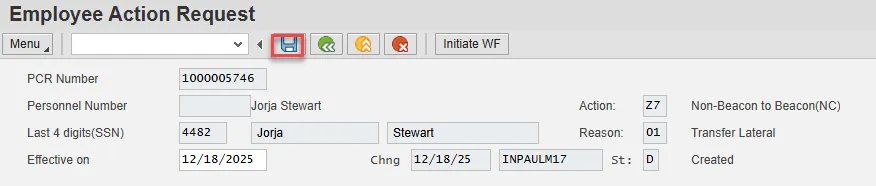
Step 17. Select the green check button in bottom right of Information pop-up.
Step 18. Choose the Initiate WF button.

Step 19. Select the green check button in bottom right of the Information pop-up.

Step 20. Choose the green Back button.

The Initiate Non-Beacon to Beacon Action is complete.
After Workflow Approvals have been received, process with the Complete Non-Beacon to Beacon Action process.
Instructions for Completing the Action
There are 56 steps to complete this process.
Step 1. Choose the SAP Business Workplace button from the SAP Easy Access page.

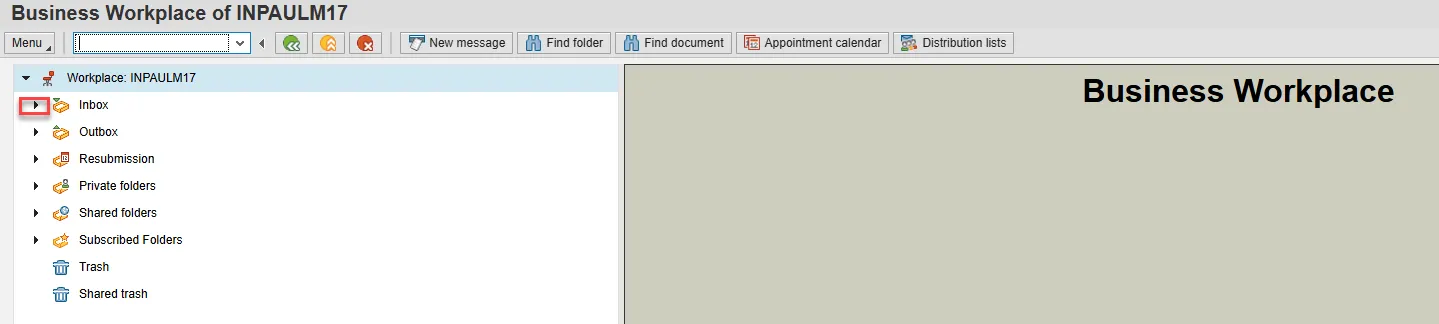
Step 2. Expand the Inbox using the expand node.
Note: Failure to complete this step could cause some functions to be unavailable on the secondary button ribbon in the subfolders.
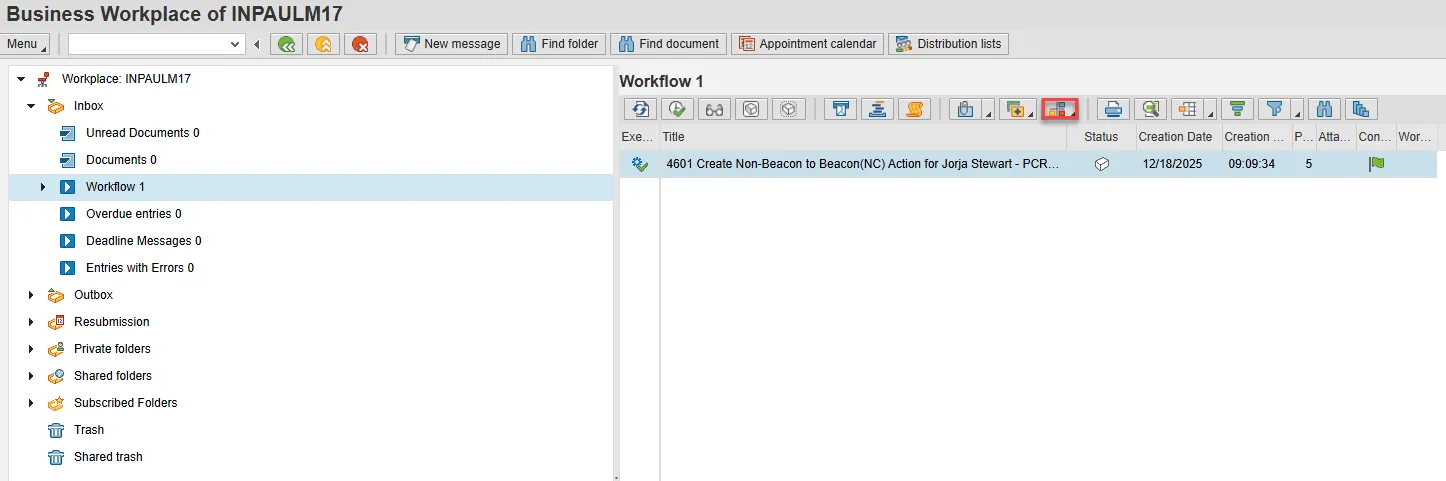
Step 3. Select the Workflow subfolder.

Step 4. Access the Environment button on the secondary button ribbon to retrieve a copy of the note. Access PER-57 Copying Notes from the PCR to Infotypes for steps on retrieving the note.
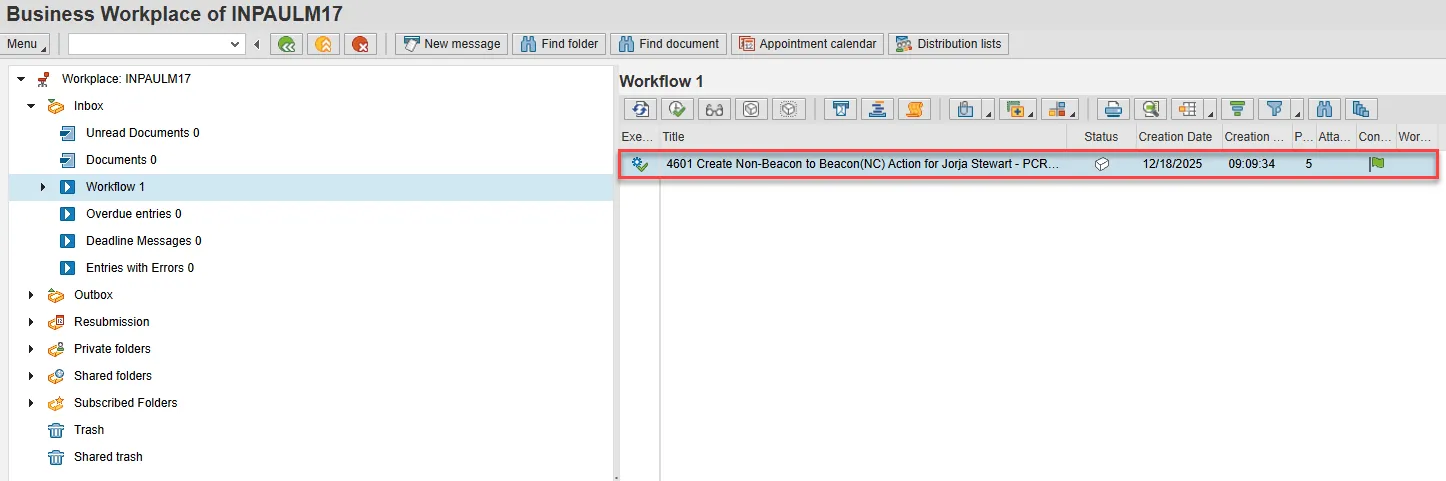
Step 5. Double click the PCR to begin the action.
Step 6. On the Hiring Action screen, complete the SSN field (full social security number with dashes), Date of Birth, and Gender fields.
Note: The last 4 digits of the Social Security number must match the numbers entered when initiating the PCR. If they do not match, the system will notify you that you do not have a valid, approved PCR and will not let you process the New Hire action.
Note: You cannot enter a dummy/temporary social security number. Once infotype 0002 is saved you must contact BEST HR to be maintained.
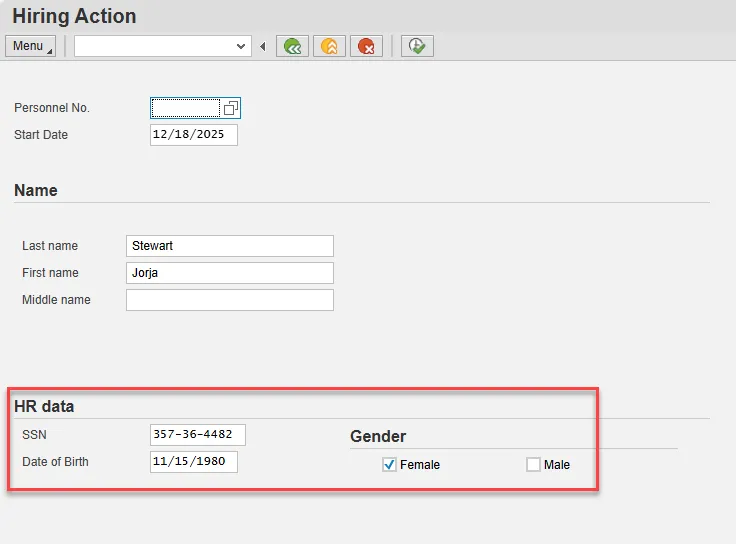
Step 7. Choose Execute.

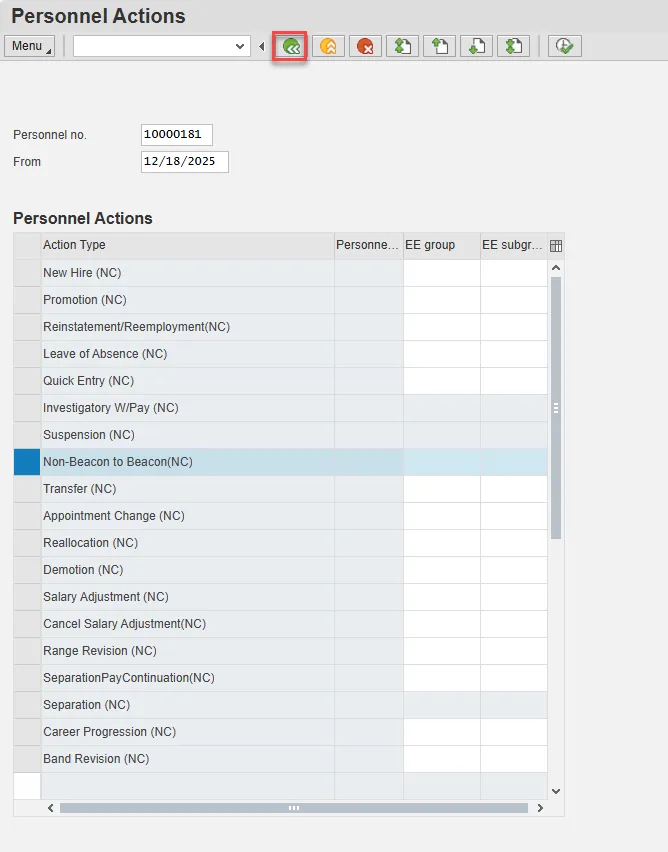
Step 8. On the Personnel Actions screen, enter the effective date in the From field. This must match the effective date used to create the request.
Note: Notice that the Personnel Number has pre-populated here. This is the employee's Personnel Number, generated as a unique number from the Orbit retirement system.
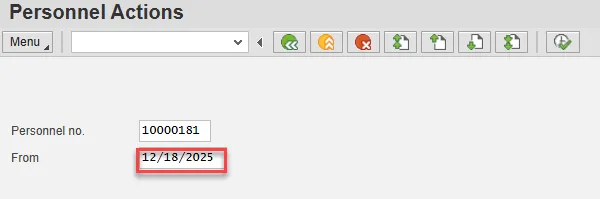
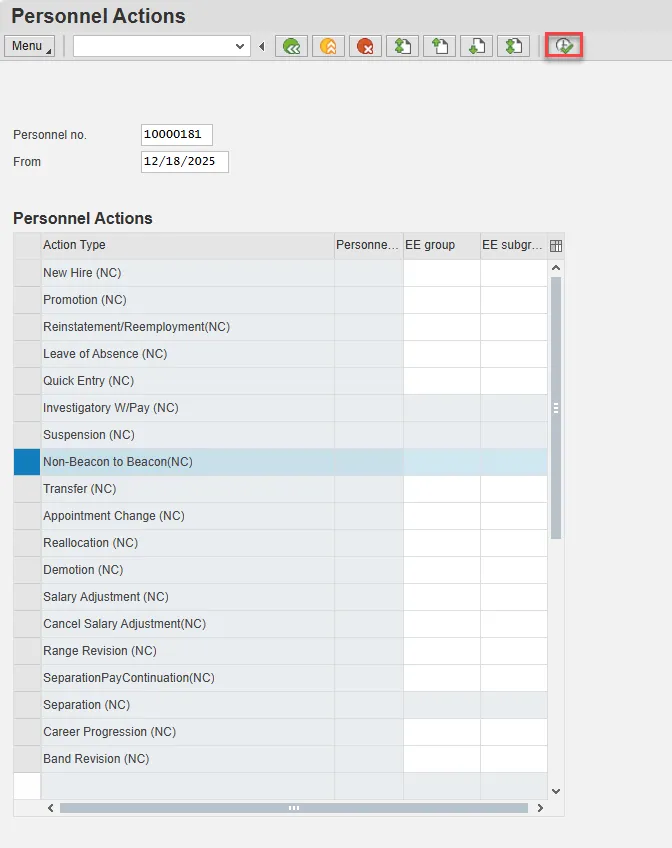
Step 9. Highlight Non-Beacon to Beacon by selecting the gray box at the beginning of the row.

Step 10. Choose the Execute button.
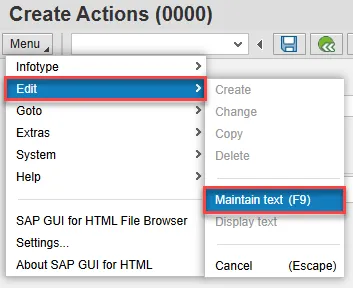
Step 11. On Create Actions (0000), choose the Menu button.
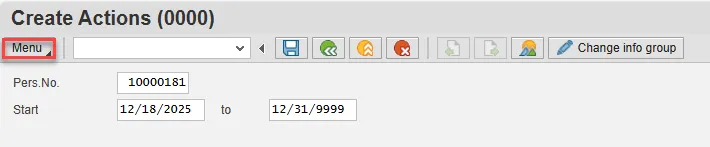
Step 12. Hover over Edit and choose Maintain text (F9) from the pop-out menu.
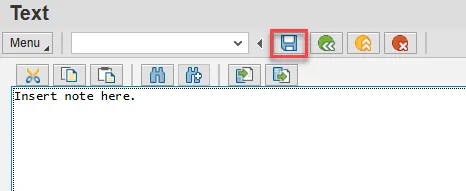
Step 13. On the Text screen, insert your note and choose Save.
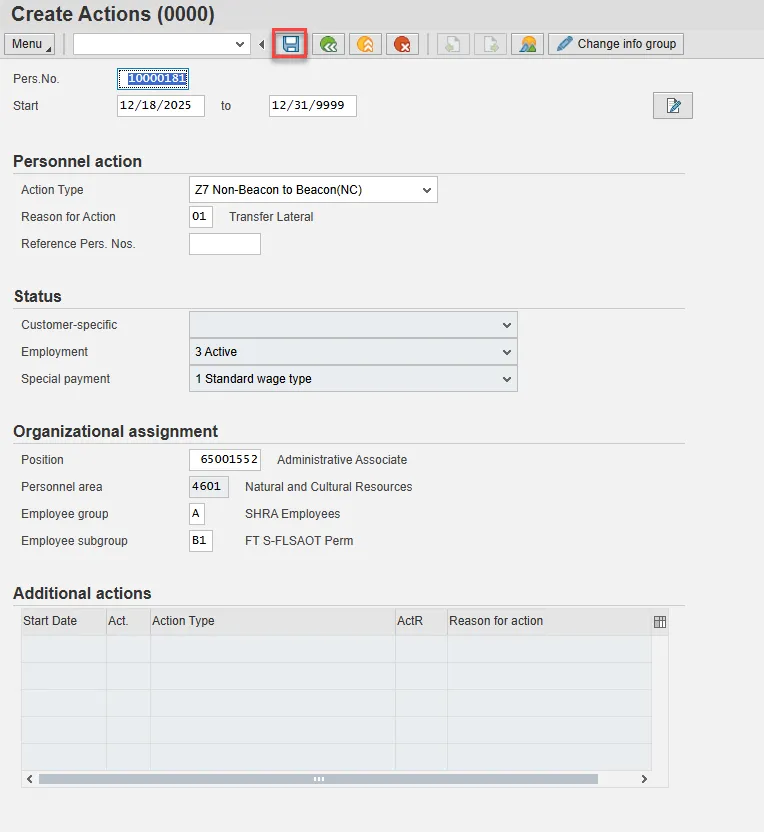
Step 14. Back on the Create Actions (0000) screen, choose Enter on the keyboard and Save.
Step 15. On the Create Personal Data screen, use the drop-down to update the Marital status field.

Step 16. Enter and Save.
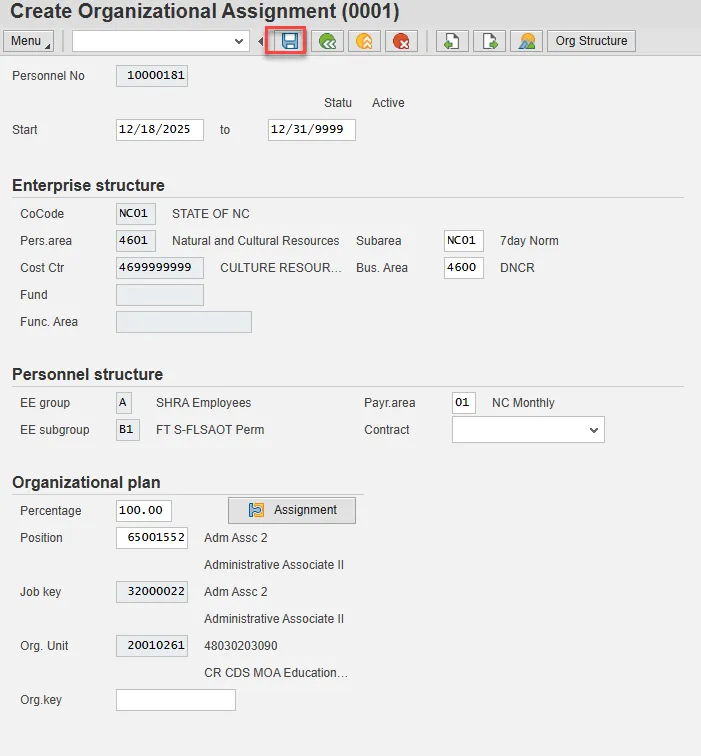
Step 17. On Create Organizational Assignment (0001), select Enter on the keyboard and Save.
Step 18. On the Delimit Vacancy pop-up, select Yes in the bottom right.

Step 19. On Create Date Specifications (0041), choose Enter on the keyboard and Save.

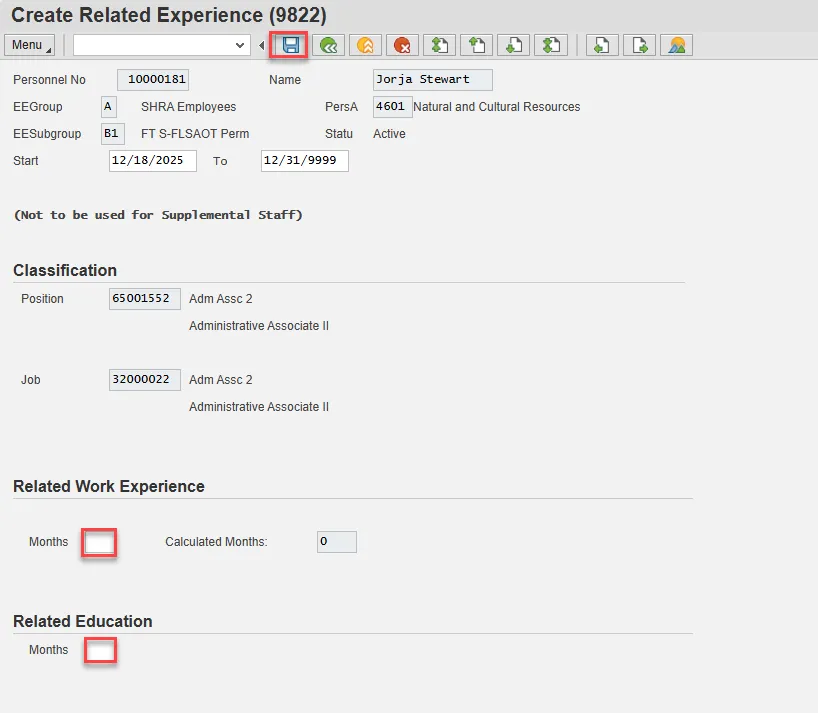
Step 20. On Create Related Experience (9822), update Related Work Experience and Related Education as needed. Enter and Save.
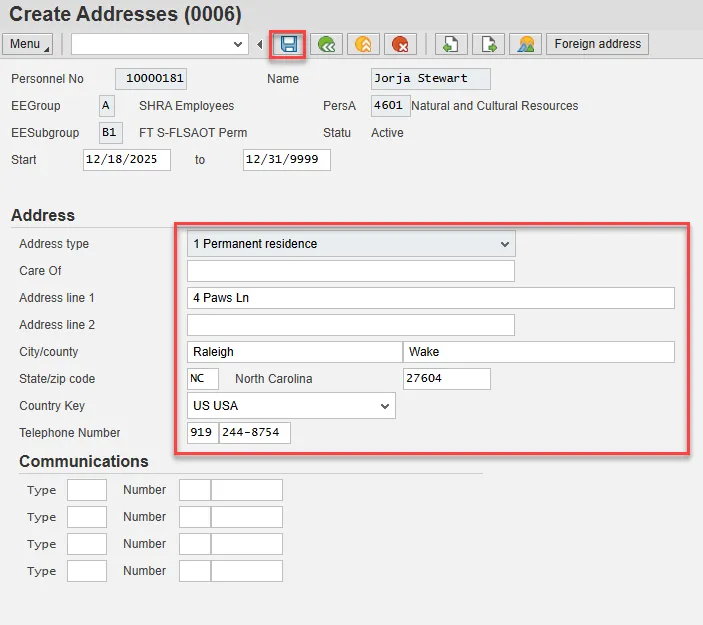
Step 21. On Create Addresses (0006), update the Permanent residence information including the Telephone Number field. Enter and Save.
Step 22. Accept the defaulted information on Create Residence Tax Area (0207). Enter and Save.

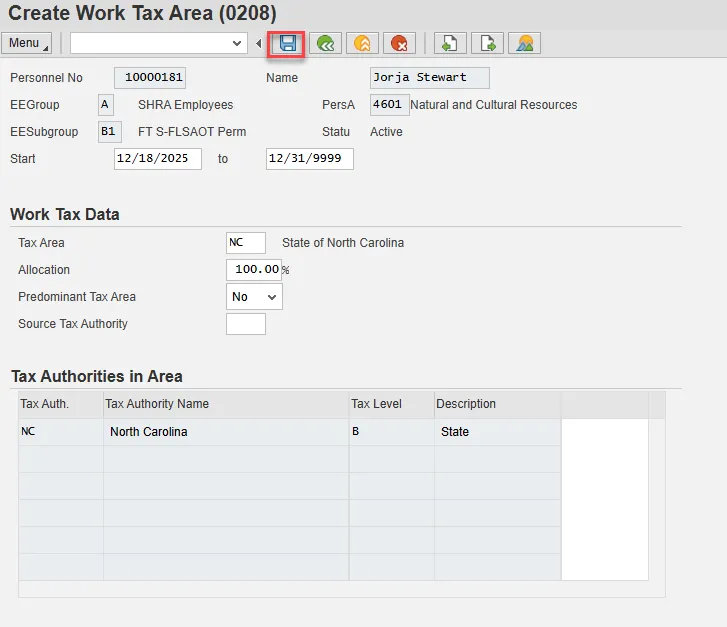
Step 23. Accept the defaulted information on Create Work Tax Area (0208).
The Predominant Tax Area field is used only for employees who work in and are taxed by multiple locations within Pennsylvania. This field will default to No and should not be altered.
Enter and Save.
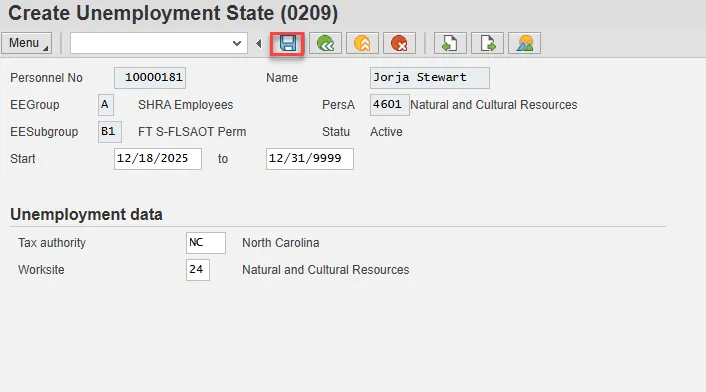
Step 24. Accept the defaulted information on Create Unemployment State (0209). Enter and Save.
Step 25. On Create Withholding Info W4/W5 US (210), it is best practice is to enter any data as appropriate from the withholding form, review all data, and click Enter to allow the system to validate the data.
The default will be 03/Single or Married Filing Separately for the Filing Status field.
Employees with ESS (Employee Self-Service) access will be able to update their Withholding Information W4 via ESS.
Once updated, Enter and Save.
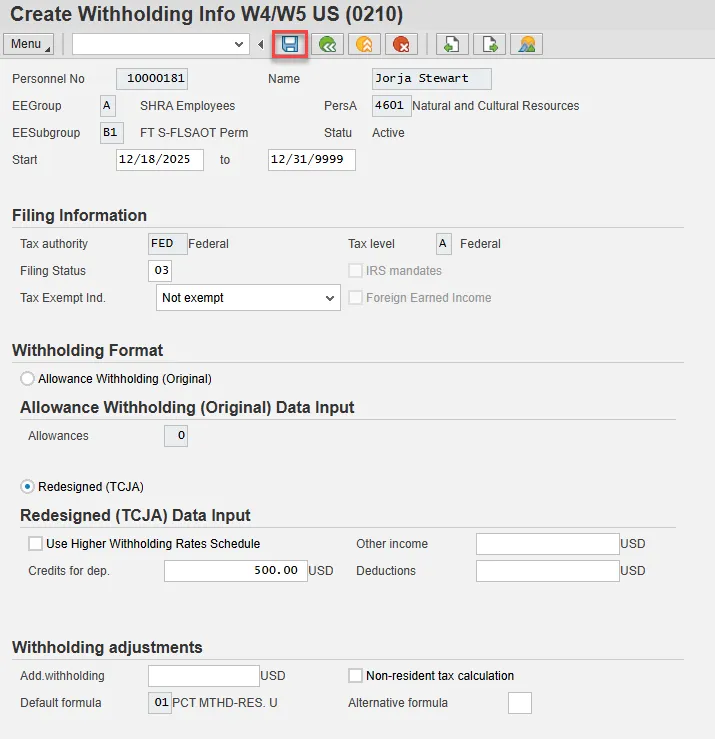
Step 26. On the next Create Withholding Info W4/W5 US (0210) screen, it is best practice is to enter any data as appropriate from the withholding form, review all data, and click Enter to allow the system to validate the data.
The default will be 01/Single or Married Filing Separately for the Filing Status field.
Once updated, Enter and Save.

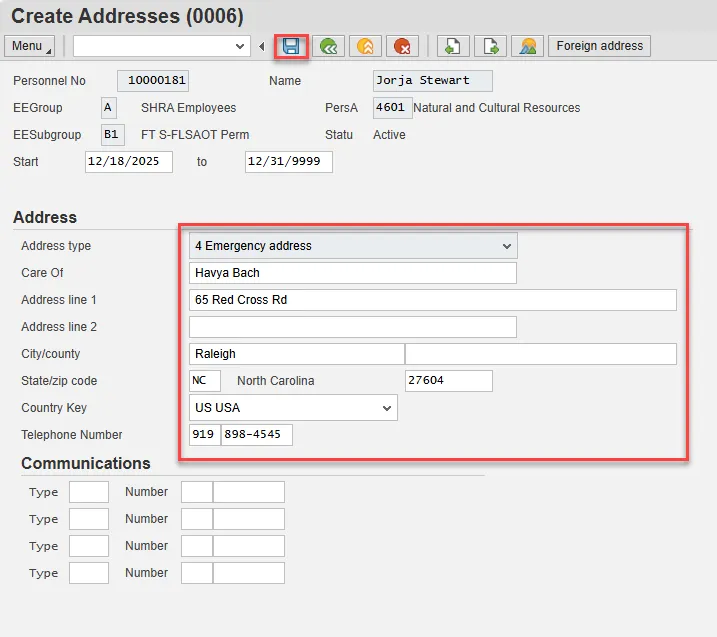
Step 27. Update Create Addresses (0006) with Emergency contact information.
Enter and Save.
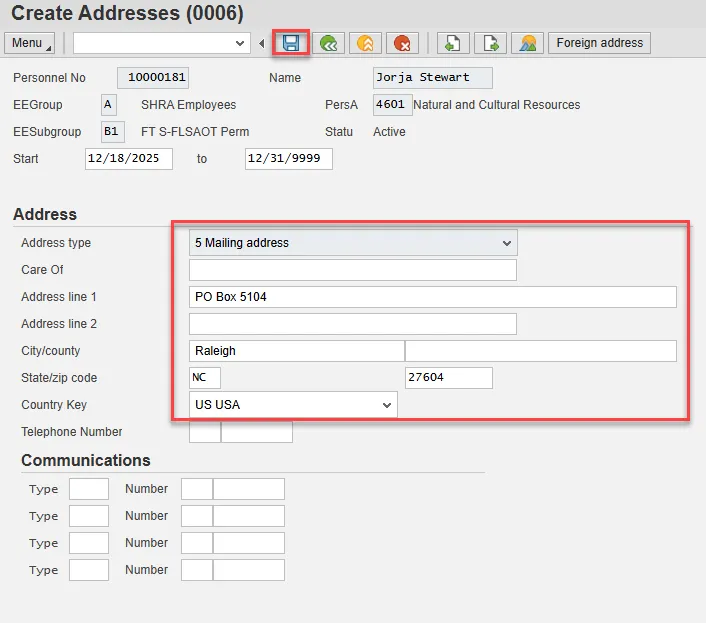
Step 28. Update the mailing address information.
Enter and Save.
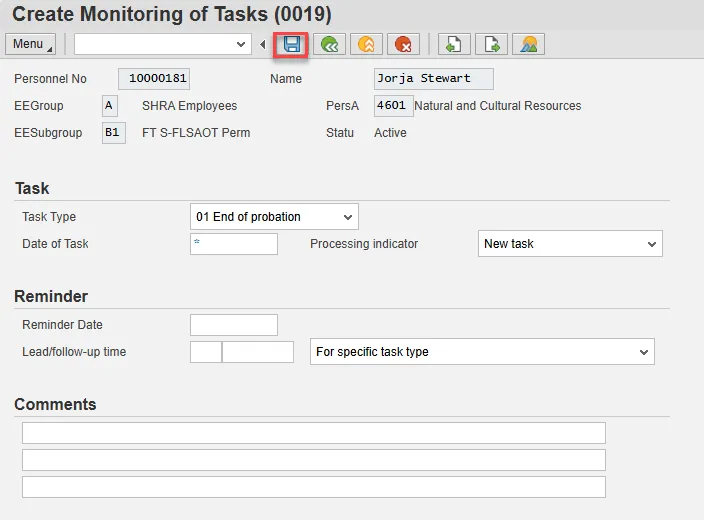
Step 29. Enter a reminder through the Monitoring of Tasks screen as appropriate.
Insert any notes or comments pertaining to the task. To view these task reminders, you can run the BOBJ Report – B0099 – Employee Deadline Dates. Managers can view for their employees via MSS.
A common task type would be End of probation.
Best Practice: Enter the date to remind the supervisor to review the appointment change (end of probation or other). If no data entry is required, move to the next infotype screen by clicking the Next Screen button.
Enter and Save.
Step 30. Select the appropriate Residence status from the drop-down menu. The only required field is Residence status. The remaining fields are optional.
If a residence type other than Citizen is chosen, an additional screen will display containing infotype 0048 information to enter Residence Status details (such as permission number, expiration date, date of issue, etc.). In this example we have chosen Citizen.
When hiring someone who is a Non-Resident Alien, you will choose non-resident alien on IT0094. IT0048 will come up with US01 or US02 as the choices. When you save IT0094 with the non-resident alien choice, then IT0048 with Subtype US01 will come up. The dynamic action brings up IT0048 subtype US01 first, so if you don't want that one, click the YELLOW arrow past that infotype and IT0048 subtype US02 will come up.
Enter and Save.
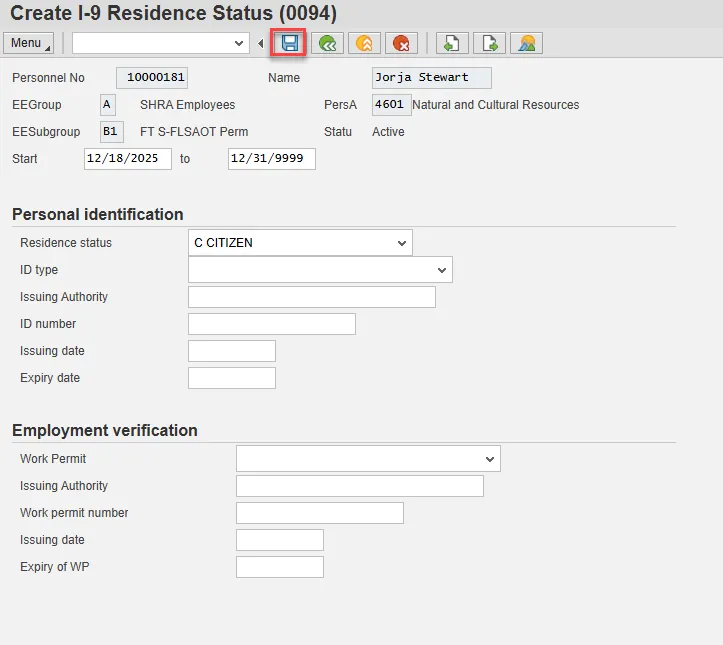
Step 31. On the Create Communication (0105) screen, update the Telephone field. This the employee’s first telephone number at work.
Enter and Save.

Step 32. Enter the number of hours this individual will work per week and click Enter to have the system validate the details.
The Work Schedule Rule and Time Mgmt status defaults from the employee's enterprise structure. It is critical that you review for correctness (including the working week) and change the work schedule as appropriate for the employee if it is different from the one that defaults.
If the individual is part-time, be sure to check the Part-time employee box.
The defaulted work schedule is based on information provided by the various agencies and the Integrated HR-Payroll System team members.
Subject employees must be positive time. Employment Percent should always be 100.
Once updated, Enter and Save.
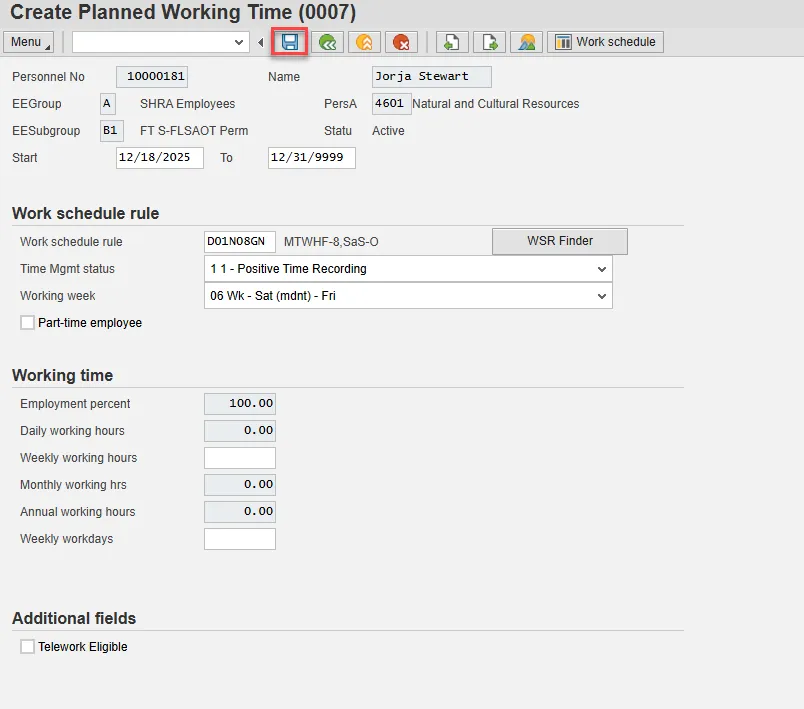
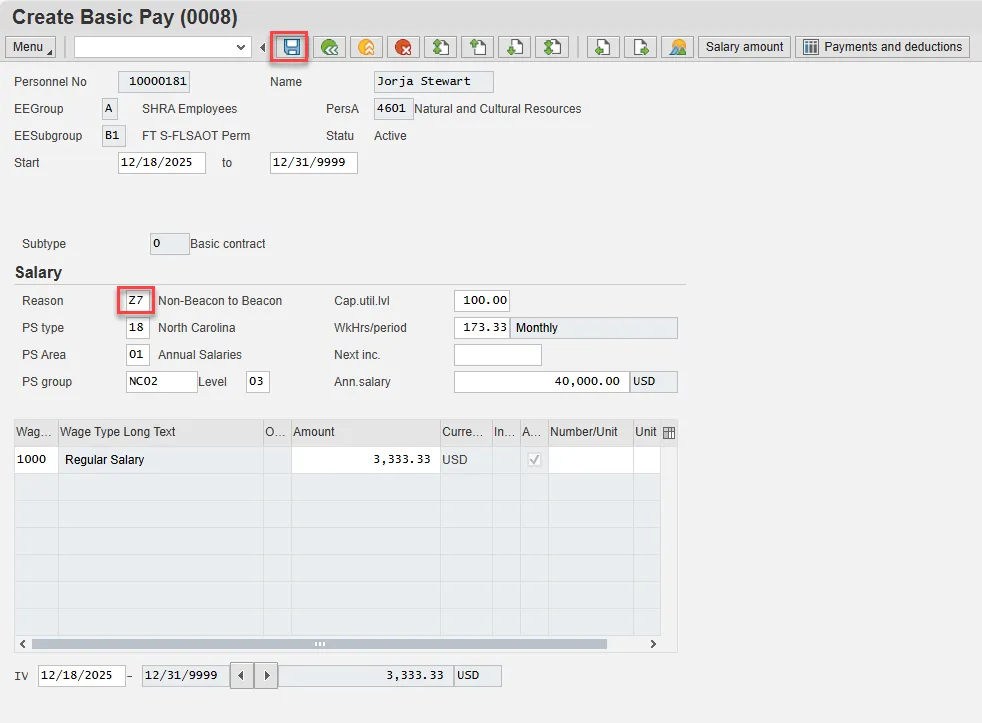
Step 33. On Basic Pay (0008), the pay scale values (pay scale type, pay scale area, pay scale group and level) have been designed to default based on the rules assigned to the employee's position. If the pay scale values do not default, please contact BEST Shared Services or your BEST HR Specialist.
Enter the Reason for the action (in the case of a New Hire there is only 1 reason), and the person's Amount if hourly. Click Enter and the system will validate the salary and provide the hourly rate.
Note: If the person is on an hourly position, enter their HOURLY rate, and the system will calculate their salary.
- Reason - enter or select from the drop-down menu
- Next increase - this field is blank except for the Judicial Branch, which uses it to track the next increase
- Annual Salary - populates from the workflow, verify this field for accuracy
- Amount - will be blank; if the employee is paid hourly instead of annually, enter the hourly amount in the Amount field
- Number/Unit - will be blank
- Unit - will be blank
Note: Employees can be different from the position. For example, the position may be annual salary and the employee may be hourly.
Once updated, Enter and Save.
Step 34. On the Possible subsequent activities pop-up, choose the green check in the bottom right.
Note: This is the Retirement Enrollment for the employee.

Step 35. Double-click Automatic offer.
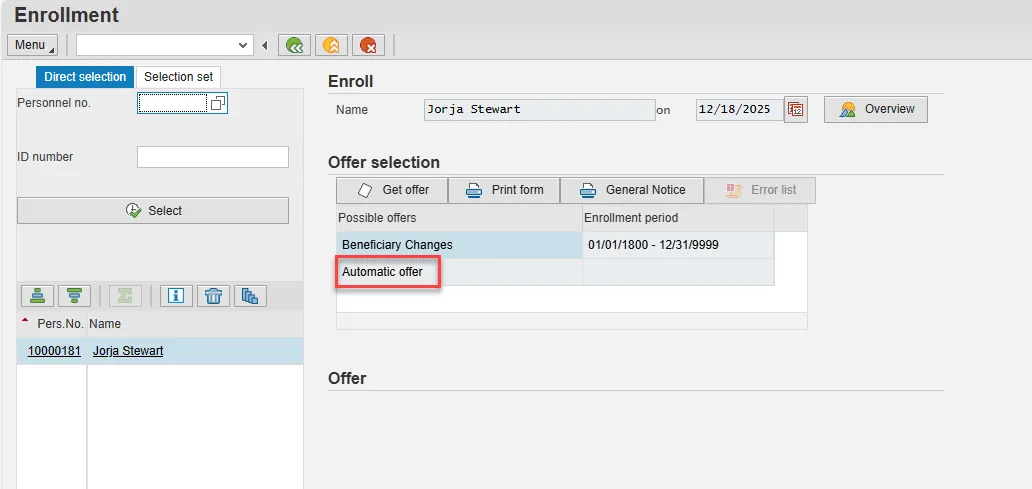
Step 36. Choose Enroll under Automatic offer.
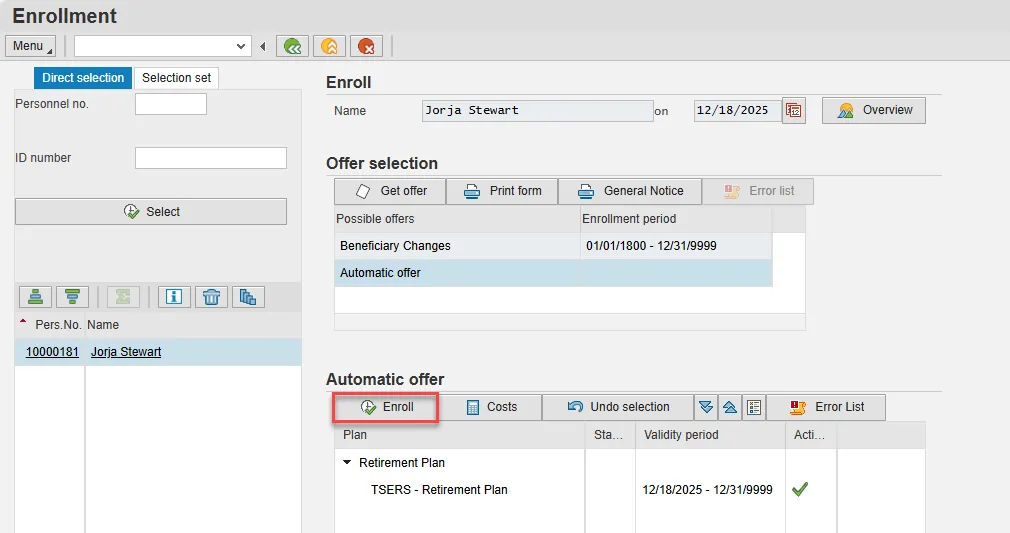
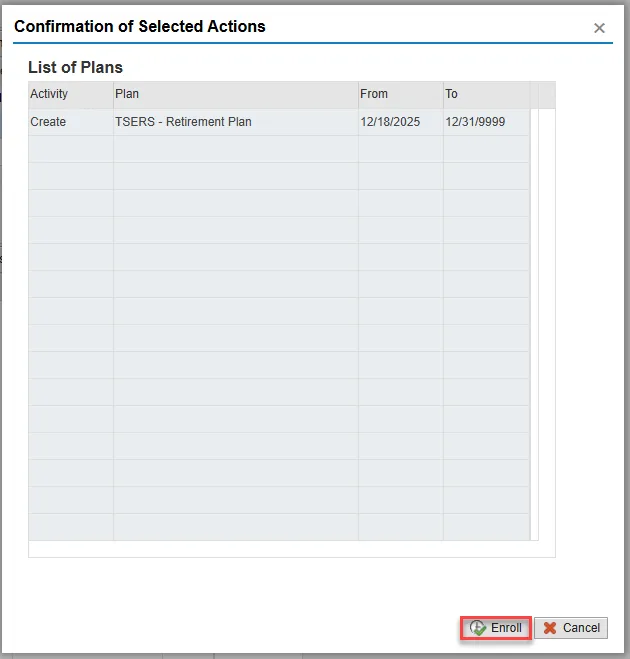
Step 37. On the Confirmation of Selected Actions pop-up, choose Enroll in the bottom right.
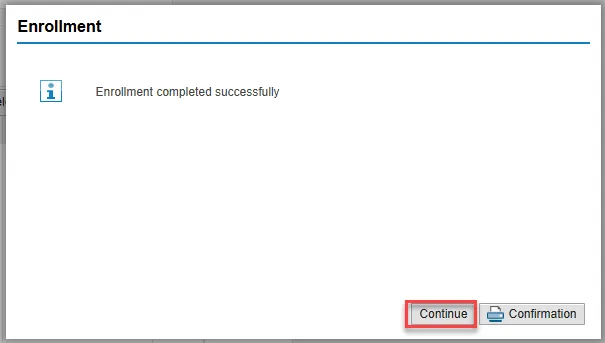
Step 38. On the Enrollment pop-up, select Continue in the bottom right.
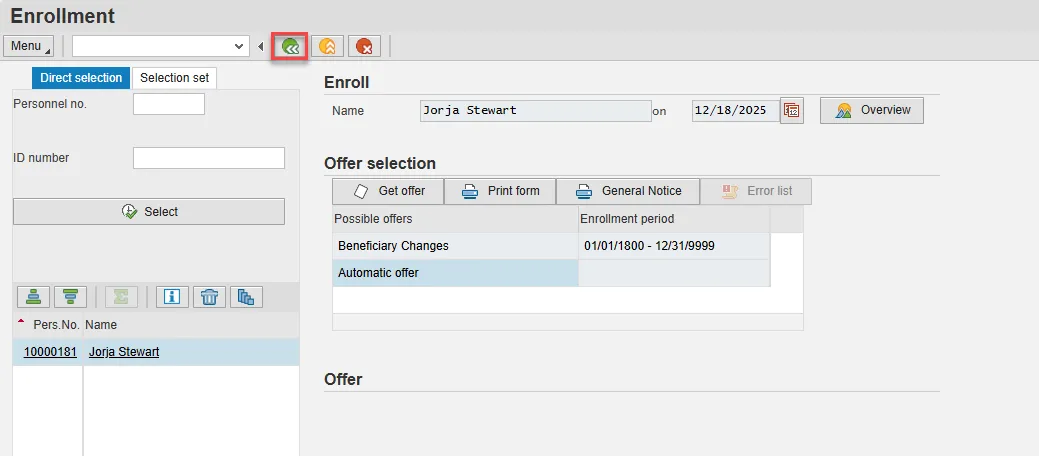
Step 39. Back on the Enrollment screen, choose the green Back button.
Step 40. Back on the Possible subsequent activities pop-up, choose the little X in the upper right to close the pop-up.

Step 41. The completion of the Bank Details infotype (IT0009) must be entered for payroll to run on the new employee. If the bank details are not available at the time of the data entry, set up a paper check. It is your responsibility to obtain that information and enter the infotype before the system is closed for payroll processing. Even if you have instructed the employee to enter the data in ESS, you still must follow up with the employee to ensure he or she makes the entry prior to payroll closing. You must obtain high level approval before you can change the field from “direct deposit” to “check.”
Once updated, Enter and Save.

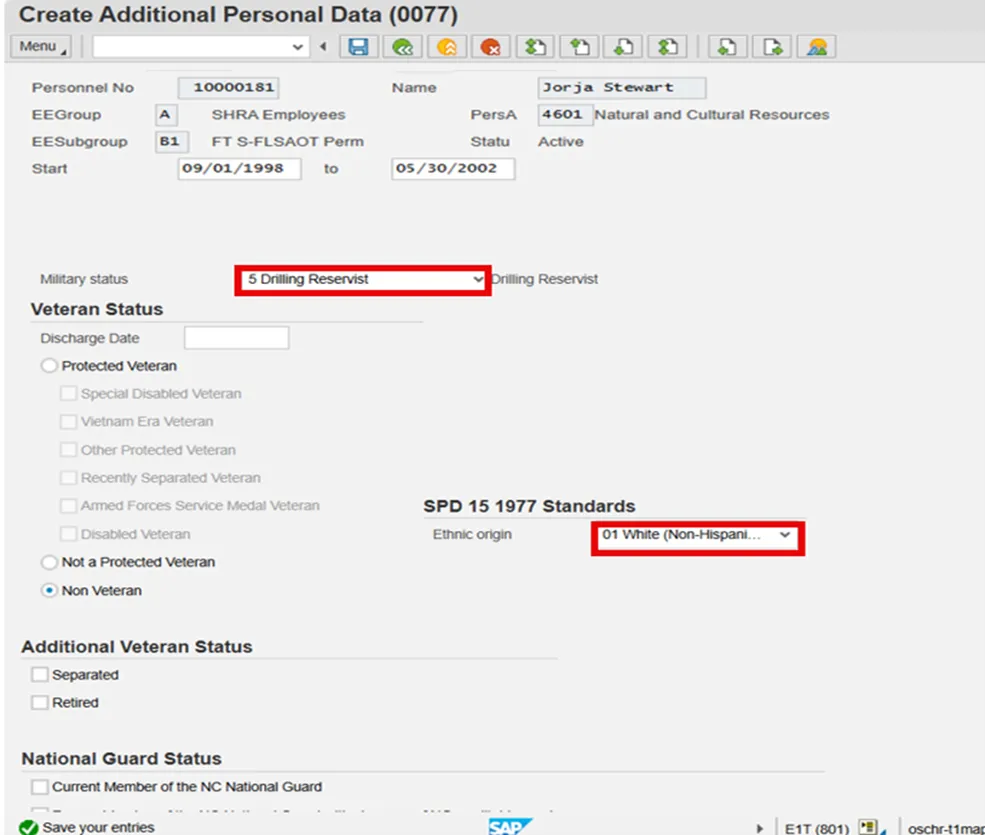
Step 42. On Create Additional Personal Data (0077), update Military status and Ethnic origin fields.
Resources: PER-49 Veteran and Military Status (IT0077)
Once updated, Enter and Save.
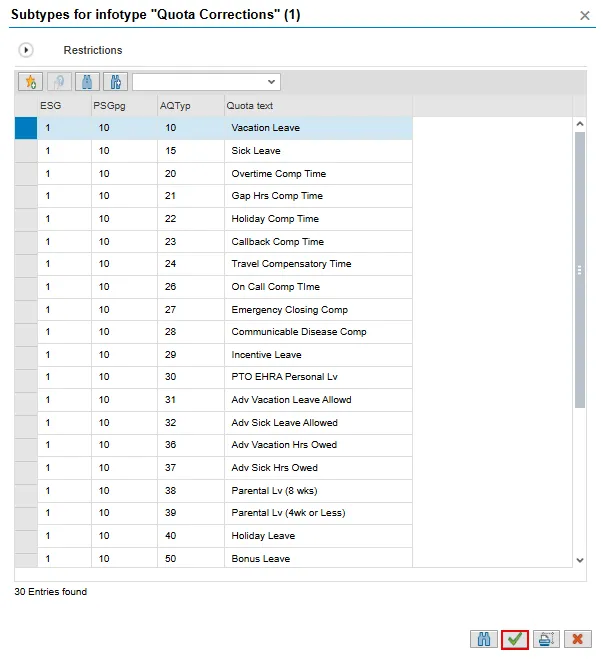
Step 43. 43. On the Subtypes for infotype “Quota Corrections” (1) pop-up, click the Leave type needed. (Military Training, Travel Comp., etc) Select the green check to close the pop-up.
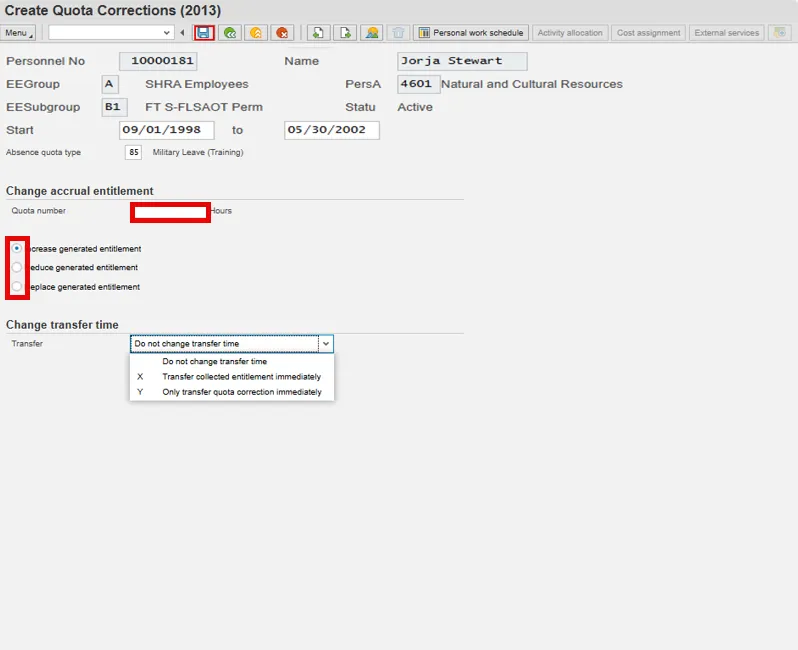
Step 44. On Create Quota Corrections (2013), enter the hours needed within the “Quota Number” field. Select the action to increase, reduce, or replace generated entitlement.
Step 45. Within the “Change Transfer Time” section, select the appropriate item within the “Transfer” drop-down list. Enter and Save.
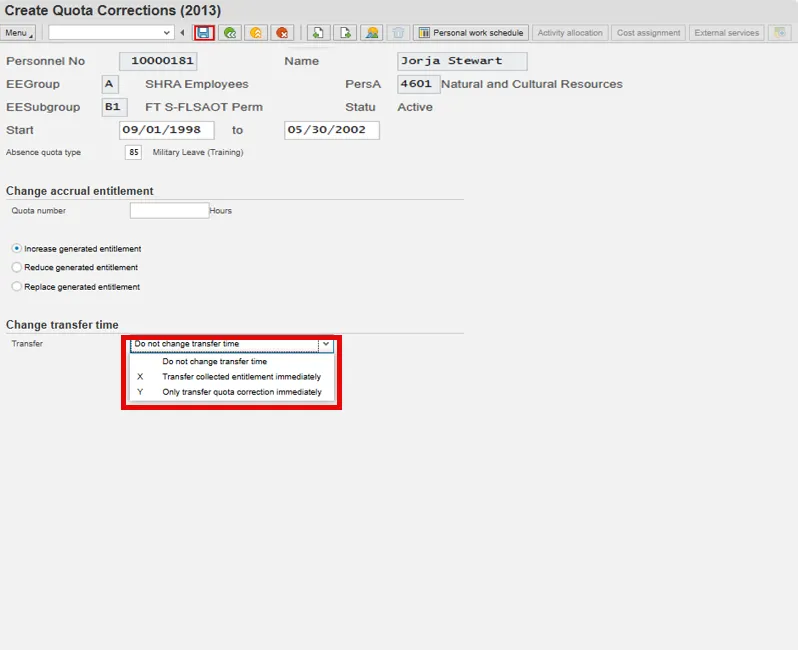
Step 46. Within the “Change Transfer Time” section, select the appropriate item within the “Transfer” drop-down list. Enter and Save.
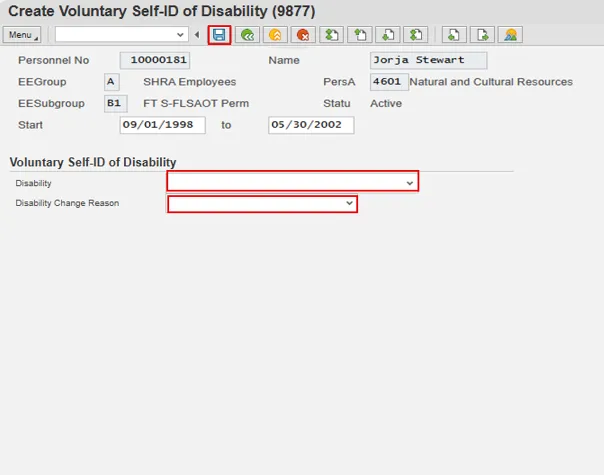
Step 47. On Create Voluntary Self-ID of Disability (9877), make a selection from the “Disability” drop-down menu. Select “Hiring Action” within the “Disability Change Reason” drop-down menu. Enter and Save.
Step 48. On the Subtypes for infotype “Education” (1) pop-up, double-click the level of education to document for the new hire.
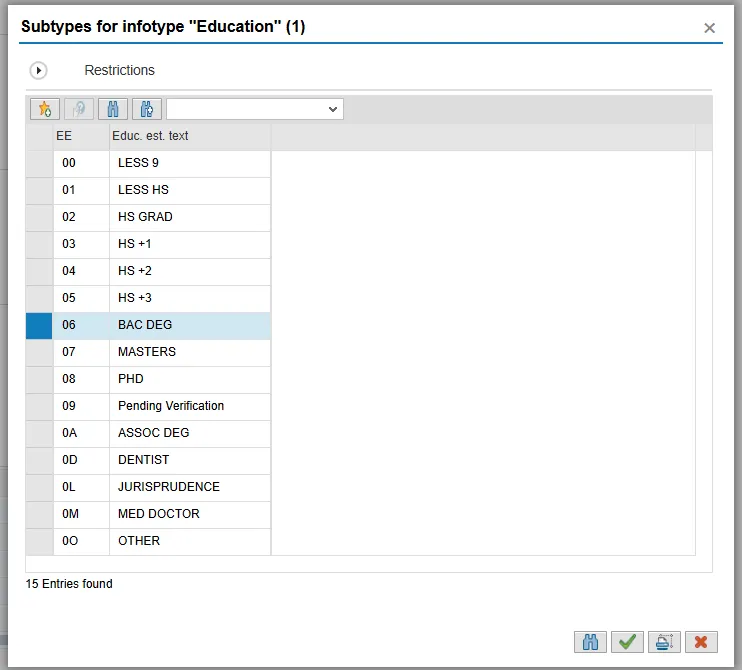
Step 49. On the Create Education (0022) screen, update the appropriate fields.
Note: The Start and to fields represent the beginning and ending of the time the new hire spent obtaining their education.
Once updated, Enter and Save.

Step 50. Enter a reminder through the Monitoring of Tasks screen as appropriate.
Insert any notes or comments pertaining to the task. To view these task reminders, you can run the BOBJ Report – B0099 – Employee Deadline Dates. Managers can view for their employees via MSS.
Best Practice: Enter the date to remind the supervisor to review the appointment change (end of probation or other). If no data entry is required, move to the next infotype screen by clicking the Next Screen button.

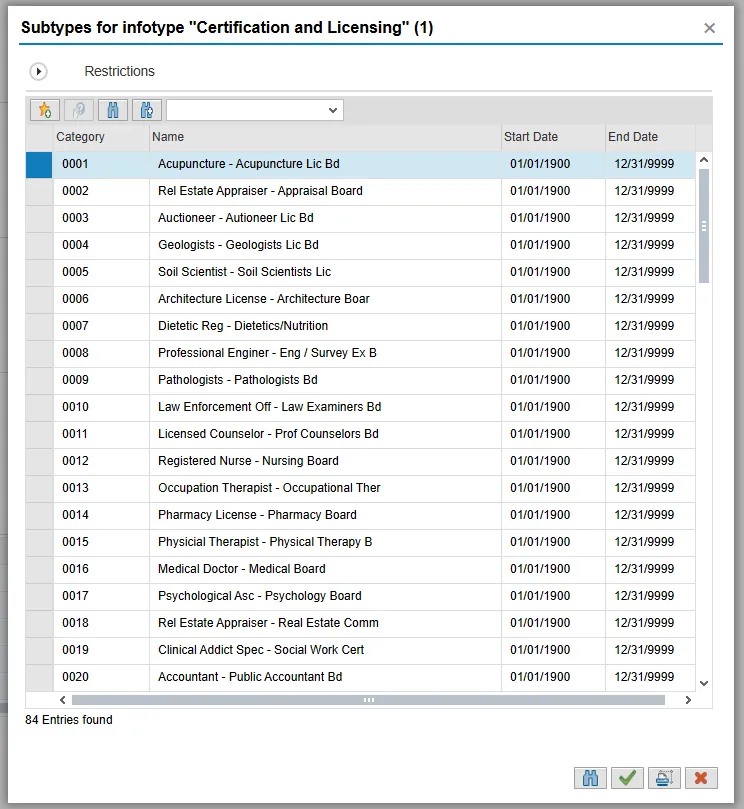
Step 51. On the Certification and Licensing pop-up, double-click the certificate or license held by the new hire. This infotype is used when the position requires a specific certificate or license. If this is not needed, simply use the X in the upper right to close the pop-up. If it is needed, once you double-click the certificate/license, it will take you to a screen to enter information.
Step 52. Create Objects on Loan (0040) can be used to document items loaned to an employee. It is not a required infotype and not all agencies choose to use this method.
NOTE: If the employee receives more than one item on loan, process a PA30 transaction in order to add the additional items to infotype 0040.
Once updated, choose Enter and Save. (Or choose Next Record if your agency does not use this infotype.)

Step 53. Back at the Personnel Actions screen, select the Green Arrow Back button.
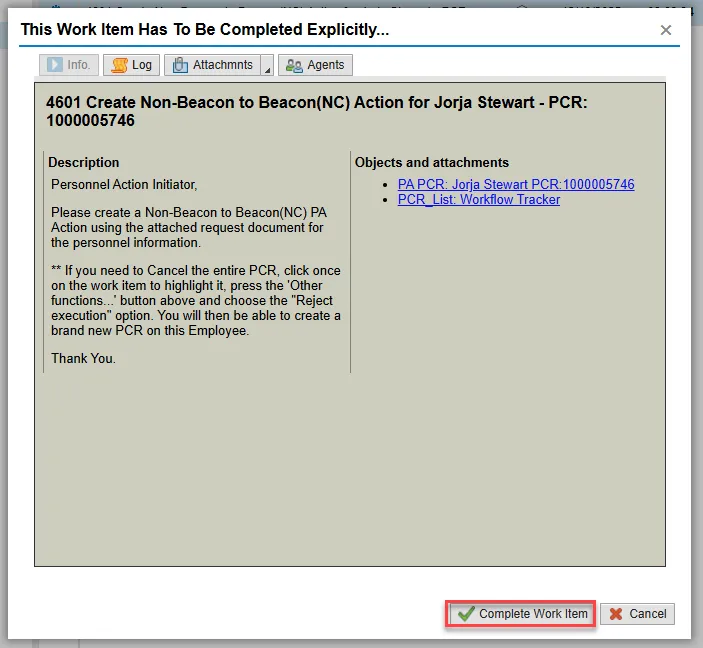
Step 54. On the pop-up, select Complete Work Item. (It has a green check beside it.)
Step 55. At the Decision Step in Workflow pop-up, choose PA Action Completed.

Step 56. From the Business Workplace screen, select the Green Arrow Back button to return to the SAP Easy Access screen.
The Non-Beacon to Beacon Action is complete, but the Integrated HR-Payroll System team recommends reviewing via PA20 all infotypes that have been processed.
You may need to create additional infotypes if employee is eligible via PA30:
- Employee has prior Creditable State service – Create IT0552 Time Specification/Employ Period
- Employee was paid pro-rated longevity – Create IT2012 Time Transfer Specifications