Purpose
The purpose of this Business Process Procedure is to explain how to process a Leave of Absence for Short Term Disability in the Integrated HR-Payroll System.
Trigger
There is a need to process a Leave of Absence for one of the reasons listed in the Business Process Procedure Overview section.
Business Process Procedure Overview
Leave of Absence – Short-Term Disability – eligible employees who are unable to perform their regular work duties because of a temporary or permanent disability.
Short-Term Disability Reasons:
- 19 - Short-Term Disability 60 day waiting period – to track waiting period regardless if paid or unpaid.
- 26 - Short-Term Disability (Leave) - employee is using leave during short-term disability.
- 22 - Short-Term Disability (Lump sum) – employee is paid out for leave in one payment.
- 20 - Short-Term Disability Regular – employee is placed on this reason on the 61st day if not using leave.
- 21 - Short-Term Disability Extended – employee is extended beyond 12 months.
Short-Term Disability Information:
It is the Agency’s responsibility to:
- Notify the State Retirement system of the reimbursable amount for the second six months of STD, whether the reason is Regular or Leave.
- Run the Wage Type Reporter to get the numbers. Most Agencies should have access to the report.
- Notify the employee when STD is pending between extended and long-term disability.
IT2010 process – see end of document
Benefits (Employee is not using approved leave.)
Agency Specific Benefits
- Each agency is responsible for administering these plans according to their agency process.
NCFlex Plans
- Will terminate in the Integrated HR-Payroll System.
- Will end the last day of the month premiums were paid.
- Employees can continue these benefits plans while on LOA by paying the NCFlex vendors directly.
- Premiums will not be deducted from STD payments.
State Health Plan
- Employees on STD will no longer be able to have their premiums for health insurance and/or NCFlex coverage payroll deducted. Employees will be billed by iTEDIUM for premiums owed for State Health Plan coverage. Employees with NCFlex Plans will need to follow the instructions outlined on the current Leave of Absence Letter for information regarding making these premium payments.
- Employees placed on LOA without pay can choose to discontinue their State Health Plan coverage or drop dependents from the plan and remain on employee only coverage. If an employee wants to discontinue their SHP coverage, they will need to submit a ticket to BEST Shared Services within 30 days of reaching a LOA without pay status.
- Employees placed on LOA without pay who would like to continue their coverage for dependents and/or any employee only costs will be billed by iTEDIUM. Failure to make payments will result in termination of the State Health Plan coverage. Employees whose coverage is terminated will not be able to re-enroll until the next open enrollment.
- Employees on LOA that requires them to pay full cost for their health insurance will be billed by iTEDIUM. If premiums are not received, their health insurance coverage will be terminated.
LOA Checklist
- PA20 Display (Employee is active in the system)
- IT0000 - Actions
- View employee’s Action history to ensure correct action is being entered and former actions have been entered appropriately.
- Verify eligibility for requested leave.
- CATS_DA – verify that time has been entered, released, and approved. Also, verify last day worked (9500 - Time Worked).
- PT50 to ensure that employee has enough leave, if requesting to use leave.
- Communicate with the Benefits Representative
- Benefits – setup procedures for payment continuation or termination of benefits.
- Time, Benefits, Payroll, State Service, and longevity are dependent on entries made for action, reason and infotypes.
- Agency decides if Time (agency wide) is entered by PA (HR Data Maintainer) on IT2001 or Time (Time Administrator) in CAT2
- Employee should make no time entries while on LOA.
- Time Type 9500 (time worked) shouldn’t be used while employee is on LOA.
Procedure
There are 17 steps to complete this process.
Step 1. From the SAP Easy Access page, select transaction code ZPAA076.

Step 2. On the Employee Action Request screen, complete the Personnel No. field and select Enter on the keyboard.

Step 3. In the Effective on field, input the correct effective date.

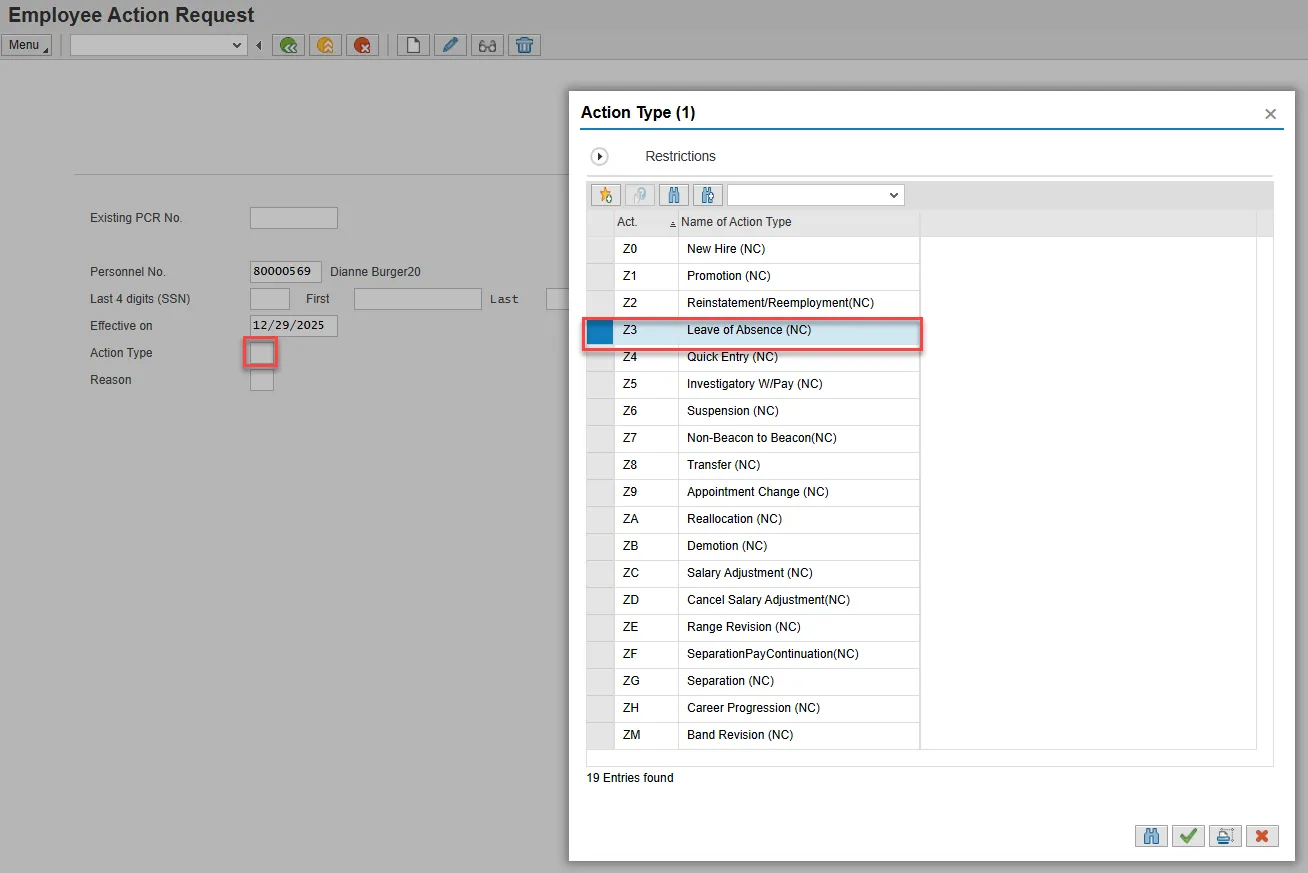
Step 4. Select the Action Type field and access the matchcode. Double click Leave of Absence from the list.
Step 5. Select the Reason field and access the matchcode. Double click the appropriate reason from the list.
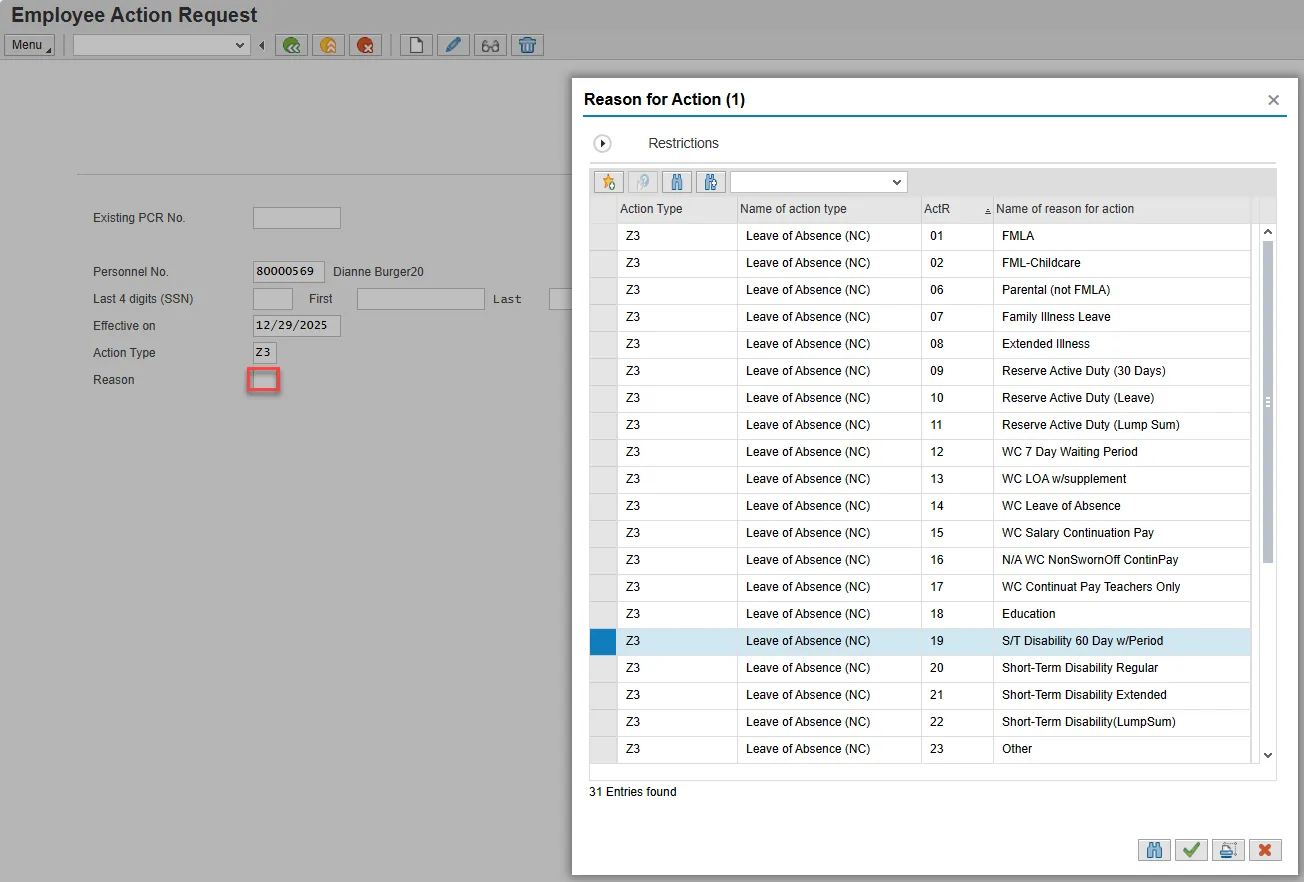
Note: Only select the “60 day waiting period” reason when FMLA has been completely exhuasted.
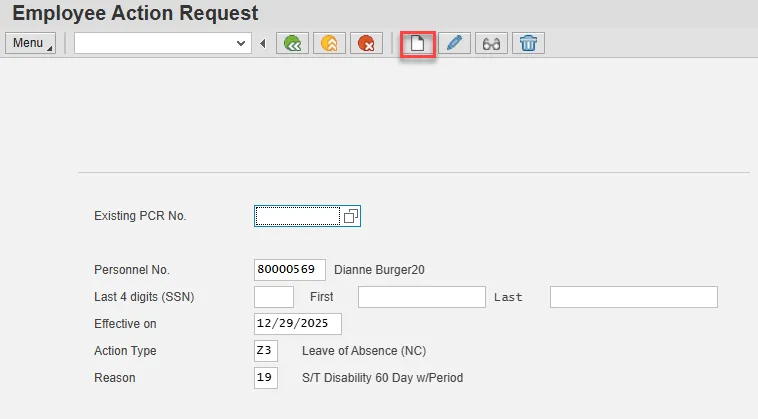
Step 6. Choose Enter on the keyboard and select the Create button.
Step 7. Enter the salary information in the Annual Salary field.
Make sure the Level field represents the level associated with the range of the salary. Choose the matchcode to find the correct level.
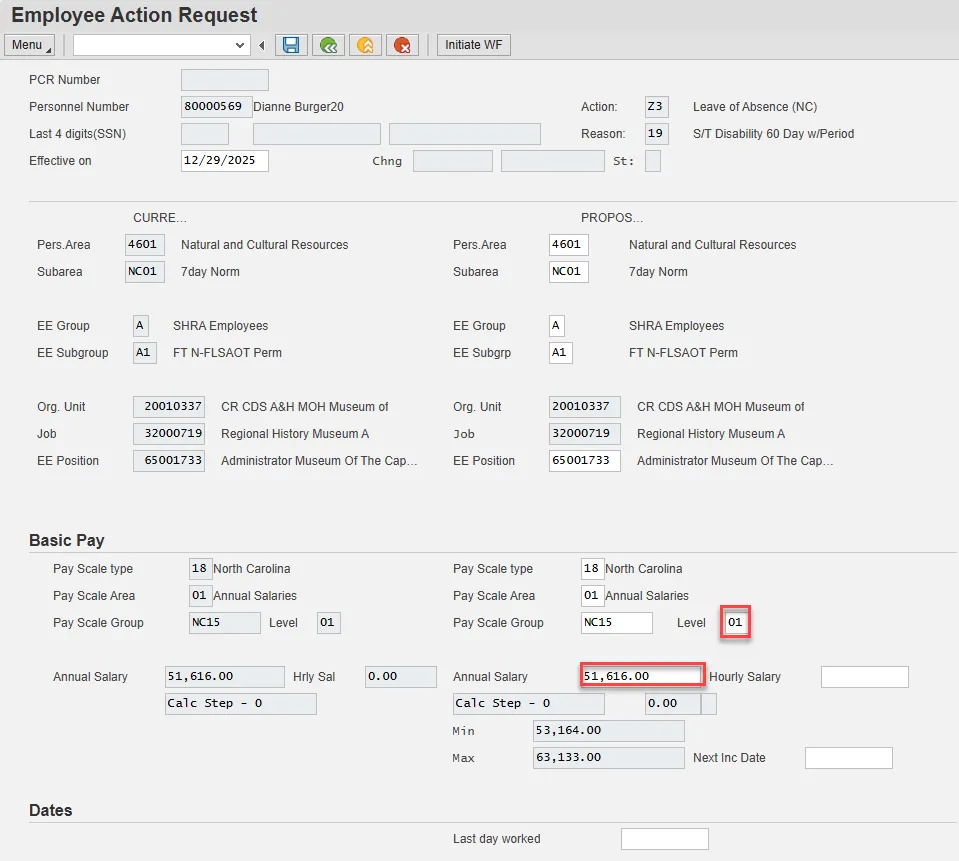
Step 8. Select Save.
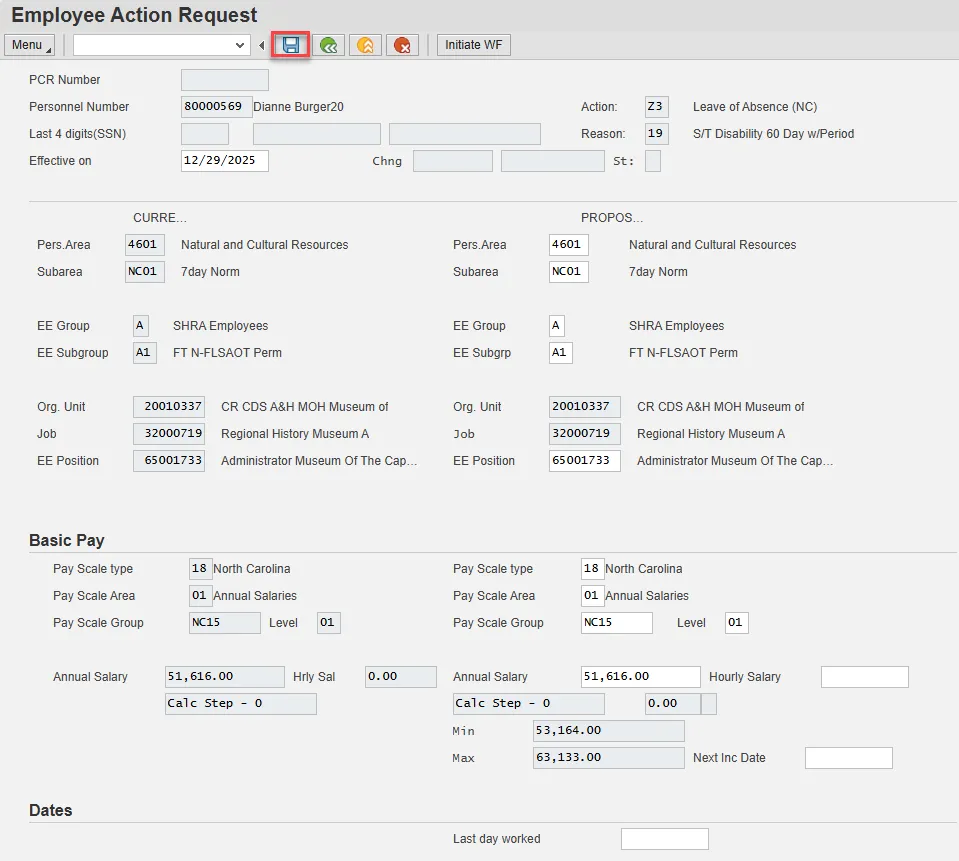
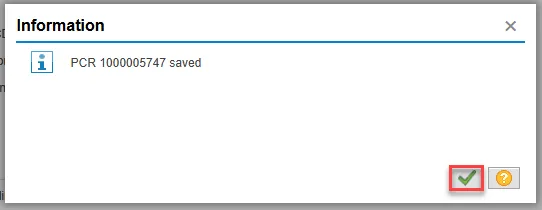
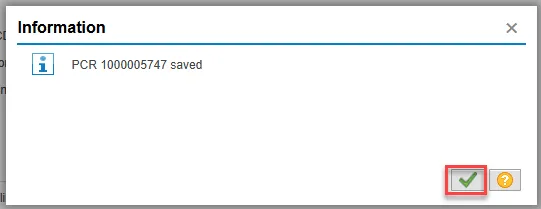
Step 9. The action request will be assigned a PCR number. Choose the green check button from the pop-up.
Note: You can save this information as much as you like. Each time you will receive confirmation of the save. You will not be able to create a note attachment until you have saved it at least once. If you have submitted the PCR to workflow already, you will not be able to change the details, nor save any new information, only display the existing details.
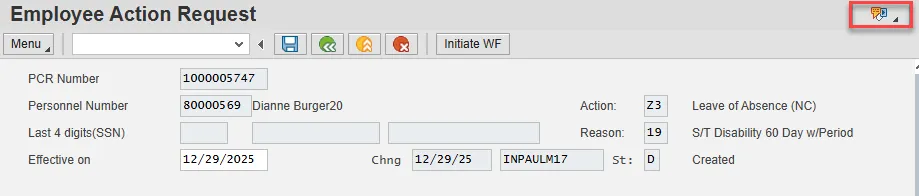
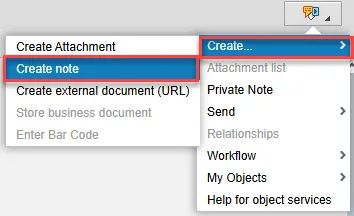
Step 10. Select the Services for Object button in the upper right corner.
Step 11. Hover over Create and choose Create note from the drop-down menu.
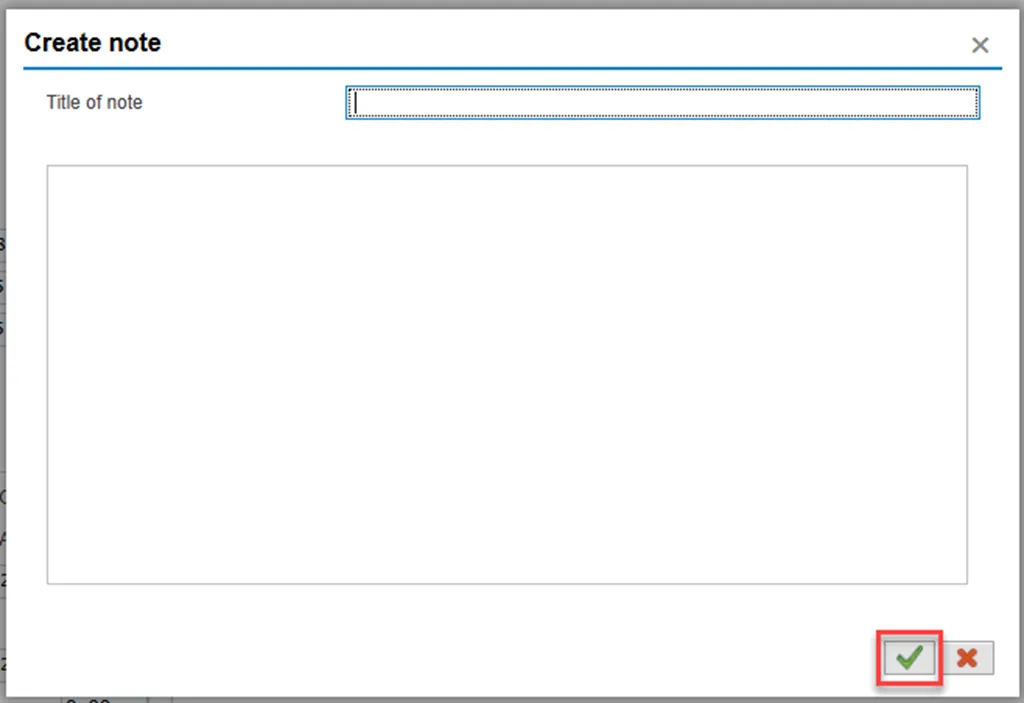
Step 12. Update the Title of note field and the body of the note.
The note is a required part of the request creation process. Notes entered during PA workflow must follow OSHR’s action notes template: PA Action Notes Template
Choose the green check button in bottom right of note pop-up.
Step 13. Choose Save.

Step 14. Select the green check button in bottom right of Information pop-up.
Step 15. Choose the Initiate WF button.
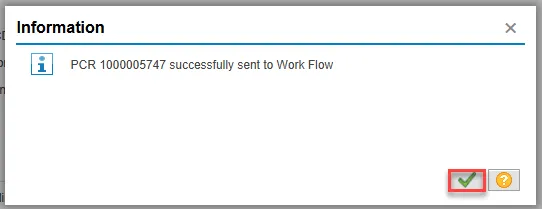
Select the Initiate Workflow button to send the Reinstatement Action through the approval process. No changes can be made after the PCR has been submitted for approval, unless the PCR is rejected at any stage and sent back to you (the initiator/requestor).

Step 16. Select the green check button in bottom right of the Information pop-up.
Step 17. Choose the green Back button.
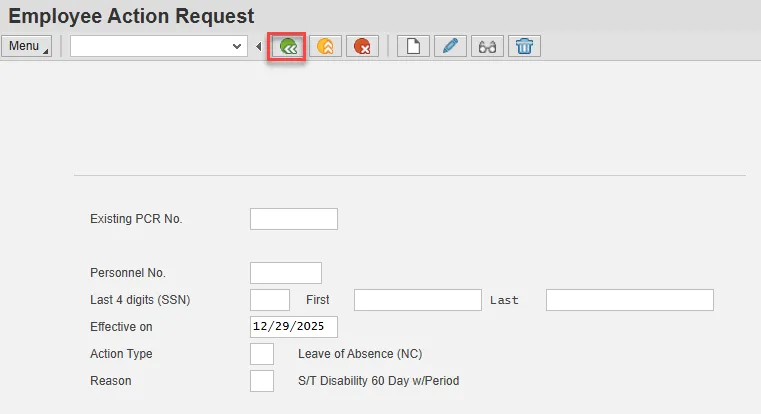
The Initiate Leave of Absence request is complete.
After Workflow Approvals have been received, proceed with the Complete Leave of Absence Action process.
Instructions for Completing the Action
There are 23 steps to complete this process.
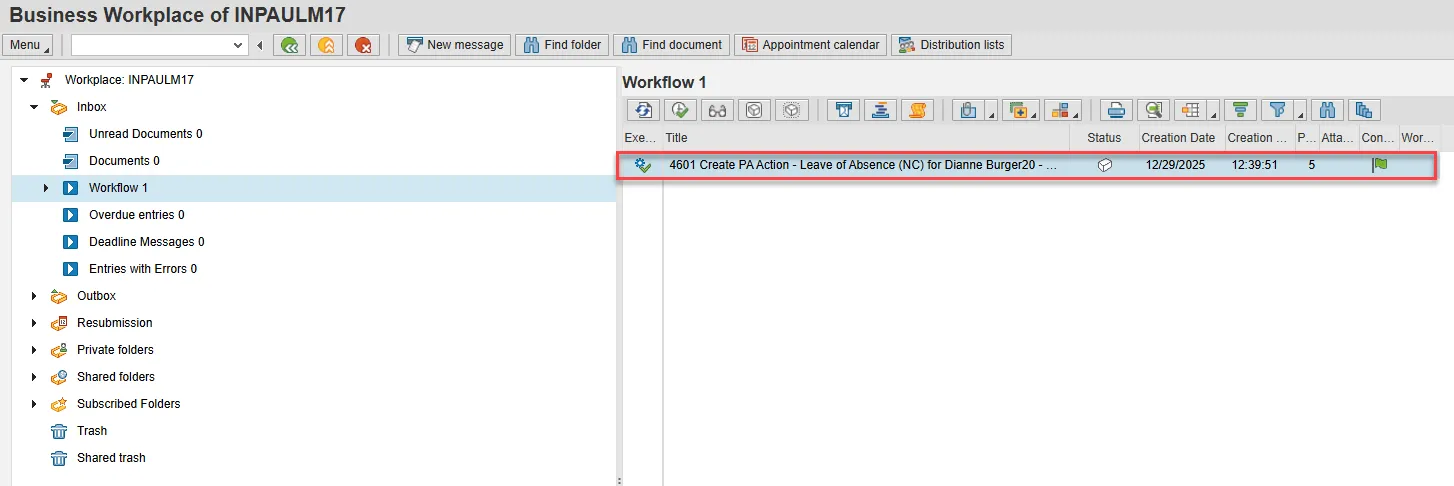
Step 1. Choose the SAP Business Workplace button from the SAP Easy Access page.

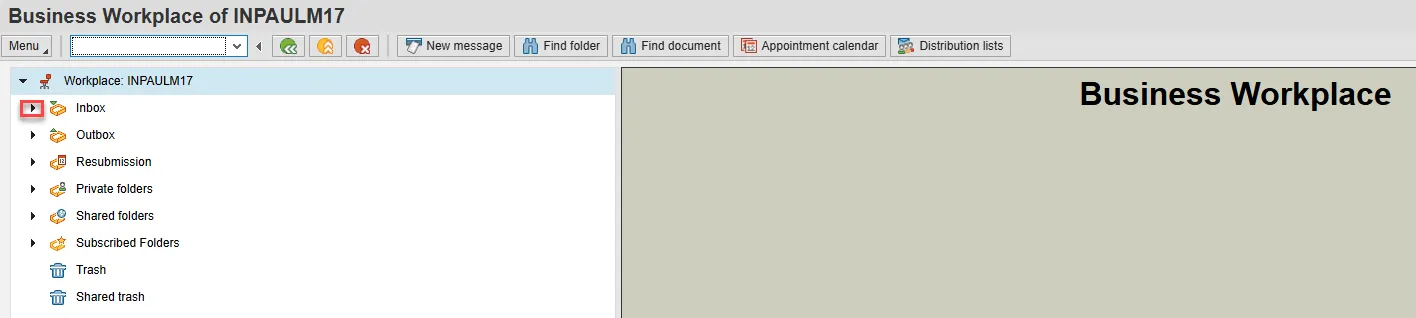
Step 2. Expand the Inbox using the expand node.
Note: Failure to complete this step could cause some functions to be unavailable on the secondary button ribbon in the subfolders.
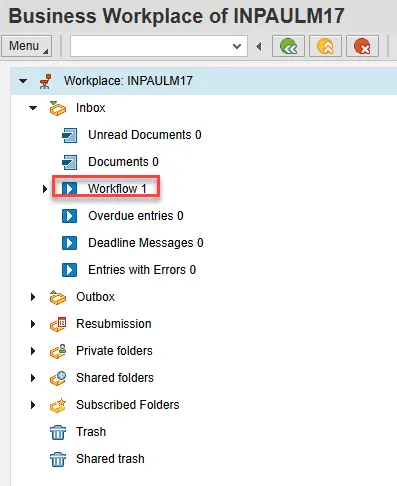
Step 3. Select the Workflow subfolder.
Step 4. Access the Environment button on the secondary button ribbon to retrieve a copy of the note. Access PER-57 Copying Notes from the PCR to Infotypes for steps on retrieving the note.
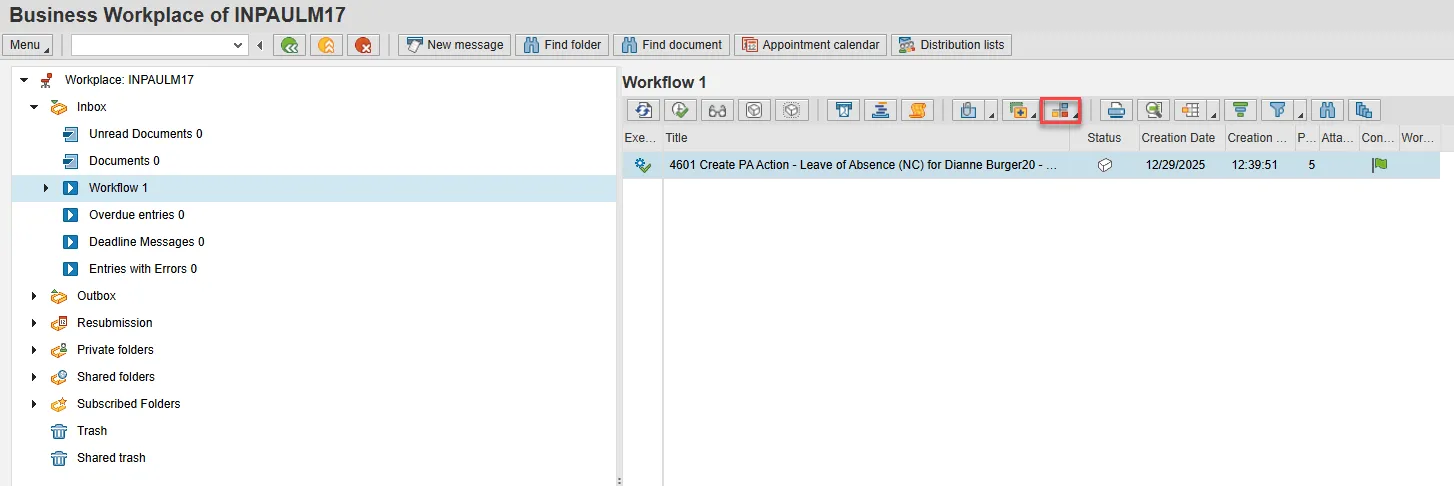
Step 5. Double click the PCR to begin the action.
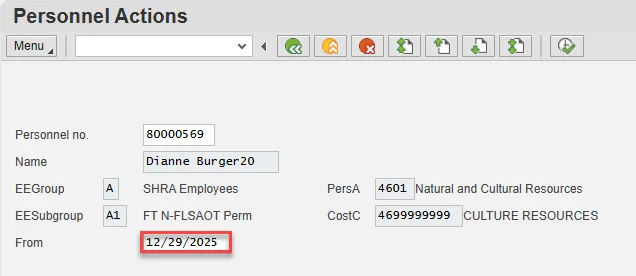
Step 6. On the Personnel Actions screen, enter the effective date in the From field.
Note: The effective date must match the date used to create the request.
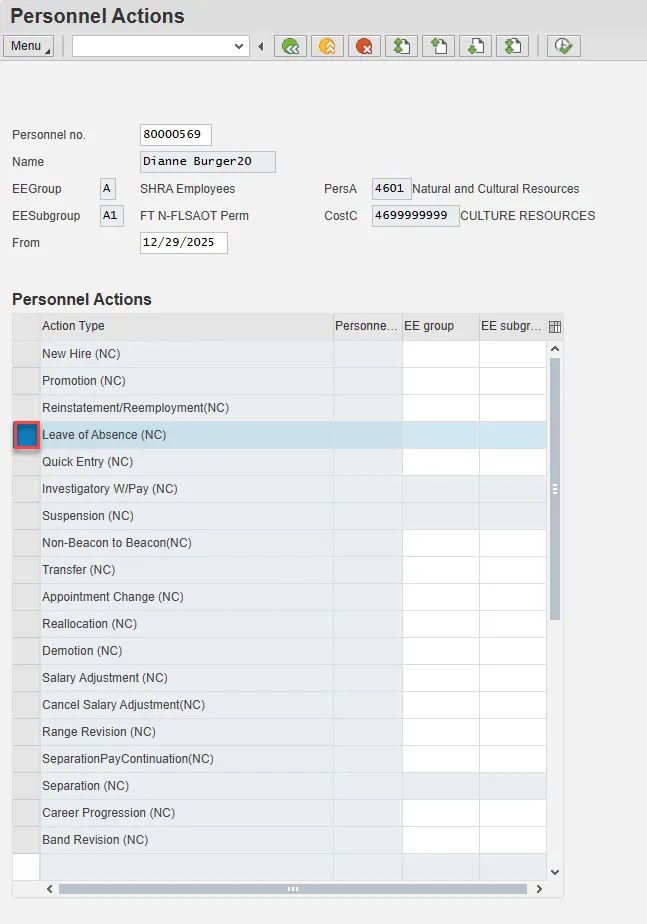
Step 7. Select the gray box to the left Leave of Absence to highlight that action.
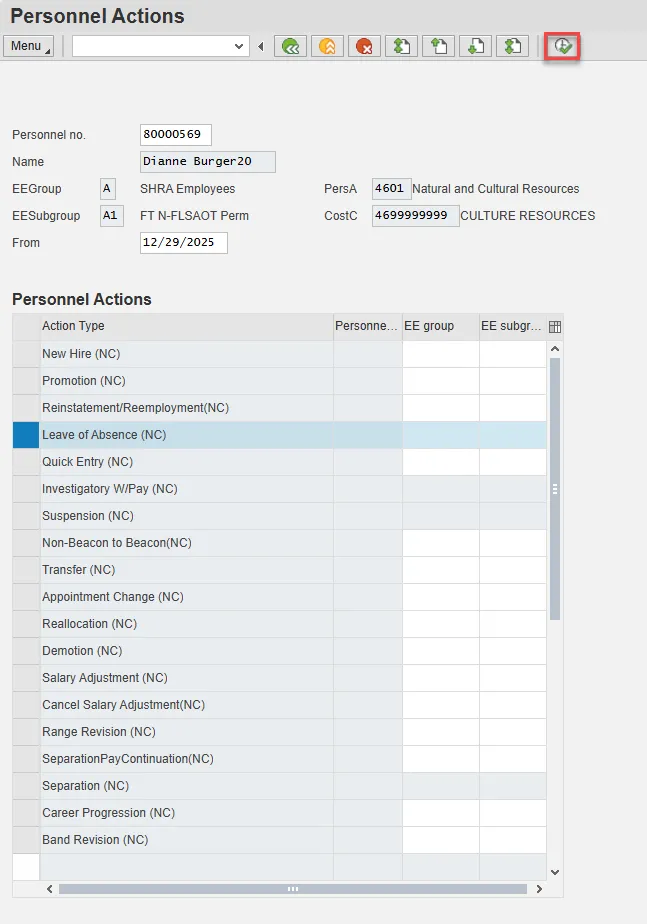
Step 8. Select Execute.
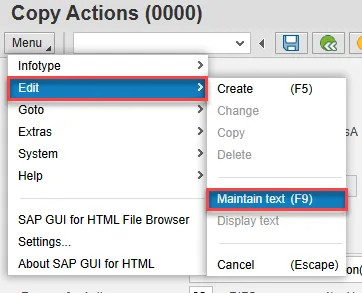
Step 9. On the Copy Actions (0000) screen, select the Menu button.
Step 10. Hover over Edit and choose Maintain text (F9) from the pop-out menu.
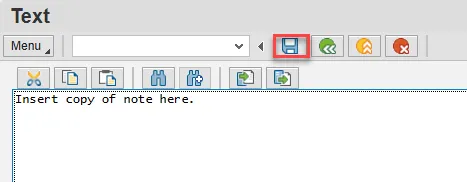
Step 11. On the Text screen, insert your note and choose Save.
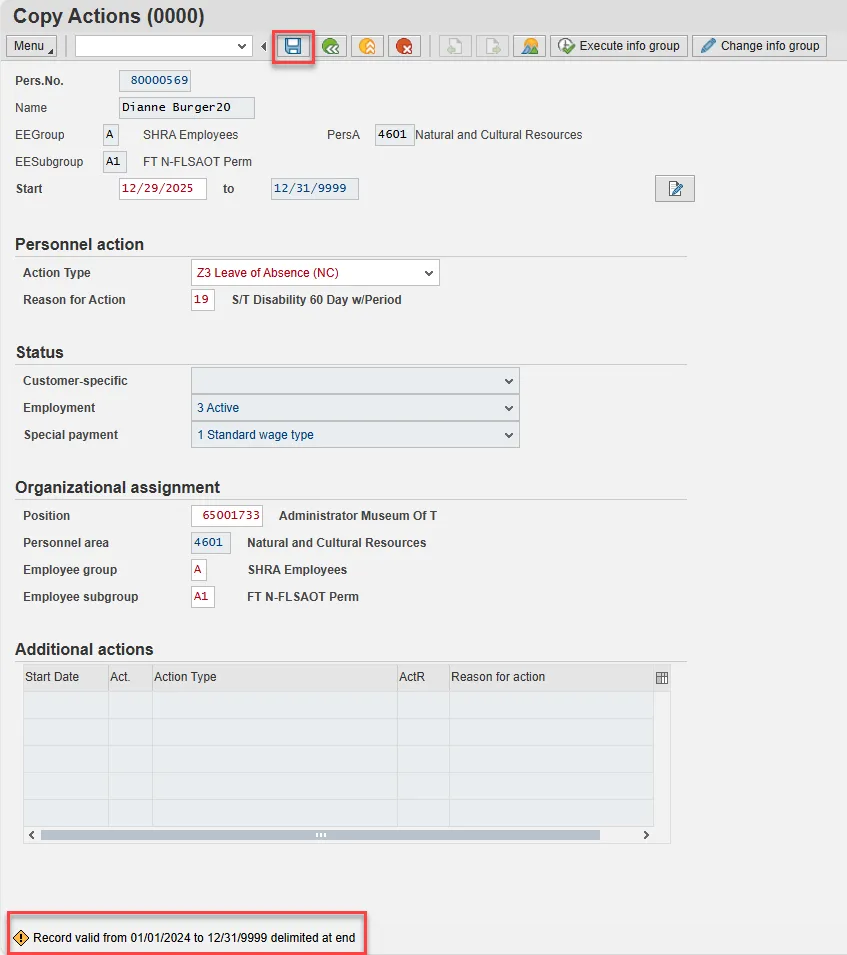
Step 12. Back on the Copy Actions (0000) screen, choose Enter on the keyboard.
Some items may turn red and there may be a yellow warning message in the bottom left stating that a record is being delimited. This is expected behavior. Choose Save.
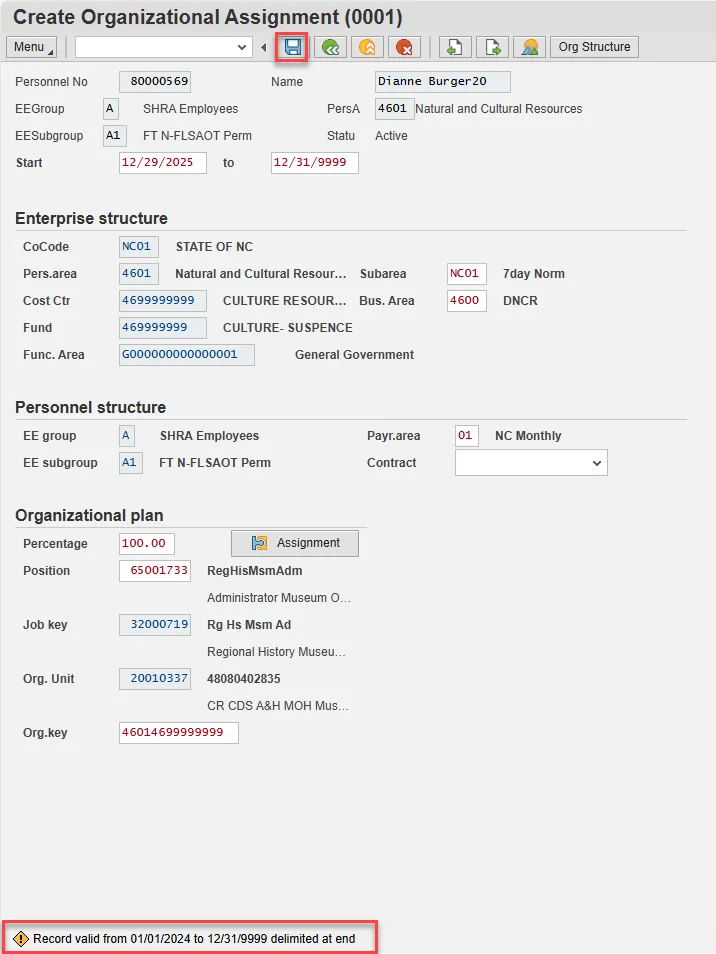
Step 13. On Create Organizational Assignment (0001), select Enter on the keyboard.
Some items may turn red and there may be a yellow warning message in the bottom left stating that a record is being delimited. This is expected behavior. Choose Save.
Note: If the employee has less than five years of state service, a ticket should be placed with BEST Shared Services.
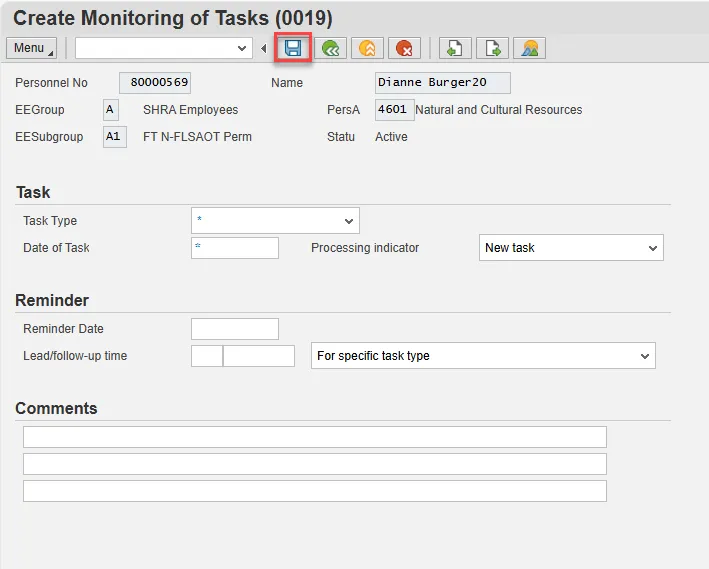
Step 14. Enter a reminder through the Monitoring of Tasks screen as appropriate.
Insert any notes or comments pertaining to the task. To view these task reminders, you can generate the BOBJ Report – B0099 – Employee Deadline Dates. Managers can view for their employees via MSS. If no data entry is required, move to the next infotype screen by clicking the Next Screen button.
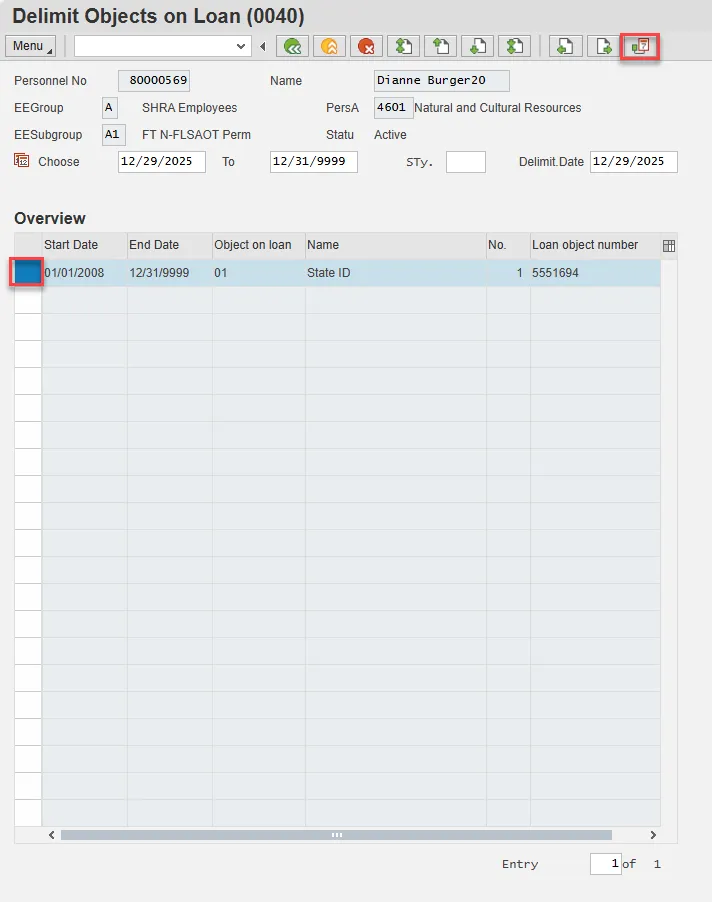
Step 15. Either skip or delimit depending upon whether (1) your agency uses this infotype (2) your agency requires employees to return items while out on leave, or (3) the employee returned items if required to do so.
On the Delimit Objects on Loan (0040) screen, choose the gray box next to the item you wish to delimit. Select the Delimit button.
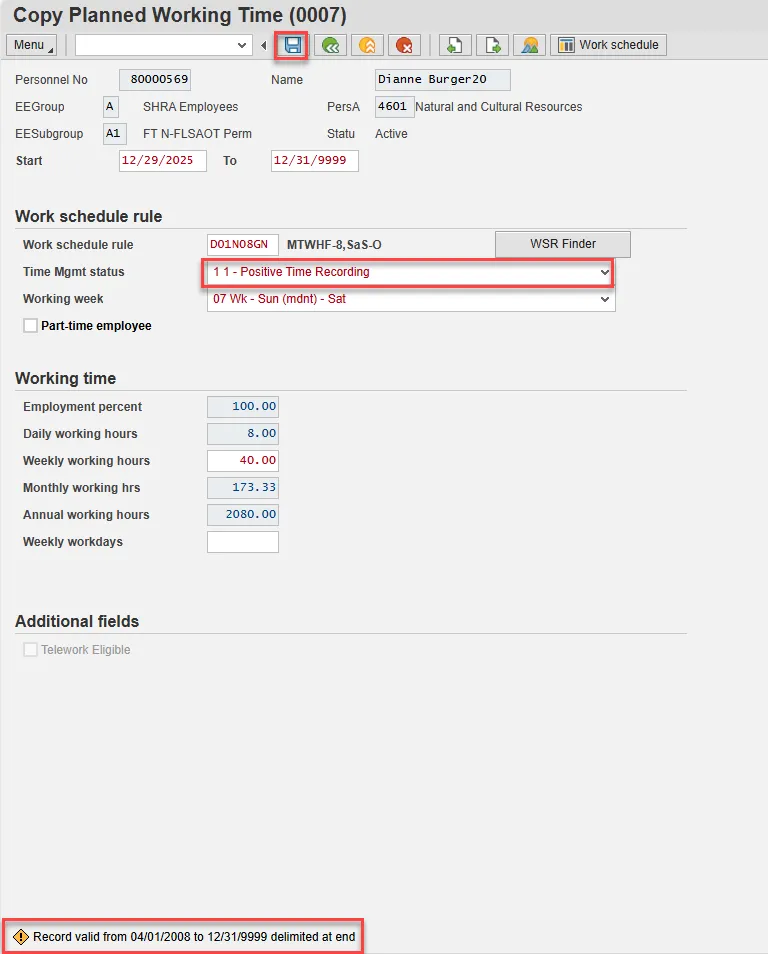
Step 16. On Copy Planned Working Time (0007), all full-time employees must be on a 5 -day, 8-hour per day work schedule (exception: DOT employees). The easiest way to accomplish this is to use D01N08GN. All employees, whether full-time or part-time, must be positive time recording.
For part-time employees, select an equivalent work schedule M-F. Example – PT EE 36 hrs equivalent schedule would be 5 x 7.2 = WSR DD9N1001
A 28-day employee will remain on the 28-day working week as long as they are exhausting leave. The working week should be changed to the normal agency specific working week on the 1st day they use LWOP. The work schedule rule is still changed to D01N08GN.
Enter and Save.
Step 17. On the Subtypes for infotypes “Absences” pop-up, choose the type of leave as applicable.
Choose the applicable leave type to indicate if the employee is to receive pay and if so from which type. Another option is to indicate that the employee is not to accrue leave or longevity while on unpaid leave. The codes are selected as follows:
- If the employee has requested to exhaust leave while on LOA, select the appropriate leave type from the list by double-clicking on the line or clicking on the line and choosing Continue. If the employee is exhausting multiple types of leave, create additional IT2001 record using PA30.
- If the employee is not exhausting leave and code 9400 (LWOP) is not applicable, click the X to close.
Note: If your agency does not use (2001) to record absences, then close this pop-up.

Step 18. On Create Absences (2001), update the Start and to fields to represent the time covered using the chosen type of leave. It is recommended that you maintain absences one week at a time.

The Absences infotype only displays if you selected a leave type from the subtype for Absences pop-up.
The Absences infotype (2001) indicates the number of hours the employee wants to use for leave and deducts from the leave quotas as applicable. If the employee should not accrue leave or longevity while on unpaid leave, enter Time Code 9400 (LWOP) in IT2001 (see State policy regarding accrual and longevity exceptions for Workers’ Comp, law enforcement and military leave). Once you enter the date and press Enter, the system will calculate the number of absence hours and days automatically. These numbers default based on the work schedule rule on IT0007. The dates that are used on the infotype:
- The “start date” should pre-populate automatically based on the effective date of the LOA Action.
- Enter the “to date” to reflect the number of hours of leave the employee wants to use (or for code 9400 if unpaid leave). Never enter 12/31/9999 as the “to date.”
Using leave accrued while out on leave: If an employee wants to use the time that was accrued while he or she was out on paid leave, create a new IT2001 via PA30 in order to enter the new leave time. Time should be entered on a weekly basis.
Note: An agency can make an agency-wide (not individual user) decision that LOA leave can be entered either on a timesheet by the Time Administrator or by HR on IT2001. The agency must be consistent across all employees for the entire agency. Because the Integrated HR-Payroll System is integrated, if the hours are entered on the Absences infotype 2001, they are processed during the next time evaluation. Do not enter Time via CATs.
Best Business Practice: Create IT2001 to exhaust leave on a monthly basis rather than the entire LOA period.
Step 19: Choose the appropriate type of leave to be paid out.
Note: An employee can request a lump sum (one time) payment of leave during a Military LOA or Short-Term Disability LOA only. Select the applicable leave type if the employee has requested a lump sum (one time) payment of leave instead of receiving it via regular pay disbursement. The employee cannot request leave both via regular pay disbursement (entered by HR on IT2001) and lump sum payment at the same time.
The system will show the number of hours per quota type available for compensation. Enter the total number of hours to be paid out for the quota type chosen here.
NOTES
- Do not change the effective date as you do in the Separation Action. Time evaluation is run nightly, so the balances should be current each day.
- The balances are current based on the time the Time Administrator or Supervisor has approved.
- If the employee has indicated a request for lump sum payment and has more than one type to be paid, you must use PA30 after you complete the LOA Action to select and enter the additional subtypes for IT0416.
- It is critical to ensure that all time has been entered, released, approved and that time evaluation has run before entering the LOA Action.
- If the balances are not ready to payout, skip and create by using transaction code PA30.
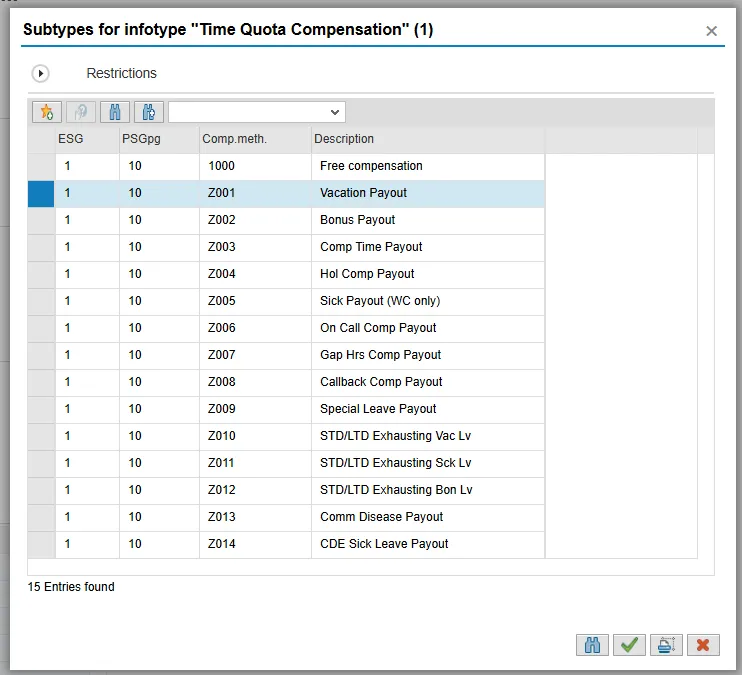
Step 20. Only complete IT0416 if using reason 22 – Short-Term Disability (Lump Sum).
The system will show you the number of hours per quota type available for compensation. Enter the total number of hours to be paid out for the quota type chosen here.
NOTES
- Do not change the effective date as you do in the Separation Action. Time evaluation is run nightly, so the balances should be current each day.
- The balances are current based on the time the Time Administrator or Supervisor has approved.
- If the employee has indicated a request for lump sum payment and has more than one type to be paid, you must use PA30 after you complete the LOA Action to select and enter the additional subtypes for IT0416.
- It is critical to ensure that all time has been entered, released, approved and that time evaluation has run before entering the LOA Action.
- If the balances are not ready to be paid out, skip and create by using transaction code PA30.
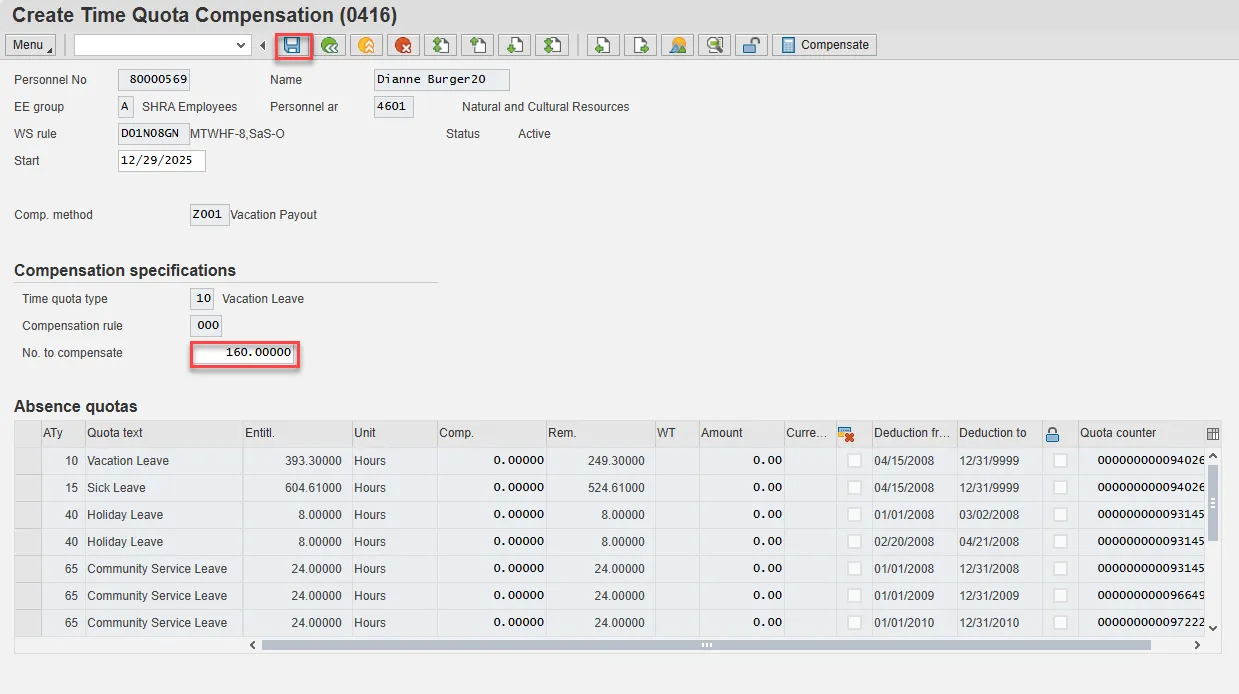
Step 21. Back at the Personnel Actions screen, select the Green Arrow Back button.
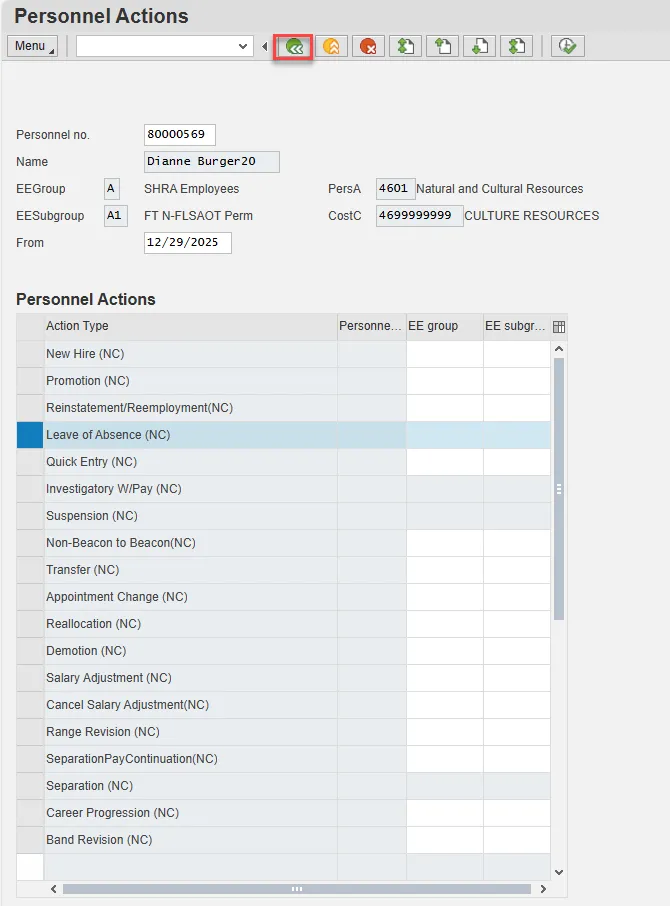
Step 22. On the pop-up, select Complete Work Item. (It has a green check beside it.)
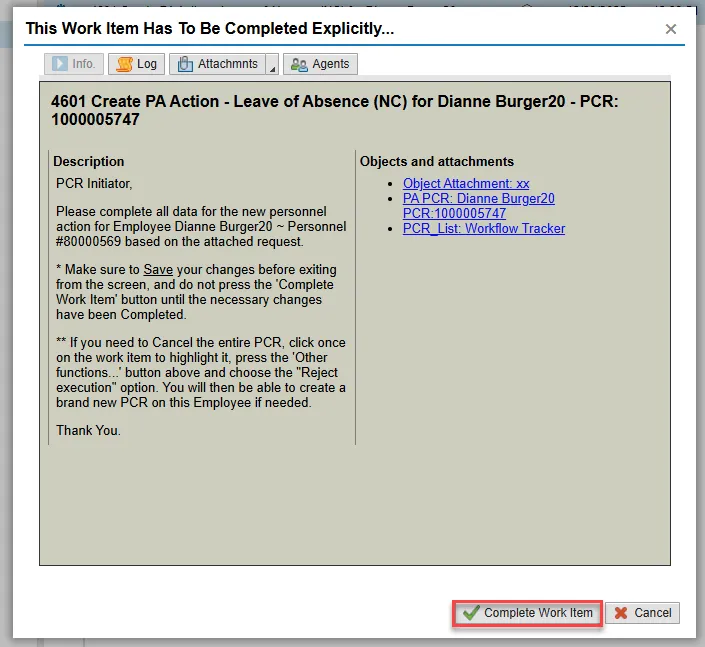
Step 23. From the Business Workplace screen, select the Green Arrow Back button to return to the SAP Easy Access screen.
The Leave of Absence Action Short-Term Disability is complete, but we recommend reviewing via PA20 all infotypes that have been processed.
Short-Term Disability Payment Process
You must create infotype 2010 Employee Remuneration Info via PA30 when employee is receiving Short-Term Disability payments. The monthly benefit payments during the STD period cannot exceed $3,000.
Process
- STD Specialist completes Forms 714 and 711
- Doctor completes Form 703
- Employee returns Form 703 to STD Specialist every 30 days. Exception: Approved DIP-7
- STD Specialist processes (STD payment) via PA30, creating an IT2010.
- The IT2010 is created when Form 703 is received.
Procedure
There are 5 steps to complete this process.
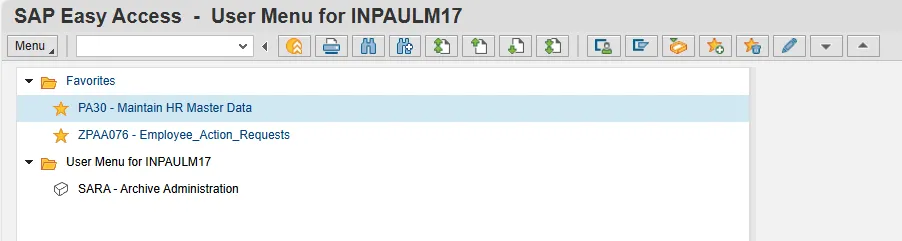
Step 1. From the SAP Easy Access page, select transaction code PA30.
Step 2. In the Direct selection infotype field, type 2010 and choose Enter on the keyboard.
Choose the Create button.

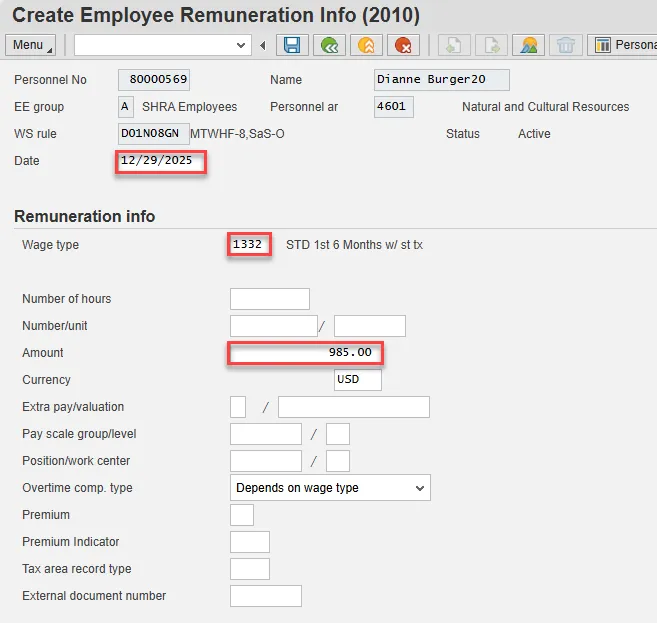
Step 3. On the Create Employee Remuneration Info (2010) screen, update the following fields:
- Date – this is the effective date
- Wage type
- Amount
Amount – The amount is the calculated benefit amount to be paid from forms 714 and 711. For wage types 1332-1335 (see below), the Integrated HR-Payroll System will allow dollar amounts only. Do not enter anything in the number of hours field or number unit field. Amount limit--You can enter only $3k for the current month. If an employee presents form 703 for several months past, you must enter each month separately with the applicable effective date. You can enter several months separately on the same day (with the different applicable effective dates for the 703), as long as the $3k total for the current pay period is not exceeded. For example, an employee has been on LOA –STD since 4/1/08. On 8/15/08 the employee brings in 703s for April, May, June, July, and August. Based on the calculations, the benefit is determined to be $985. On 8/15, you can enter the following: • 2010 with effective date of 4/1 for $985 • 2010 with effective date of 5/1 for $985 • 2010 with effective date of 6/1 for $985 In this scenario, you will have to wait until the next pay period to enter the amounts for July and August. At that time, you can enter the current (September) amount thereby catching up all past amounts and making the 2010 current. The following wage types are used as applicable. It is critical that you key the correct wage type for first and second six months. 1332 –Select if employee did not have five or more years of service as of 8/12/1989 for the first six months of Short -Term Disability (STD). Benefits are subject to state income tax. PER-69 – LOA – Short Term Disability 3/31/22 North Carolina Office of the State Controller Page 27 of 28 1333-Select if employee had five or more years of service as of 8/12/1989 for first six months of STD. Benefits are not subject to state income tax. 1334-Select if employee did not have five or more years of service as of 8/12/1989 for second six months of STD. Benefits are subject to state income tax. 1335–Select if employee had five or more years of service as of 8/12/1989 for second six months of STD. Benefits are not subject to state income tax. Pre-SAP Remuneration –if the employee is owed STD benefit payments that were due prior to your Agency SAP go-live date, you need to date IT2010 prior to 5/31/08. By using a date prior to 5/31/08, the Wage type drop down list changes to include wage types for pre-SAP, including 19SD, 19SS, 19ST, and 19DS. The $3k limit rule does not apply to pre-SAP remuneration. NOTE: For the first six months beginning the first of the month after the last month worked, any benefits payable under the Plan are subject to FICA (Social Security) taxes. Payments made more than six months after the last calendar month worked are not subject to FICA taxes.
Note: Click Edit >> Maintain text to add a comment stating how much the employee is to be paid.
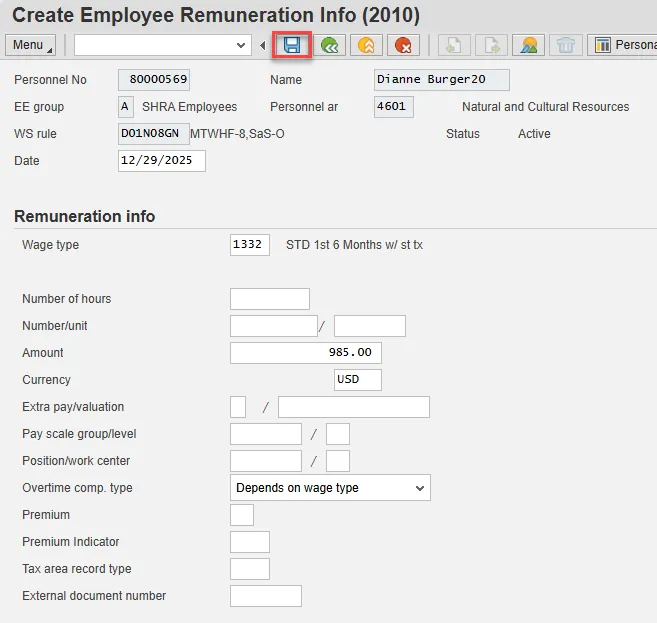
Step 4. Choose Enter and Save.
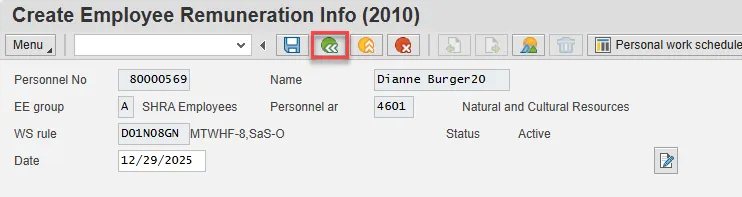
Step 5. Select the green back button to return to the SAP Easy Access screen.