Purpose
The purpose of this job aid is to explain how to change a work schedule rule. To change the work schedule rule on an individual, you will process the change via transaction code PA30. Always use COPY to keep a record of the historical work schedules. This process is used only if an action isn’t required for the change.
The work schedule:
- Is required for all employee records;
- Defines the expected daily work hours;
- Defines the number of expected work days used to determine when an employee will accrue leave in that month;
- Is used to limit leave usage;
- Does not limit work hours that can be recorded;
- Can drive Shift Premiums for eligible employees; and
- Is tied to a Holiday Calendar.
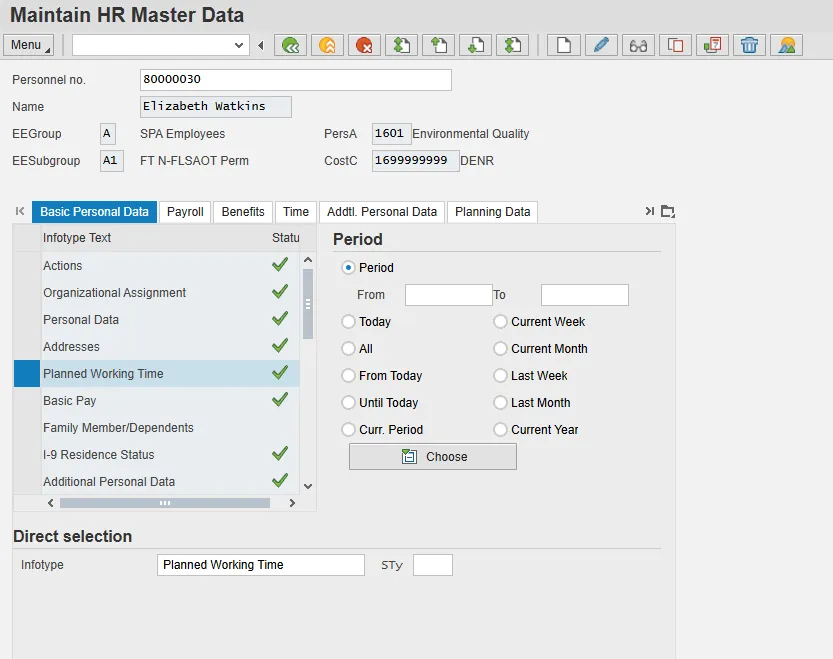
There are 6 steps to complete this process.
Step 1: Highlight Planned Working Time or Enter 0007 in Infotype.
Step 2: Click the Copy button.
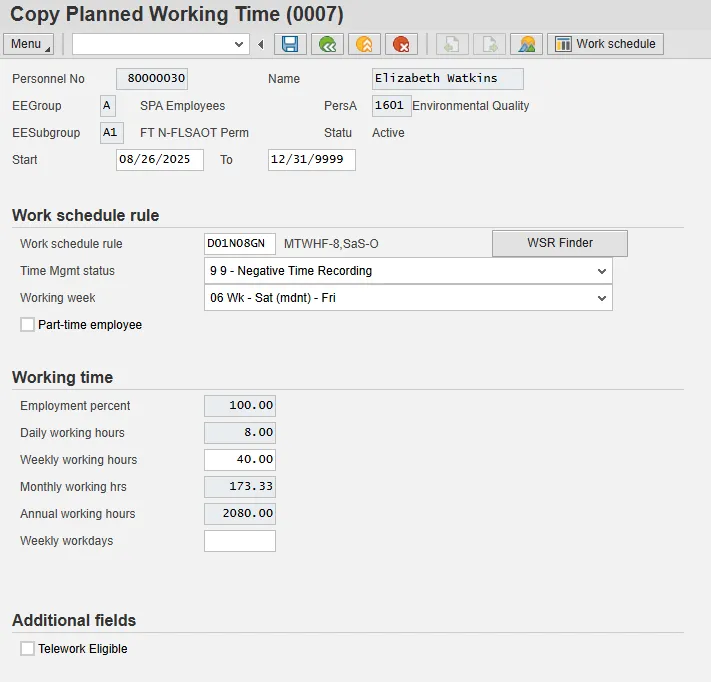
Step 3: Enter the Start date.
Step 4: Choose appropriate work schedule. Review Time Mgmt status, Working week and Weekly working hours for correctness.
Step 5: Click the Enter.
Note: Some information may turn red, and you may see a message in the bottom left corner indicated that a record is being delimited.
Step 6: Click the Save (Ctrl+S) button.
Note: Employment percentage must be 100%. The weekly working hours must coincide with the work schedule rule and the employee subgroup. Part-time box should be checked if applicable.
Possible Subsequent Activities
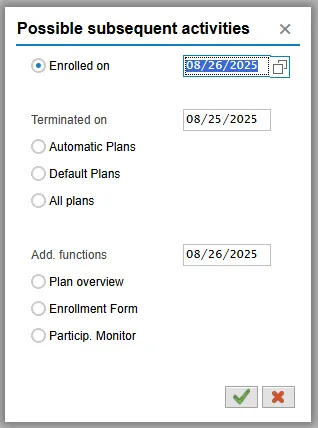
Click Cancel, since you will not be changing benefits in this transaction.
Note:
- Subject employees – MUST be positive time.
- The work schedule should be changed at the beginning of an overtime period (7-day, 28-day, etc.) if possible.
- From the drop menu you will see the list of valid work schedules for this individual only.
- Not all schedules are permitted by all Agencies.
- An employee can see their work schedule assignment on the upper right-hand corner of the Time Statement.
- Employees assigned to a night shift will earn night premium for hours recorded on their SCHEDULED workdays. Time worked on NON-SCHEDULED workdays require a substitution or a push code if the work time is premium relevant.
Rotating Schedules – common in 24/7 operations
- Employees on Rotating schedules must be assigned with care. In addition to identifying the rotation schedule to which they belong, it must also be determined where they are within that rotation to match up work days/off days.
Flex Schedules - allows employees to record any number of work hours or leave hours on any day of the week
- May be a 4, 8, 9, 10 or 24-hour flex schedule
- Anyone with a regular recurring work pattern should be assigned to a specific work schedule that reflects the normal expected work hours per day per OSHR. Flex schedules may invite some work hour flexibility that may benefit the employee but impede business operations.
Note: When employees are moved from Temp to Perm and vice versa, the work schedule rule may be modified by BEST PA in order to pay employee correctly. Agencies should consult with BEST PA before attempting to change this record.