Purpose
The purpose of this job aid is to explain how to recover adverse weather owed in the Integrated HR-Payroll System.
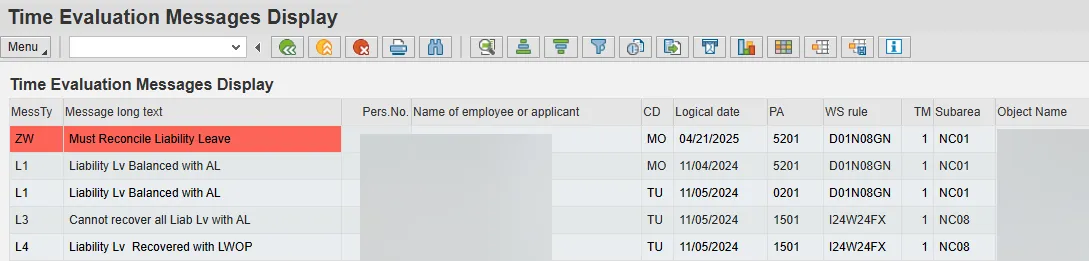
Liability Leave hours that have not been made up and have expired will result in an error message being generated in Time Evaluation: ZW – Must Reconcile Liability Leave. Time Evaluation error messages can be viewed in transaction PT_ERL00.
Note: The Adverse Weather (A/A type 9545) aging period was updated from 365 days to 90 days in the Adverse Weather policy revision effective 1/1/15; then was updated to 180 days from 9/27/2024 to 10/31/2024; and then was returned to 90 days effective 11/1/2024. So the aging period for an Adverse Weather liability will depend on what the aging period was on the date the liability was incurred.
The employee must use Approved Leave to recover overdue hours. If the employee does not have sufficient Approved Leave to recover the entire liability, the remaining liability should be recovered with LWOP. A Leave Administrator will need to manually trigger the appropriate recovery of the liability with an Infotype 2012.
A Leave Admin has two IT2012 subtypes to use to recover overdue hours owed. Subtype ZAWR will recover the hours from the Approved Leave quota hierarchy, then LWOP for any remaining liability upon expiration. Subtype ZAWB will recover the hours from the Approved Leave quota hierarchy allowing bonus leave to be used before vacation leave, then LWOP for any remaining liability upon expiration.
PT_ERL00 – TIME EVALUATION MESSAGES
Liability Leave hours that have not been made up will result in an error message generated in Time Evaluation:
- ZW – Must Reconcile Liability Leave
Other Time Evaluation messages related to the recovery of Liability Leave are:
- L1 – Liability Lv Balanced with AL (Advanced Leave)
- L2 – Adv Wthr not completely balanced
- L3 – Cannot recover all Liab Lv with AL
- L4 – Liability Lv Recovered with LWOP
There are 5 steps in this process.
Step 1. To view Time Evaluation messages related to the recovery of Liability Leave, run transaction PT_ERL00.
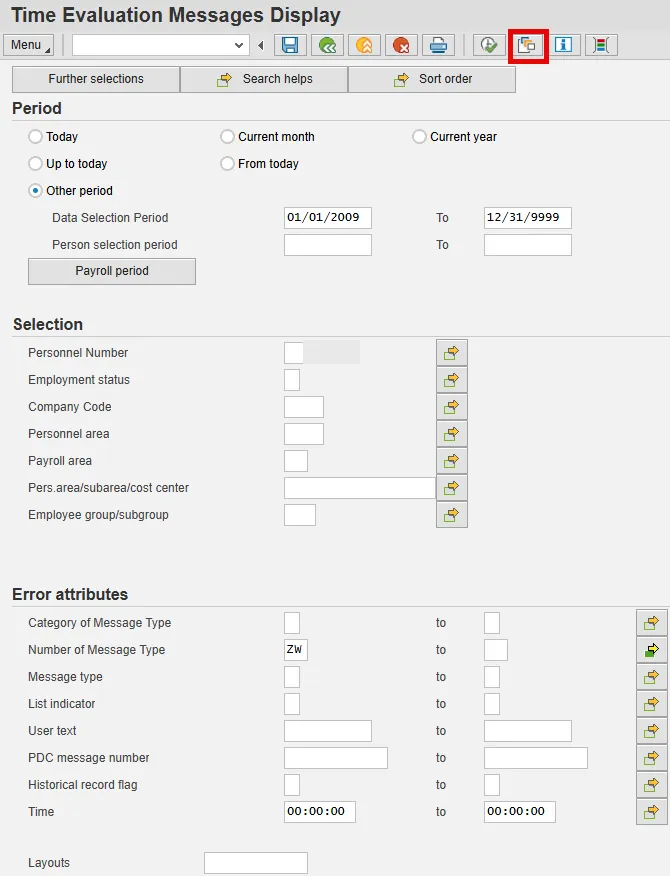
Step 2. Select the Variants icon (highlighted above) and then enter AW in the variant field (highlighted below). Select Execute.
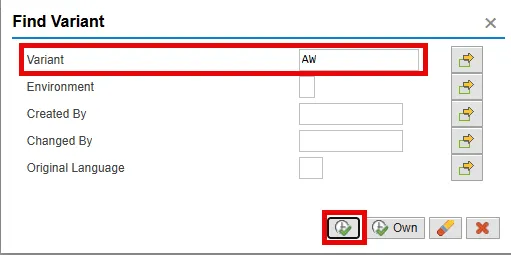
Step 3. The AW Variant will populate the Period field and the Number of Message Type field in PT_ERL00.
Step 4. Enter the appropriate Personnel Number(s) or Personnel area(s).
Step 5. Execute.
Note: The AW Variant’s results will include all the relevant Time Evaluation messages related to the recovery of liability leave.
Note: Error message ZW shows EE PersNo and Logical date (Date of Liability Leave due). Note that the second ZW error below shows that a balance is due for 4/22/2025.
Note: Future dated records will not show up as a ZW error on the PT_ERL00 report.
Determine Actual Hours Owed
There are 4 steps in this process.
Step 1. Run transaction PA61, PA30 or PA20.
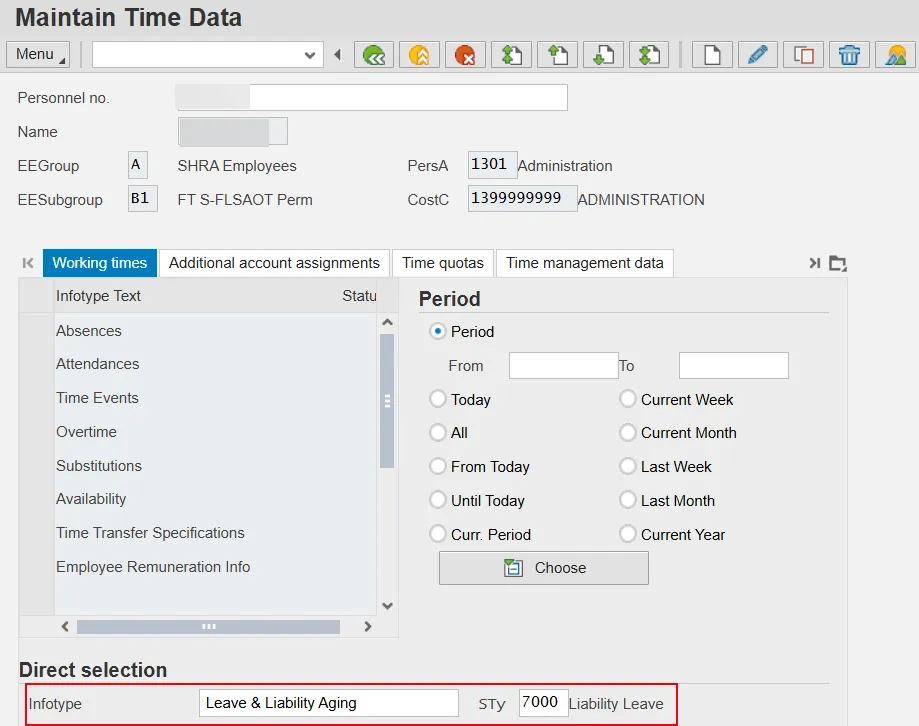
Step 2. Enter 9901 in the Infotype field (Leave & Liability Aging) and 7000 in the STy (subtype) field.
Step 3. Select the Overview icon.
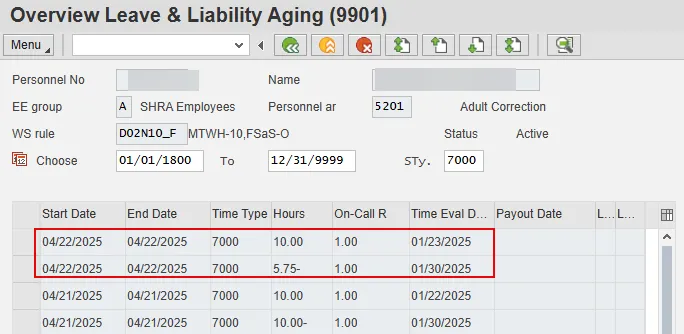
Step 4. Review the resulting IT9901 records with a Start/End date that matches the date of the ZW message. The employee shown above is the same employee shown in the PT_ERL00 section example where the ZW message date was 4/22/2025. The sum of the values in the Hours column for these records will provide you with the remaining liability hours that the employee owes on the date. This employee had a total of 10.00 hours due on 4/22/2025 and has made up only 5.75 hours of the liability. By summing the values in the Hours field, we can determine that the employee has 4.25 hours remaining for the liability balance due 4/22/2025.
Recovery
The employee must use Approved Leave to recover overdue hours. If the employee does not have sufficient Approved Leave to recover the entire liability, the remaining liability should be recovered with LWOP. A Leave Administrator will need to manually trigger the appropriate recovery of the liability via IT2012 subtype ZAWR or ZAWB.
Subtype ZAWR will recover the hours from the Approved Leave quota hierarchy, then LWOP for any remaining liability upon expiration. Subtype ZAWB will recover the hours from the Approved Leave quota hierarchy allowing bonus leave to be used before vacation leave, then LWOP for any remaining liability upon expiration.
There are 10 steps in this process.
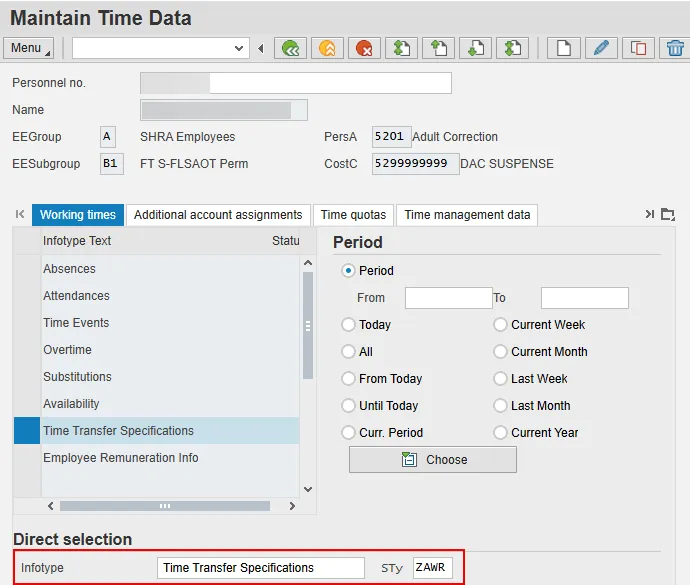
Step 1. Run transaction PA61, PA30 or PA20.
Step 2. Enter value 2012 (Time Transfer Specifications) in the Infotype field and press Enter.
Step 3. Enter ZAWR (Makeup Liability Leave) or ZAWB (Makeup Liab Leave f/ Bonus) in the STy field and press Enter.
Step 4. Click the Create icon.
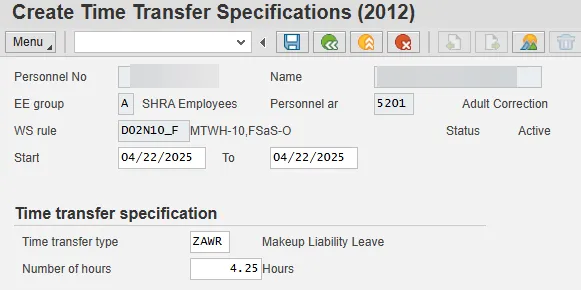
Step 5. Change the Start date to the date the hours were due (although this date can be any date between when the liability was incurred and the due date).
Step 6. Change the To date to the same date as the Start date.
Step 7. Enter the number of hours to be recovered in the Number of hours field. Do not enter a negative sign for this number.
Step 8. Select Menu > Edit > Maintain text and enter any notes if appropriate.
Step 9. Select the Save icon to save your notes.
Step 10. Select the Save icon to save the record.
Review
After successfully completing the Infotype 2012 and allowing Time Evaluation to process overnight, verify adverse weather repayment has processed properly by viewing the messages in transaction PT_ERL00 again using variant AW.
If ZAWR is used and there is not enough approved leave quota available in the hierarchy quotas, Time Eval will generate an error message:
- L3 – Cannot recover all Liab Lv with AL
- L4 – Liability Lv Recovered with LWOP
When the recovery is successful for either subtype, Time Eval will generate a message confirming the success:
- L1 – Liability Lv Balanced with AL