Purpose
The purpose of this Quick Reference Guide (QRG) is to explain how to update the print engine for exporting ACFR reports to Excel on a single tab in the North Carolina Financial System (NCFS).
Introduction and Overview
This update directly improves the formatting and usability of the ACFR reports located in the Financial Reporting Studio (FRS) of the North Carolina Financial System (NCFS), ensuring the FRS reports export to Excel on a single tab.
Update Print Engine
To update the print engine for FRS reports, please follow the steps below. There are 9 steps to complete this process.
Step 1. Log in to the NCFS portal with your credentials to access the system.
Step 2. On the Home page, click the Others tab.
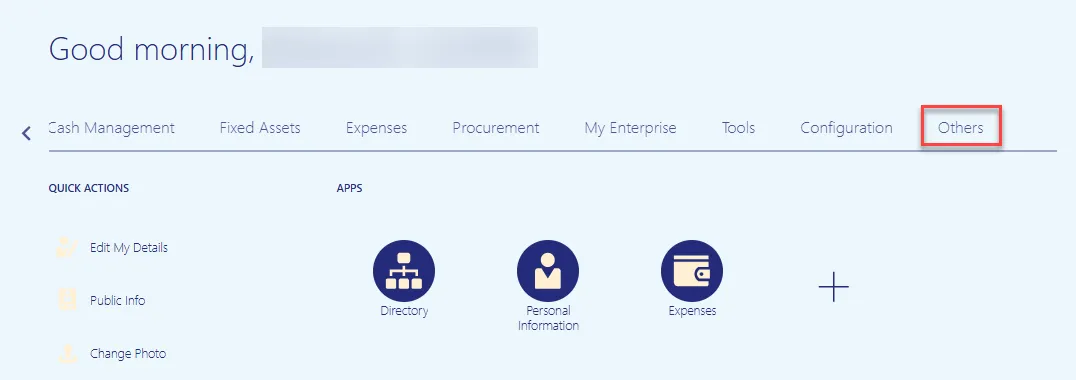
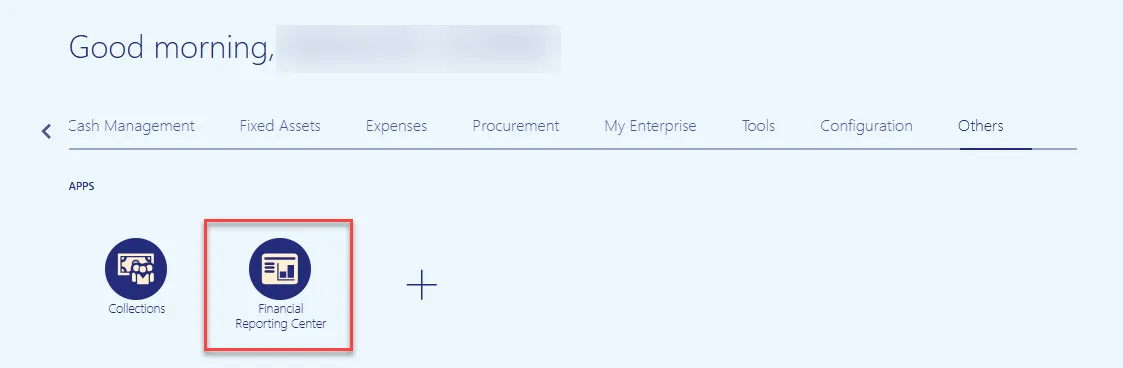
Step 3. Select the Financial Reporting Center app.
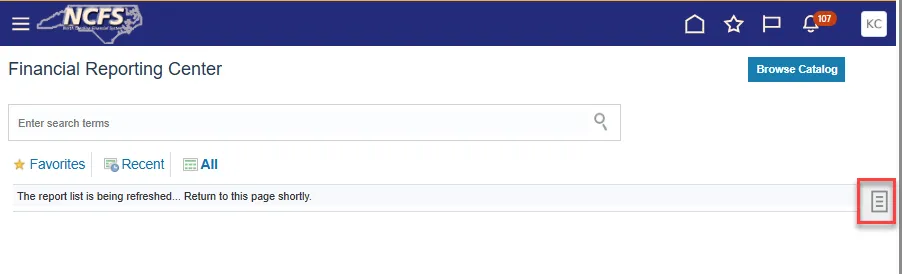
Step 4. Choose the Tasks icon.
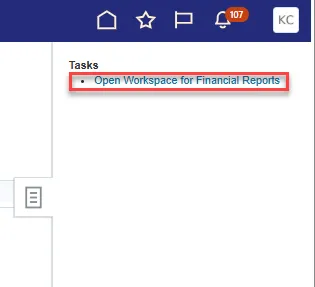
Step 5. Select Open Workspace for Financial Reports from the Tasks pane.
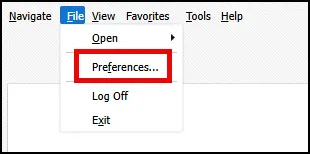
Step 6. Select File and Preferences to open your report preferences.
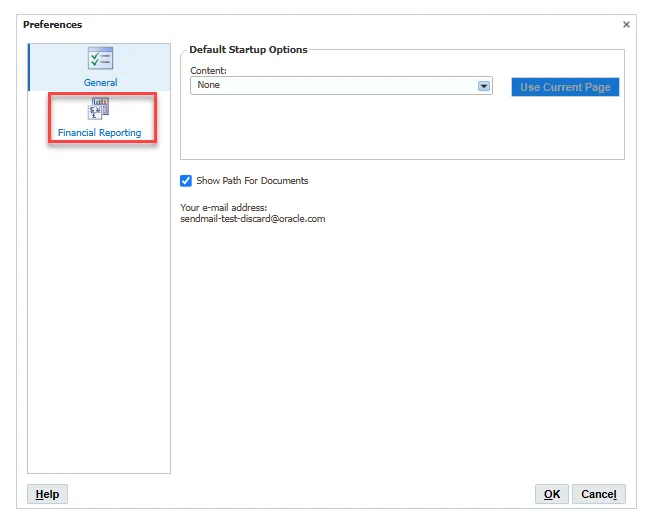
Step 7. On the Preferences pop-up box, select Financial Reporting.
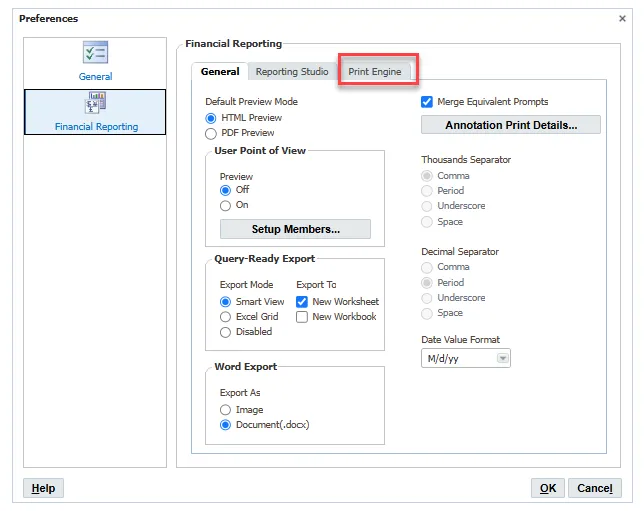
Step 8. Choose the Print Engine tab.
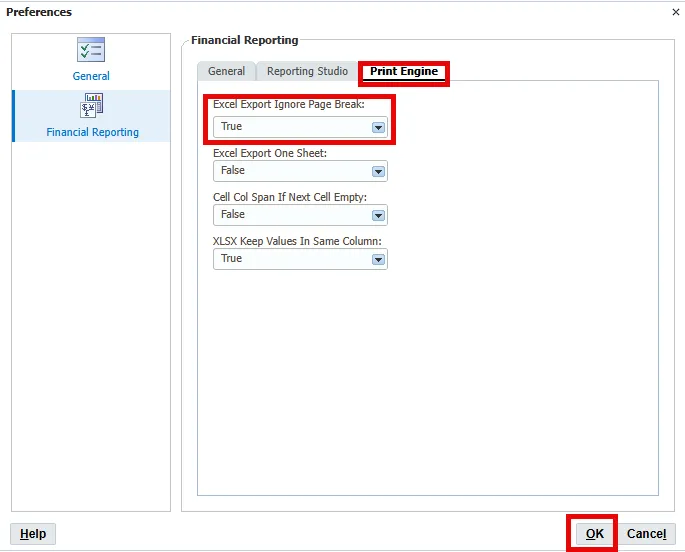
Step 9. Select True under Excel Export Ignore Page Break and select OK.
Wrap-Up
By updating the print engine preferences, your FRS reports will display on a single tab when downloaded to Excel.