WebGUI session timeouts are part of the enhanced security controls designed to protect North Carolina’s data while using WebGUI. Here is the way the system timeouts work:
After 30 Minutes of Inactivity
After 30 minutes of inactivity, the idle Session Timeout box will appear. Users will see an option to continue the session (green check) or close the session (red X).
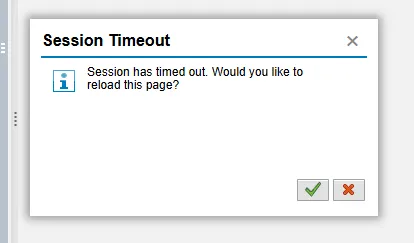
If the user selects the Green Check when it generates, or any time within a 3.33-minute grace period after it generates:
- The session will refresh, and an additional 30 minutes of idle time will be allowed before the next timeout cycle begins.
- The user can continue working as normal.
If the user selects the Red X at the time the Session Timeout box appears,
- The SAP WebGUI sessions will terminate.
- The user will receive a white screen with a single line 400 timeout message.

- The user should close the Edge or Chrome browser
If no action is taken within 33.33 minutes of the idle timeout period, and the green check is selected:
- All open SAP sessions will close.
- The user will be required to log in again and re-authenticate.
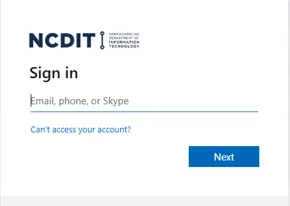
If the timeout period has been exceeded, and the user attempts to navigate to the transaction field and enter a new transaction code from the SAP Easy Access Menu:
- The user will receive a white screen with a single line 400 timeout message.
- The user should close the Edge or Chrome browser.