Purpose
The purpose of this Quick Reference Guide (QRG) is to provide users with a step-by-step guide of how to navigate the Home Page of the North Carolina Financial System (NCFS).
Introduction and Overview
The purpose of this QRG is to provide step-by-step instructions on how to access and navigate the NCFS Home Page.
Accessing the NCFS Home Page
Access the NCFS Home Page
There are 3 steps to complete this process.
Step 1. Log in to the NCFS portal using the Company Single Sign-On (SSO) button.
Step 2. Enter your dac.nc.gov email address.
Step 3. Click Next, then enter your password.
Note: The system will automatically sign on using SSO and log in to NCFS. After the first login using SSO, future access may not require credentials. If SSO is not available, enter credentials manually within the Username and Password fields, then click Sign-In.
Add the NCFS Home Page to Favorites
To easily access the NCFS Home Page in the future, make it a Favorite in the web browser. While on the NCFS Home Page there are two ways to save it to the favorites or bookmarks bar for easy access later.
There are 5 steps to complete this process.
Method 1
Step 1. In the address bar, click the star icon.
Step 2. A pop-up will appear. Name the bookmark, then click Done.
Step 3. The NCFS Home Page has been added to the bookmarks bar.
Method 2
Step 4. Click the three dots to the right of the address bar (three vertical dots for Google Chrome, three horizontal dots for Microsoft Edge).
Step 5. From the drop-down, click on Bookmarks and Lists (Google Chrome) or Favorites (Microsoft Edge).
- Google Chrome - A new drop-down menu will appear.
- Click on Bookmark This Tab. A new pop-up will appear.
- Name the bookmark and click Done.
- Microsoft Edge – Select the Star icon at the top of the drop-down box.
i. Name the bookmark and click anywhere on the screen. The NCFS Home Page will be saved in favorites.
Home Page Navigation
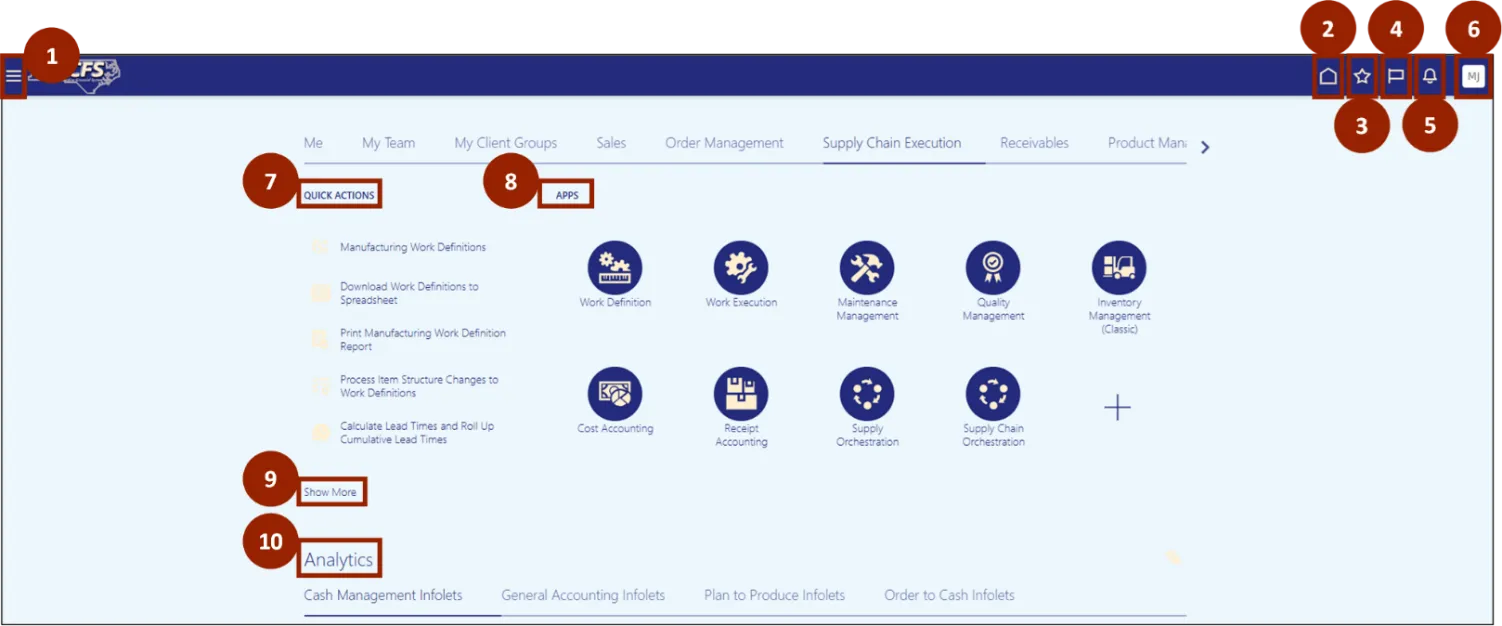
The NCFS Home Page will be displayed, where the following can be accessed:
- Navigator Menu – Access Activities based on role.
- Home Page icon – Direct user back to Home Page.
- Favorites – Access Favorites and Recent Items.
- Watchlist – Table listing initiatives, objectives, or KPIs grouped together.
- Notifications – Alerts user with any changes related to your resources.
- Profile – Access personal profile and settings.
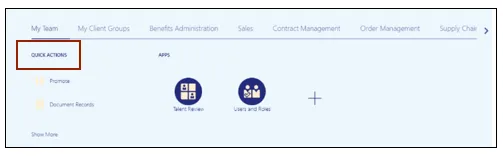
- Quick Actions – User will be redirected to the location of the action in NCFS.
- Apps – Applications that users will utilize to perform daily functions.
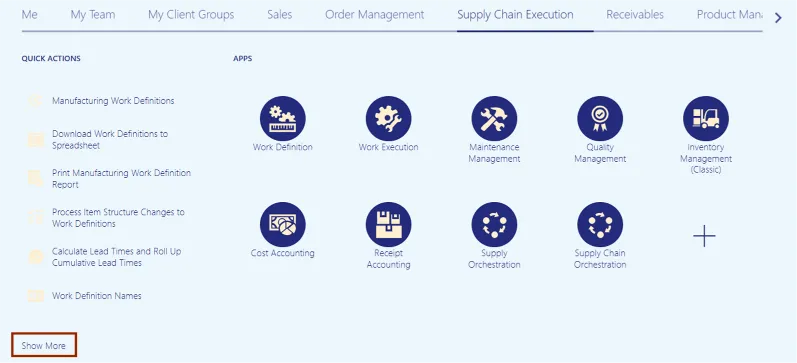
- Show More – Will show more actions for the selected Activity.
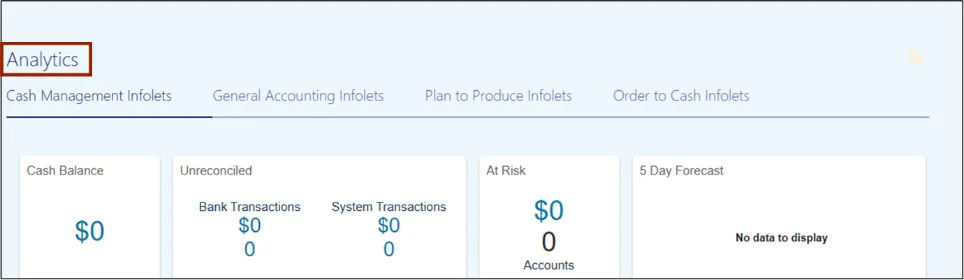
- Analytics – Analytics show Infolets related to the tab currently selected on the Springboard.
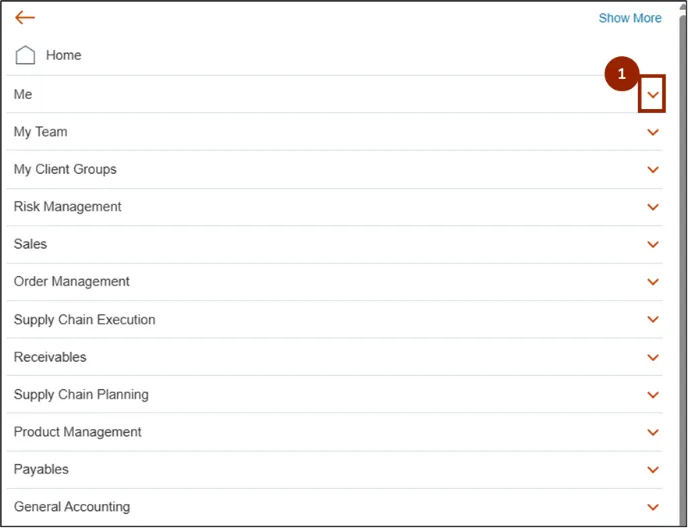
Navigator Menu
In the Navigator Menu, users can find activities related to your role-specific responsibilities. To view all activities related to a specific job function or department, click the drop-down arrow.
Profile and Settings
Appears as the user’s initials.
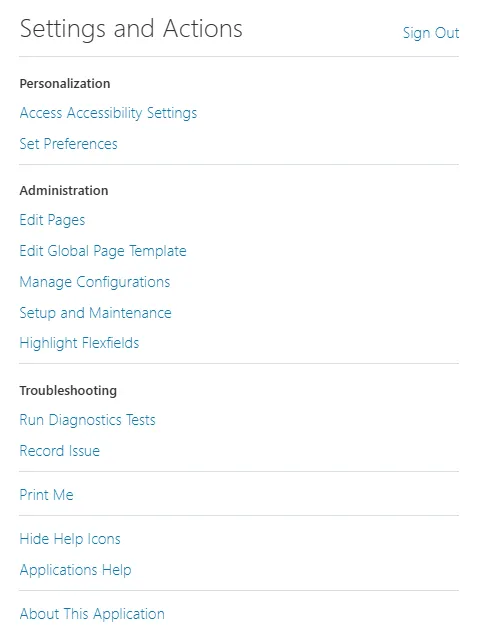
In Settings and Actions, you can find settings to improve day-to-day functions, such as:
- Access Accessibility Settings
- Preferences
- Applications Help
- Sign Out
Quick Actions
Takes users to that action’s location within NCFS.
Show More
Shows more tasks within the selected activities.
Analytics
The Home page will show the Analytics section. Analytics show Infolets related to the currently selected tab. Infolets are visual, actionable, and personalized information cards that summarize critical data about specific objects.
Adding Apps to Home Page
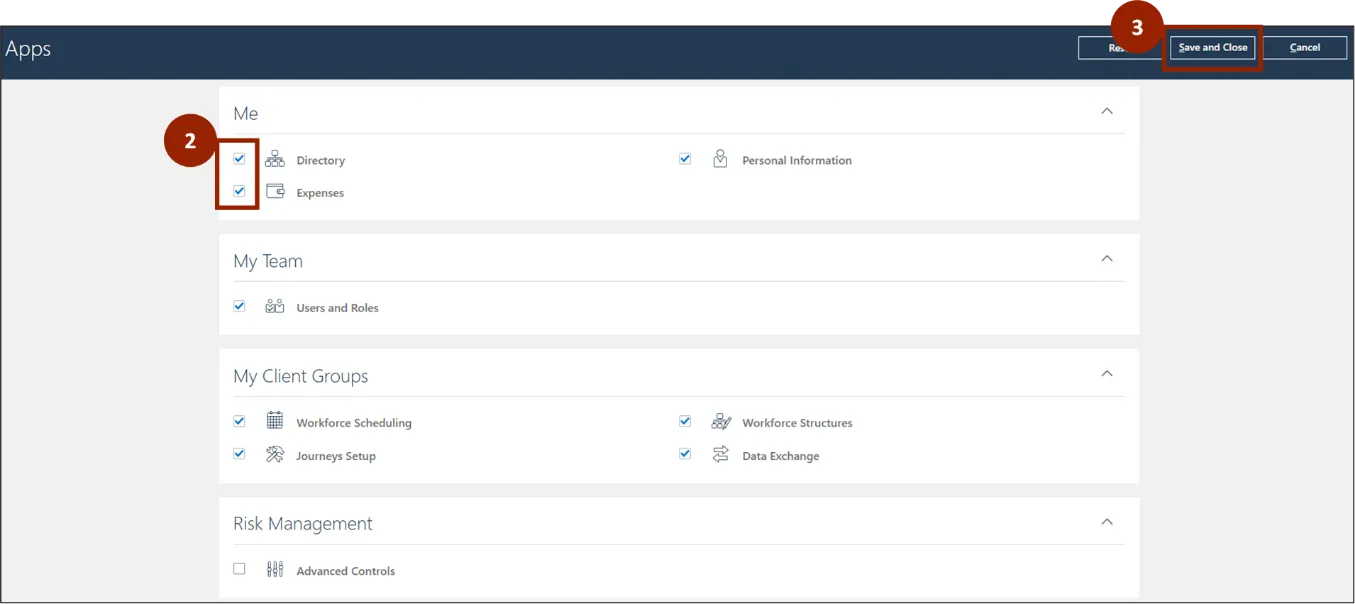
There are 3 steps to complete this process.
Step 1. In the center of the page, click the + button to see a list of Apps that are available based on the user’s role.
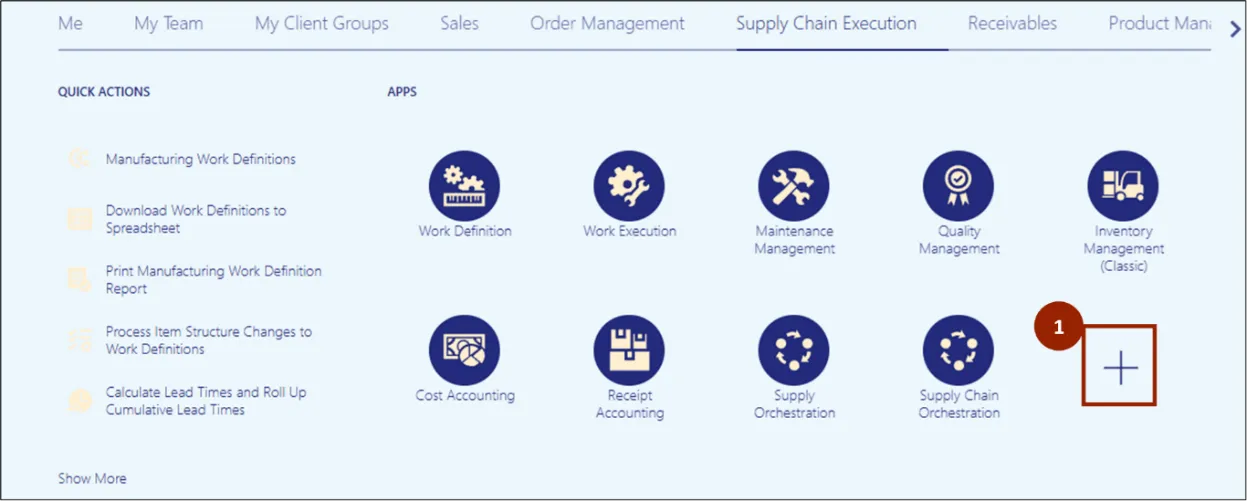
Step 2. Check or uncheck the boxes of the Apps to be added or removed from the Apps section of the Home page.
Step 3. Click Save and Close to add the selected Apps for the selected Activity to the NCFS Home Page.
Wrap-Up
Using the steps in this QRG, NCFS users can navigate the NCFS Home Page.
Additional Resources
- Web Based Training (WBT)