Purpose
The purpose of this Business Process Procedure is to explain how to view payroll cost center details in the Integrated HR-Payroll System.
Trigger
This report can be used to view payroll cost center details. The user can drill into the time entries supporting an individual employee, the payroll results for an individual employee, or overall general ledger analysis.
Business Process Procedure Overview
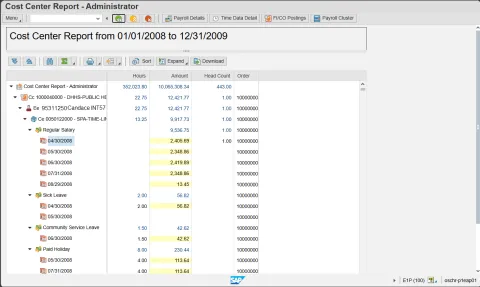
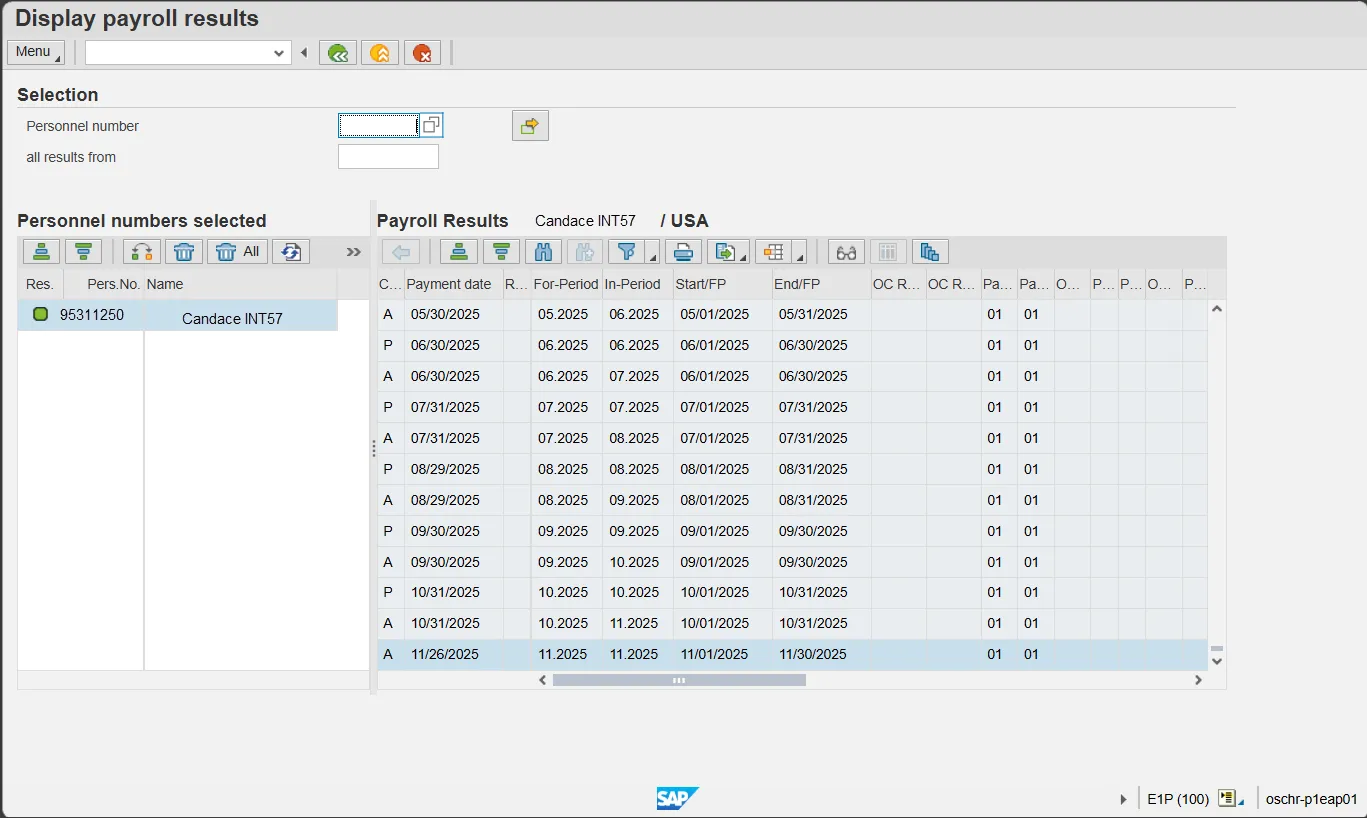
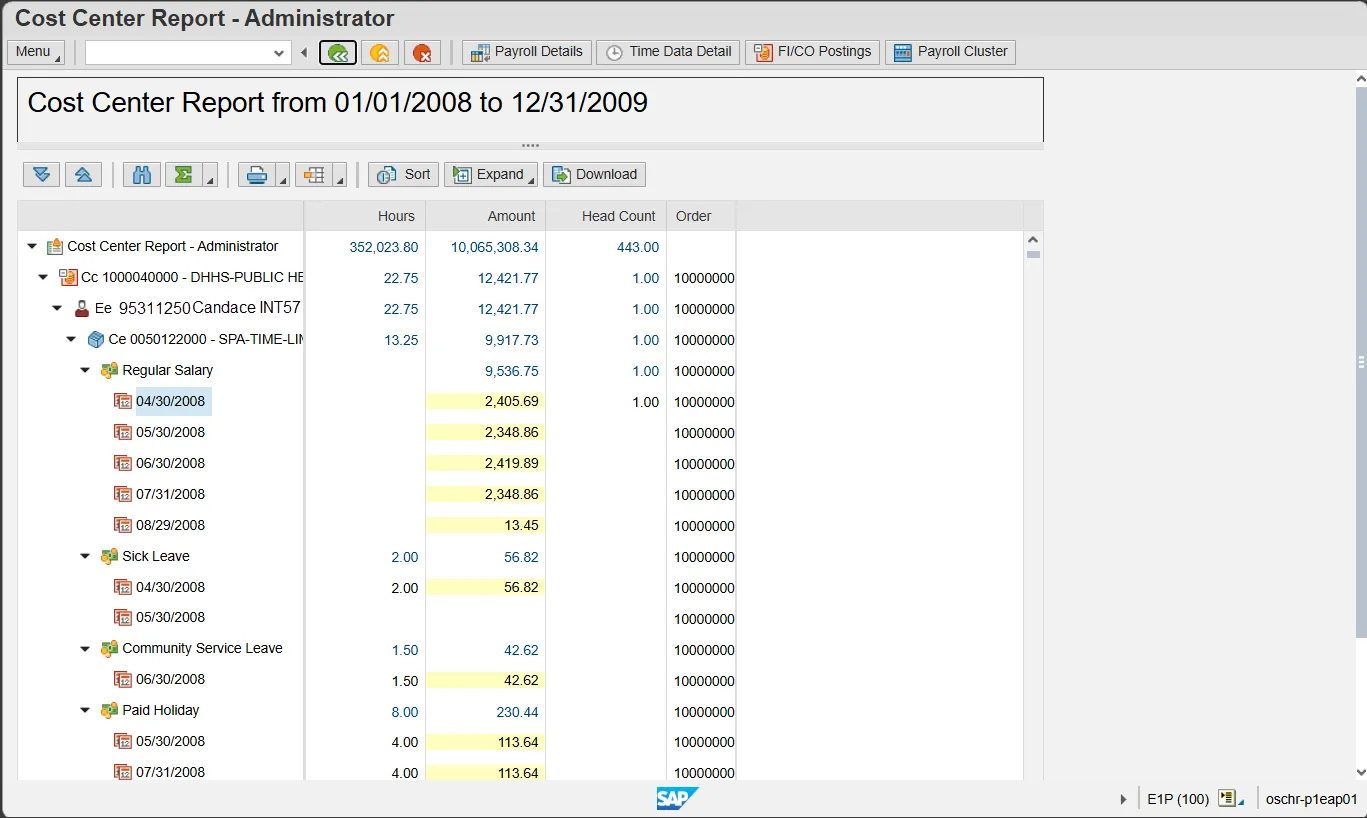
The Cost Center Report is used for researching the detail information about a payroll run. The data is available for the user once the payroll documents are posted to the general ledger. This is a unique report for the fiscal user because data is displayed by cost center, then by employee within the cost center, then by cost element (account), and finally each payment date. The report is very powerful with the ability to change the sort order and link to other data. The head count for the cost center is also displayed. The Internal Order is displayed in the last column. The description field of the Internal Order contains the NCAS financial key (NCAS company and center).
Tips and Tricks
Use the multiple selections button (yellow arrow to the right of the cost center field on the report filter screen) to choose more than one cost center. If you click on the Multiple Selection button within this search area, you can choose individual cost centers from with your larger search criteria.
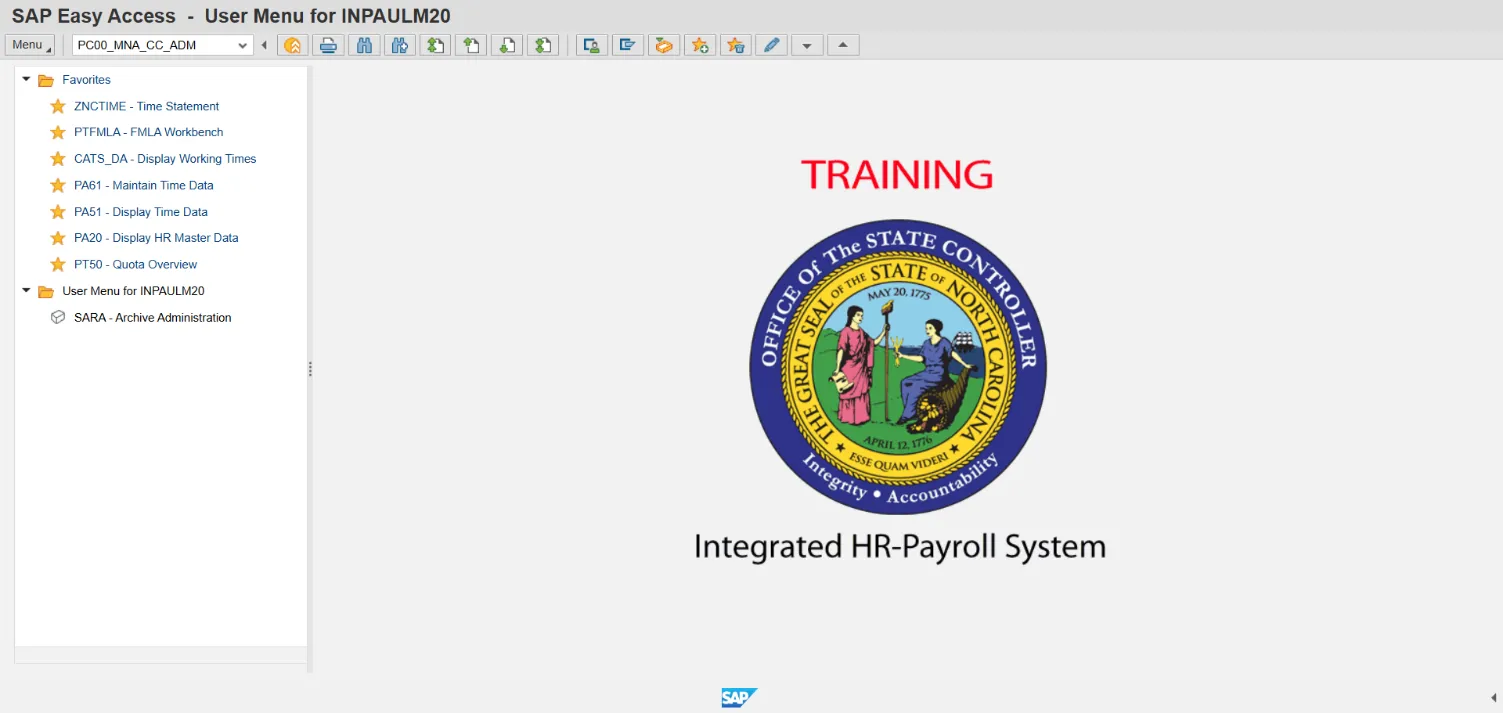
Access Transaction
Via Transaction Code: PC00_MNA_CC_ADM
Procedure
There are 18 steps to complete this process.
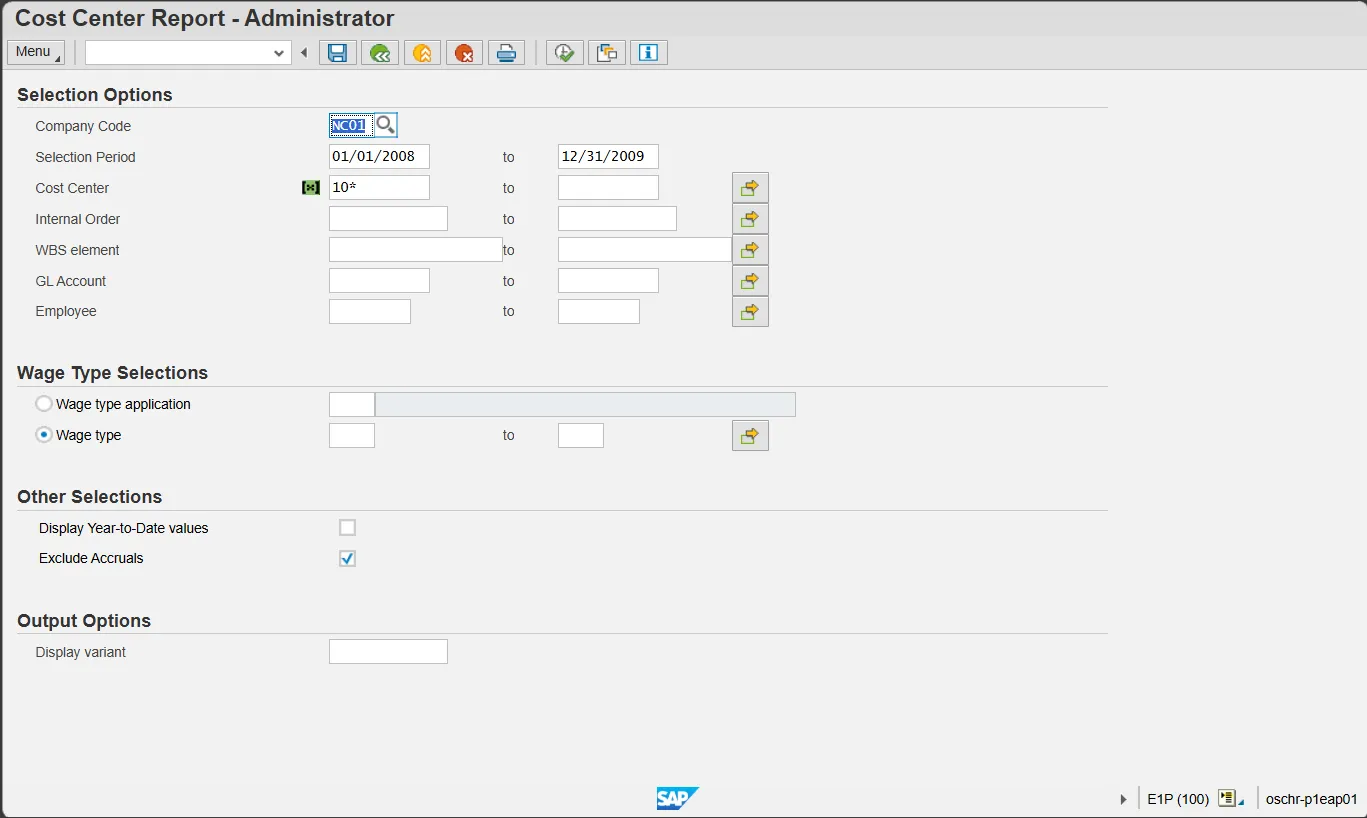
Step 1. Update the following required and optional fields:
| Field Name | Description | Values |
|---|---|---|
| Command | White alphanumeric box in upper left corner used to input transaction codes |
Enter value in Command. Example: PC00_MNA_CC_ADM |
Step 2. Click Enter.
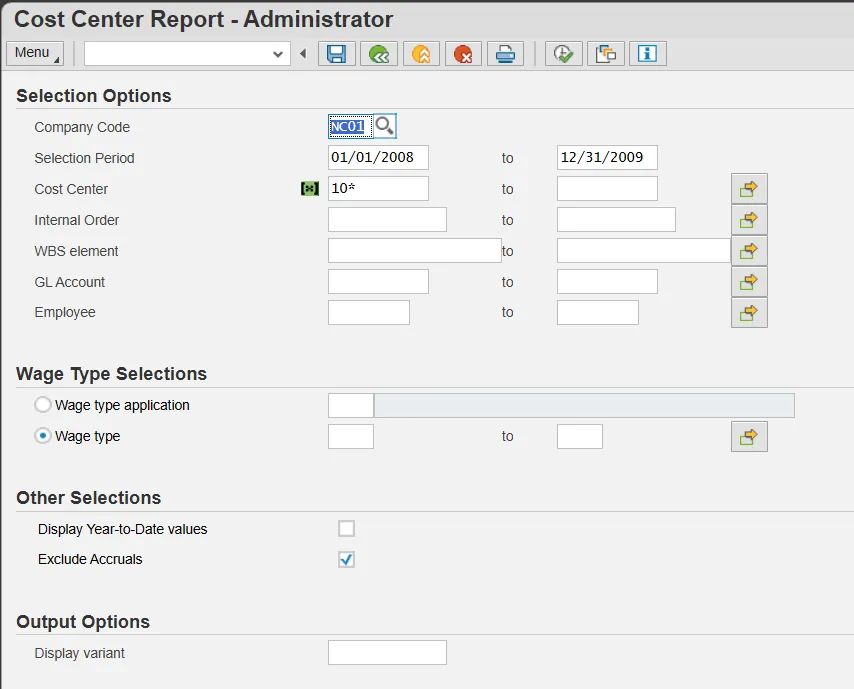
Step 3. Update the following required and optional fields:
| Field Name | Description | Values |
|---|---|---|
| Company Name | Code identifying a legal entity for accounting and reporting purposes. (NC01 for all NCAS agencies & NC02 for DOT and ESC) |
Enter value in Company Code. Example: NC01 |
| Selection Period | Date of the beginning of the selection period for the activity or report |
Enter value in Selection Period. Example: 01/01/2008 |
| To | Ending date of the specified date range |
Enter value in to. Example: 12/31/2009 |
| Cost Center | Code identifying a cost center |
Enter value in Cost Center. Example: 10* |
Information: Each of these fields can be filtered to produce a more manageable report. This report will run slowly due to the Agency Structural Security in place. You will not be allowed to view data from outside your Agency. The more you filter the report within your agency (by a cost center or date range, etc.), the quicker the report will run.
Use the filter [10*] in the Cost Center field to run the report on all cost centers beginning with 10.
Use the multiple search criteria button (yellow arrow button) to enter a list of cost centers not within a range, or multiple ranges of cost centers. Within this window there is a button labeled "Multiple Selection" which allows you to choose individual cost centers from the filter range.
Step 4. Click the Execute (F8) button.
Cost Center Report - Administrator
Step 5. Click the Expand button.
Step 6. Click Posting Date Level.
Information: You can expand the summary data to various levels of display. In this example we are displaying all levels of detail.
Cost Center Report
Step 7. Select EE 95311250 Candace INT
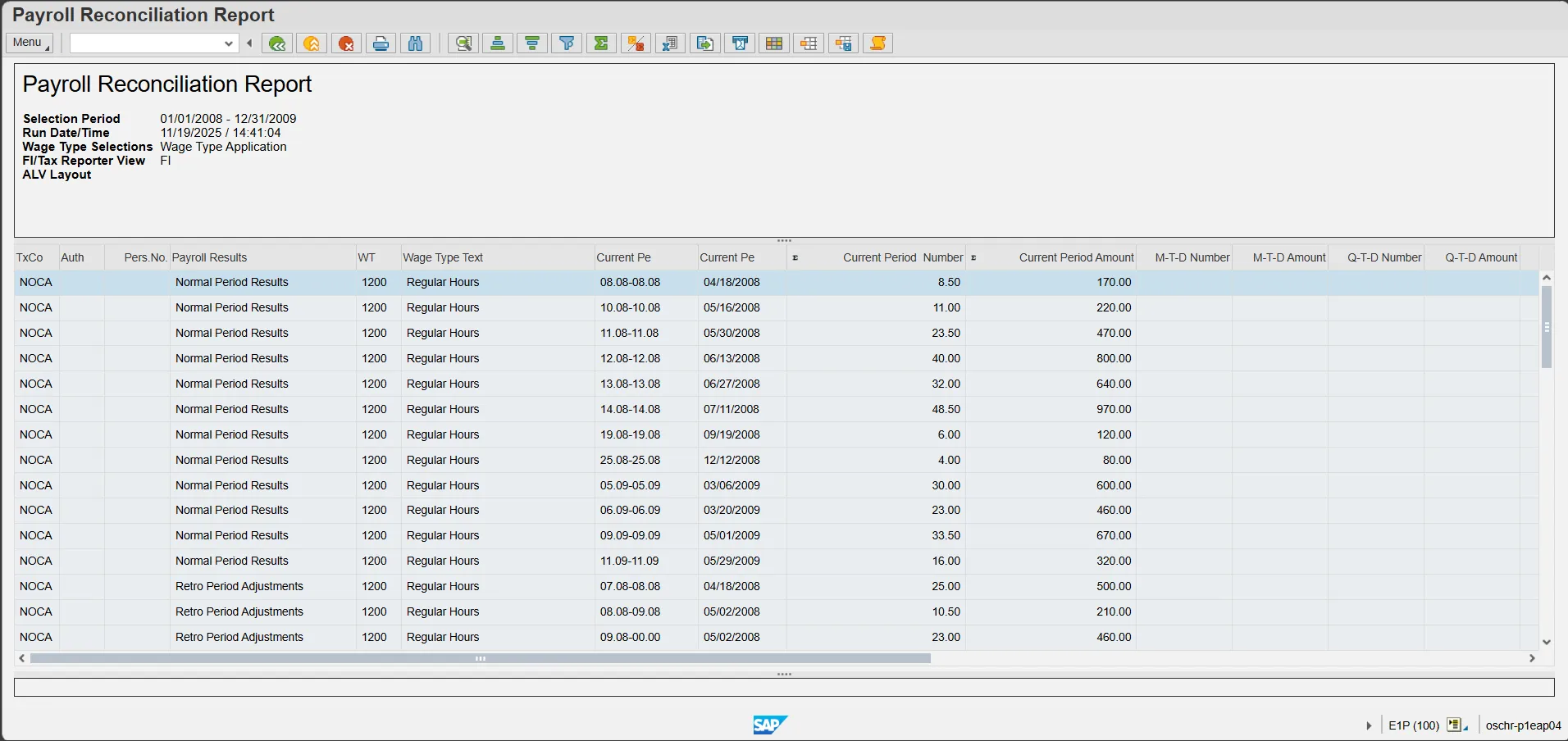
Step 8. Click Payroll Details button.
Information: Click the Payroll Details button to run the payroll reconciliation report. The report filter screen will pre-fill with the data you have filtered this cost center report on.
Payroll Reconciliation Report
Step 9. Click Back (F3) button.
Step 10. Click Time Data Detail button.
Information: Once you have clicked on the name of an individual, click on the Time Data Detail button to view their time entry details for the time period viewed on the report.
Note: Not all users will have drill-down access into an individual's time history.
Cumulated Time Evaluation Results: Time Balances/Wage Types
Step 11. Click the Back (F3) button.
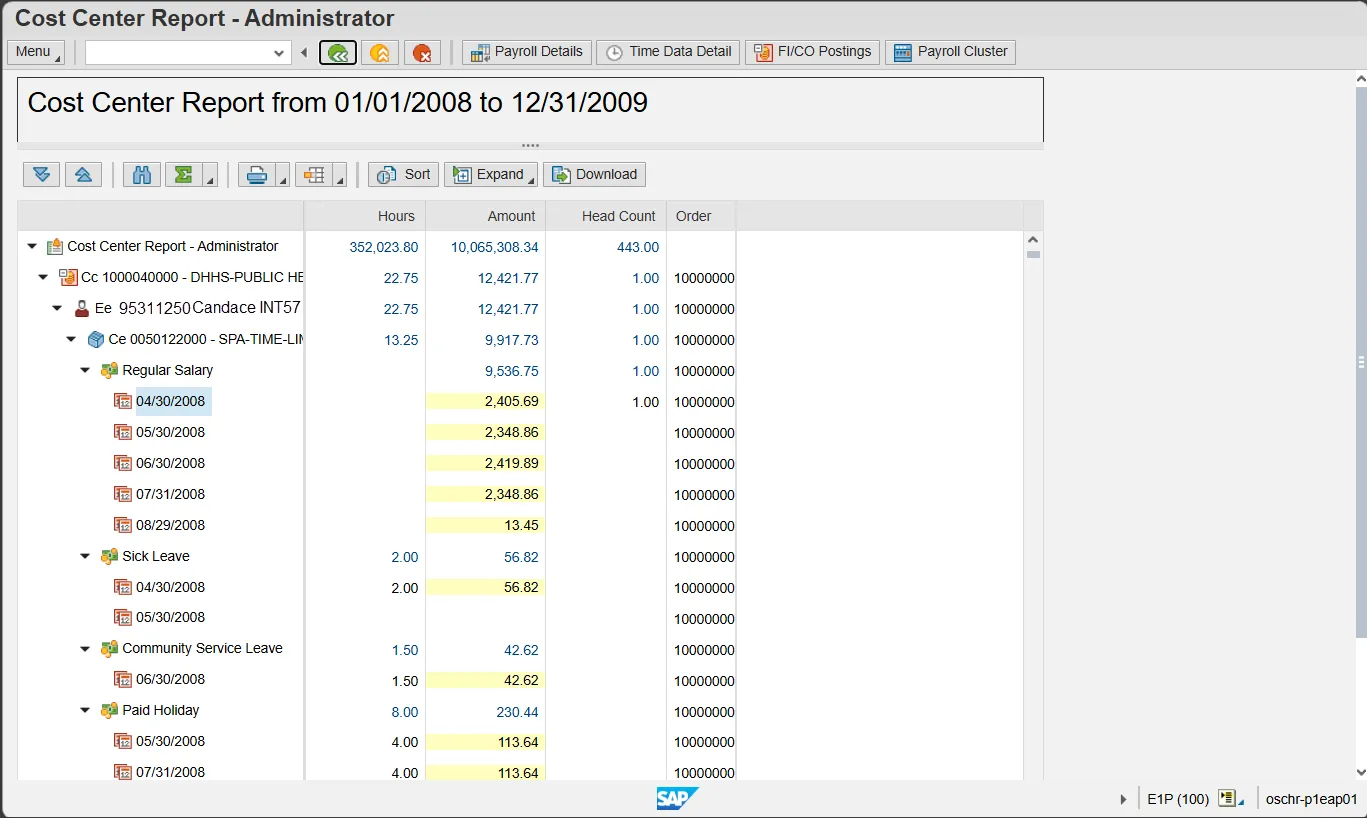
Step 12. Select 05/04/2007.
Step 13. Click the FI/CO Postings button.
Information: Once you have clicked on a specific posting date line item, click on the FI/CO Postings button to view the payroll posting document for the time period viewed on the report.
Display Payroll Posting Document
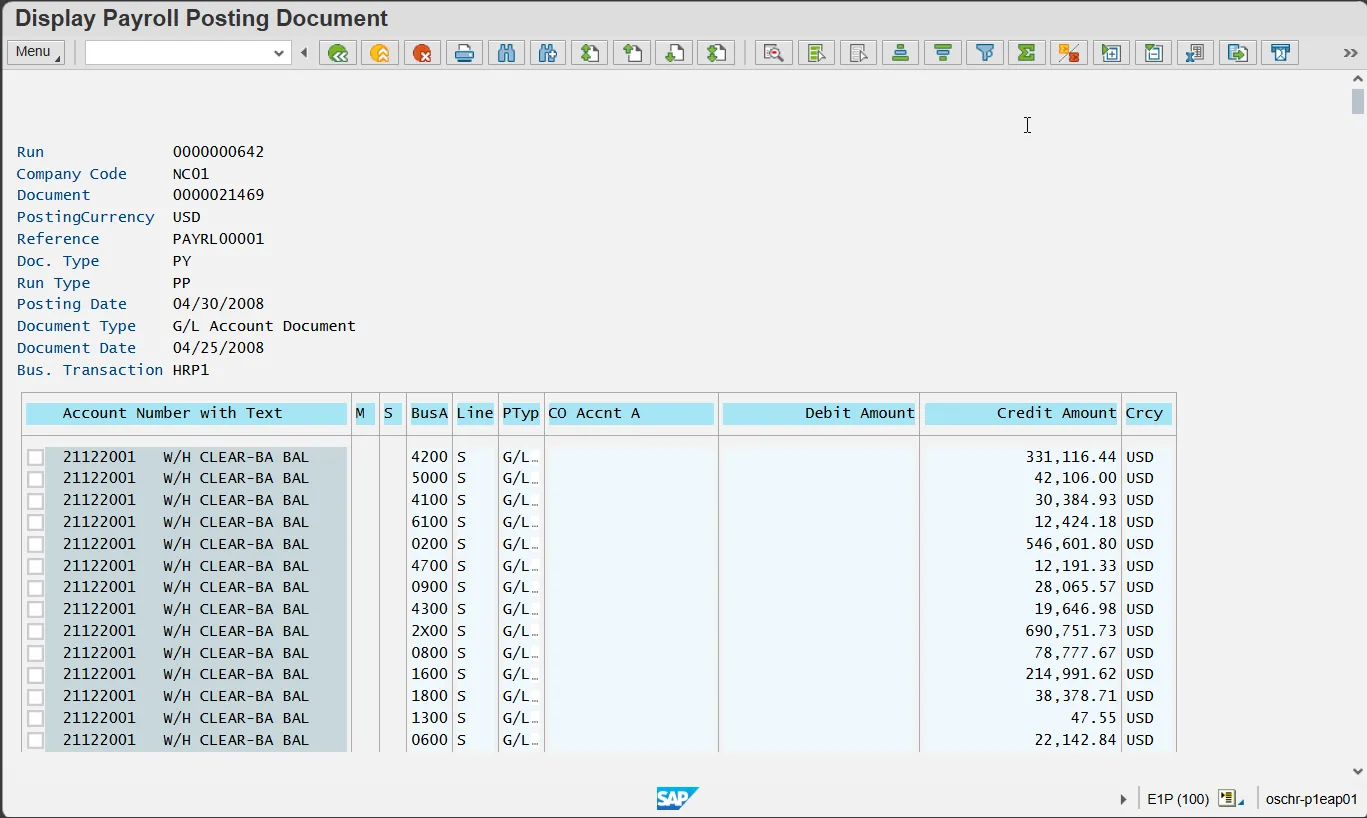
Step 14. Click the Back (F3) button.
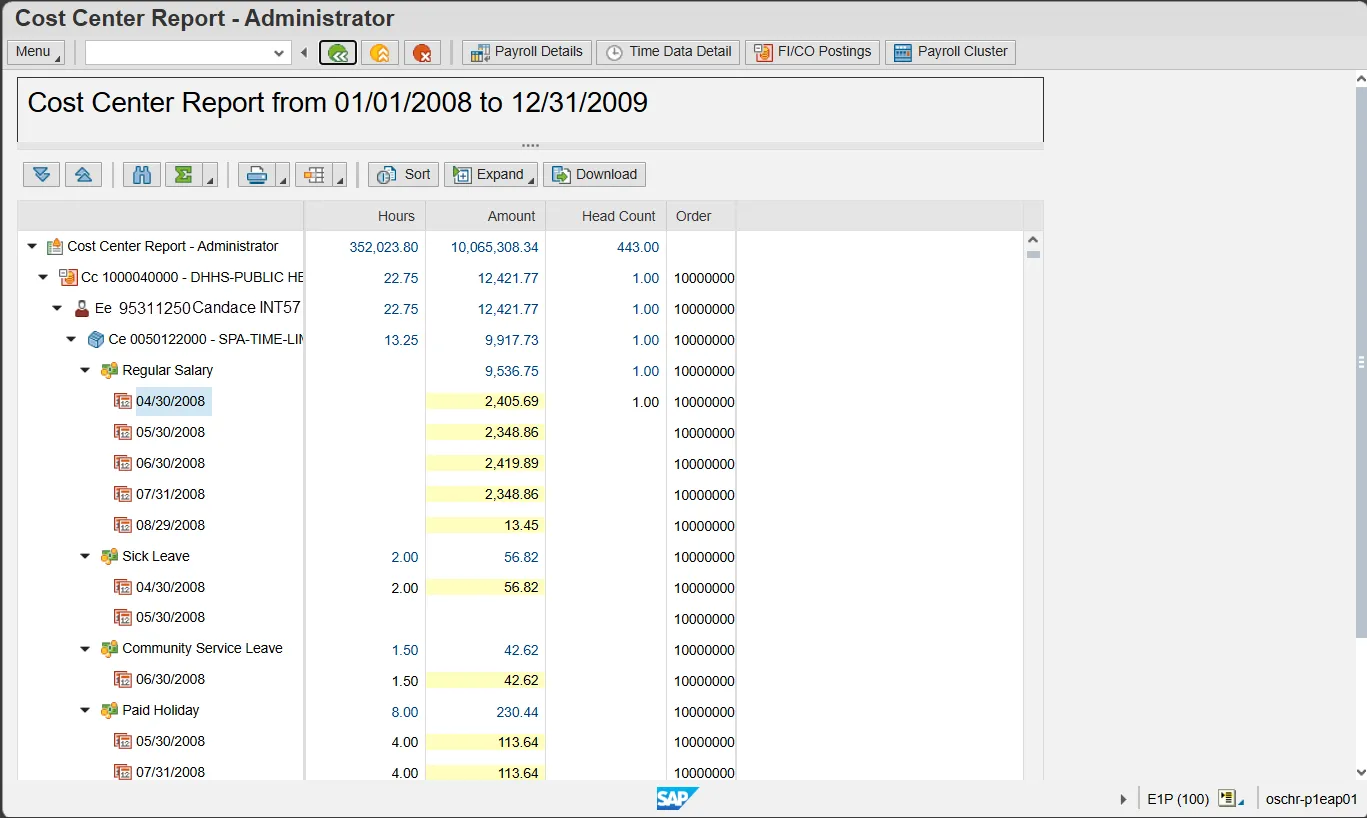
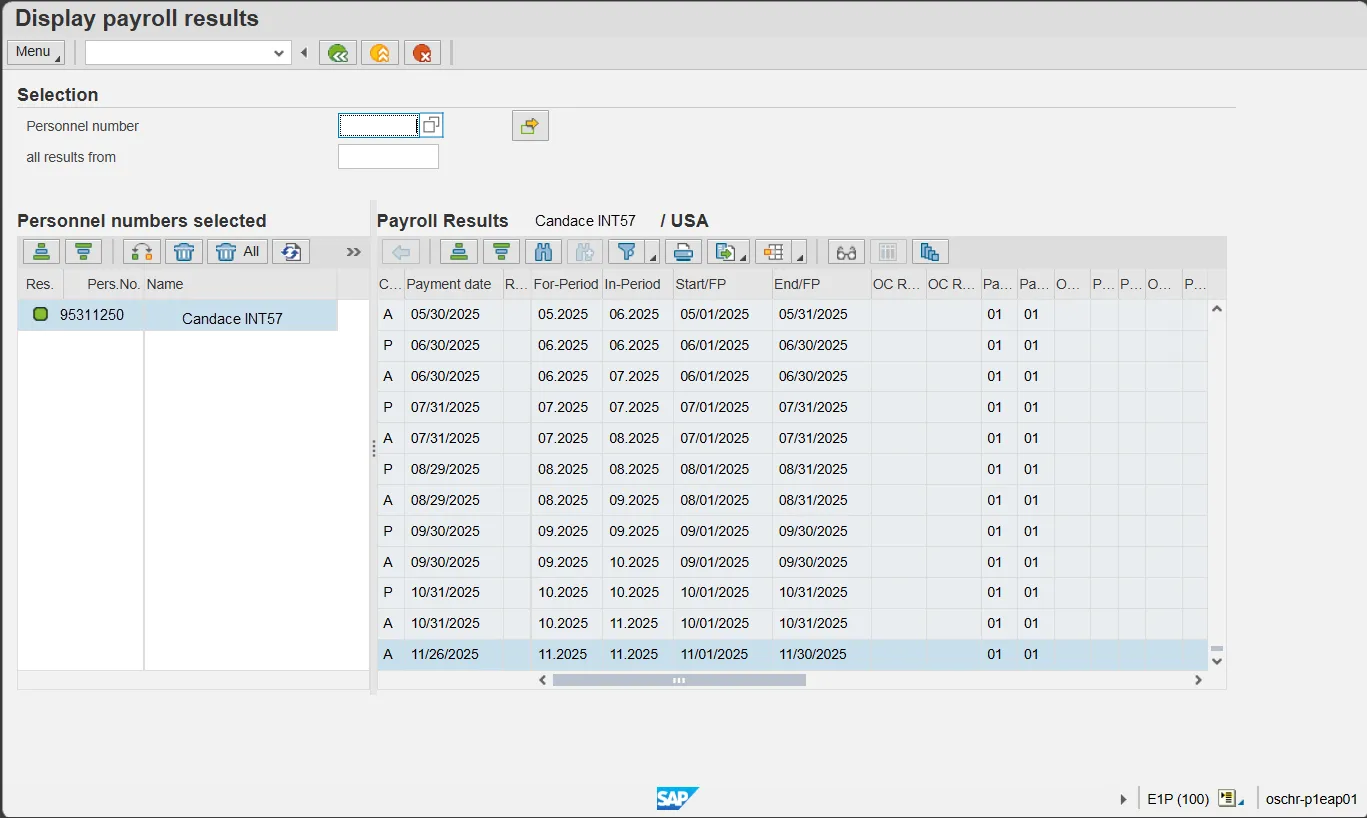
Step 15. Click the Payroll Cluster button.
Information: Once you have clicked on a specific posting date line item, click on the Payroll Cluster button to view the payroll posting document for the time period viewed on the report.
Display payroll results
Step 16. Click the Back (F3) button.
Step 17. Click the Back (F3) button.
Cost Center Report - Administrator
Step 18. Click the Back (F3) button.
Information: You can adjust the filter criteria and re-execute the report or click Back to exit this transaction.
The system task is complete.