Purpose
The purpose of this Quick Reference Guide (QRG) is to provide a step-by-step explanation of how to add prompts/parameters to an OTBI report in the North Carolina Financial System (NCFS).
Introduction and Overview
This QRG covers the process of adding prompts/parameters to an OTBI report.
Process
Please follow the steps below. There are 11 steps to complete this process.
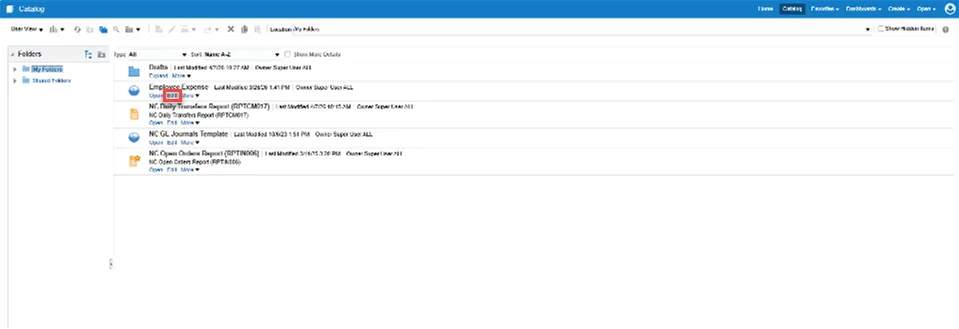
Step 1. Navigate to the report you wish to work with and choose Edit under the report name.
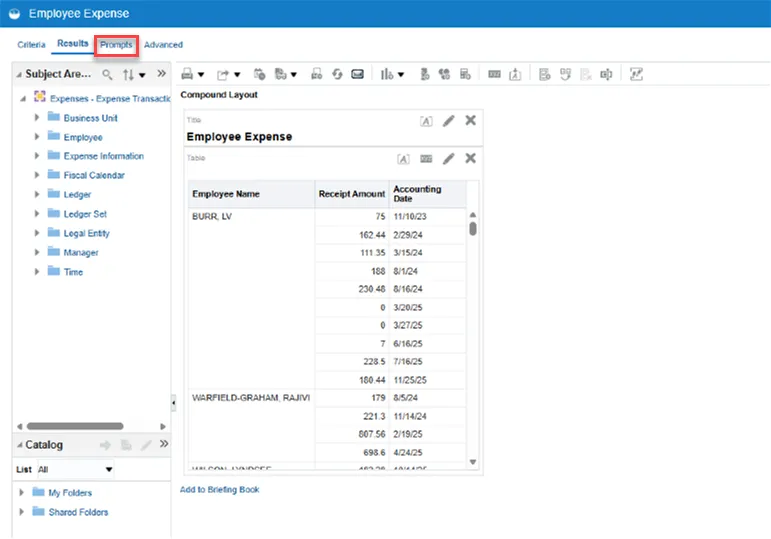
Step 2. Select the Prompts tab.
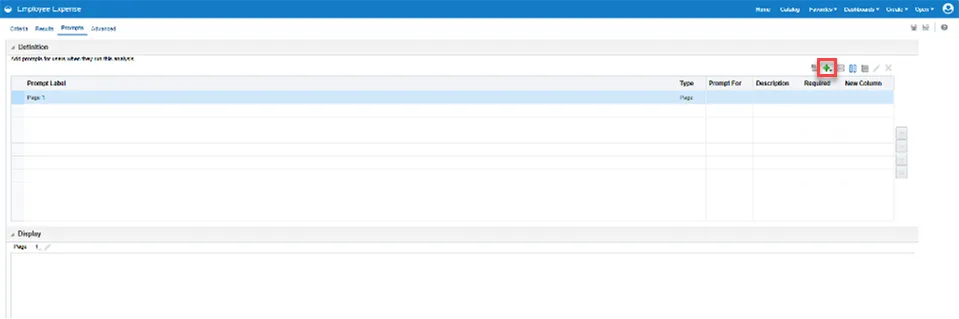
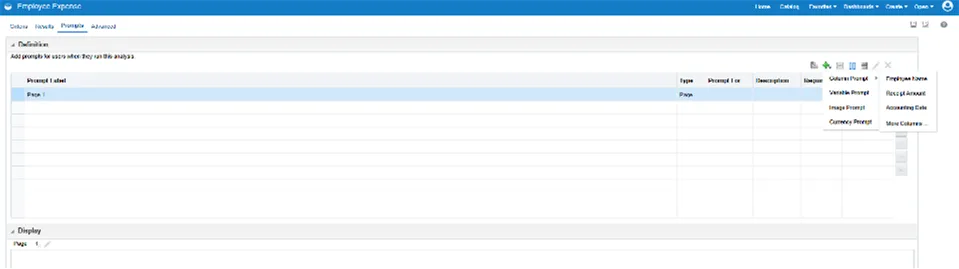
Step 3. Select the Add Prompt icon. It looks like a plus sign.
Step 4. Hover over Column Prompt from the drop-down menu to produce a pop-out menu. Then, choose the column you want to turn into a parameter.
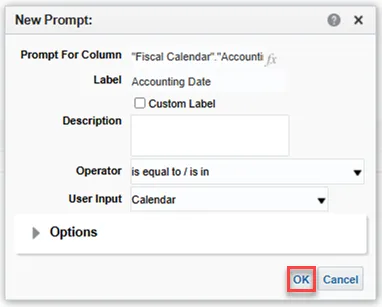
Step 5. The New Prompt pop-up will default to “is equal to/is in” for the Operator field. You can change the Operator field to meet your specific needs. Click OK.
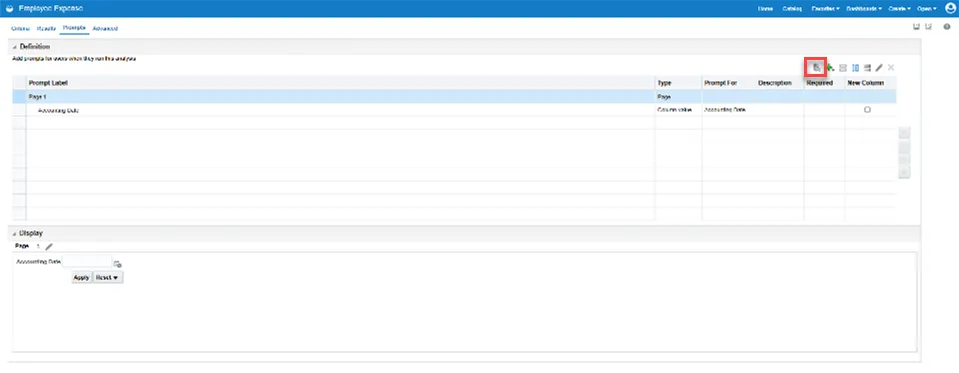
Step 6. The new prompt will appear in the Display section. You can choose the Preview button to preview the prompt.
Step 7. If you choose to preview the prompt, you can fulfill the prompt requirements and choose OK to see the results.
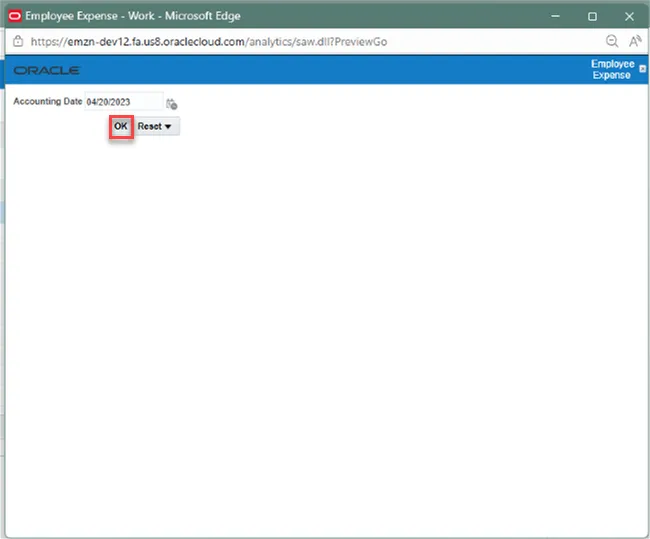
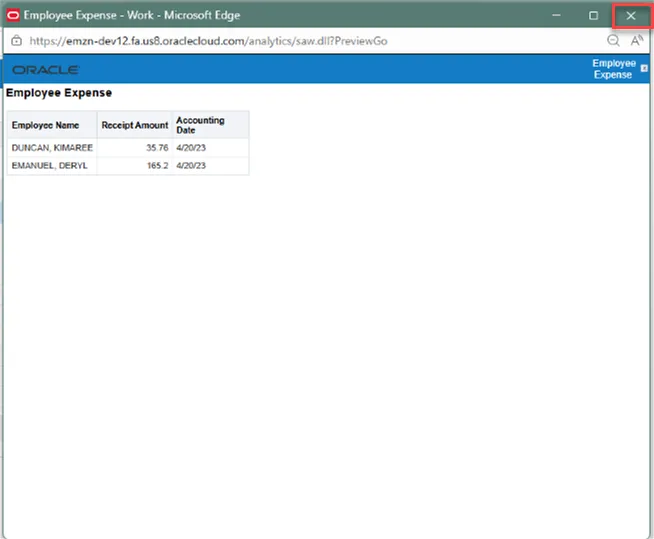
Step 8. A quick preview of the data will populate. Select the X in the upper right of the pop-up to close the preview.
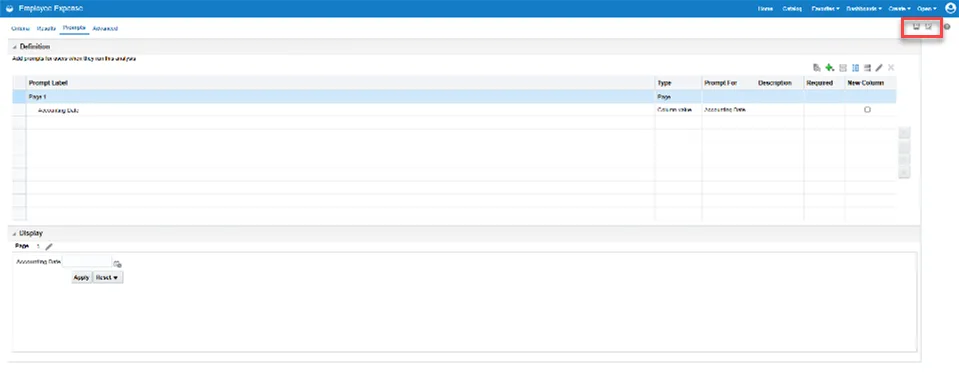
Step 9. When you are satisfied with the prompts created, remember to use the Save or Save As button to save the analysis.
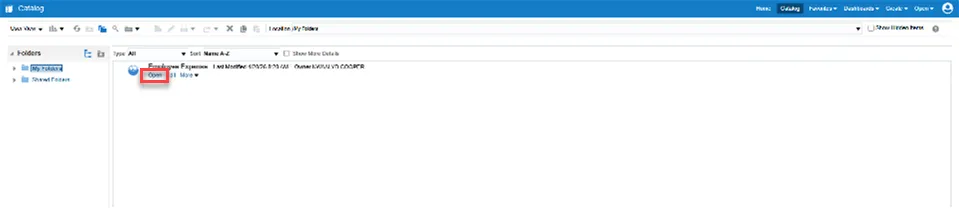
Step 10. Navigate back to the Catalog page. Choose Open under the saved analysis.
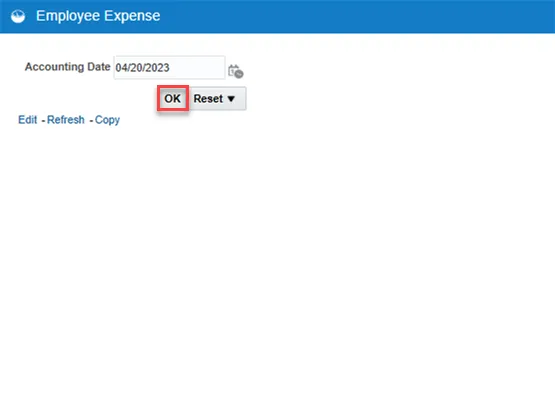
Step 11. Fulfill the prompt requirements and choose OK.