Purpose
The purpose of this Quick Reference Guide (QRG) is to provide a step-by-step explanation of how to add, remove, and rearrange columns of an OTBI report in the North Carolina Financial System (NCFS).
Introduction and Overview
This QRG covers the process of customizing the columns of an OTBI report which gives users flexibility in the reporting process.
Process
To Add, Remove or Rearrange Columns, please follow the steps below. There are 8 steps to complete this process.
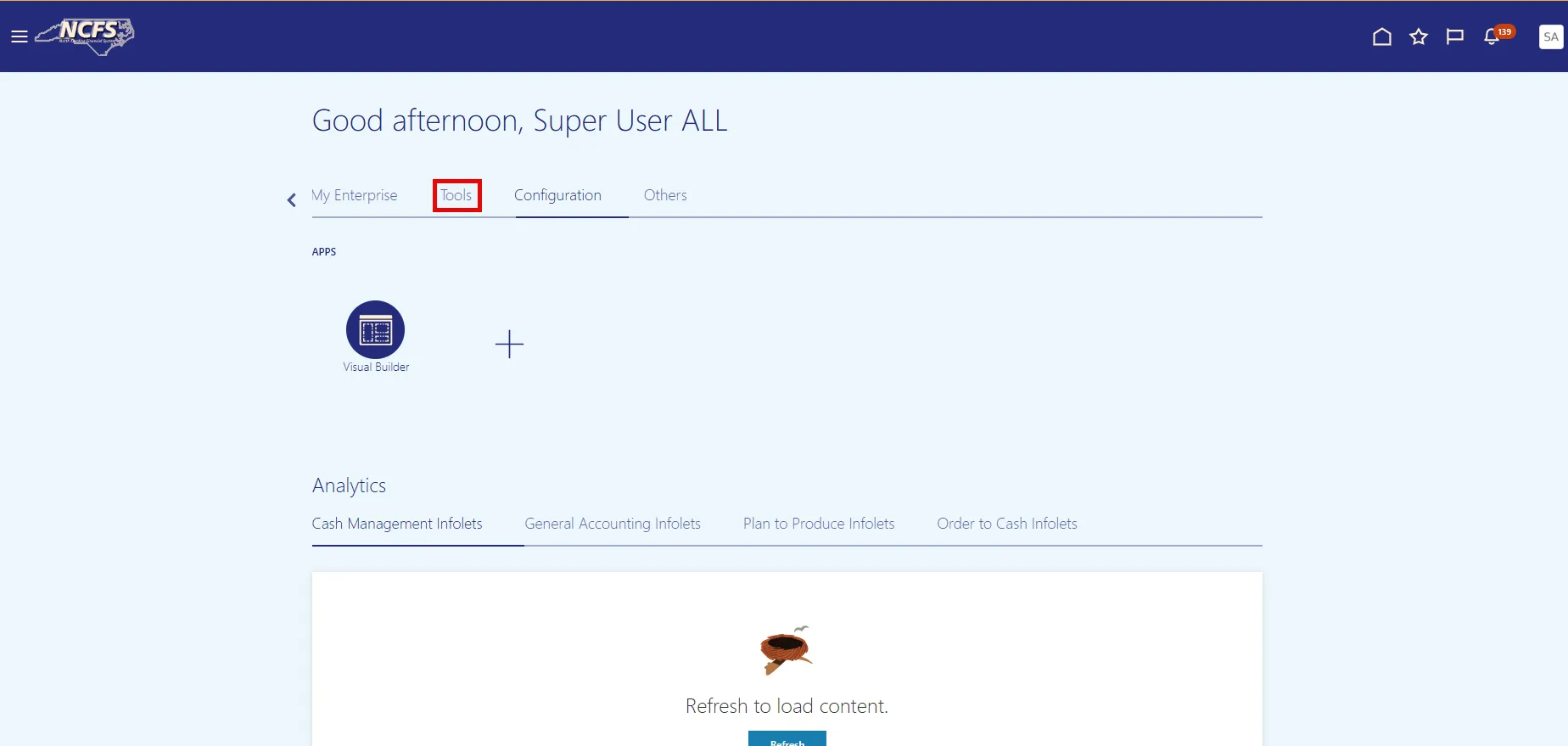
Step 1. On the NCFS home page, choose the Tools tab.
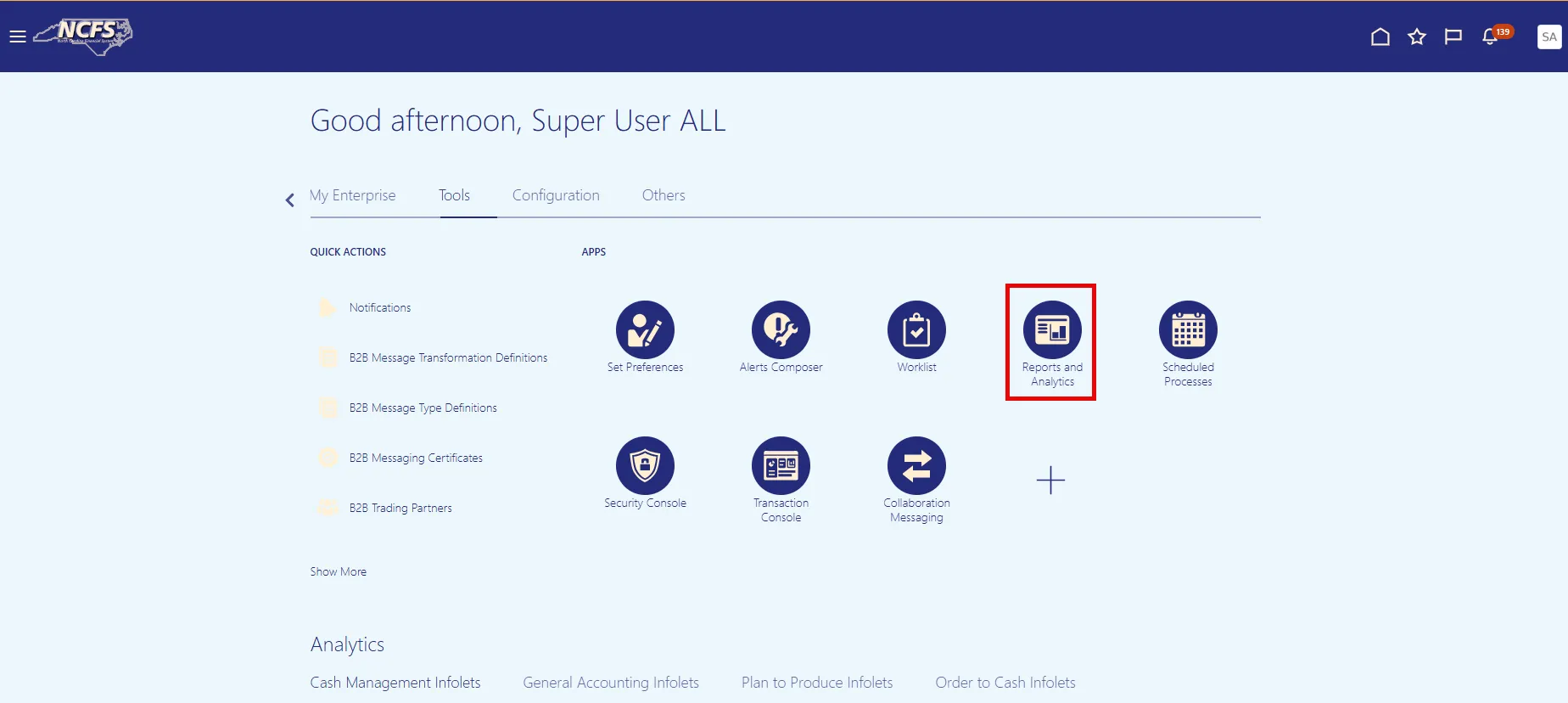
Step 2. Choose the Reports and Analytics app.
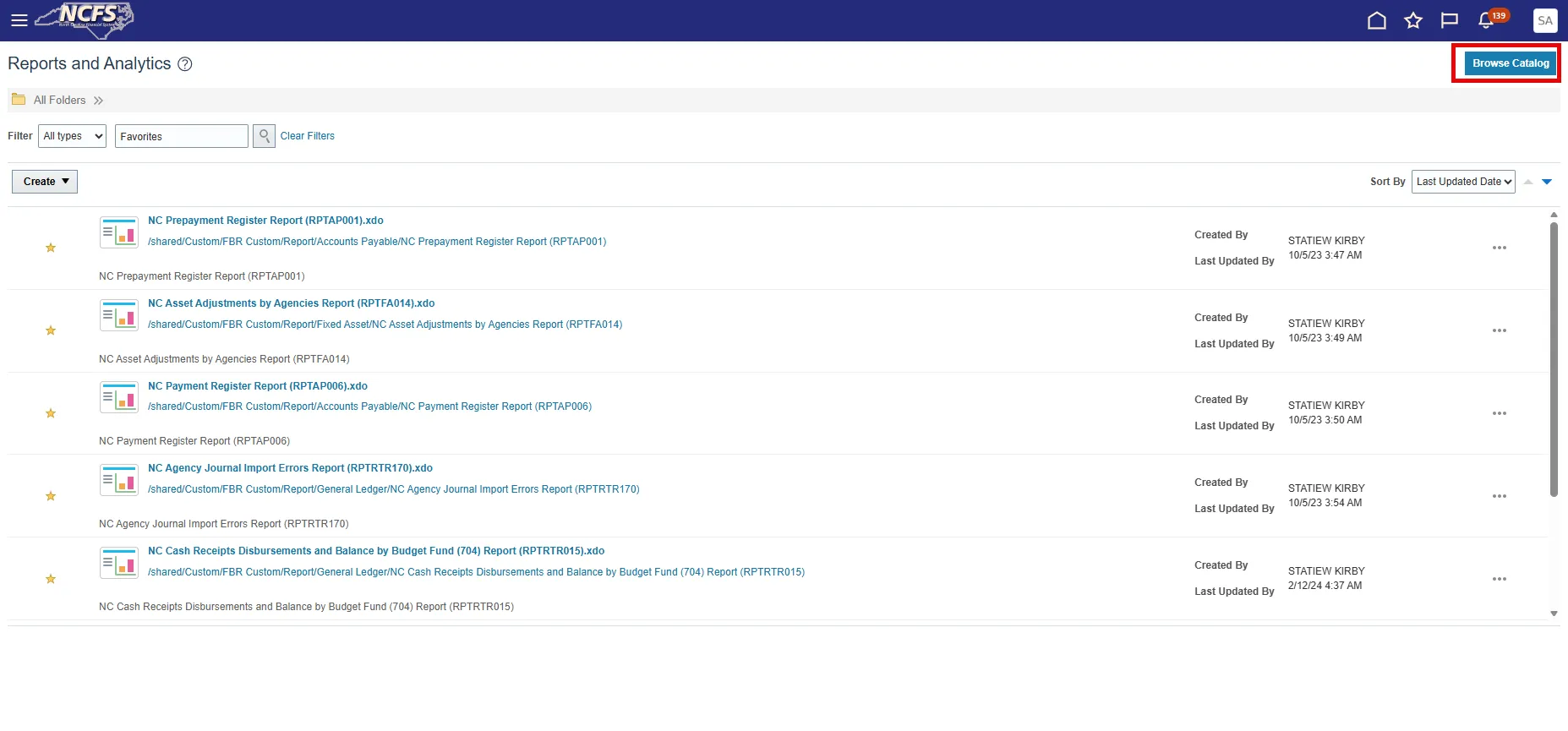
Step 3. On the Reports and Analytics screen, choose the Browse Catalog button.
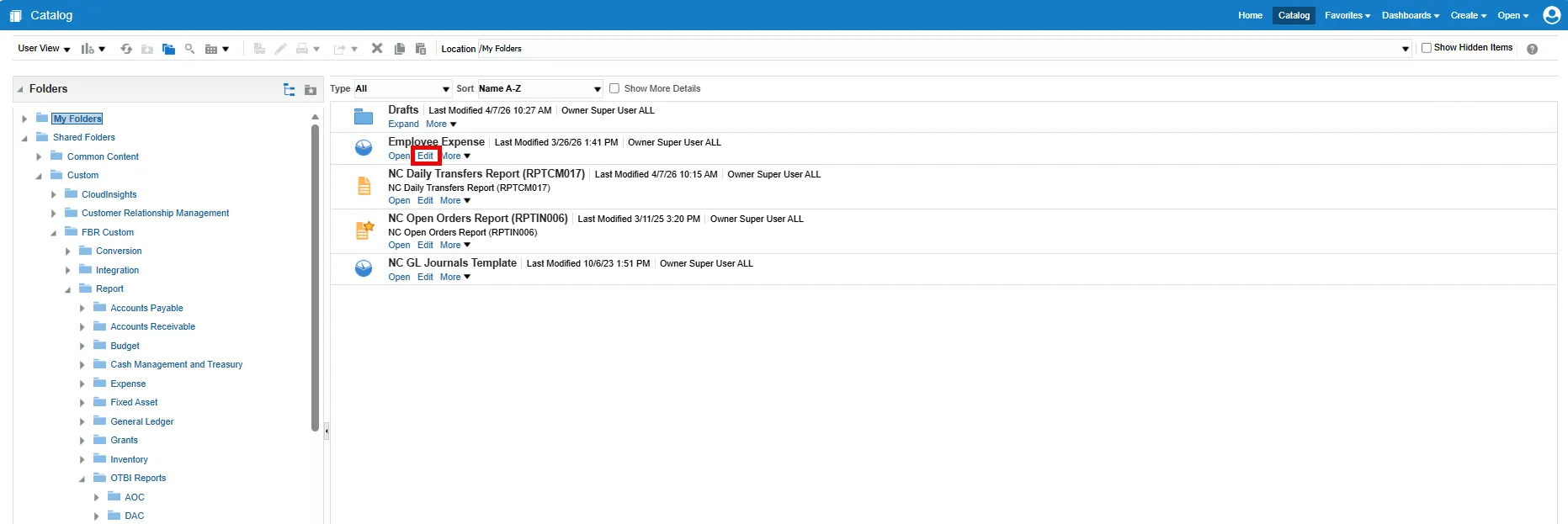
Step 4. On the Catalog page, select Edit under the report you wish to customize.
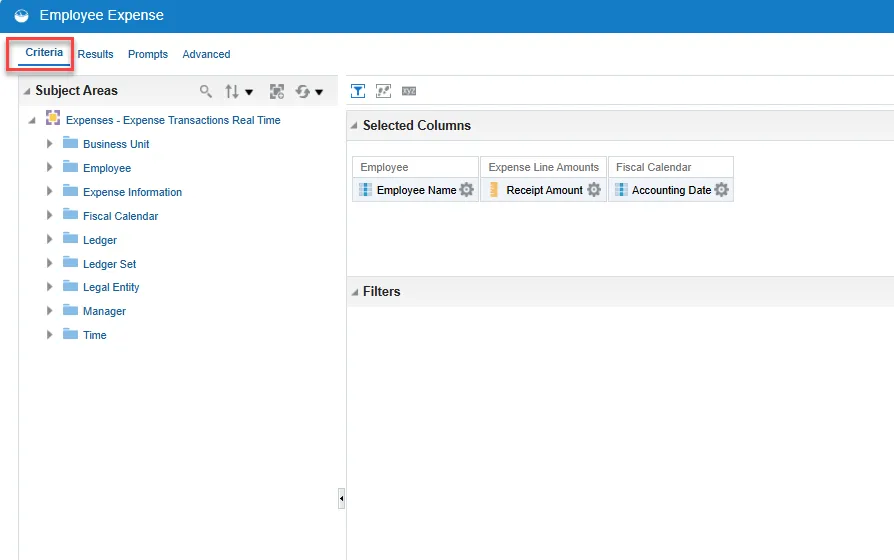
Step 5. Select the Criteria tab.
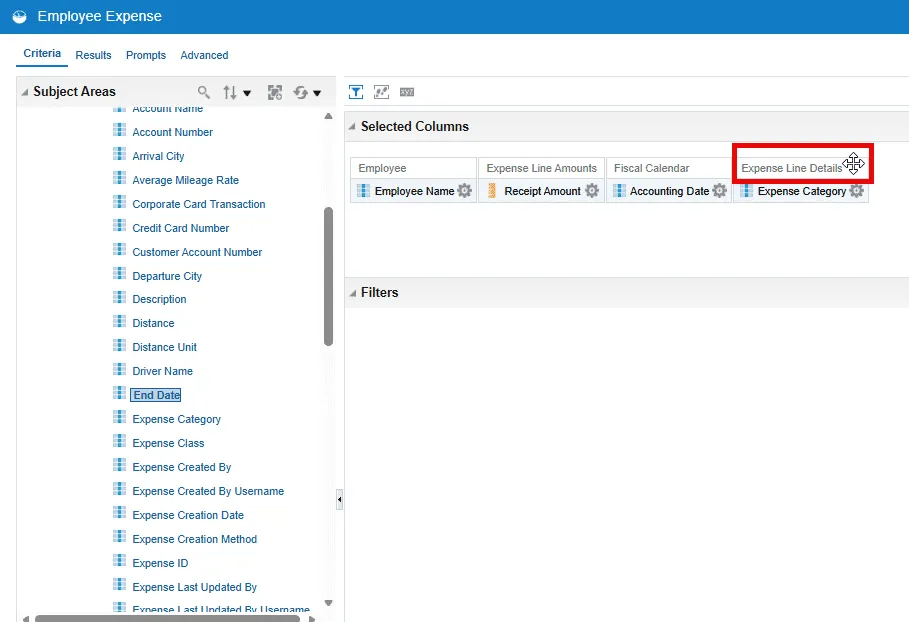
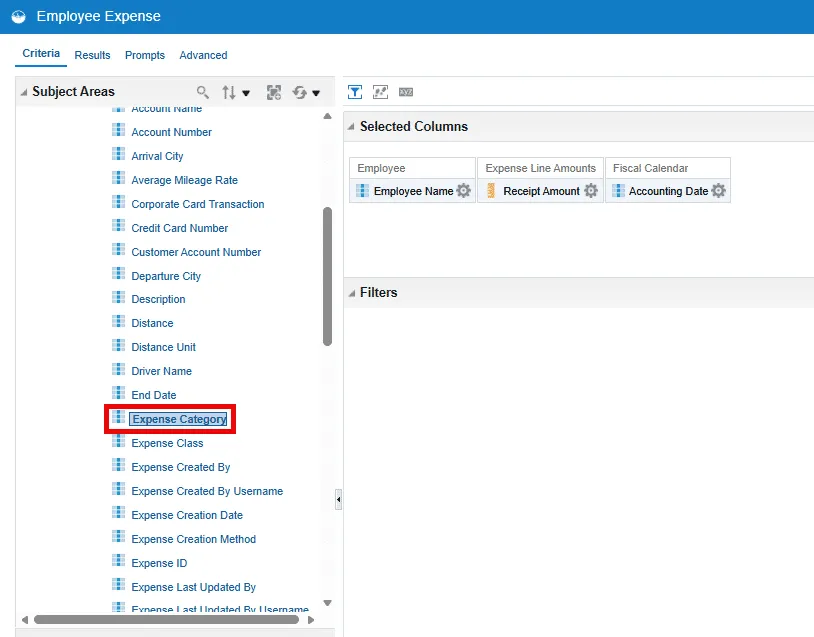
Step 6. To add a column to the report, simply drag and drop to the Selected Columns area or double-click any available data element nested under the folders.
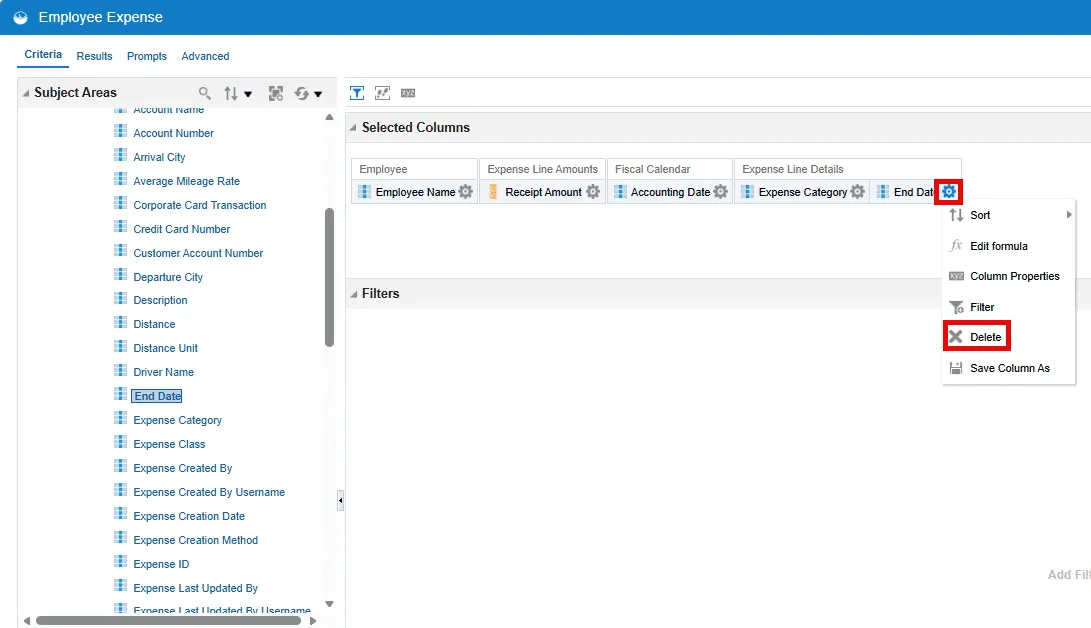
Step 7. To delete a column, select the gear icon within the chosen column and choose Delete from the drop-down menu.
Step 8. To rearrange (reorder) columns, drag the column to the desired location.