Purpose
The purpose of this Quick Reference Guide (QRG) is to provide a step-by-step guide of how to add notes to a workbook in Oracle Analytics Cloud (OAC) DV.
Introduction and Overview
This QRG covers the process of adding notes to a workbook. Annotations in OAC let the user highlight key findings by adding notes to dashboards, specific charts, or even single data points. The user can fully customize these notes with fonts, colors, lists, and URL links, making your messages clear and easy for your team to find and use.
Add Note to a Workbook
Follow the below steps to add notes to a workbook. There are 9 steps to complete this process.
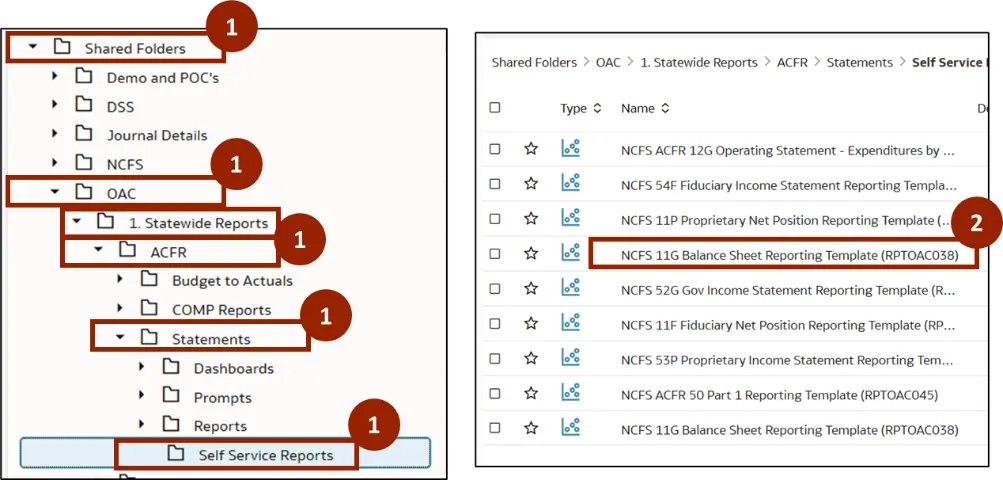
Step 1. Navigate to the Shared Folders, then open the OAC folder. In the OAC folder, click Statewide Reports and select ACFR. In the ACFR folder, click Statements, then click Self Service Reports.
Step 2. A list of DV templates is displayed within the selected report type. Double-click the desired report. In this example, double-click NCFS 11G - Balance Sheet Reporting Template (RPTOAC038) report.
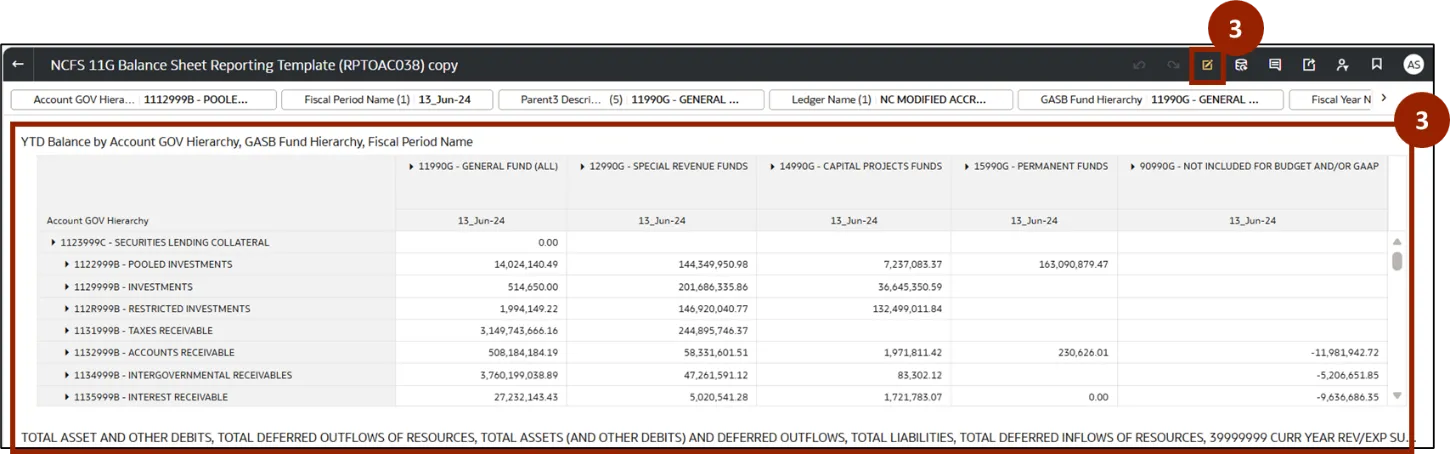
Step 3. Once the report is open, click the Edit icon.
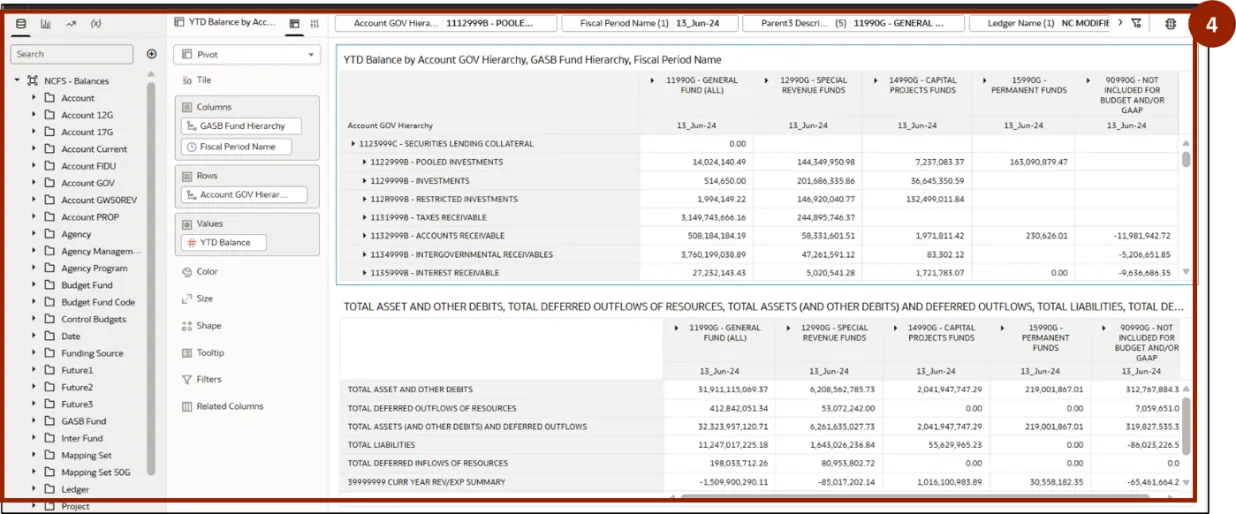
Step 4. The report opens in edit mode.
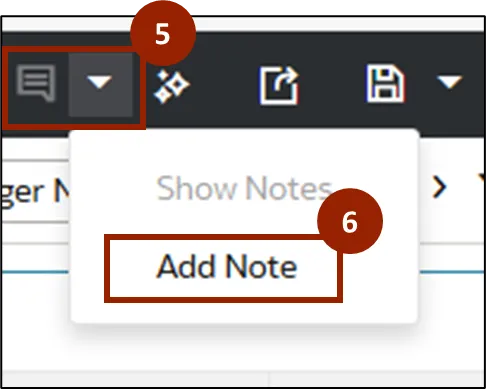
Step 5. To add a note, click the Notes icon drop-down.
Step 6. Select Add Note.
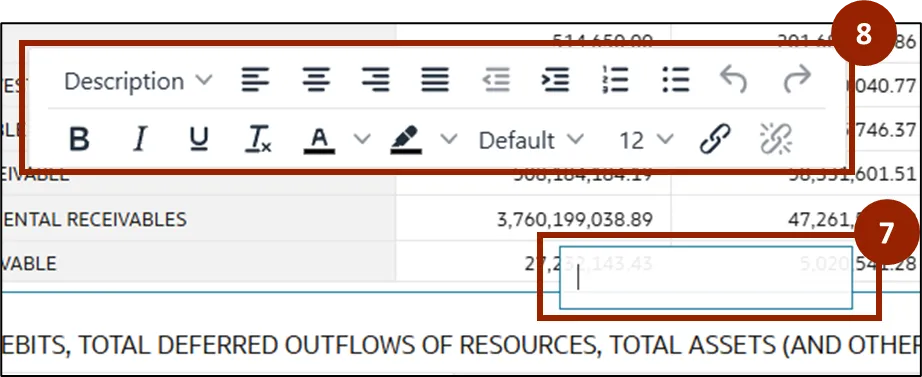
Step 7. A note box appears on the screen. In the note box, enter the note text.
Step 8. You can use the formatting options to specify the note's font style, color, size, and other attributes.
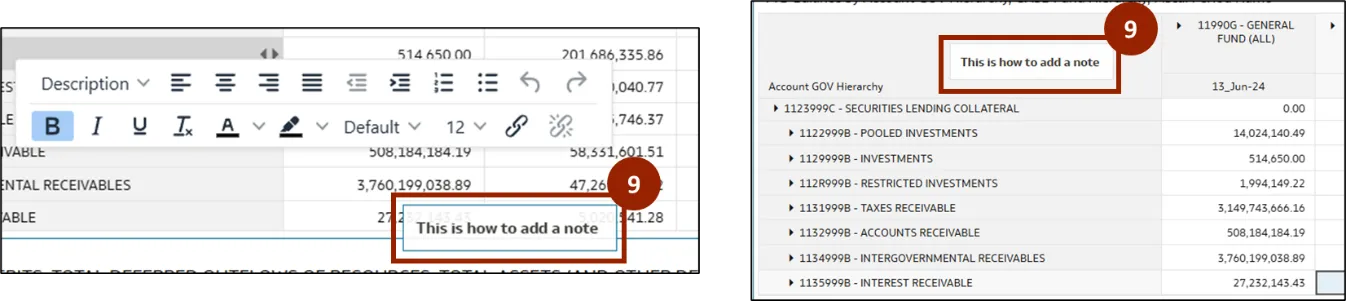
Step 9. Once the note is added, the user can drag it around the screen and place it in the desired part of the workbook.
Wrap-Up
OAC users can add customizable notes to a workbook using the steps above, making it easy to highlight insights, provide context, and communicate key information directly on dashboards for the team.
Additional Resources
- Virtual Instructor Led Training (vILT)