Purpose
The purpose of this Quick Reference Guide (QRG) is to provide a step-by-step guide of how to Check back-to-back and Non-Back-to-Back Processes in the North Carolina Financial System (NCFS).
Introduction and Overview
This QRG covers the process of Checking back-to-back and Non-Back-to-Back Processes. This process provides information on how to check for both Back-to-Back and Non-Back-to-Back orders in NCFS, monitor fulfillment status, errors and exceptions using system tools.
Checking Back-to-Back Navigation
Checking if an item is back-to-back enabled determines whether NCFS will automatically create a supply type— a manufacturing work order if the item is out of stock, or an On Hand supply if the item is available in stock.
To check if an item is back-to-back enabled, from the Order screen, follow these steps. There are 12 steps to complete this process.
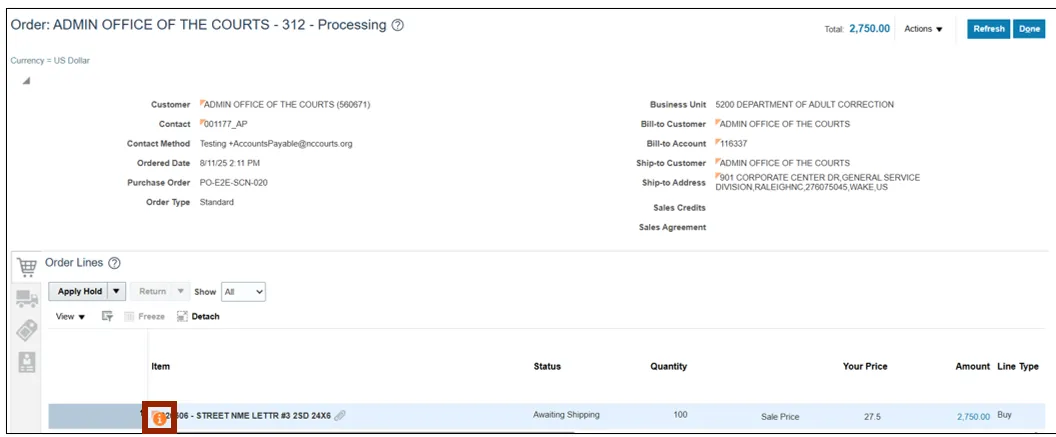
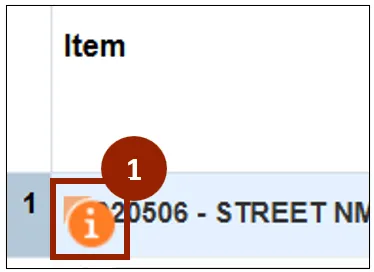
Step 1. In the Order Lines section of the Lines tab, click the orange information icon on the specific line item to open the Item Information window.
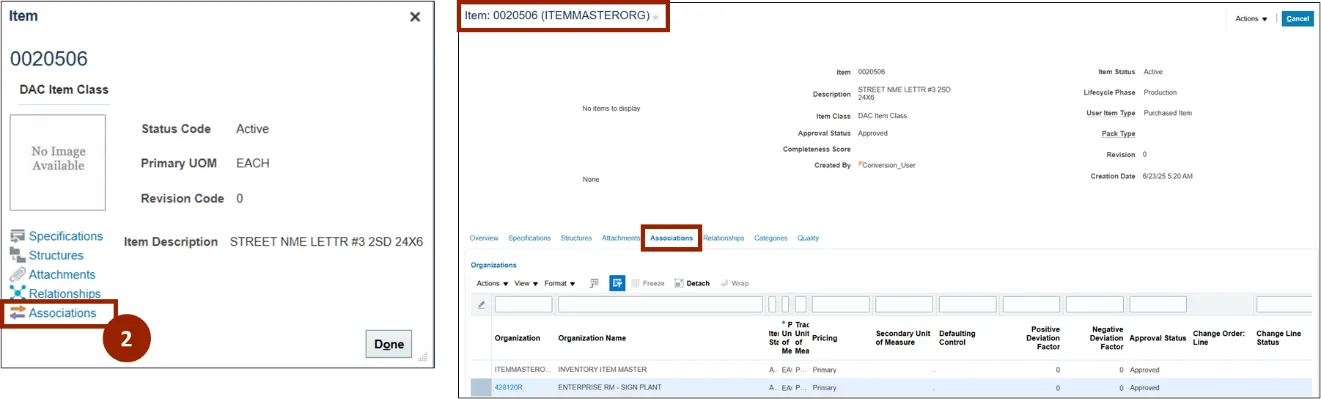
Step 2. In the Item Information window, click the Associations link.
Note: The Item screen displays for the selected item with the display defaulted to the Associations tab.
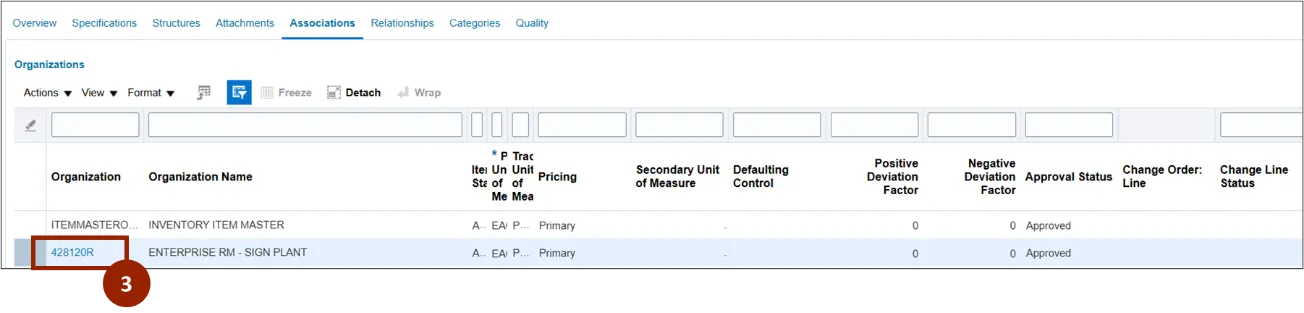
Step 3. In the Organization column of the Associations tab, click the desired organization (or plant) link to open the Item screen for the plant.
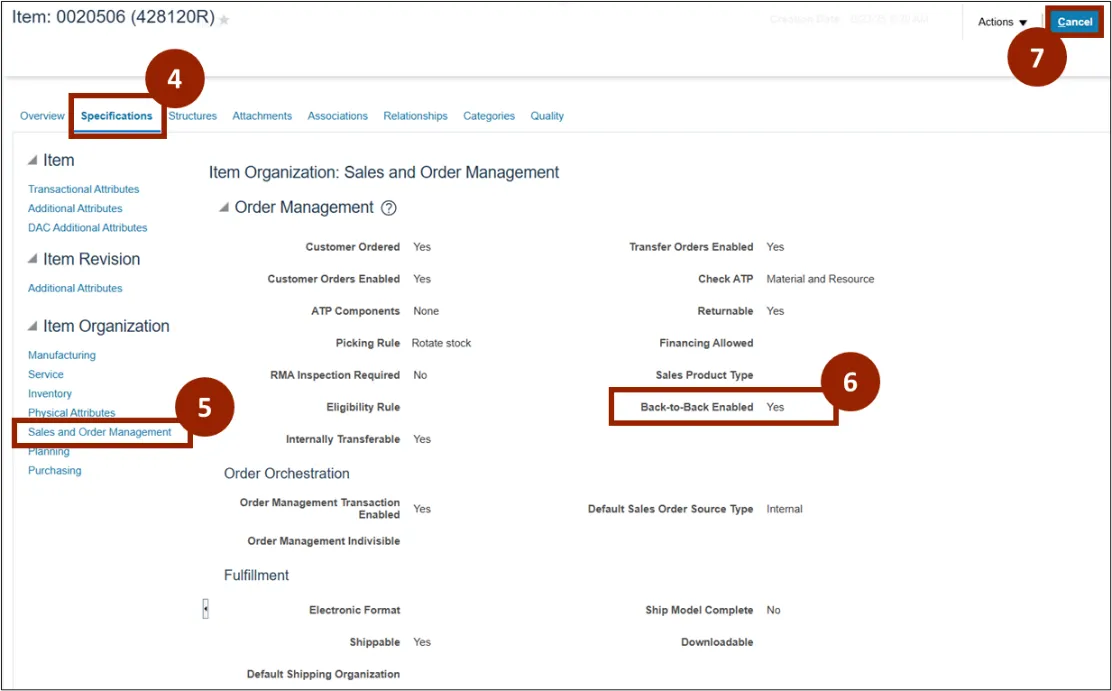
Step 4. Click the Specifications tab.
Step 5. In the Item Organization section, click the Sales and Order Management link.
Step 6. In the Back-to-Back Enabled field, verify that “Yes” displays.
Step 7. Click Cancel button to return to the Order screen.
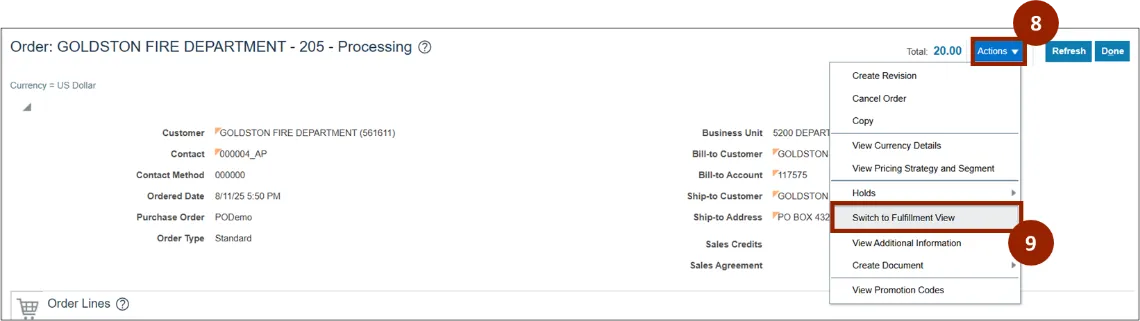
Step 8. From the Order screen, click the Actions drop-down.
Step 9. Select Switch to Fulfillment View.
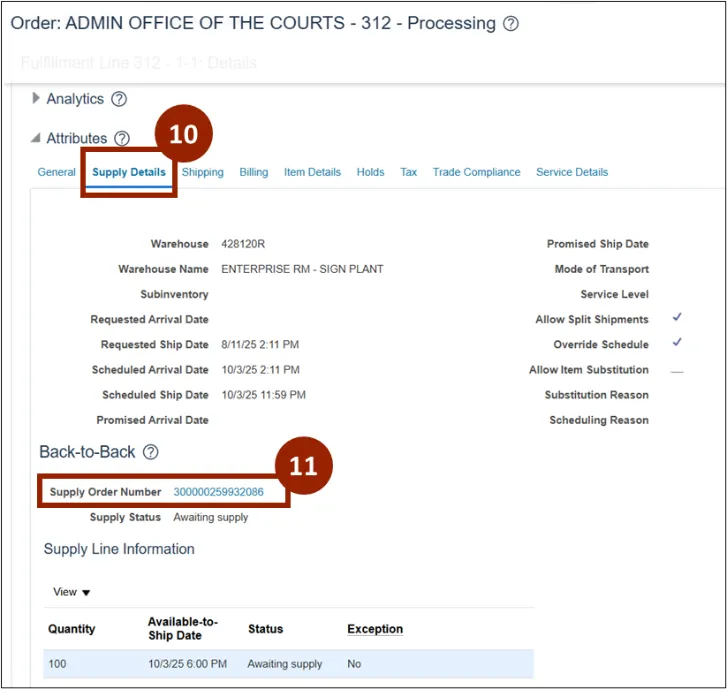
Step 10. Navigate to the Attributes section and click the Supply Details tab.
Step 11. In the Back-to-Back section, click the Supply Order Number link.
Note: The Supply Order Number is a unique identifier used to access the Supply Order Details screen for the corresponding supply order.
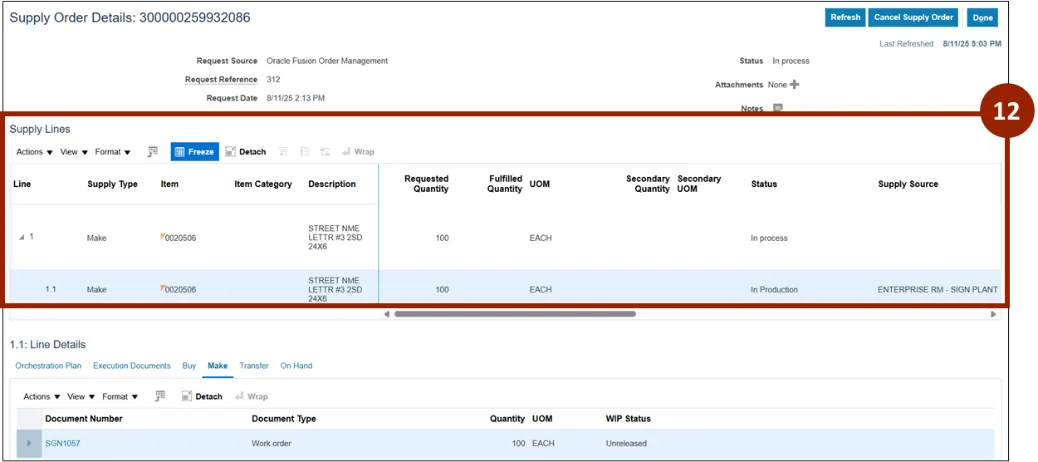
Step 12. In the Supply Lines section of the Supply Order Details screen, verify information displayed.
Note: To view additional details, click the Supply Line row for the item. In this example, the item was out of stock, so the Supply Type is shown as “Make.” If the item is in stock, the Supply Type will display as “On Hand.”
Checking Non-Back-to-Back Navigation
To check if an item is back-to-back enabled, from the Order screen, follow these steps. There are 11 steps to complete this process.
Step 1. In the Order Lines section of the Lines tab, click the orange information icon on the specific line item to open the Item Information window.
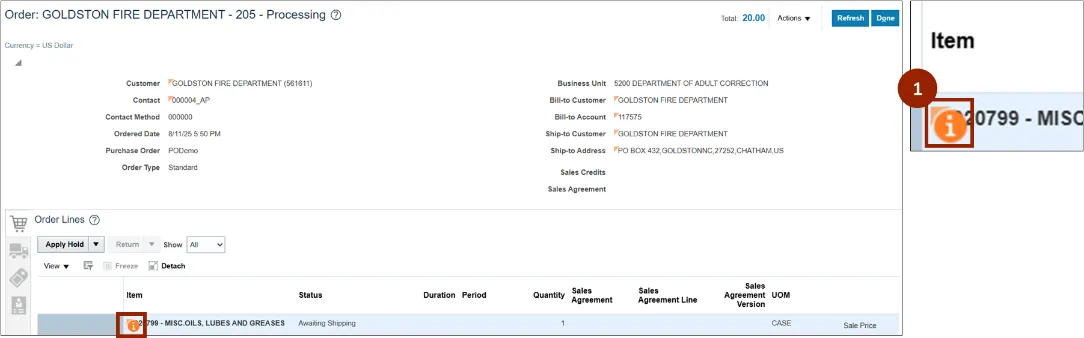
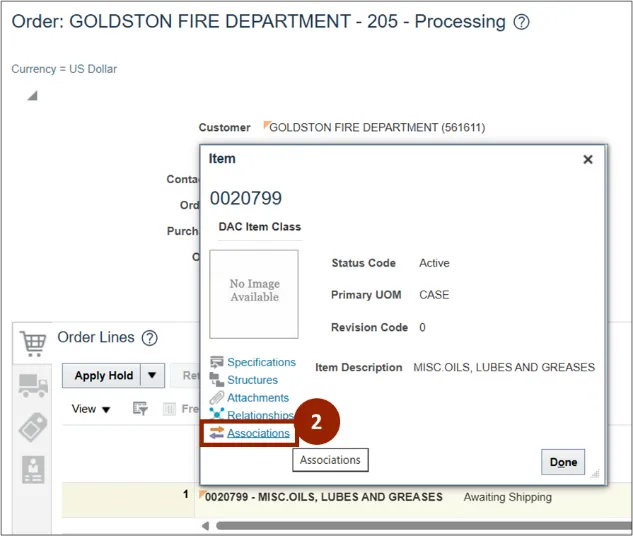
Step 2. In the Item Information window, click the Associations link.
Note: The Associations link opens the Item screen displays for the selected item with the display defaulted to the Associations tab.
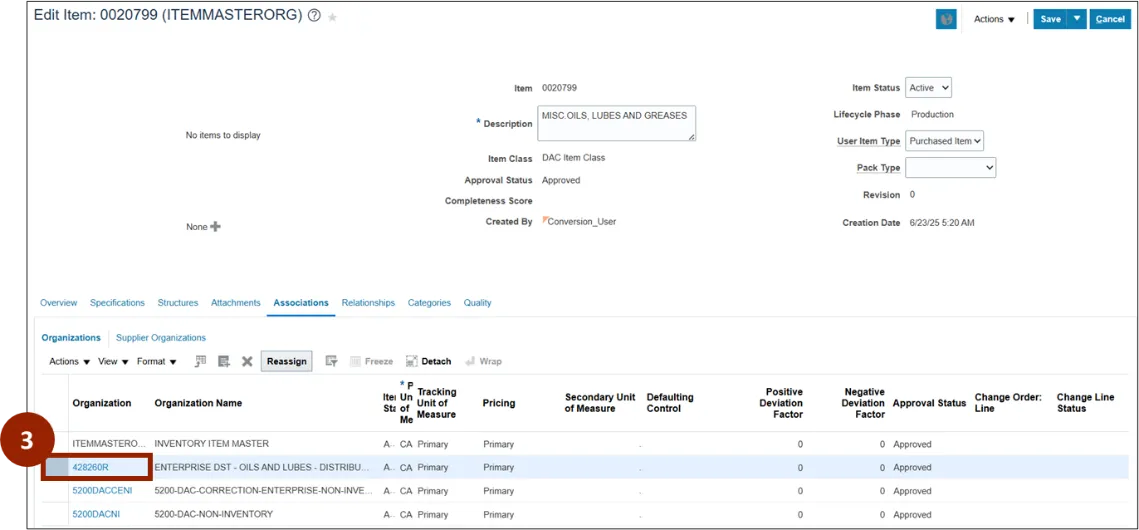
Step 3. In the Organization column of the Associations tab, click the desired organization (or plant) link to open the Item screen for the plant.
Step 4. Click the Specifications tab.
Step 5. In the Item Organization section, click the Sales and Order Management link.
Note: This screen is for information validation only—no changes are required. Even if the field appears editable based on access permissions, do not make any edits. If the screen displays as an Edit Item screen due to your permissions, only review and validate the information shown.
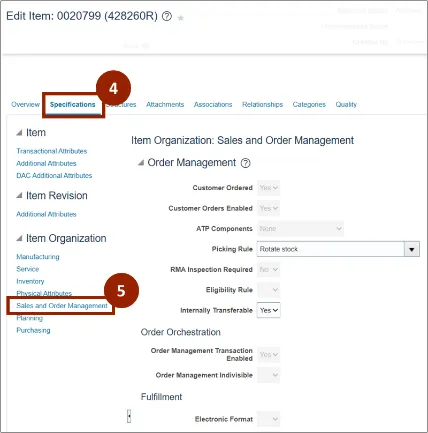
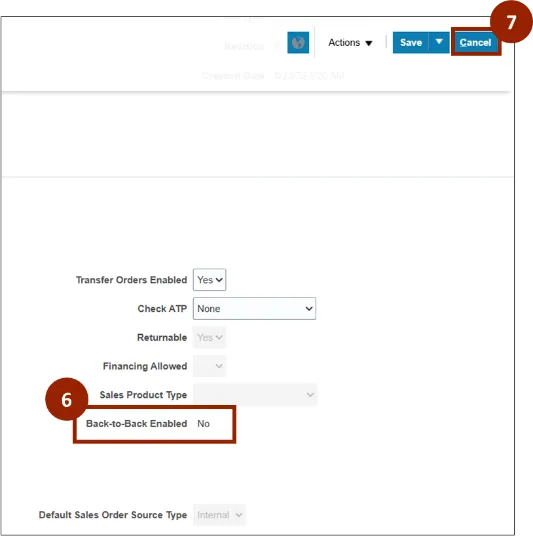
Step 6. In the Back-to-Back Enabled field, verify that No displays.
Step 7. Click Cancel button to return to the Order screen.
Note: Reviewing supply details for non-back-to-back items can be done from the Fulfillment View. To check the supply details for non-back-to-back items, from the Order screen, follow these steps:
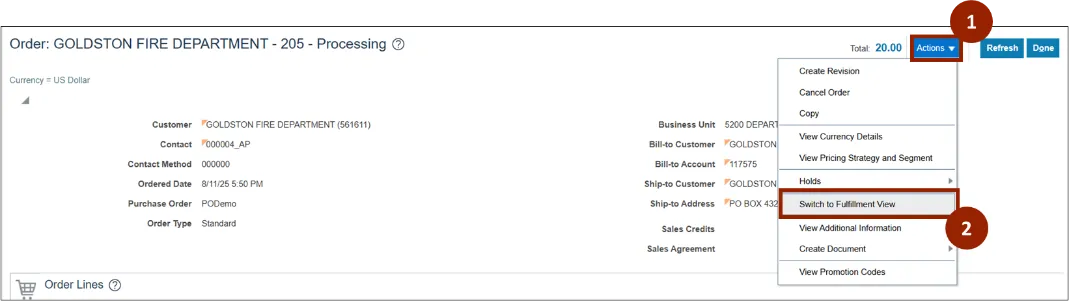
Step 8. Click the Actions drop-down.
Step 9. Select Switch to Fulfillment View.
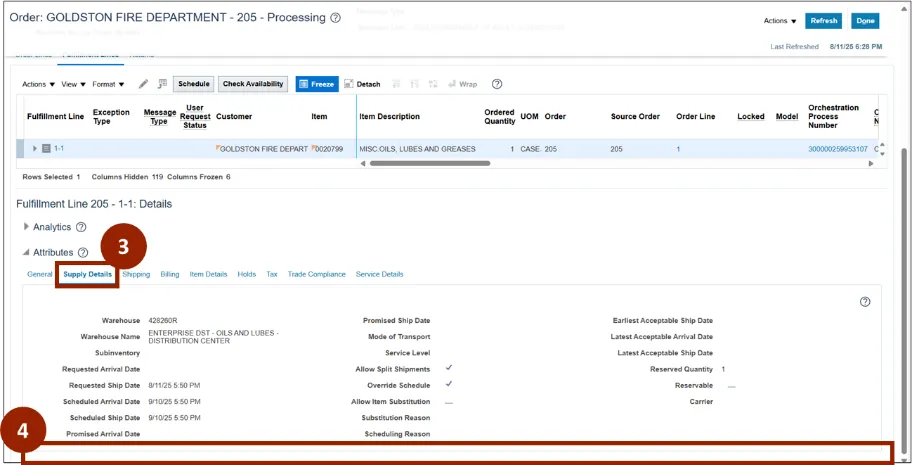
Step 10. Navigate to the Attributes section and select the Supply Details tab.
Step 11. For non-back-to-back items, the Back-to-Back section will not display.
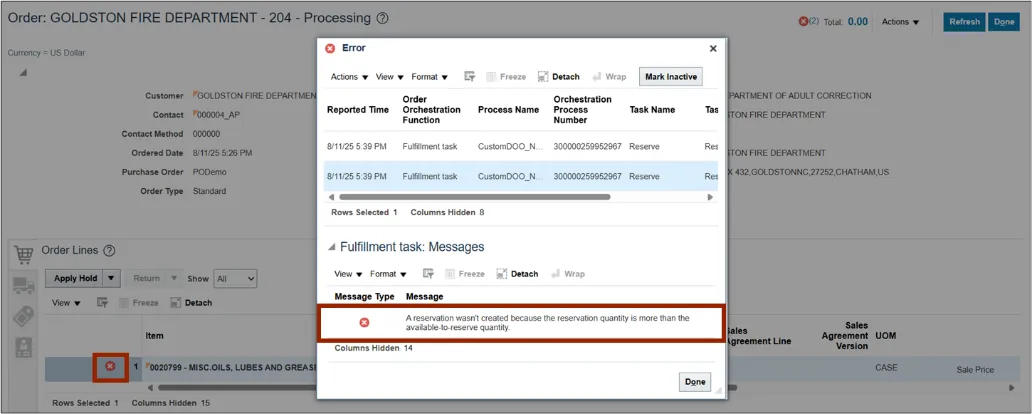
Note: In Order screen, if stock is not available, a reservation error will be displayed after the order is submitted. The error message will state: “A reservation wasn't created because the reservation quantity is more than the available-to-reserve quantity.” This exception occurs when an item is out of stock and an order is submitted for non-back-to-back items.
Wrap-Up
NCFS users can reference the Check back-to-back and Non-Back-to-Back Processes using the steps above.
Additional Resources
- Virtual Instructor Led Training (vILT)