Purpose
The purpose of this Quick Reference Guide (QRG) is to provide a step-by-step guide to Manufacturing Costing in the North Carolina Financial System (NCFS).
Introduction and Overview
This QRG covers the process of Manufacturing Costing within NCFS.
Custom Report: Finished Product Cost Estimate
There are 19 steps to complete this process.
Step 1. Log in to the NCFS portal using the Company Single Sign-On (SSO) button.
Step 2. Enter your @dac.nc.gov email address.
Step 3. Click Next, then enter your password.
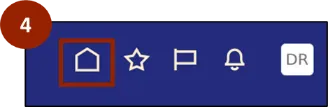
Step 4. Begin from the Home page, or click the Home icon.
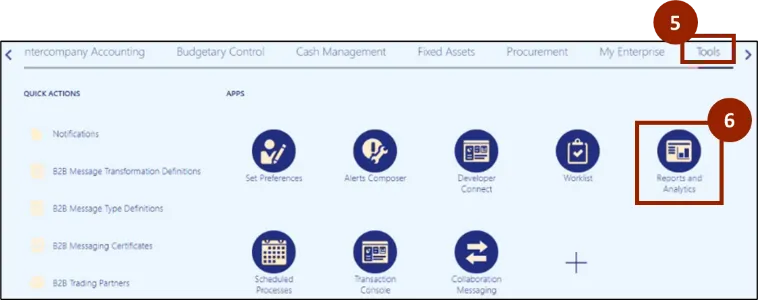
Step 5. On the Home page, select Tools.
Step 6. Within the Tools, select Reports and Analytics.
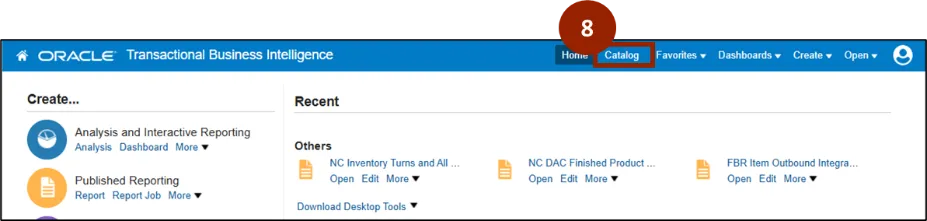
Step 7. Select Browse Catalog.

Step 8. Select Catalog.
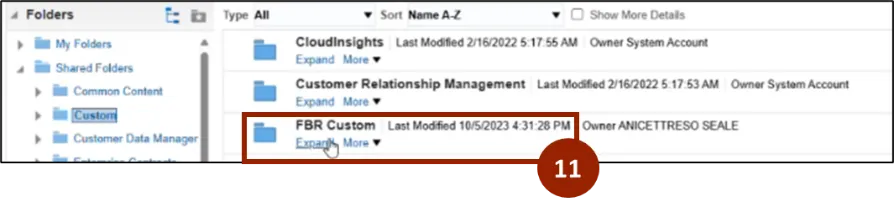
Step 9. Select Shared Folders.
Step 10. Select Expand under the Custom option.

Step 11. Select Expand under the FBR custom option.
Step 12. Select Expand under the Report option.
Step 13. Select Expand under the Inventory option.

Step 14. Select Expand under NC DAC Finished Product Cost Estimate Report (RPTIN030).

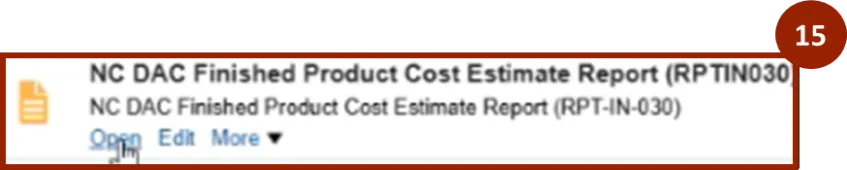
Step 15. Select Open under the NC DAC Finished Product Cost Estimate Report (RPTIN030).
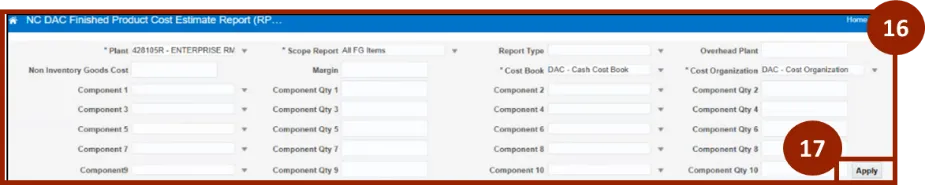
Step 16. On the NC DAC Finished Product Cost Estimate Report, input and/or select the appropriate options from the following:
- Plant
- Scope Report
- Report Type: Select Estimate
- Non Inventory Goods Cost: Enter a custom amount
- Margin
- Cost Book
- Cost Organization
- Component 1: Enter up to 10 Components to estimate the cost of the finished good
Step 17. Select Apply.
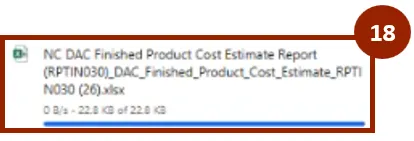
Step 18. Report is exported in Excel format, open the file from your Downloads.
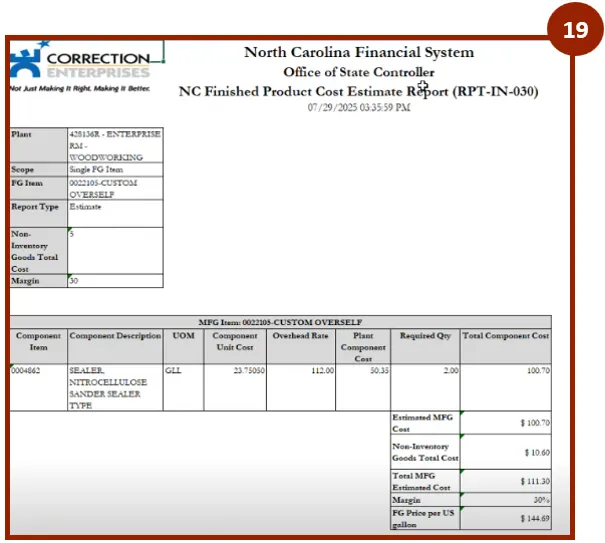
Step 19. View report.
Review Work Order Cost Analysis Screen
There are 27 steps to complete this process.
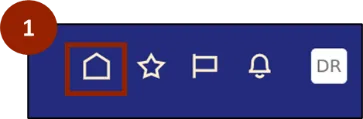
Step 1. Begin from the Home page, or click the Home icon.
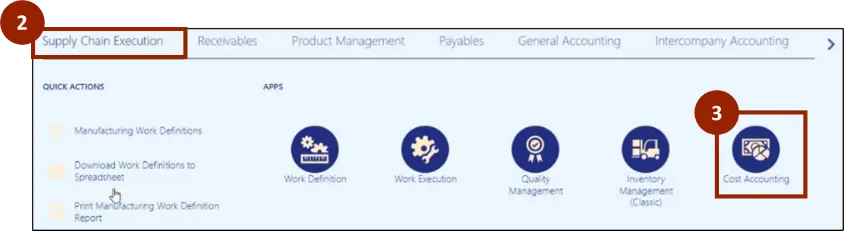
Step 2. On the Home page, select Supply Chain Execution.
Step 3. Within the Supply Chain Execution tab, select Cost Accounting.
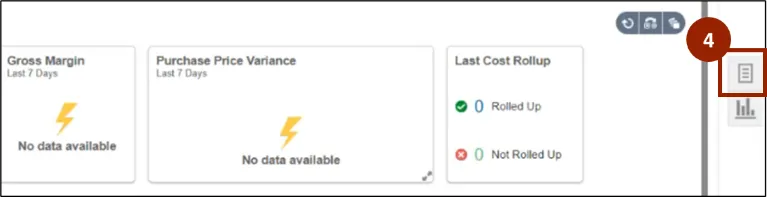
Step 4. On the Cost Accounting Page, navigate to the Task icon.
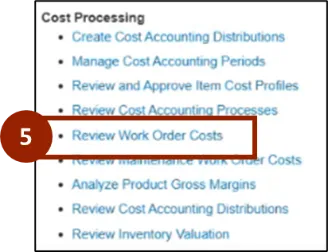
Step 5. Within the Task tab, select Review Work Order Costs.
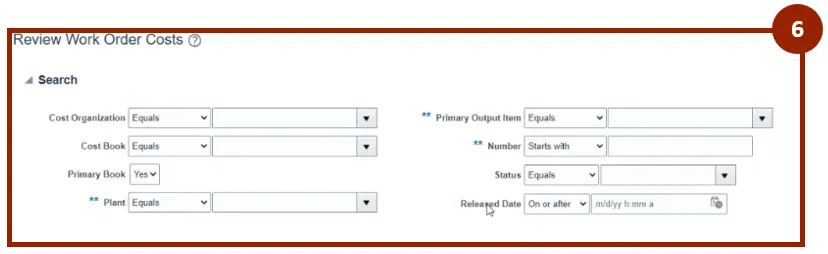
Step 6. On the Review Work Order Costs screen, input and/or select the appropriate option from the following:
- Cost Organization: Select DAC - Cost Organization
- Cost Book: Select the appropriate Cost Book
- Plant
- Primary Output Item
- Work Order Number
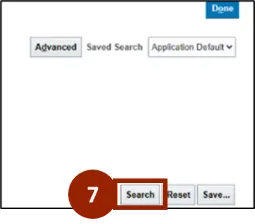
Step 7. Select Search.
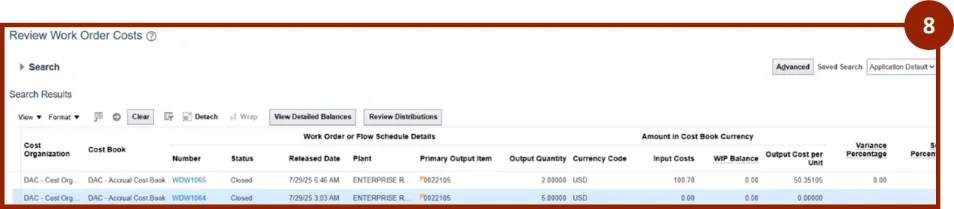
Step 8. View results from the Review Work Order Costs screen.
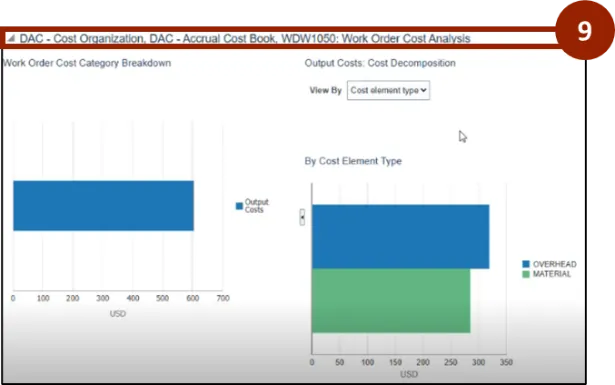
Step 9. Select the arrow icon in the Work Order Cost Analysis next to DAC – Cost Organization to view more details.
Step 10. Select and highlight a Work Order row.
Step 11. Select View Detailed Balances.
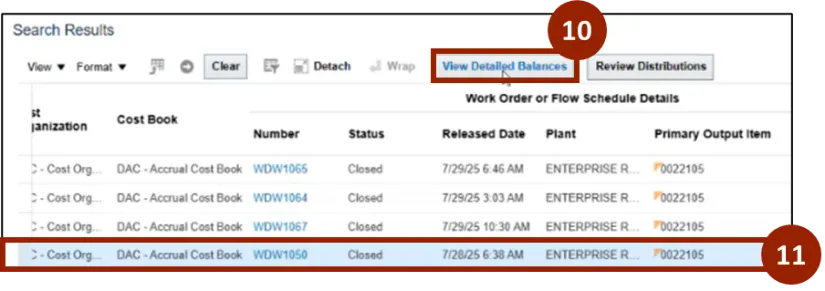
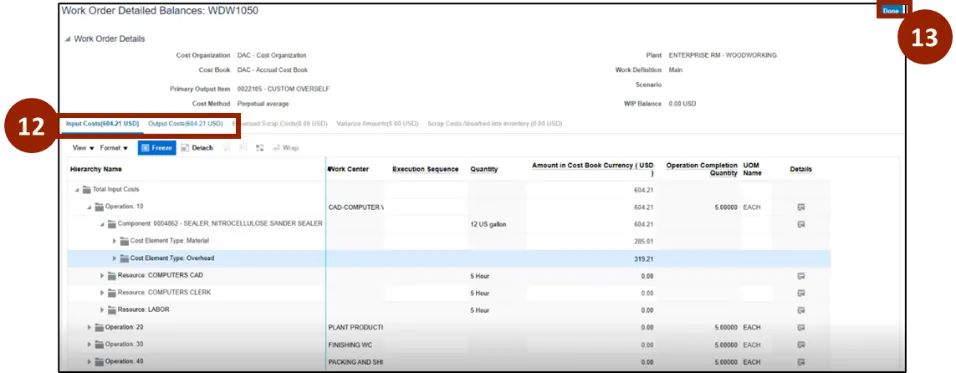
Step 12. From the Work Order Detailed Balances screen, select the following two tabs to view:
- Input Costs
- Output Costs
Step 13. Select Done.
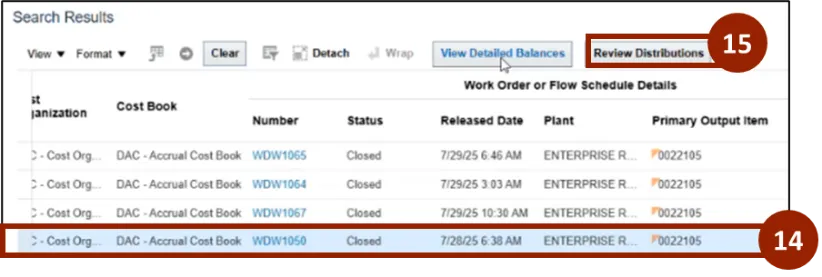
Step 14. Select and highlight a Work Order Number.
Step 15. Select Review Distributions.
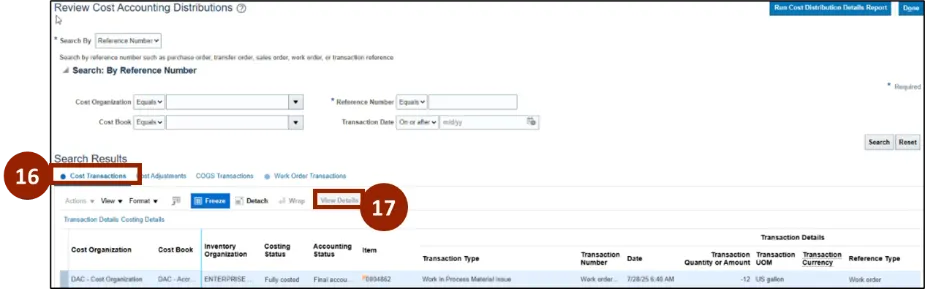
Step 16. From the Review Cost Accounting Distribution screen ensure you select the Cost Transaction tab to view details related to materials.
Step 17. Select View Details.
Step 18. View results.
Note: From this view you can determine the Perpetual Average Cost and Overhead.
Step 19. Select Done.
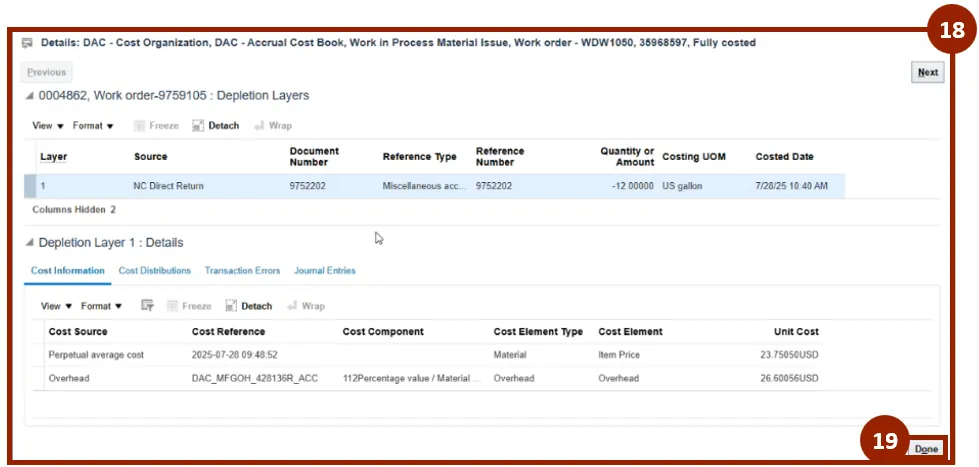
Step 20. Select and highlight a Work Order row.
Step 21. Select View Details.
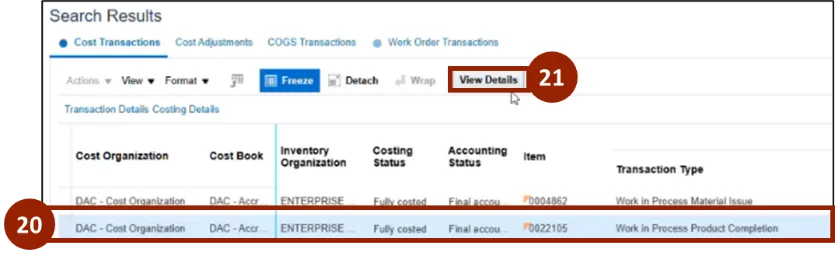
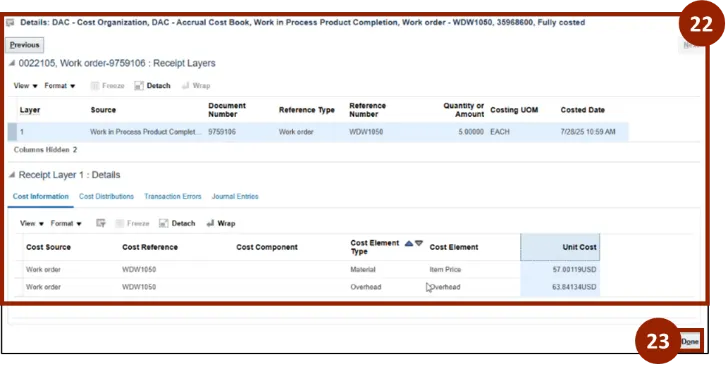
Step 22. View results.
Note: From this view you can view the Cost Element Type as Material and Overhead.
Step 23. Select Done.
Note: From the Cost Information tab, you can view the Cost Source for the transaction.
To view Work Order Resource Transactions.
Step 24. Select and highlight the Work Order Number.
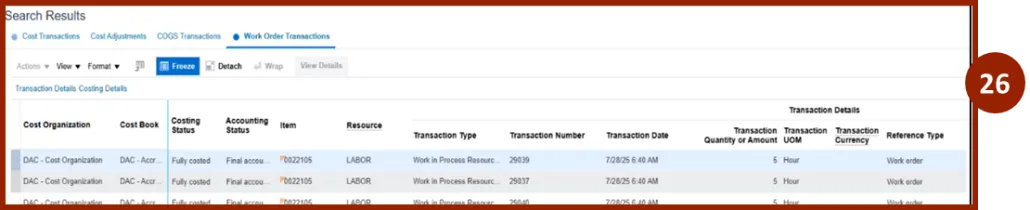
Step 25. Select the Work Order Transactions.
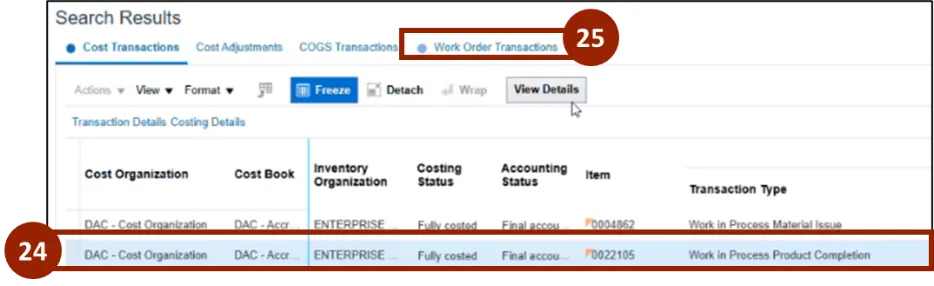
Step 26. View transactions for labor and equipment resources.
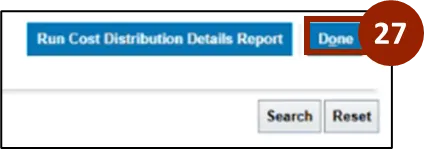
Step 27. Select Done.
WIP Inventory Value Report
There are 15 steps to complete this process.
Step 1. Begin from the Home page, or click the Home icon.
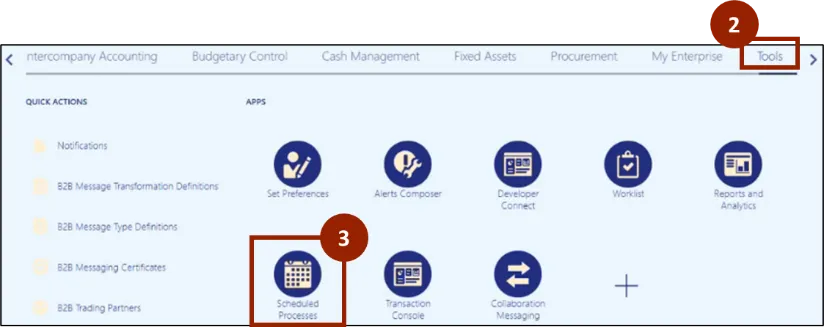
Step 2. On the Home page, select Tools.
Step 3. Within the Tools, select Scheduled Processes.
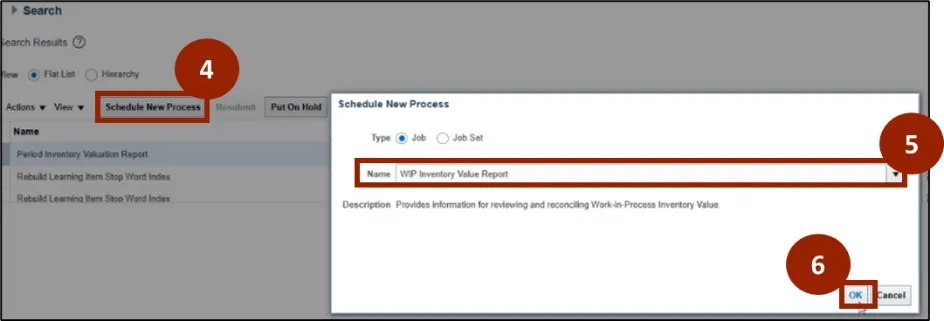
Step 4. Select Schedule New Process.
Step 5. Type WIP Inventory Value Report into the Name box.
Step 6. Select OK.
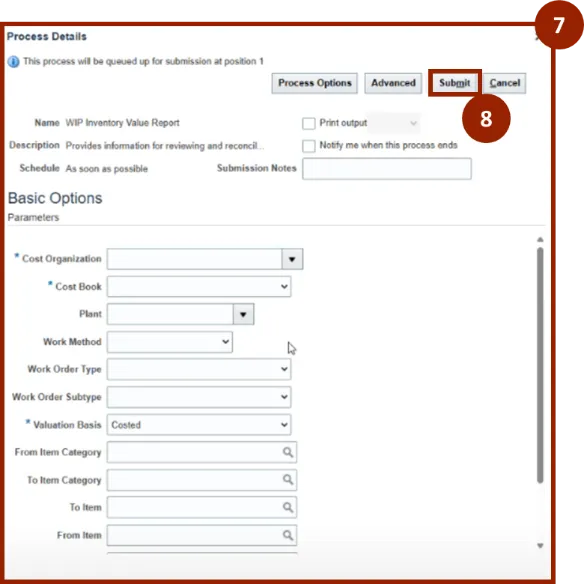
Step 7. On the Process Details screen, input and/or select the appropriate option from the following:
- Cost Organization: Select DAC - Cost Organization
- Cost Book: Select the appropriate Cost Book
- Plant
- Valuation Basis
- Value As-Of Date
Step 8. Select Submit.
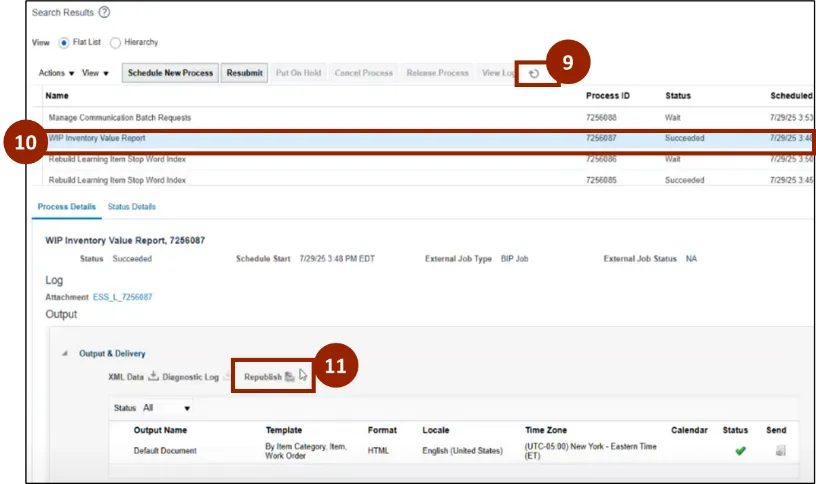
Step 9. Click in the Refresh icon until the Status is Succeeded.
Step 10. Select and highlight the succeeded row WIP Inventory Value Report.
Step 11. Select Republish.
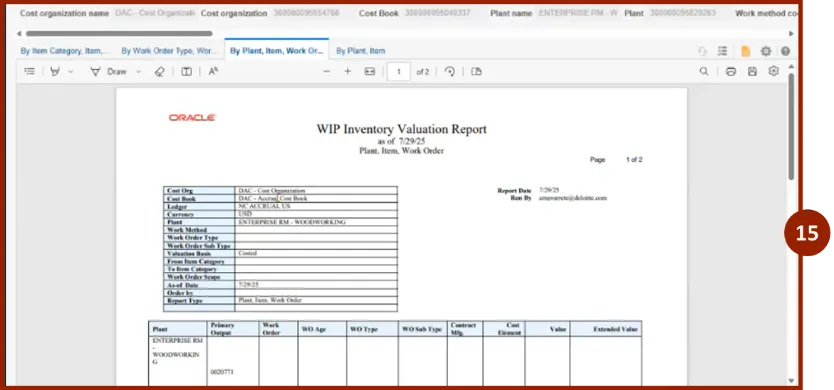
Step 12. Select the desired view to see report results
Step 13. Select the Report icon.
Step 14. Select PDF.

Step 15. View the WIP Inventory Valuation Report.
Wrap-Up
NCFS users can reference Manufacturing Costing using the steps above.
Additional Resources
- Virtual Instructor Led Training (vILT)