Purpose
The purpose of this Quick Reference Guide (QRG) is to provide a step-by-step guide of how to do Inventory Valuation in the North Carolina Financial System (NCFS).
Introduction and Overview
This QRG covers the process of Inventory Valuation. This process provides information on how to navigate and review inventory valuation, analyze and understand inventory valuation at various levels such as cost organization/inventory organization and utilize different methods such as standard screens or reports to perform inventory valuation.
Review Inventory Valuation Screen
There are 15 steps to complete this process.
Step 1. Log in to the NCFS portal using the Company Single Sign-On (SSO) button.
Step 2. Enter your @dac.nc.gov email address.
Step 3. Click Next, then enter your password.
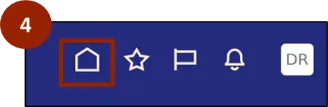
Step 4. Begin from the Home page, or click the Home icon.
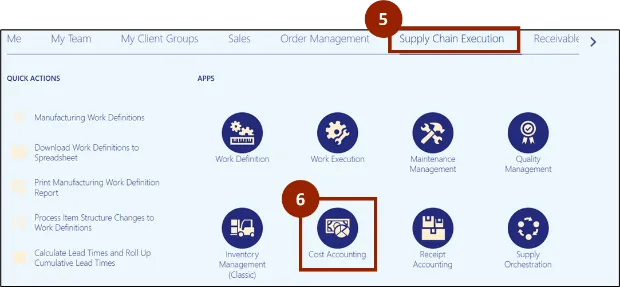
Step 5. On the Home page, select Supply Chain Execution.
Step 6. Within the Supply Chain Execution tab, select Cost Accounting.
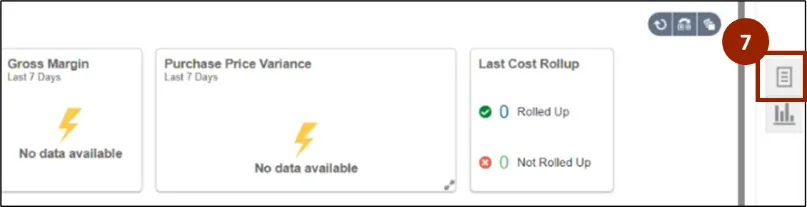
Step 7. On the Cost Accounting page, navigate to the Task icon.
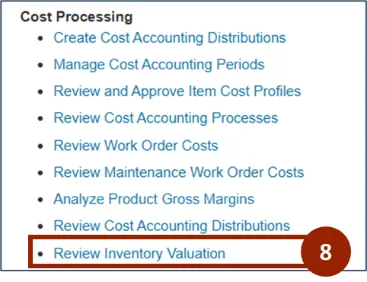
Step 8. Within the Task tab, select Review Inventory Valuation.
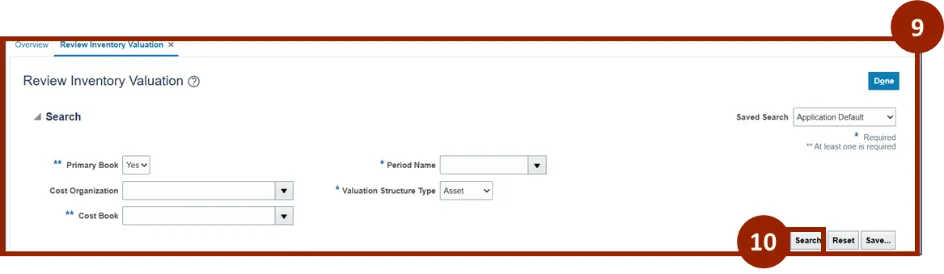
To search for and review Inventory Valuation on the Review Inventory Valuation screen, there are five search parameters to be completed.
Step 9. Within the Review Inventory Valuation screen, search for the inventory valuation using the parameters
- Primary Book
- Cost Organization
- Cost Book
- Period Name
- Valuation Structure Type
Step 10. Click Search.
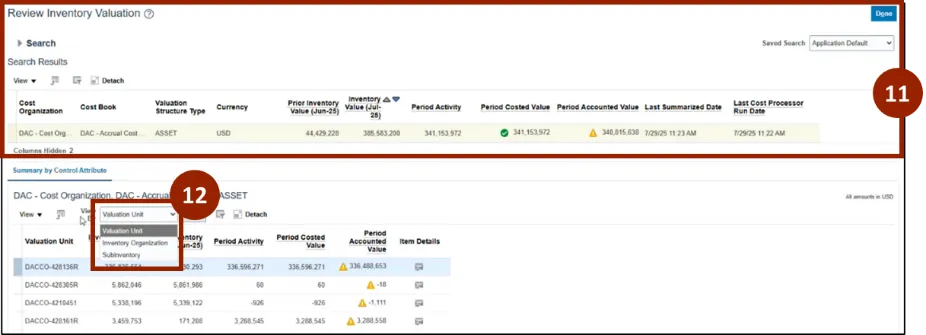
Step 11. The inventory valuation information for the selected parameters is displayed on the Review Inventory Valuation screen.
Step 12. On the Summary by Control Attribute tab, select the appropriate value from the View By drop-down list:
- Valuation Unit
- Inventory Organization
- Subinventory
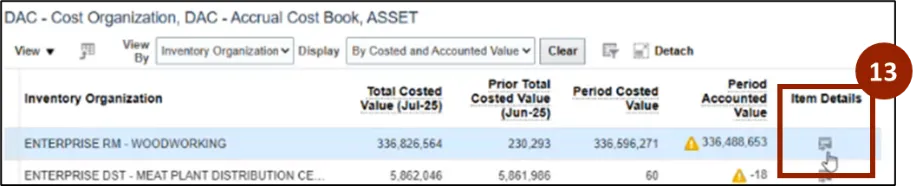
Step 13. To view the inventory value by item, click the Item Details in the summary table.
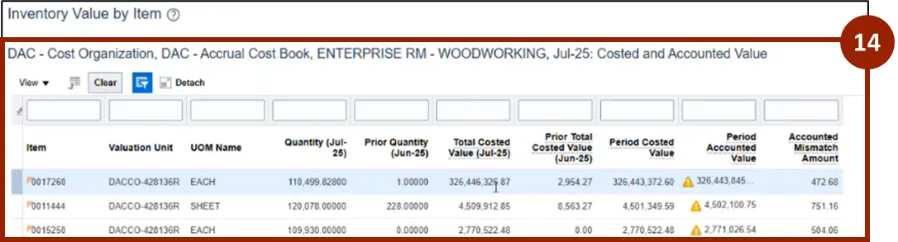
Step 14. The Inventory Value by Item page shows each item's valuation and quantity for the current and prior periods.
Step 15. Select Done.

View Period Inventory Valuation Report
There are 16 steps to complete this process.
Step 1. Begin from the Home page, or click the Home icon.
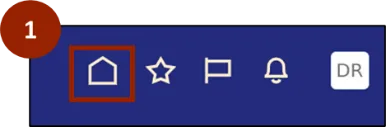
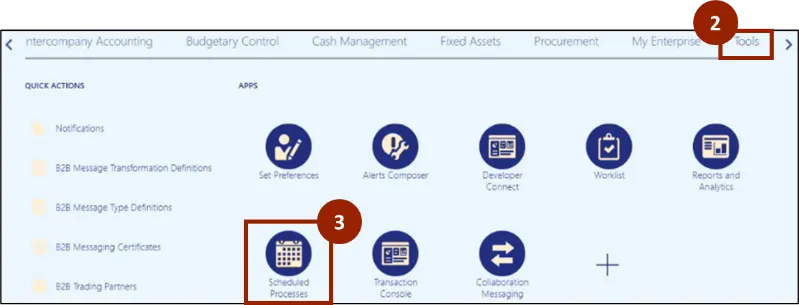
Step 2. On the Home page, select Tools.
Step 3. Within the Tools tab, select Scheduled Processes.
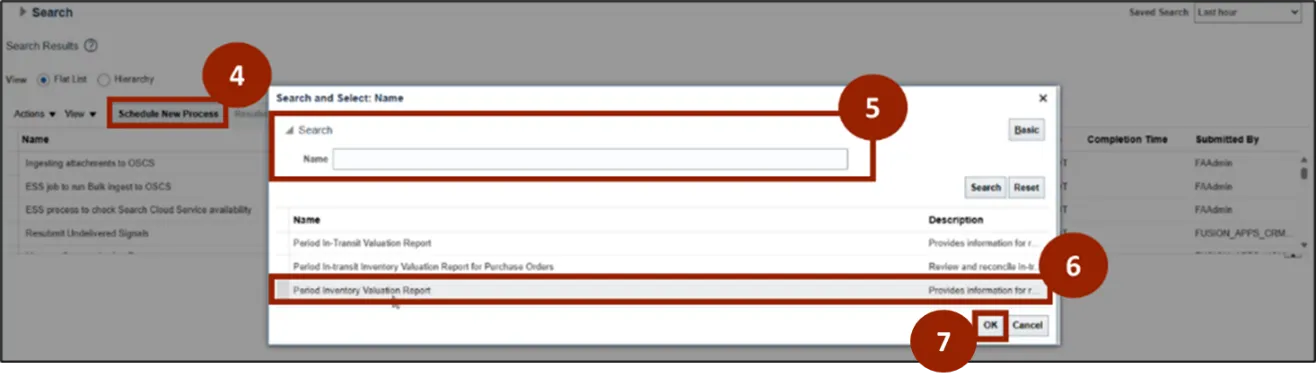
Step 4. Select Schedule New Process.
Step 5. On the Search and Select pop up, click the drop-down and type in the search bar Period Inventory Valuation Report and select the Search button.
Step 6. Select Period Inventory Valuation Report.
Step 7. Select OK.
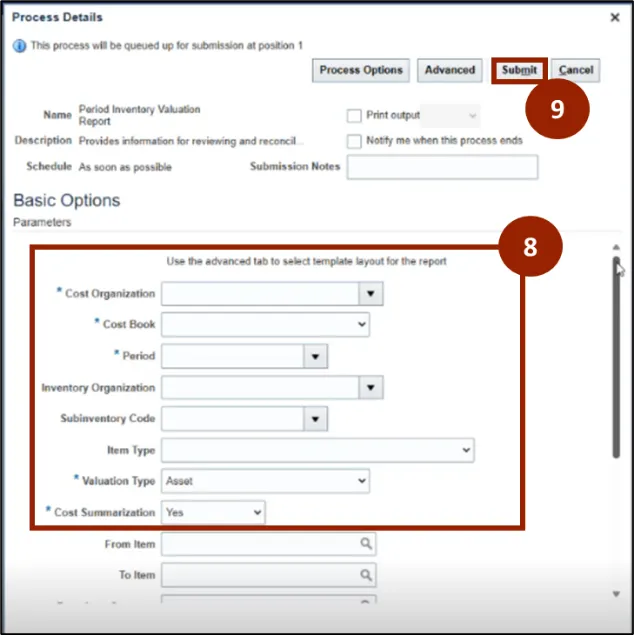
Step 8. On the Process Details screen, input and/or select the appropriate option from the following:
- Cost Organization: Select DAC Cost Organization
- Cost Book: Select the appropriate Cost Book
- Period: Appropriate accounting period
- Inventory Organization
- Valuation Type: Select Asset
- Cost Summarization: Select Yes
Note: The Inventory Organization field is case sensitive. Enter the organization name in ALL CAPS to display search results.
Step 9. Click Submit.
Step 10. On the Search Results screen, select the Refresh icon.
Step 11. Verify the status of report shows as Succeeded.

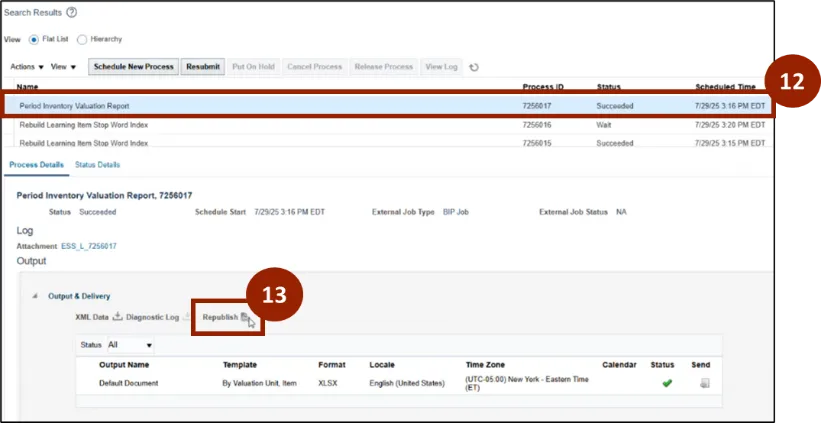
Step 12. Select the Period Inventory Valuation Report row.
Step 13. In the Process Details tab, select Republish.
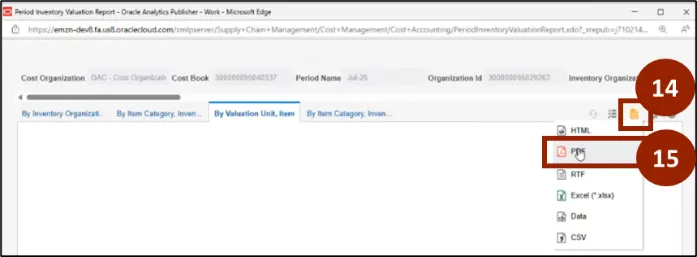
Step 14. Within the By Valuation Unit, Item tab select the Report icon.
Step 15. Select PDF.
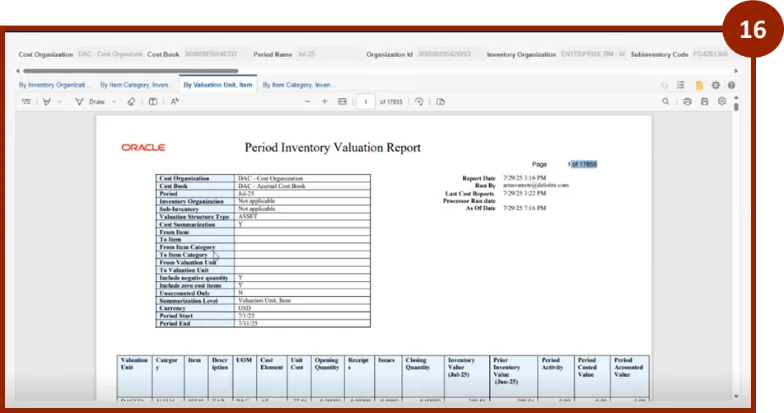
Step 16. View the Period Inventory Valuation Report within the PDF pop-up.
NC Inventory Turns and All Items Valuation Report (RPT-IN-014)
There are 16 steps to complete this process.
Step 1. Begin from the Home page, or click the Home icon.
Step 2. On the Home page, select Tools.
Step 3. Within the Tools tab, select Reports and Analytics.
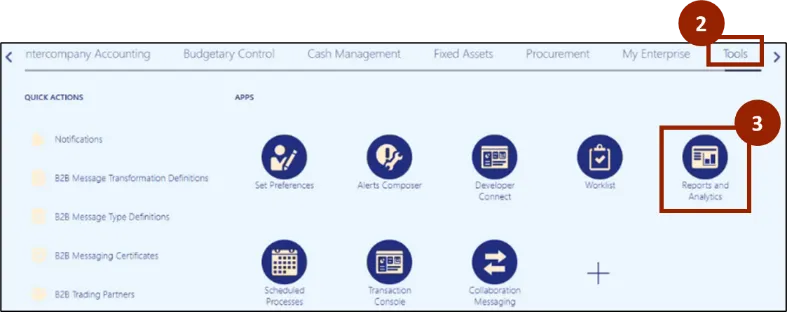
Step 4. Select Browse Catalog.

Step 5. Click Catalog.
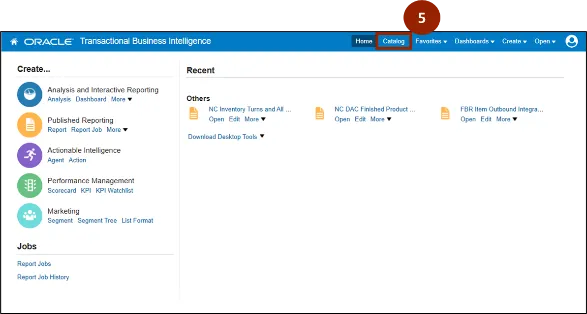
Step 6. Select Shared Folders.
Step 7. Select Expand under the Custom Folder.
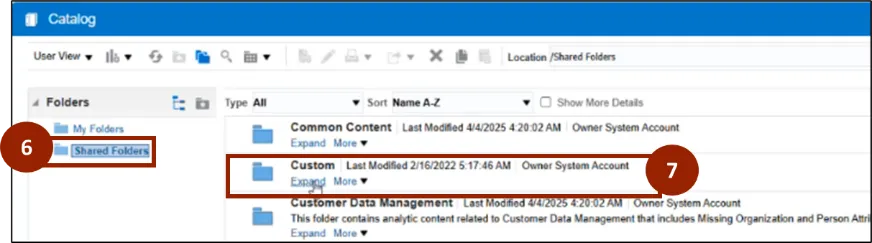
Step 8. Select Expand under FBR Custom folder.
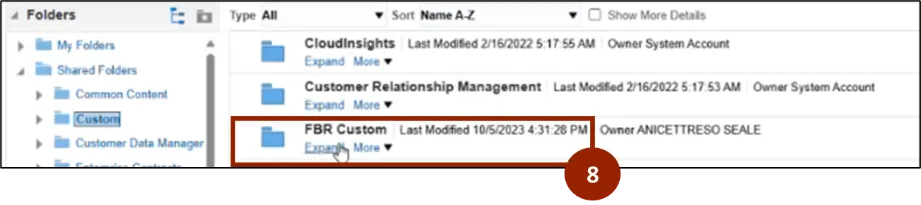
Step 9. Select Expand under the Report option.
Step 10. Select Expand under the Inventory option.

Step 11. Select Expand under NC Inventory Turns and All Items Valuation Report (RPTIN014).

Step 12. Select Open under the NC Inventory Turns and All Items Valuation Report (RPT-IN-014).

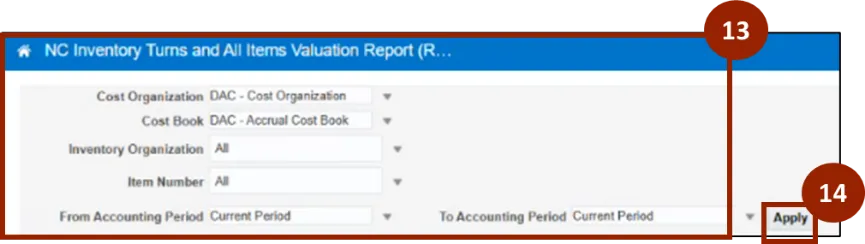
Step 13. On the NC Inventory Turns and All Items Valuation Report, input and/or select the appropriate option from the following:
- Cost Organization: Select DAC - Cost Organization
- Cost Book: Select appropriate Cost Book
- Inventory Organization: Search the appropriate inventory organization (plant)
- From Accounting Period and To Accounting Period: Select a range of periods.
Step 14. Select Apply.
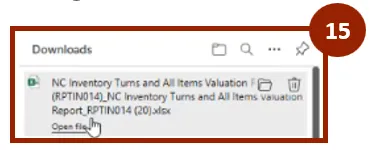
Step 15. From your browser’s Downloads tab, select Open file on the Excel file named NC Inventory and All Items Valuation.
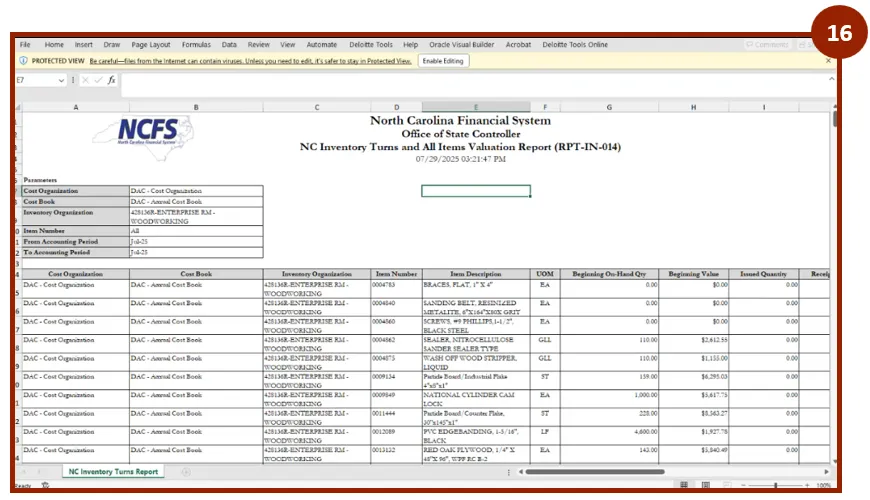
Step 16. View report.
Wrap-Up
NCFS users can reference Inventory Valuation using the steps above.
Additional Resources
- Virtual Instructor Led Training (vILT)