Purpose
The purpose of this Quick Reference Guide (QRG) is to provide a step-by-step guide of how to Pick Confirm Inventory in the North Carolina Financial System (NCFS).
Introduction and Overview
This QRG covers the process of Pick Confirm Inventory on how to confirm picked inventory and update quantities as needed before shipment.
Pick Confirm Inventory
Once logged in to NCFS, follow these steps. There are 14 steps to complete this process.
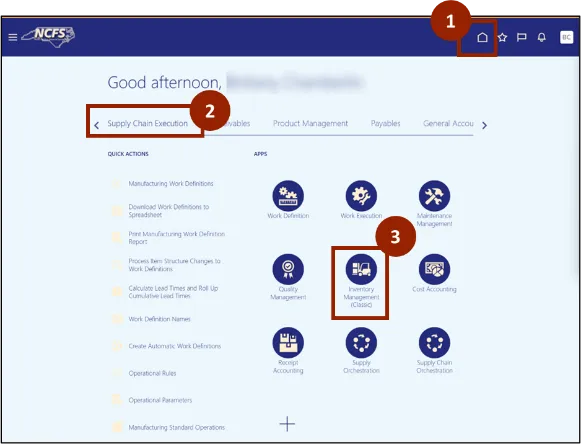
Step 1. Begin from the Home page, or click the Home icon.
Step 2. On the Home page, select Supply Chain Execution.
Step 3. Within the Supply Chain Execution tab, select Inventory Management.
Note: Pick Confirm for APEX shipment should be done after APEX truck picks the shipment from Plant.
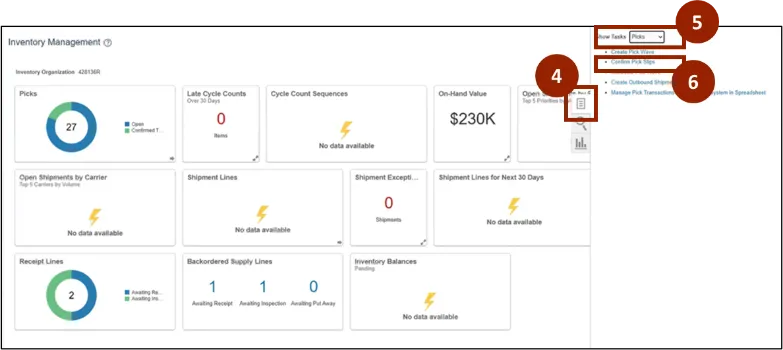
Step 4. Click the Task icon.
Step 5. In the Show Tasks drop-down, select Picks.
Step 6. Select Confirm Pick Slip.
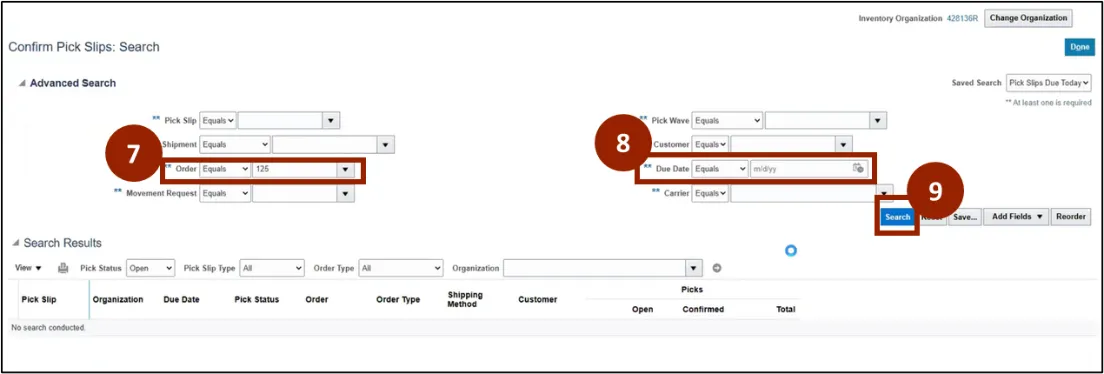
Step 7. On the Confirm Pick Slips: Search page, in the Order field, enter the order number.
Note: If you do not see the order number, click Search and pop-up screen will appear. Enter the order number.
Step 8. In the Due Date field, remove the due date.
Step 9. Click Search.
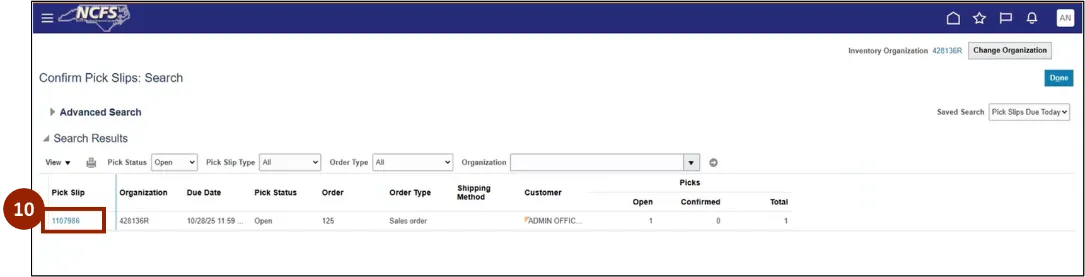
Step 10. On the Confirm Pick Slips: Search page, select the pick slip you want to confirm by selecting the appropriate pick slip number.
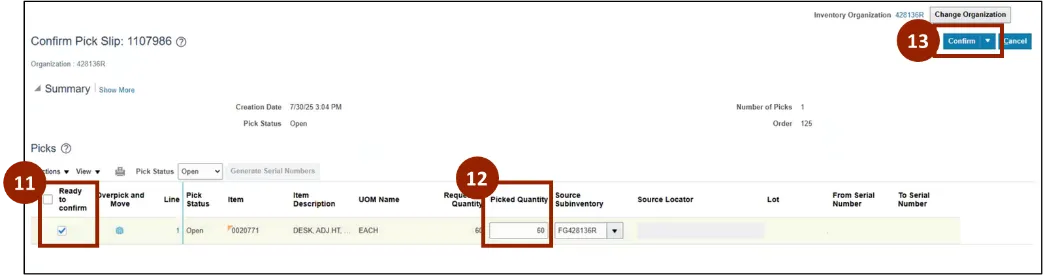
Step 11. In the Ready to Confirm column, check the box next to each line to indicate the order to be confirmed.
Step 12. In the Picked Quantity field, you can change the picked quantity (if required).
Step 13. Select Confirm.
Note: If more than one line is to be confirmed, mark the box next to each line. If all lines listed need to be shipped, click the box next to Ready to Confirm.
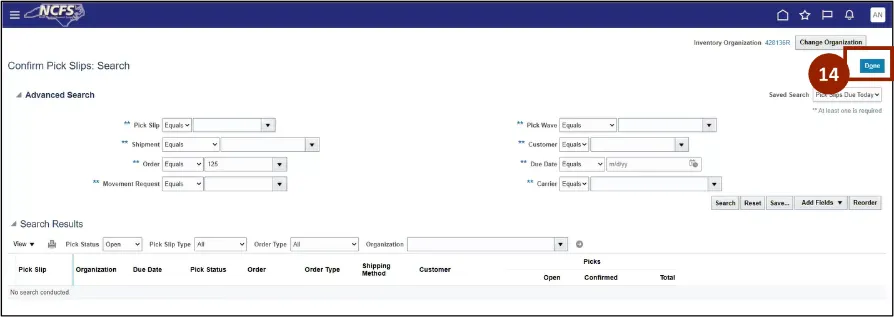
Step 14. Click Done.
Note: For APEX Shipment, pick confirm will be done by the Plant after APEX picks up the shipment.
Wrap-Up
NCFS users can reference the Pick Confirm Inventory using the steps above.
Additional Resources
- Virtual Instructor Led Training (vILT)