Purpose
The purpose of this Quick Reference Guide (QRG) is to provide a step-by-step guide of how to locate Material Availability Assignment information in the North Carolina Financial System (NCFS).
Introduction and Overview
This QRG covers the material assignment process workbench. This process provides information on raw materials as they relate to Work Orders, including raw materials currently allotted to production, priority of materials used in manufacturing, and expected raw material supplies that have been ordered.
Material Assignment Process Workbench
To access Material Availability Assignments in NCFS, please follow the steps below. There are 32 steps to complete this process.
Step 1. Log in to the NCFS portal using the Company Single Sign-On (SSO) button.
Step 2. Enter your @dac.nc.gov email address.
Step 3. Click Next, then enter your password.
Note: The system will automatically sign on using SSO and log in to NCFS. After the first login using SSO, future access may not require credentials. If SSO is not available, enter credentials manually within the Username and Password fields, then click Sign-In.
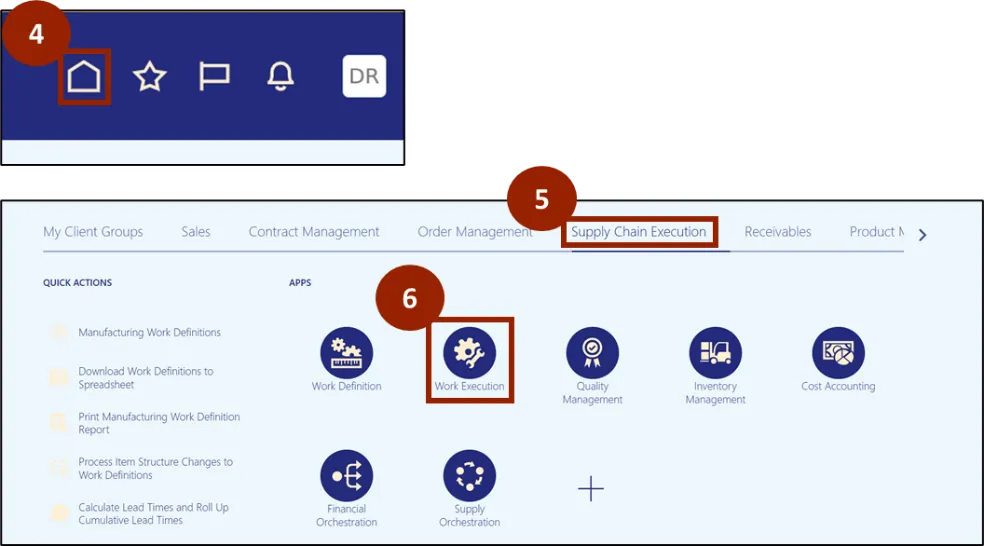
Step 4. Navigate to the Home page.
Step 5. Click on the Supply Chain Execution tab.
Step 6. Click on Work Execution.
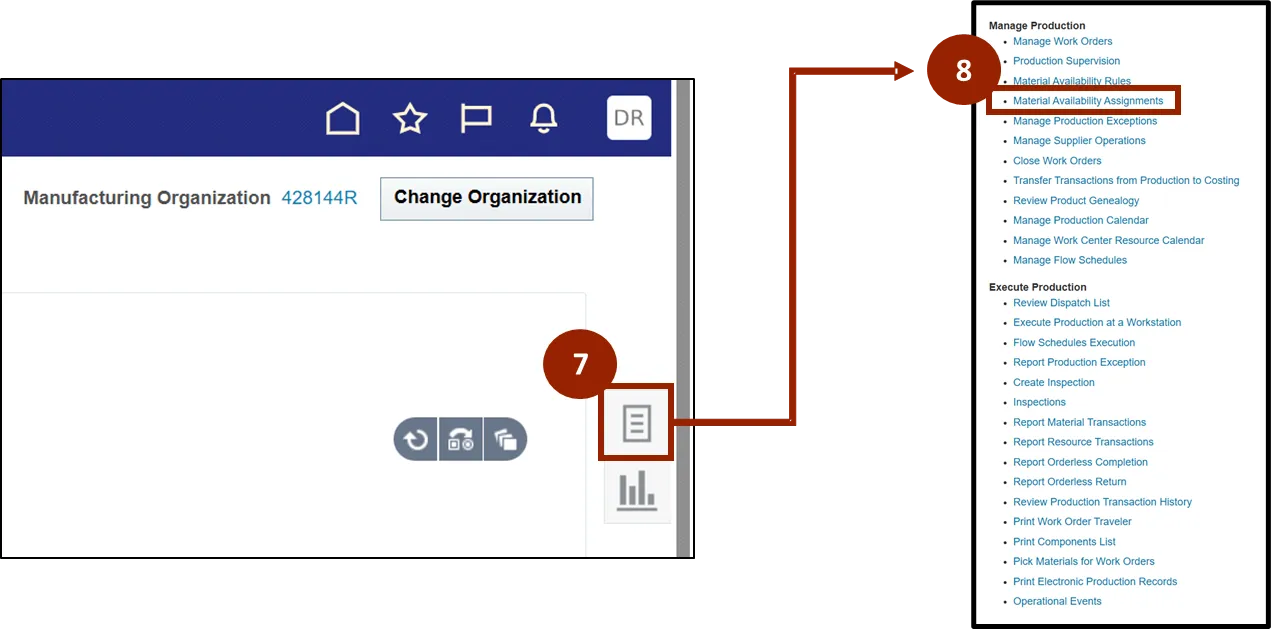
Step 7. Click on the Task icon on the right-hand side of the screen.
Step 8. Under Manage Production, click on Material Availability Assignments.
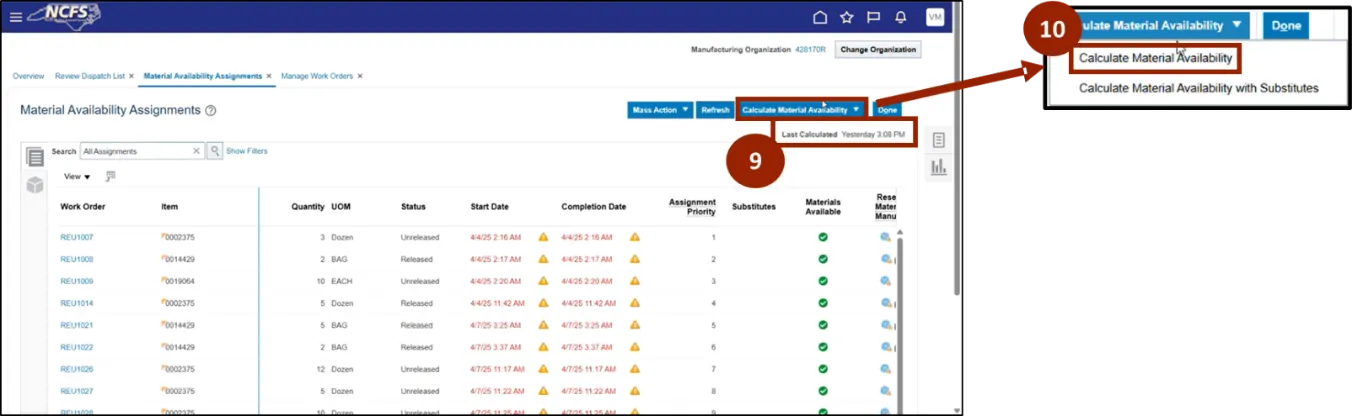
Step 9. On the Material Availability Assignments page, take note of the last time these assignments were calculated.
Step 10. Click on Calculate Material Availability to get the most up-to-date information.
Note: You may need to click on Refresh to update.
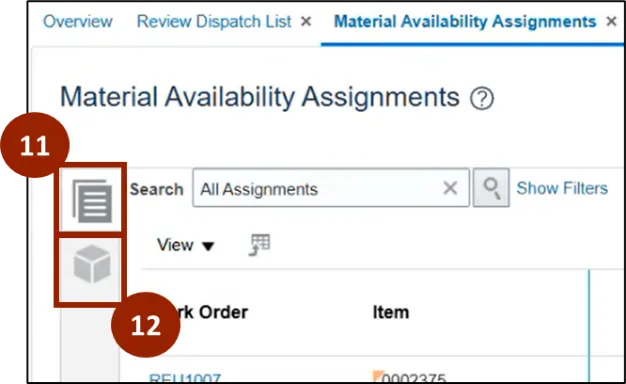
There are two tabs where information related to Material Availability Assignments is shown.
Step 11. The default tab displays details about Work Orders, including their associated material requirements and assignments.
Step 12. The second tab provides a focused view of Material Availability Assignments for each raw material, showing how individual materials are allocated across various Work Orders.
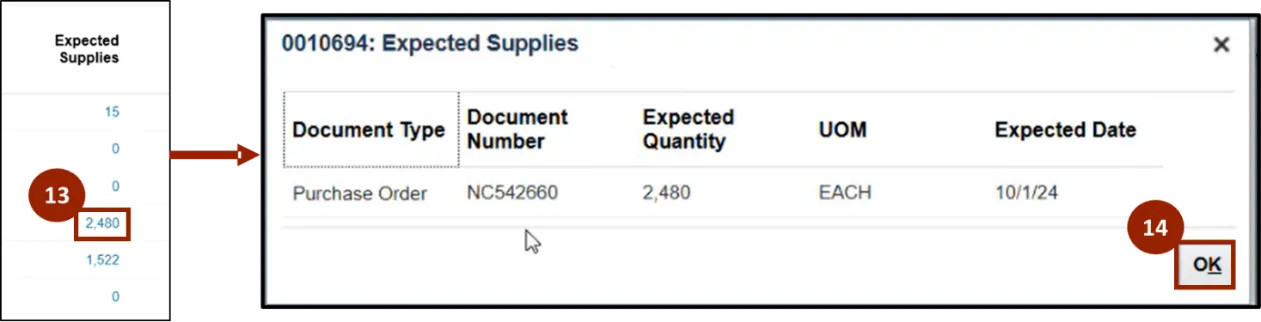
Step 13. Click the number in the Expected Supplies column, a pop-up will appear with more information.
Step 14. Click OK to close the window.
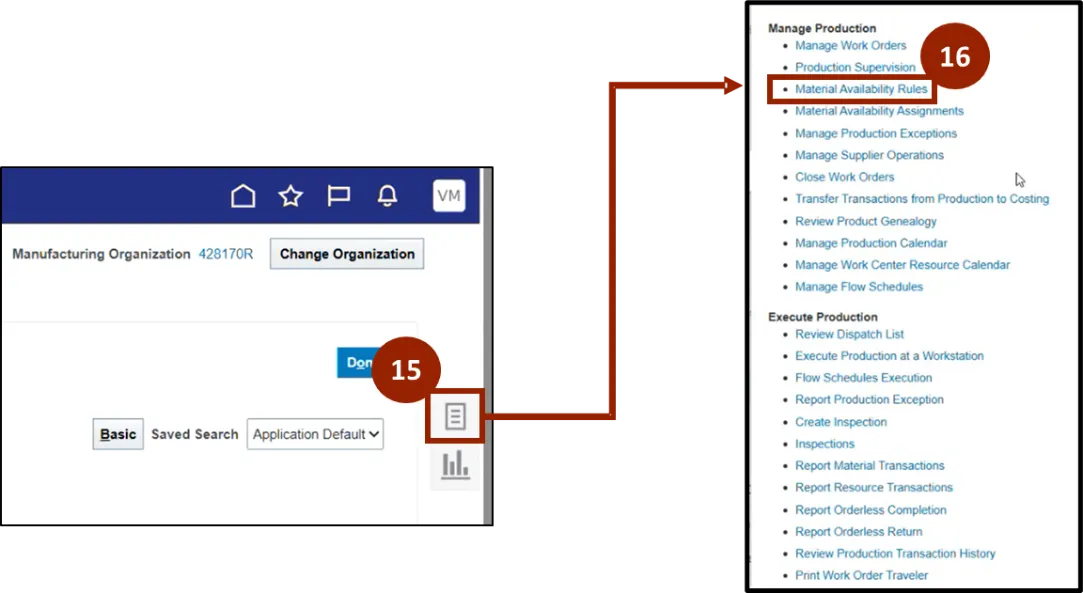
Step 15. To create or edit Material Availability Rules, click on the Task icon on the right-hand side of the screen.
Step 16. Click on Material Availability Rules.
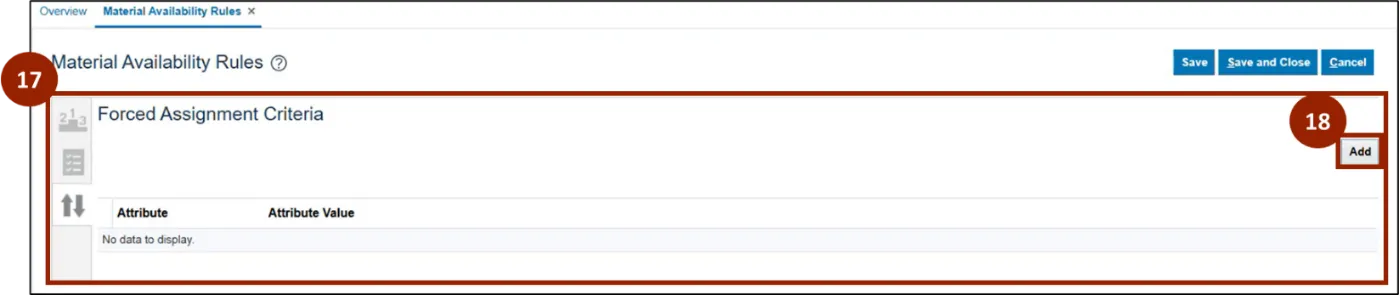
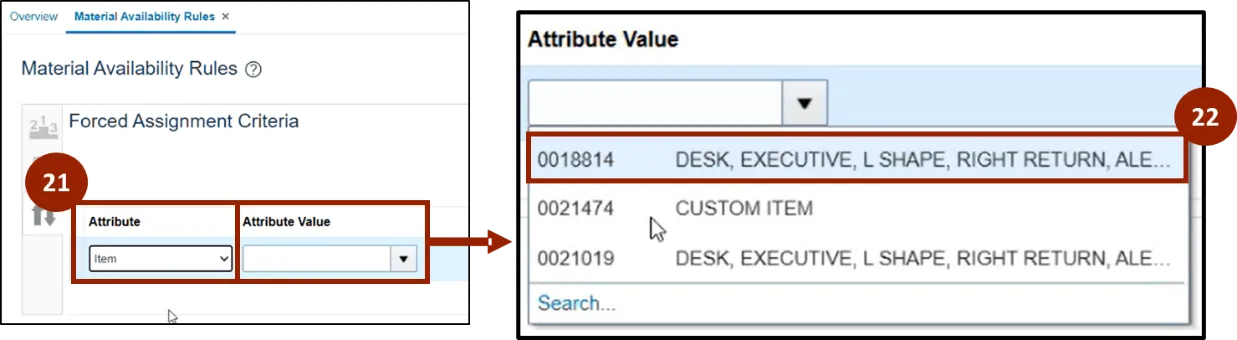
Step 17. Navigate to the Forced Assignment Criteria tab. This is where users can create rules affecting the assignment of materials for Work Orders.
Step 18. To add a rule, click Add.
Step 19. A new line will appear. The first option available is to choose an Attribute to create the priority rule.
Step 20. Choose an Attribute.
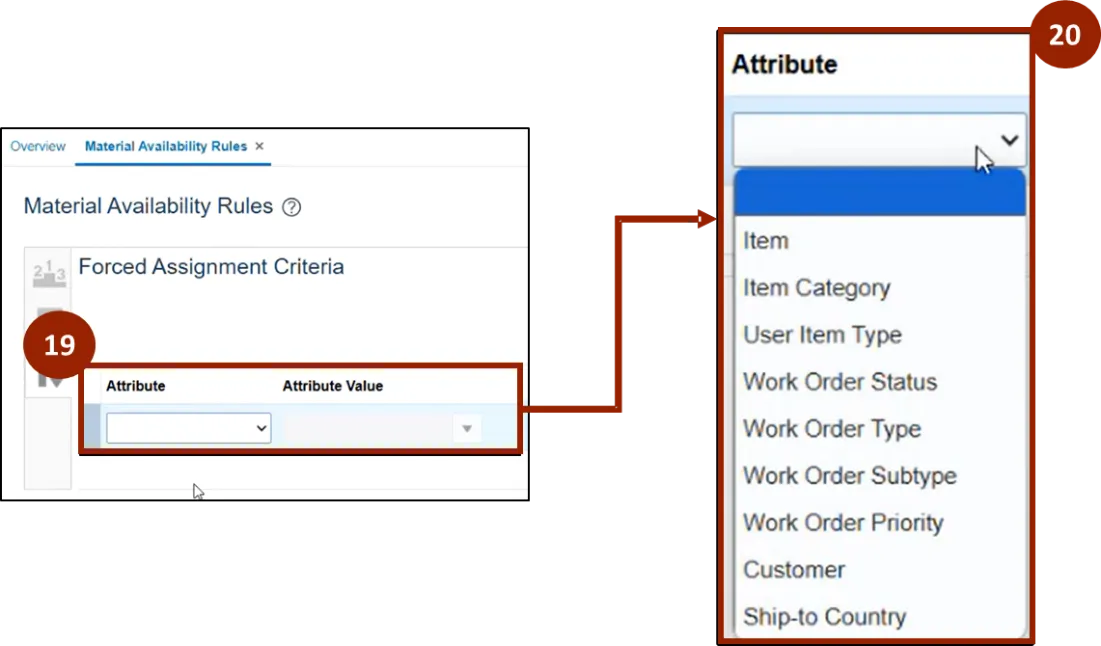
Step 21. In this instance we chose Item as an Attribute.
Step 22. Next, select the Attribute Value.
In this instance, 0018814 is selected. Now, any Work Orders containing this item will take priority.
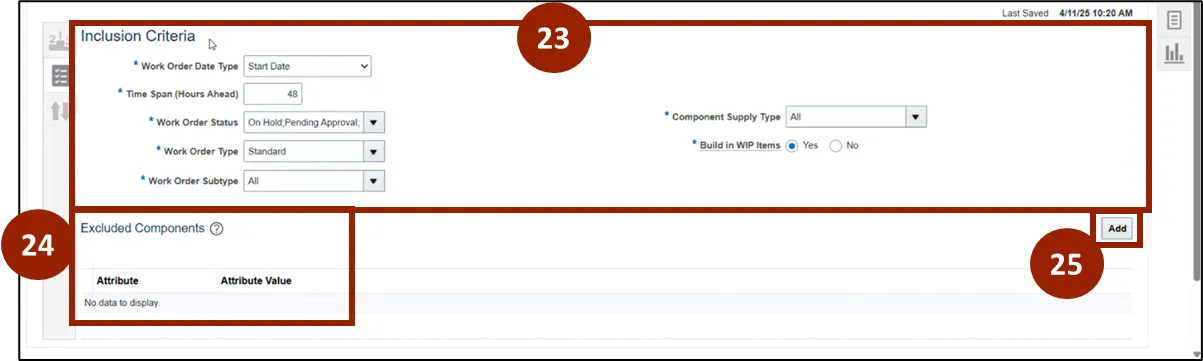
The second tab is the Inclusion/ Exclusion Criteria tab.
Step 23. In the Inclusion area, enter information to specific materials or orders that user wants to be able to see when creating rules.
Step 24. The Excluded Components section will exclude specific components from rules created.
Step 25. Click Add to add Excluded Components.
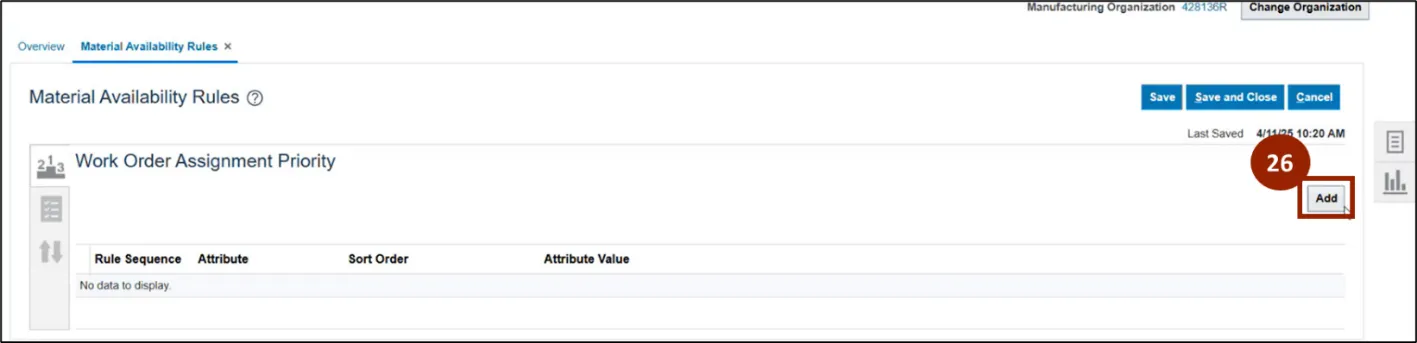
The last tab is Work Order Assignment Priority.
Step 26. To add a rule, click Add.
Work Order Assignment Priority allows plants to allocate raw materials to the most important Work Orders first based on the rules created.
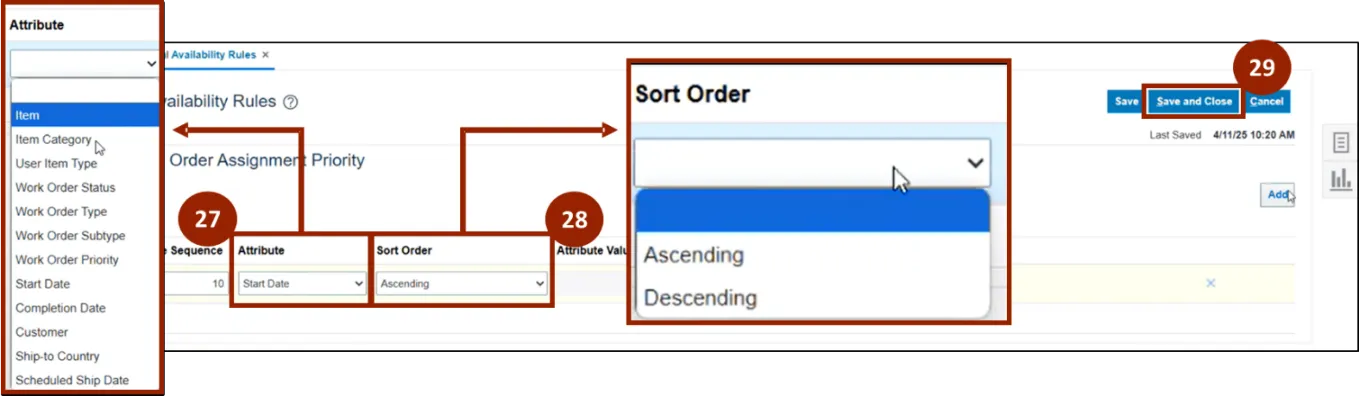
Step 27. Click the Attribute drop-down and select the Attribute.
Step 28. Click the Sort Order drop-down to choose the Sort Order.
Step 29. Click Save and Close.
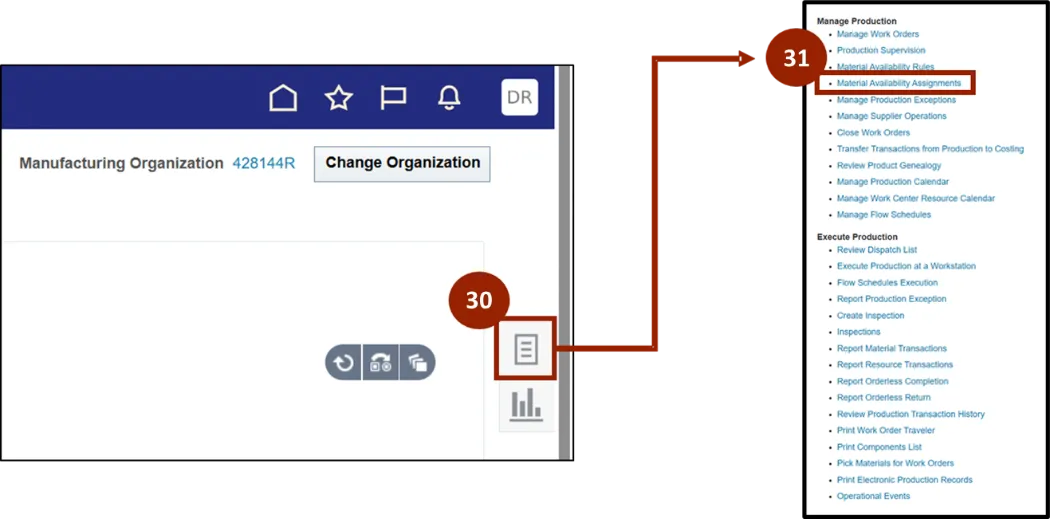
Step 30. After selecting Save and Close, click on the Task Icon.
Step 31. Select Material Availability Assignments.
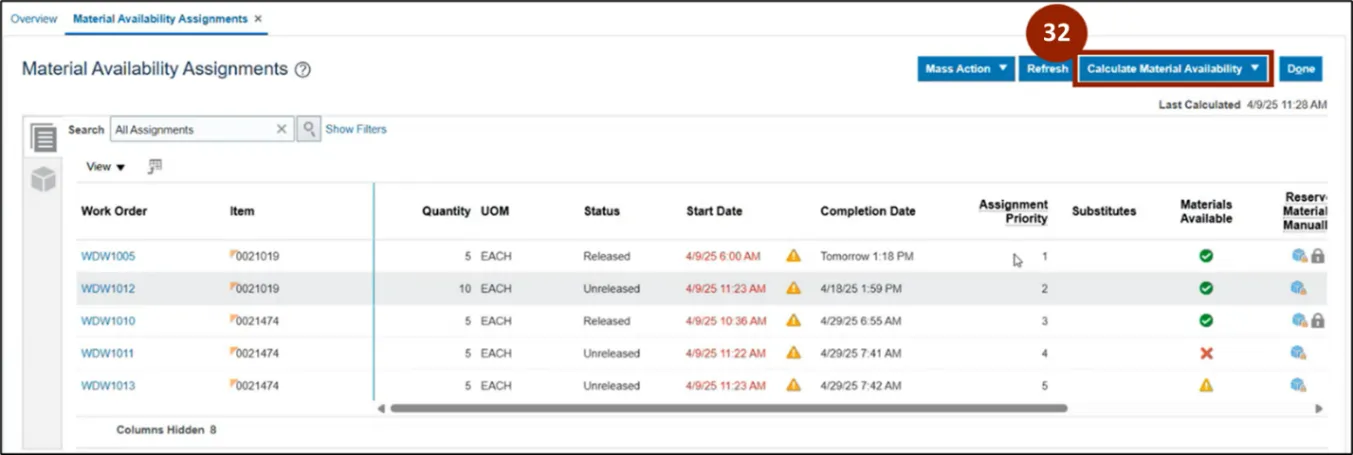
Step 32. On the Material Availability Assignments page, click on Calculate Material Availability to update the information for your newly created rules.
Note: You may need to click on Refresh to update.
Wrap-Up
NCFS users can reference the material assignment process workbench using the steps above.
Additional Resources
- Instructor Led Training (ILT)
- Web-based Training (WBT)