Purpose
The purpose of this Quick Reference Guide (QRG) is to provide a step-by-step guide of how to manage work centers and resources in the North Carolina Financial System (NCFS).
Introduction and Overview
This QRG covers the process of managing work centers and resources. Managing work centers is a critical process that ensures efficient allocation of resources, accurate planning, and streamlined operations within a plant. Managing resources – essential assets, such as labor or equipment – within a plan ensures only those available and approved within the plant are assigned to work centers, enabling efficient production processes and readiness for future costing and analysis.
Manage Resources
To manage resources in NCFS, please follow the steps below after logging in to the NCFS portal with your credentials to access the system. There are 11 steps to complete this process.
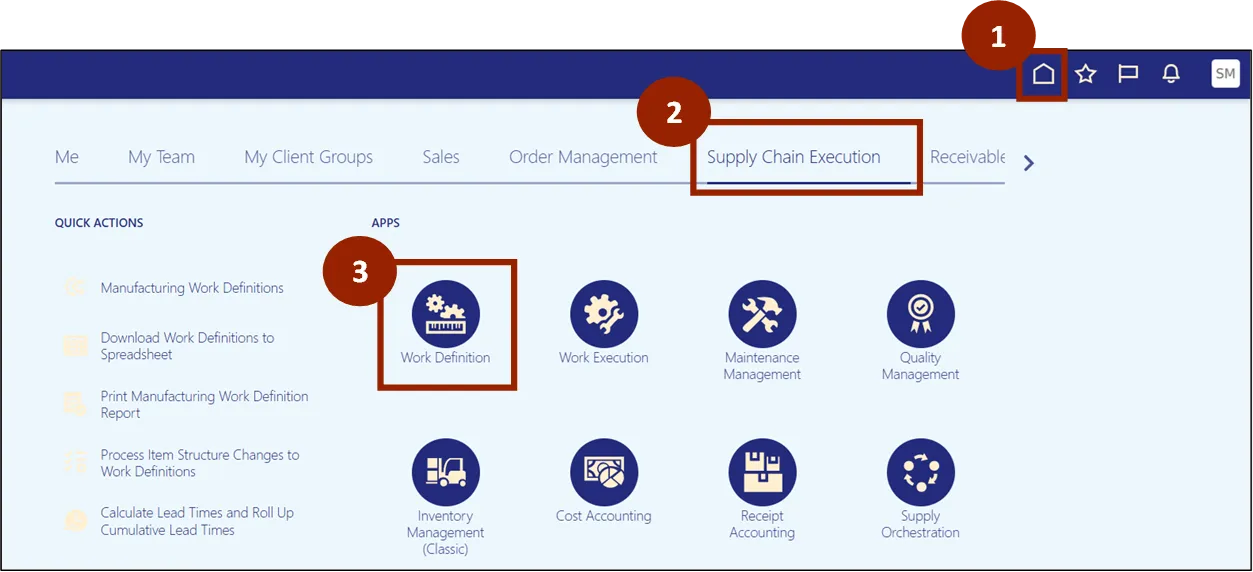
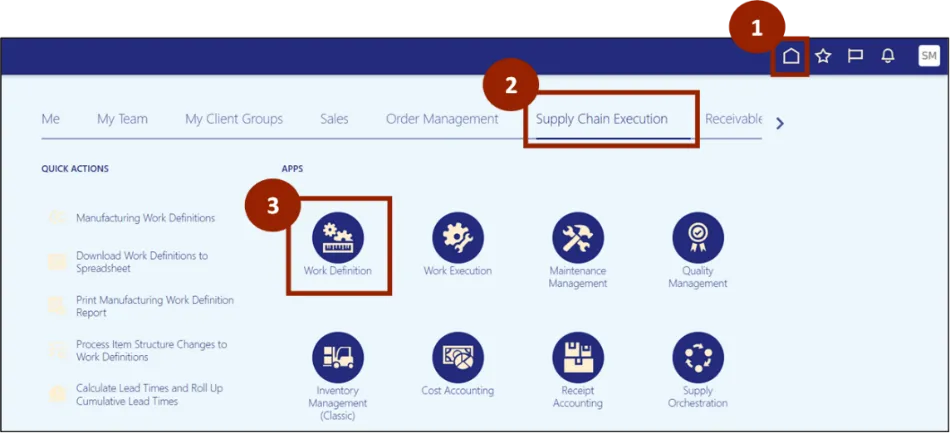
Step 1. Begin from the Home page or click the Home icon.
Step 2. On the Home page, select Supply Chain Execution tab.
Step 3. Within the Supply Chain Execution tab, select Work Definition.
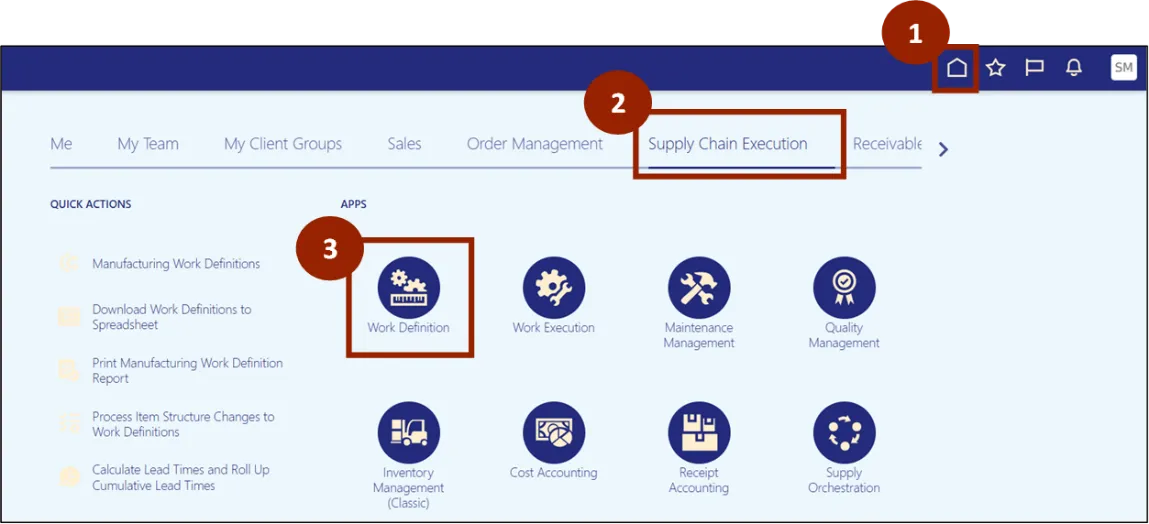
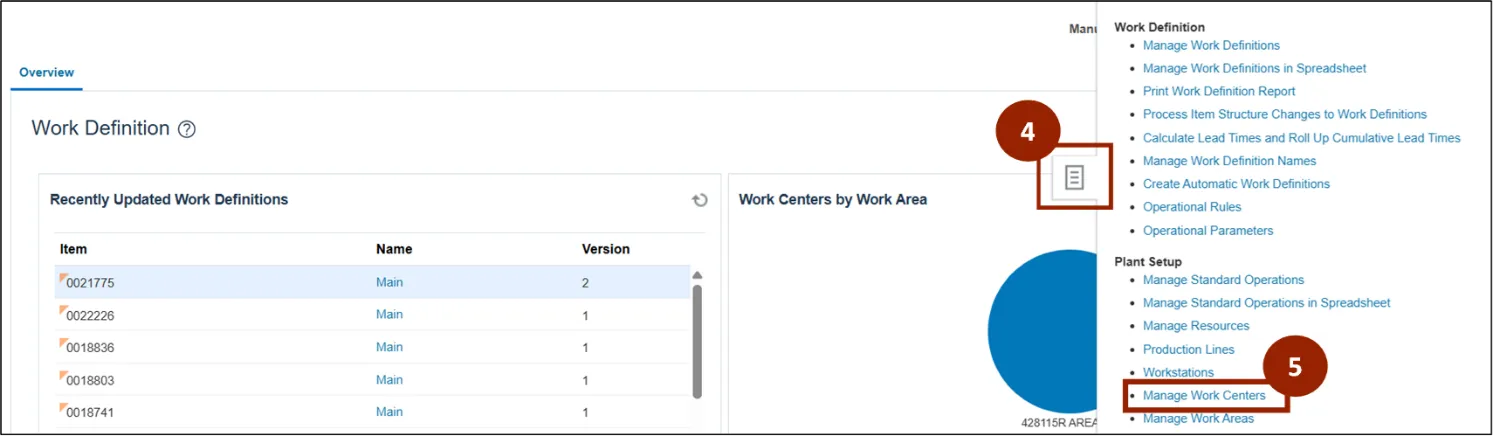
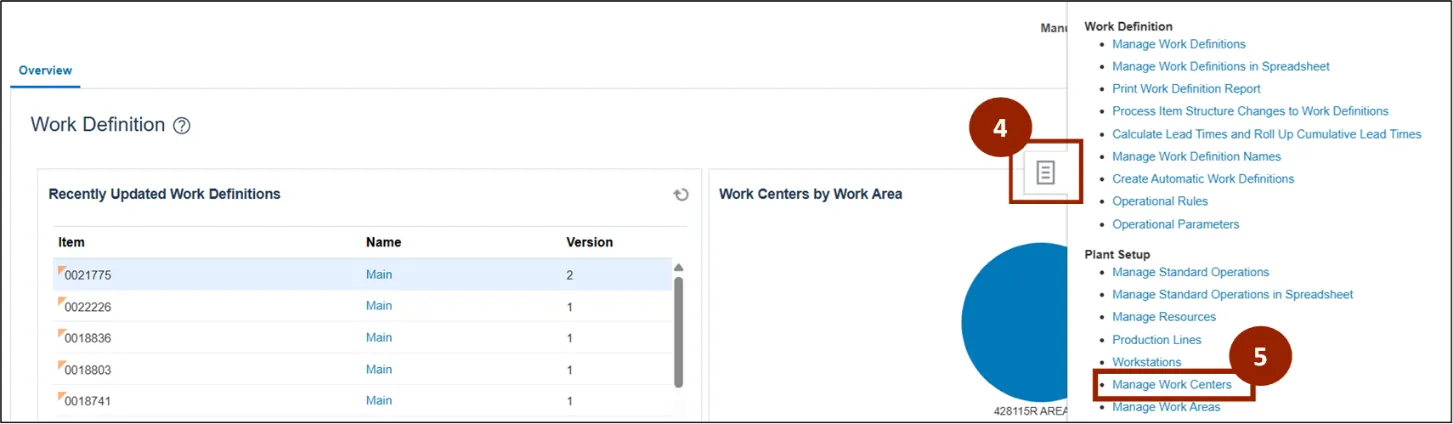
Step 4. From the Work Definition page, click on the Task icon.
Step 5. Select Manage Work Centers in the Plant Setup section.
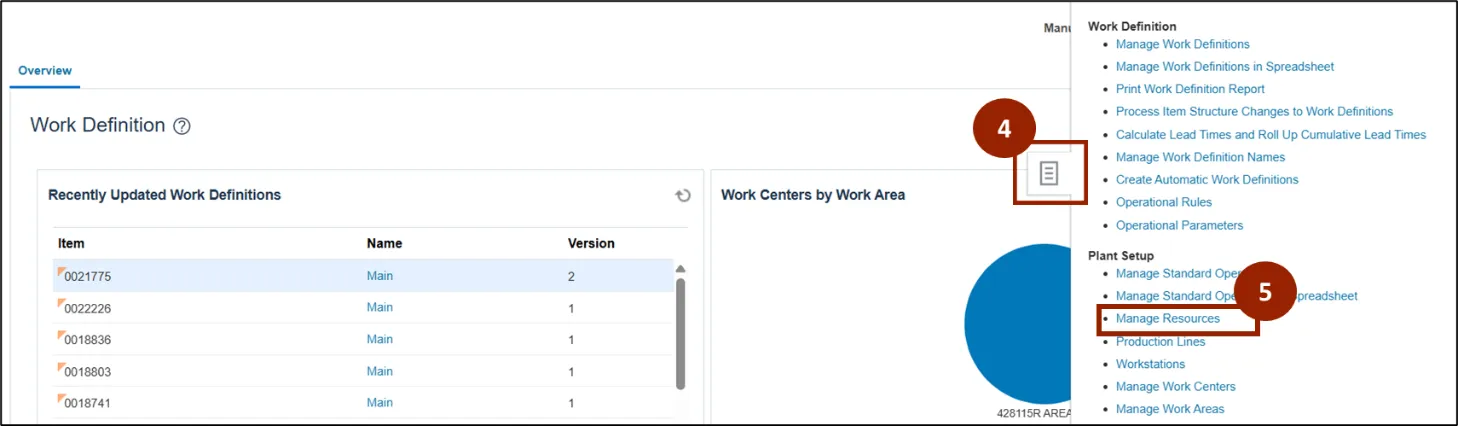
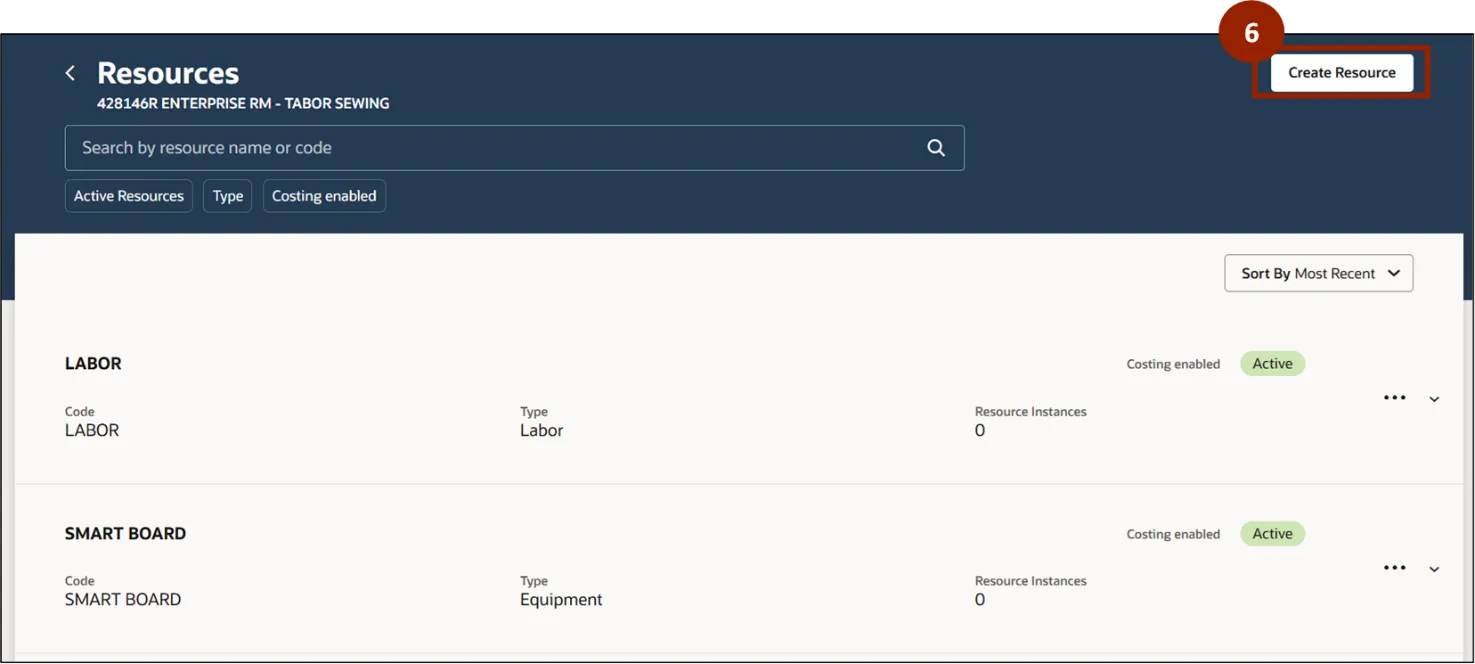
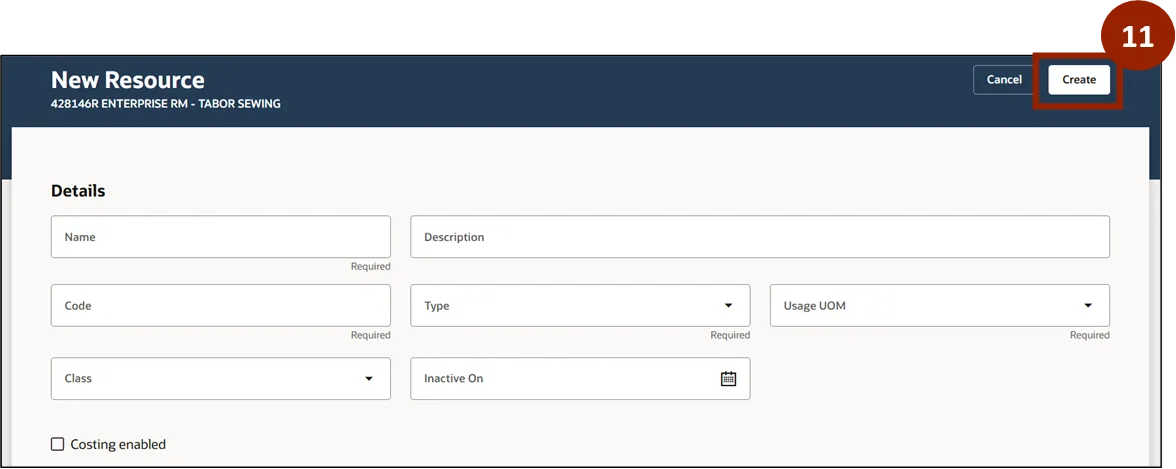
Step 6. On the Resources page, select Create Resource.
Step 7. In the Name and Code fields, input the unique identifiers for the resource.
Step 8. In the Type field, select Labor or Equipment from the drop-down list.
Step 9. In the Usage UOM field, select the desired unit of measurement from the drop-down list (i.e. Hour or Box).
Step 10. Select the Costing enabled checkbox if costing is being tracked.
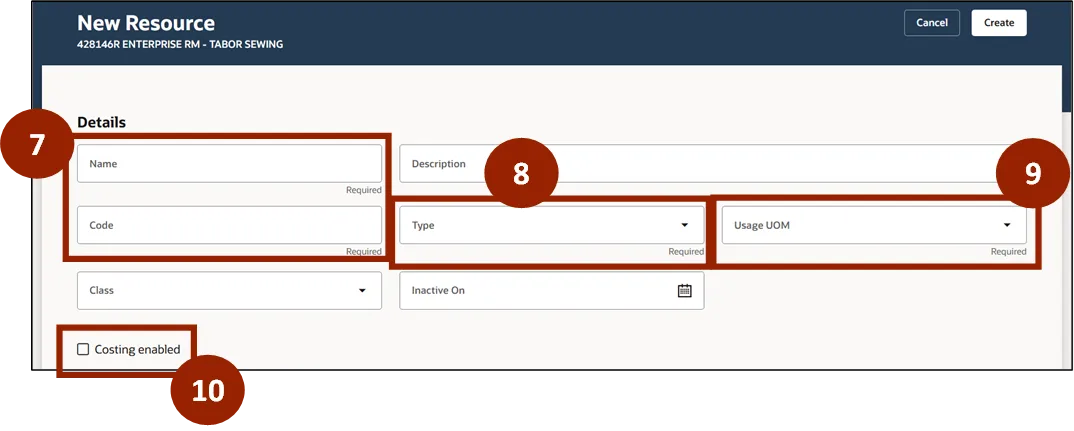
Step 11. Select Create once all fields have been completed.
Manage Work Centers
To manage a work center in NCFS, please follow the steps below. There are 10 steps to complete this process.
Step 1. Begin from the Home page, or click the Home icon.
Step 2. On the Home page, select Supply Chain Execution.
Stpe 3. Within the Supply Chain Execution tab, select Work Definition.
Step 4. From the Work Definition page, click on the Task icon.
Step 5. Select Manage Work Centers.
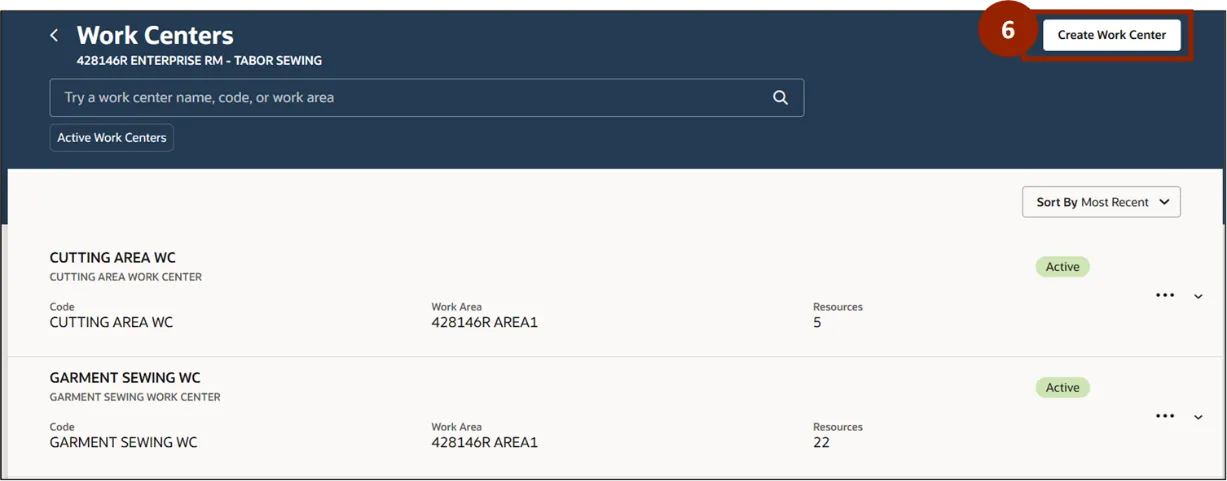
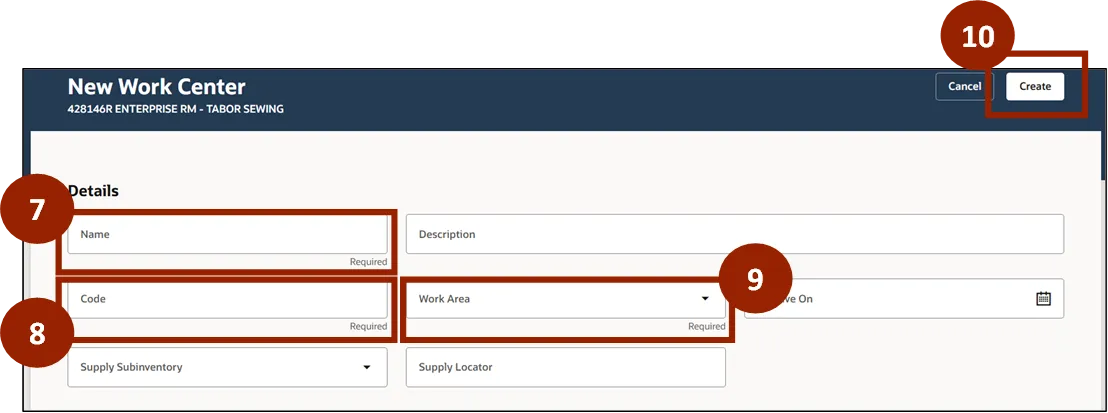
Step 6. To set up a new Work Center on the Work Centers page, select Create Work Center.
Step 7. In the Name field, input the unique identifier for the work center.
Step 8. In the Code field, input the unique code for the work center.
Step 9. In the Work Area field, select the relevant area from the drop-down list.
Step 10. Click Create.
Modify Work Centers
To modify an existing work center in NCFS, please follow the steps below. There are 9 steps to complete this process.
Step 1. Begin from the Home page, or click the Home icon.
Step 2. On the Home page, select Supply Chain Execution.
Step 3. Within the Supply Chain Execution tab, select Work Definition.
Step 4. From the Work Definition page, click on the Task icon.
Step 5. Select Manage Work Centers.
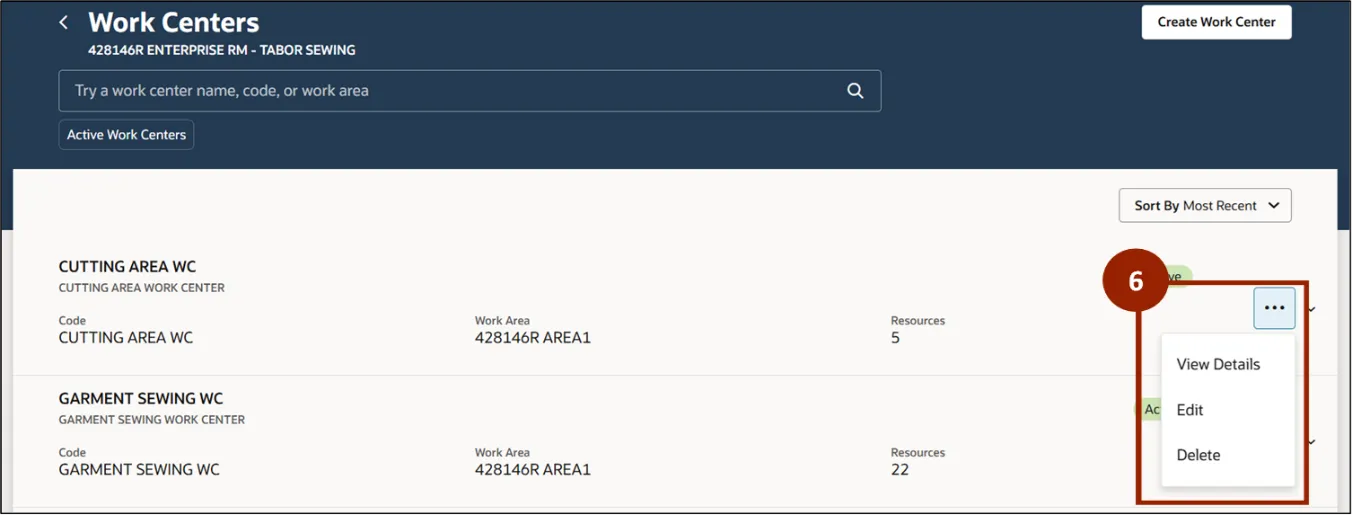
Step 6. On the Work Centers page, select the ellipsis icon then select:
- View Details for resource management.
Step 7. Click Edit Work Center to modify any Work Center information.
Step 8. Click Manage Calendars to change the schedule.

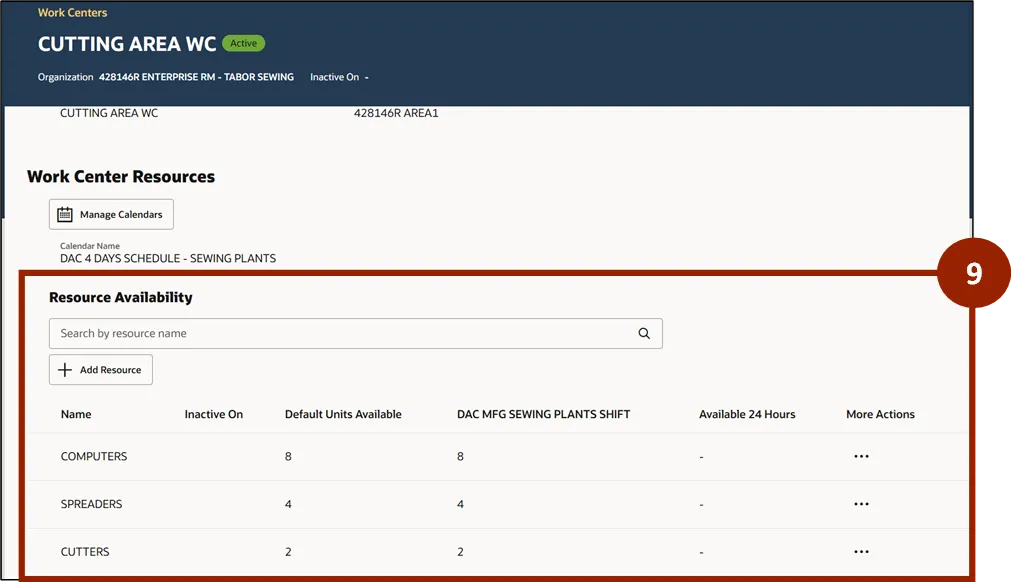
Step 9. Review the Resource Availability section displaying the number of available resources in the Work Center and the default units for each resource.
Assign Resources to a Work Center
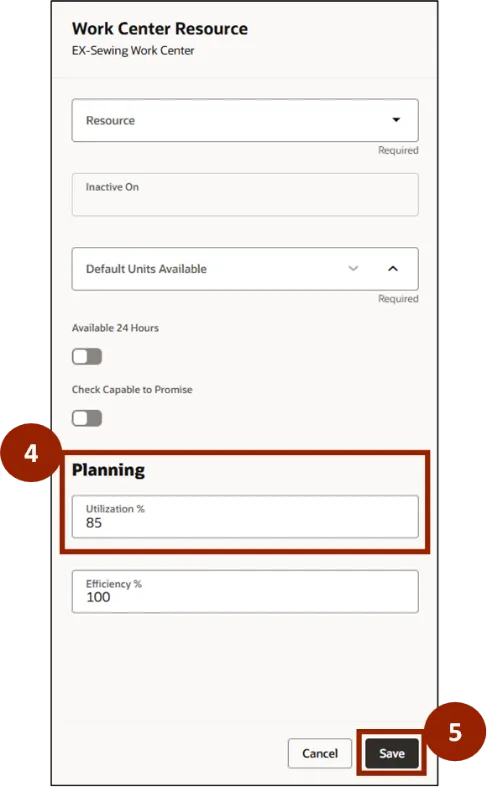
To assign resources to a work center in NCFS, please follow the steps below. There are 5 steps to complete this process.
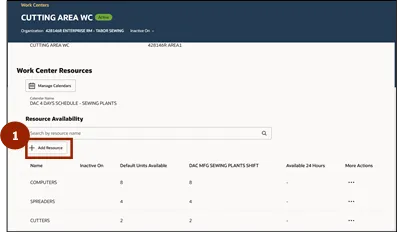
Step 1. In the Resource Availability section, click + Add Resource.
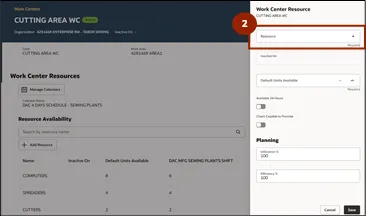
Step 2. Click the Resource drop-down to display all available resources within the plant.
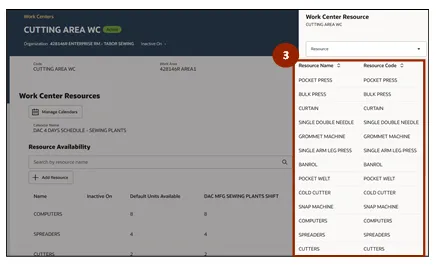
Step 3. Select the appropriate resources, as needed.
Step 4. In the Utilization % field please input the following based off specific criteria:
- Equipment utilization is set at 85%.
- Labor resource utilization is set at 100%.
Step 5. Click Save.
Wrap-Up
Using this QRG, NCFS users should be able to manage work centers and resources in the North Carolina Financial System (NCFS).
Additional Resources
- Instructor Led Training (ILT)