Purpose
The purpose of this Business Process Procedure is to explain how to update absence deductions in the Integrated HR-Payroll System.
Trigger
There is a need to update absence deductions.
Business Process Procedures
Absence deduction records can be “updated” by opening up the infotype 2001 record in “change” mode and then saving it again. This can be done by a Leave Administrator or HR Administrator. The results are available immediately.
Note: Use the magic formula of PT50 = T Series = 9901 prior to following this procedure. If the formula is not balanced, this procedure is not applicable.
Procedures
To identify which absences were deducted from a specific quota, use transaction PT50.
There are 7 steps in this process.
Step 1. Click on the Absence quotas tab.
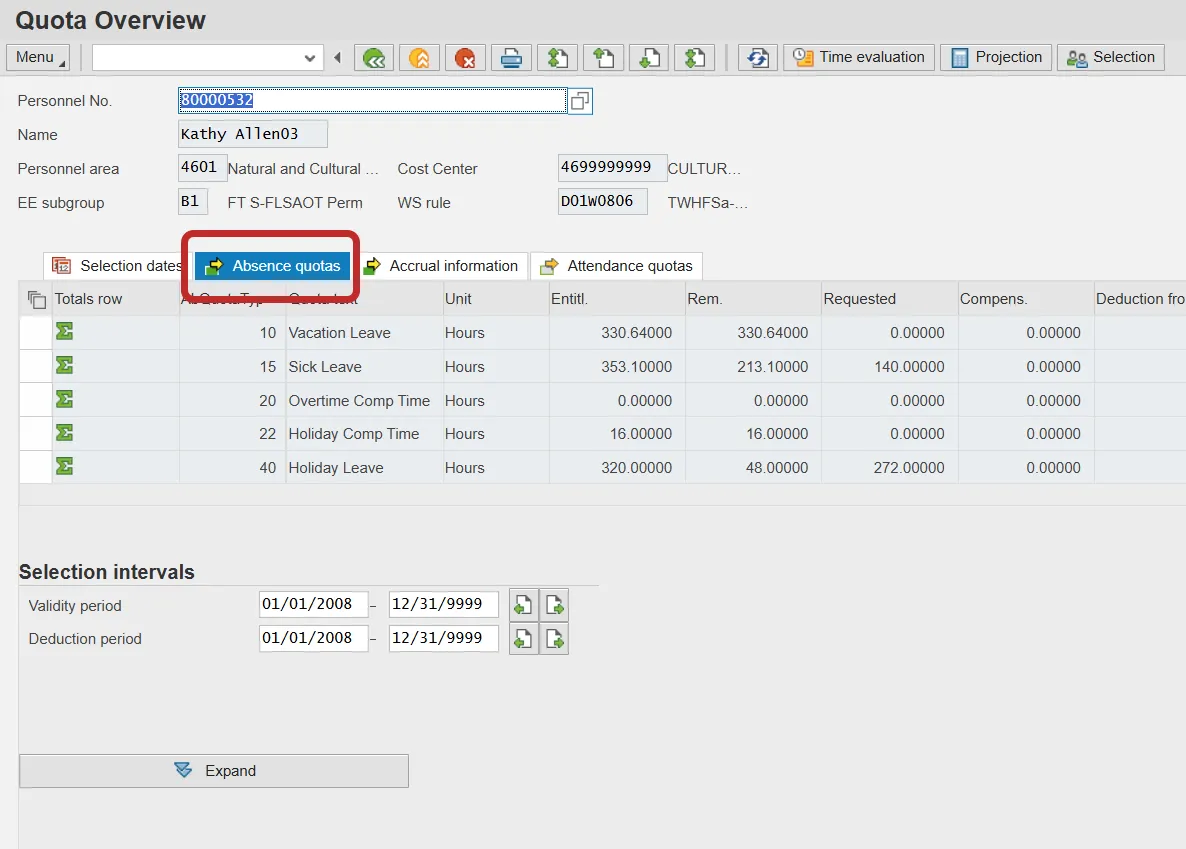
Step 2. Click the “Expand” button at the bottom of the screen.
Step 3. Select the row containing the “Requested” hours for which you want to see the deductions.
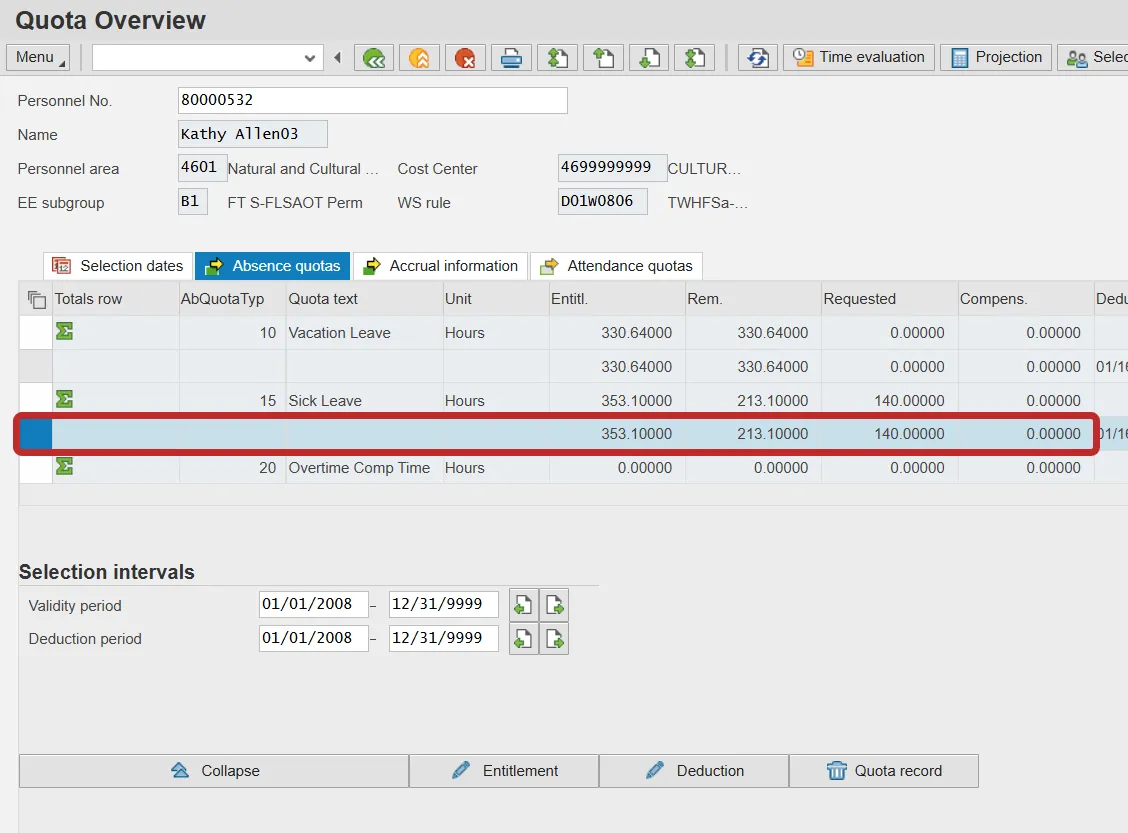
Step 4. Click on the “Deduction” button at the bottom of the screen.
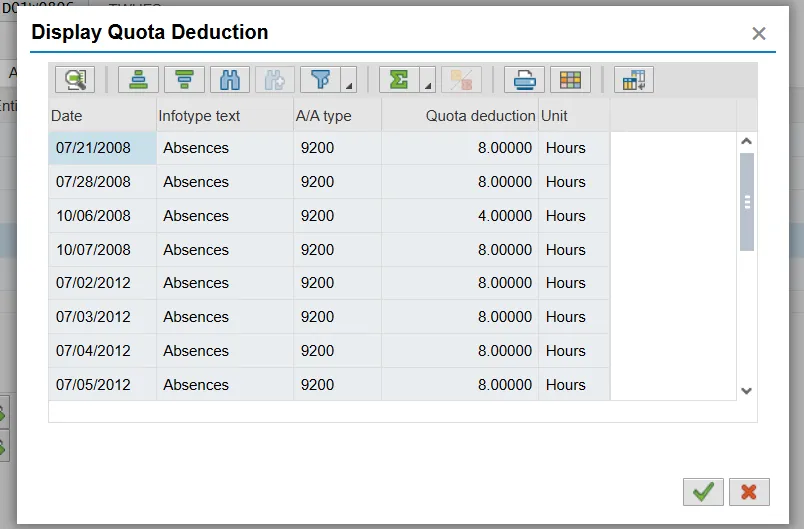
Step 5. View the pop-up window that lists the infotype 2001 records that are being deducted from the quota.
Step 6. To update an absence, double-click on the row for that absence in the pop-up window.
Note: It is best to start with the most recent absence and work backwards in time.
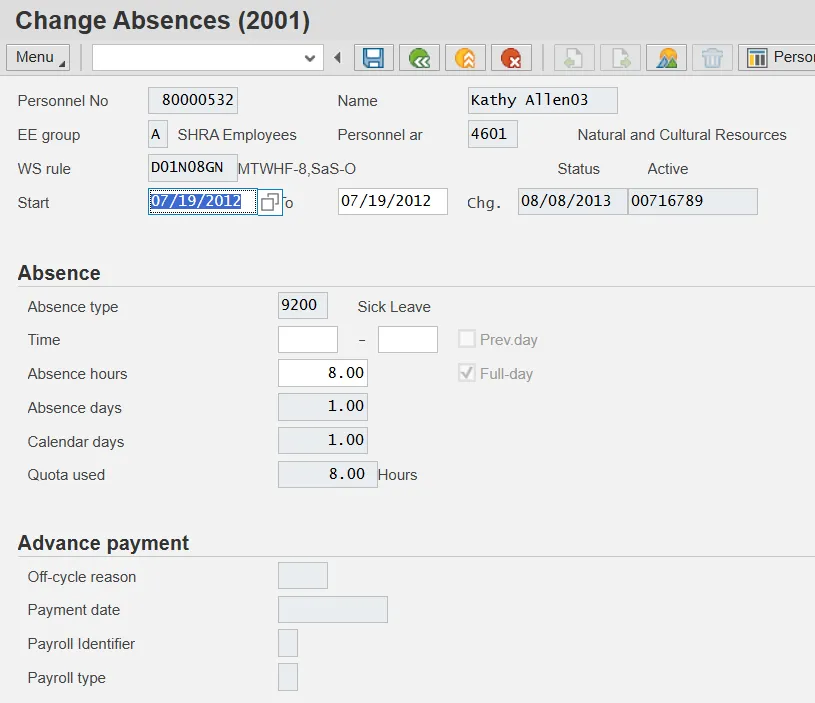
Step 7. Click “Save” and the absence will be updated to deduct from the appropriate quota(s) in the hierarchy that currently have a positive balance.
Note: Click through any warning messages that may pop up. Any error messages that pop up will advise of conditions that need to be addressed before the absence can be updated.
After saving the record, the system will return to the pop-up screen listing the absences.
Note: The pop-up window will not refresh until it is closed and reopened.
Note: The Absence quotas tab will not refresh automatically unless there was only one absence listed.