Purpose
The purpose of this Business Process Procedure is to explain how to enter Advanced Sick leave or Advanced Vacation leave in the Integrated HR-Payroll System.
Trigger
There is a need to enter Advanced Sick leave or Advanced Vacation leave in the Integrated HR-Payroll System.
Business Process Procedure Overview
OSHR policy allows advanced leave to be granted to employees provided it is formally approved by the employee's supervisor. With proper approval, an employee can receive advances of Sick and Vacation leave in amounts not exceeding that which an employee will accrue within the remainder of the calendar year. Due to the fact that an employee cannot maintain negative leave balances in the Integrated HR-Payroll System, a Time Administrator will create a separate Absence Quota equal to the approved amount of Advanced Leave. When the Advanced Leave quota is reduced, the system will create and manage a separate Attendance Quota to represent the liability that the employee owes the State by using leave in advance of accruing it. As leave is accrued, the liability is then reduced accordingly. Policy also allows for recovery from Overtime, GAP, Callback to satisfy the liability.
Advanced Leave quotas are created using the Quota Corrections Infotype (Infotype 2013). There are two subtypes of Infotype 2013 that are relevant to the State's Advanced Leave policy:
• Advanced Vacation (Subtype 31)
• Advanced Sick (Subtype 32)
This BPP will detail: Manually creating an Advanced Leave quota.
Access Transaction
Via Transaction Code: PA61
Procedure
There are 14 steps in this process.
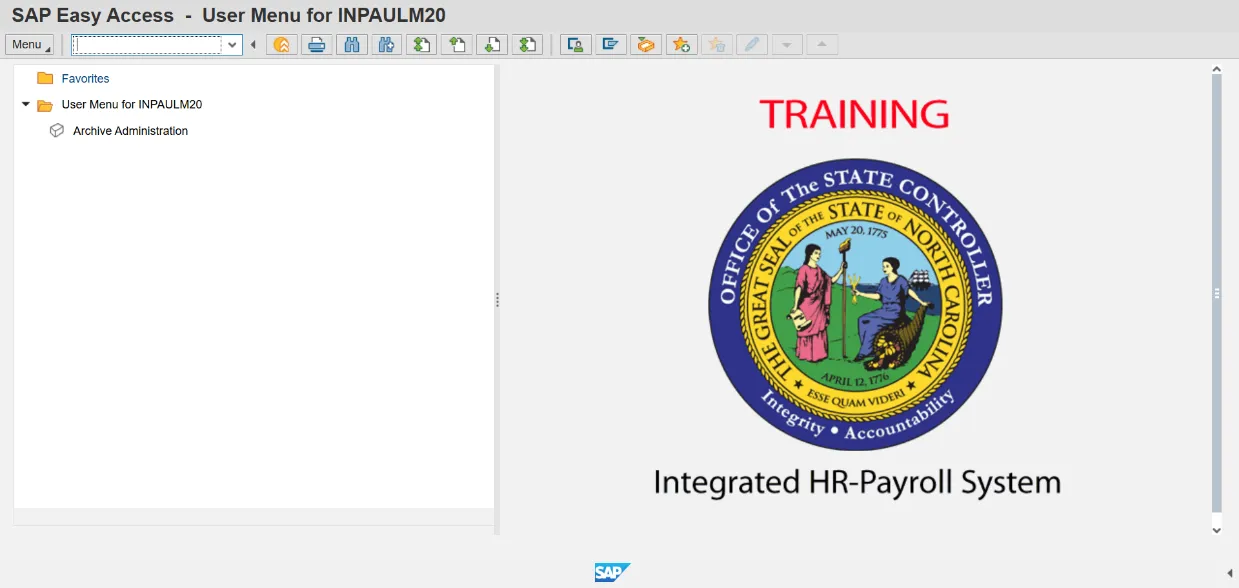
Step 1. Update the Command field using transaction code PA61.
Step 2. Click Enter.
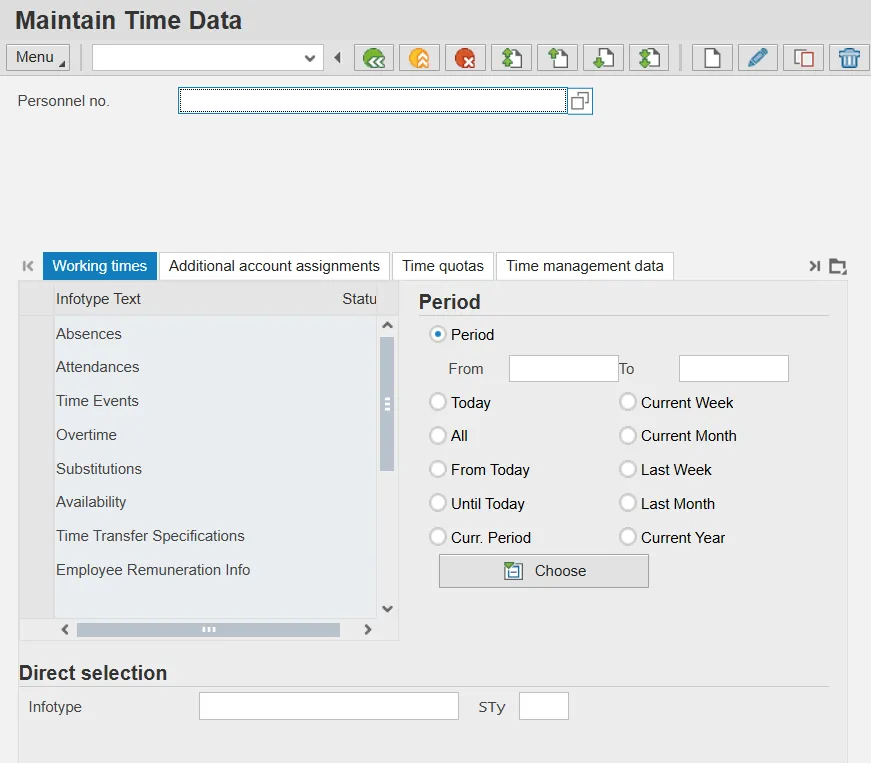
Step 3. Update the Personnel no. field.
Step 4. Click Enter.
Information: Ensure the correct personnel number was entered after clicking Enter.
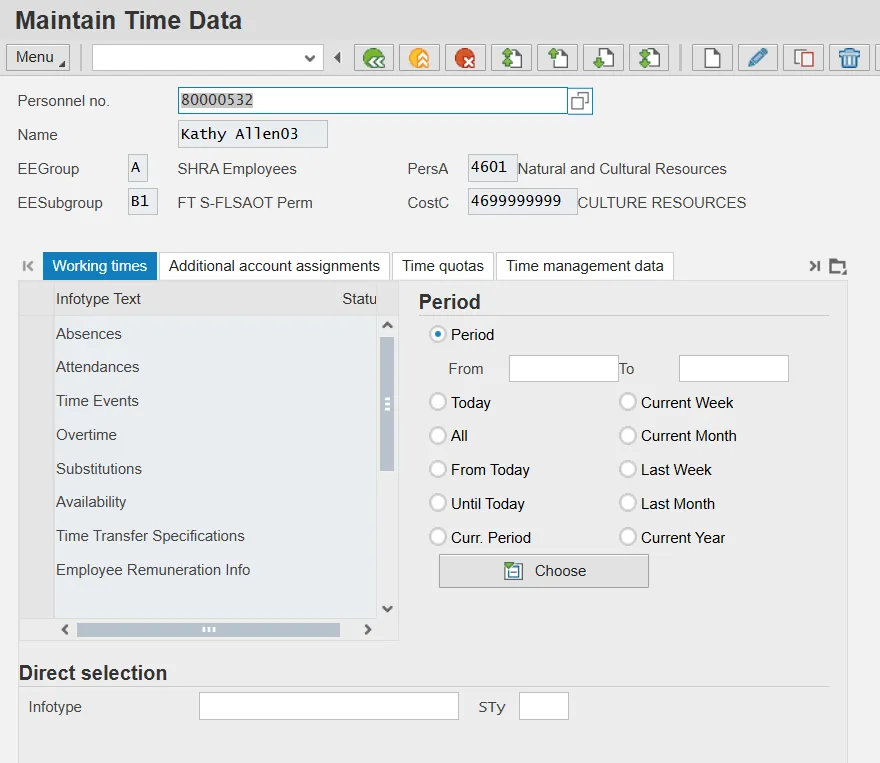
Step 5. Update the following required and optional fields:
- From Date
- Infotype: Example 2013
Information: The FROM date represents the current date or the date that the employee's Advanced Leave quota should be available for deduction. System will set the To date to the end of the calendar year automatically.
Step 6. Update the following required and optional fields:
- STy: Example: 32
Information: If the employee has been approved for Advanced Vacation Leave, enter subtype value [31]. If the employee has been approved for Advanced Sick Leave, enter subtype value [32].
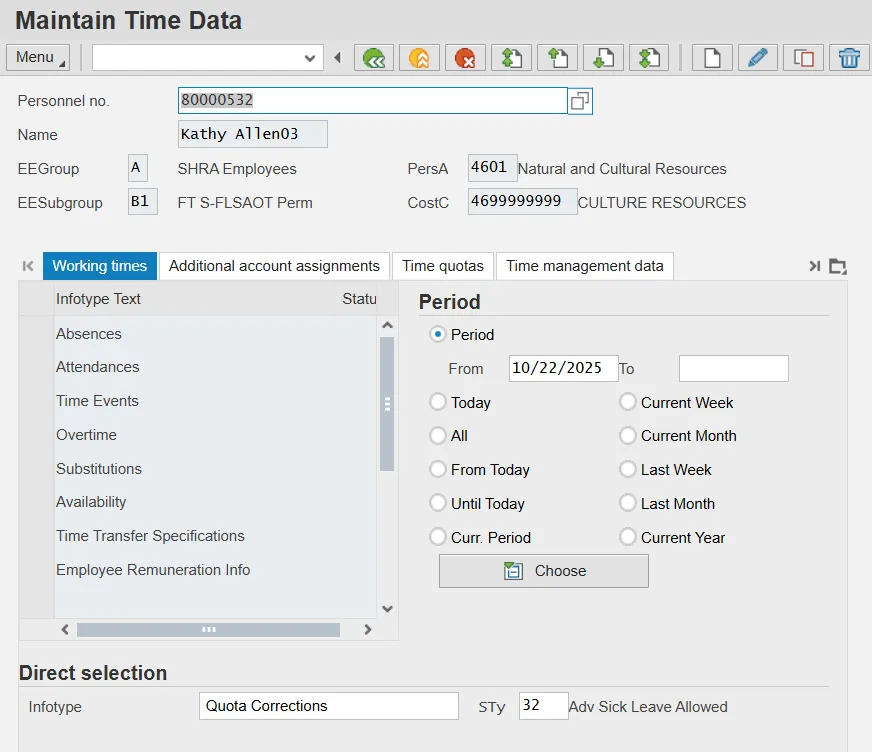
Step 7. Click the Create (F5) button.
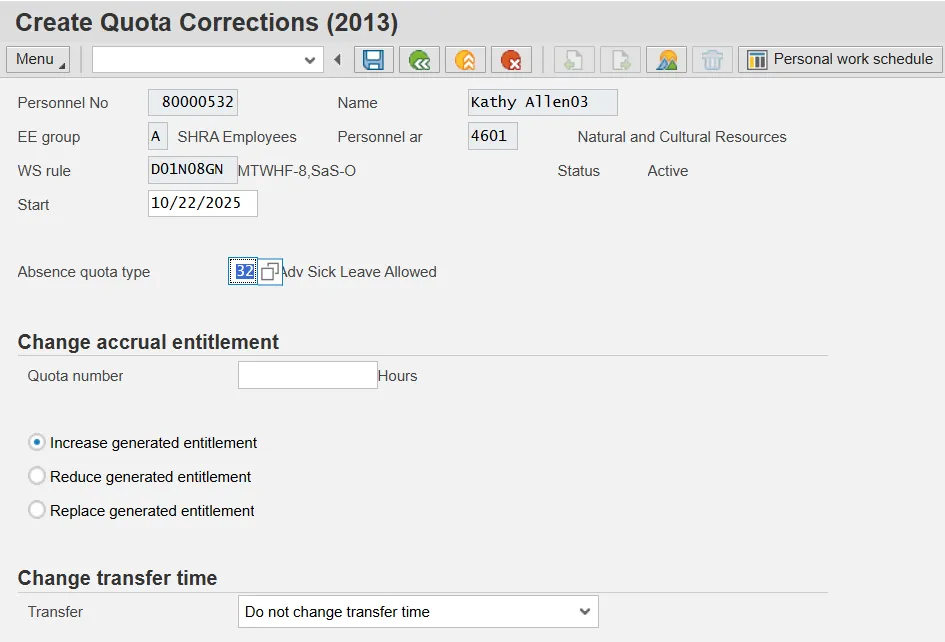
Step 8. Update the following required and optional fields:
- Quota number: Example 40
Caution: The Integrated HR-Payroll System will not validate the number of hours entered against the estimated leave hours the employee should accrue during the remainder of the year. The Time Administrator should validate that the approved hours comply with OSHR policy.
Step 9. Click the Transfer dropdown.
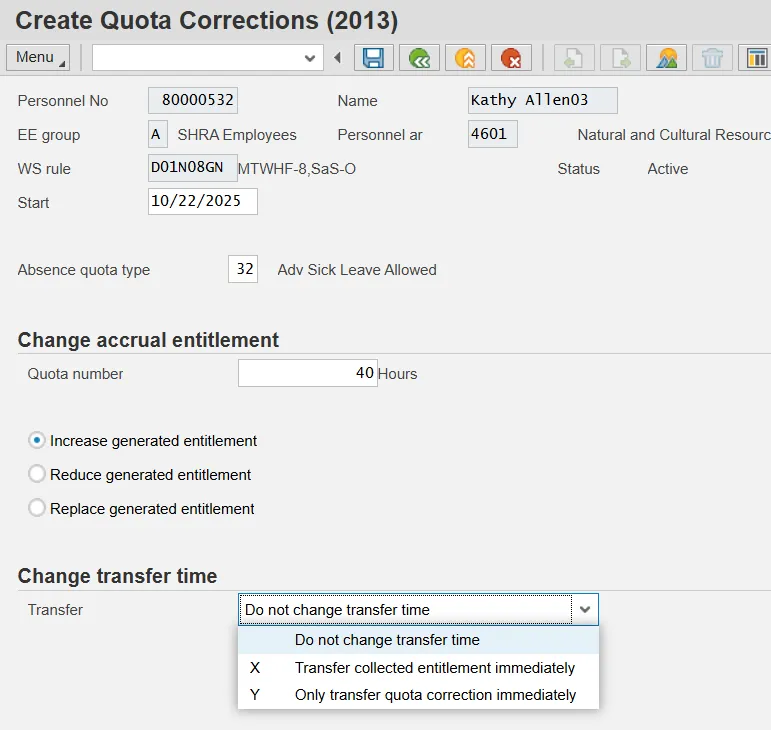
Step 10. Select Do not change transfer time in the list box.
Information: The DO NOT CHANGE TRANSFER TIME option allows the Advanced Leave quota to be generated during the next Time Evaluation process and will be available to the employee the following day. Selecting this option also generates the correct ‘deduction from’ and ‘deduction to dates.’
Step 11. Click Save (Ctrl+S).
Step 12. Click Menu > Edit > Maintain text and enter notes.
Step 13. Click the Save button to save your notes. The Detail record screen will display again on your screen.
Step 14. Click the Save button to save the record.
The system task is complete.