Purpose
The purpose of this job aid is to explain the CATC Report and how to identify if an employee has not reported enough hours.
Looking for Employees with Too Few Hours
The CATC report offers the ability to compare reported time against planned hours and indicate whether certain conditions have been met. Due to the large number of input fields, the selection screen can appear overwhelming. This Job Aid covers one common scenario -- trying to identify whether an employee has not reported enough hours.
Tip: Only approved hours will be represented in this report. If hours have been released for approval, but not yet approved, they will not show up here. (Use the CATS_DA report to see all times that have been entered, regardless of status.)
Selection Criteria Sections
The report offers the ability to report by organizational structure by selecting the report tab Org. structure.

PERIOD
Enter a date range for the Other period radio button by filling in the Period and To fields.
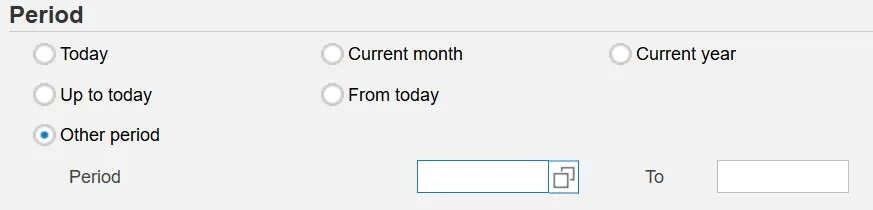
Tip : For best results, use dates that line up with the start and end of the employees’ overtime periods.
SELECTION
Enter the criteria by which the employees should be selected. If the Org. structure tab was selected initially, no other selection criteria is needed. Otherwise, common entries would be one or more Personnel Numbers or by Org Unit.
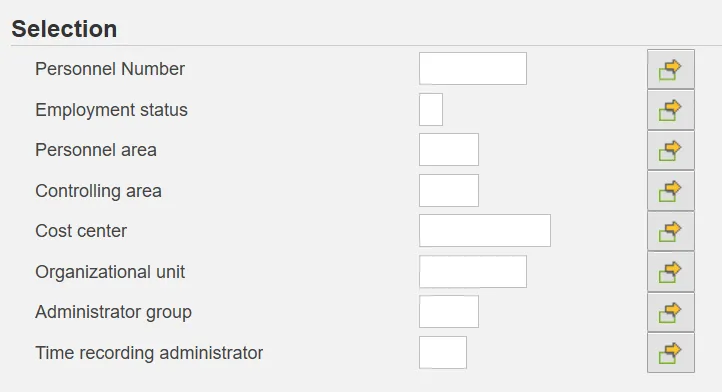
REPORT-SPECIFIC SELECTION OF EMPLOYEES
Check the Employees required to record times in time sheet checkbox.
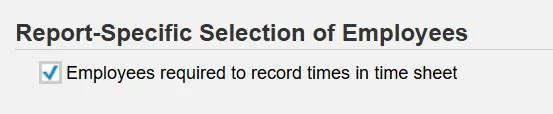
Tip: This checkbox only refers to positive time employees. Negative time employees are not required to enter time worked, only exceptions.
TIME SHEET SELECTION
Check the Select according to target hours radio button and the Too few hours recorded checkbox.
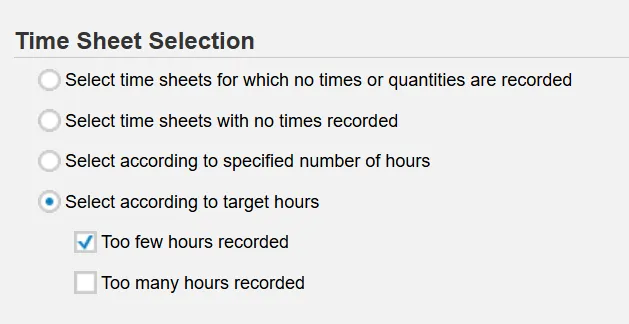
Tip: The checkbox for Too many hours recorded is used to identify those employees with more hours than their planned hours total. It can be used in addition to or instead of the Too few hours recorded. For this example, we are just looking for employees with too few hours recorded.
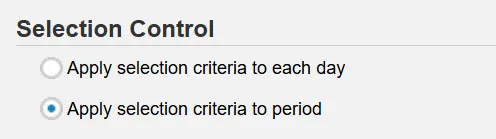
SELECTION CONTROL
Select the Apply selection criteria to period radio button.
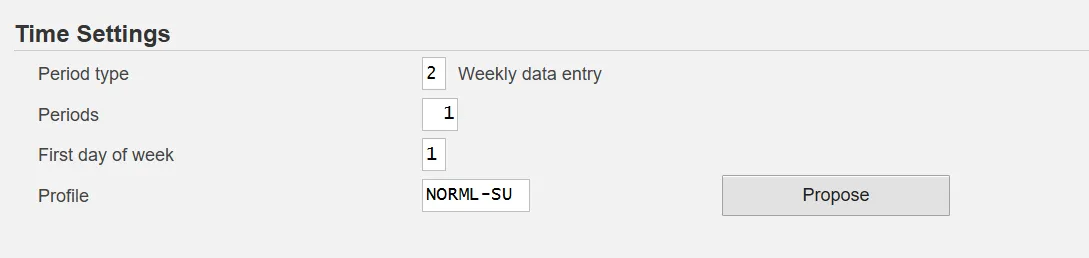
TIME SETTINGS
- Period type: Always keep default value 2 as the entry for this field, which will cause the report to total hours for multiples of a 7-day period on each row.
- Periods: This value is a multiplier for the value in the previous field.
a. Keep default of 1 for seven-day employees.
b. For 28-day employees, enter the value 4 in the Periods field. Make sure the specified date range (in the Period section at the top of the page) begins on the first day of a 28-day overtime period. Make sure the next field is set with the correct day of the week for the first date of that date range. This will cause the report to total the hours for each 28-day overtime period on its own row. - First day of week: Use the matchcode drop-down menu to see the list of values and enter the value that corresponds to the first day of the employee’s weekly overtime period.
- Profile: A value may populate in the Profile field – it can be left alone.
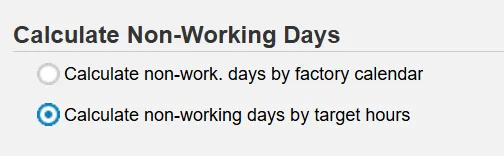
CALCULATE NON-WORKING DAYS
Select the Calculate non-working days by target hours radio button.
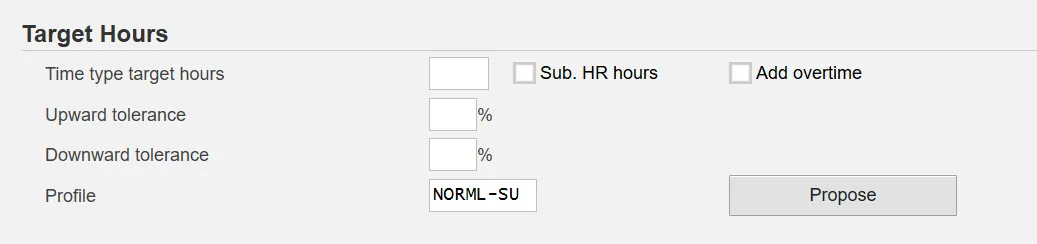
TARGET HOURS
Leave these fields empty. The Profile field may populate with a value – it can be left alone.
OUTPUT
Check the Display all time sheets checkbox.
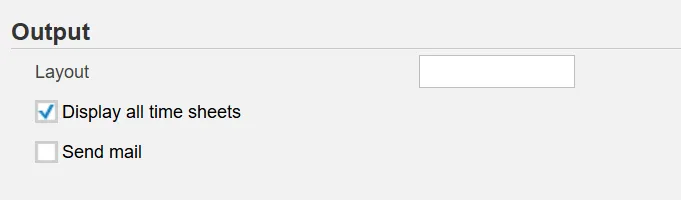
Tip: This will cause the report to show rows that do match the planned hours and are not identified as exceptions. It is usually less confusing seeing everything at the start. Rerun the report with this checkbox deselected to get just a list of the periods that do not meet your criteria.
Tip: You can save your entries as a variant. This will allow you to populate fields with your agency’s information instead of re-entering your selections each time. For more information about variants, please refer to the Quick Reference guide GN-03 Create a Selection Variant.
RUNNING THE REPORT
Click the Execute button and view the results. Note that the cells in the Total recorded hrs column are flagged in a red color if that value is less than the value in the Total target hrs column. This is a result of the specific selection criteria we used in this example.
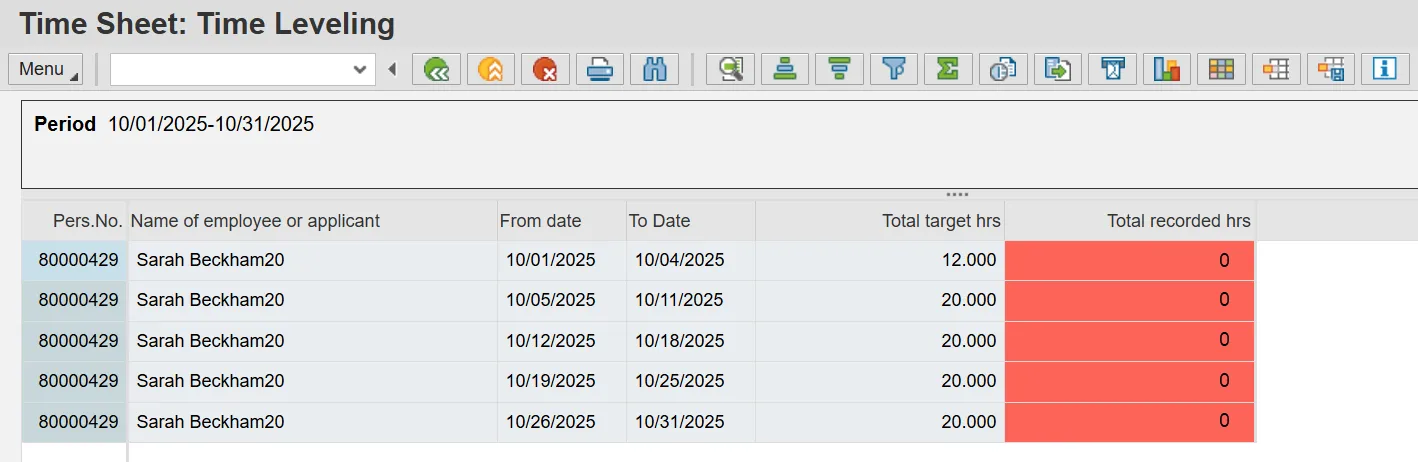
Tip: Only “approved” hours will be represented in the Total recorded hrs column. If hours have been released for approval, but not yet approved, they will not display here. (Use the CATS_DA report to see all times that have been entered, regardless of status.)