Purpose
The purpose of this Business Process Procedure is to explain how to evaluate payroll results based on specific wage types in the Integrated HR-Payroll System.
Trigger
There is a need to evaluate payroll results on specific wage types.
Business Process Procedure Overview
The purpose of this transaction is to evaluate the wage types for a specific period and a specific payroll run. A regular payroll run can be compared with another regular payroll run using wage type reporter.
Access Transaction
Via Menu Path: Human Resources >> Payroll >> Americas >> USA >> Subsequent activities>>Per payroll period >> Lists/statistics >> Wage type reporter
Via Transaction Code: PC00_M99_CWTR
Procedure
There are 13 steps to complete this process.
SAP Easy Access
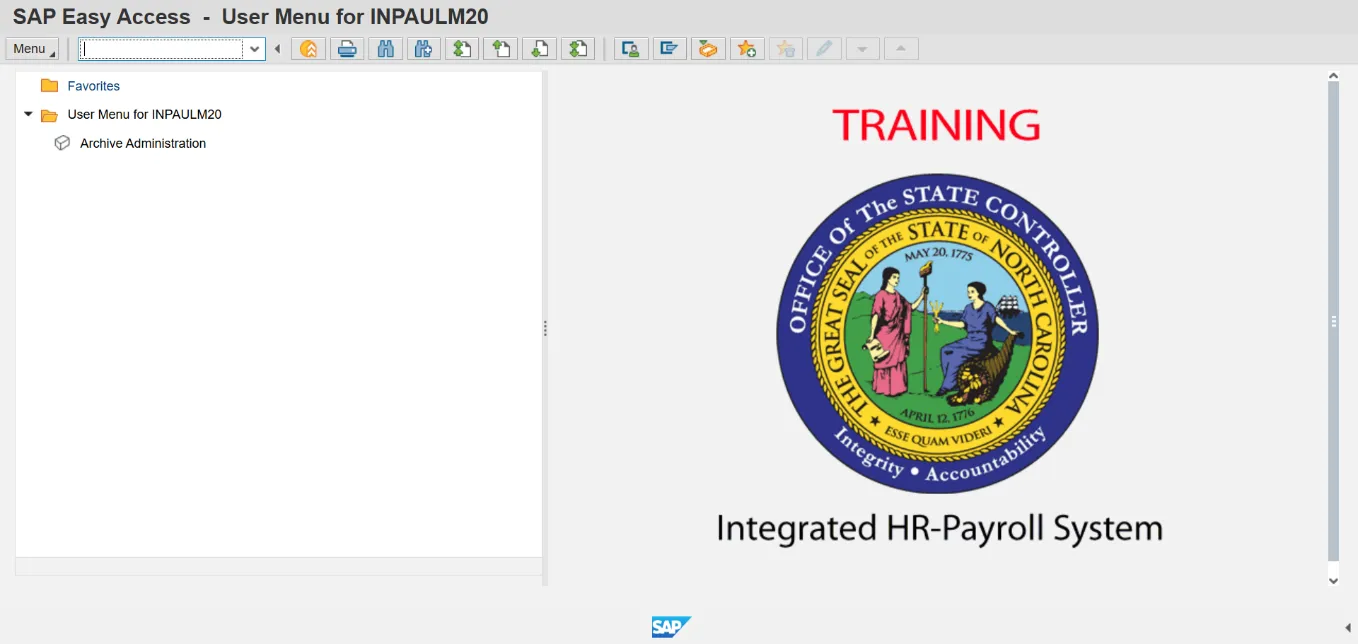
Step 1. Enter PC00_M99_CWTR in the Command field.
Step 2. Click Enter.
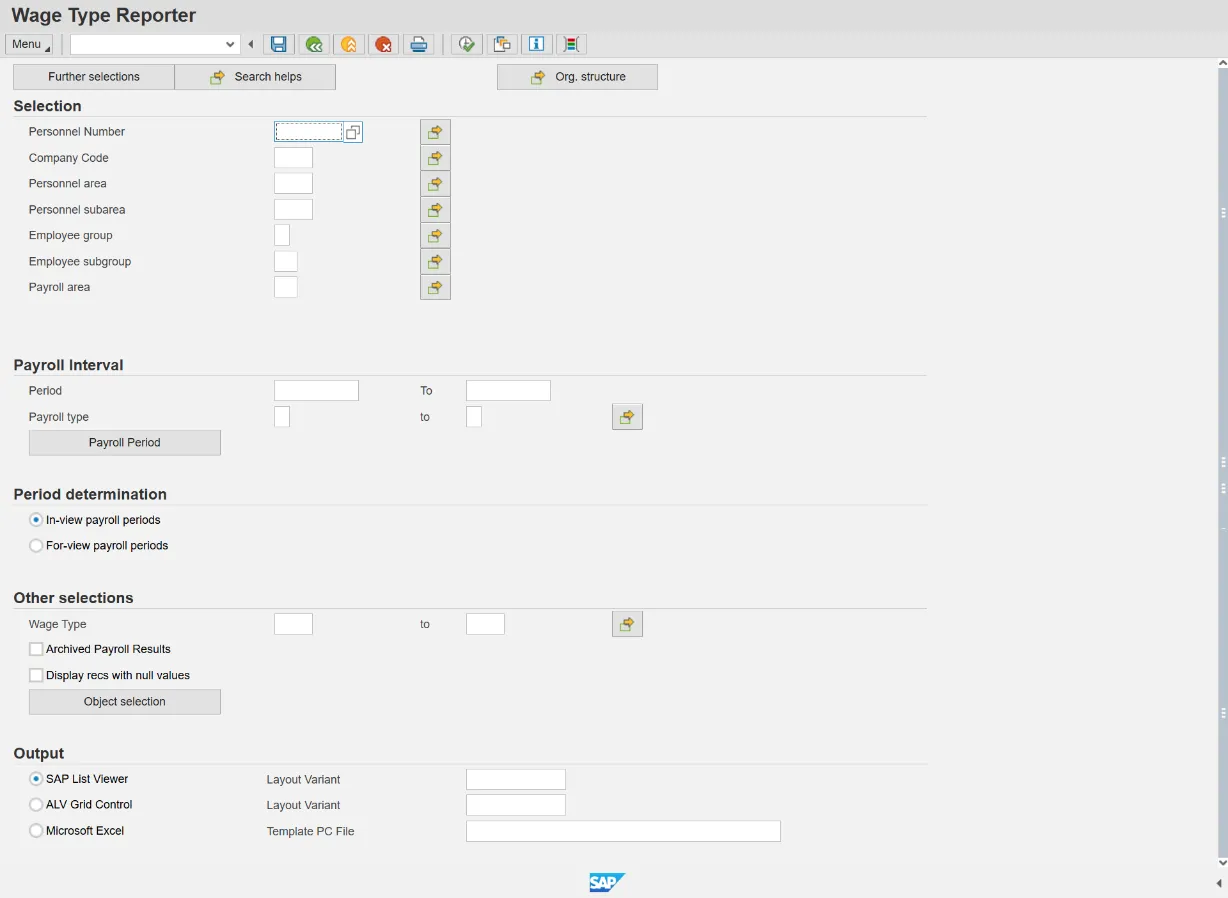
Step 3. Click Get Variant (Shift+F5) if selecting an existing variant.
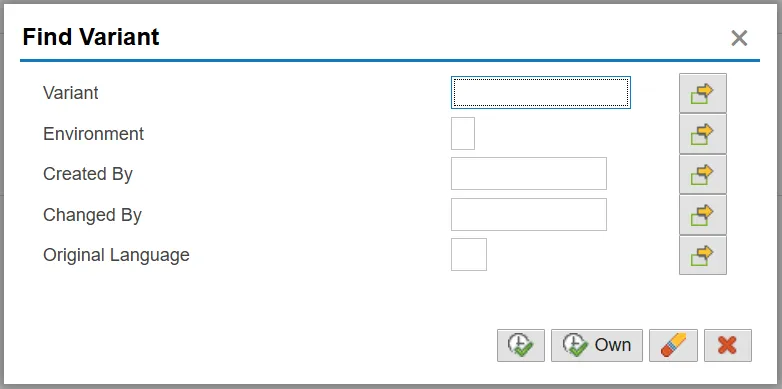
Step 4. Remove personnel number in the Created by field if searching for a variant created by another user
Step 5. Click the Execute button.
Step 6. Select the ZPROD-MO/101 PROD-MO Gross Earnings row.
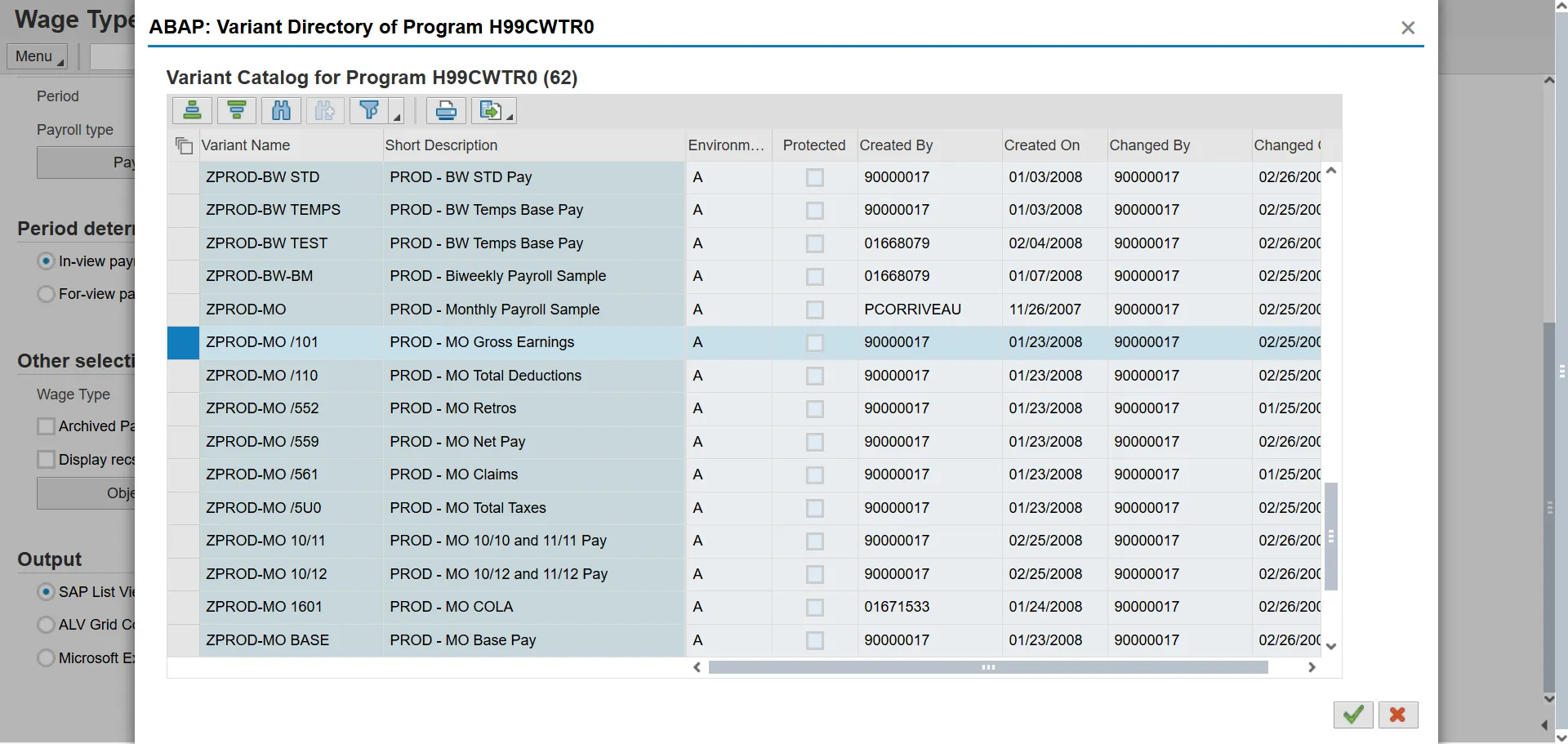
Step 7. Click Choose (F2) button.
Note: The variants beginning with the variant name ZPROD have been created by OSC. These variants are available for all State agencies to use when running reports and cannot be changed.
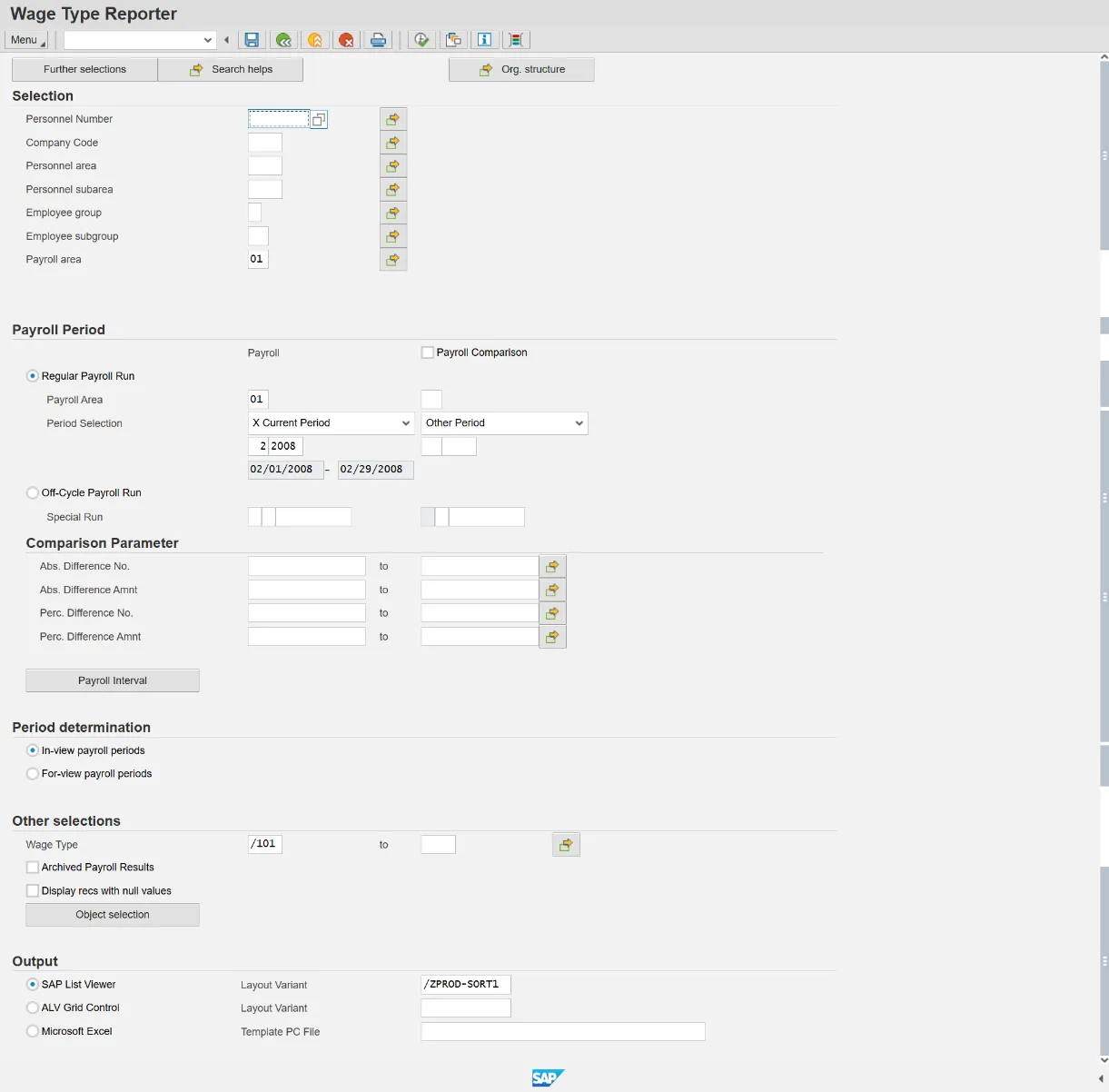
Step 8. Update the following field(s) in the Selection section.
| Field Name | Description | Values |
|---|---|---|
| Personnel Number | Unique number identifying an individual’s master record data in the system. |
Enter value in Personnel Number. Example: 80001039 |
| Company Code | NC01 for all Agencies except Transportation, which is NC02. |
Enter value in Company Code. Example: NC01 |
| Personnel area | Code identifying the agency and division associated with the position. |
Enter value in Personnel area. Example: 4601 |
| Personnel subarea |
Code that defines various working schedules so that Time Management can define groups of specific time entry rules. Some examples include:
See the Personnel Area and Subarea (PSA) job aid on the OSC Training HELP website for detailed information concerning the relevant PSAs associated with each Personnel Area. |
Enter value in Personnel subarea. Example: NC01 |
| Employee group | Employee's working classification (e.g. permanent, temporary, probationary, etc.). |
Enter value in Employee group. Example: A |
| Employee subgroup | Code identifying the employee’s exempt, non-exempt, or other working status, |
Enter value in Employee subgroup. Example: A1 |
| Payroll area | Code identifying the payroll area, or frequency of payroll (bi-weekly, monthly, etc.). Payroll area 01 for Monthly or 04 for Bi-Weekly. |
Enter value in Payroll area. Example: 01 |
Note: More selection criteria selected will narrow down the report results.
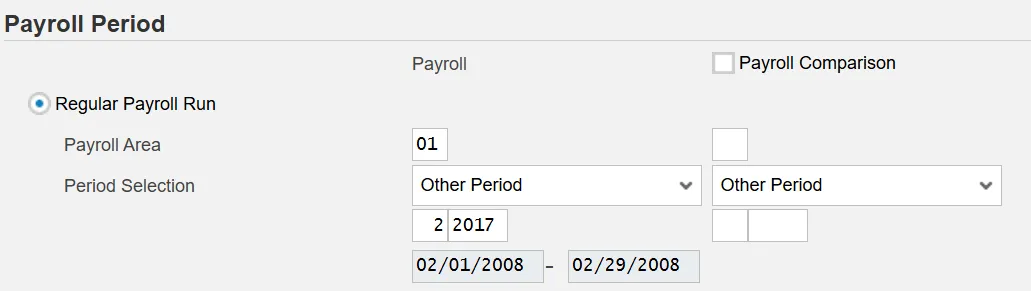
Step 9. Update the field(s) in the Payroll Period section.
| Field Name | Description | Values |
|---|---|---|
| Payroll Area | Code identifying the payroll area, or frequency of payroll (bi-weekly, monthly, etc.). Payroll area 01 for Monthly or 04 for Bi-Weekly. |
Enter value in Payroll Area. Example: 01 |
| Period Selection | Click the dropdown menu if selecting period other than Current Period, |
Select Other Period in list box. Enter value in Month Enter value in Payroll Year Example: 2017 |
Step 10. Click Execute (F8).

Step 11. Click Scrollbar to view additional data which is not displayed on the screen.
Note: This report contains the data related to Personnel Number 80001039. The variant allows you to view the total gross wages (WT /101) for the other period of 01/2017.
Step 12. Click Exit button.
Step 13. The system task is complete.