Purpose
The purpose of this Business Process Procedure is to explain how to generate a payroll journal once payroll has been run in the Integrated HR-Payroll System.
Trigger
A payroll journal is needed once payroll has run.
Business Process Procedure
The Payroll Journal contains detailed, selected payroll data for several employees, for whom payroll has been run in a certain time interval or a selected payroll period.
The Payroll Journal can be used to:
- Identify errors that have occurred during the payroll run.
- Cumulate payroll data belonging to an organizational unit.
- Track the development of data over several payroll periods.
- Possess an additional, detailed control medium for revisions.
Access Transaction
Via Transaction Code: PC00_M10_CLJN
Procedure
There are 22 steps to complete this process.
SAP Easy Access
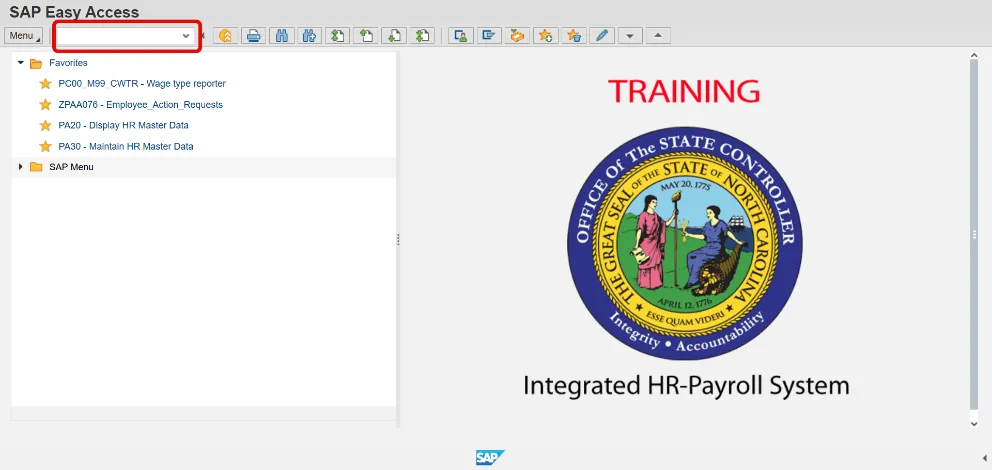
Step 1. Update the following required and optional fields:
| Field Name | Description | R/O/C | Values |
|---|---|---|---|
| Command | White alphanumeric box in upper left corner used to input transaction codes | R |
Enter value in Command. Example: PC00_M10_CLJN |
Step 2. Click Enter.
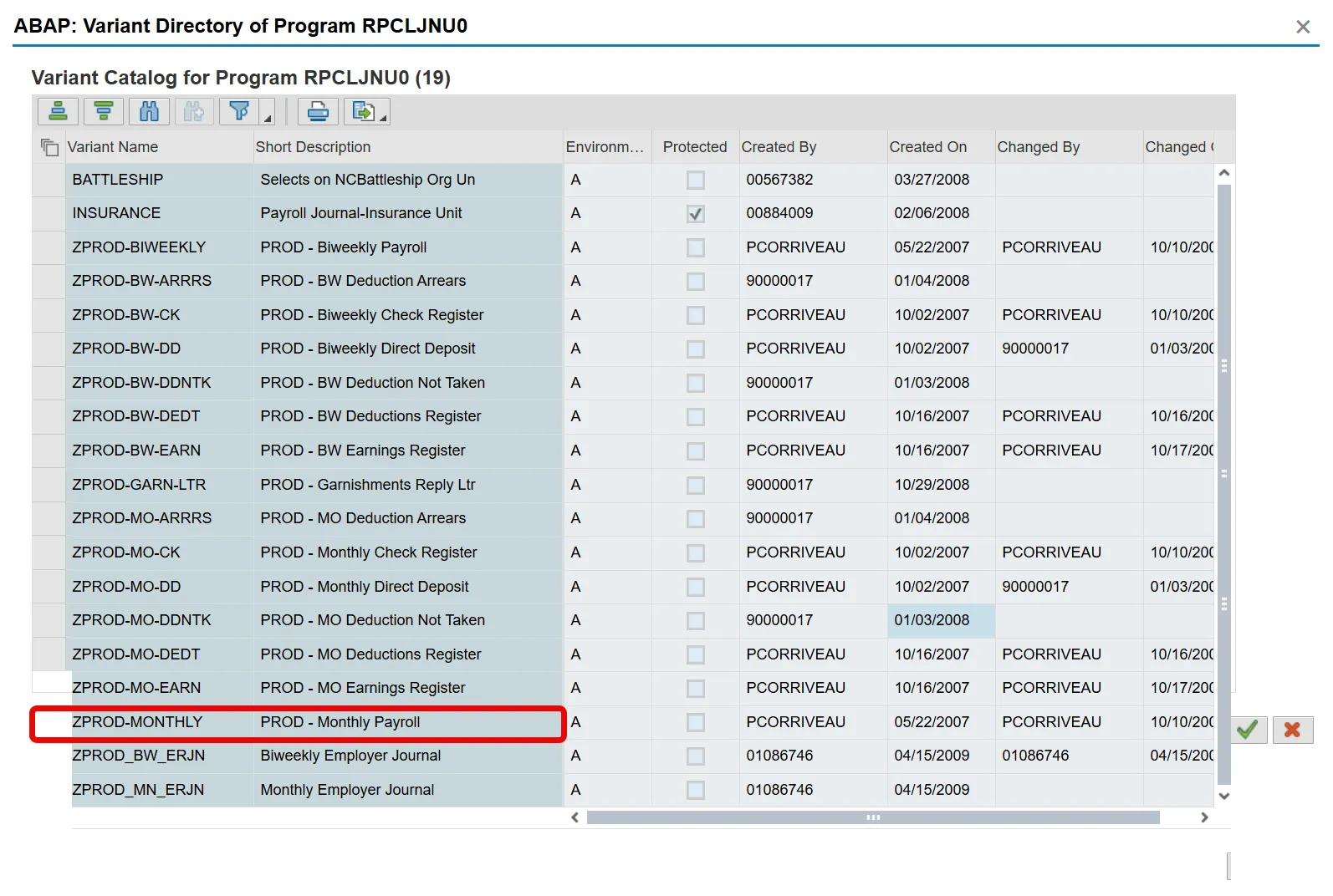
Payroll Journal
Step 3. Click the Get Variant...(Shift+F5) button.
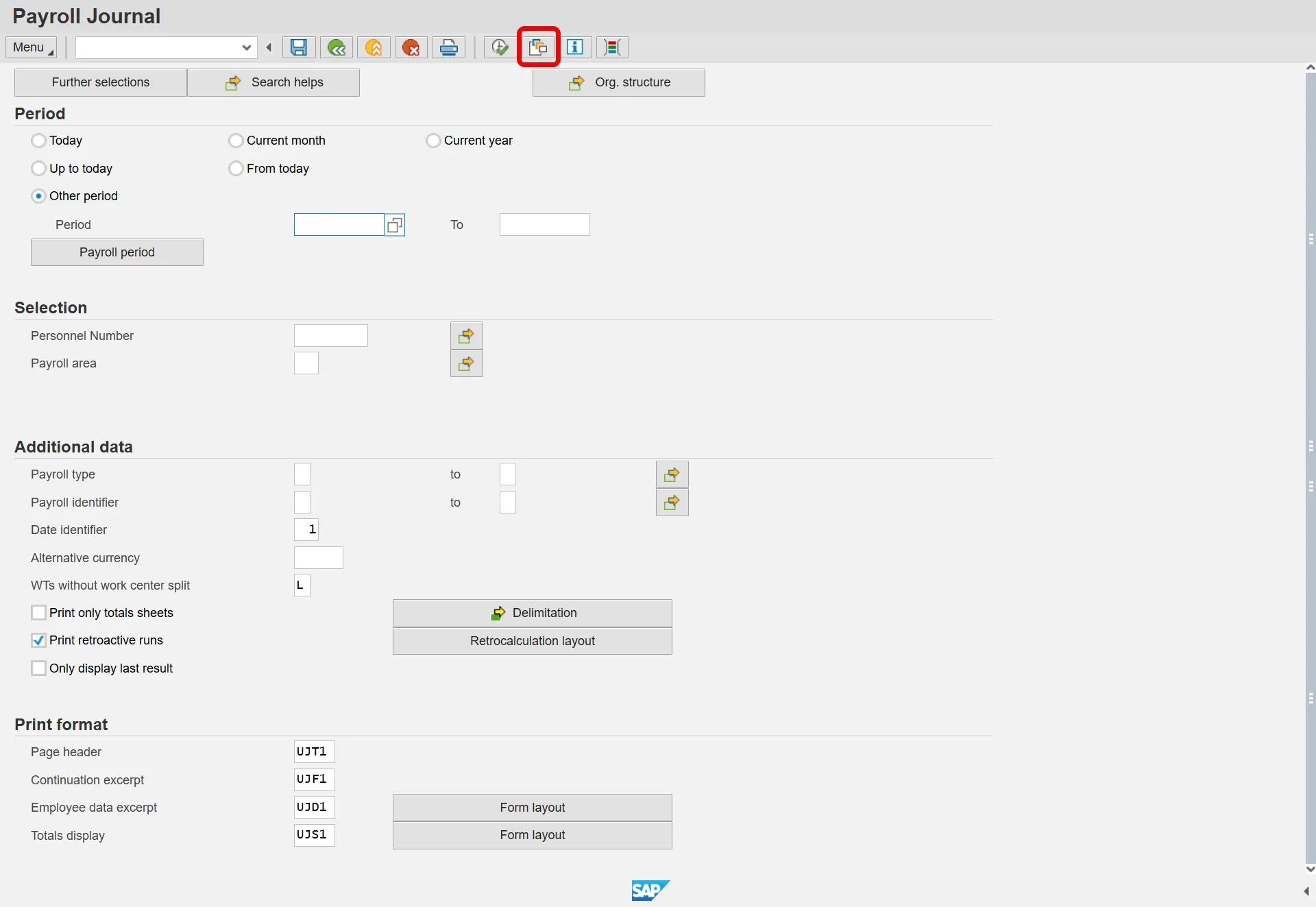
ABAP: Variant Directory of Program RPCLJNU0
Step 4. Choose the appropriate payroll variant.
- ZPROD-BIWEEKLY is used to view biweekly payroll.
- ZPROD-MONTHLY is used to view monthly payroll.
- ZPROD-MO-ERJN=Monthly employer journal
- ZPROD-BW-ERJN=Biweekly employer journal
Step 5. Click Choose (F2) button.
Payroll Journal
Step 6. Click the Other period radio button.
Step 7. Update the following required and optional fields:
| Field Name | Description | R/O/C | Values |
|---|---|---|---|
| Month | R |
Enter value in Month. Example: 12 |
|
| Year | Fiscal year corresponding to the periods open for posting | R |
Enter value in Year. Example: 2019 |
Step 8. Click the Further selections button. Choose the selections to enter criteria to further delimit which employees are selected.
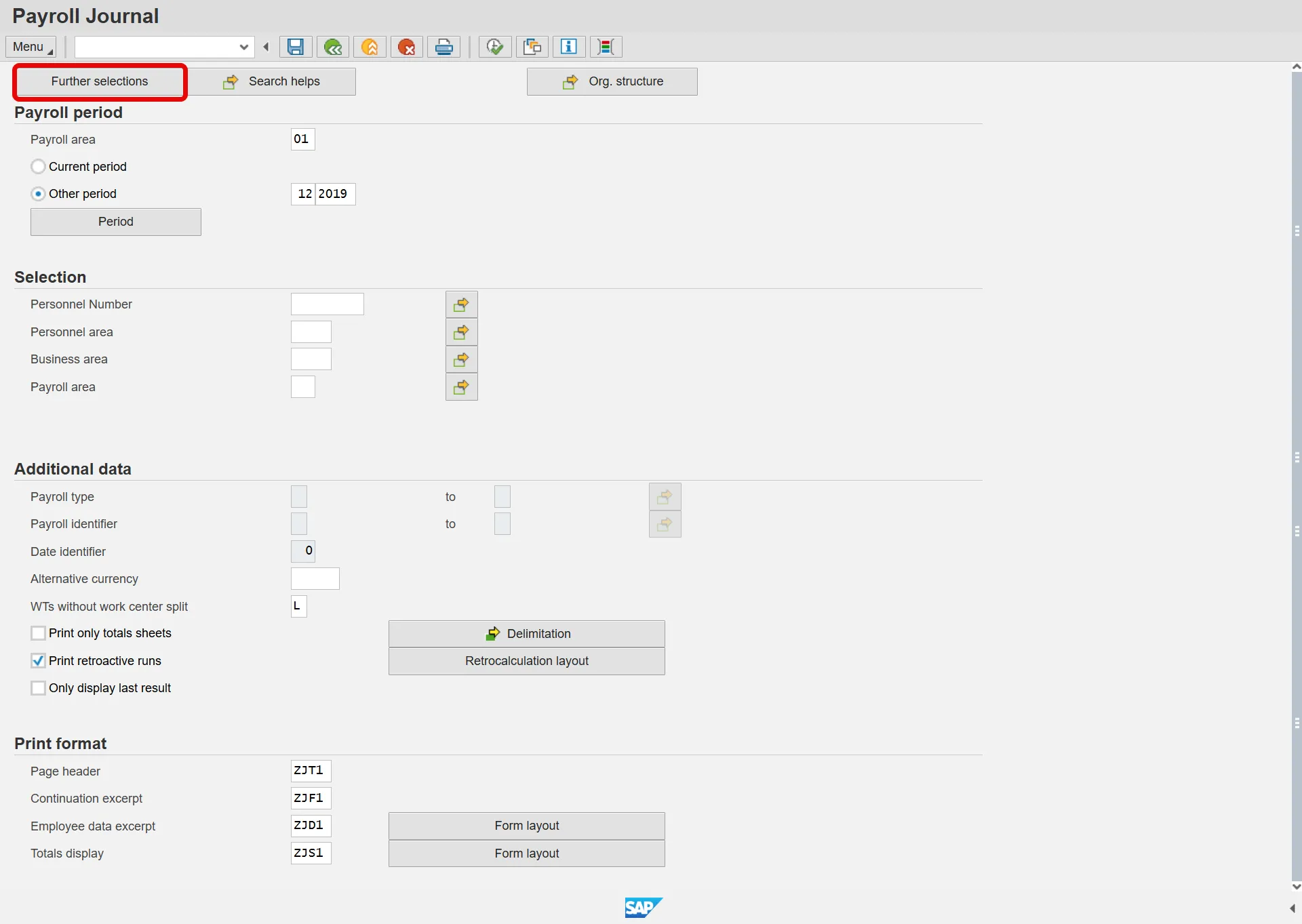
Choose Selection Fields
Step 9. Click the Personnel area button.
Step 10. Click the Select (right arrow) button.
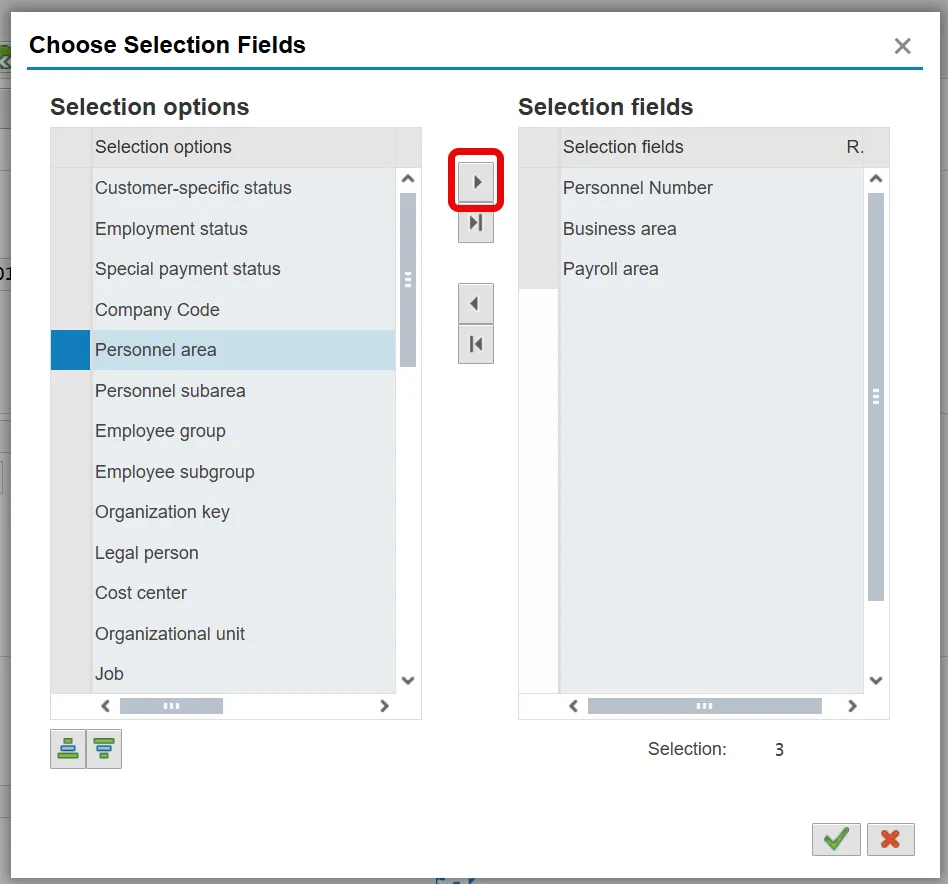
Step 11. Click the Green Check (Enter).
Payroll Journal
- Update the following required and optional fields:
| Field Name | Description | R/O/C | Values |
|---|---|---|---|
| Personnel number | Unique number identifying an individual’s master record data in the system. | R | Enter value in Personnel number. |
| Personnel area | Code identifying the agency and division associated with the position. | R | Enter value in Personnel area. |
| Payroll area | Code identifying the payroll area, or frequency of payroll (bi-weekly, monthly, etc.). Payroll area 01 for Monthly or 04 for Bi-Weekly. | R | Enter value in Payroll area. |
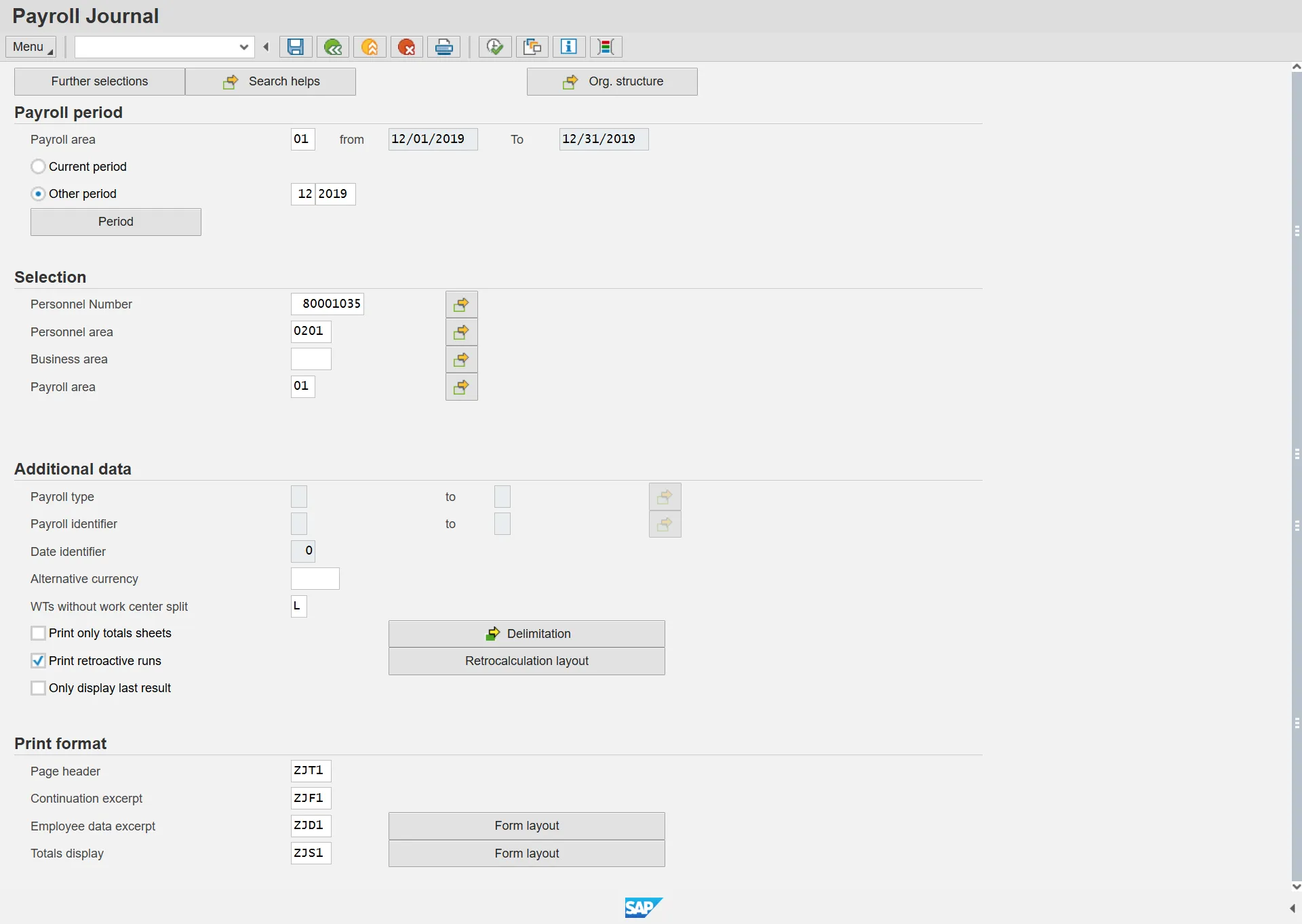
Step 13. Click the Delimitation button. Use the Delimitation sequence to group and total employees selected.
Set delimitation sequence
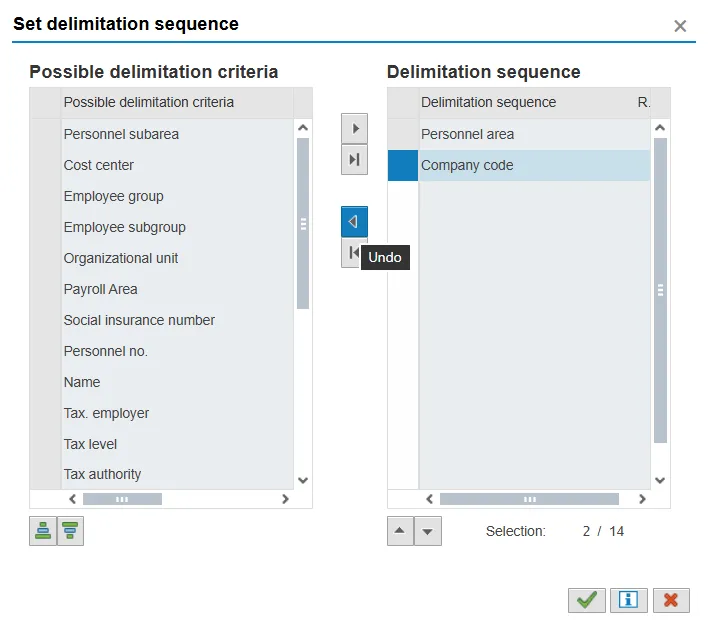
Step 14. Click the Company code button.
Step 15. Click the Undo button.
Set delimitation sequence
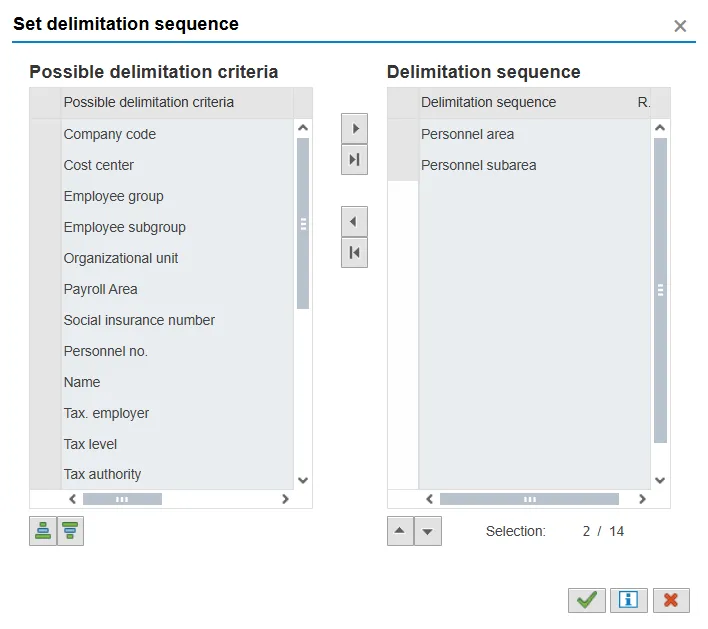
Step 16. Click Continue (Enter). The Set delimitation attributes window displays the delimitation sequence options that we have selected.
Set delimitation attributes
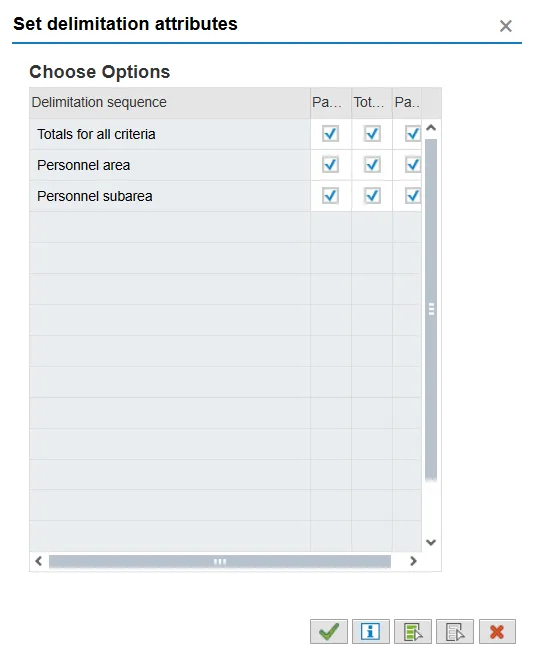
Step 17. Click Continue (Enter).
Information: Print totals only for Personnel Area and Personnel Subarea.
Payroll Journal
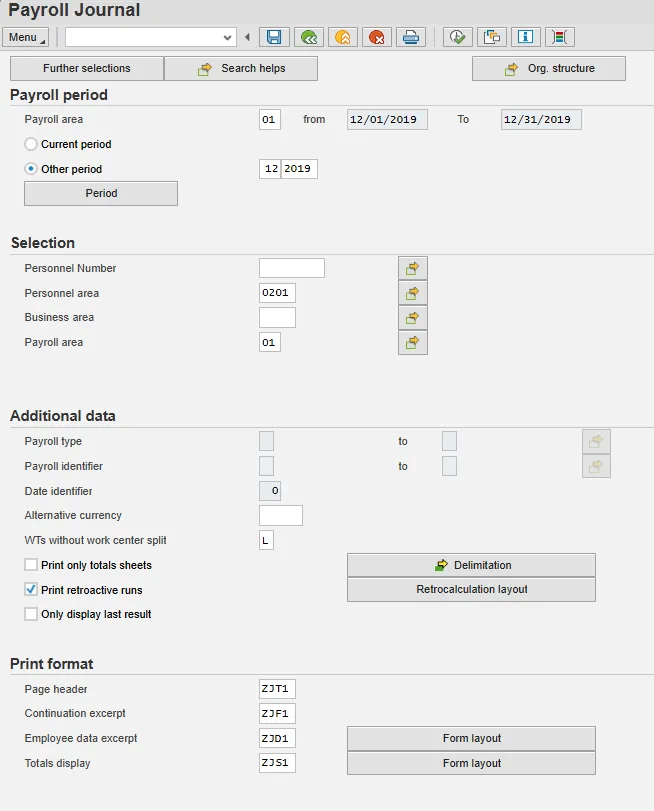
Step 18. Click Execute (F8).
Payroll Journal
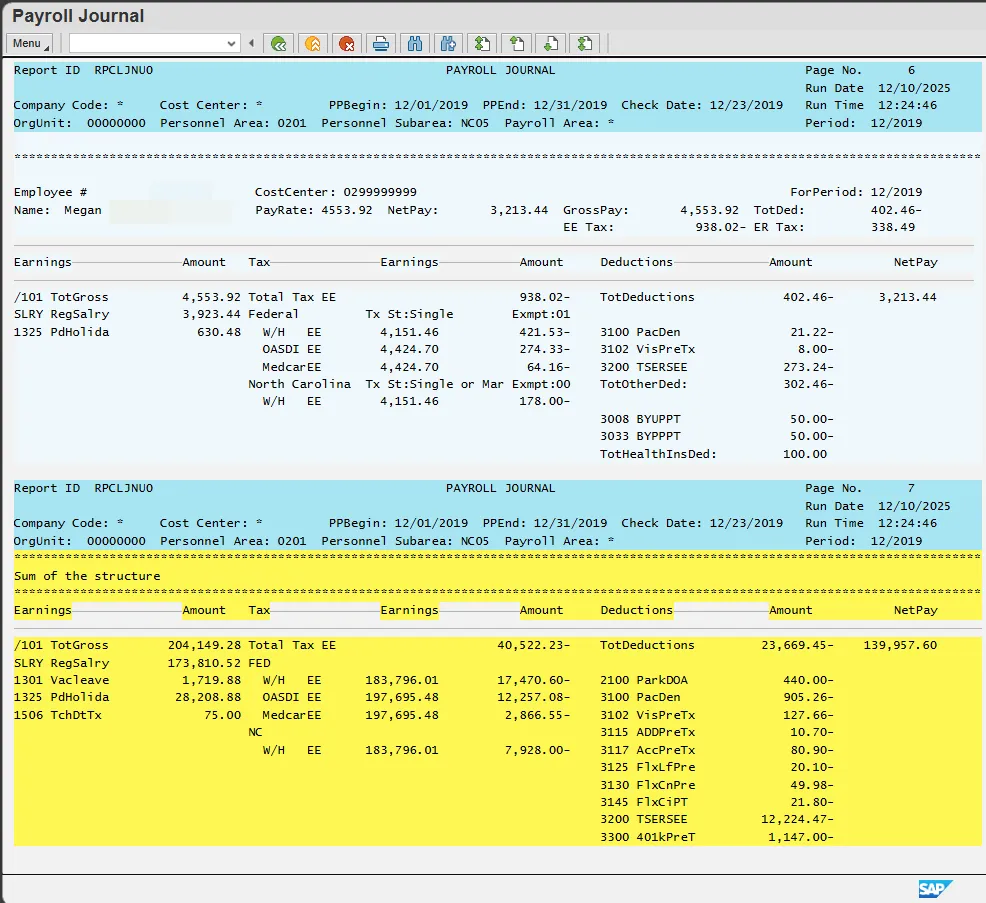
Step 19. Click the Scrollbar to see each employee in the Personnel area. The yellow section displays the subtotal amounts for Personnel Subarea NC01.
Step 20. Click the Back button.
Step 21. Click the Back button to return to the SAP Easy Access screen.
Step 22. The system task is complete.