Purpose
The purpose of this Business Process Procedure is to explain how to change the position callback rate in the Integrated HR-Payroll System.
Trigger
There is a need to change the Position Callback Rate for a position.
Business Process Procedure Overview
Position Callback Rate (IT 9012) - Positions that are eligible for compensation under the Emergency Callback policy should have this Infotype created to indicate that eligibility. The actual time spent working should be recorded on the timesheet. The additional time needed to reach the minimum will be computed by the Integrated HR-Payroll System. The “Immediate Payout” checkbox indicates that the additional compensation will be paid immediately instead of accrued as comp time for the selected aging period.
- Attendance Type 9516 (Callback) - Should be used to indicate regular callback time. The policy provides for a minimum of two hours of compensation when an employee has to physically return to work due to a callback.
- Attendance Type 9511 (Remote Callback) - Should be used to indicate remote callback time. A minimum of 30 minutes compensation is provided for remote callbacks in which the employee can respond online or by phone.
Tips and Tricks
See the OM Tips and Tricks Job Aid for a full listing of Best Practices and Tips & Tricks. The job aid is located on the Training HELP website.
- Copy is to be used most of the time. This will delimit the existing record and create a new record with the start date given. Copying keeps a history of the old record.
- Change is to be used only if you make a spelling or other simple error and want to change the record. There is no history tracked on what the record used to be if you use the change functionality.
Procedure
Type PO13 in the command field (1). Hit enter on your keyboard (2). Also, you can double click it from your favorites folder if you’ve previously saved it there (3).
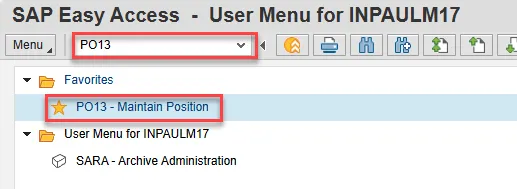
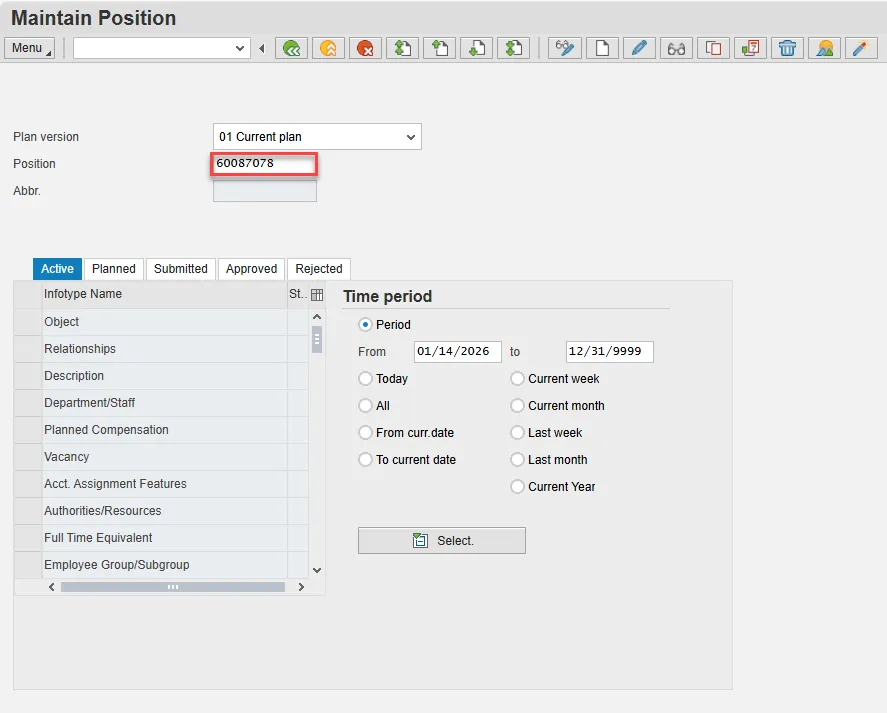
There are 12 steps to complete this process.
Step 1. Input the position number that needs updating. This document will use 60087078 from the OSC training environment.
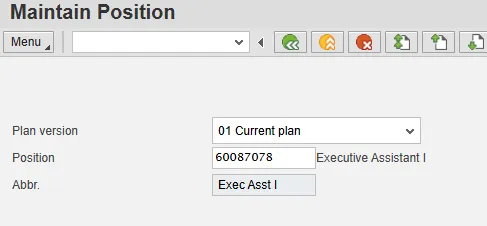
Step 2. Click Enter and verify the position displayed is the one you need to change.
Alert! Be vigilant on this step. A position number may be present already when you access the transaction, so be sure to review the position number and name to ensure they are correct.
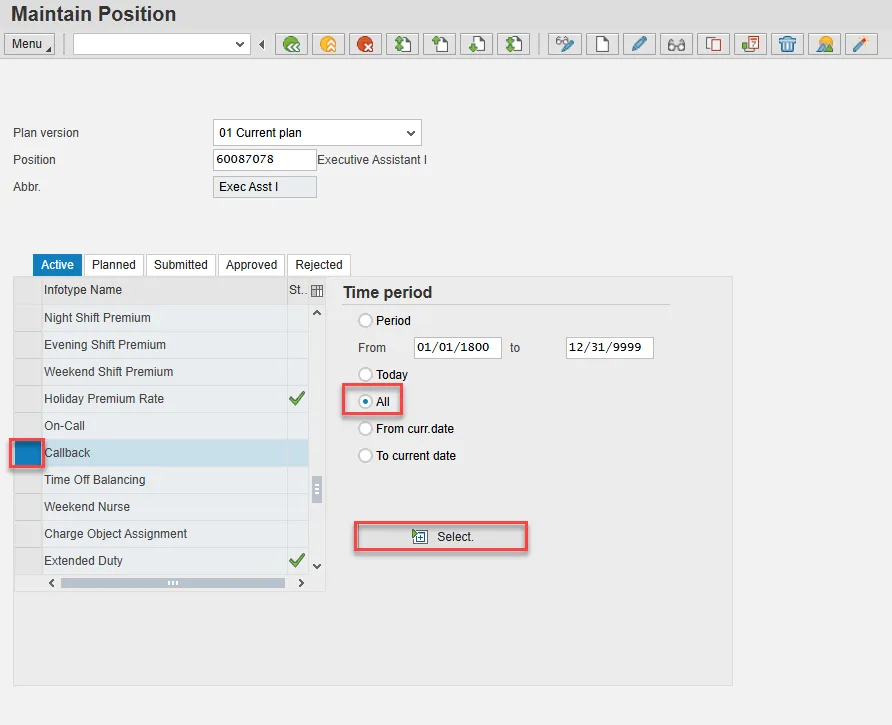
Step 3. Within the Active tab:
- Scroll down the list of position infotypes and click the square in front of the Callback row. There may or may not be a green check already present.
- In the Time Period area click into the All radio button and then click Select.
ATTENTION! If a new eligibility needs to be created or a rate adjusted, continue to step 5. If a current eligibility needs to be ended, skip to step 8.
Step 4. Click the Create button.
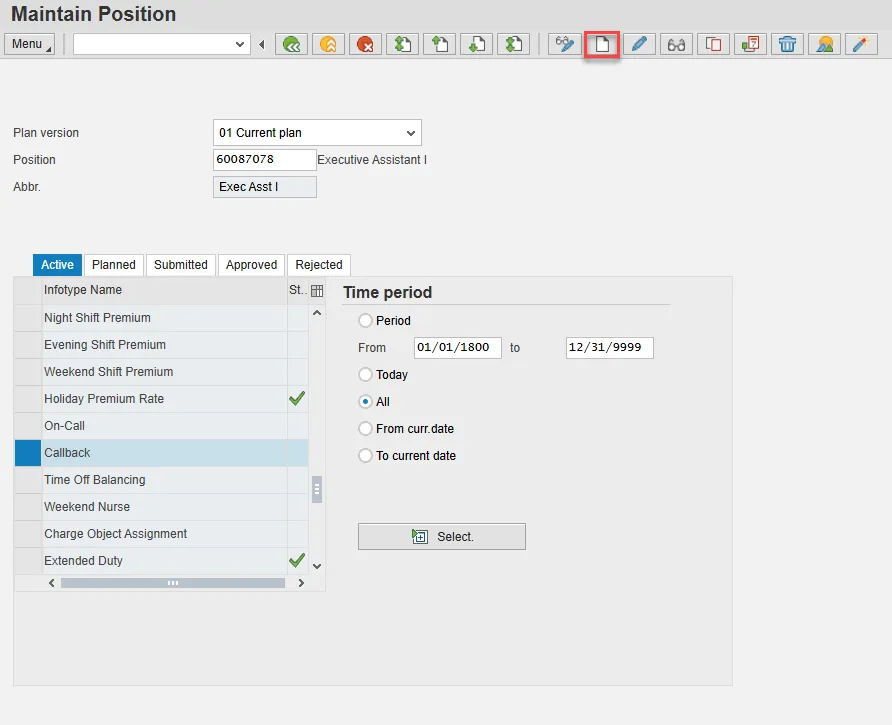
Note: Using the create button will work even if a record already exists.
Step 5. Enter the start date of the new record and update the data as applicable. If callback time is to be paid out immediately, the Immediate Payout box should be checked. Otherwise, the value in the Comp Aging Limit field will determine how long an employee may retain accrued Callback Compensation hours before they either expire or are paid out.
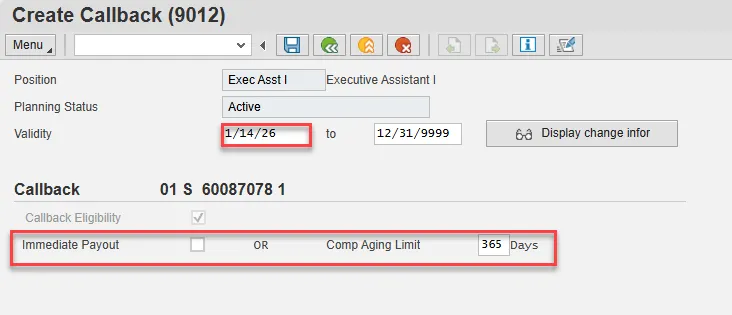
Step 6. Click the Save button. If updating a record, click Yes to delimit the previous record. No pop-up will appear if there was no previous record.
Proceed to step 11
Step 7. (Begin at this step to end the Callback eligibility for a position.)
Click the Delimit button.
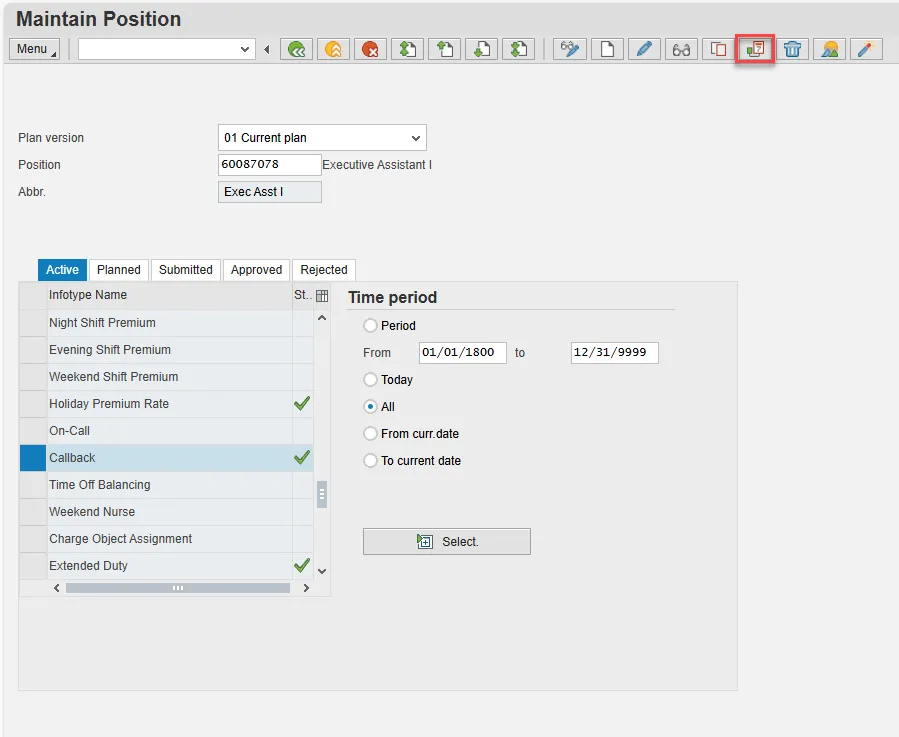
Step 8. In the To field, enter the last day in which the position was eligible for the Callback compensation.
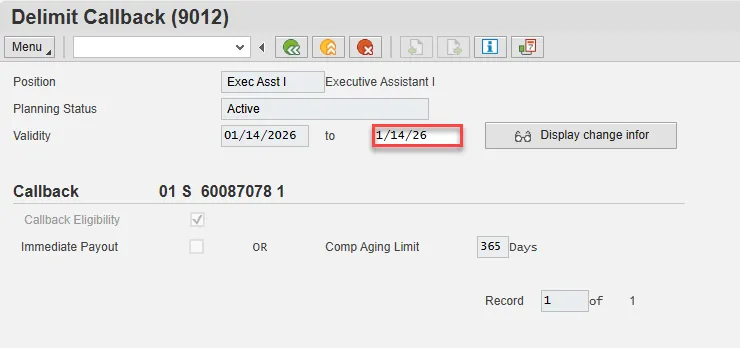
Step 9. Click the Delimit button.
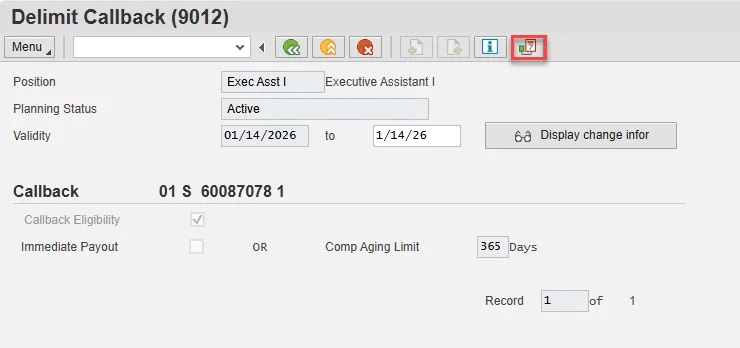
Step 10. Review your work by ensuring that the Callback infotype is selected and click the Overview button.
A list of all Callback infotypes for the Position will be displayed, including the Validity Dates, eligibility for the compensation and if so, whether it will be paid immediately or the comp aging limit in days.
Step 11. Optional step: Include a note. Click on the right side of the Services for Object button. In the resulting drop-down menu, hover over the Create option and then choose Create Note.
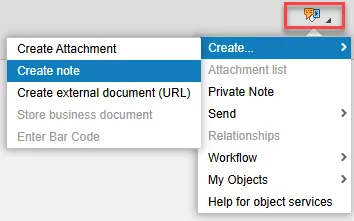
Note: Although a note is not required when updating a position’s Overtime Compensation settings, OSC staff recommends that one be created, nonetheless.
Enter in today’s date and your name (or initials) and a brief note with information used to justify the change.
Click the Green check to save your note.
Step 12. Click the Back button.
The system task is complete