Purpose
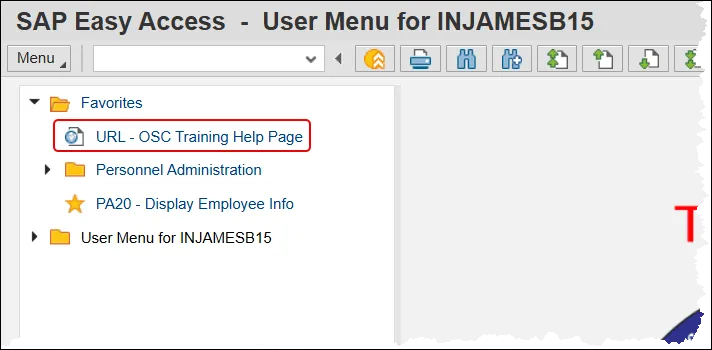
SAP allows you to add and organize a Favorites Folder containing the transactions you use most often. The purpose of this job aid is to explain how to manage your Favorites folder in the Integrated HR-Payroll System.
Adding Transactions to Your Favorites Folder
There are 2 steps to complete this process.
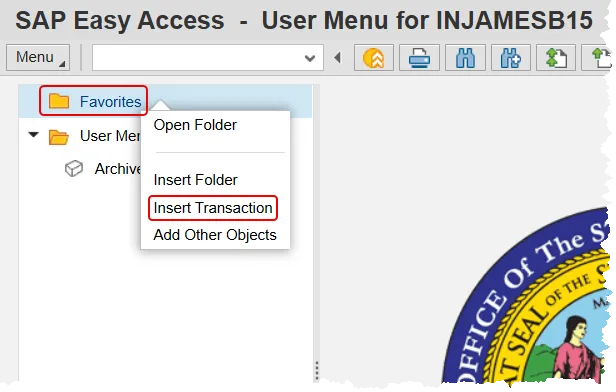
Step 1. From the SAP Easy Access Screen, right-click the Favorites folder, then select Insert Transaction.
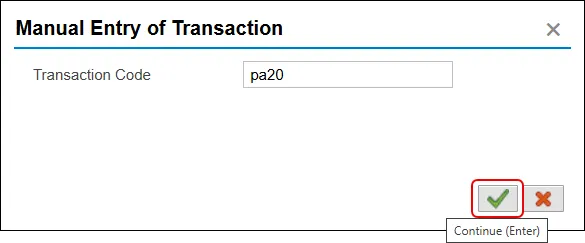
Step 2. Enter the transaction code you wish to add as a favorite and click the Continue button, or press enter on your keyboard.
Note: Transaction codes are not case sensitive.
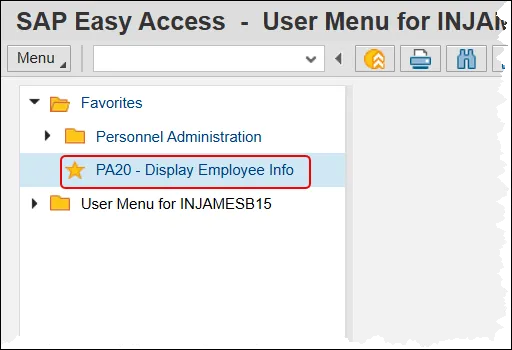
The transaction will be displayed in your Favorites folder.
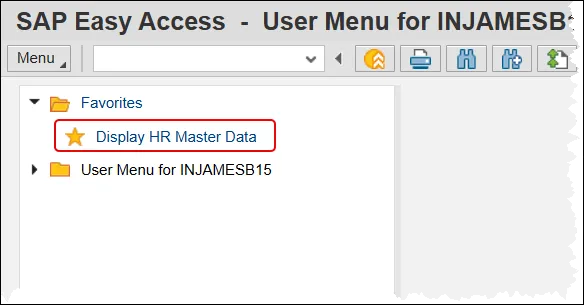
NOTE: Once multiple transactions have been added, you can rearrange them by dragging and dropping with your mouse.
Turning on Technical Names
Transactions are often referred to by their technical names rather than their title. For example, people will refer to transaction ‘PA20’ instead of ‘Display HR Master Data’. Use the following procedure to turn on the technical names. There are 2 steps to complete this process.
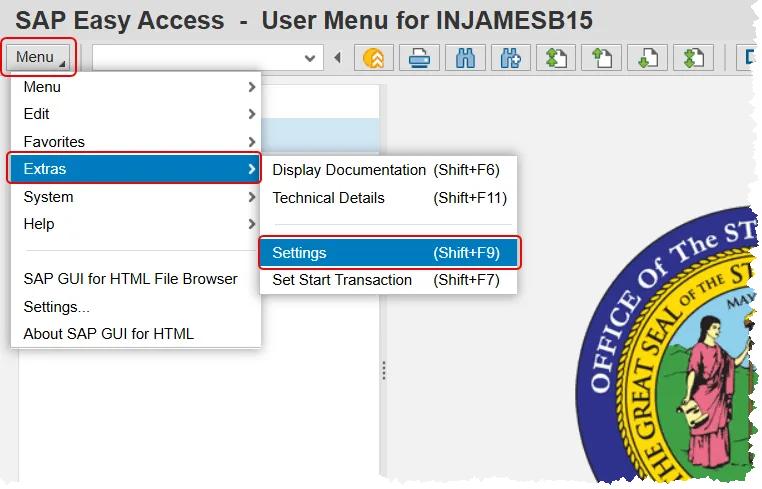
Step 1. From the SAP Easy Access screen, click the menu button. Hover over Extras and then select Settings.
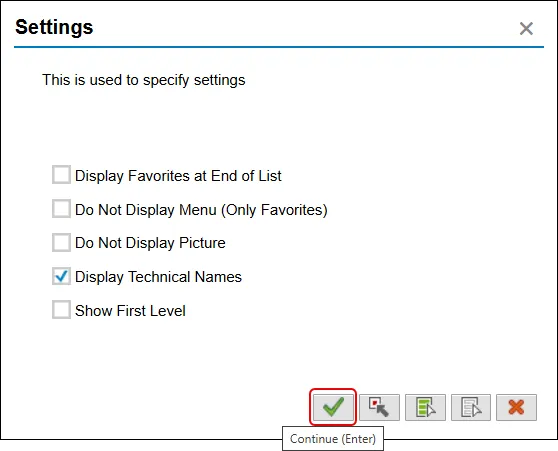
Step 2. The settings Menu will be displayed. Click the check beside Display Technical Names and then click Continue.
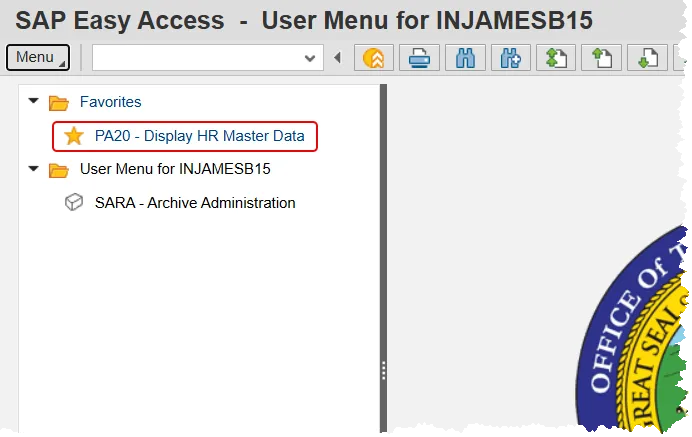
The transaction code will be displayed next to the display title.
Adding Folders to Favorites
Subfolders can be added within the favorites folder to further organize your list of favorite transactions. There are 4 steps to complete this process.
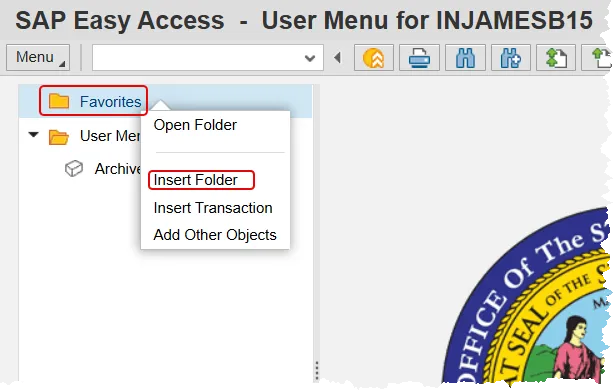
Step 1. From the SAP Easy Access screen, right-click on the Favorites folder and select Insert Folder.
Step 2. Enter the desired title of the folder and click Continue.
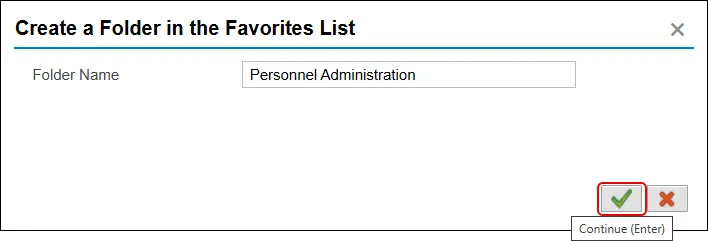
Step 3. The new folder then will be displayed under Favorites.
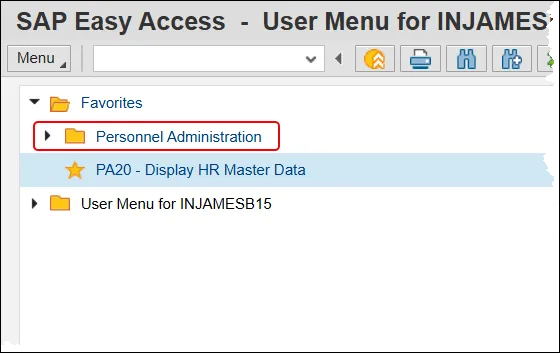
Step 4. You can add transactions to the folder by right-clicking it and selecting Insert Transaction, or by dragging and dropping one from elsewhere in your favorites folder(s).
Changing Favorites Titles
There are 2 steps to complete this process.
Step 1. From the SAP Easy Access Screen, single-click the Favorite you wish to modify and then click the Change Favorites button.
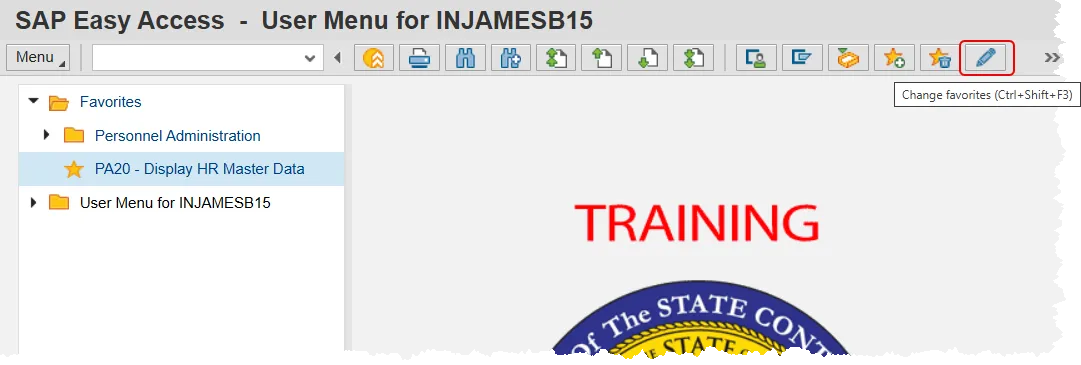
Step 2. Change the display title of the favorite and click Continue.
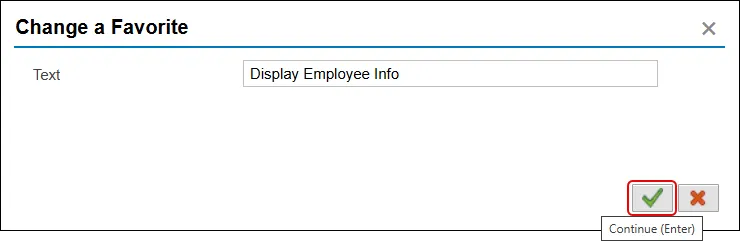
The updated title of the transaction will be updated in your Favorites folder.
Adding a Web Address
You may wish to add a link to a webpage that you visit often while using the Integrated HR-Payroll System. In this example, we’ll link to the HR-Payroll Help Documents page. There are 3 steps to complete this process.
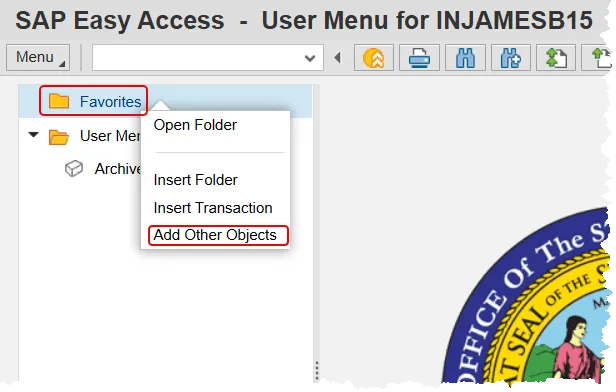
Step 1. From the SAP Easy Access Screen, right-click the Favorites folder, then select Add Other Objects.
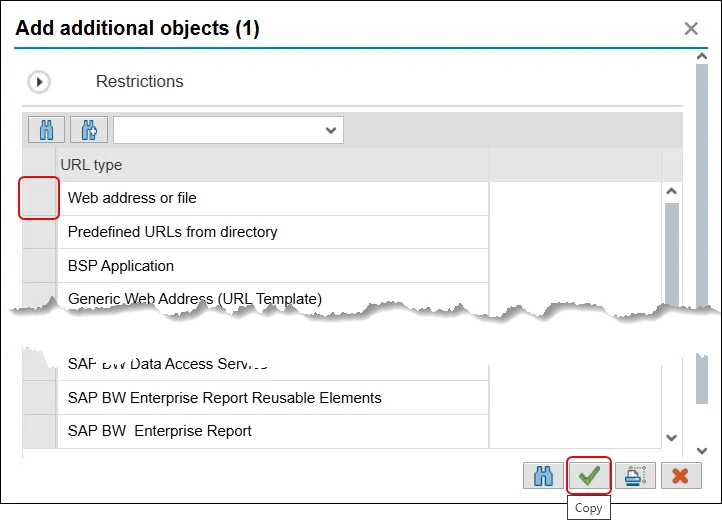
Step 2. Select Web Address or file by clicking the gray box to its left, then click the Copy button.
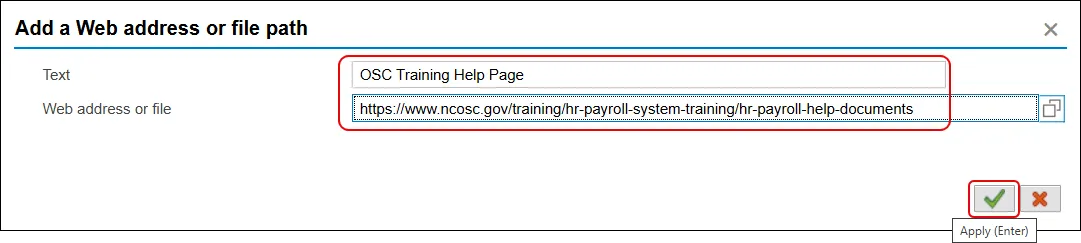
Step 3. Enter the text you’d like to display as well as the webpage URL, and then click the Apply button.
The web address will be displayed under your Favorites folder.