Purpose
The purpose of this Report Description is to explain how to generate the Employee History Report.
Report Description
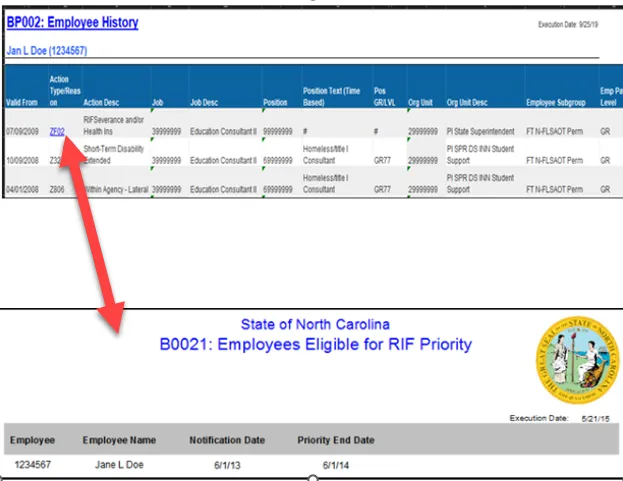
This report provides a consolidated historical view of converted PMIS action and Integrated HR-Payroll System action history for all the position and employee related actions of a specified employee excluding fund information. Data returned is based on the personnel number provided for prompt during report execution. If the personnel number is not known, the BP004: Employee History Lookup report (based on Last4 SSN and Last Name) can be used to obtain the personnel number and provides a hyperlink to jump to this report. BP002 also provides a hyperlink jump to the B0021: Employees Eligible for RIF Priority report which shows the RIF Notification and Priority End Dates.
Report Location
Cross Agency Verification
Report Uses
This report can be used to obtain historical information on an employee’s work history. You must know the employee’s personnel number to run the report.
How to Generate This Report
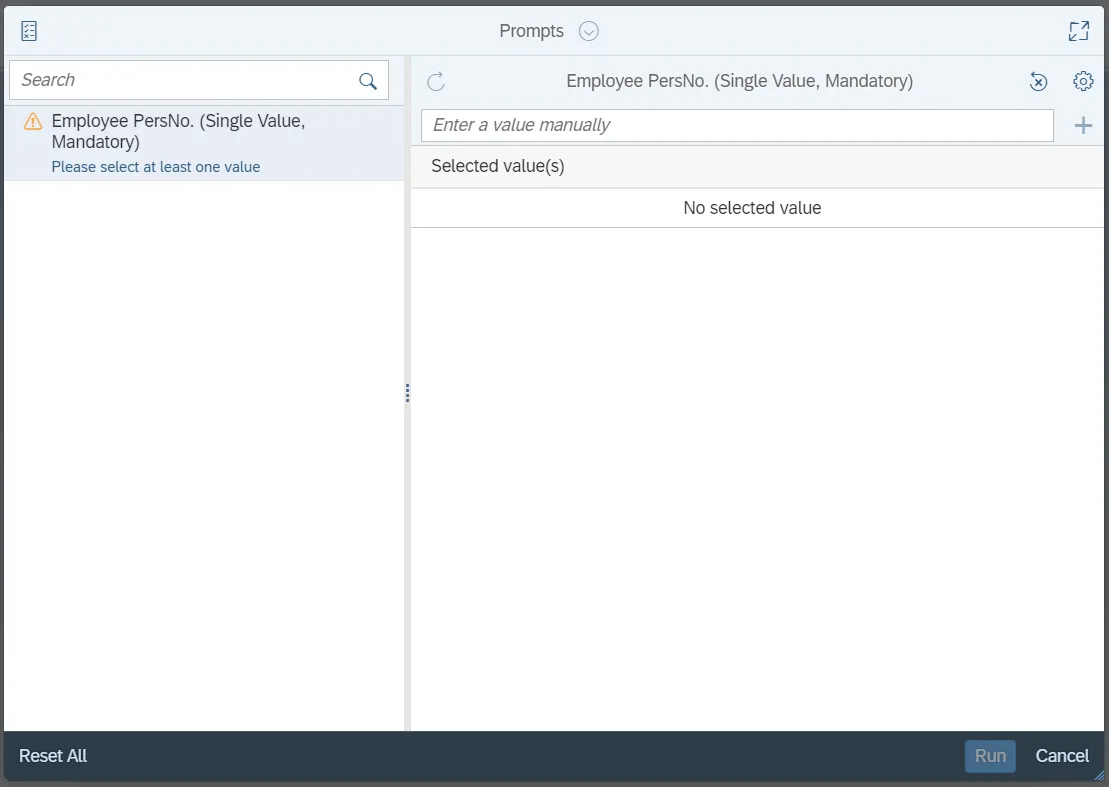
This report is generated after selecting values for the mandatory prompts. All mandatory prompts must have values selected before the Run Icon can be used to generate the report. Mandatory prompts can be identified as mandatory by the exclamation mark inside of the yellow-orange triangle, the square with the checkmark, or the display of (Mandatory). Detailed instructions for interaction with each prompt can be found on the Web Intelligence Prompt List on the OSC website.
The Mandatory prompt for this report is:
- Employee PersNo.
Initial Layout
The report generates the action history for the employee selected. Below is a sample of the initial layout rendered.
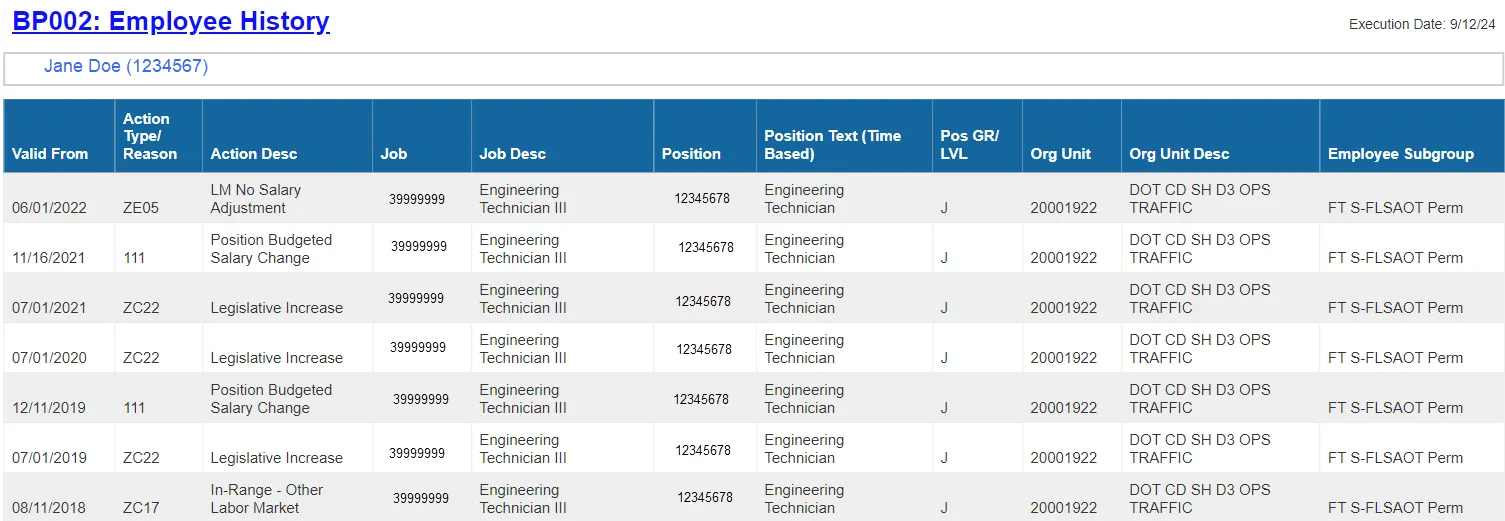
- The hyperlink from BP002 will be active only for RIF related action (ZF02, ZG06, and ZG28). RIF priority data will be available only for RIF actions entered in the Integrated HR-Payroll System (not the legacy PMIS system).
Available Objects
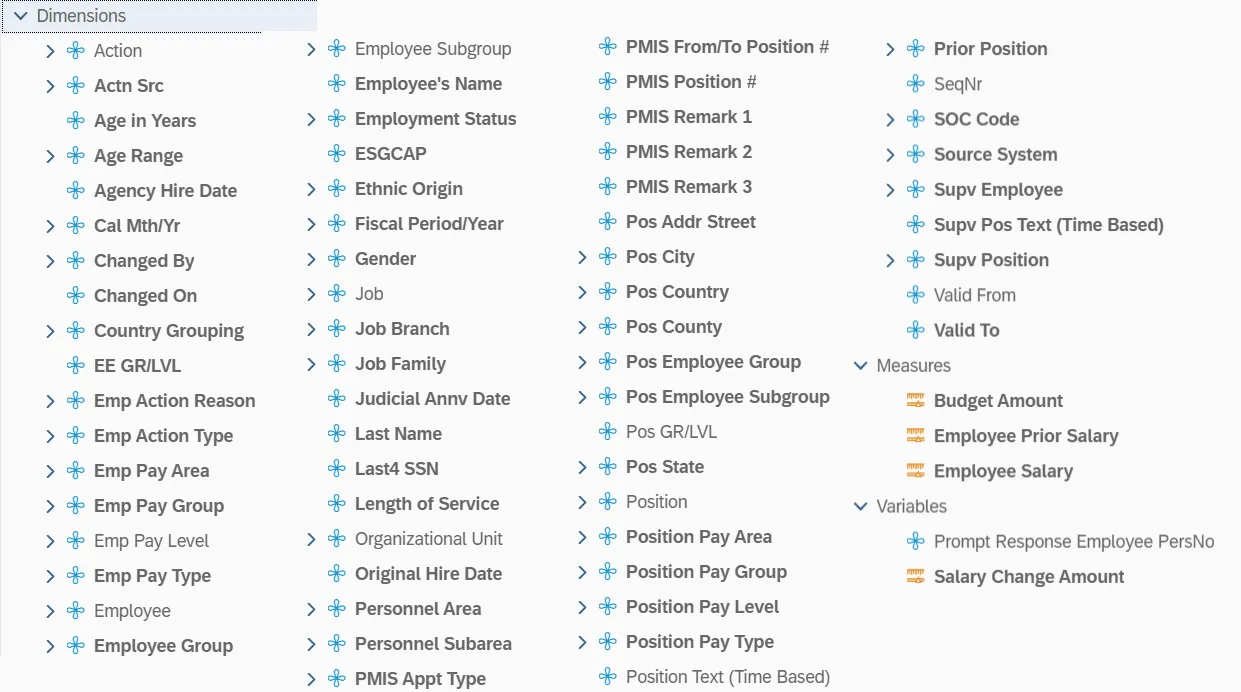
This is a list of the available objects that can be added to the report, once in Design mode:
Dimensions
- Action
- Actn Src
- Age in Years
- Age Range
- Agency Hire Date
- Cal Mth/Yr
- Changed By
- Changed On
- Country Grouping
- EE GR/LVL
- Emp Action Reason
- Empl Action Type
- Emp Pay Area
- Emp Pay Group
- Emp Pay Level
- Emp Pay Type
- Employee
- Employee Group
- Employee Subgroup
- Employee’s Name
- Employment Status
- ESGCAP
- Ethnic Origin
- Fiscal Period/Year
- Gender
- Job
- Job Branch
- Job Family
- Judicial Annv Date
- Last Name
- Last4 SSN
- Length of Service
- Organizational Unit
- Original Hire Date
- Personnel Are
- Personnel Subarea
- PMIS Appt Type
- PMIS From/To Position #
- PMIS Position #
- PMIS Remark 1
- PMIS Remark2
- PMIS Remark 3
- Pos Addr Street
- Pos City
- Pos County
- Pos County
- Pos Employee Group
- Pos Employee Subgroup
- Pos GF/LVL
- Pos Sate
- Position
- Position Pay Area
- Position Pay Group
- Position Pay Level
- Position Pay Type
- Position Text
- Prior Position
- SeqNr
- Soc Code
- Source System
- Supv Employee
- Supv Pos Text (Time Based)
- Supv Position
- Valid From
- Valid To
Measures
- Budget Amount
- Employee Prior Salary
- Employee Salary
Variables
- Prompt Response Employee PersNo
- Salary Change Amount
Special Report Considerations/Features
Action records in PMIS have been converted to the Integrated HR-Payroll System action code equivalent for both employee and position actions. Where no equivalent was available for an employee action, a Z# or X# employee action type was generated using the original PMIS action description. Where no equivalent was available for a position action, a 9## position action type was generated utilizing the original PMIS action description.
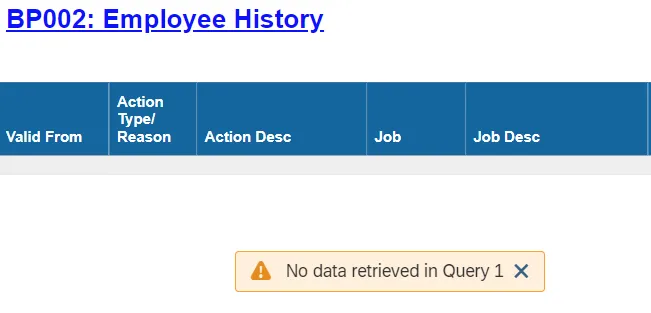
- For security reasons, this report does not support personnel number searches. If an incorrect personnel number is entered, the report may display blank.
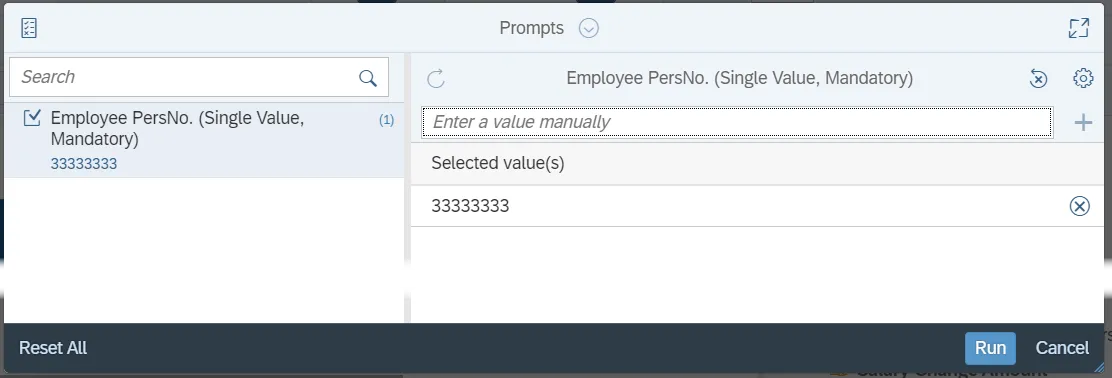
- When an invalid personnel number is used on the prompt, the report may render the “No data retrieved in Query 1” error.
- If the personnel number is not known, the BP004: Employee History Lookup report (based on SSN Last4 and Last Name) can be used to obtain the personnel number and provides a hyperlink to jump to this report.
- Data elements from Master Data Attributes are shown based on the Key Date set for this report. Key Date for this report is set as Current Date so all master data elements will show current values.
- If one or more completed PCRs exist for an action, the “Processed Date” available object is populated with the “changed on” date from the most recent completed PCR. If no completed PCR exists for the action, then the Processed Date is populated with the “Changed on” date from the action. Also, the “Changed By” available object is populated with the user who made the change on the completed PCR. If no completed PCR exists for the action, then the Processed Date is populated with the “Changed on” date from the action, and the “Changed by” is populated with the user who made the change on the action.