Purpose
The purpose of this job aid is to see a list of Temporary employees in the Integrated HR-Payroll System who are newly eligible to enroll in the High Deductible Health Plan.
In support of Affordable Care Act rules, Temporary employees’ time will be measured over a 12-month look-back period to determine their average weekly hours. Agencies must offer the opportunity to enroll in the High Deductible Health Plan to any employees whose weekly average is calculated to be 30.00 hours or more. The measurement periods end on the last day of a month. The measurement calculation will be performed by an overnight batch job that runs the first 14 days of each month. Agencies should run the ZBNR052 – ACA Reports during that time to see which employees have just been measured and determined to be eligible. If additional time data is entered and approved, the calculation result will be updated nightly until the 14th of the month.
Employees must enroll within 30 days of the end of their measurement period, so identifying eligible employees sooner will give them more time to enroll.
Initial Screen
There are 3 steps to complete this process.
Tip: Click the Program documentation button to see helpful tips and additional details about the options on the initial screen.
The Final Measurement option is selected by default.
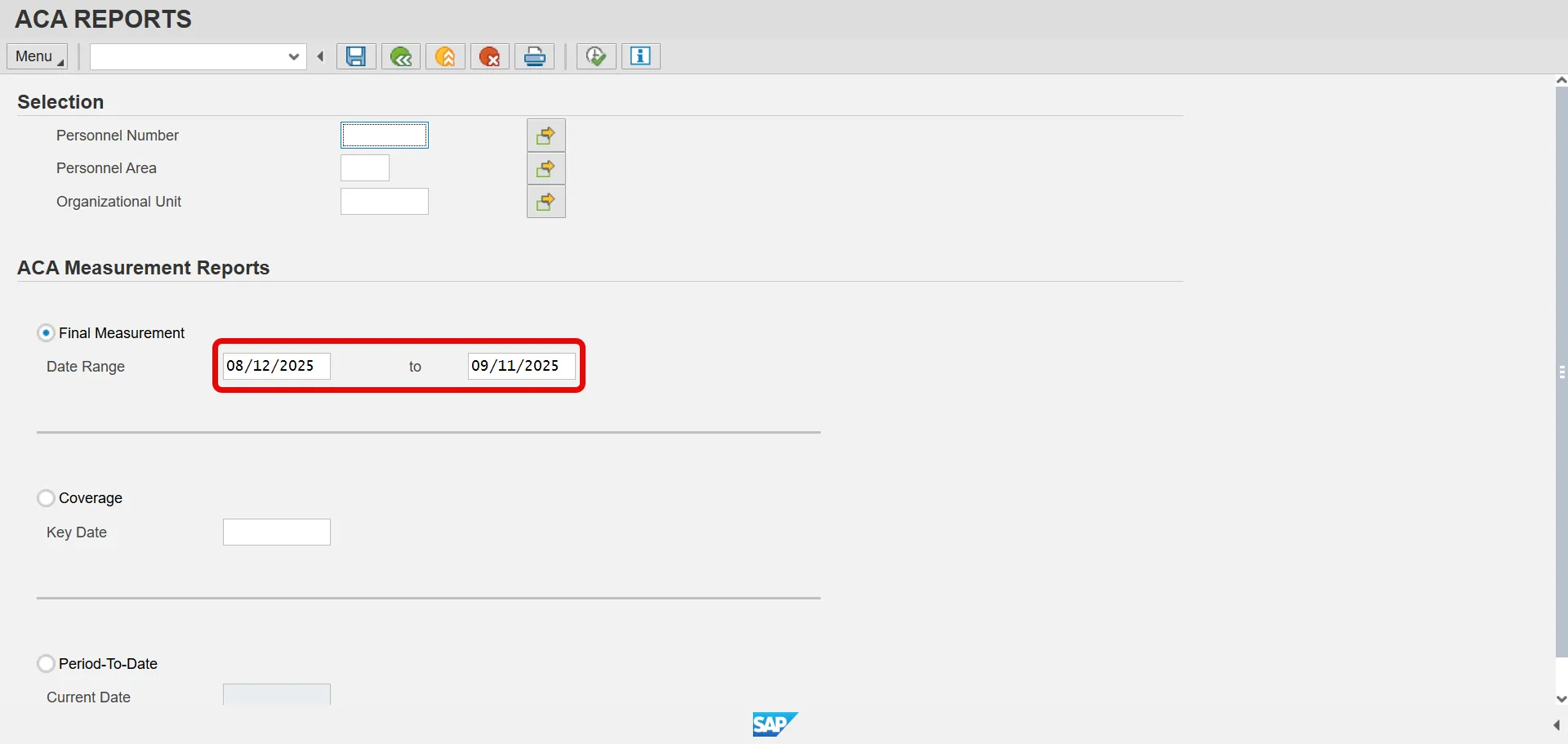
Step 1. Enter employees’ Personnel Number or leave empty to return all employees you have security to see.
Step 2. Click the Execute button.
By default, the Final Measurement Date Range option is selected and will return a list of employees with a measurement period that just ended.
Step 3. View the Final Measurement report results.
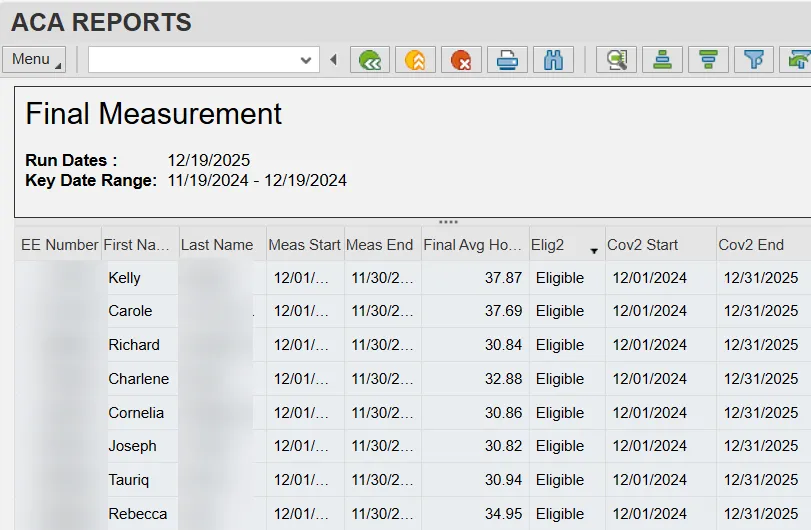
Tip: You may see two rows for the same employee. This situation will occur for Temporaries who were hired prior to November 2013, or who are hired in the month of October. The results are showing a row for both the IMP and SMP record subtypes, which have the same Measurement End dates for these employees. The Subtype field can be added to the results to show this difference.
Tip: To also see employees who are Not Eligible, click the Delete Filter button. This removes the /FINALMEASUR layout which filters for only “Eligible” values in the Elig2 column.
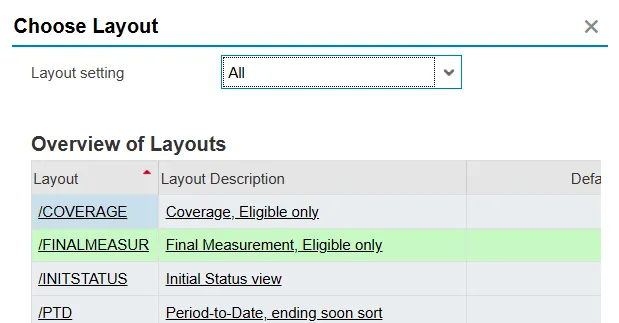
Tip: Click the Choose Layout button and choose the /FINALMEASUR layout while in the Final Measurement report results to the default filter results that just shows the EEs who are Eligible.
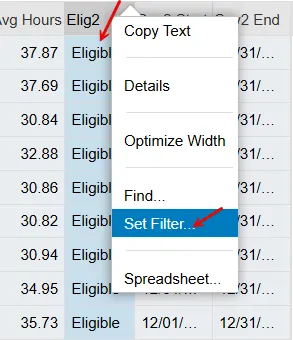
Tip: To directly filter for only Eligible EEs, right-click on a cell with the word Eligible in it and choose the Set Filter… option.
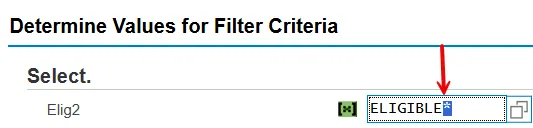
Add an asterisk after the text. Then click the Green Check button.
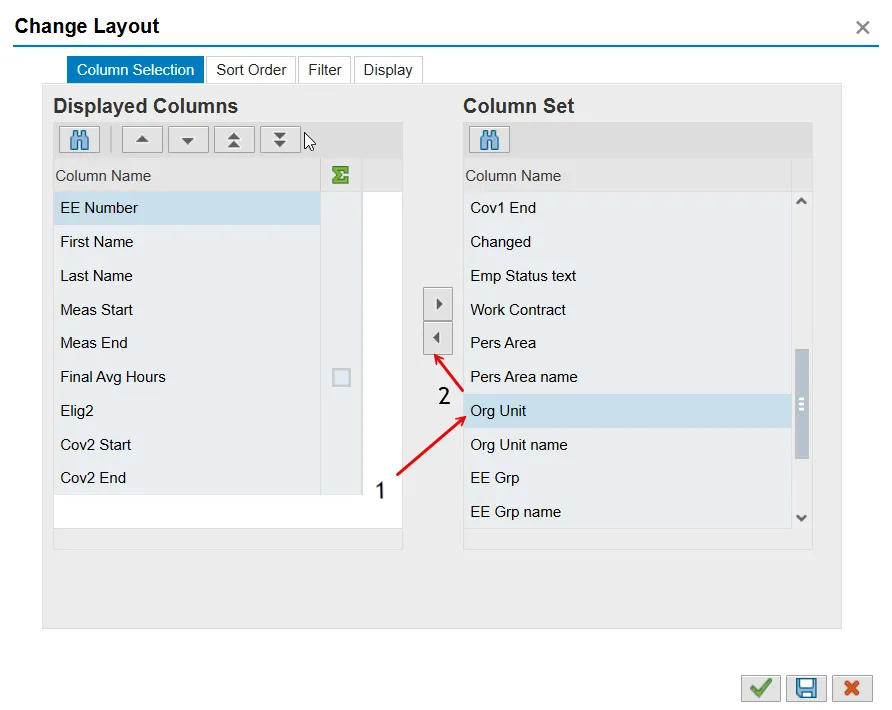
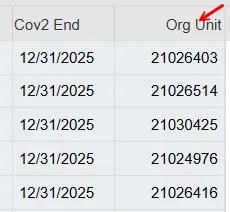
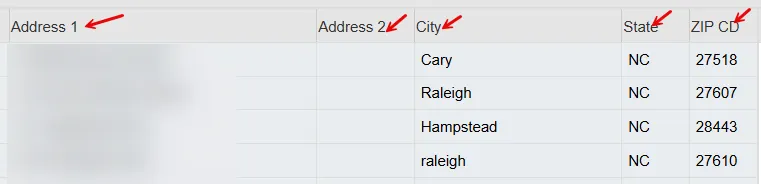
Tip: Additional fields can be added to the report results, such as Org Unit, Personnel Area, the EE’s address, etc. Click the Change Layout button, select a field from the Column Set, and click the Show Selected Fields button. Click the Green Check button.